> ## Documentation Index
> Fetch the complete documentation index at: https://help.dingtalk.io/llms.txt
> Use this file to discover all available pages before exploring further.
# Start AI Minutes
> Five ways to launch AI Minutes on desktop and mobile: quick recording, template-based start, local file upload, in-video-meeting capture, and direct start from DingTalk Docs.
You can generate AI Minutes in several ways, including one-click recording, template-based recording, uploading local files, AI Minutes in video meetings, cloud recording in video meetings, and starting AI Minutes from DingTalk Docs. These options help you efficiently convert audio and video into text.
AI Minutes can be started from mobile, Pad, and desktop clients, including both Windows and Mac, so you can start recording whenever you need it.
***
## Entry Points
## Desktop
On desktop, click the AI Minutes icon in the left navigation bar in DingTalk, or search for AI Minutes from the search box.

Search for "AI Minutes".

Open the AI Minutes home page.

Click AI Minutes in the left navigation bar.
## Mobile
On mobile, tap **Meetings** or **Discover** at the bottom of the DingTalk home screen, then find AI Minutes.
***
## Method 1: Quickly Start AI Minutes
1. Open AI Minutes from the left navigation bar.
2. On the AI Minutes home page, click **Start recording**. The recording will be transcribed into text in real time.
Desktop: Mobile:
During recording, if you switch to another application or click the minimize button in the upper-left corner, the AI Minutes window will automatically collapse into a floating mini window. You can pause or resume recording at any time, making it easier to work across multiple tasks.
***
## Method 2: Start AI Minutes With a Template
If you already know the meeting scenario, click a specific template to start recording directly. AI will use the selected template to better match the meeting context.
Click **More templates** to view 36 professional templates provided by AI Minutes. The templates cover scenarios such as study notes, meeting minutes, daily records, interview reports, customer service, and guided tours, helping you quickly generate clearer and more relevant minutes.

## Create a Custom Template
You can write prompts manually or import a sample for automatic parsing.

After creating a custom template, you can select and use it for recordings.
You can also choose its scope. Personal templates are only available to you, while organization templates are synced to the selected members' AI Minutes template libraries.
***
## Method 3: Upload Local Audio or Video Files
After entering the AI Minutes home page, click **Import file** on the right side of the search box, then add the audio or video files that need to be transcribed.
Batch upload of multiple audio and video files is supported, with no limit on the number of files.

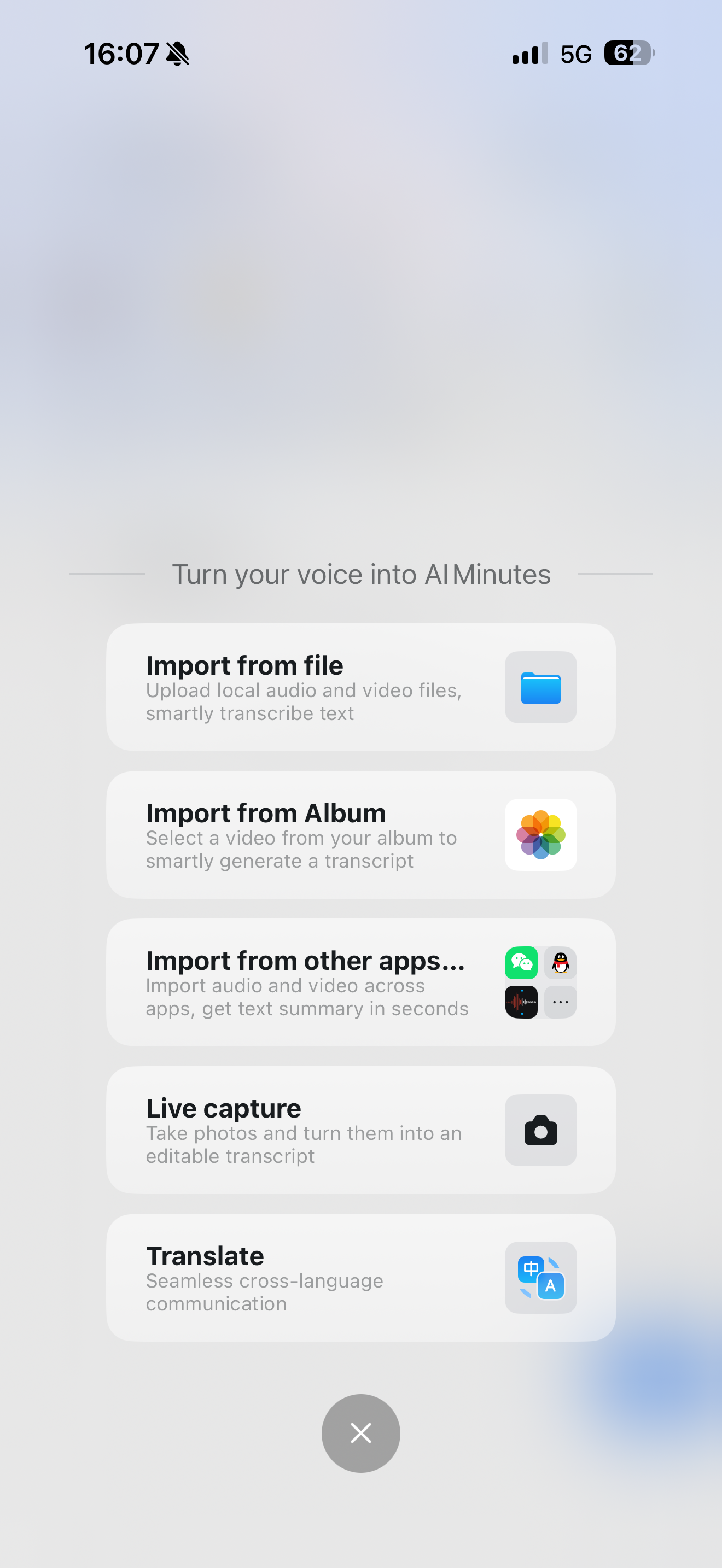
On mobile, tap the + button above the recording button in the lower-right corner, then choose files from your album or another app to import audio or video for transcription.
AI Minutes enables **Auto-detect file language** by default. You do not need to choose the language manually; AI Minutes automatically detects the file language and transcribes it into the corresponding text.
Uploaded files appear at the top of the AI Minutes list and start transcription automatically. After transcription is complete, click the file to view the generated AI Minutes.
***
## Method 4: Start AI Minutes From a DingTalk Video Meeting
## Path 1
Click AI Minutes at the bottom of a video meeting to open the AI Minutes panel on the right. AI Minutes will automatically transcribe the meeting and display the transcript in real time. You can manually turn AI Minutes off or on again. After the meeting ends, the owner of the transcript file will receive the AI Minutes file from AI Minutes Assistant.

## Path 2
After starting a DingTalk video meeting, the host can click **Record > Cloud recording** in the bottom toolbar to record the meeting. Participants can click **Record > Cloud recording** to request that the host start recording.
After the meeting ends, the recording file owner will receive the AI Minutes file from DingTalk AI Minutes Assistant.

***
## Method 5: Start AI Minutes From DingTalk Docs
Open a DingTalk Doc, click the insert button, find and select AI Minutes, and insert the AI Minutes tool into the document. Click **Start AI Minutes** to begin real-time recording and transcription.
The transcribed recording text can be exported as text and inserted into the document for further editing and organization.