> ## Documentation Index
> Fetch the complete documentation index at: https://help.dingtalk.io/llms.txt
> Use this file to discover all available pages before exploring further.
# Advanced settings
> Learn the prerequisites and configuration steps for advanced settings in DingTalk OA Approval, including initiator and approver rules such as withdrawal, modification, selecting approvers after submission, and submitting on behalf of others. Help admins fine-tune approval process behaviors.
## 1. Overview
Admins can configure advanced settings.
Advanced settings apply to the **current single form**.
Available options include initiator settings, approver settings, data title and summary settings, permission settings, fill-in reminders, and more.
## 2. Prerequisites
* Only Approval Admins can perform process design. You must first become an Approval Admin.
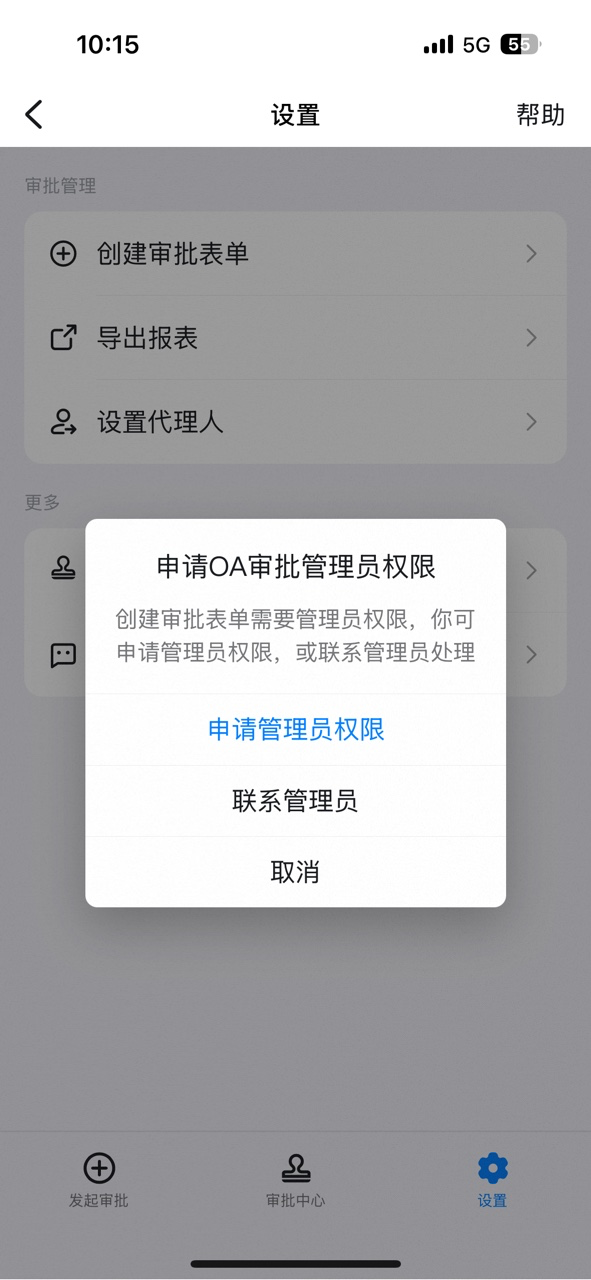
If you are not yet an Approval Admin, open DingTalk OA Approval, click **Settings**, click **Create Approval Form**, click **Apply for Admin permissions**, and then click **Submit**.


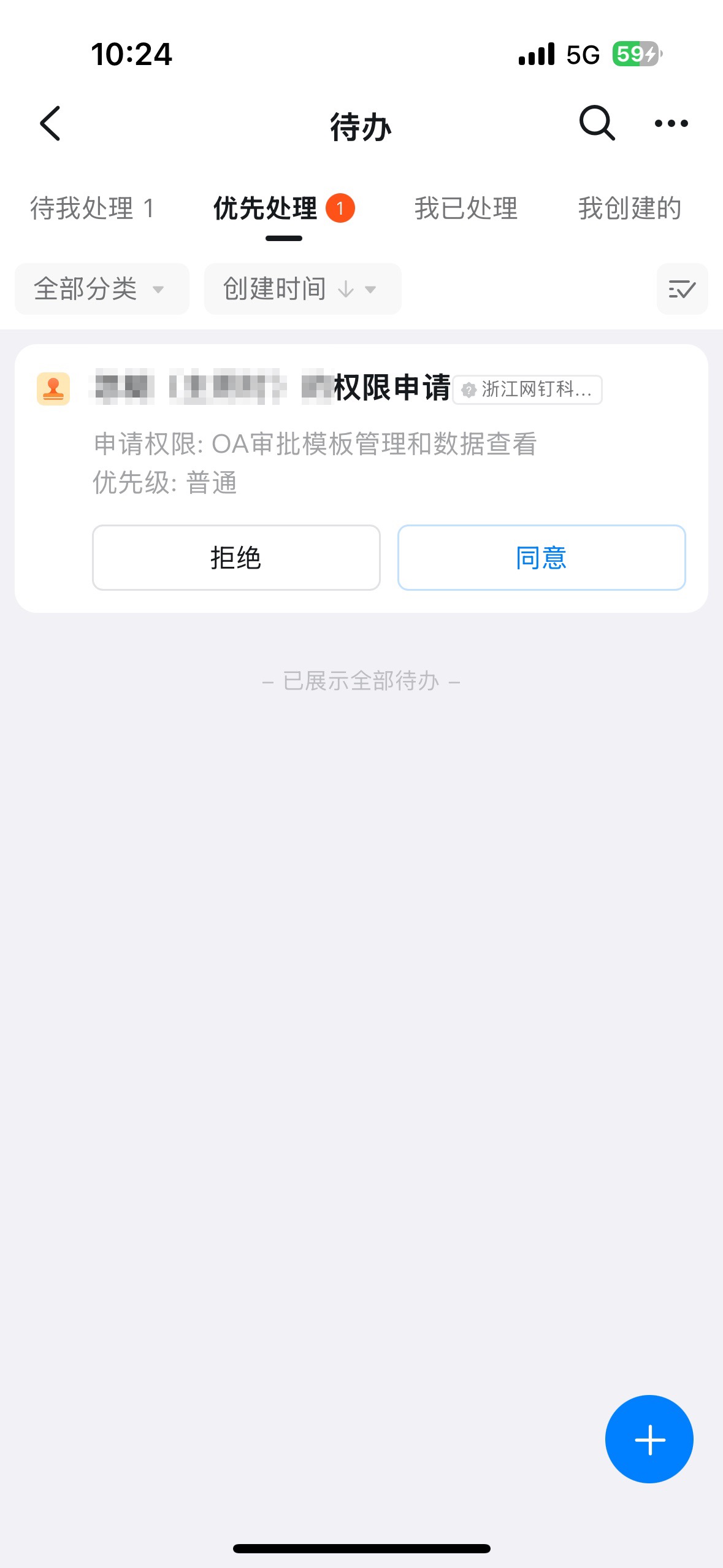
Once the admin receives and approves the request, the employee automatically gains Approval Admin permissions.
## 3. Steps
### 3.1 Open advanced settings
On the **Approval Admin Console** > **Form management** page, click **Edit** in the Actions column of the form.
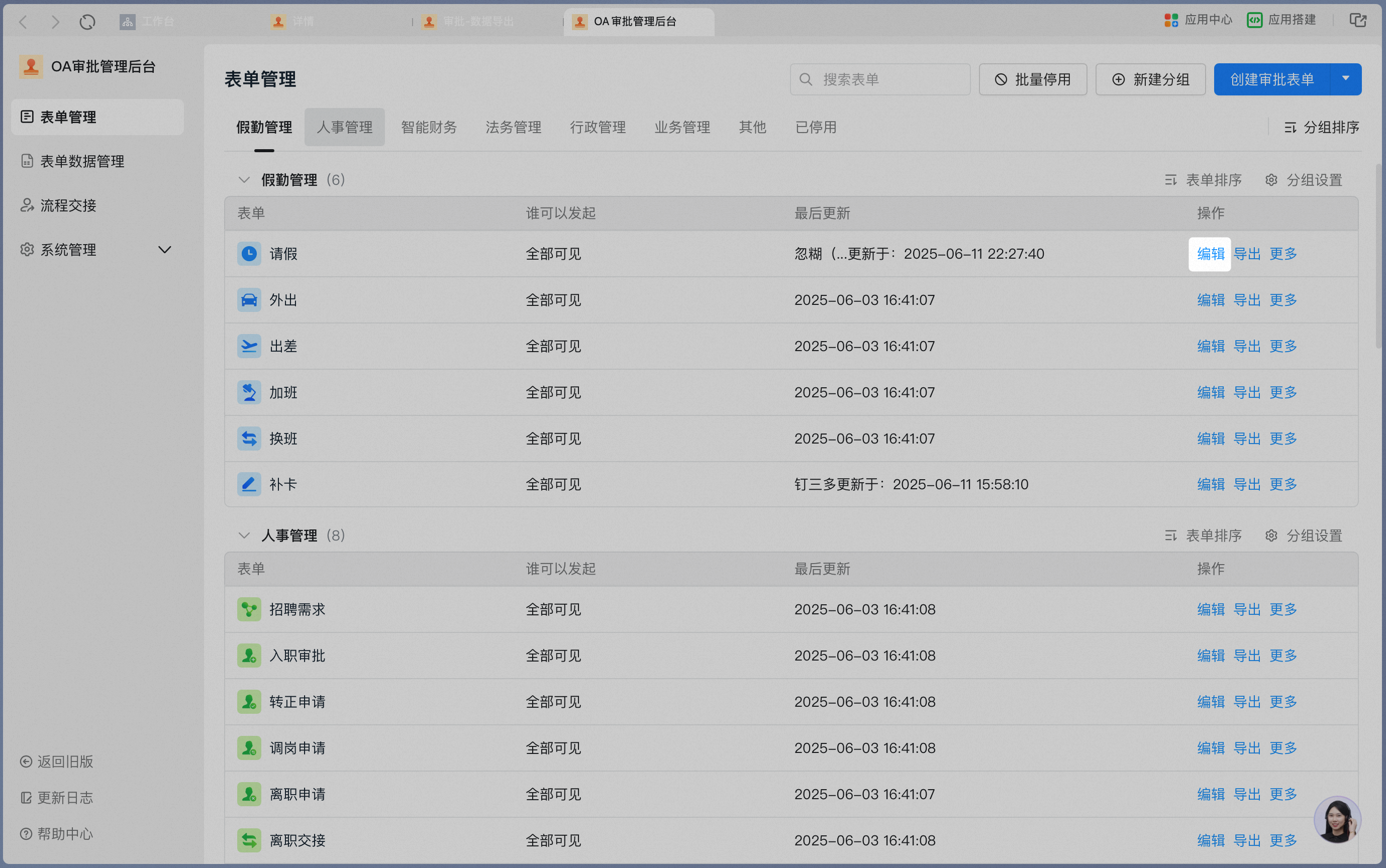
Click **Advanced settings** to open the main advanced settings page.

### 3.2 Initiator settings
All options in this section apply only to the **initiator and commenter** of the **current form**.

Allow initiators to withdraw approved approval forms.
Default: Not allowed.
Range: Within 1–180 days after approval.
Allow initiators to withdraw approval forms that are in progress.
Default: Allowed.
Range: Not configurable, up to 180 days.
Allow commenters to withdraw comments on a form.
Default: Allowed, not editable.
Range: Within 1–30 minutes after commenting.
Allow initiators to modify approved approval forms.
Default: Not allowed.
Range: Within 1–180 days after approval, with 1–3 modifications.
When enabled: Initiators can modify approval forms.
Allow initiators to submit an approval form first and then select approvers.
Default: Allowed.
Allow initiators to send approval forms to a Group Chat or Direct Message.
Default: Allowed.
Set the default department when an initiator belongs to multiple departments.
Default: Manual selection at submission.
Can be set to use the primary department from the **Smart HR** app.
Allow the current process to be initiated by another person on behalf of someone else.
Default: Not allowed.
When enabled: Others can submit on behalf.
### 3.3 Approver settings
All options in this section apply to approvers.

When the same approver appears multiple times, deduplicate them.
Default: No deduplication.
Options:
* When the approver appears multiple times in the process, keep only the first occurrence.
* Deduplicate automatically only when they appear consecutively.
When the approver and the initiator are the same person, approve automatically.
Default: Off.
Require approvers to enter approval comments.
Default: Off.
Range: You can set a prompt for entering approval comments.
Approver comments are visible only to the admin and the approver.
Default: Off.
When enabled: Approval comments are hidden from the initiator.
Control whether approvers can add more approvers during the approval process.
Default: Allowed.
Allow initiators to add approvers.
Default: Not allowed.
Control whether approvers must provide a handwritten signature before approving.
Default: Off.
Options:
* Reuse previous signature: After signing once, the same signature can be reused in later approvals.
* Sign again each time: A new handwritten signature is required for every approval.
When an approval is declined, notify previous approvers who approved.
Default: On.
When an approval is declined, notify other OR approvers at the same node.
Default: On.
When an approval is declined, notify other AND approvers at the same node.
Default: On.
When an approval is accepted, notify other OR approvers at the same node.
Default: On.
Choose whether the approval needs to restart after being returned and resubmitted.
Default: Restart the approval from the beginning.
Paid capability: Skip already-approved nodes and return to the node where the form was returned.
Paid capability.
Default: Off.
Paid feature.
### 3.4 Data title/summary
#### 3.4.1 Title settings
**Default**: Uses the format "Submitter's Form Name".

**Custom mode**: Customize the title using fields within the form.

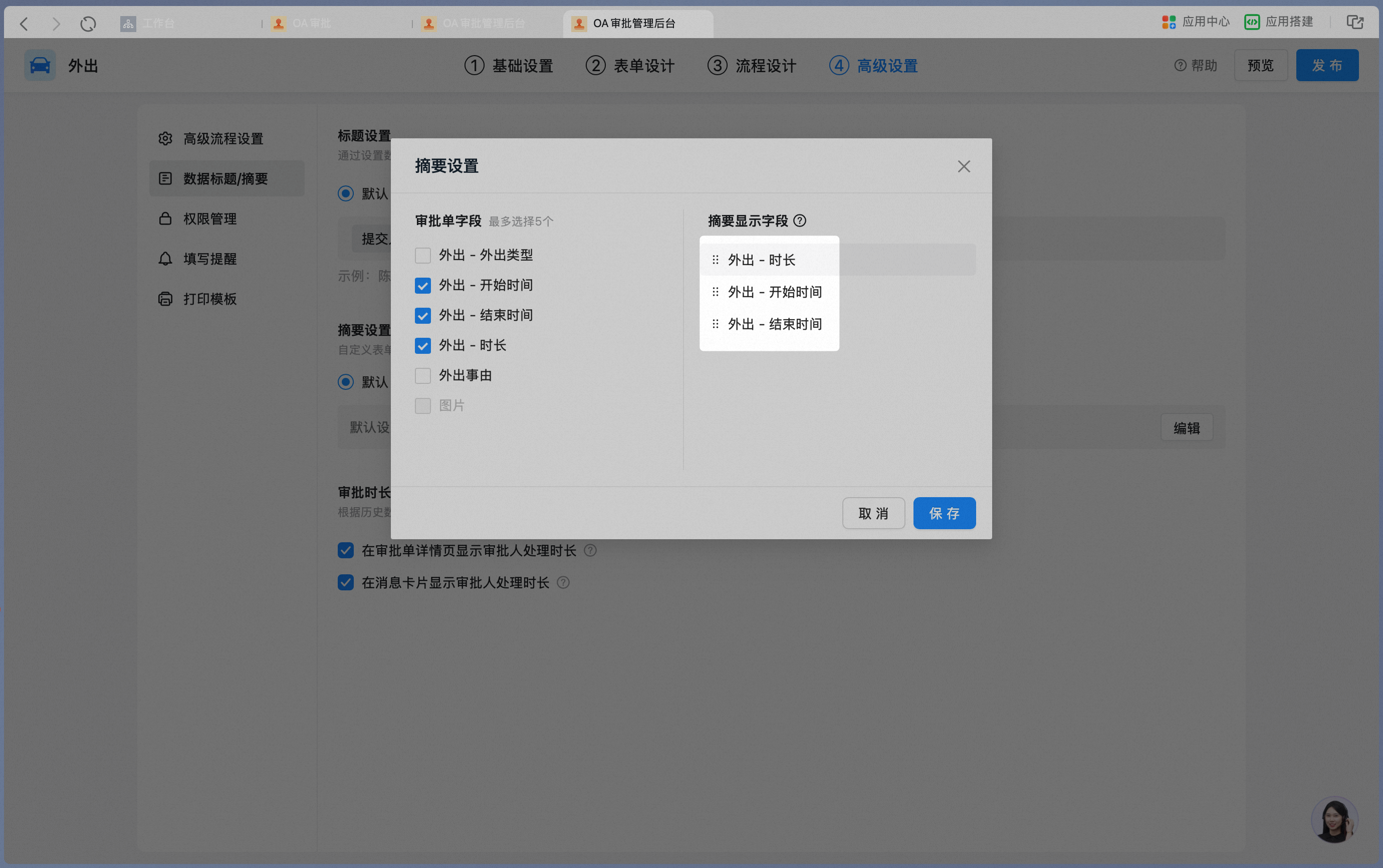
#### 3.4.2 Summary settings
**Default**: Displays the first 5 fields in the form, with required fields prioritized.

You can select which controls to display.

You can also drag to reorder the display sequence.
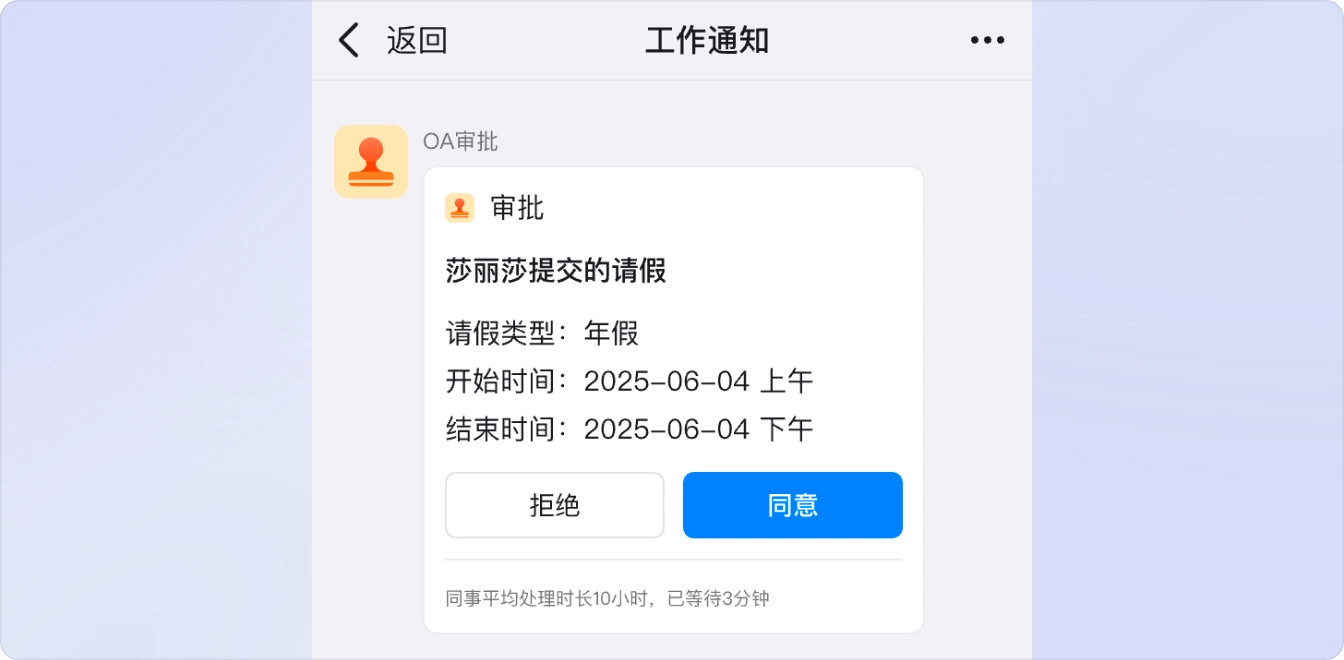
#### 3.4.3 Approval duration display settings

Display approver processing time on the approval form details page.

Display approver processing time on the message card.
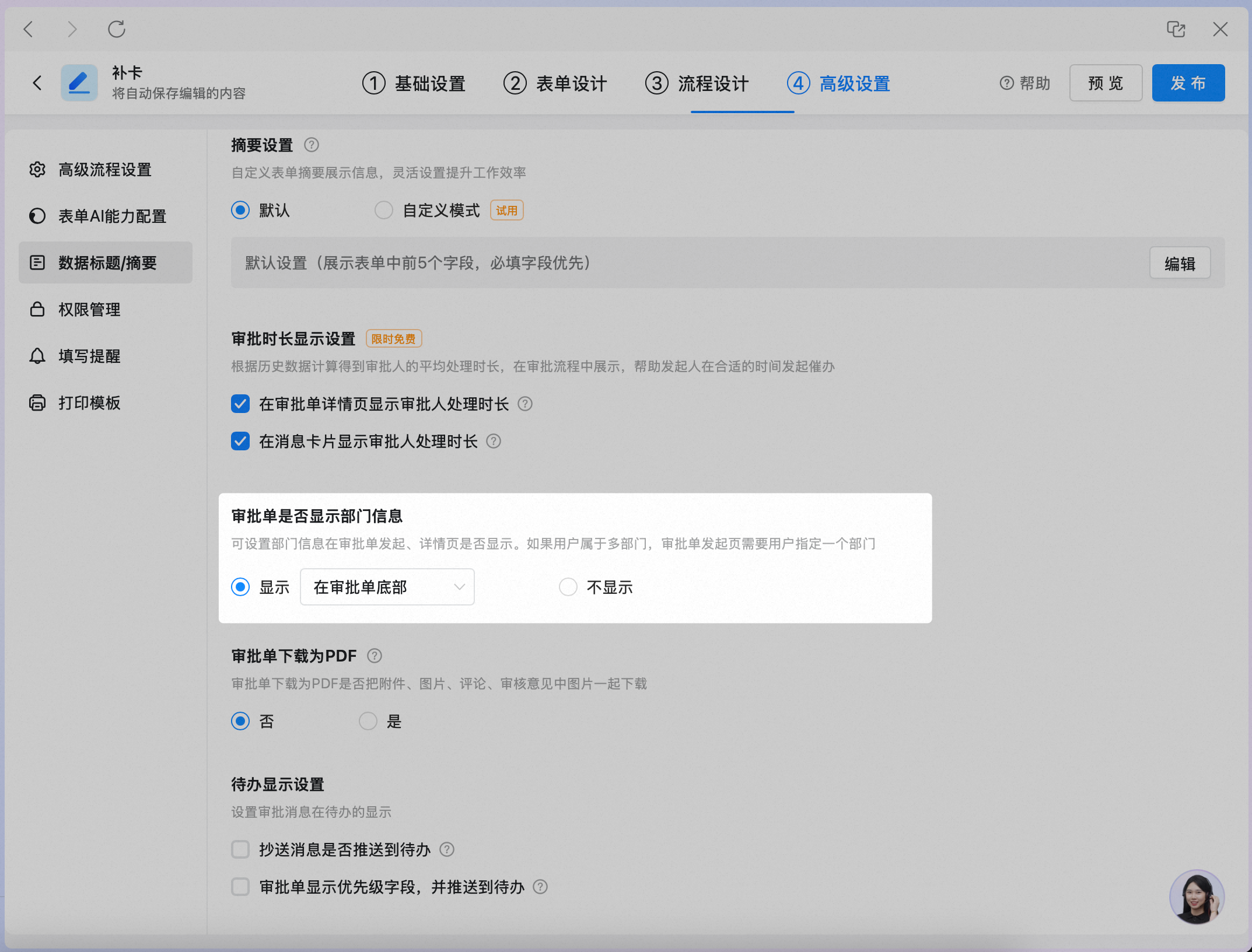
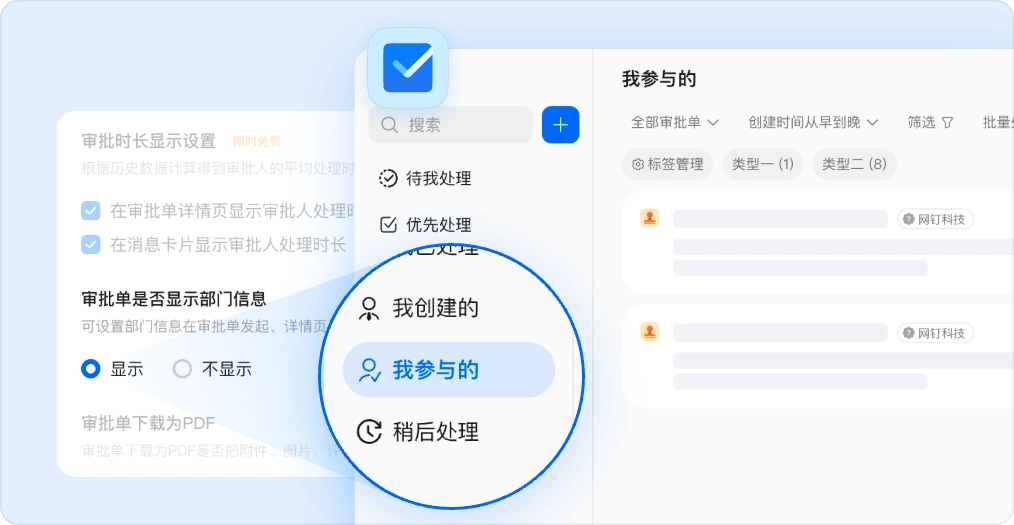
#### 3.4.4 Whether to display department information on the approval form
**Default**: Displayed at the bottom of the approval form.
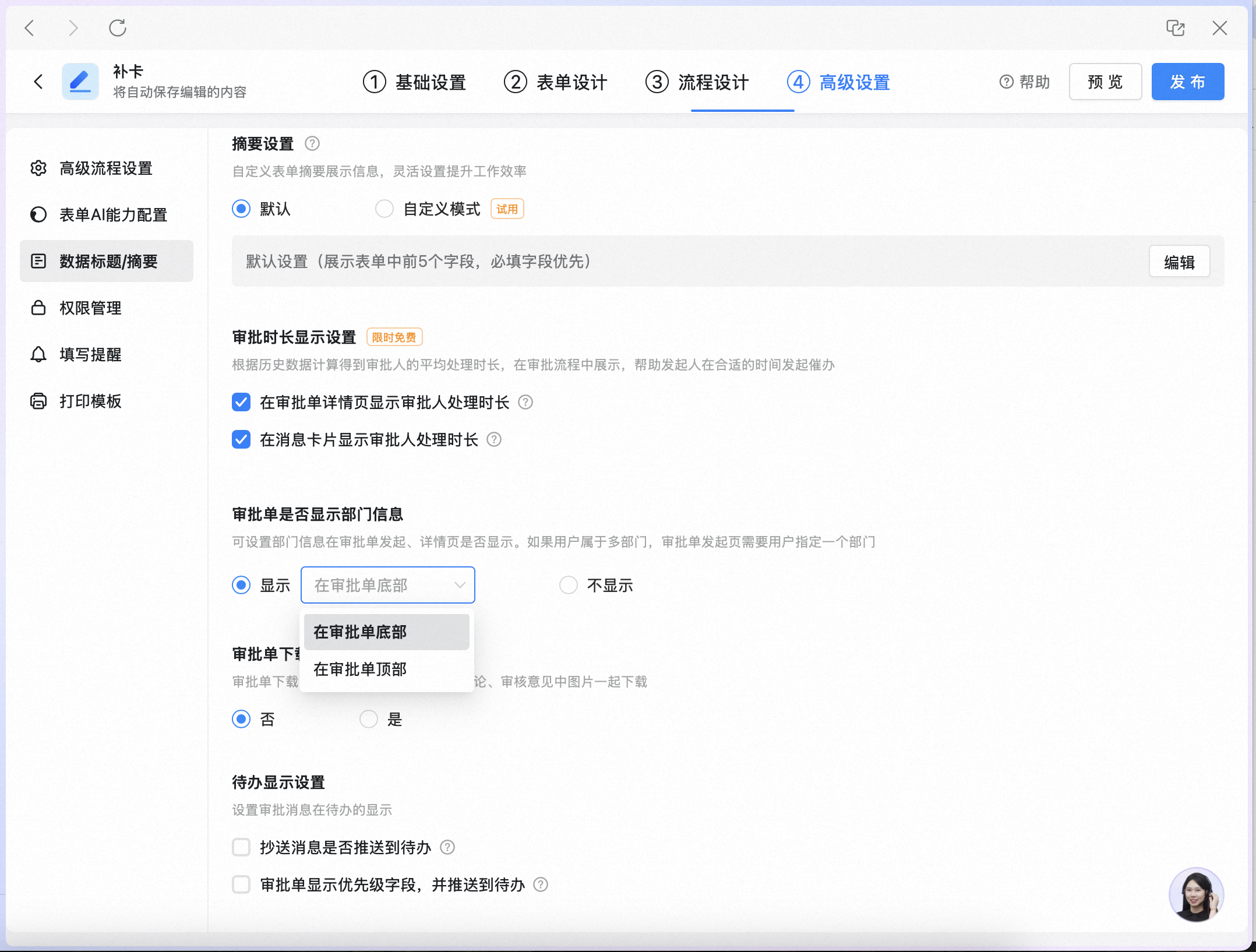
**Custom capability**: Can be set to display at the top of the approval form.
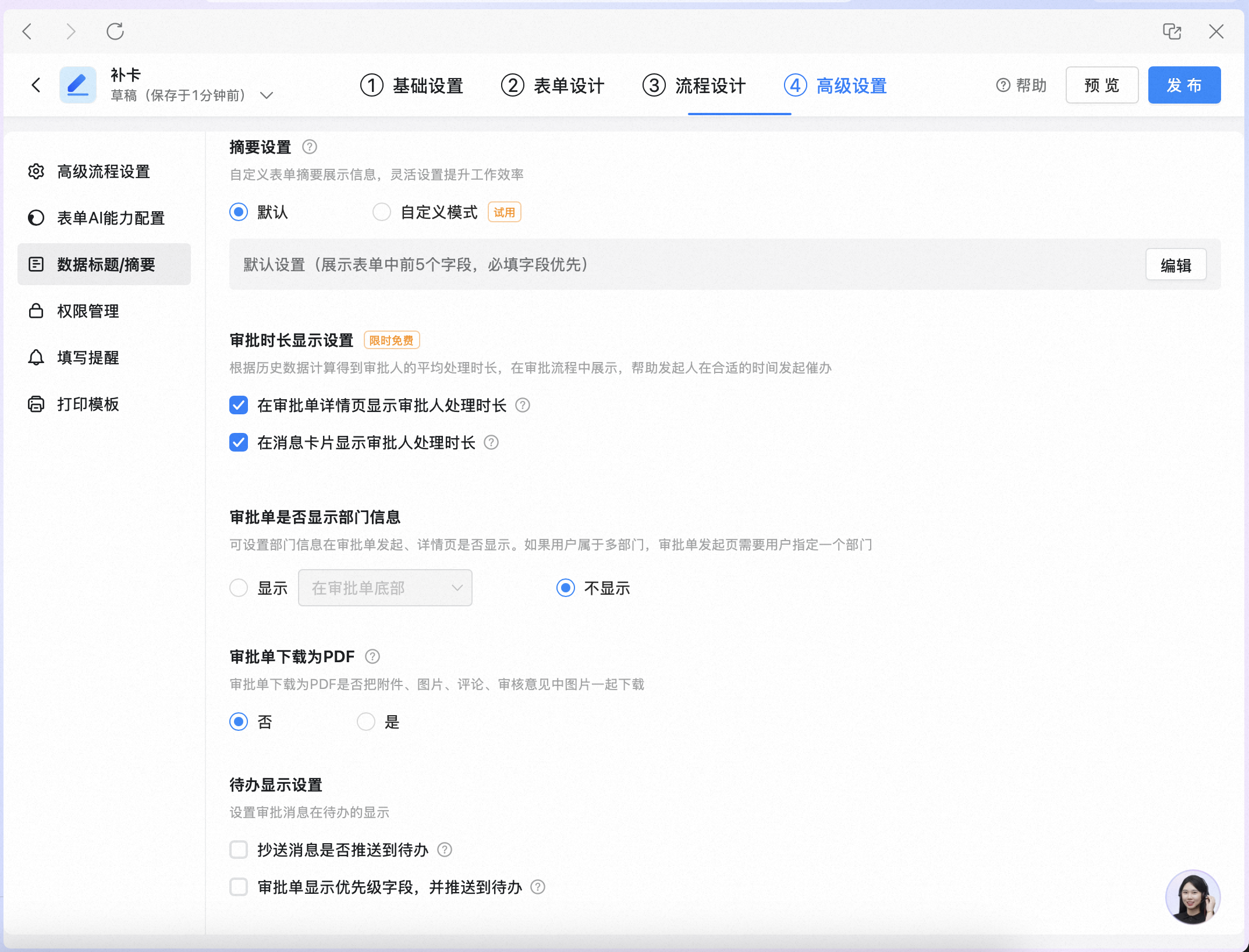
**Paid capability**: Can be set to hidden.
#### 3.4.5 Download approval form as PDF
**Default**: Images in the approval form are not downloaded together.

**Custom setting**: When downloading the PDF, also download attachments, images, and images in approval comments.
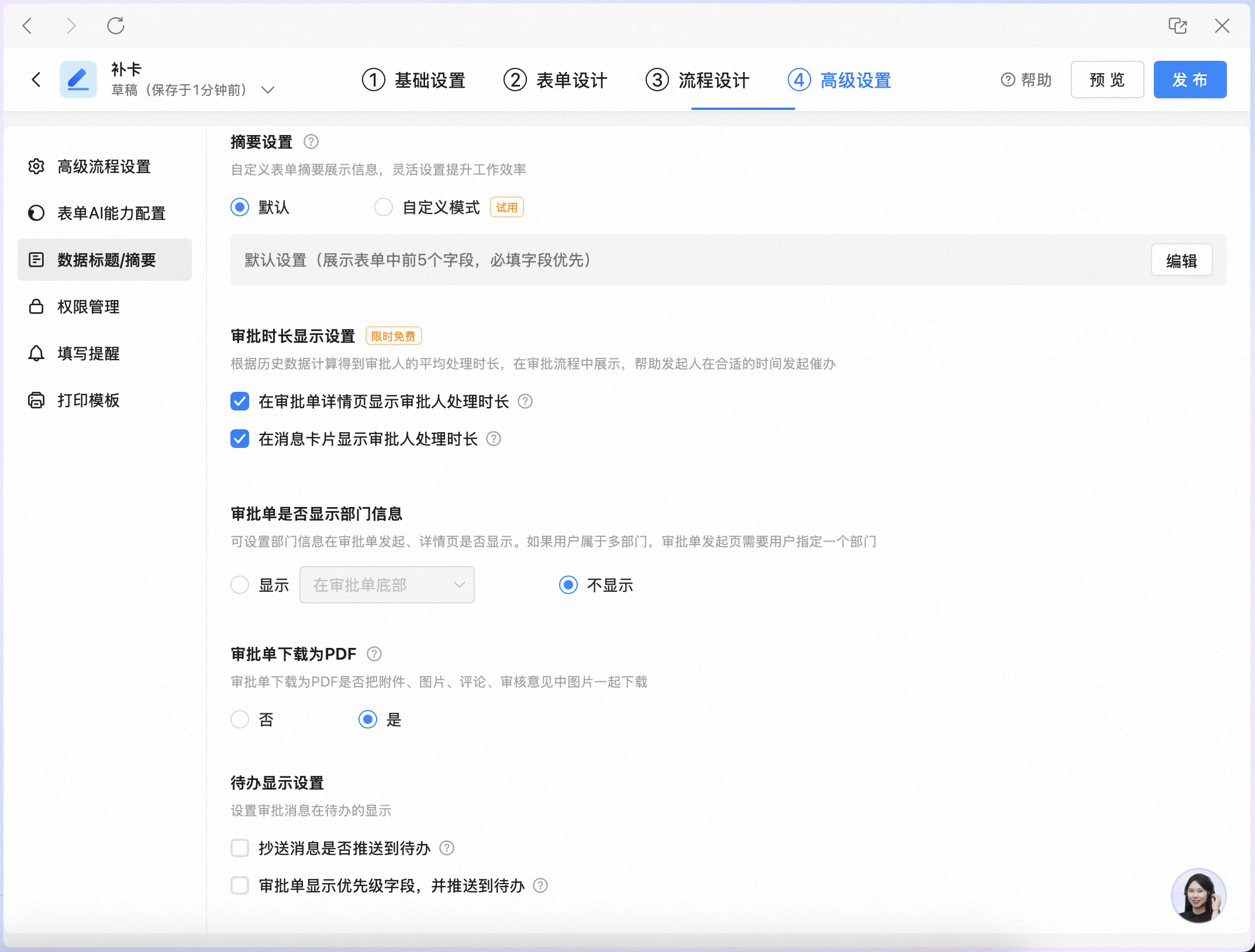
#### 3.4.6 To-Do display settings
**Default**:
* CC'd approval forms are not pushed to To-Do.
* The priority field is not displayed on the approval form, and the form is pushed to To-Do with the default priority.
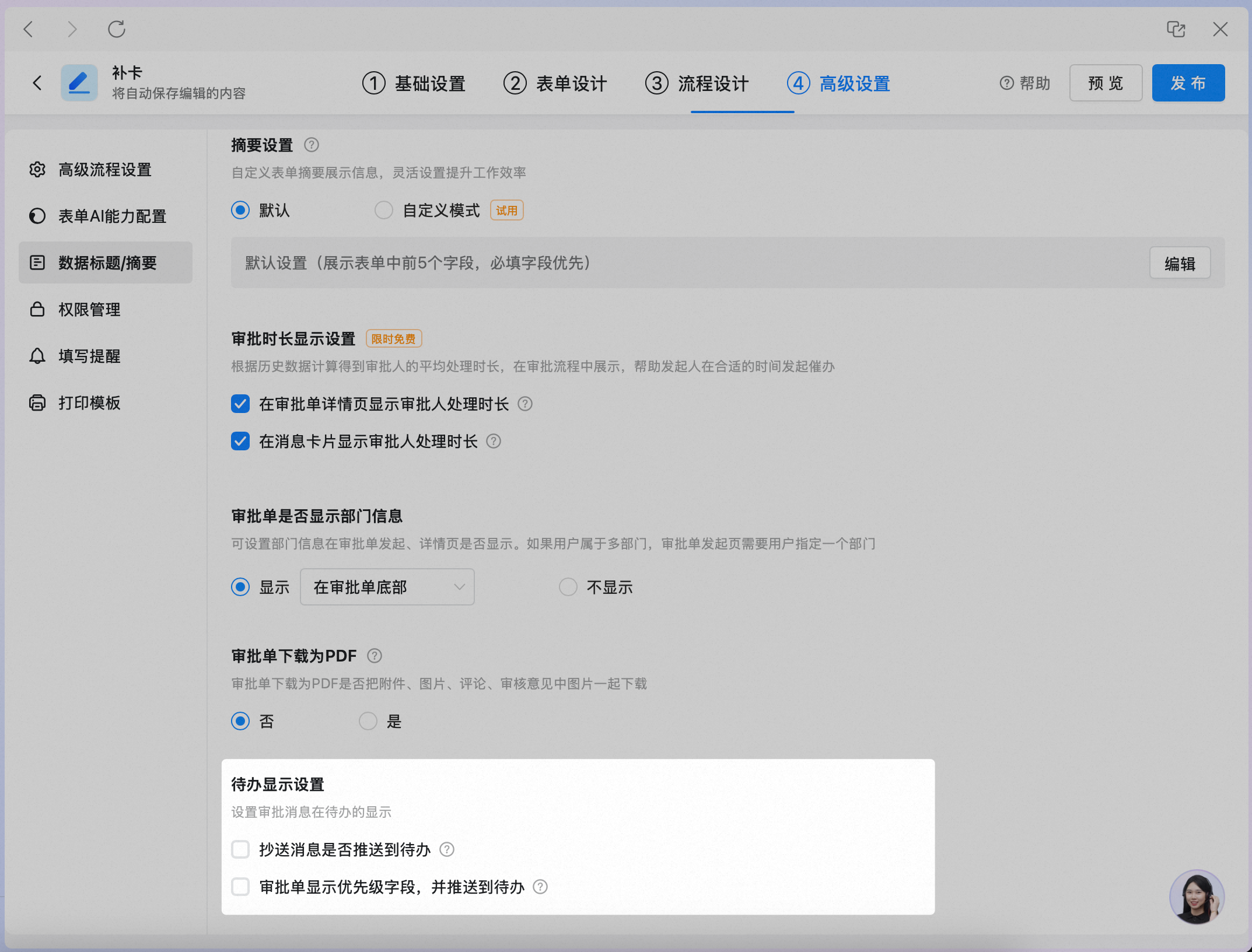
**Custom setting**: Push CC'd approval forms to To-Do.

When enabled, CC'd approval forms appear under "Involved" in To-Do.
**Custom setting:** Display the priority field on the approval form and push it to To-Do.
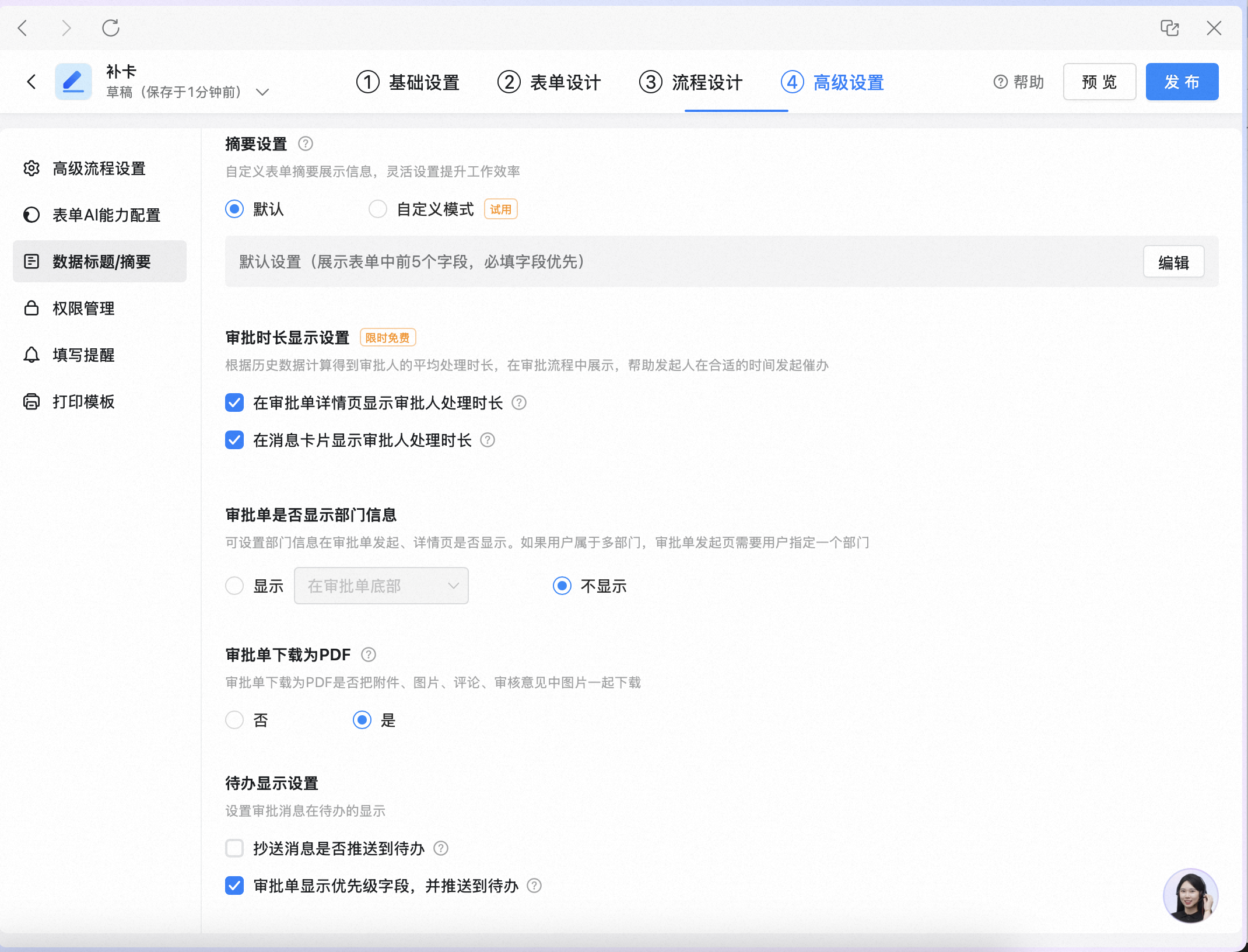
When enabled, select the priority for the item on the approval form, and this priority is synced to To-Do.

### 3.5 Manage permissions
Permission settings apply only to viewing data within the app. They do not apply to the Admin Console.
Note: If you remove an admin's data viewing and operation permissions here but set them as unable to manage in **Form admins** under Basic settings, the admin can no longer operate data within the app. However, the admin can **still view and delete data in the Admin Console**.
**Entry points**
Within the OA Approval app: **Data management**.

Form: **History**.

**Default permission group: All OA Approval admins**
They can view, export, and delete approval data for the entire company.

**Management scope**
| Scope | Description |
| -------------- | -------------------------------------------------------------------------------- |
| Own | Forms submitted by permission group members themselves. |
| Entire company | Forms submitted by everyone in the company. |
| Same tier | Forms submitted by permission group members and everyone under the same manager. |
| Subordinates | Forms submitted by permission group members and their subordinates. |
| Custom | Forms submitted by permission group members and specified departments or users. |
**Action permissions**
| Action | Description |
| ------ | ----------------------------------------------------------------------------------------------------------------------------------------------------------------------------------------------------------- |
| View | Organization members with this permission can view the list and details of approval forms within their management scope in the OA Approval app under **Data management** and in the form under **History**. |
| Export | Organization members with this permission can export the details list of approval forms within their management scope in the OA Approval app under **Data management** and in the form under **History**. |
| Delete | Organization members with this permission can delete approval data within their management scope in the OA Approval app under **Data management**, in the form under **History**, and on the form itself. |
### 3.6 Fill-in reminders
Set fill-in reminders for initiators. Empty by default.
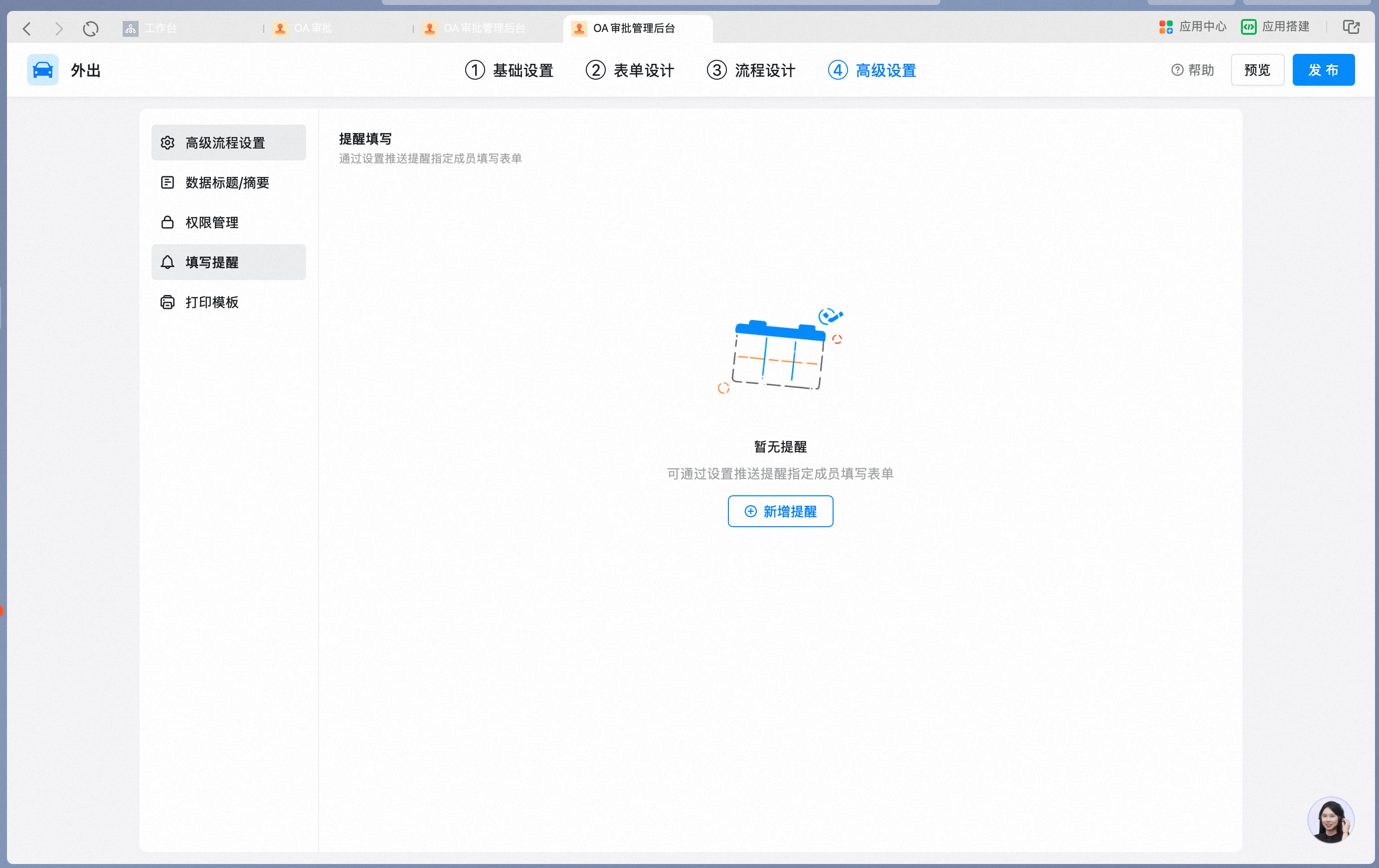
Click **Add reminder**.

Set the recipient, reminder time, and whether to send a DING reminder.
