> ## Documentation Index
> Fetch the complete documentation index at: https://help.dingtalk.io/llms.txt
> Use this file to discover all available pages before exploring further.
# Admin Handbook Overview
> An overview of the DingTalk OA Approval Admin Handbook: core product capabilities plus step-by-step guidance for admins on obtaining permissions, configuring and managing approval forms, and managing data — helping organizations quickly roll out standardized online approvals.
## 1. Product Introduction
DingTalk OA Approval is an official DingTalk app that delivers an out-of-the-box OA Approval product. With simple configuration, it flexibly meets an organization's day-to-day approval needs, improves team management and business efficiency, helps enforce management policies, and reduces operational risk.
## 2. Usage Instructions
### 1) Becoming an Approval Admin
The DingTalk Super Admin has all Approval operation permissions by default. Any non-Super Admin who needs permissions such as editing forms, creating forms, or exporting all data must first obtain Approval Sub Admin permissions. There are two ways to become an Approval Sub Admin:
#### 1. The Super Admin sets an Approval Sub Admin
##### 1.1 On mobile
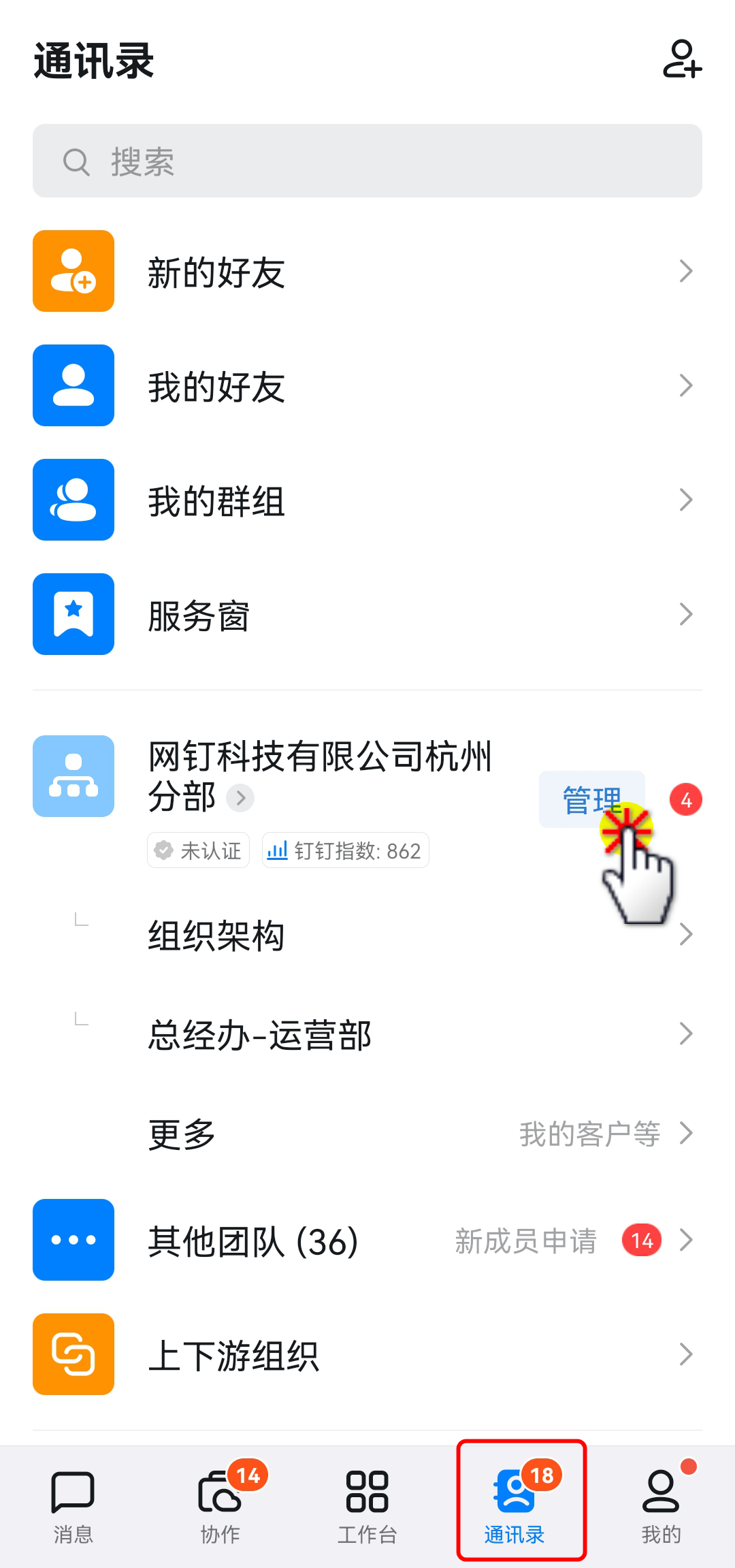
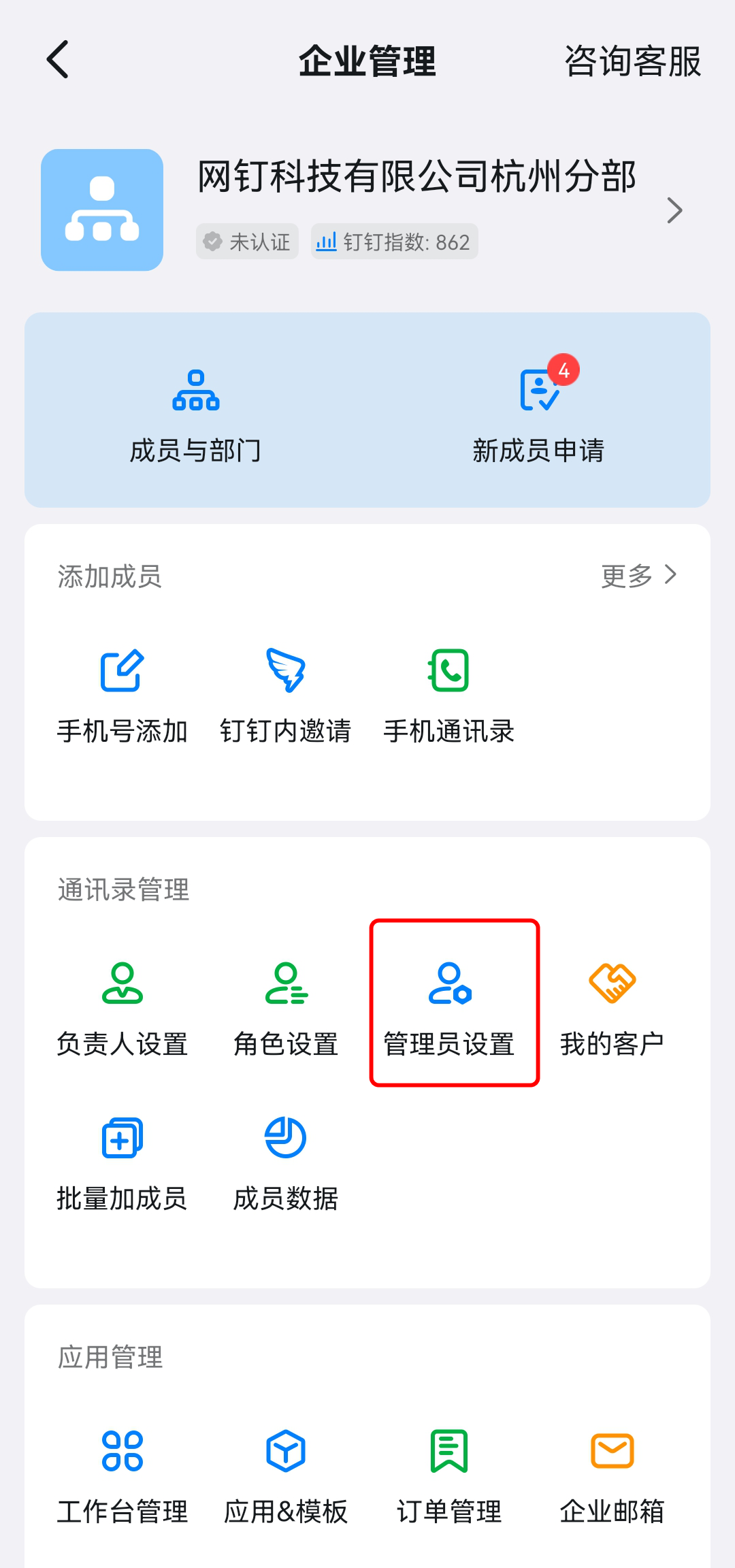
In Contacts, find the Organization you belong to and tap "Manage" to open the organization management page. Tap "Admin Settings" → "Set Sub Admin".
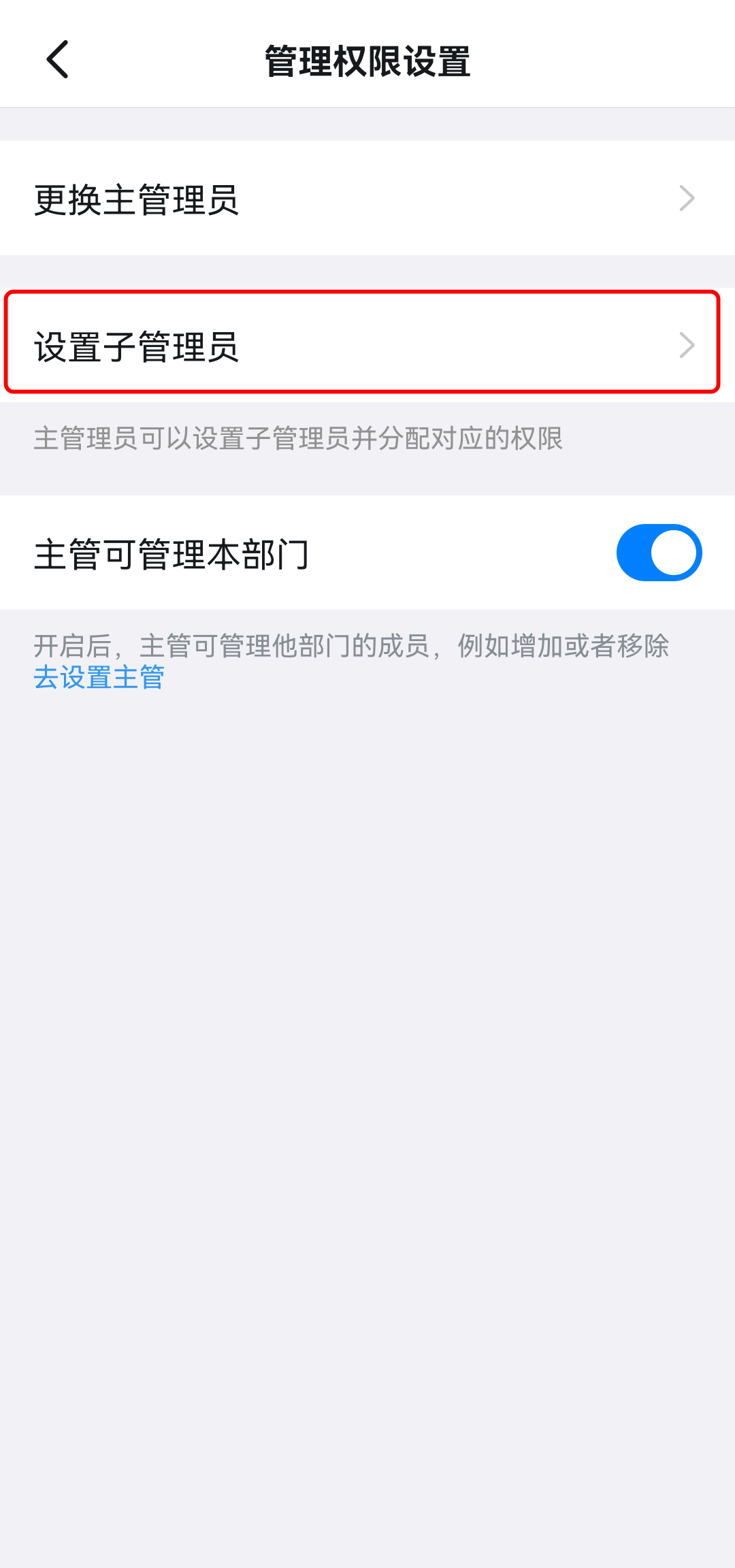
Enter an admin group name, add the users to be granted permissions, and set the management scope.

Assign permissions and select OA Approval under Micro app permissions.
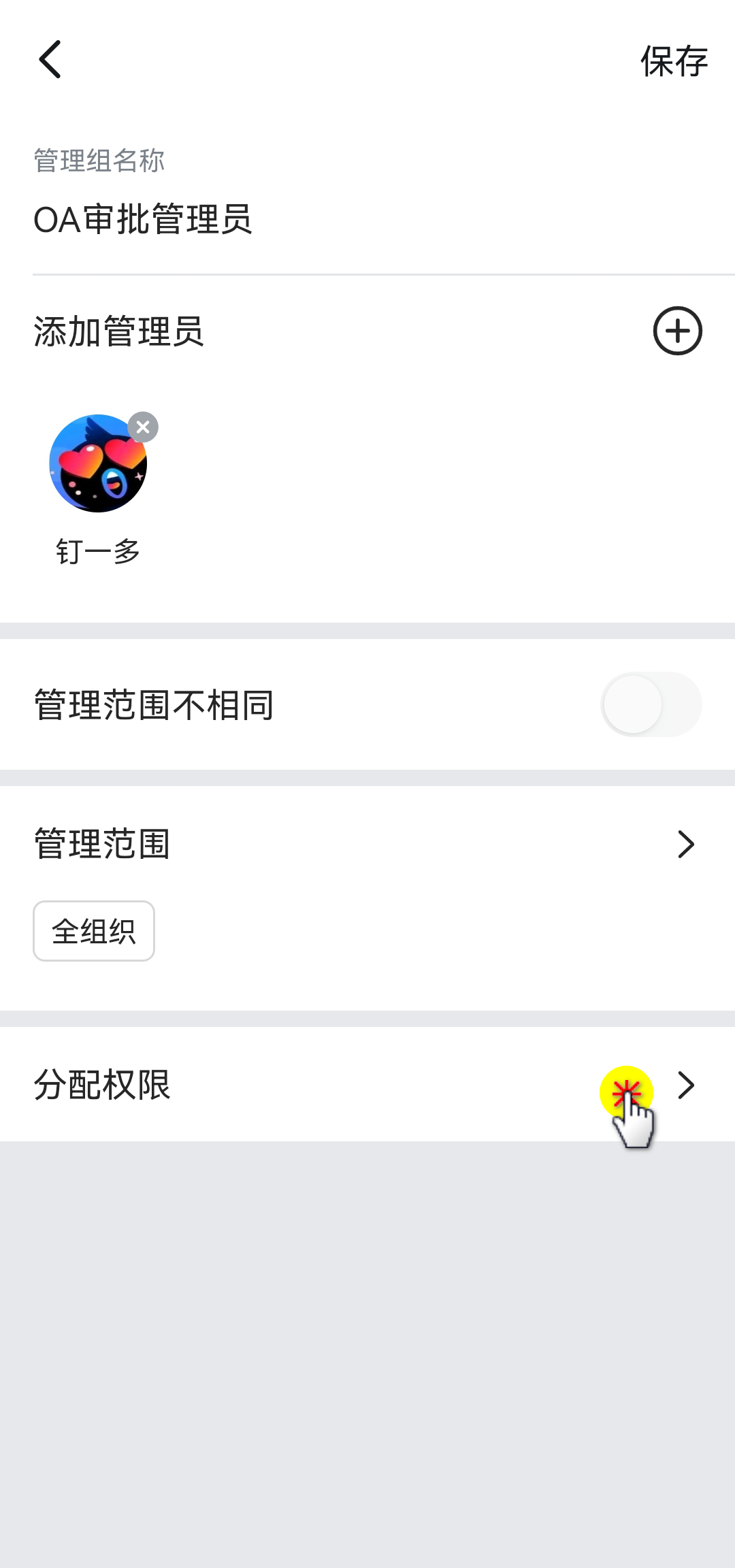
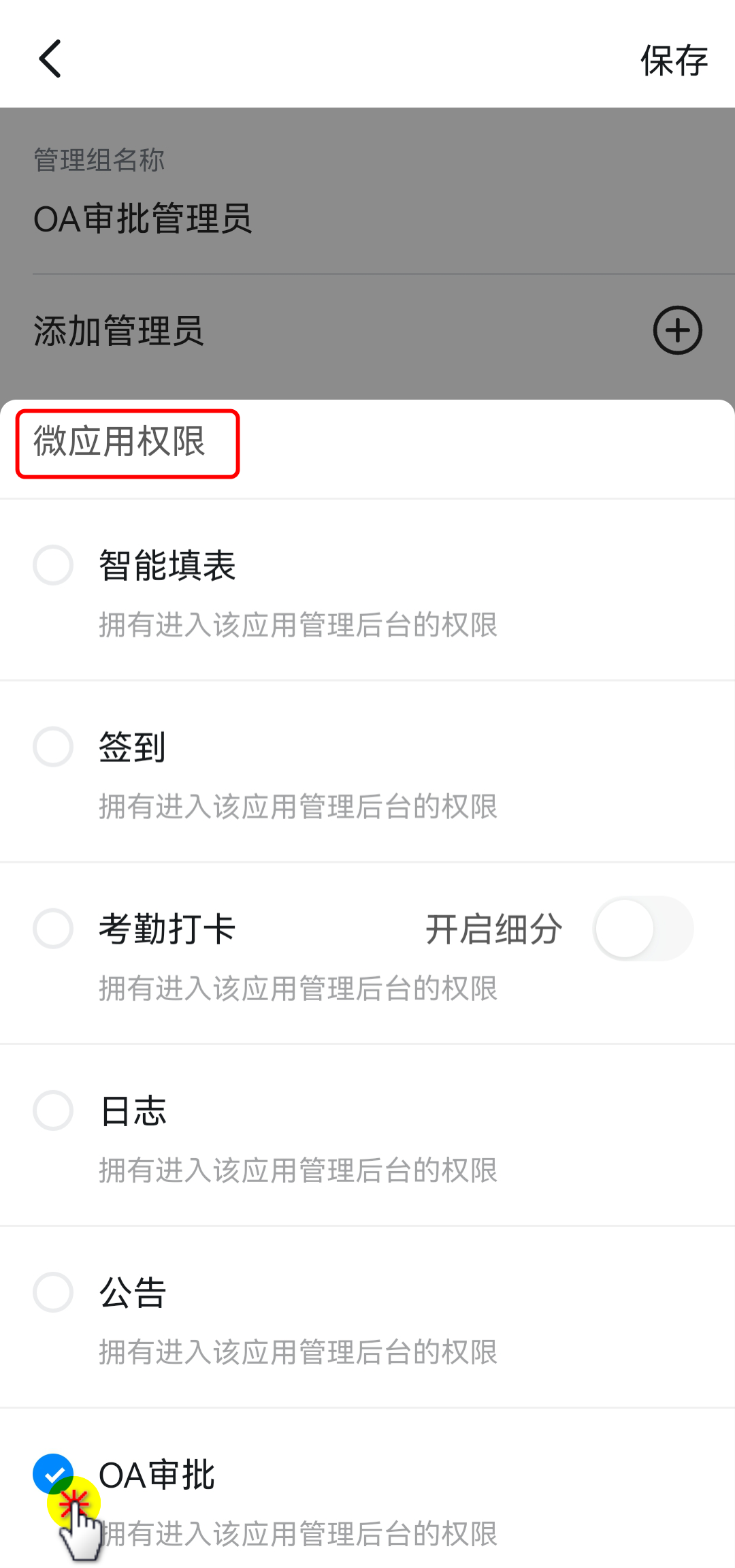
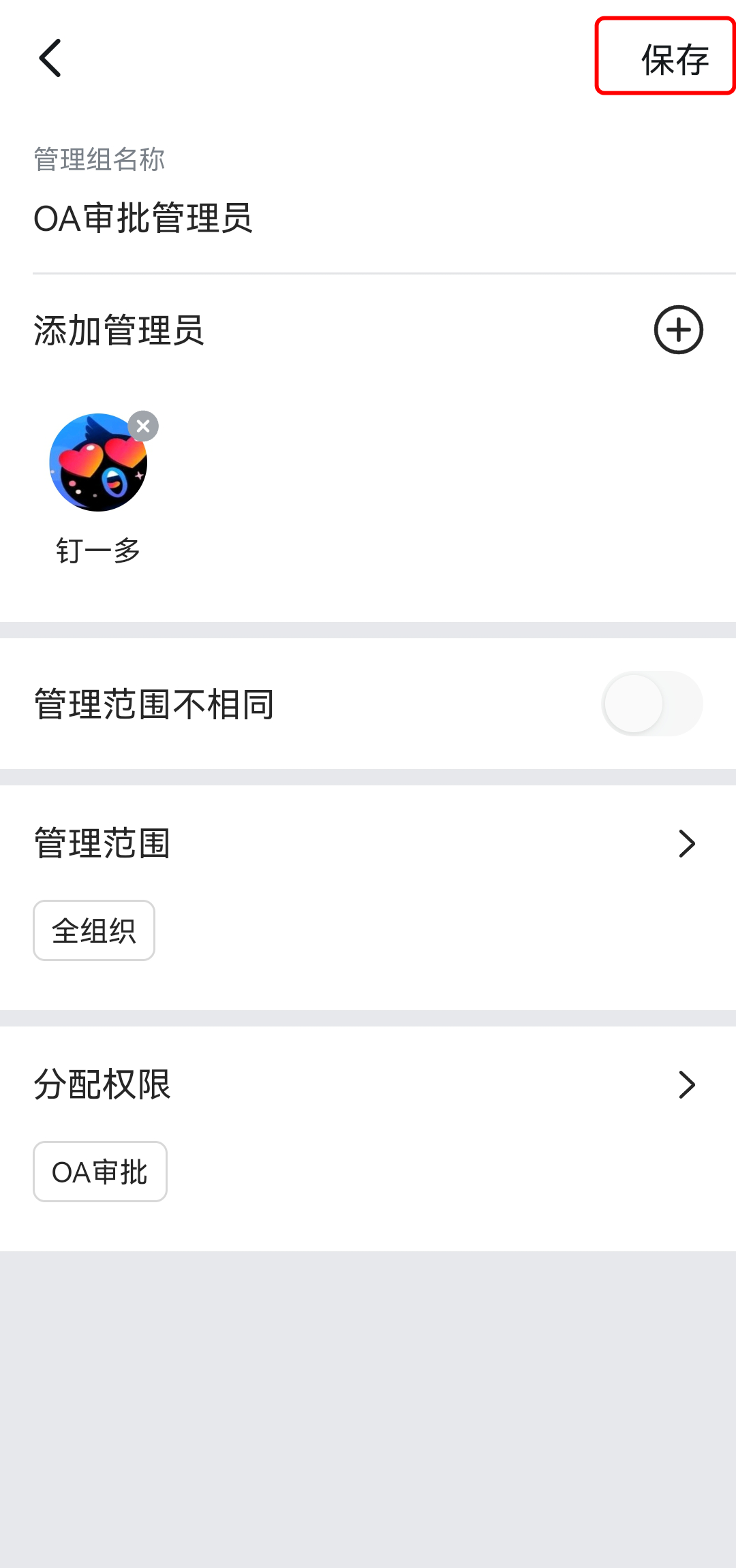
Finally, tap "Save" to finish.

##### 1.2 On desktop
Enter the [DingTalk Admin Console](https://oa.dingtalk.io) URL in your browser, or download and install the desktop client from the DingTalk website and click "···" in the lower-left corner of the desktop Home to open the Admin Console.
From the left-hand navigation bar, go to \[Security & Permissions] → Manage permissions, open the admin groups page, and click "Add admin group".
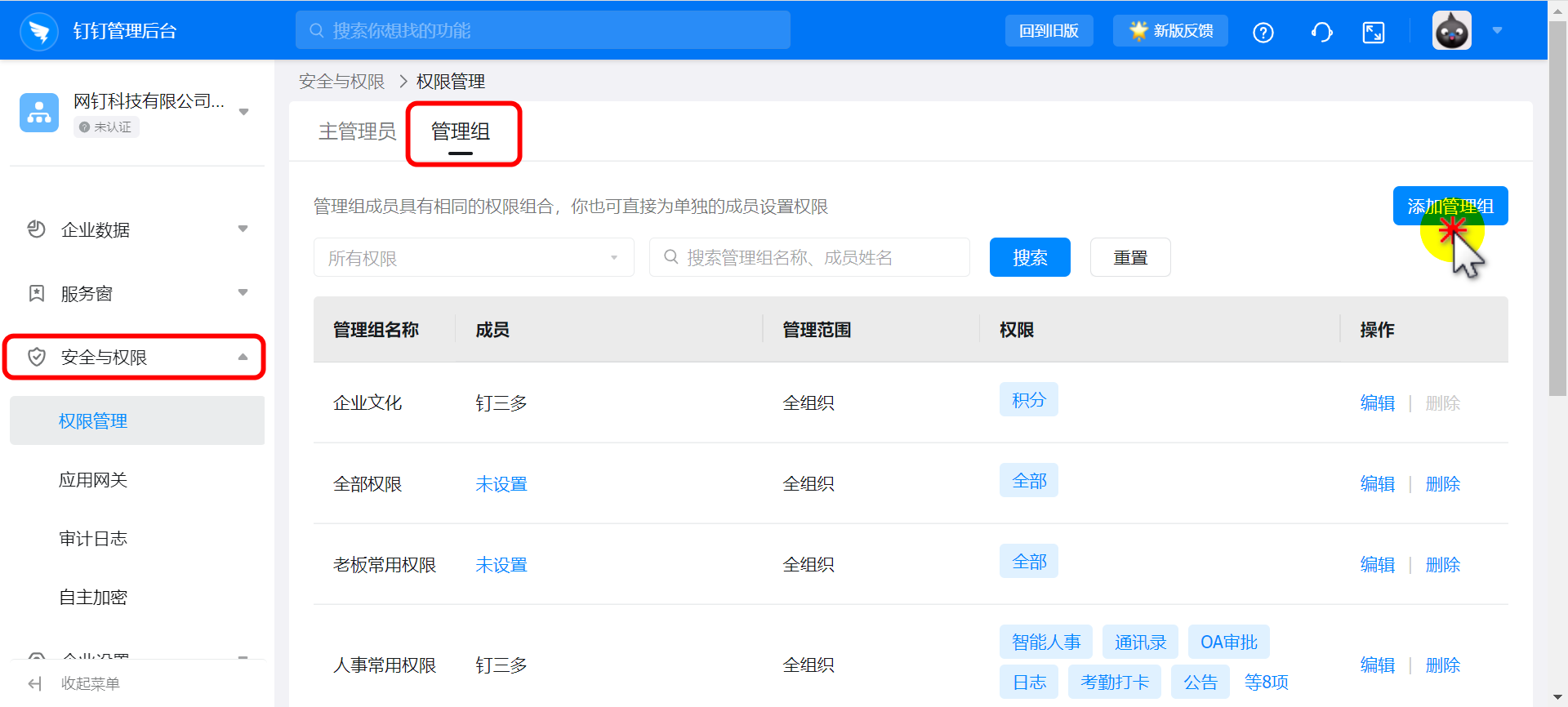
Enter the admin group name, select the users to be granted permissions, and set the management scope as needed.
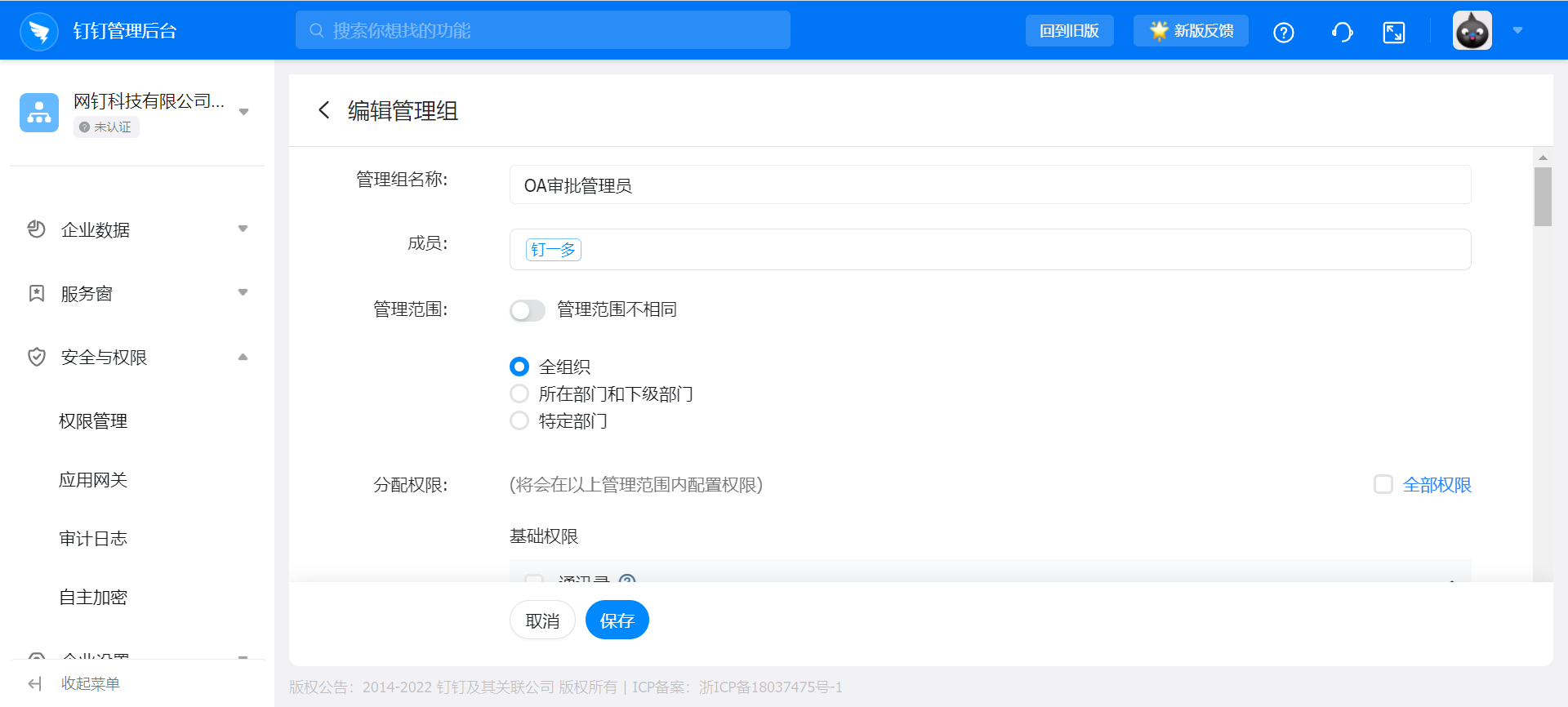
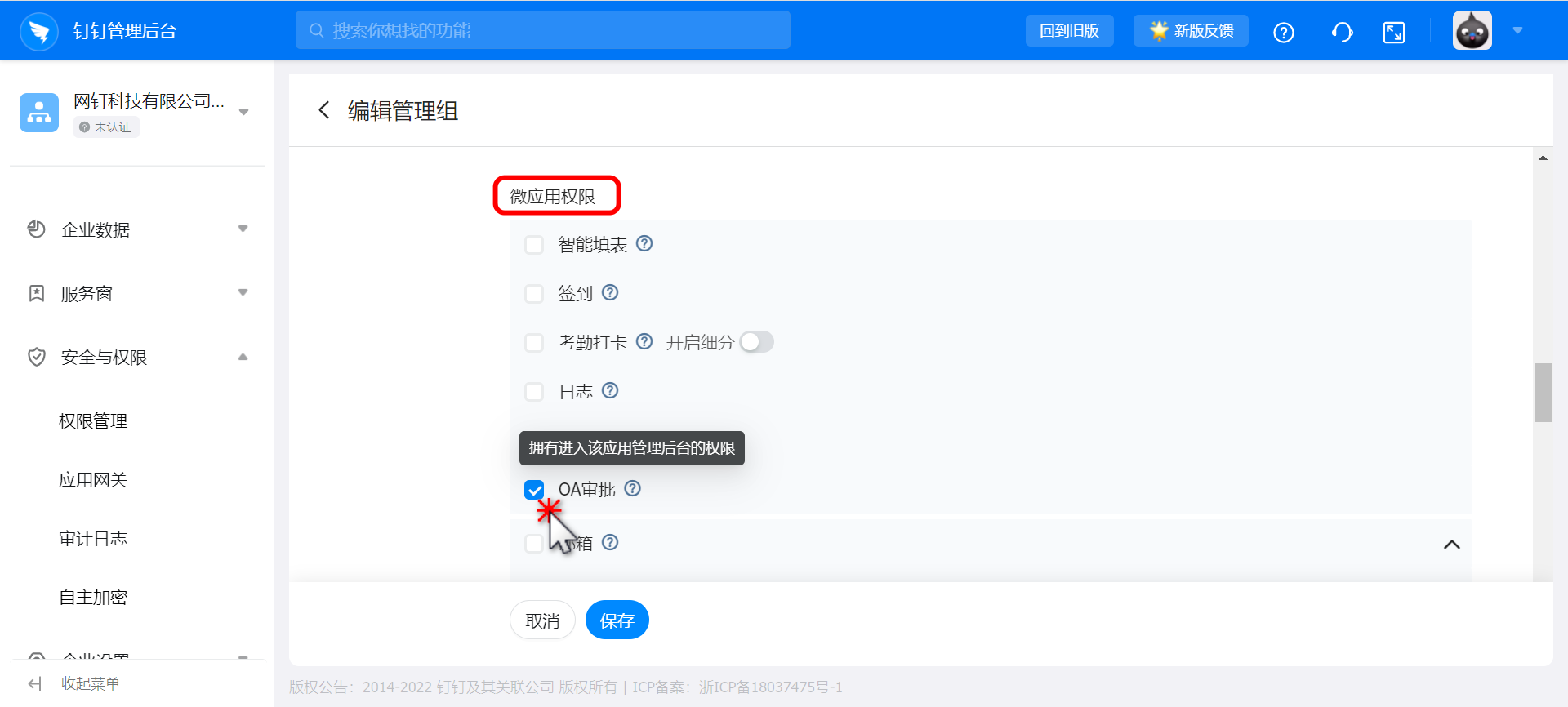
When assigning permissions, select OA Approval under Micro app permissions, then click "Save".
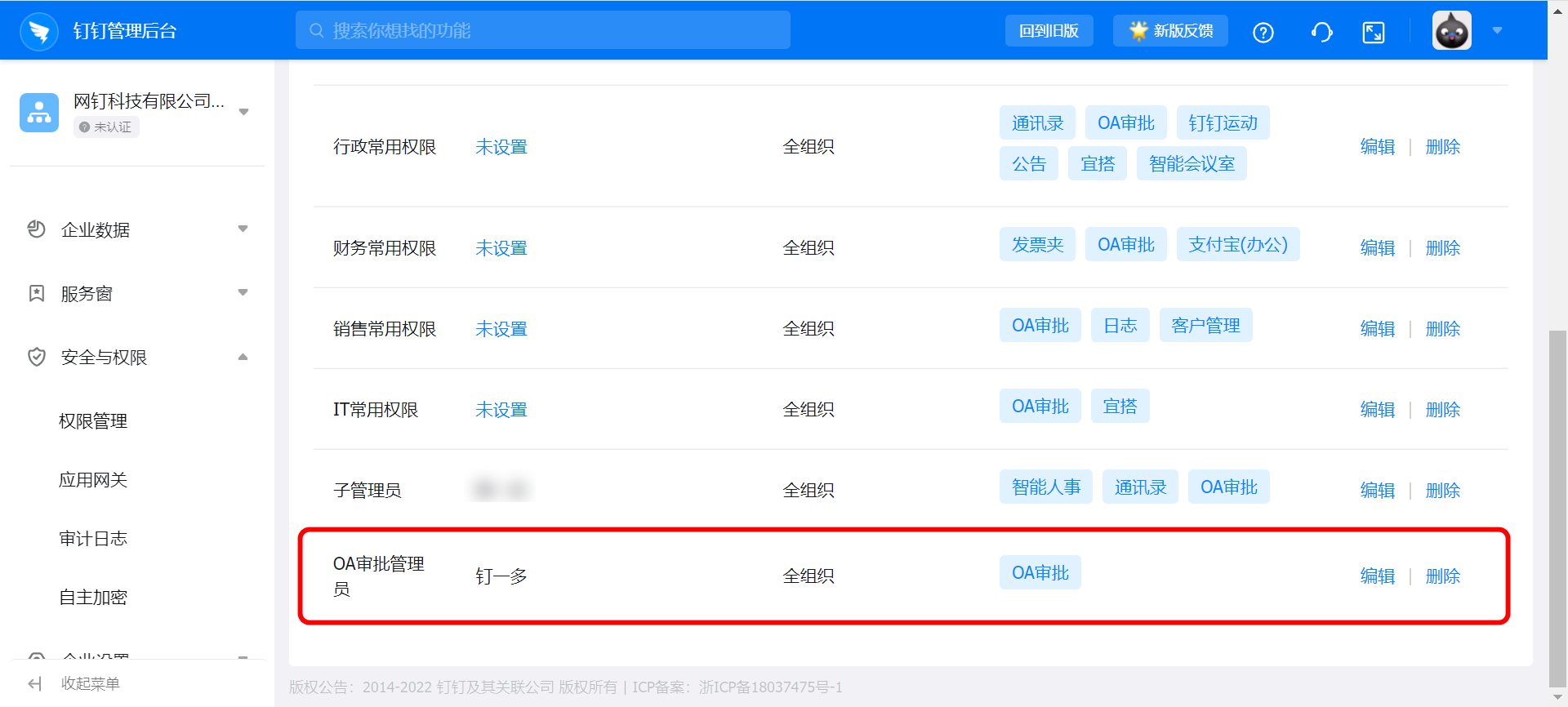
#### 2. Apply to become an Approval Sub Admin
##### 2.1 On mobile
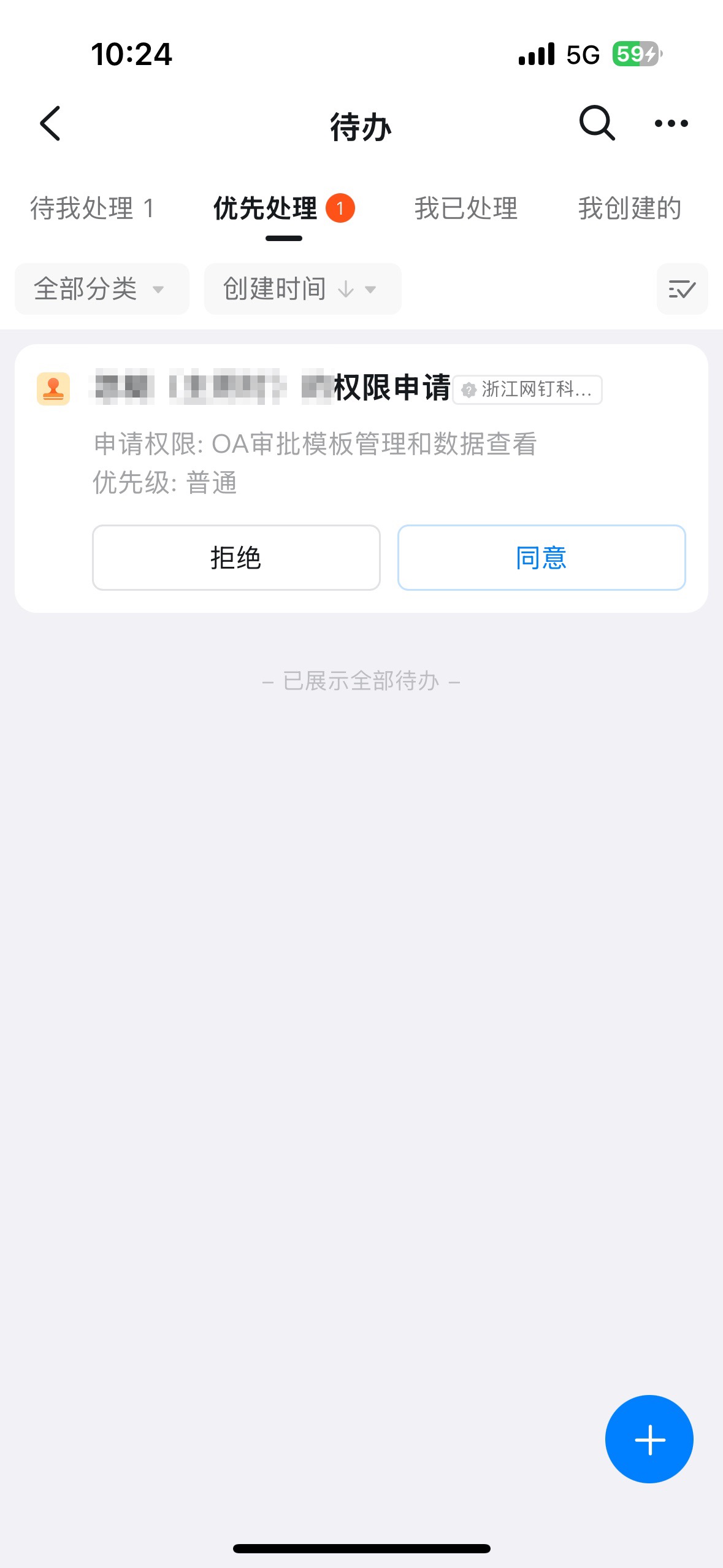
As a non-Approval Admin, open DingTalk OA Approval, tap "Settings", tap "Create Approval form", tap "Apply for admin permissions", and tap Submit.

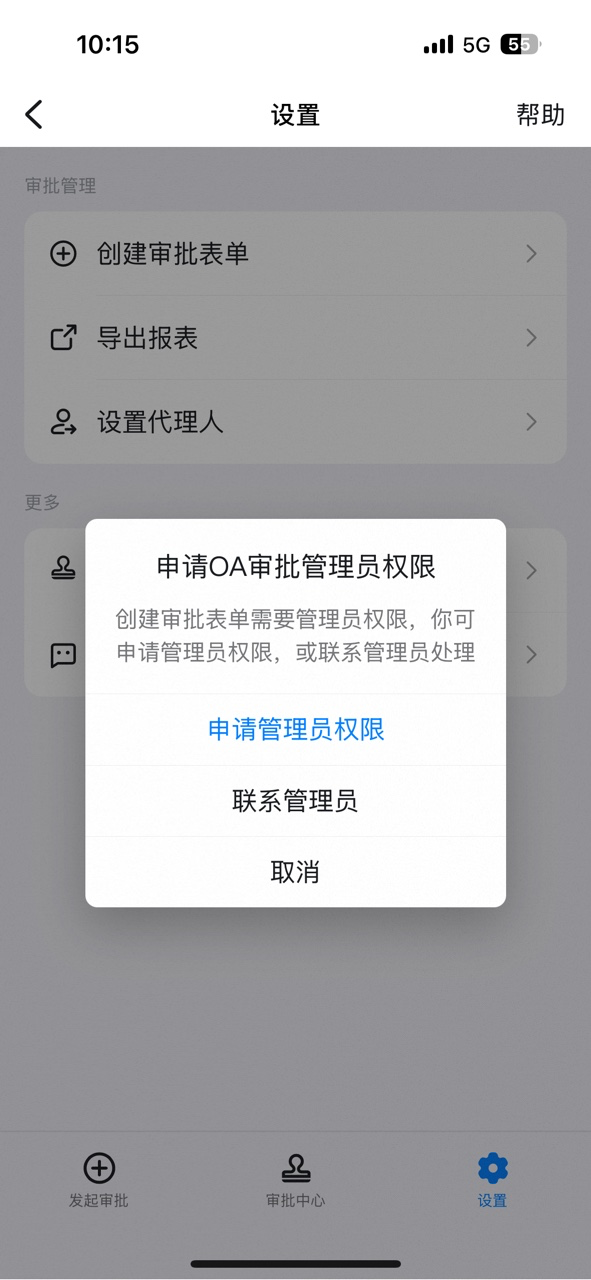

Once the Admin receives the pending Approval notification and approves it, the corresponding employee is automatically granted Approval admin permissions.
##### 2.2 On desktop
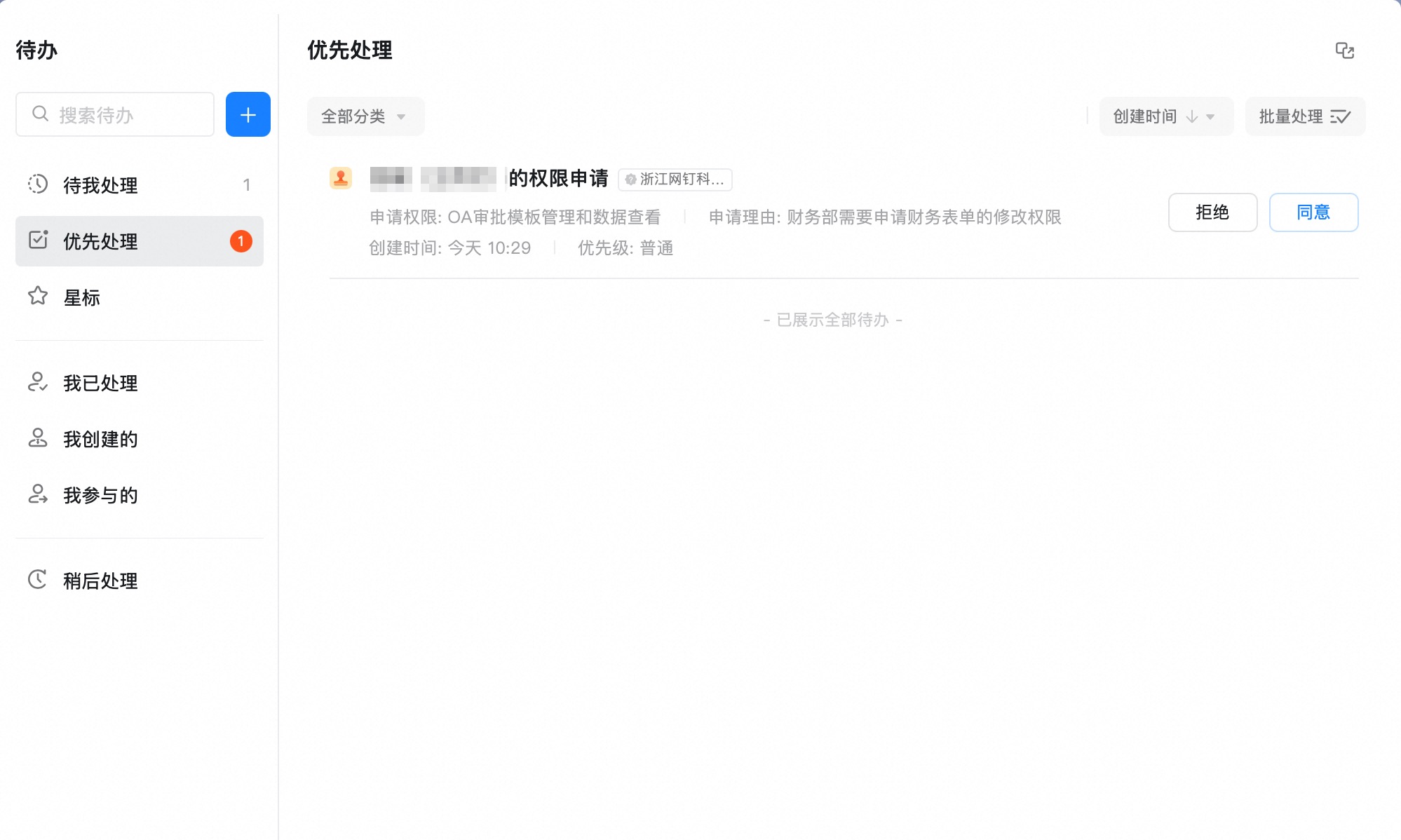
Open DingTalk OA Approval, click "Create Approval form" in the upper-right corner, click "Apply for admin permissions", then click "Submit".


Once the Admin receives the pending Approval notification and approves it, the corresponding employee is automatically granted Approval admin permissions.
### 2) Approval Form Setup and Management
#### 1. Open the Admin Console
##### 1.1 From a browser
Approval Admins can sign in to the DingTalk Admin Console and click \[Approval] on the Home page.

##### 1.2 From DingTalk on desktop
Alternatively, download and install the desktop client from the DingTalk website, click "**Workbench**", and locate the "**OA Approval**" app.
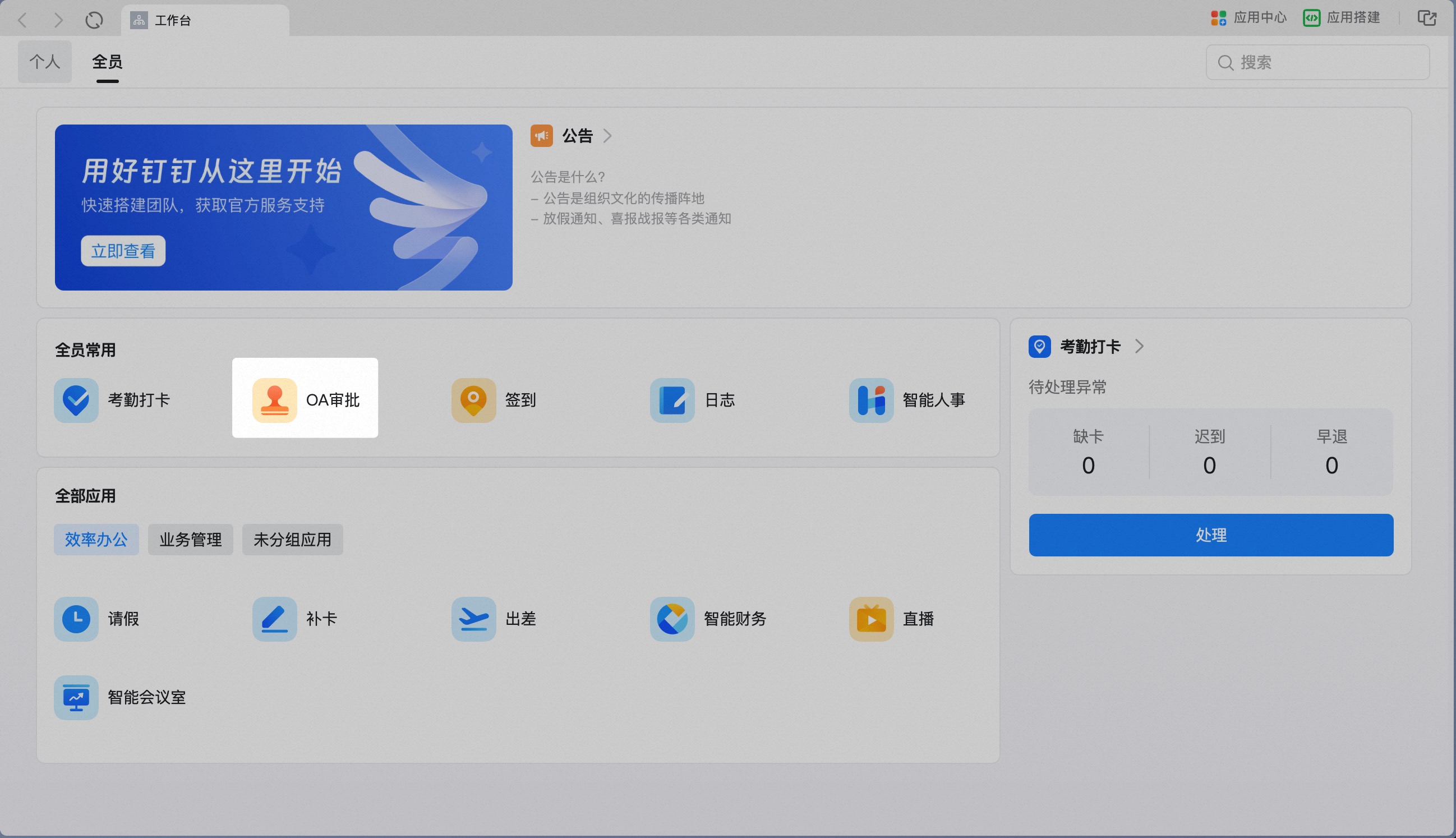
Click "**Manage Approval Forms**" in the upper-right corner to open it (only users with Approval management permissions can see this entry).

#### 2. Create an Approval Form
##### 2.1 Create an Approval form
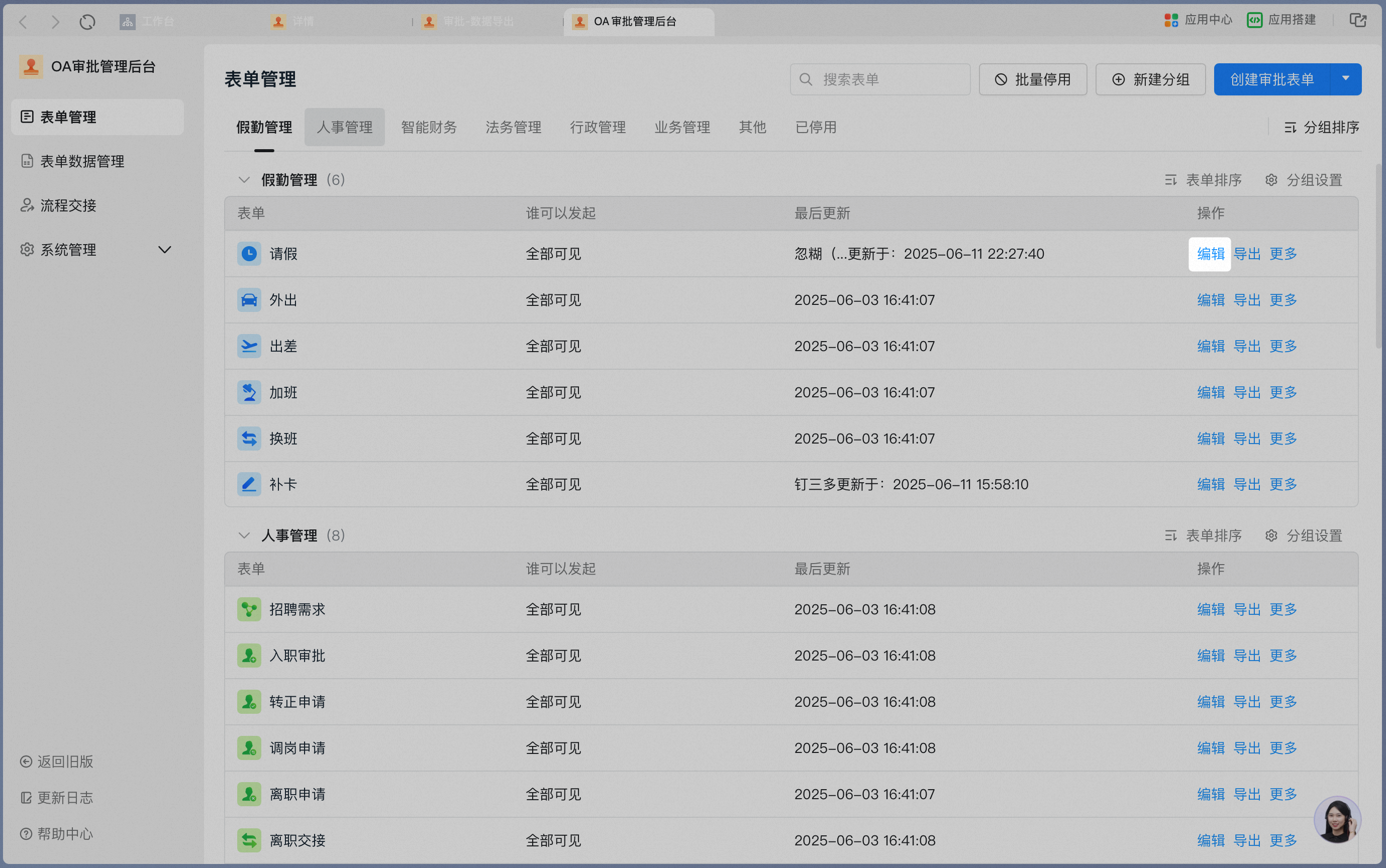
On the "**Approval Admin Console**" → "**Form Management**" page, click "**Create Approval Form**".
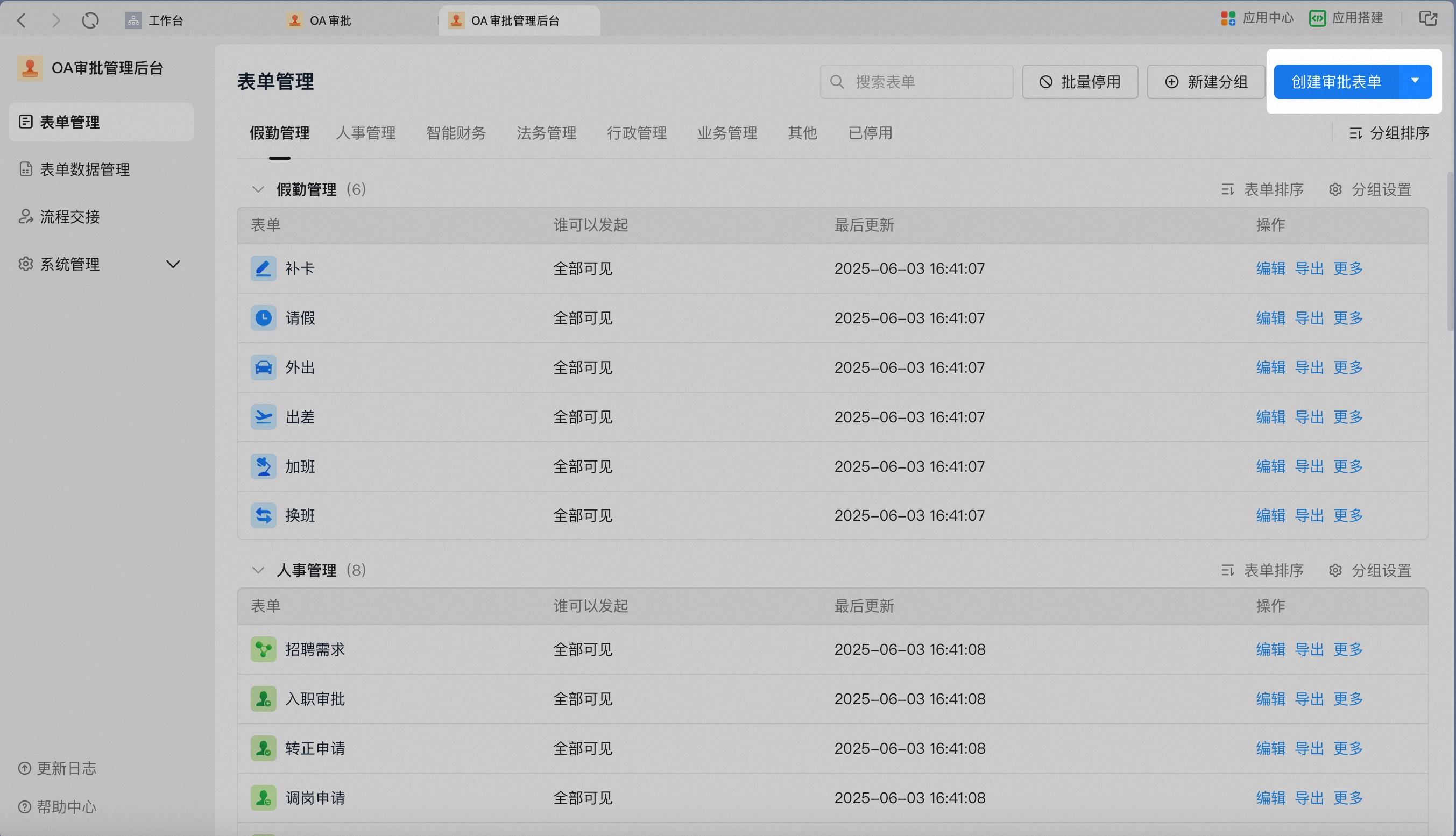
You can **select a Template** and one-click **"Preview"** and **"Enable"**, or **"Create from blank"**.

##### 2.2 Edit an Approval form
On the "**Approval Admin Console**" → "**Form Management**" page, click "**Edit**" in the form's Action column.
#### 3. Configure the Approval Form
##### 3.1 Basic Settings
Basic Settings cover the icon, form name, who can submit, and other basic information.

| **Setting** | **Description** | **Details** |
| ---------------- | -------------------------------------------------------------------------------------------------------------------------------------------- | ---------------------------------------------------------------------------------------------------------------------------------------------------------------------------------------------------- |
| Icon | The form icon displayed in the Approval workbench, Workbench, group Plugins, and Search box | Required
The Standard edition supports 6 colors + 60 styles
The Premium edition supports uploading a Custom icon |
| Form name | The form name displayed in the Approval workbench, Workbench, and group Plugins; can be used to search for the form | Required
No two forms in the same Organization may share a name |
| Group | Displayed in the Approval workbench and Approval Admin Console — the Group the form belongs to | Required
No two Groups in the same Organization may share a name
If the current Groups don't meet your needs, return to Form Management to add a new Group |
| Form description | The form description displayed in the Approval Admin Console | Optional
Up to 100 characters |
| Who can submit | Which users in the Organization can submit this form; options:
All
Specific users | Default: "All"
When Specific users is selected, this form is invisible to users not on the list |
| Form admin | Which Admins in the Organization can edit or delete this form; options:
"All Approval Admins"
"Specific Approval Admins" | Default: "All Approval Admins"
If "Specific Approval Admins" is selected, Approval Admins not on the list cannot view or edit this Template in the Admin Console, nor export its data |
##### 3.2 Form Settings
Configure the Approval form Content — that is, what submitters see and fill out when submitting an Approval.
1. Available control library
Includes multiple controls such as options, Number, Text, and Date. Click or drag a control from the left panel to add it to the form; long-press and drag a control to reorder it freely.

2. Available control groups
DingTalk Approval also provides **attendance/HR control groups such as leave request, overtime, hiring, and offboarding; finance control groups such as reimbursement and payment; and legal control groups such as contract and seal use**. These control groups are linked with Attendance clock-in / Smart HR / Smart Finance / Smart Contract, so when an Approval containing a control group is used, the employee's attendance, on/offboarding, reimbursement/payment, and contract/seal-use data are synchronized automatically to the Attendance clock-in / Smart HR / Smart Finance / Smart Contract systems.
You can **click** or **drag** the desired control group to add it, then configure it on the right. **Each form can contain at most one control group.**
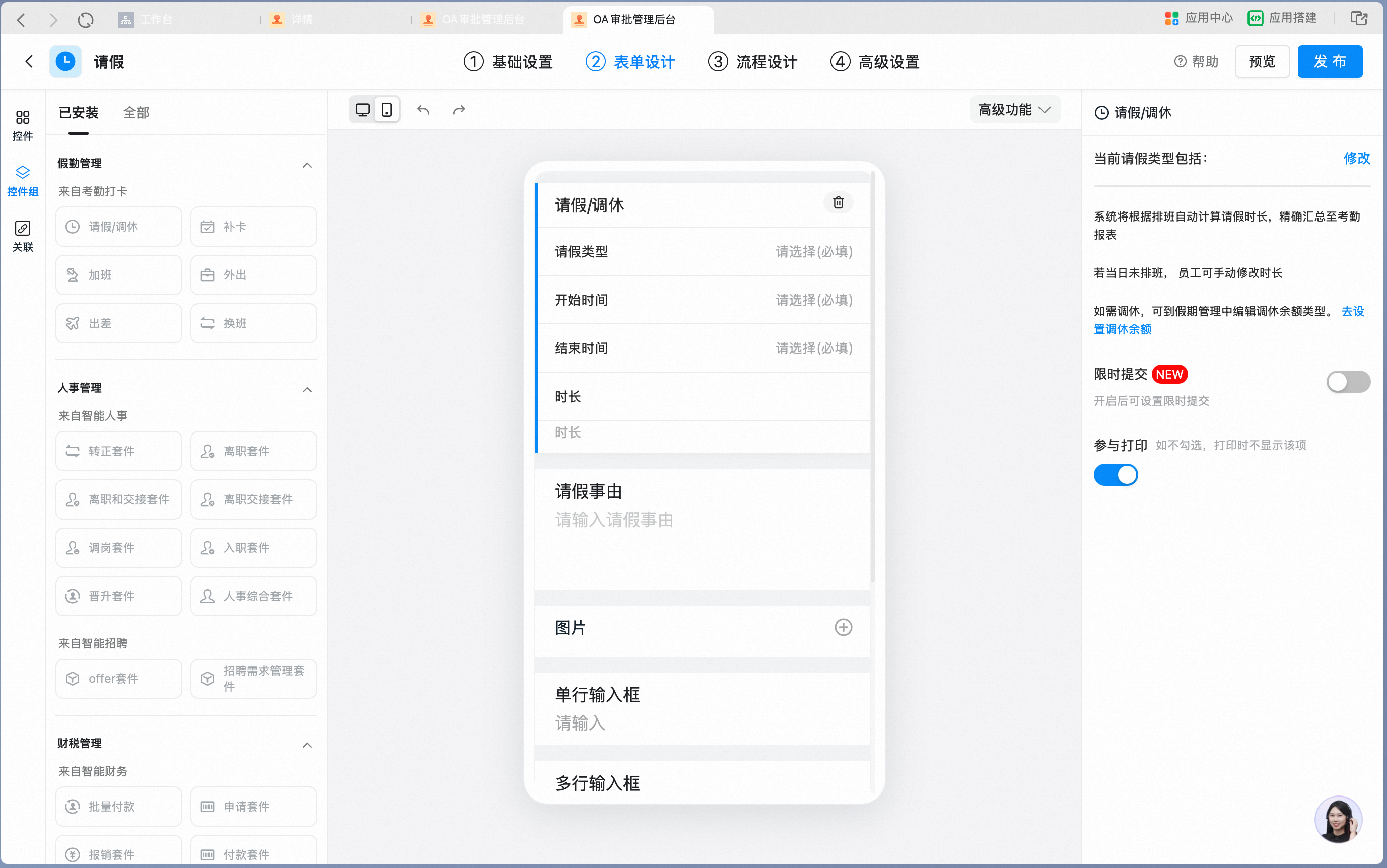
3. Basic Settings
Basic Settings typically include: control title, hint text, control rules (such as option settings for a Select control or Type settings for a Date control), and whether the control is printable and Required.
| Control panel | **Common settings** | **Details** |
| ---------------- | ---------------------------------------------------------------------------------------------------------------------------------------- | ----------- |
| Title | The Title displayed on the form; up to 50 characters | |
| Hint text | Gray hint text shown inside the input Field when empty; up to 50 characters | |
| Default | Default content shown inside the input Field when empty; when the Step permission is "editable", the corresponding Field can be modified | |
| Required setting | Off by default; when On, the control's Field is validated on submission — if empty, submission is not allowed | |
| Print setting | On by default; when Off, the Field does not appear on the downloaded or printed form details PDF | |

##### 3.3 Process Settings
1. The middle area is the process design canvas, which shows the Steps of the process visually. Click **+** to add an approver, CC recipient, handler, conditional branch, and so on. Click a Step to configure it on the right. Configuring an approver means specifying who approves at that Step, along with the routing rules for situations such as multiple approvers or an empty approver.


2. Approval Step types
| **Step type** | **Description** | **Details** |
| ------------------ | ------------------------------------------------------------------------------------------------------------------------------------------------------------------------------ | ----------------------------------------------------------------------------------------------------------------------------------------------------------------------------------------------------------------------------------------------------------------------------------------------------------------------------------------------------------------------------------------------------------------------------------------------------------------------------------------------------------------- |
| initiator | The initiator Step is the starting point of an Approval process. On this Step, you can configure who can submit this Approval form and which Fields the initiator can fill out | Default Step
The Step name cannot be modified
After submission, view it in the "Submitted by me" category of the process center
Field permissions on the form can be configured — editable, Read-only, and hidden are supported |
| approver | Can perform Accept, Decline, transfer, return, sign request, and Comments actions on the Approval form | Optional Step
The Step name can be modified
Before approval, view it in the "To Do" category of the process center; after approval, view it in the "To Do" category of the process center
Field permissions on the form can be configured — editable, Read-only, and hidden are supported |
| CC recipient | When the process routes to this Step, this role has no review capability but receives the Approval form and can view and comment on it | Optional Step
The Step name can be modified
After the process routes to this Step, view it in the "CC'd to me" category of the process center
Field visibility on the form can be configured — Read-only and hidden are supported |
| handler | Can perform Submit, transfer, return, sign request, and Comments actions on the Approval form | Optional Step
The Step name can be modified
Before handling, view it in the "To Do" category of the process center; after handling, view it in the "To Do" category of the process center
Field permissions on the form can be configured — editable, Read-only, and hidden are supported |
| conditional branch | This Step routes different situations to different Approval branches
See >>> [How to set up conditional approval](/approval/set-conditional-approval) | Optional Step
Branch names can be modified
Branches can be copied
Conditions can be added — different conditions within a set have an "AND" relationship
Condition groups can be added — different Condition groups have an "OR" relationship
At runtime, branches are **evaluated in priority order**
Once any branch's rules pass, the remaining branches are not tried — **at most one conditional branch executes** |
| parallel branch | This Step routes multiple Approval branches simultaneously. | Optional Step
Branch names can be modified
Branches can be copied
Conditions can be added — different conditions within a set have an "AND" relationship
Condition groups can be added — different Condition groups have an "OR" relationship
Multiple branches can **execute simultaneously** based on the rules you configure |
| Connector | This Step invokes a Connector configured in "My integrations" | Optional Step |
| Automation | This Step | Optional Step |
3. The approver, CC recipient, and handler can each be one of several types, flexibly meeting different Approval routing needs.
| **Approver type** | **Description** | **Details** |
| ----------------------------- | ----------------------------------------------------------------------------------------------------------------------------------------------------------------------- | -------------------------------------------------------------------------------------------------------------------------------------------------------------------------------------------------------------------------------------------------------------------------------------------------------------------------------------------------------------------------------------------------------------------------------------------------------- |
| Specific users | Users specified by the process designer perform approval, CC, or handling | Click Add to select users from Contacts within the Organization
The Standard edition supports 50 users; the Premium edition supports 100 users |
| initiator | The initiator participates in approval, CC, or handling | |
| Chosen by initiator | The initiator selects the approver when submitting the request | Selection mode: Select / Multiselect — the initiator can select one or multiple approvers
Selection scope: All Company / Specific users / Role — the initiator can only select from within this scope |
| Role | A specified Role — such as HR, Administration, or Finance — performs approval
See >>> [How to set up role-based approval](/approval/set-role-approval) | A Role is a specific set of users configured within the Organization. It corresponds to Role Management in the [DingTalk Admin Console](https://oa.dingtalk.io); go there to review and modify.
When a Role is used as approver and a Role member changes (for example, leaves), you can quickly replace the process participant by updating the Role's users |
| direct manager | The initiator's direct manager approves
See >>> [How to set up direct manager approval](/approval/set-direct-manager-approval) | The direct manager (reporting line) is a person-level leader configured on the personal profile page under [DingTalk Admin Console](https://oa.dingtalk.io) > Contacts
Only one may be set |
| department manager | The initiator's department manager approves; defaults to the head of the direct Department, with other Tiers configurable | The Organization's designated department manager corresponds to the settings under [DingTalk Admin Console](https://oa.dingtalk.io) > Contacts; go there to review and modify
A Department can have multiple department managers |
| multiple levels of managers | Managers at each successive Tier above the initiator approve in order | Corresponds to the settings under [DingTalk Admin Console](https://oa.dingtalk.io) > Contacts; go there to review and modify
The highest approval Tier can be up to the nth Tier above the initiator, up to 20 Tiers;
approval up to the highest Tier defined in Contacts is also supported
**Note:** When the initiator is themselves at the nth Tier in Contacts, approval routes up one additional Tier; |
| Manager of Department in form | Based on the Department information the employee fills out on the form when submitting, route to the head of the corresponding Department for approval | Drag the "**Department**" control into the form; the approver of this process is the manager of the Department the initiator selected on the form |
| Role for Department in form | Based on the Department information the employee fills out on the form when submitting, route to a specific Role whose management scope is the corresponding Department | Drag the "**Department**" control into the form; the Role you configure is the approver, and the Role's management scope is determined by the Department the initiator selected on the form |
| Contact in form | Route to the corresponding approver based on the Contact information the employee fills out on the form when submitting | This option is only available when a **Contact** control has been added in form design |
4. The initiator, approver, CC recipient, and handler can each be assigned form action permissions.
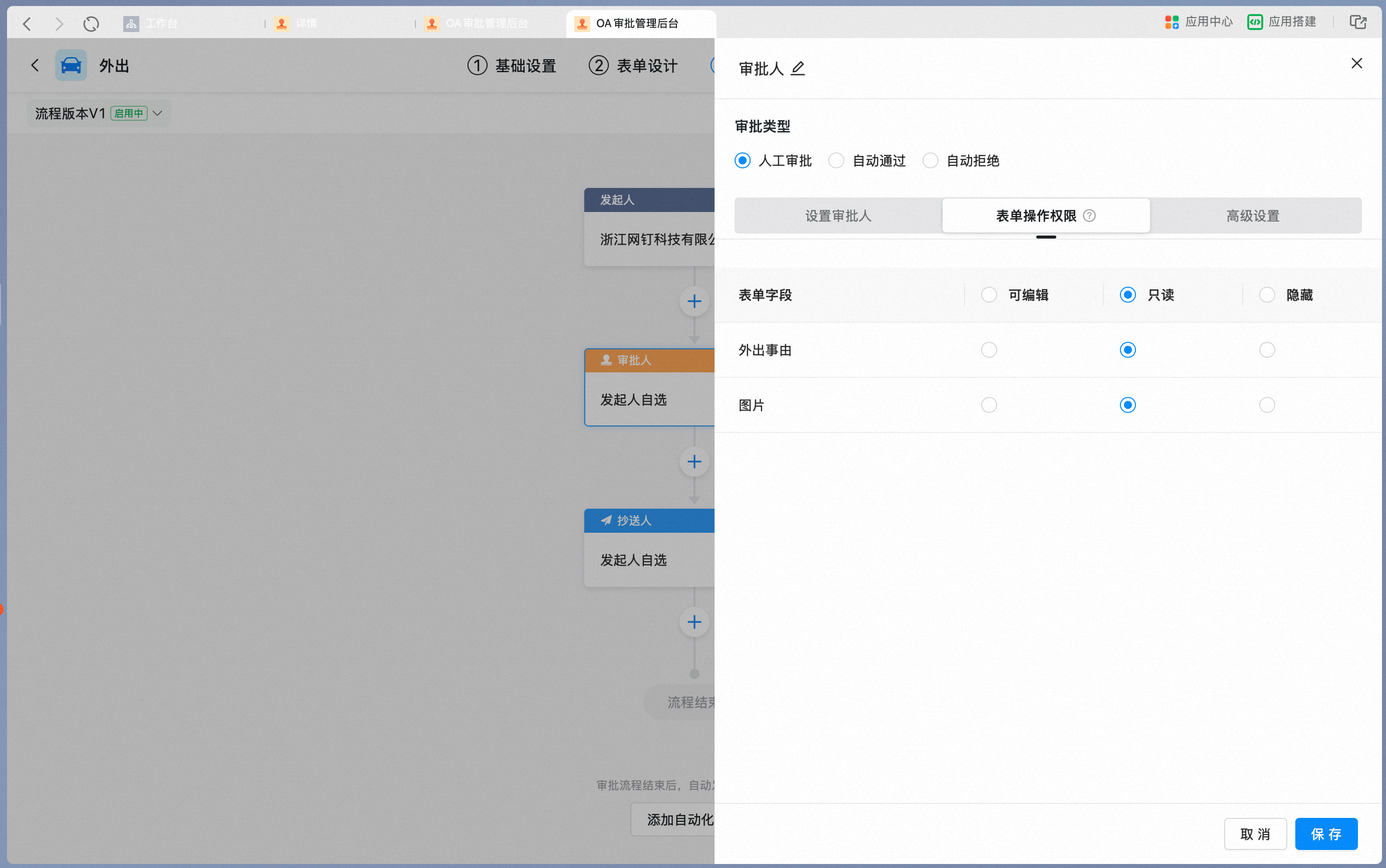
| **Form action permission** | **Description** | **Details** |
| -------------------------- | ---------------------------------------------------------------------------- | ----------------------------------------------------------------------------------------------------------------------------------------------------------------------------------------------------------------------------------------------------------------------------------- |
| Editable | Can fill out and modify "editable" content on the form | Supported on initiator, approver, and handler Steps
The initiator's default form action permission is editable |
| Read-only | Can view "Read-only" content on the form but cannot fill it out or modify it | Supported on initiator, approver, handler, and CC recipient Steps
The default form action permission for approver, handler, and CC recipient is Read-only
When the initiator Step is set to Read-only, the current Step is invisible to the initiator |
| Hidden | Cannot view "hidden" content on the form | Supported on initiator, approver, handler, and CC recipient Steps |
5. When multiple people participate in the same Step, sequential approval, joint sign-off, single sign-off, and Vote are supported.
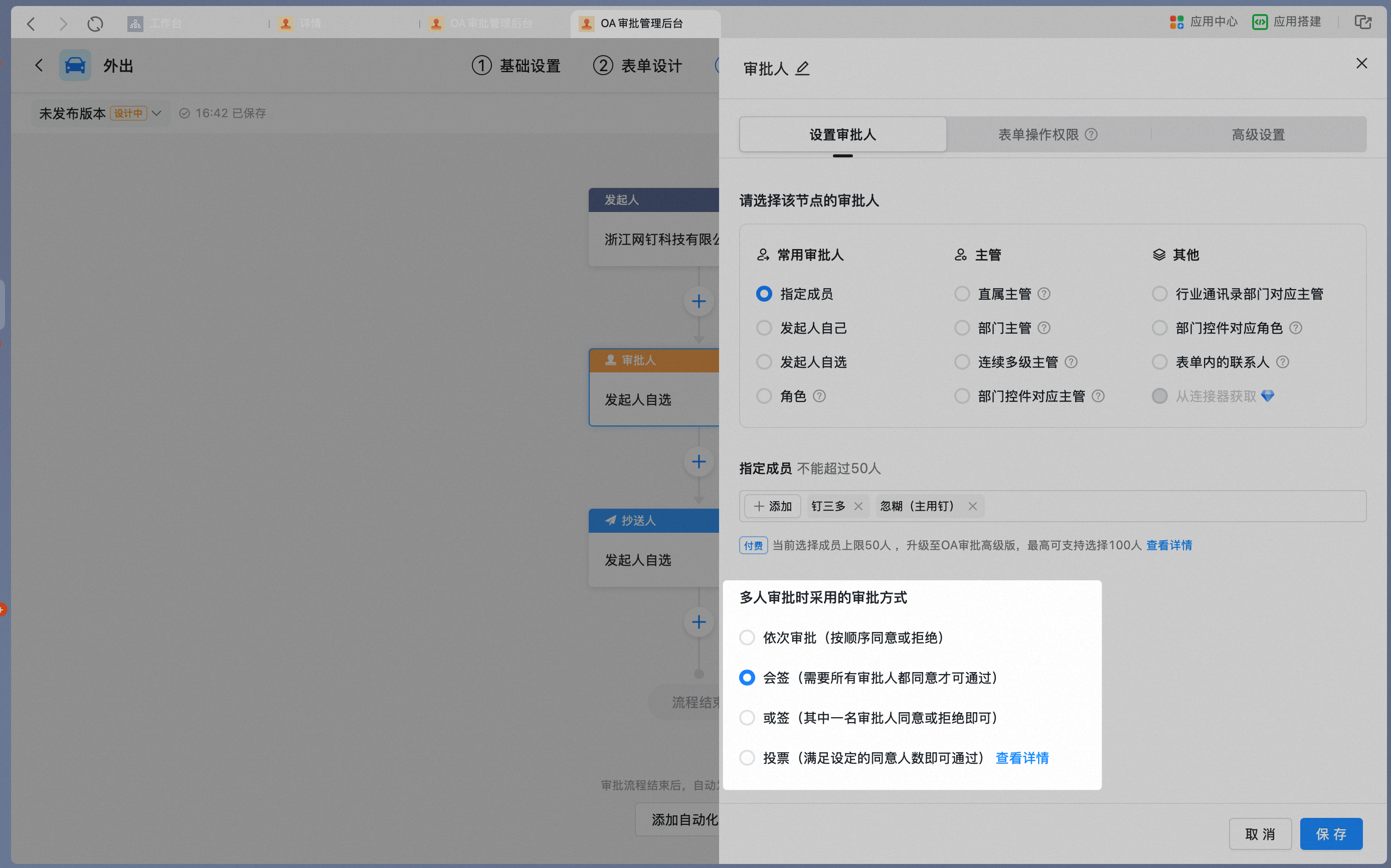
| **Approval mode** | **Description** | **Details** |
| ------------------- | ------------------------------------------------------------ | -------------------------------------------------------------------------------------------------------------------------- |
| Sequential approval | Multiple approvers approve in sequence | Approvers act one after another, and the Approval passes only when all Accept |
| Joint sign-off | The Step passes only when all approvers Accept | Approvers act simultaneously, and the Approval passes only when all Accept |
| Single sign-off | The Step passes when any one approver Accepts | Approvers act simultaneously; when any one Accepts, the Approval passes; when any one Declines, the Approval does not pass |
| Vote | Passes when the configured number of Accept votes is reached | Approvers act simultaneously; the Approval passes once the required number of Accept votes is reached |
5. When the approver is set to a type such as manager, department head, or Role, Contacts may be incompletely configured — for example, no matching user can be found. In such cases, configure the routing rule for an empty approver.
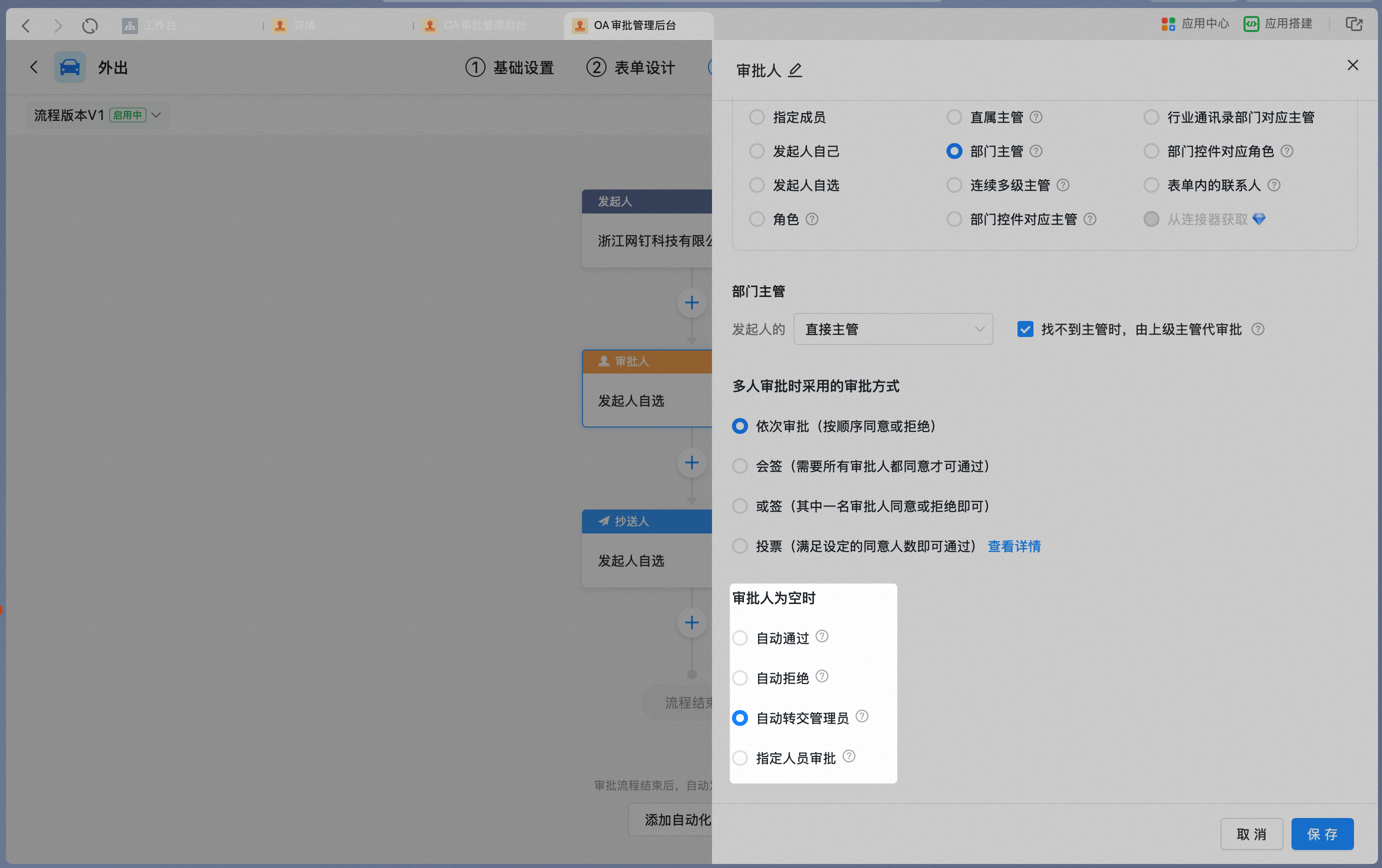
| **Handling** | **Description** | **Details** |
| ----------------------- | ----------------------------------------------------------------------------------------------------- | -------------------------------------------------------------------------------------------------------------- |
| automatic approval | When no approver is found at this Step, the Approval form is automatically approved | |
| Automatic decline | When no approver is found at this Step, the Approval form is automatically declined | |
| Auto-transfer to Admin | The Approval form is automatically transferred to the Admin | Transferred to the Template admin by default; if there is no Template admin, transferred to the Approval Admin |
| Route to specified user | When the Role or manager is empty, the Approval form is automatically transferred to a specified user | Up to one user may be specified |
##### 3.4 Premium Settings
Premium Settings include usage rules for initiators and approvers, along with rules for form display and Permissions. Adjust them to fit your specific business scenarios.

See >>> Admin — going into Premium Settings
##### 3.5 Preview & Publish
1. Preview the Approval form
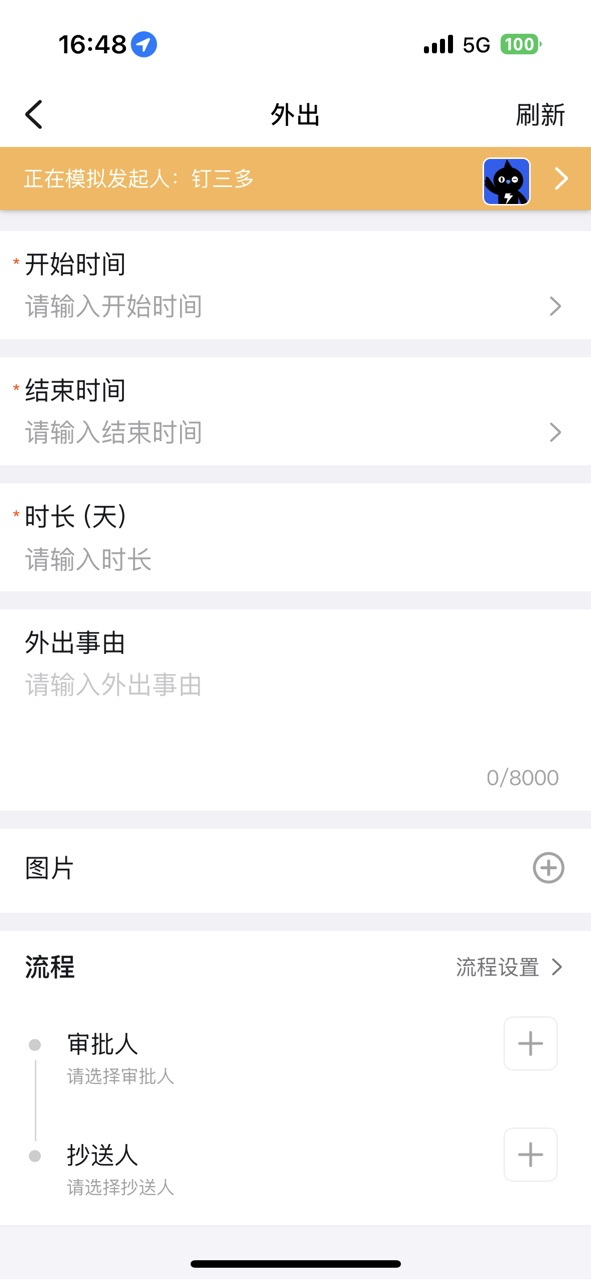
Once setup is complete, click \[Preview] in the upper-right corner to display a QR Code.

After scanning the QR Code with a phone, you can simulate switching between different roles and selecting different conditions to verify that the Approval process routes as expected.
2. Publish the Approval form
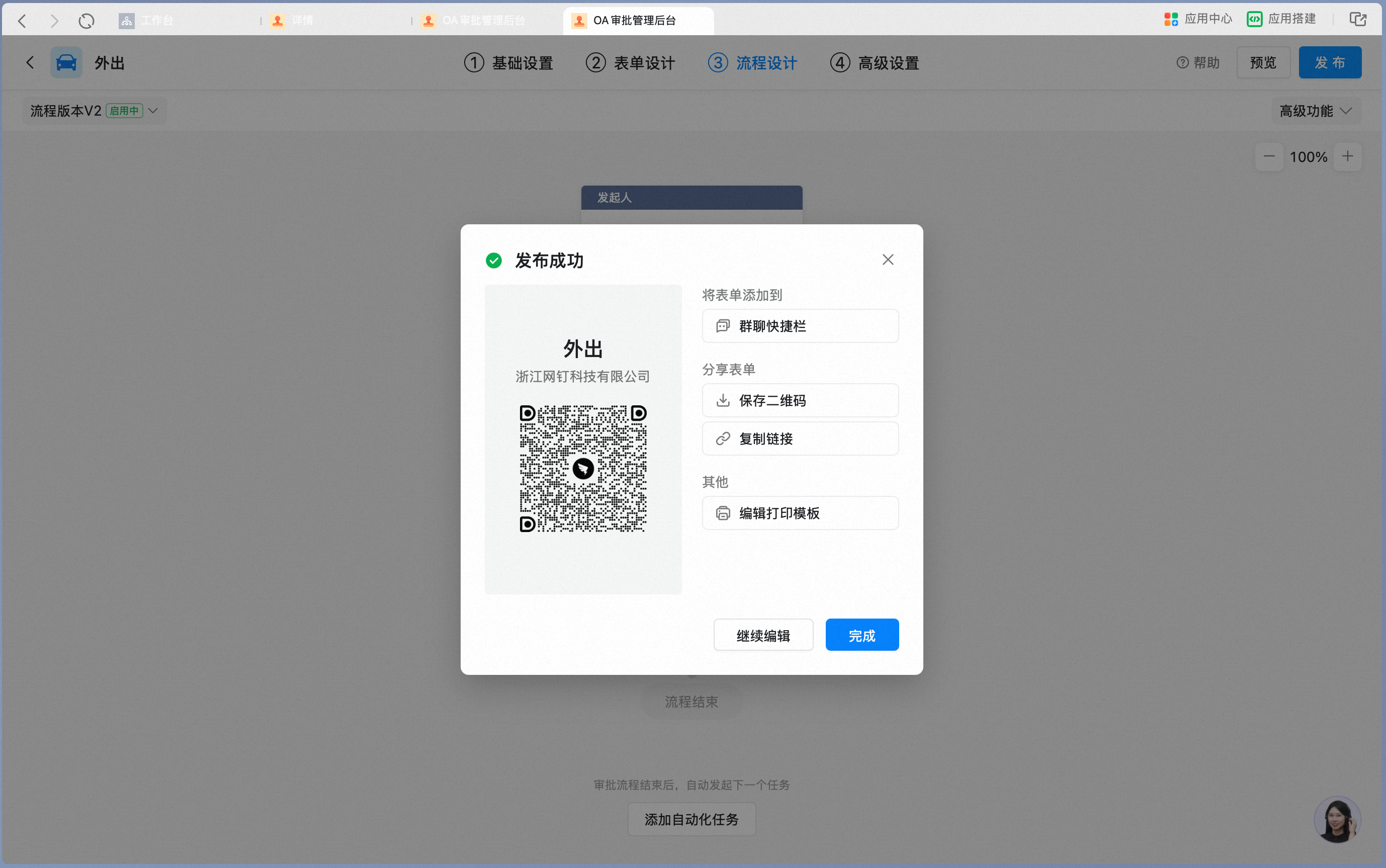
After verifying that the settings are as expected, publish the Approval form by clicking \[Publish] in the upper-right corner.

You can save the QR Code, Copy the Link, add it to the Workbench, add it to a group, and so on — making it easier for initiators to use the Approval form.
#### 4. Other Form Actions
1. In addition to Create and Edit, you can Copy, Move to, disable, Delete, and Sort individual Approval forms.
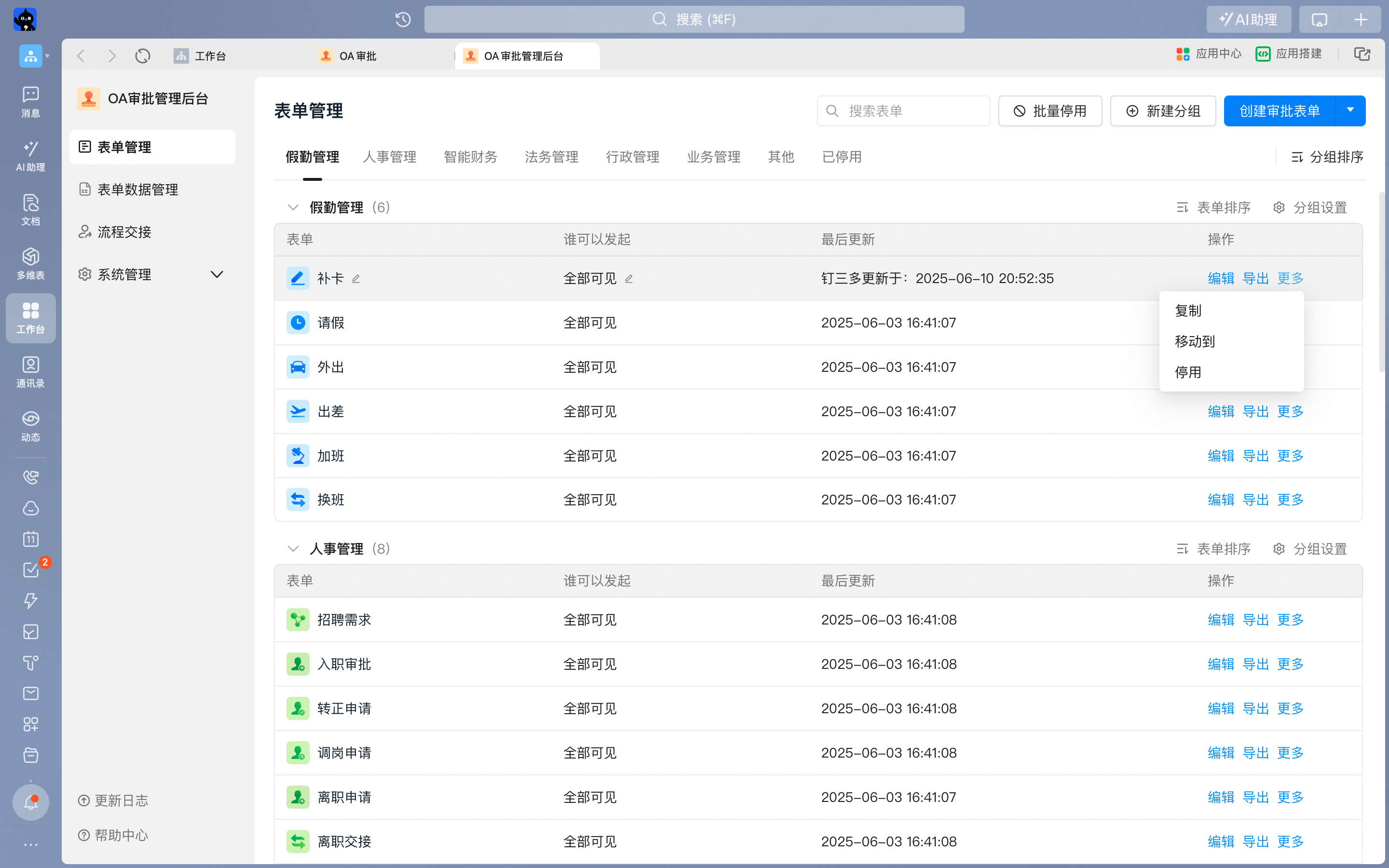
| **Form action** | **Description** | **Details** |
| --------------- | ---------------------------------------------------------- | ---------------------------------------------------------------------------------------------------------------------------------------------------------------------------------------------------------------------------------------------------------------------------------------------------------------------------------------------------------------------- |
| Copy | Copies the selected Approval form and opens it for editing | The copied Approval form has the same settings as the original, and its form name becomes "Copy of + original form name" |
| Move to | Moves the selected Approval form to another Group | An Approval form can belong to only one Group
Adjustments made in the Admin Console are also reflected in the Group structure within the OA Approval app |
| Disable | Disables the selected Approval form | Once disabled, the Approval form is automatically moved to the \[Disabled] Group
Once disabled, the form is not visible in the OA Approval app
Once disabled, the Approval form cannot be submitted
Once disabled, the Approval form's data is retained
Once disabled, the Approval form can be re-enabled |
| Delete | Deletes the selected Approval form | Before deletion, all Approval data must be deleted first
Once deleted, the form is not visible in the OA Approval app
Once deleted, the Approval form cannot be submitted |
#### 5. Group Management
1. Sort forms within a Group
Click \[Sort forms] in the upper-right corner of the Group.
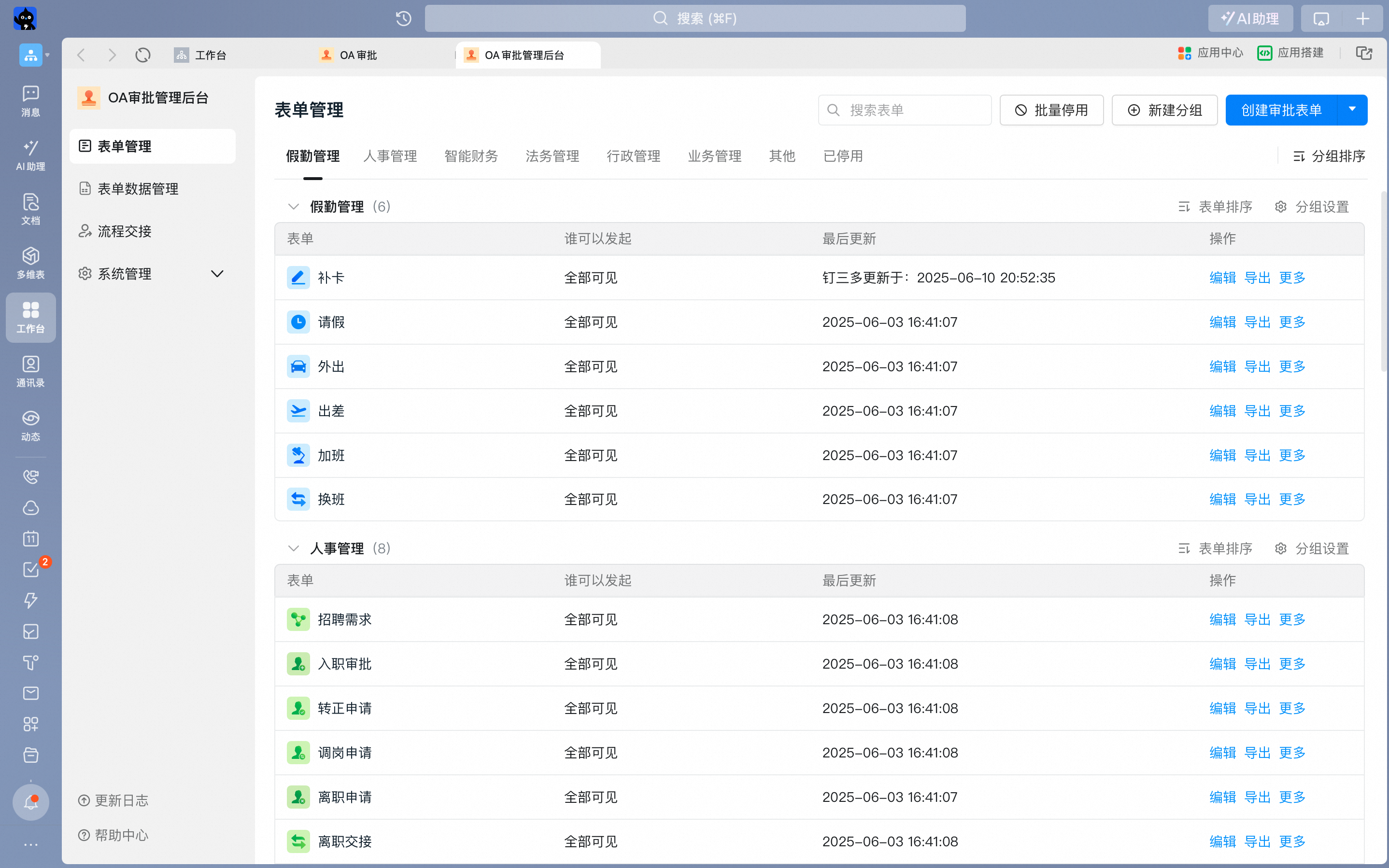
Hover over the " " icon in front of a form and drag it up or down to sort. When done, click \[Save Sort].

2. Other Group actions
Groups can also be renamed, deleted, and sorted.

| **Group action** | **Description** | **Details** |
| ---------------- | -------------------------- | --------------------------------------------------------------------------------------------------------------------------------------------------- |
| Rename | Renames the selected Group | No two Groups may share a name
" icon in front of a form and drag it up or down to sort. When done, click \[Save Sort].

2. Other Group actions
Groups can also be renamed, deleted, and sorted.

| **Group action** | **Description** | **Details** |
| ---------------- | -------------------------- | --------------------------------------------------------------------------------------------------------------------------------------------------- |
| Rename | Renames the selected Group | No two Groups may share a name
Adjustments made in the Admin Console are also reflected in the Group name within the OA Approval app |
| Delete | Deletes the selected Group | Once a Group is deleted, the forms it contained are automatically moved to the \[Other] Group |
| Sort | Adjusts the Group order | Adjustments made in the Admin Console are also reflected in Group ordering within the OA Approval app |
### 3) Data Management
#### 1. Data Query and Export
* Click \[Manage Approval Forms] in the upper-right corner, then \[Form Data Management] to manage data.
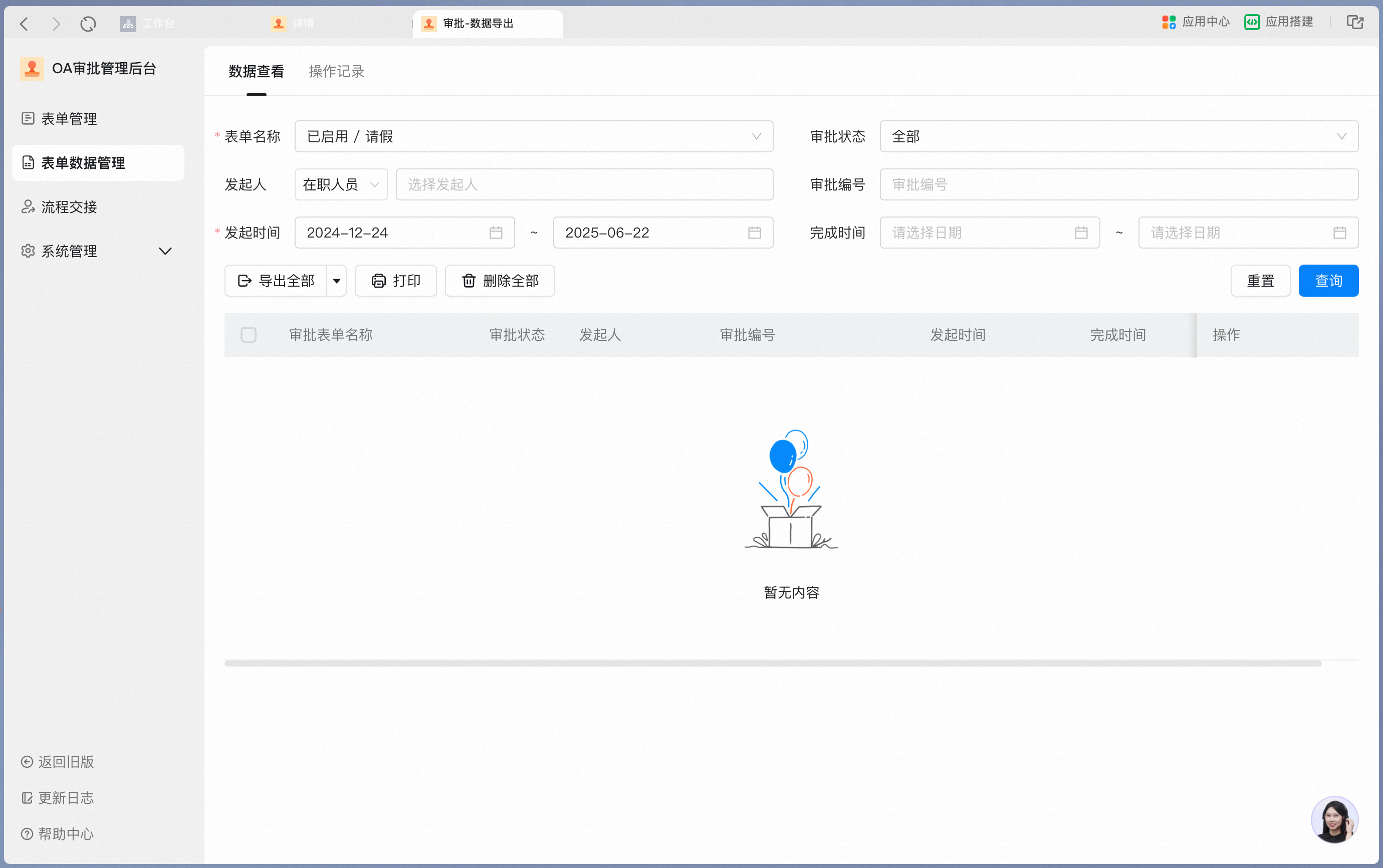
* Query data by form name, Approval status, initiator, Approval Number, submission time, and completion time. The time range can span up to six months.
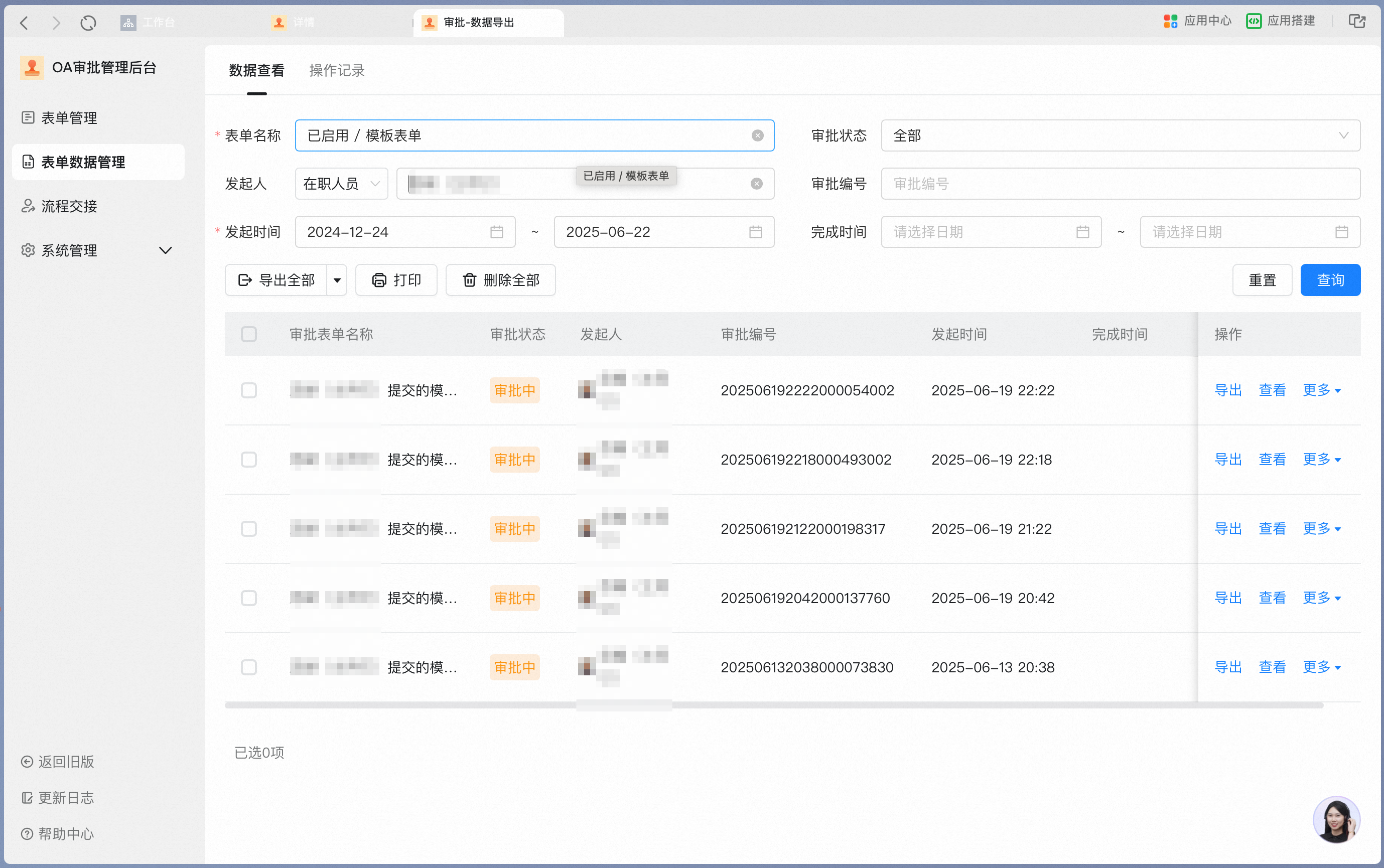
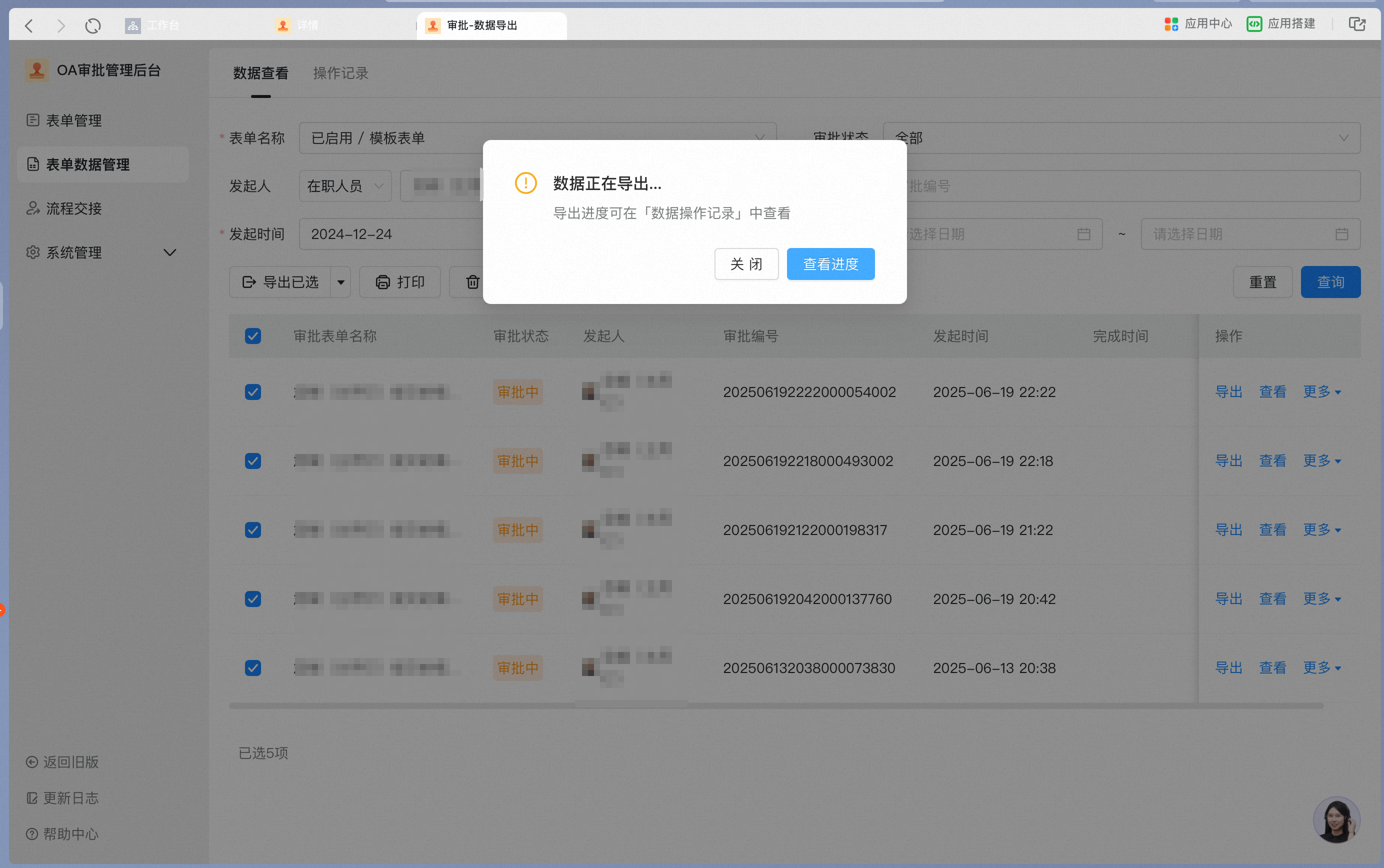
* Select the query results — multiple Records or Select all — then click "Export all".
#### 2. Attachment Management
Click \[Attachment storage management]. Data must be synced first when you open it for the first time.

#### 3. Activity Log
Under \[Data Management] → \[Activity log] in the Admin Console, you can view Records of "Export", "Print", "Delete", "Attachment cache cleanup", "Template sync", and other actions.

#### 4. Process Handover
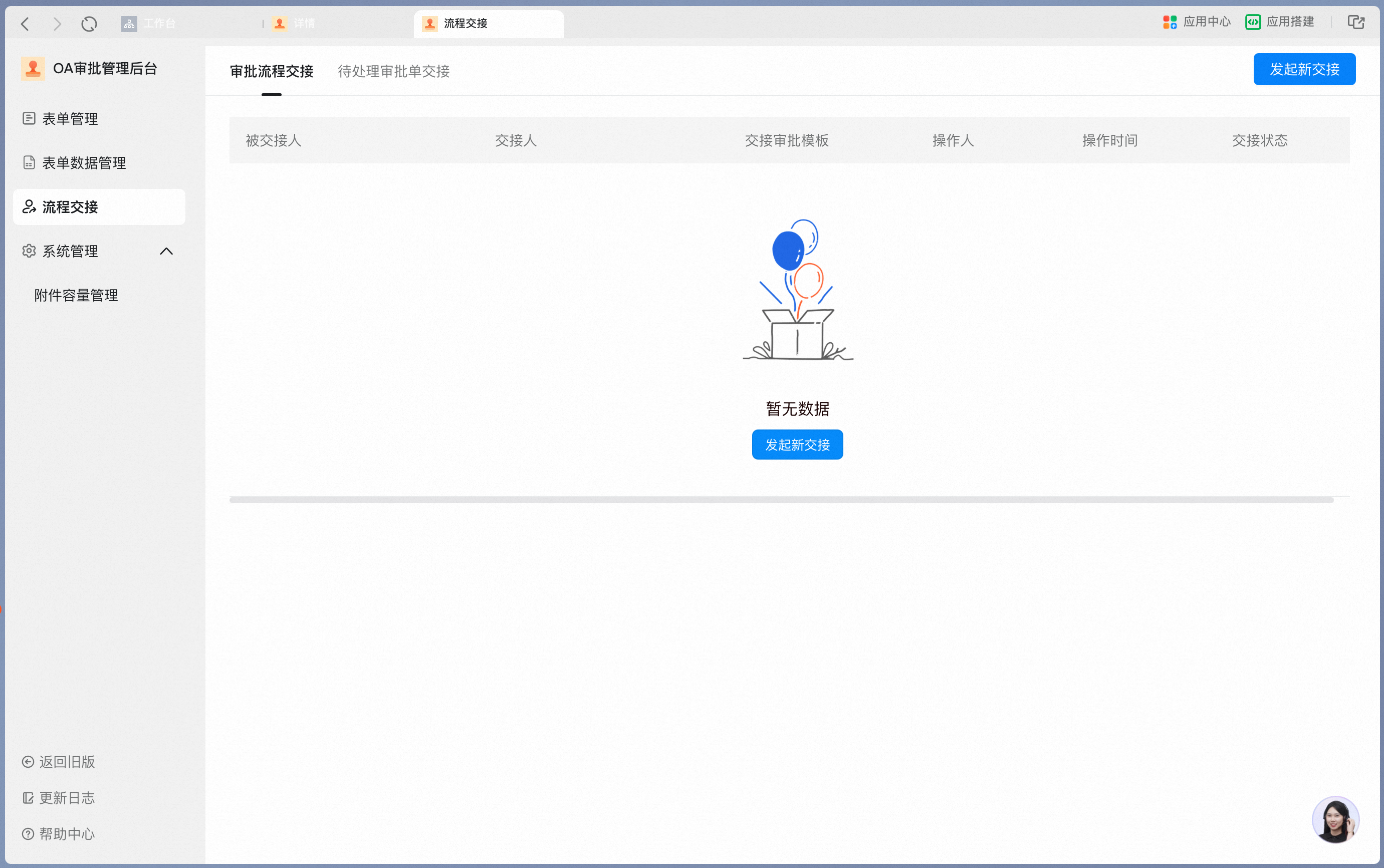
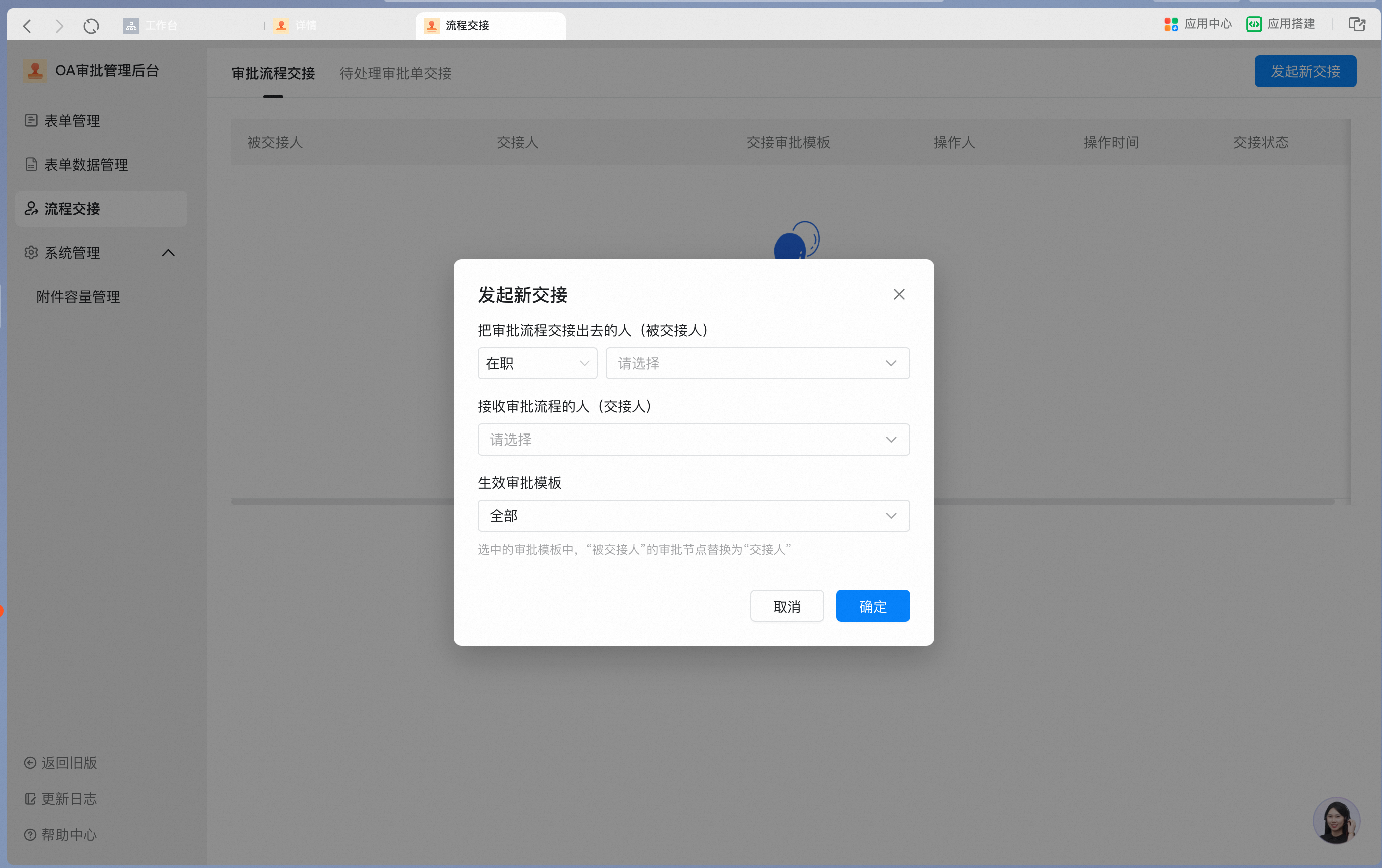
1. **Approval process handover**
When a user's position changes or a user leaves, go to \[Process Handover] in the Admin Console to bulk-replace the "Specific users" set as approvers in the Approval process with other "Specific users", quickly completing the approver change.
Selecting another type — such as manager or Role — replaces the manager or Role settings, and the approvers in the Approval process are then replaced automatically.
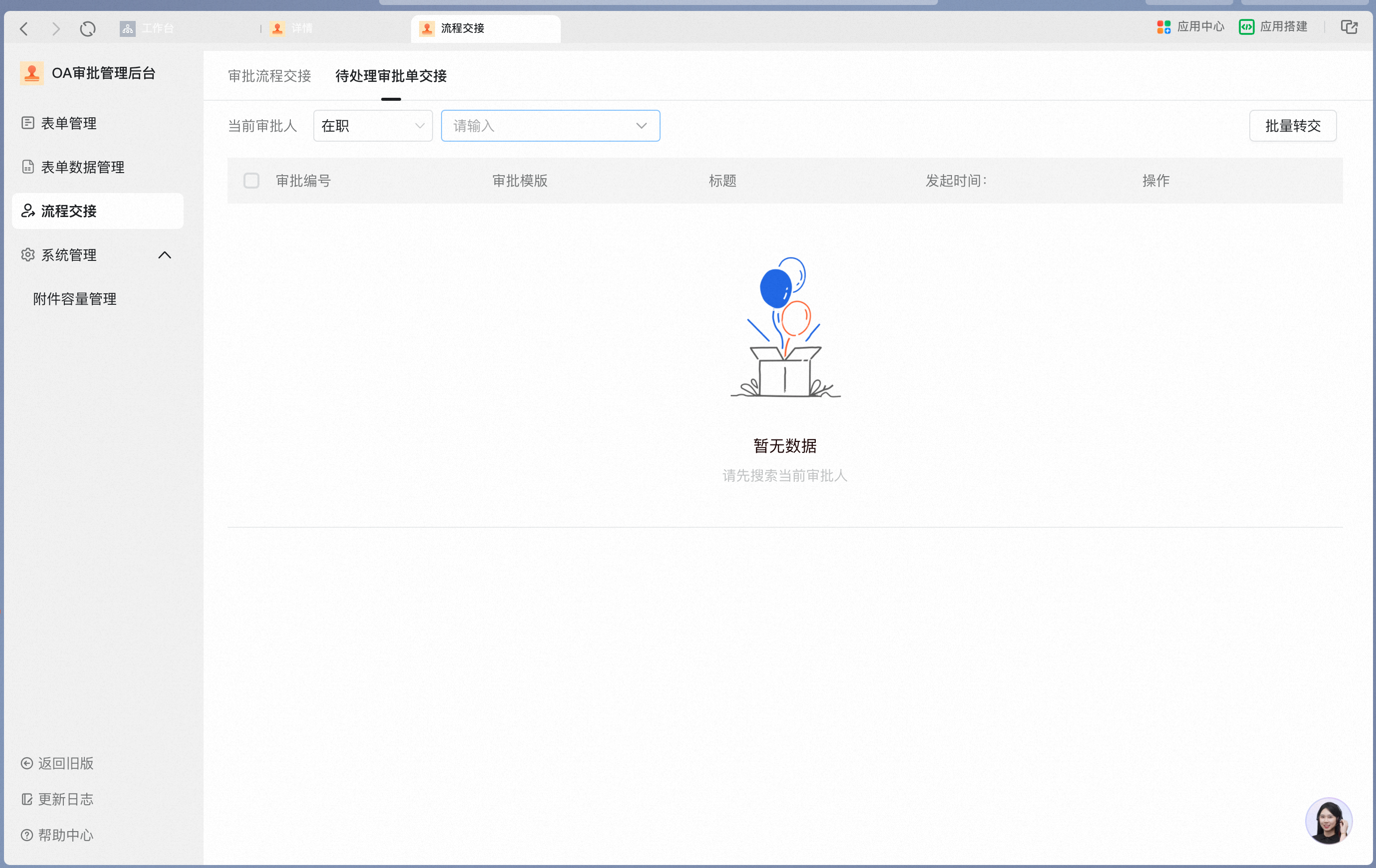
2. **Pending Approval form handover**
Approval forms that have already been submitted and are in progress must be bulk-transferred via \[Pending Approval form handover].
Note:
* Handover is only possible for Approval forms that have already reached the Step to be handed over — Approval forms that have not yet reached that Step do not appear in the pending list;
* For Approval forms set to use a Role or manager as approver that have already been submitted and are in progress, you must also perform a **Pending Approval form handover**. Adjusting the Role or department manager does not automatically replace the current approver;
#### 5. Download Approval Form Details
Click View to open the form details, then click "Download" in the upper-right corner to download the current form's PDF locally for archiving.
