> ## Documentation Index
> Fetch the complete documentation index at: https://help.dingtalk.io/llms.txt
> Use this file to discover all available pages before exploring further.
# Process design
> A complete guide to designing approval processes. Add approver, CC recipient, and handler nodes, configure node attributes and action permissions, and set up conditional branches so approval forms flow automatically by rule.
## 1. Prerequisites
Only **approval Admins** can design processes, so you must first become an approval Admin.
If you are not an approval Admin, open DingTalk OA Approval, tap **Settings**, tap **Create Approval Form**, tap **Apply for Admin Permissions**, and then tap **Submit**.

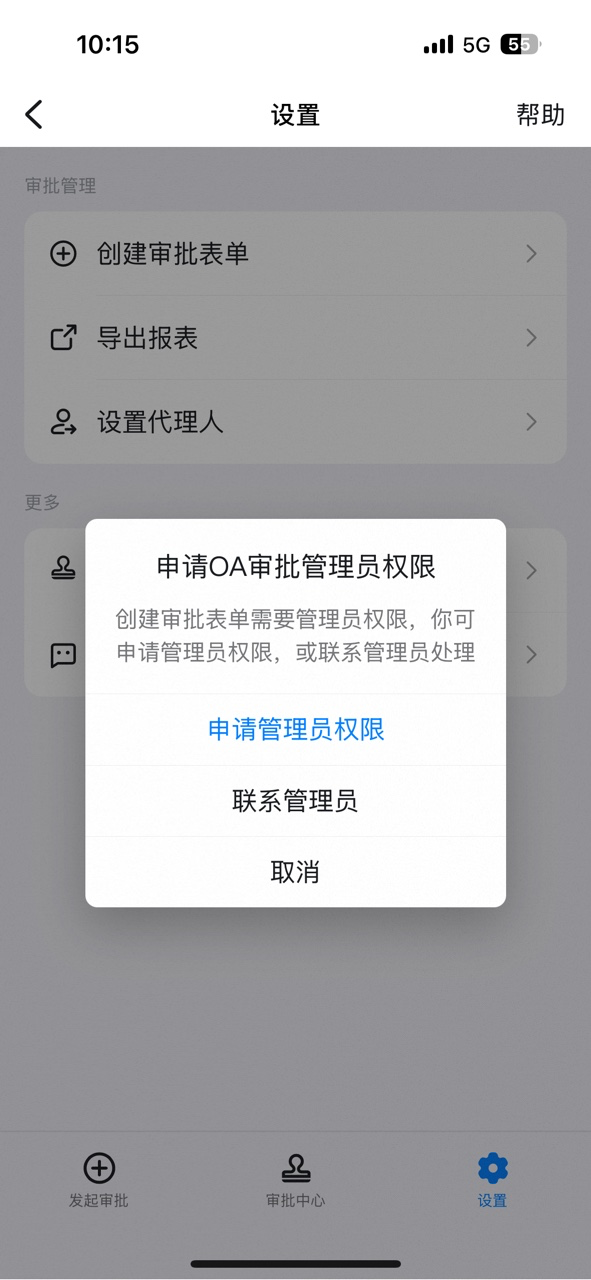

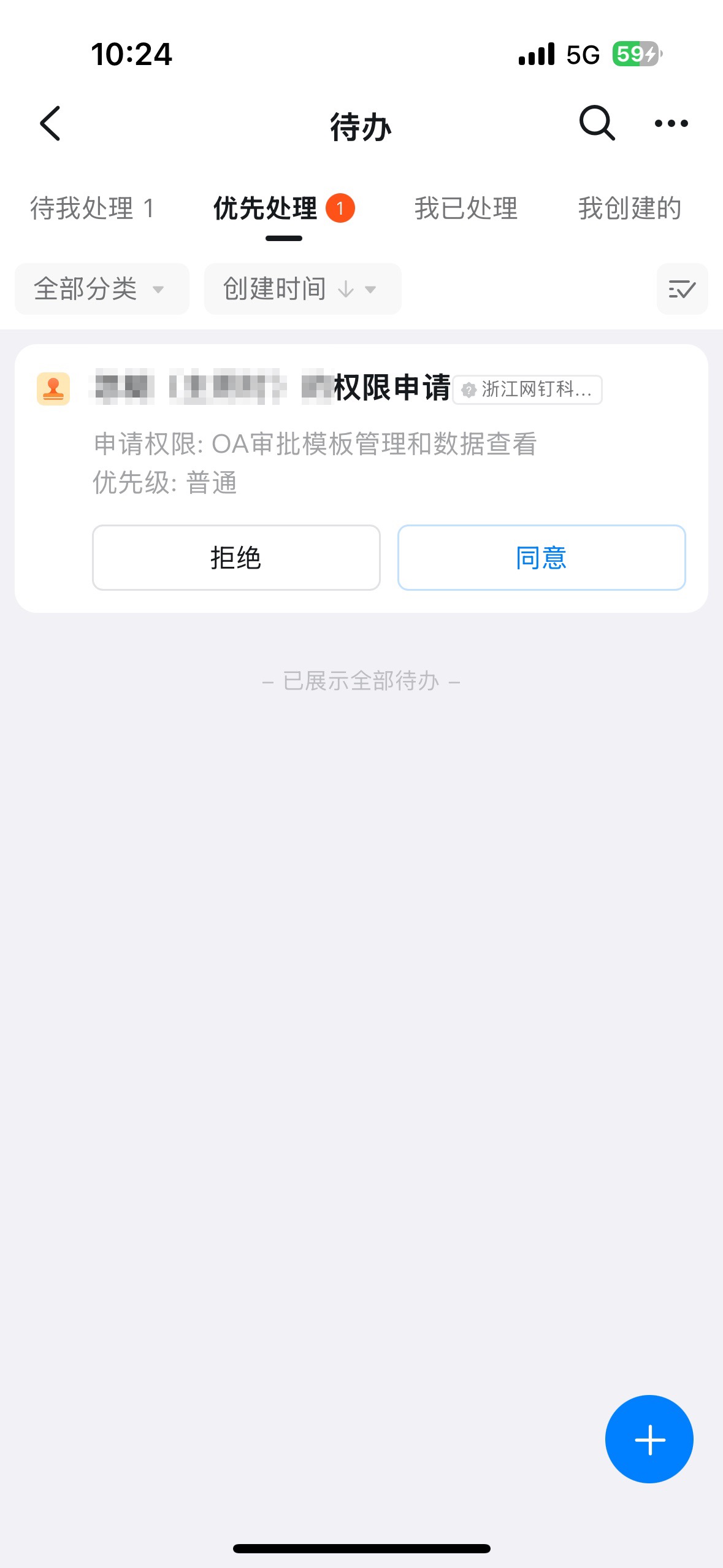
Once the Admin receives the pending approval notification and approves the request, the employee automatically gains approval Admin permissions.
## 2. Entry point
On the **Approval Admin Console** > **Form Management** page, click **Edit** in the form's Action column.
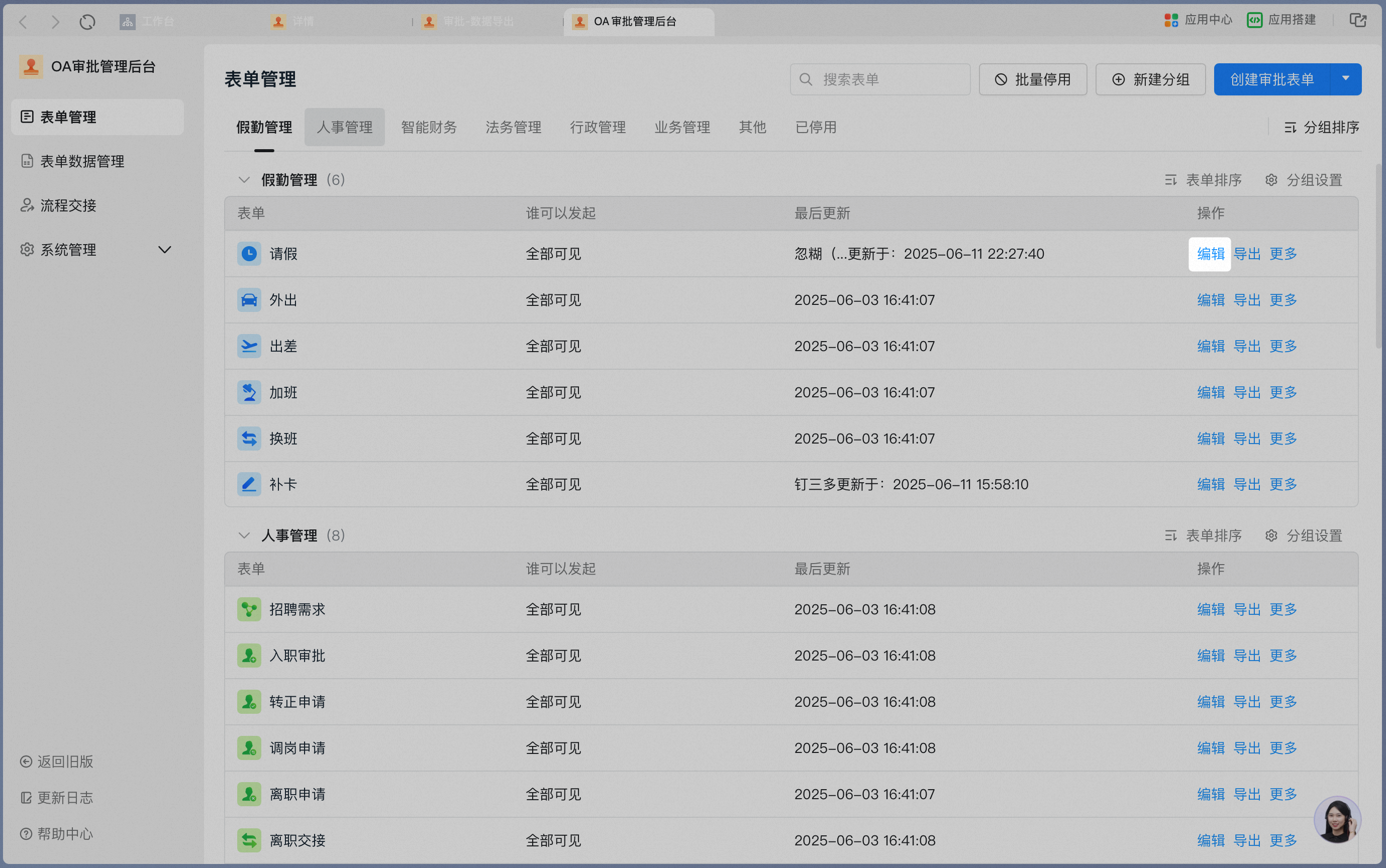
Click **Process design** to open the main process design page.

## 3. Basic actions
Process design includes the following four basic actions:
| Basic action | Description |
| -------------------- | ------------------------------------------------------------------------ |
| Add a node | Add initiator, approver, CC recipient, or handler nodes to the process. |
| Set node attributes | Select the operator type for the node and complete the related settings. |
| Set node permissions | Adjust each node's action permissions for form fields. |
| Add a branch | Set branch conditions and configure tiered conditional processes. |
### 3.1 Add a node
Click **+** to add an approver, CC recipient, handler, or conditional branch.

| Approval node type | Description | Details |
| ------------------ | ----------------------------------------------------------------------------------------------------------------------------------------------------------------------------- | -------------------------------------------------------------------------------------------------------------------------------------------------------------------------------------------------------------------------------------------------------------------------------------------------------------------------------------------------------------------------------------------------------------------- |
| Initiator | The initiator node is the starting point of an approval process. On this node, configure who can submit the approval form and which fields the initiator can fill in. | Default node
Node name cannot be changed
After submission, view under **Submitted by me** in the process center
Supports form field action permissions: Editable, Read-only, or Hidden |
| Approver | Can Accept, Decline, transfer, return, or add an approver to the approval form. | Optional node
Node name can be changed
Before approval, view under **Pending** in the process center; after approval, view under **Handled by me**
Supports form field action permissions: Editable, Read-only, or Hidden |
| CC recipient | When the process reaches this node, the recipient cannot approve but receives the approval form and can view and comment on it. | Optional node
Node name can be changed
After the process reaches this node, view under **CC'd to me** in the process center
Supports form field visibility: Read-only or Hidden |
| Handler | Can Submit, transfer, return, add an approver, or comment on the approval form. | Optional node
Node name can be changed
Before handling, view under **Pending** in the process center; after handling, view under **Handled by me**
Supports form field action permissions: Editable, Read-only, or Hidden |
| Conditional branch | Routes the process down different branches based on different conditions.
For details, see >>> [How to set up conditional approval](/approval/set-conditional-approval). | Optional node
Branch name can be changed
Supports duplicating branches
Supports adding conditions: multiple conditions are joined by AND
Supports adding condition groups: multiple condition groups are joined by OR
**Branches run in priority order at execution time.**
As soon as one branch rule passes, the others are skipped. **At most one conditional branch is executed.** |
| Parallel branch | Available with a paid plan. Routes the process through multiple approval branches simultaneously. | Optional node
Branch name can be changed
Supports duplicating branches
Supports adding conditions: multiple conditions are joined by AND
Supports adding condition groups: multiple condition groups are joined by OR
Multiple branches can **run in parallel** according to the rules you set |
| Connector | Available with a paid plan. Calls a connector configured in **My Integrations**. | Optional node |
| Automation | Available with a paid plan. Configures automation tasks. | Optional node |
### 3.2 Set node attributes
#### 3.2.1 Initiator
The initiator is the person who requests the business action and marks the starting point of the approval process. The initiator fills in the form and submits it.
| Attribute | Description |
| -------------- | ------------------------------------------------------------------------------------------------------------ |
| Initiator type | Defaults to members of the Organization. |
| Who can submit | Kept in sync with **Who can initiate** in Basic Settings. Any change here is also applied to Basic Settings. |

#### 3.2.2 Approver
The approver reviews and approves the business action, and can Accept, Decline, transfer, return, or add an approver on the approval form.
**1) Approver attributes**
| Attribute | Description |
| -------------------------------------- | -------------------------------------------------------------------------------------------------------------------------------------------------------------------------------------------------------------------------------------------------------------------------------------------------------------------------------------------------------------------------------------------------------------------------------------------------------------------------------------------------------------------------------------------------------------------------------------------------------------------------------------------------------------------------------------------------------------------------------------------------------- |
| Node name | Displayed on the approval details page as the name of the approval node. Defaults to **Approver**.
Set it to the job title of the node, such as **CFO**, or to the specific review content, such as **Contract compliance review**. |
| Approval type | Supports manual approval, automatic approval, and automatic decline.
Defaults to manual approval.
Automatic approval and automatic decline are typically used together with conditional branches to enable automated approval. |
| Node approver | Supports multiple types, flexibly meeting different approval routing needs. |
| Approval method for multiple approvers | When multiple people participate in the same node, sequential approval, joint approval, either-or approval, or vote is supported.
Sequential approval: multiple approvers approve one after another; the request is approved only after every approver Accepts.
Joint approval: multiple approvers approve at the same time; the request is approved only after every approver Accepts.
Either-or approval: multiple approvers approve at the same time; the request is approved as soon as any one approver Accepts, and Declined as soon as any one approver Declines.
Vote: available with a paid plan. Multiple approvers approve at the same time; the request is approved once the required number of Accept votes is reached. |
| Handling when the approver is empty | When the approver is set to a manager, department head, role, or similar type, an incomplete Contacts setup may result in no matching person. In this case, set the routing rule for when the approver is empty.
Automatic approval: if no approver is found for the node, the approval form is automatically approved.
Automatic decline: if no approver is found for the node, the approval form is automatically declined.
Automatically transfer to Admin: transfers to the template Admin by default; if there is no template Admin, transfers to the approval Admin.
Approval by specified user: when the role or manager is empty, the approval form is automatically transferred to a specified user (up to one). |
Approver node attribute panel:

Click the edit icon next to the node name to rename the node:

Three approval types are supported: manual approval, automatic approval, and automatic decline.

Node approvers support common approvers, managers, and other types:

Approval methods for multiple approvers include sequential approval, joint approval, either-or approval, and vote:

Handling when the approver is empty:

**2) Node approver settings**
Node approvers support the following types. Expand each item to see its configuration instructions.
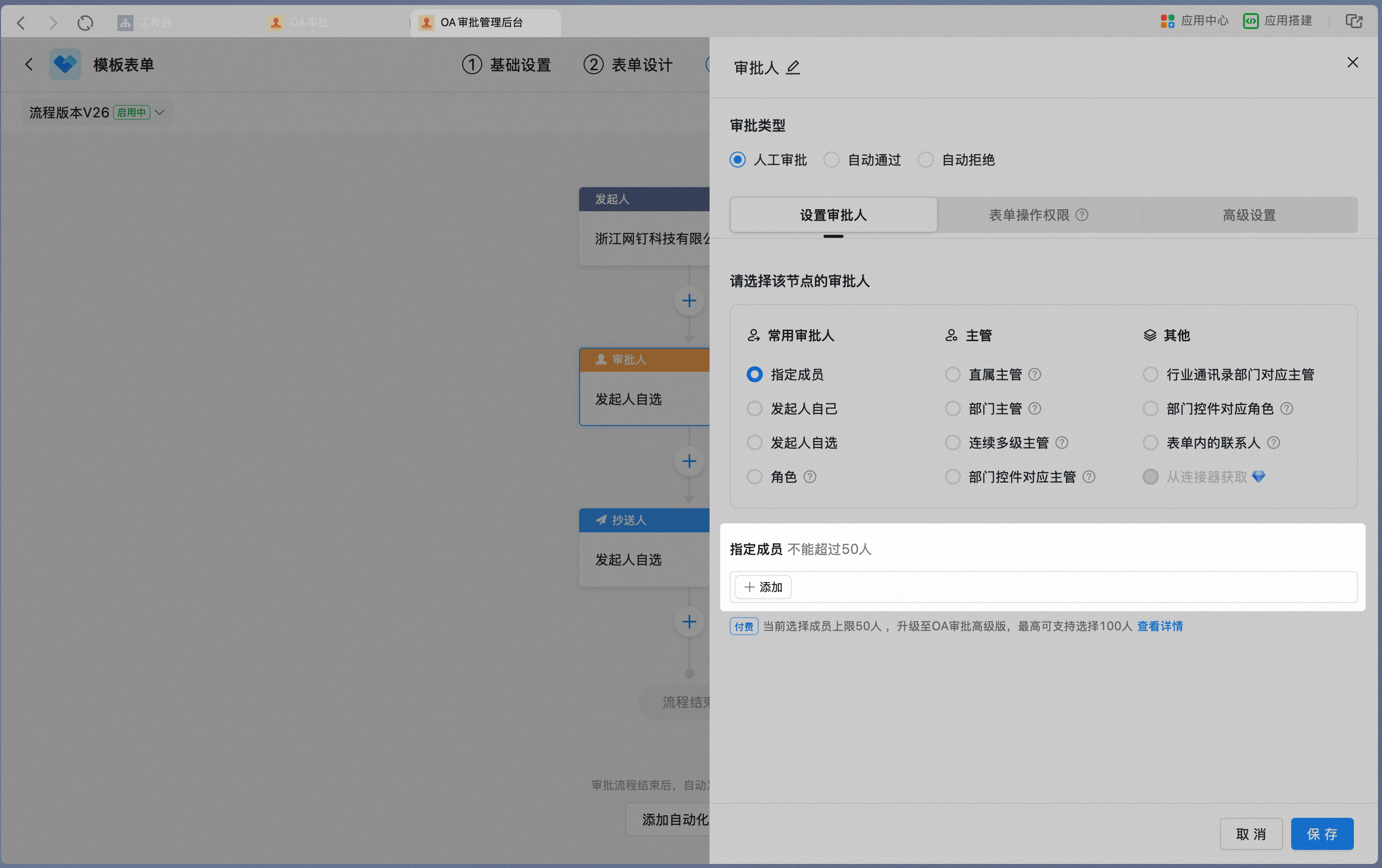
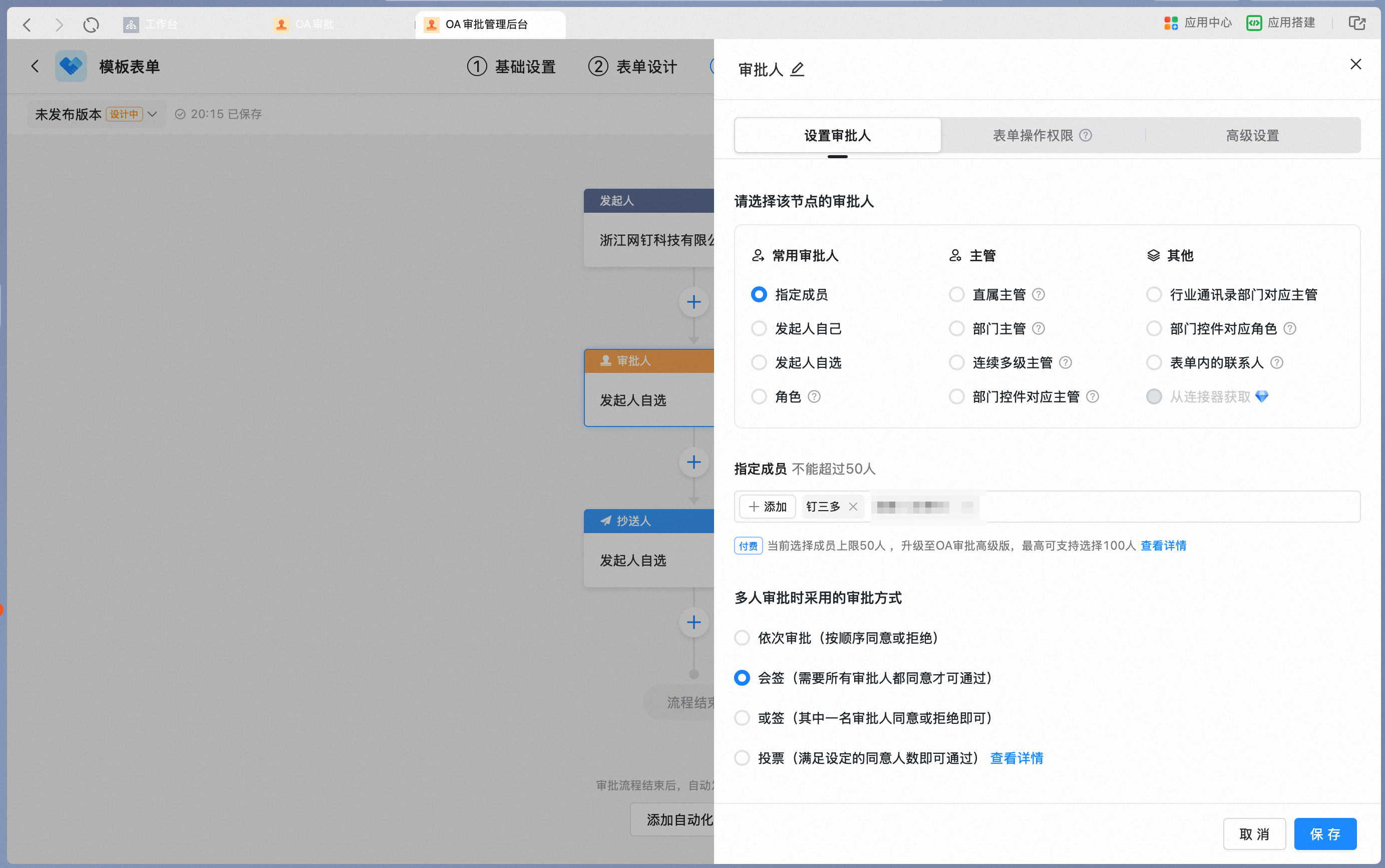
When you set the node approver to **Specified users**, add specified users as approvers.
* Pick approvers from Contacts. The Standard edition allows up to 50 users per node; a paid plan raises this limit to 100.
* When you pick multiple users, set the approval method for multiple approvers. The default is joint approval.
Select **Specified users** and click Add:
Pick users from Contacts:

Set the approval method when multiple users are picked:
When you set the node approver to **Initiator themselves**, the initiator acts as the approver for this node. This is typically used when the initiator must confirm the approval result.
* For example, after a purchase request is submitted and the purchase is completed, the initiator confirms whether the outcome meets expectations.
* After a ticket is submitted and resolved, the initiator confirms whether the issue has been fixed.
Set the node approver to the initiator:

When you set the node approver to **Initiator picks**, the initiator can pick either a single user or multiple users.
* Set the range of pickable users. The default is the entire Company; you can also restrict the range to roles or specified users. For example, in a rotating shift scenario where several cashiers or IT staff take turns, set these roles or specified users as the pickable range, and let the initiator pick based on that day's scheduling.
* When the initiator picks multiple users, set the approval method for multiple approvers.
Choose whether the initiator picks one user or multiple users:

Set the range of pickable users. You can choose the entire Company, specified users, or roles:

Set the approval method when the initiator picks multiple users:

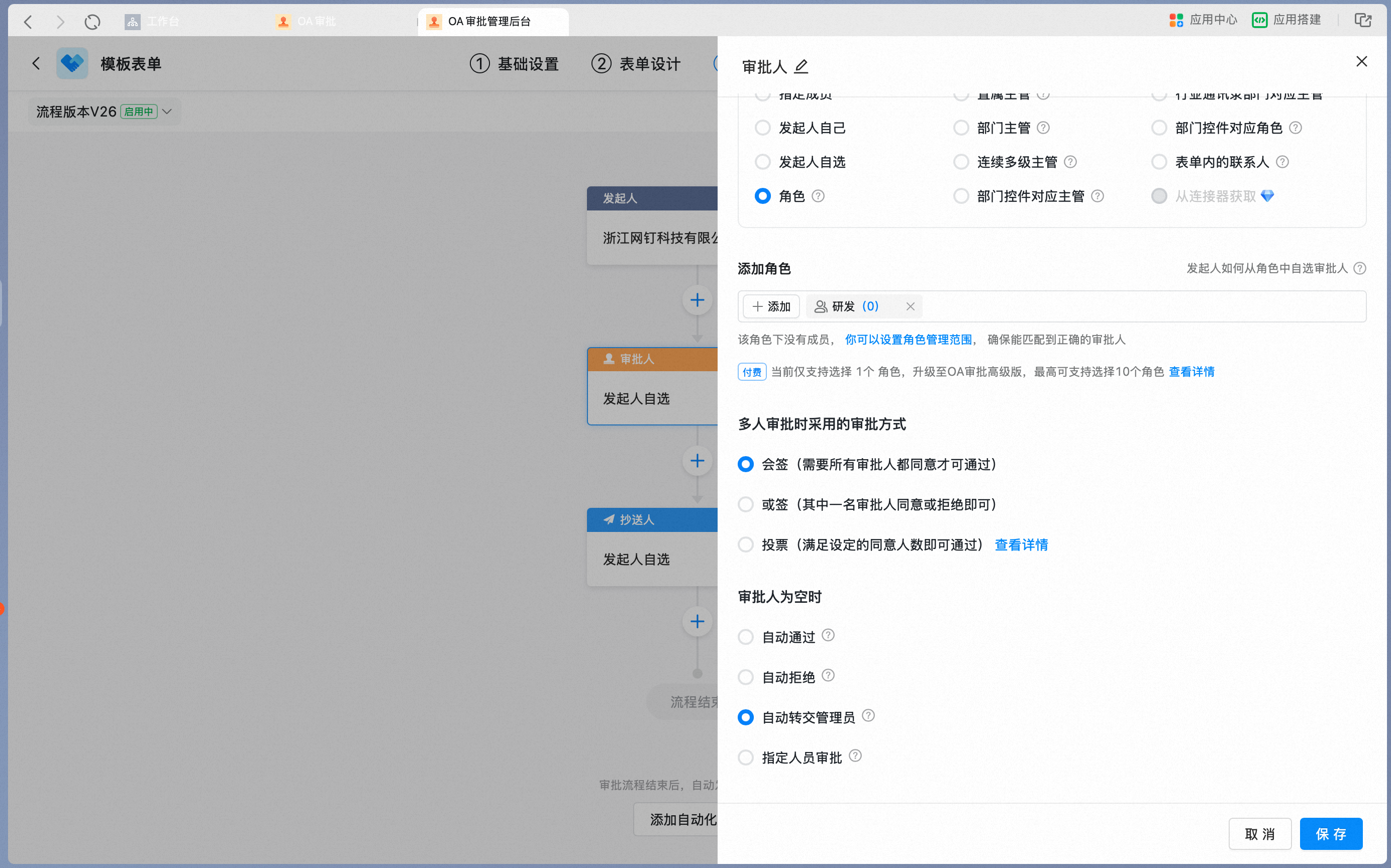
When you set the node approver to **Role**, add a role as the approver.
* After picking a specific role, set the approval method for multiple approvers.
* Because a role may return no approver due to management scope settings, set the handling logic for when the approver is empty.
* For details, see >>> [How to set up role-based approval](/approval/set-role-approval).
Add a role as the approver:

Set the approval method and the handling when the approver is empty:
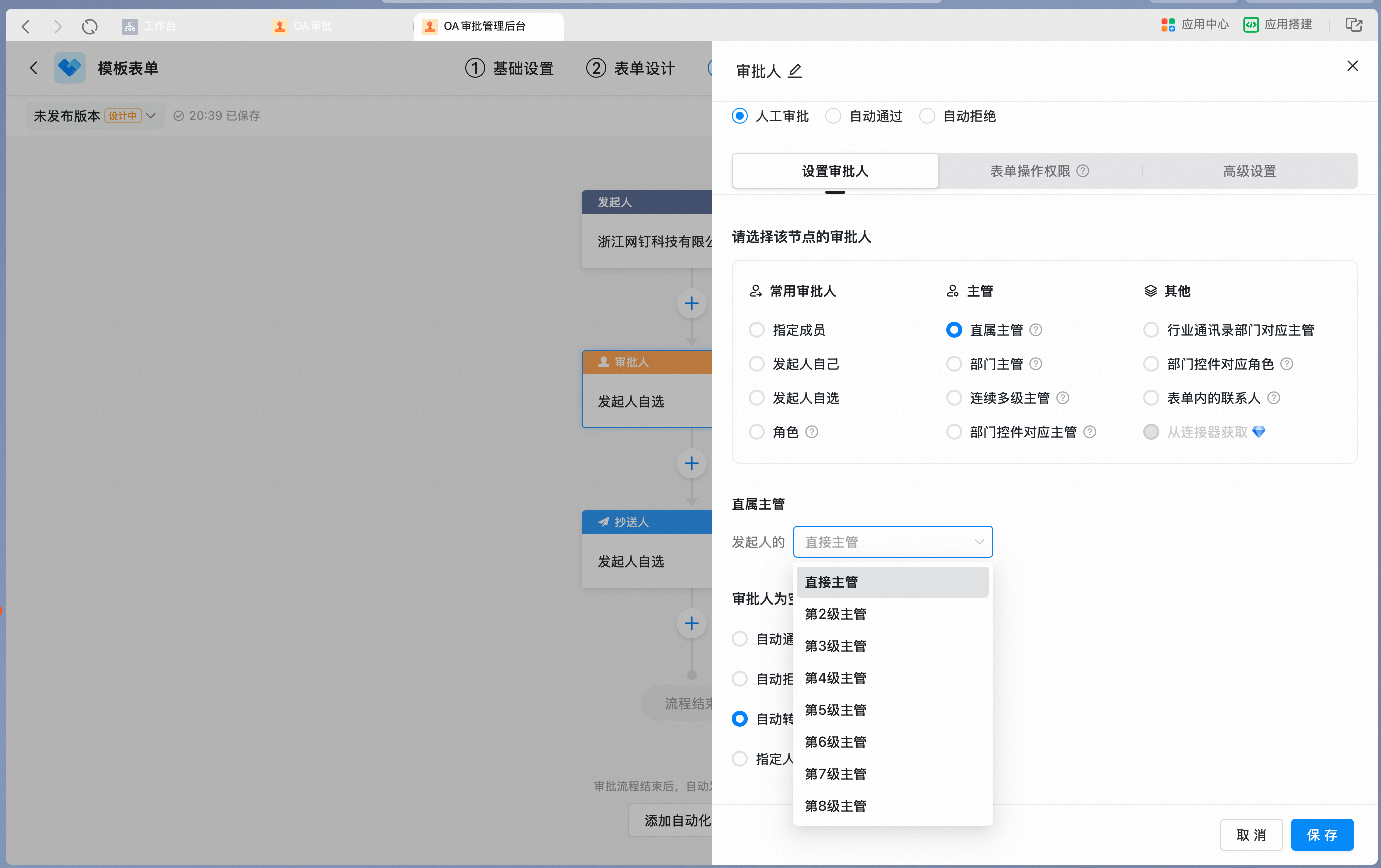
When you set the node approver to **Direct manager**, choose which tier of direct manager above the initiator should approve. Up to 8 tiers are supported.
* Because a direct manager may return no approver due to direct manager settings, set the handling logic for when the approver is empty.
* For details, see >>> [How to set up direct manager approval](/approval/set-direct-manager-approval).
Choose which tier of direct manager above the initiator should approve:
When you set the node approver to **Department manager**, choose which tier of department manager above the initiator should approve. Up to 8 tiers are supported.
* Because a department manager may return no approver due to Contacts settings, set the handling logic for when the approver is empty.
* For details, see >>> [How to set up department manager approval](/approval/set-dept-manager-approval).
Set the department manager. You can select "If no manager is found, the higher-level manager approves on their behalf":

Choose which tier of department manager above the initiator should approve:

When you set the node approver to **multiple levels of managers**, set how many tiers above the initiator the approval should flow to. The process automatically routes upward tier by tier along the department manager hierarchy: it first identifies the initiator's first-tier department manager, then the second-tier department manager, and so on, up to the Nth tier above the initiator.
You can also set the highest tier in Contacts that the approval should reach. The process then routes upward tier by tier along the department manager hierarchy until it reaches the Nth-tier manager in Contacts.
If the initiator is already the Nth-tier manager in Contacts, the approval is routed one more tier upward.
Set the maximum tier above the initiator:

Set the highest tier in Contacts:

When you set the node approver to **Manager of a department field**, first select a Department field in the form. This is typically used when a specific department manager must confirm, such as for a transfer request.
* Select which tier of department manager above that department should approve. Up to 8 tiers are supported.
Select a Department field in the form:

Choose which tier of manager the department field routes to:

When you set the node approver to **Role for a department field**, first select a Department field in the form. This is typically used when a specific role within a department must confirm, such as for a work handover.
* Pick a role from the role list. For role and management scope settings, see >>> [How to set up role-based approval](/approval/set-role-approval).
Select a Department field in the form:

Pick a role from the role list:

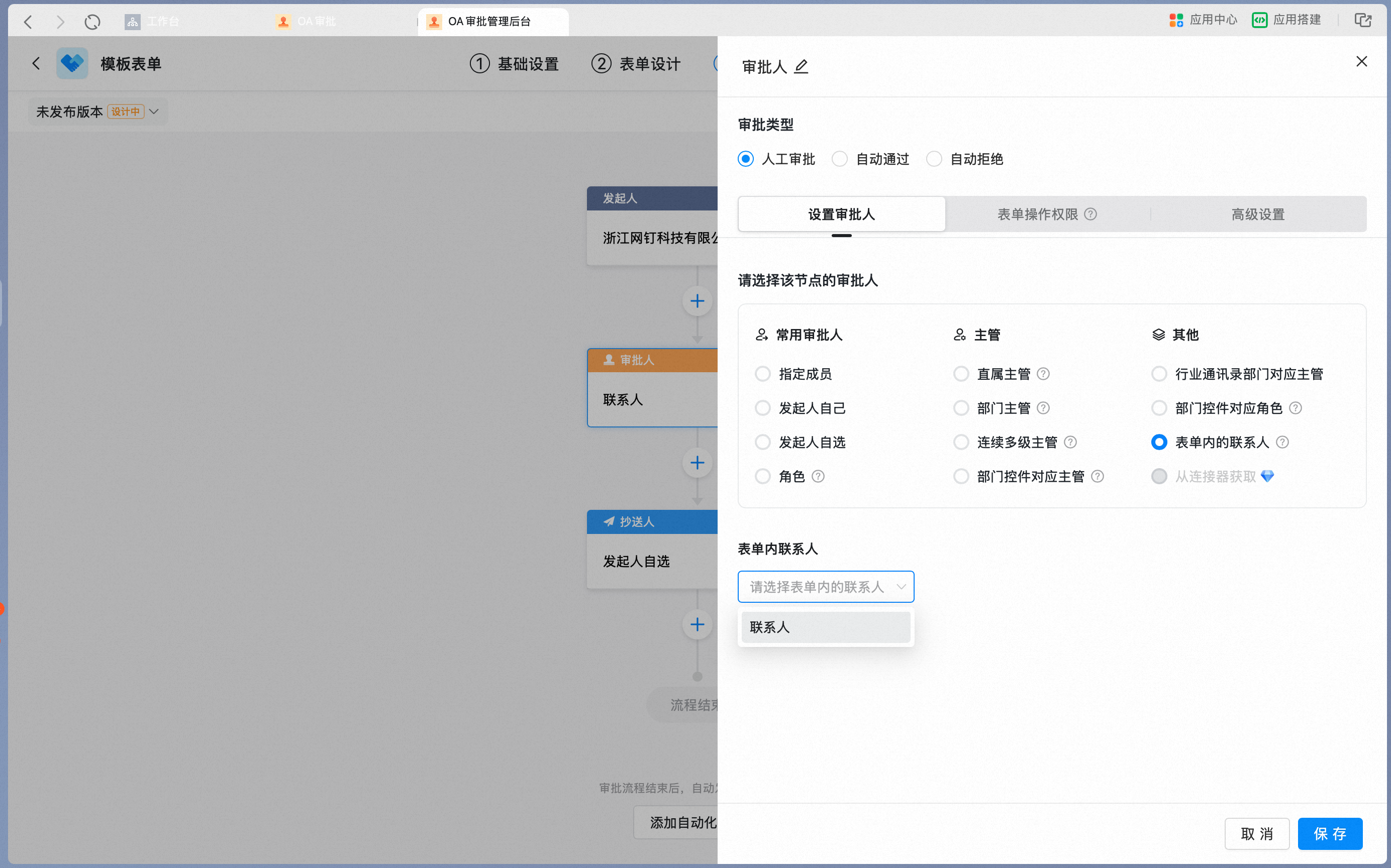
When you set the node approver to **Contact field in the form**, select a Contact field in the form so that the user in that field acts as the approver.
* For details, see >>> [How to set up form contact approval](/approval/set-form-contact-approval).
Select a Contact field in the form:
#### 3.2.3 CC recipient
CC recipients are people related to the business action. They need to stay informed but do not make decisions. When the process reaches this node, the recipient cannot approve but receives the approval form and can view and comment on it.
| Attribute | Description |
| ----------------- | ----------------------------------------------------------------------------------------------------------------------------------------------------------------------------------------------------- |
| Node name | Displayed on the approval details page as the name of the CC node. Defaults to **CC recipient**.
Set it to the job title or role type of the node, such as **CFO** or **Other project members**. |
| Node CC recipient | Supports multiple types, flexibly meeting different notification needs. |
CC recipient node attribute panel:

Edit the CC recipient node name:
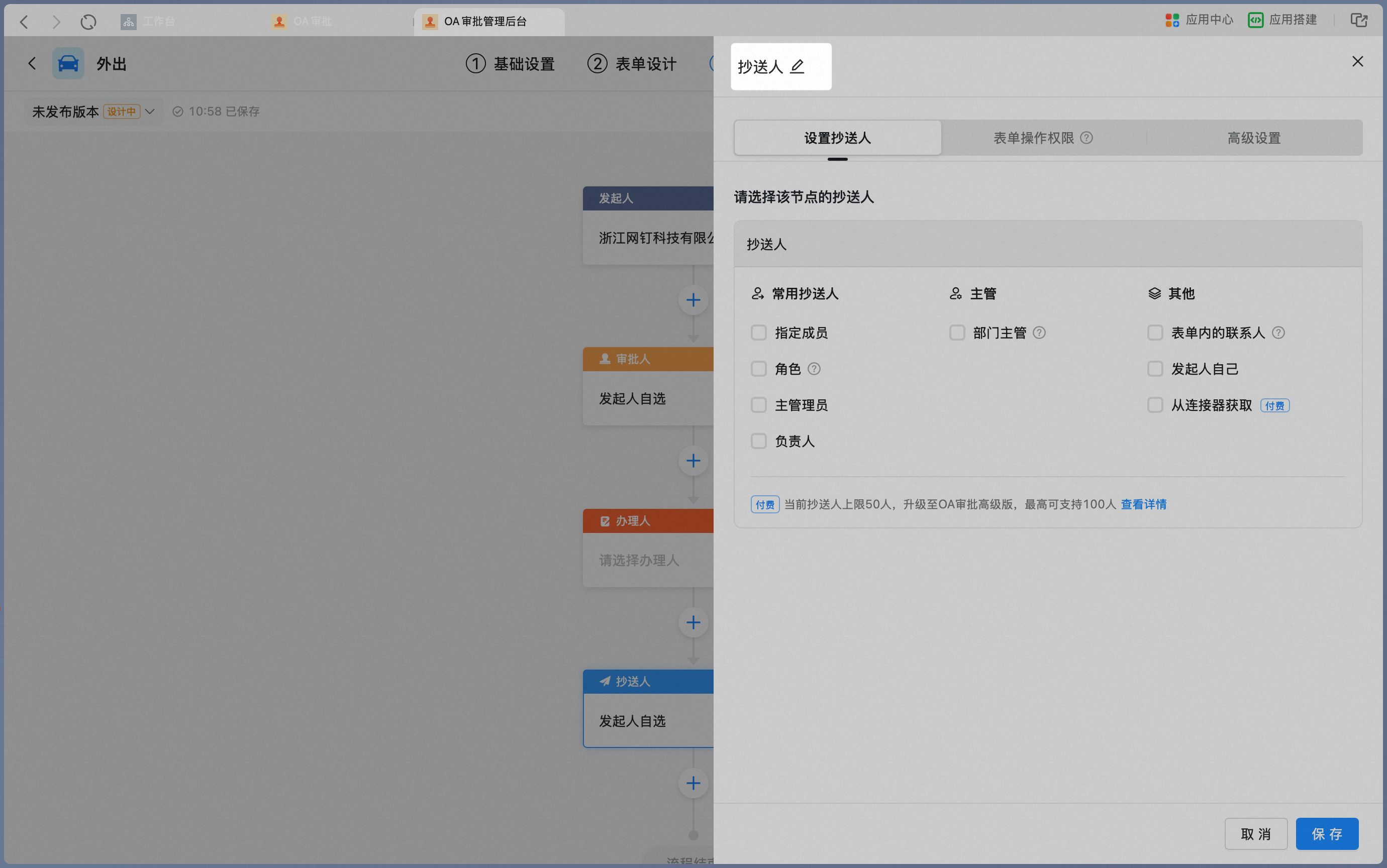
Node CC recipients support common CC recipients, managers, and other types:

#### 3.2.4 Handler
The handler is the person who actually carries out the business action. Handlers do not have review or approval authority, but they can Submit, transfer, return, add an approver, or comment on the approval form.
| Attribute | Description |
| ------------------------------------- | ------------------------------------------------------------------------------------------------------------------------------------------------------------------------------------------------------------------------------------------------------------------------------------------------------------------------------------------------------------------------------------------------------------------------------------------------------------------------------------------------------------------------------------------------- |
| Node name | Displayed on the approval details page as the name of the handler node. Defaults to **Handler**.
Set it to the job title of the node, such as **Cashier**, or to the specific handling task, such as **Contract sealing**. |
| Node handler | Supports multiple types, flexibly meeting different routing needs. |
| Handling method for multiple handlers | When multiple people participate in the same node, sequential handling, simultaneous handling by all, or handling by any one handler is supported. |
| Handling when the handler is empty | When the handler is set to a role or manager, an incomplete Contacts setup may result in no matching person. In this case, set the routing rule for when the handler is empty.
Automatic approval: if no handler is found for the node, the node is automatically skipped.
Automatically transfer to Admin: transfers to the template Admin by default; if there is no template Admin, transfers to the approval Admin.
Handling by specified user: when the role or manager is empty, transfers to a specified user for handling. |
Handler node attribute panel:
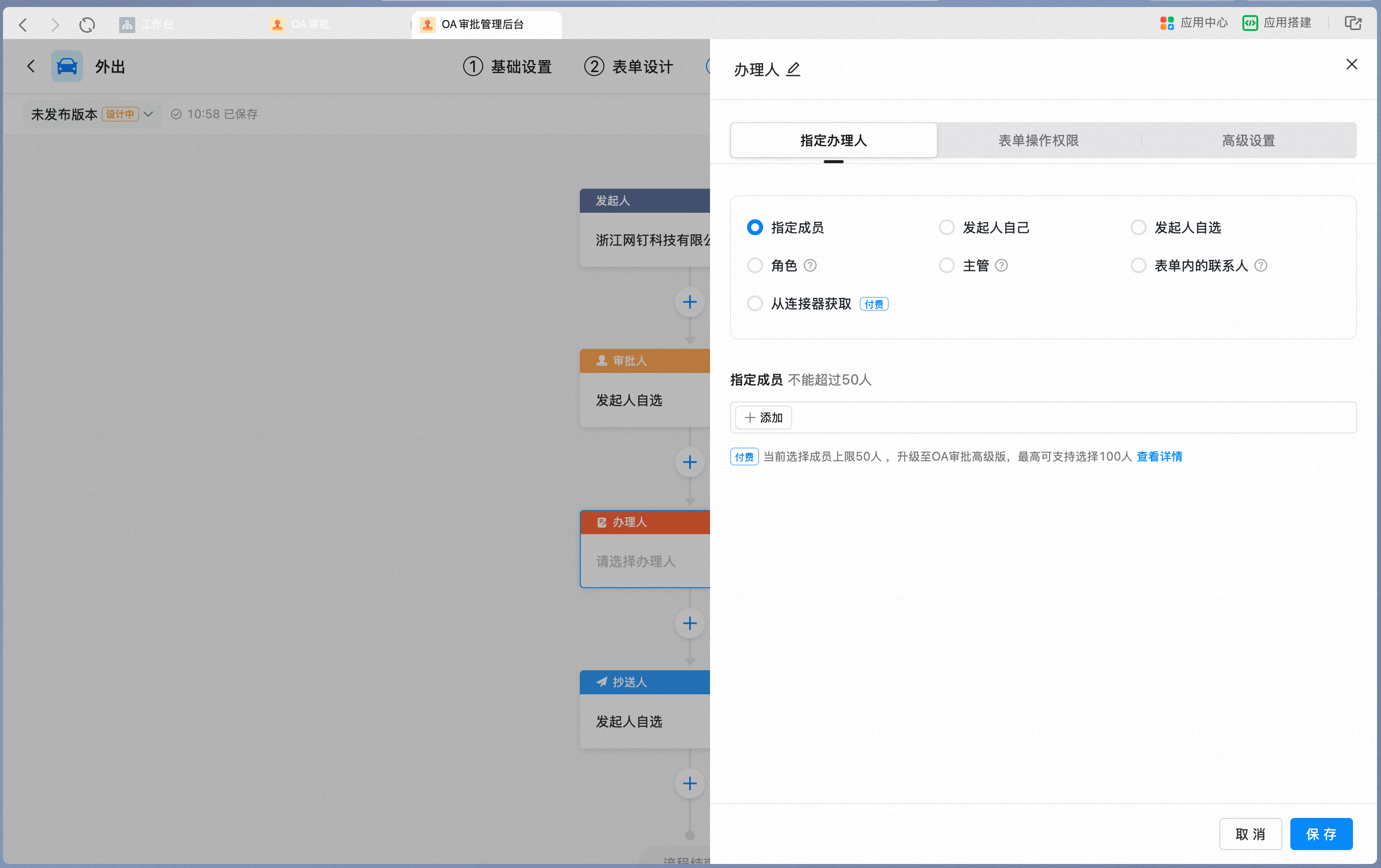
Edit the handler node name:

Node handlers support specified users, roles, initiator picks, and other types:

### 3.3 Set node action permissions
In the node attribute panel, switch to the **Form action permissions** tab to set the node's action permissions for each field in the form.
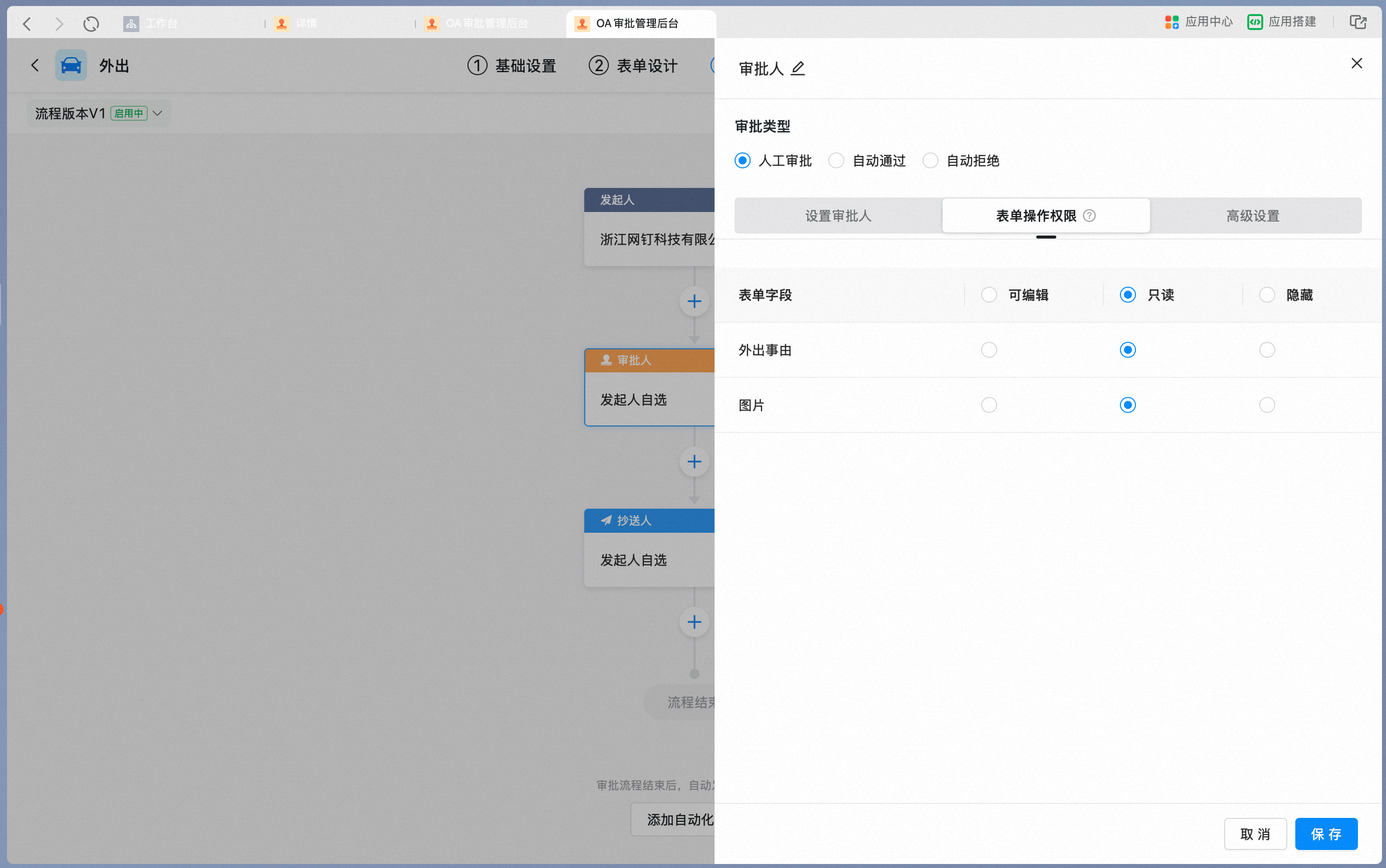
| Form action permission | Description | Details |
| ---------------------- | --------------------------------------------------------------------------- | ----------------------------------------------------------------------------------------------------------------------------------------------------------------------------------------------------------------------------------------------------------- |
| Editable | Can fill in and edit **Editable** content in the form. | Supported for initiator, approver, and handler nodes
Initiator's default form action permission is Editable |
| Read-only | Can only view **Read-only** content in the form; cannot fill in or edit it. | Supported for initiator, approver, handler, and CC recipient nodes
Default form action permission for approver, handler, and CC recipient is Read-only
When the initiator node is set to Read-only, the current node is hidden from the initiator |
| Hidden | Cannot view **Hidden** content in the form. | Supported for initiator, approver, handler, and CC recipient nodes |
### 3.4 Add a branch
A conditional branch is not a traditional node, but it is an essential part of Flow configuration.
**Branches run in priority order at execution time. As soon as one branch rule passes, the others are skipped. At most one conditional branch is executed.**
#### 3.4.1 Add a conditional branch
Click **+**, and then click **Conditional branch**.

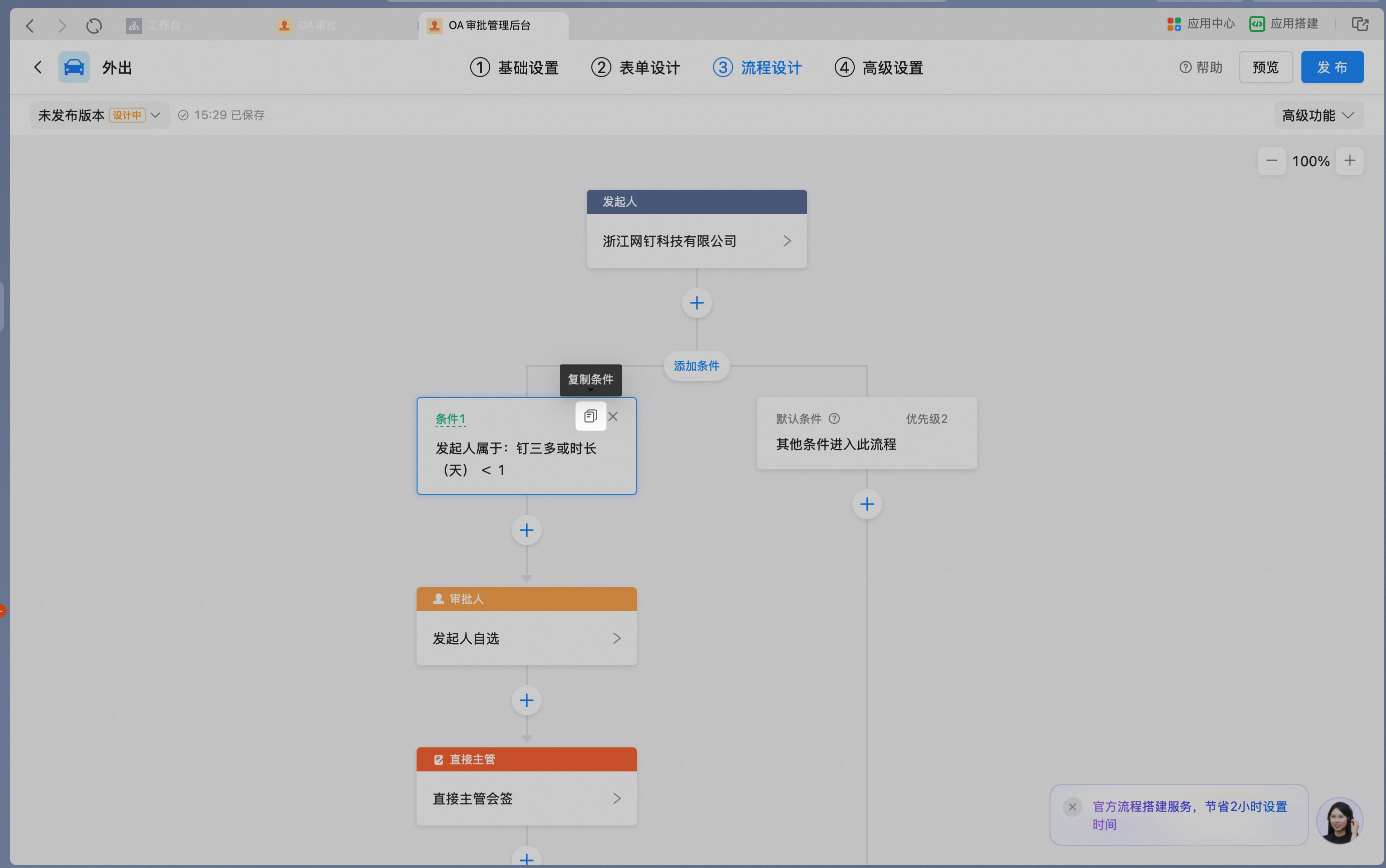
#### 3.4.2 Duplicate a conditional branch
Click **Copy** to quickly duplicate an existing conditional branch.
#### 3.4.3 Set branch conditions
Click a conditional branch node in the flow diagram, and set the branch conditions in the right-hand panel.
Conditional branch node and condition summary in the flow diagram:

Condition settings panel, where you can add conditions or condition groups:

| Condition setting | Description |
| ---------------------------------- | ----------------------------------------------------------------------------------------------------------------------------------------------------------------------------------------------------------------------------------------------------------------------------------------------------------------------------------------------------------------------------------------- |
| Condition name | Identifies a condition or condition group. Defaults to Condition 1, Condition 2, Condition 3, and so on. |
| Single condition | By default, conditions are set based on the initiator's Department, Role, and similar attributes.
Form fields that support conditional branching can serve as branch condition options after being marked as Required.
Steps:
1. Click **Add condition**.
2. Select the condition type.
3. Enter or select the specific condition value.
4. Click **Save**. |
| Multiple conditions met at once | A condition group can contain multiple conditions, all joined by AND.
The branch is taken only when every condition is met at the same time. |
| Any one of multiple conditions met | Click **Add condition group**. New condition groups are joined to the original group by OR.
The branch is taken when any one of the condition groups is met. |
Click the edit icon next to the condition name to rename the condition:

Single condition, using the initiator as the branch condition:

Multiple conditions met at once, joined by AND:
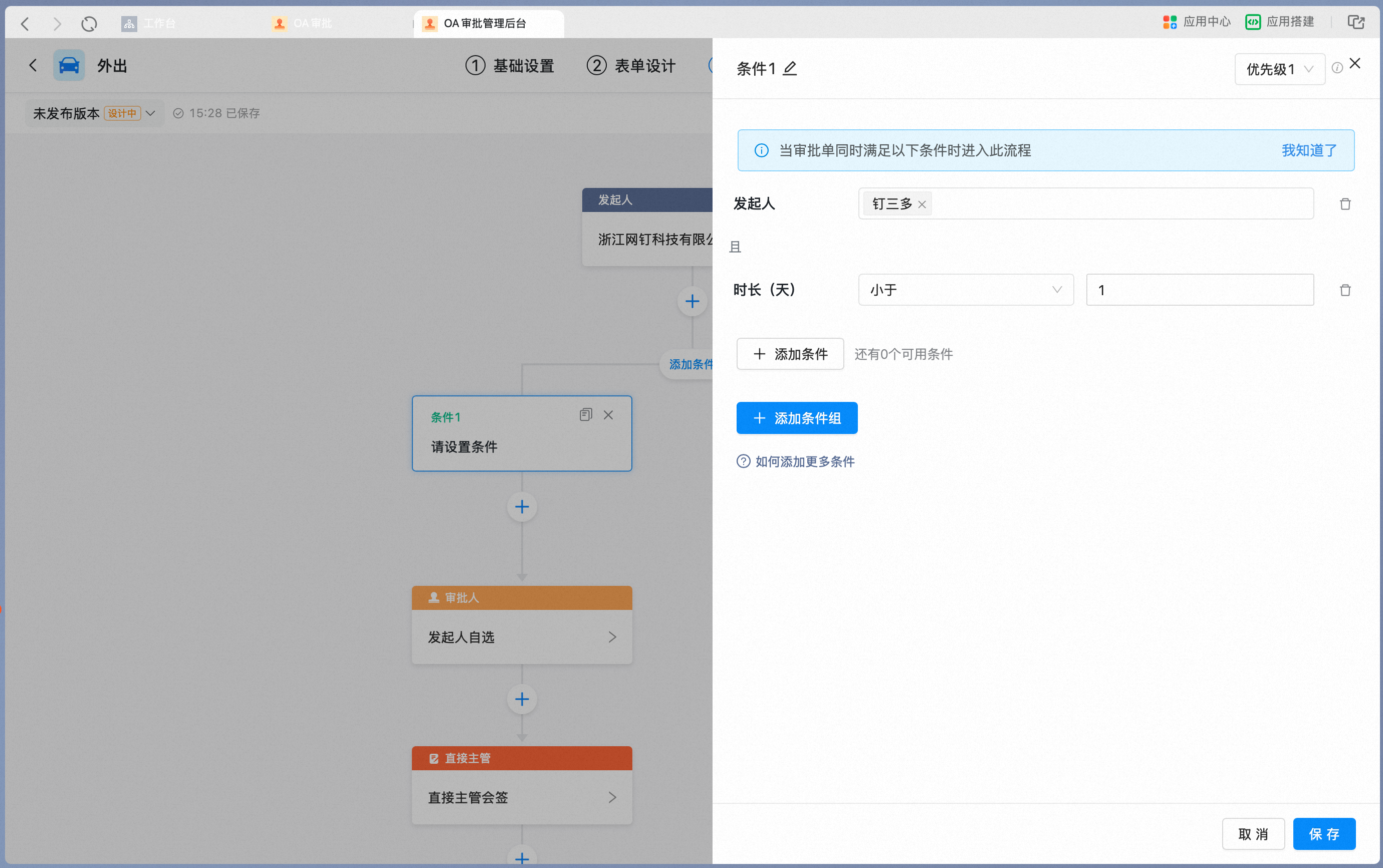
Any one of multiple conditions met, with condition groups joined by OR:

#### 3.4.4 Configure the flow for a branch condition
After setting the branch conditions, configure the operators for each conditional branch. The configuration is the same as for the main process.
## 4. Related documents
Route approval forms down different branches based on department, amount, and other conditions.
Set roles as approvers and configure management scope.
Set up tier-by-tier approval by direct managers.
Control Editable, Read-only, and Hidden permissions for form fields at each node.