> ## Documentation Index
> Fetch the complete documentation index at: https://help.dingtalk.io/llms.txt
> Use this file to discover all available pages before exploring further.

# AI form filling

> Introduces DingTalk Approval's AI form filling: mobile voice initiation, text pasting, and image recognition, plus desktop image-based detail entry and text form filling. Auto-fills approval forms so you can initiate approvals more efficiently.

## 1. Capability overview

<Note>
  Value in one sentence: speak to initiate, or copy text and paste images to fill forms.

  Applicable roles: all employees (especially frequent initiators)

  Supported devices: mobile | desktop

  Core capabilities: voice initiation | text pasting | image recognition → auto-fill forms
</Note>

| Before                                                                        | After                                                                                                              |
| ----------------------------------------------------------------------------- | ------------------------------------------------------------------------------------------------------------------ |
| Typing on mobile is slow                                                      | Use voice input, copy text from Chats, or take screenshots directly in the chat interface to fill forms in seconds |
| Documents and Spreadsheets have to be manually copied into forms              | Copy the text, paste it into the recognition box, and fill the form in seconds                                     |
| Screenshots could only be attached to forms, and content had to be re-entered | Drop in an image for automatic recognition and instant form filling                                                |

## 2. Applicable scenarios

### 1. Mobile (voice)

**Scenario 1: Out-of-office request**

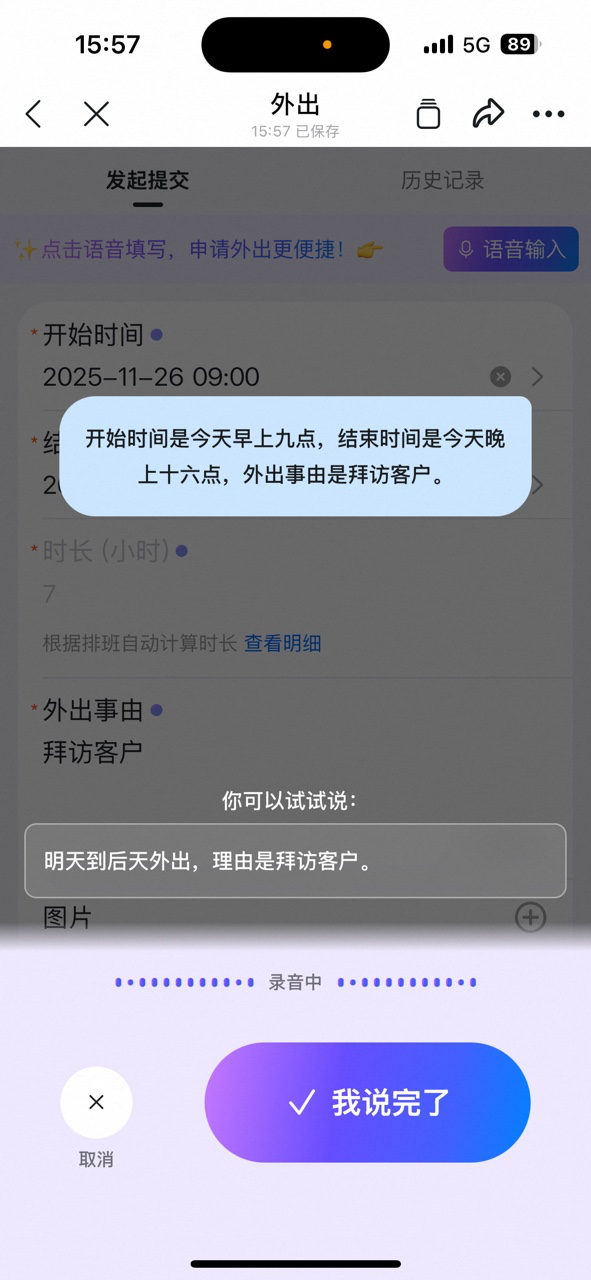
Speak the out-of-office time and reason into your phone, and AI transcribes as you speak:
<div style={{maxWidth: '400px', margin: '16px auto'}}>
  <Frame>
    ![Out-of-office form voice input interface. The user dictates start time, end time, and reason; AI transcribes the voice content in real time](https://alidocs.oss-cn-zhangjiakou.aliyuncs.com/res/Lk3lbmbdYp98MOm9/img/af604fc2-dd8a-4711-8cec-a07887f3fed2.png)
  </Frame>
</div>

The out-of-office time and reason are auto-filled once you finish speaking:

<div style={{maxWidth: '400px', margin: '16px auto'}}>
  <Frame>
    ![Out-of-office form auto-fill result: start time, end time, and reason have been filled in by AI](https://alidocs.oss-cn-zhangjiakou.aliyuncs.com/res/Lk3lbmbdYp98MOm9/img/7b5842bd-dbb9-40c0-8528-c8f8217b8477.png)
  </Frame>
</div>

**Scenario 2: Overtime request**

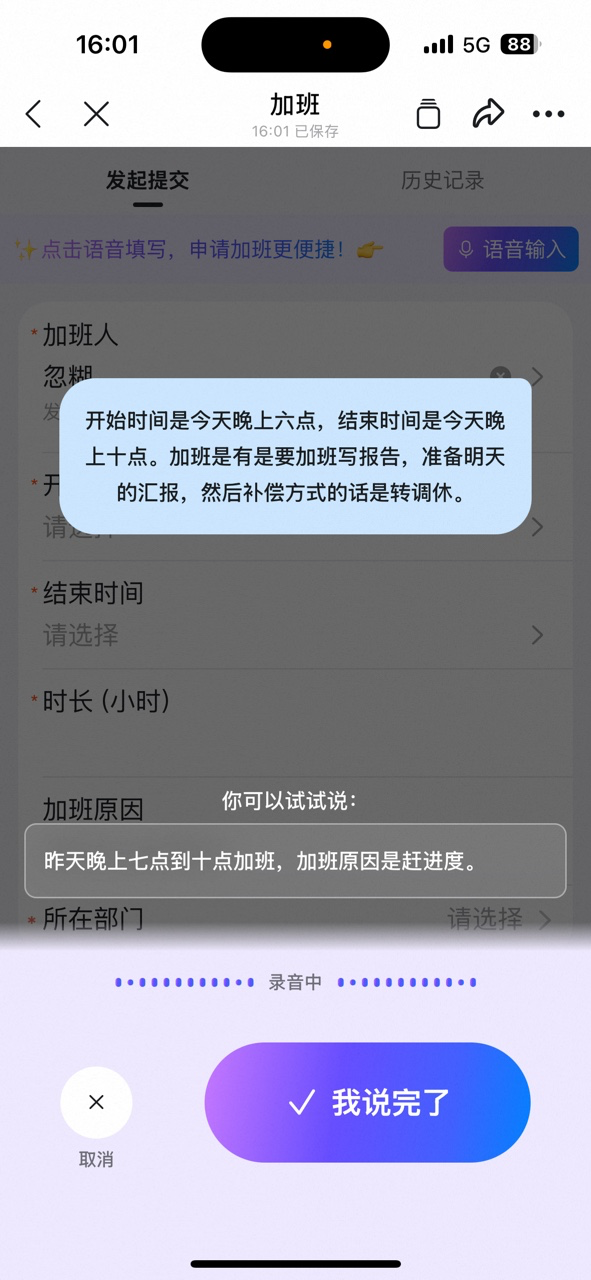
Dictate the overtime hours and reason, and optionally mention the compensation method:
<div style={{maxWidth: '400px', margin: '16px auto'}}>
  <Frame>
    ![Overtime form voice input interface. The user dictates overtime hours, reason, and compensation method; AI transcribes in real time](https://alidocs.oss-cn-zhangjiakou.aliyuncs.com/res/Lk3lbmbdYp98MOm9/img/22dad60a-7801-4170-8511-4e38121db0a8.png)
  </Frame>
</div>

Overtime hours, duration, compensation method, and reason are all filled in at once:

<div style={{maxWidth: '400px', margin: '16px auto'}}>
  <Frame>
    ![Overtime form auto-fill result: start/end time, duration, overtime compensation converted to compensatory leave, and reason have all been filled in](https://alidocs.oss-cn-zhangjiakou.aliyuncs.com/res/Lk3lbmbdYp98MOm9/img/99b82b7b-fc6c-462e-a30e-41165ca71420.png)
  </Frame>
</div>

**Scenario 3: Item requisition**

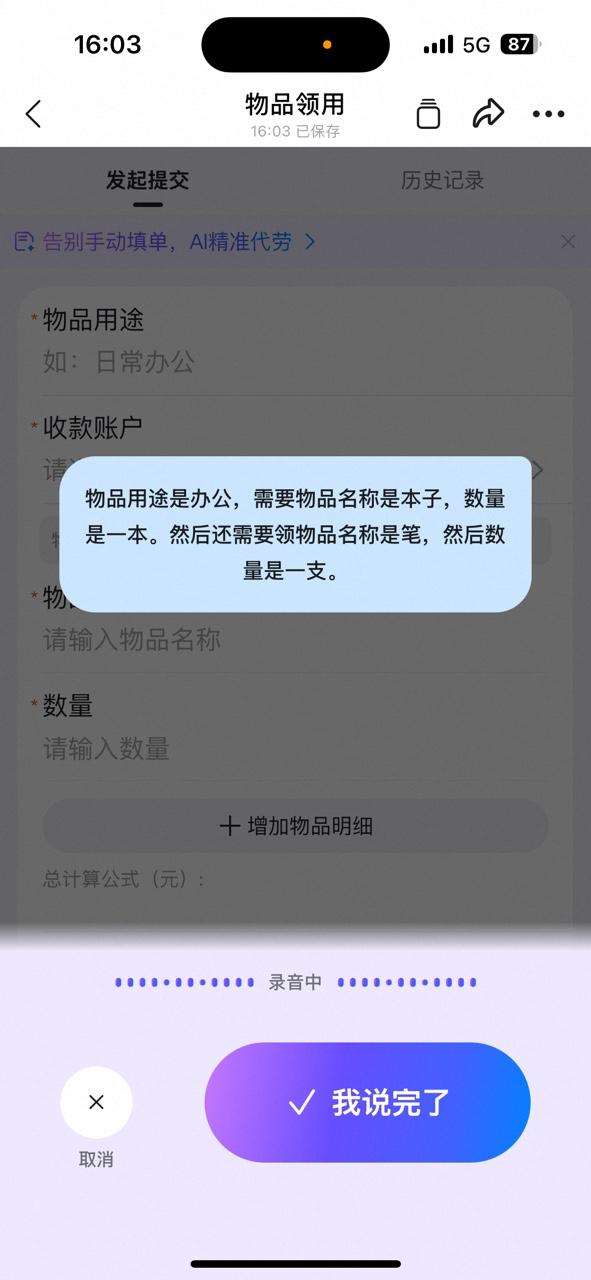
State the purpose, name, and quantity of items. Multiple line items can be dictated in one go:
<div style={{maxWidth: '400px', margin: '16px auto'}}>
  <Frame>
    ![Item requisition form voice input interface. The user dictates item purpose, name, and quantity; AI recognizes multiple line items](https://alidocs.oss-cn-zhangjiakou.aliyuncs.com/res/Lk3lbmbdYp98MOm9/img/eacb3ea3-4c21-4c75-bd44-a417345605ef.png)
  </Frame>
</div>

Multiple item details are auto-filled into the form line by line:

<div style={{maxWidth: '400px', margin: '16px auto'}}>
  <Frame>
    ![Item requisition form auto-fill result: item purpose and two lines of item details (name, quantity) have been filled in respectively](https://alidocs.oss-cn-zhangjiakou.aliyuncs.com/res/Lk3lbmbdYp98MOm9/img/7b744a4f-b193-4297-92a4-36125c0f40cd.png)
  </Frame>
</div>

**Scenario 4: Customer visit**

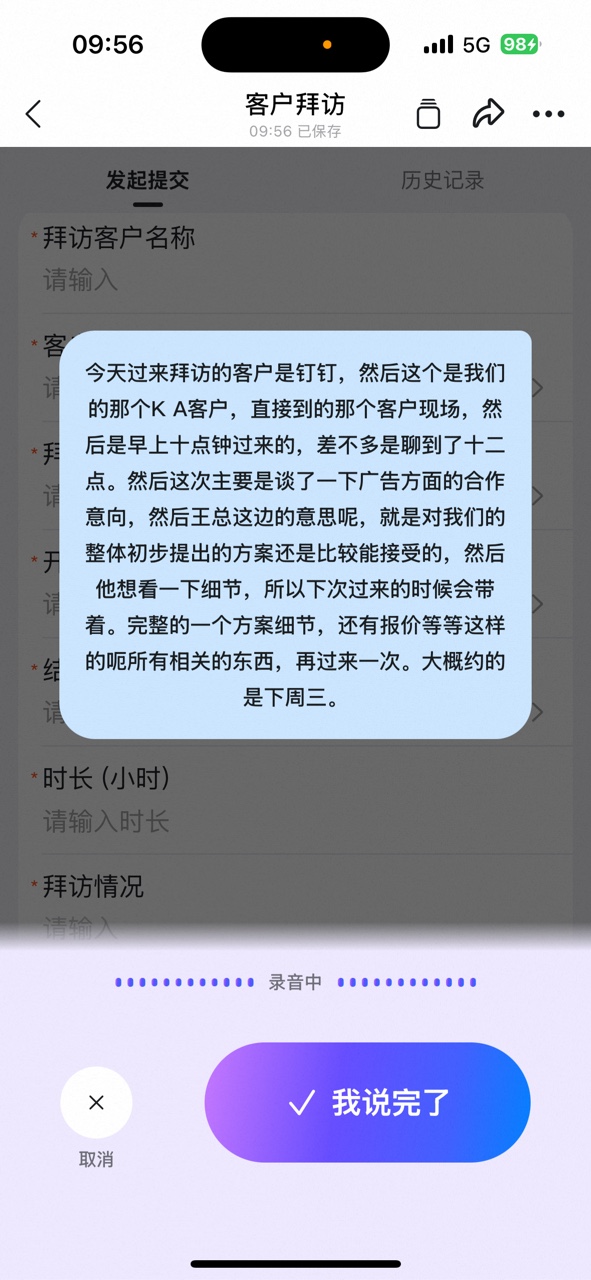
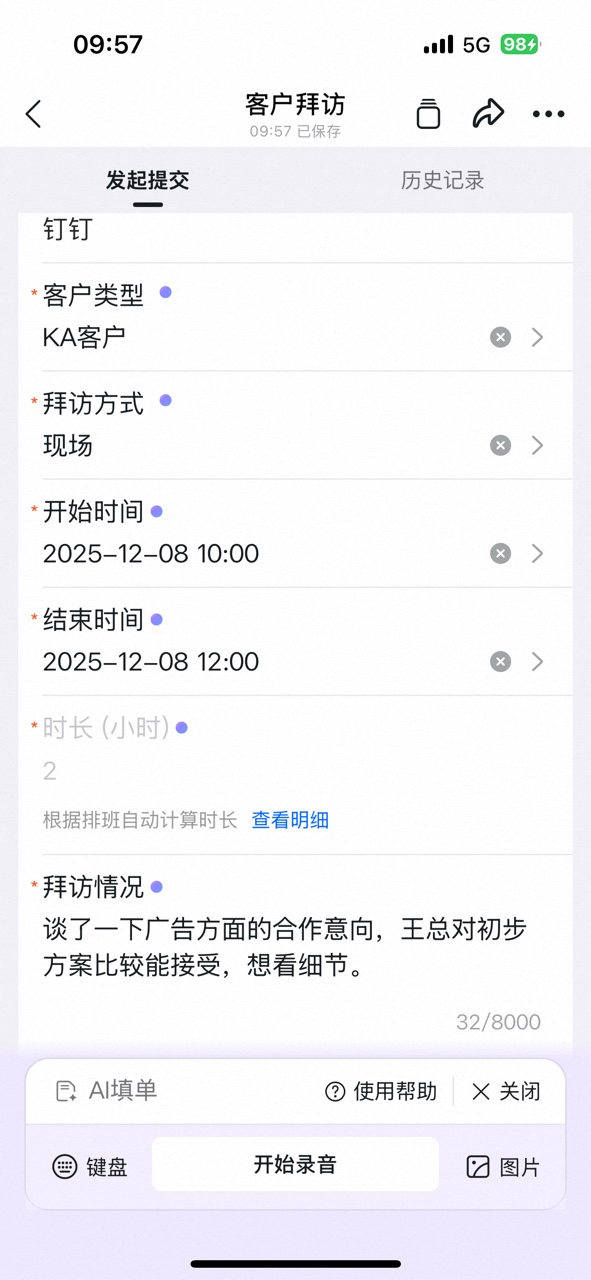
Describe the visit in everyday language. Even with lengthy content and filler words, AI extracts the key information:
<div style={{maxWidth: '400px', margin: '16px auto'}}>
  <Frame>
    ![Customer visit form voice input interface. The user colloquially describes the visit process and discussion content](https://alidocs.oss-cn-zhangjiakou.aliyuncs.com/res/mPdnpEbeXVVrwqw9/img/cdc69220-99a8-43fc-941f-fd2879d9f630.jpeg)
  </Frame>
</div>

Customer type, visit method, time, and visit details are extracted and neatly filled in:
<div style={{maxWidth: '400px', margin: '16px auto'}}>
  <Frame>
    ![Customer visit form auto-fill result: customer name, type, visit method, start/end time, and visit details have been filled in](https://alidocs.oss-cn-zhangjiakou.aliyuncs.com/res/mPdnpEbeXVVrwqw9/img/87b76e21-7a42-4e0e-a175-433544119920.jpeg)
  </Frame>
</div>

### 2. Mobile (text / image)

**Scenario: Sales performance reporting**

When store performance data is sent in Chats, there is no need to copy each item into the form manually:

<div style={{maxWidth: '400px', margin: '16px auto'}}>
  <Frame>
    ![A sales daily report text message in a DingTalk chat, containing store name, performance target, foot traffic, sales amount, and other data](https://alidocs.oss-cn-zhangjiakou.aliyuncs.com/res/Lk3lbmbdYp98MOm9/img/eba8954a-c37b-4842-8f92-85abd14db804.png)
  </Frame>
</div>

Open AI form filling in the sales daily report form, paste the chat content, and tap **Paste & Recognize**:

<div style={{maxWidth: '400px', margin: '16px auto'}}>
  <Frame>
    ![AI form filling panel for the sales daily report. After pasting chat content, tap the Paste & Recognize button](https://alidocs.oss-cn-zhangjiakou.aliyuncs.com/res/Lk3lbmbdYp98MOm9/img/85bb5093-70dc-4386-9b9a-c8fd27b0132a.png)
  </Frame>
</div>

You can also type or paste text directly into the recognition box:

<div style={{maxWidth: '400px', margin: '16px auto'}}>
  <Frame>
    ![Keyboard input interface for the AI form filling recognition box, which supports direct typing or pasting of daily report text](https://alidocs.oss-cn-zhangjiakou.aliyuncs.com/res/Lk3lbmbdYp98MOm9/img/bc51b78e-0399-4132-86a5-d817f9400173.png)
  </Frame>
</div>

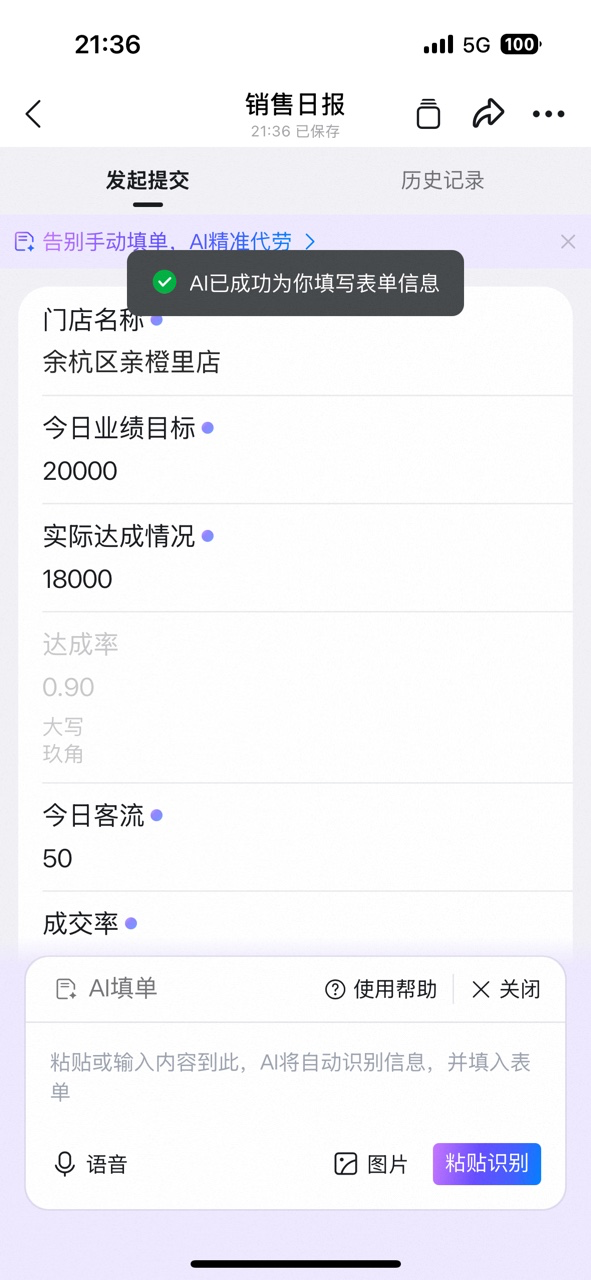
Fields such as sales amount, display, and customer feedback are auto-filled:

<div style={{maxWidth: '400px', margin: '16px auto'}}>
  <Frame>
    ![Sales daily report form auto-fill result: existing customer sales, new customer sales, today's display, and customer feedback have been filled in](https://alidocs.oss-cn-zhangjiakou.aliyuncs.com/res/Lk3lbmbdYp98MOm9/img/3495ef93-c006-479f-93d7-b8661bf369c4.png)
  </Frame>
</div>

### 3. Desktop (image)

**Scenario: Purchase request**

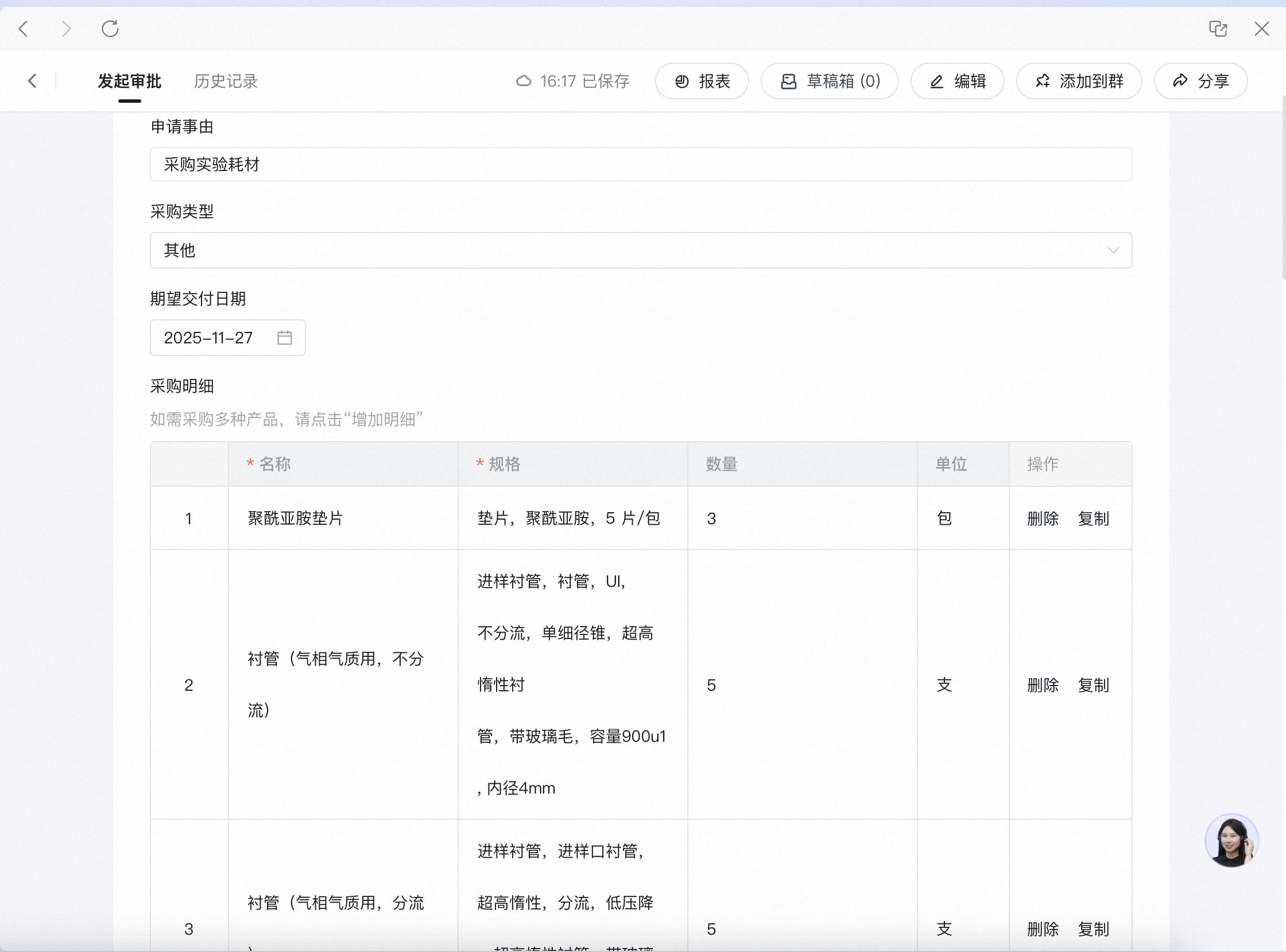
Upload a photo of a paper item list. No need to enter the spreadsheet data manually:

<Frame>
  ![Sample image of a purchase item list. The table contains item name, grade/specifications, unit, quantity, and other information](https://alidocs.oss-cn-zhangjiakou.aliyuncs.com/res/Lk3lbmbdYp98MOm9/img/9be28a4f-2553-4131-b525-39e07ef97980.png?x-oss-process=image/crop,x_0,y_126,w_1416,h_1747/ignore-error,1)
</Frame>

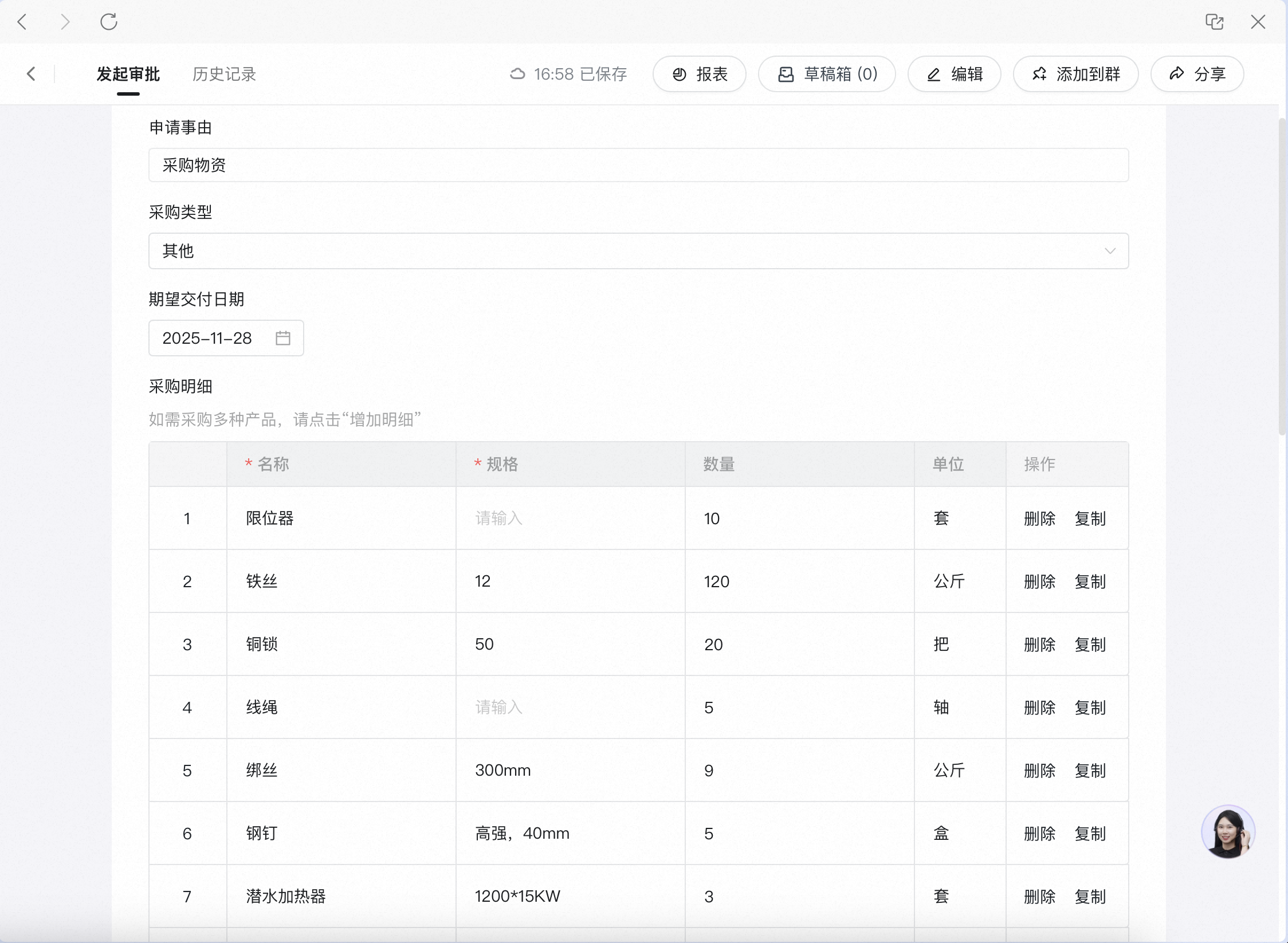
Once AI recognizes the image, the purchase details are auto-filled into the form row by row:
<Frame>
  ![Desktop purchase form auto-fill result: item details from the image have been filled into the table row by row](https://alidocs.oss-cn-zhangjiakou.aliyuncs.com/res/Lk3lbmbdYp98MOm9/img/6b7feb22-b15a-461d-bee2-af33b62ff502.png)
</Frame>

### 4. Desktop (text)

**Scenario: Hotline case handling**

Paste the ticket text (agent number, ticket number, contact, problem description, etc.) into the AI recognition box:

<Frame>
  ![Desktop hotline case handling form. The ticket text has been pasted into the AI recognition box, awaiting recognition](https://alidocs.oss-cn-zhangjiakou.aliyuncs.com/res/Lk3lbmbdYp98MOm9/img/fe4df15b-dd68-4b23-8bda-268ff57ba784.png)
</Frame>

Fields such as ticket number, urgency level, and problem category are auto-filled:

<Frame>
  ![Desktop hotline case handling form auto-fill result: ticket number, urgency level, problem description, and other fields have been filled in](https://alidocs.oss-cn-zhangjiakou.aliyuncs.com/res/Lk3lbmbdYp98MOm9/img/16048e97-835f-4a73-ad6c-373f66f8e12b.png)
</Frame>

## 3. Steps

### 1. Mobile voice initiation

Using an out-of-office request as an example, the full flow for voice initiation is as follows:

<Steps>
  <Step title="Open the form and tap [Voice Input]">
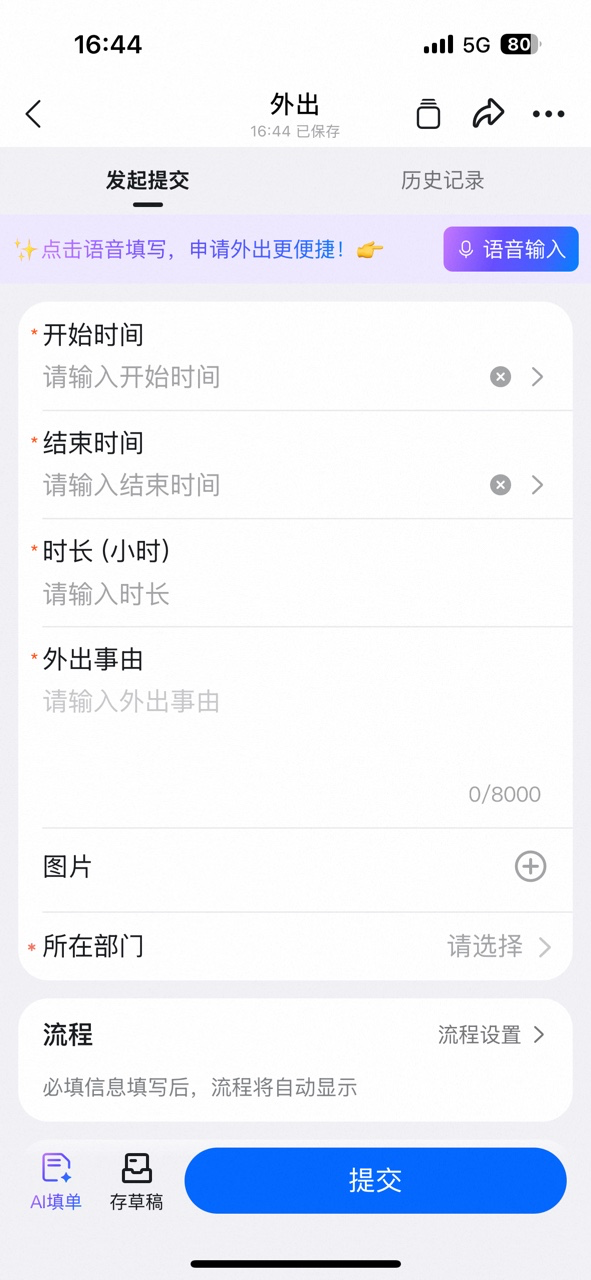
    After you open the form, a "Tap to fill by voice" prompt appears at the top. Tap **Voice Input**:
    <div style={{maxWidth: '400px', margin: '16px auto'}}>
      <Frame>
        ![Out-of-office form page. The top shows a "Tap to fill by voice" tip and the Voice Input button](https://alidocs.oss-cn-zhangjiakou.aliyuncs.com/res/Lk3lbmbdYp98MOm9/img/13df1e6e-bfb2-4dc0-903e-f9000fe41a3e.png)
      </Frame>
    </div>
  </Step>

  <Step title="When the input box appears, start speaking">
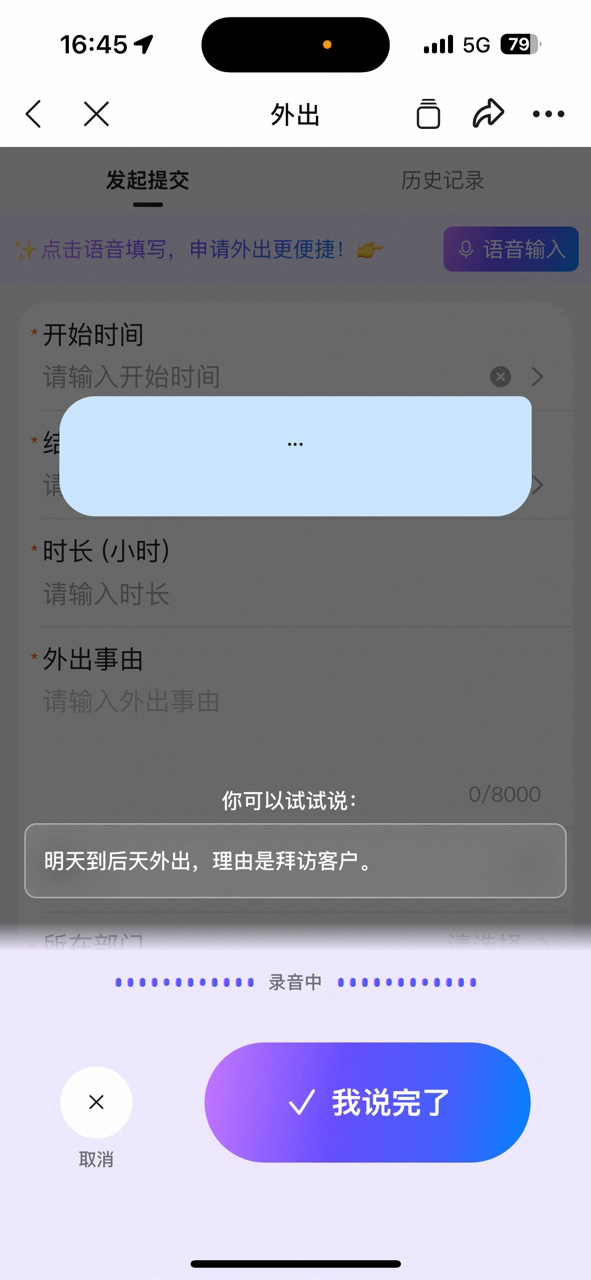
    The interface provides reference phrasing. Follow it or speak freely:
    <div style={{maxWidth: '400px', margin: '16px auto'}}>
      <Frame>
        ![Voice input interface in the recording state, with reference phrasing shown](https://alidocs.oss-cn-zhangjiakou.aliyuncs.com/res/Lk3lbmbdYp98MOm9/img/89d7defe-d9a1-41d0-8ca8-cd98291d3d5c.png)
      </Frame>
    </div>
  </Step>

  <Step title="Tap [I'm Done] when you finish speaking">
    Your speech is transcribed in real time. Once you have verified it, tap **I'm Done**:
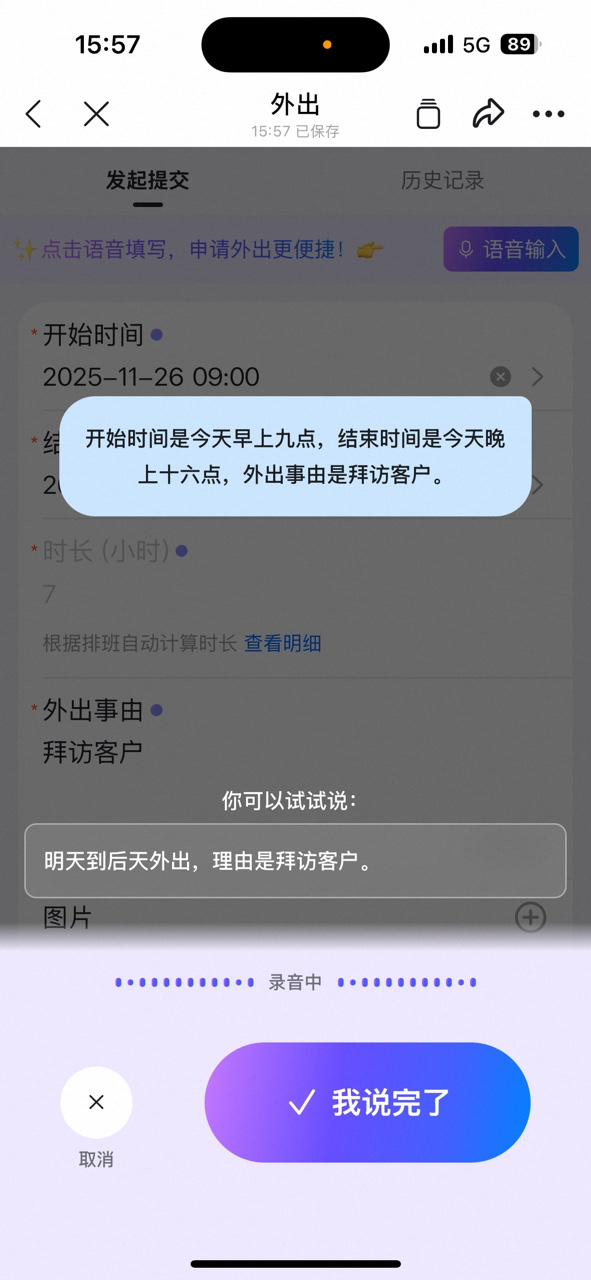
    <div style={{maxWidth: '400px', margin: '16px auto'}}>
      <Frame>
        ![Speech-to-text interface showing transcribed content in real time, with an I'm Done confirm button at the bottom](https://alidocs.oss-cn-zhangjiakou.aliyuncs.com/res/Lk3lbmbdYp98MOm9/img/cdc2d271-c355-4b1f-9faf-93442a4e68fc.png)
      </Frame>
    </div>
  </Step>

  <Step title="The form is auto-filled">
    Based on the voice content, AI auto-fills fields such as time and reason:
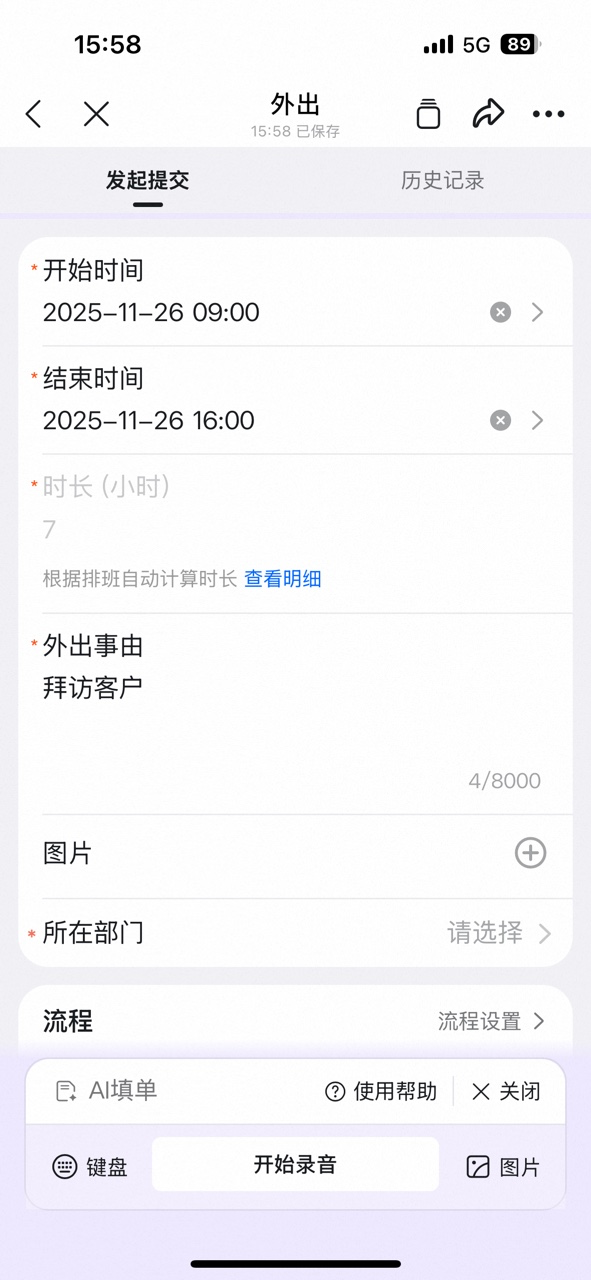
    <div style={{maxWidth: '400px', margin: '16px auto'}}>
      <Frame>
        ![Out-of-office form auto-fill complete: start/end time and reason have been filled in](https://alidocs.oss-cn-zhangjiakou.aliyuncs.com/res/Lk3lbmbdYp98MOm9/img/7c1d53d6-1fa3-4e79-87f8-c4d82411bf0c.png)
      </Frame>
    </div>
  </Step>
</Steps>

### 2. Mobile image-based reporting

<Steps>
  <Step title="Open the form and tap [AI Form Filling]">
    <div style={{maxWidth: '400px', margin: '16px auto'}}>
      <Frame>
        ![Sales daily report form page with an AI form filling entry at the bottom](https://alidocs.oss-cn-zhangjiakou.aliyuncs.com/res/Lk3lbmbdYp98MOm9/img/d2501547-0a38-43ea-8f7b-c019d9e3420d.png)
      </Frame>
    </div>
  </Step>

  <Step title="When the AI form filling interface appears, tap [Image]">
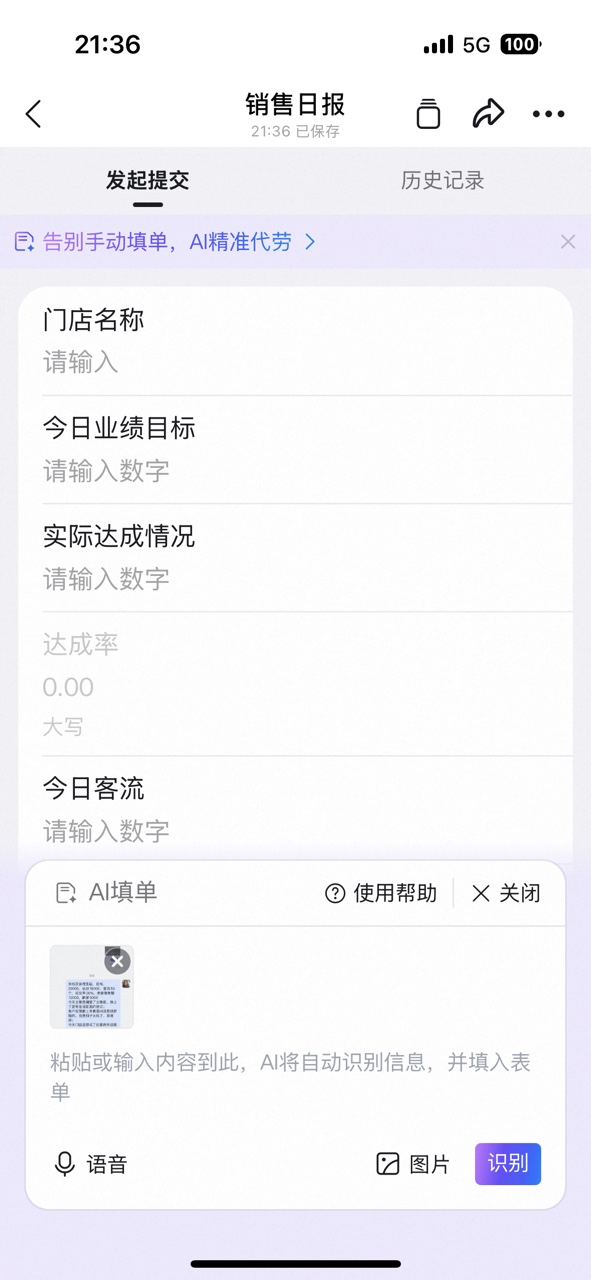
    Tap **Image** in the AI form filling panel to select an image from your phone's Album:

    <div style={{maxWidth: '400px', margin: '16px auto'}}>
      <Frame>
        ![AI form filling panel expanded, offering three input methods: voice, image, and Paste & Recognize](https://alidocs.oss-cn-zhangjiakou.aliyuncs.com/res/Lk3lbmbdYp98MOm9/img/c267c61c-b05b-4942-9528-0a776409edb6.png)
      </Frame>
    </div>
  </Step>

  <Step title="After the upload succeeds, tap [Recognize]">
    <div style={{maxWidth: '400px', margin: '16px auto'}}>
      <Frame>
        ![AI form filling panel with the uploaded image thumbnail shown; tap the Recognize button to start parsing](https://alidocs.oss-cn-zhangjiakou.aliyuncs.com/res/Lk3lbmbdYp98MOm9/img/366e8b2f-e686-45ff-9e59-e35131be73ee.png)
      </Frame>
    </div>
  </Step>

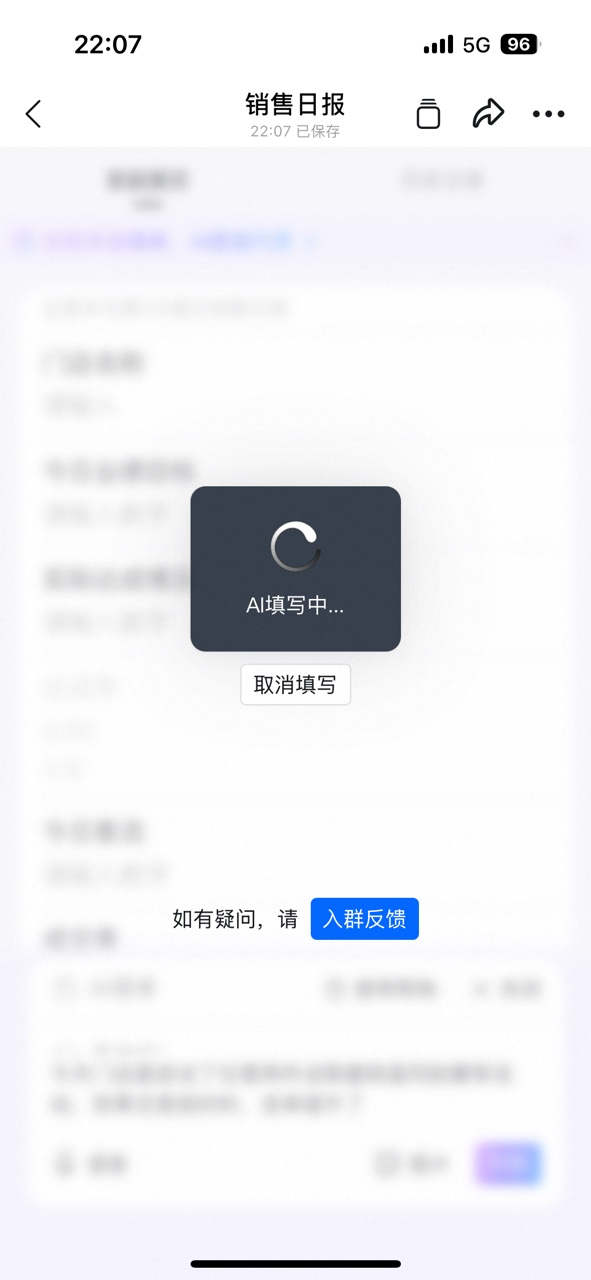
  <Step title="Wait for AI recognition">
    <div style={{maxWidth: '400px', margin: '16px auto'}}>
      <Frame>
        ![Loading tip shown while AI fills the form — you can cancel at any time](https://alidocs.oss-cn-zhangjiakou.aliyuncs.com/res/Lk3lbmbdYp98MOm9/img/18b707bf-fc3d-4c06-b5be-ce462f454554.png)
      </Frame>
    </div>
  </Step>

  <Step title="Wait a moment for the form to be filled">
    <div style={{maxWidth: '400px', margin: '16px auto'}}>
      <Frame>
        ![AI success tip for form filling: store name, performance target, and other fields have been auto-filled](https://alidocs.oss-cn-zhangjiakou.aliyuncs.com/res/Lk3lbmbdYp98MOm9/img/e4eaff7b-4fa0-45b2-82bd-36b49bd60242.png)
      </Frame>
    </div>
  </Step>
</Steps>

### 3. Mobile text-paste initiation

<Steps>
  <Step title="Open the form and tap [AI Form Filling]">
    <div style={{maxWidth: '400px', margin: '16px auto'}}>
      <Frame>
        ![Sales daily report form page with an AI form filling entry button at the bottom](https://alidocs.oss-cn-zhangjiakou.aliyuncs.com/res/Lk3lbmbdYp98MOm9/img/d2501547-0a38-43ea-8f7b-c019d9e3420d.png)
      </Frame>
    </div>
  </Step>

  <Step title="When the AI form filling interface appears, tap [Paste & Recognize]">
    Paste the copied text into the recognition box, then tap **Paste & Recognize**:

    <div style={{maxWidth: '400px', margin: '16px auto'}}>
      <Frame>
        ![AI form filling panel: after pasting text into the recognition box, tap the Paste & Recognize button](https://alidocs.oss-cn-zhangjiakou.aliyuncs.com/res/Lk3lbmbdYp98MOm9/img/c267c61c-b05b-4942-9528-0a776409edb6.png)
      </Frame>
    </div>
  </Step>

  <Step title="Wait for AI recognition">
    <div style={{maxWidth: '400px', margin: '16px auto'}}>
      <Frame>
        ![Loading tip shown while AI fills the form — join the feedback group if you have any questions](https://alidocs.oss-cn-zhangjiakou.aliyuncs.com/res/Lk3lbmbdYp98MOm9/img/31b6b8ab-04ff-4a2d-8b92-3dd0117bc4d4.png)
      </Frame>
    </div>
  </Step>

  <Step title="Wait a moment for the form to be filled">
    <div style={{maxWidth: '400px', margin: '16px auto'}}>
      <Frame>
        ![AI success tip for form filling: all daily report data has been auto-filled](https://alidocs.oss-cn-zhangjiakou.aliyuncs.com/res/Lk3lbmbdYp98MOm9/img/e4eaff7b-4fa0-45b2-82bd-36b49bd60242.png)
      </Frame>
    </div>
  </Step>
</Steps>

### 4. Desktop image-based detail entry
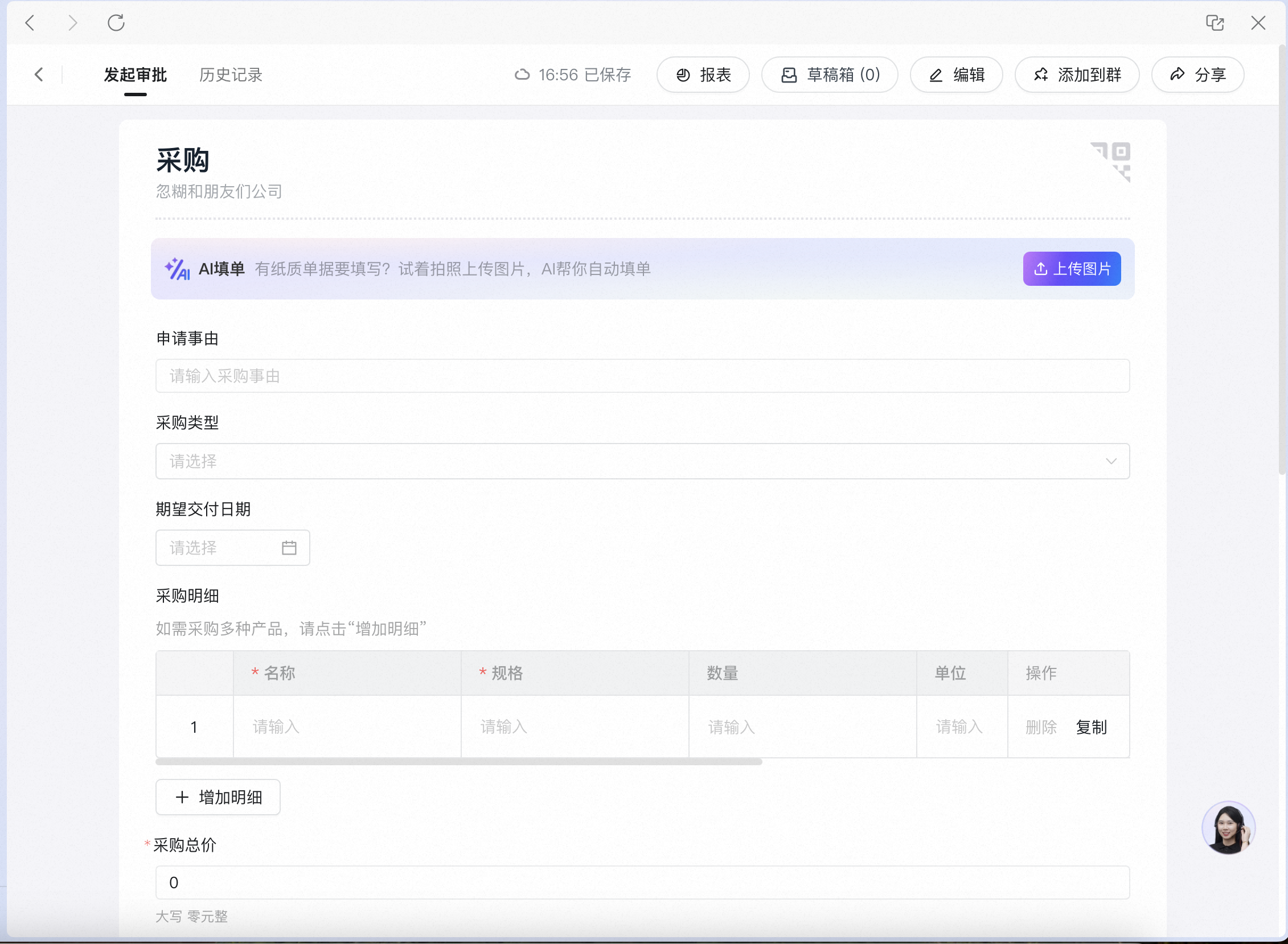
<Steps>
  <Step title="Open the form and click [Upload Image]">
    <Frame>
      ![Desktop purchase form page. The detail area provides an Upload Image entry](https://alidocs.oss-cn-zhangjiakou.aliyuncs.com/res/Lk3lbmbdYp98MOm9/img/623bdf74-d2bf-4e98-b641-7c24e2099886.png)
    </Frame>
  </Step>

  <Step title="Select a local image, then wait for AI recognition">
    <Note>Image recognition takes a moment. Do not close the form during processing.</Note>

    <Frame>
      ![Loading state on the desktop form while AI recognizes the image — the image content is being parsed](https://alidocs.oss-cn-zhangjiakou.aliyuncs.com/res/Lk3lbmbdYp98MOm9/img/2a7a55f3-4885-49be-a125-f1b581ebbf1e.png)
    </Frame>
  </Step>

  <Step title="Recognition complete — the form is auto-filled">
    <Frame>
      ![Desktop purchase form recognition complete: item details from the image have been auto-filled row by row](https://alidocs.oss-cn-zhangjiakou.aliyuncs.com/res/Lk3lbmbdYp98MOm9/img/092d76c1-457d-4dfb-9352-2661006de6a9.png)
    </Frame>
  </Step>
</Steps>

### 5. Desktop text form filling

<Steps>
  <Step title="Paste content and click [AI Recognize & Fill]">
    Open the form, paste the content you want to fill directly into the AI recognition box, and click **AI Recognize & Fill**:
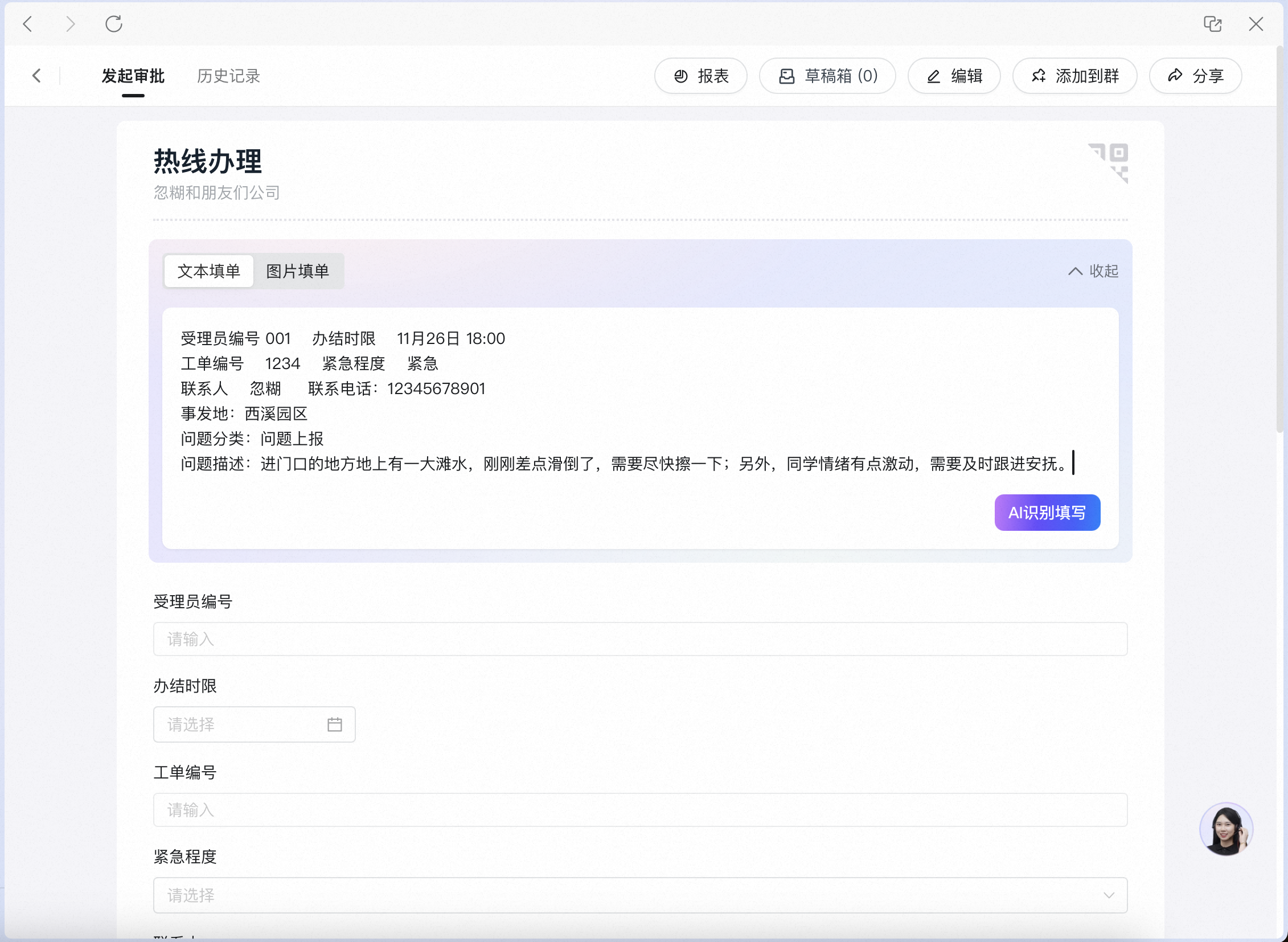
    <Frame>
      ![Desktop hotline case handling form. The ticket text has been pasted into the AI recognition box; click the AI Recognize & Fill button](https://alidocs.oss-cn-zhangjiakou.aliyuncs.com/res/Lk3lbmbdYp98MOm9/img/5c0e770a-ad64-46cb-bedd-08ff43e128e4.png)
    </Frame>
  </Step>

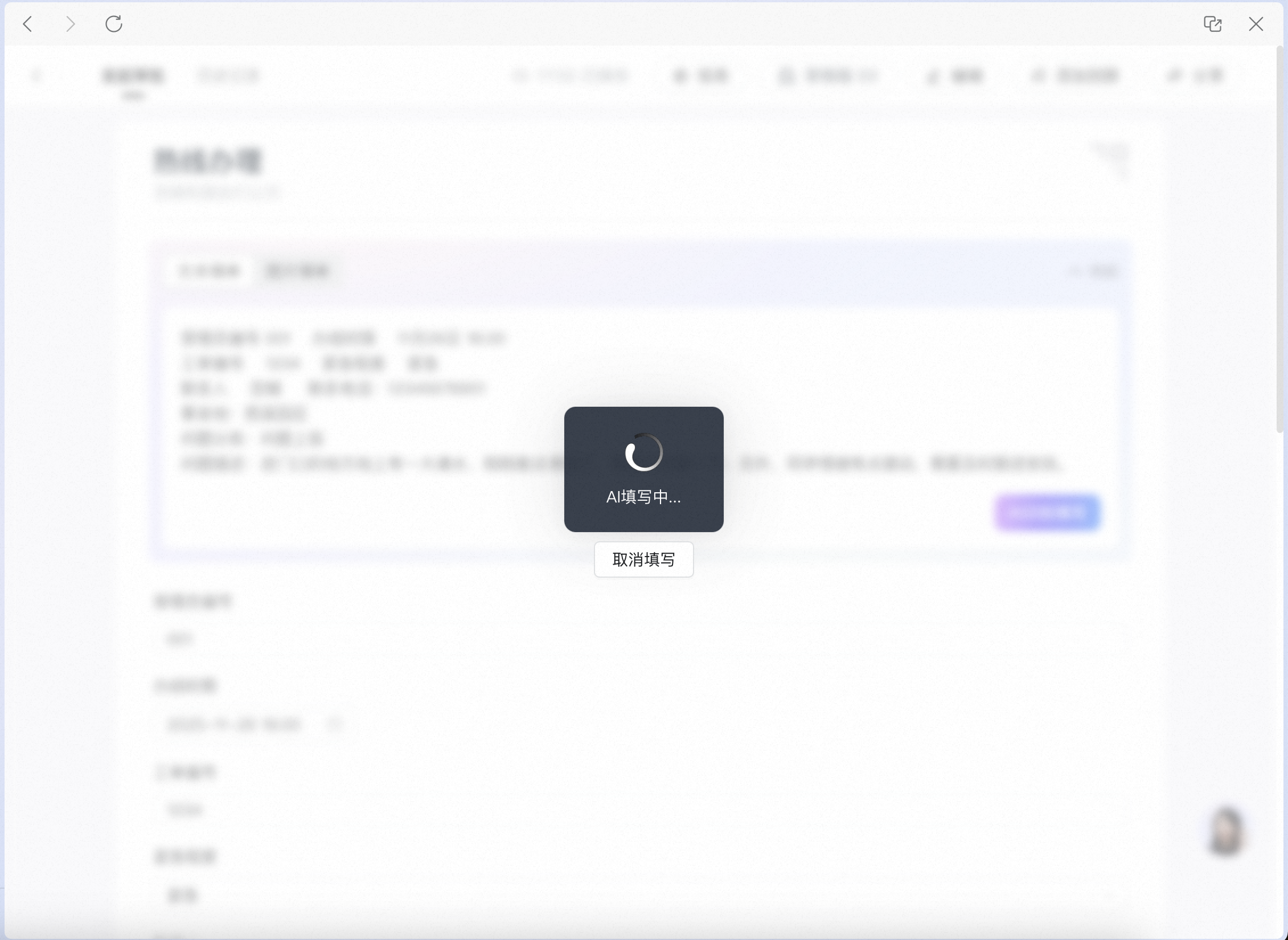
  <Step title="Wait for AI recognition (a short wait)">
    <Frame>
      ![Loading state on the desktop form while AI recognizes the text — the text content is being parsed](https://alidocs.oss-cn-zhangjiakou.aliyuncs.com/res/Lk3lbmbdYp98MOm9/img/f30dbf21-db5b-4d16-b9d7-3848bdd70c7a.png)
    </Frame>
  </Step>

  <Step title="Recognition complete — the form is auto-filled">
    <Frame>
      ![Desktop hotline case handling form recognition complete: ticket number, urgency level, problem description, and other fields have been auto-filled](https://alidocs.oss-cn-zhangjiakou.aliyuncs.com/res/Lk3lbmbdYp98MOm9/img/3c95fd98-a196-4b6a-af53-7d4f8005efa3.png)
    </Frame>
  </Step>
</Steps>

### 6. Feature settings

1. Go to Form Settings → Premium Settings → Form AI Capability Configuration → **AI Form Filling** to turn off AI form filling for the current form:

<Frame>
  ![Form AI Capability Configuration page in Premium Settings, with separate toggles for desktop and mobile AI form filling](https://alidocs.oss-cn-zhangjiakou.aliyuncs.com/res/4EZlweZBkEKezqxA/img/b6a122e8-53e8-4f18-98e7-2cd81e1d4ec1.png)
</Frame>

2. Go to Admin Console → System Management → Form AI Capability Configuration → **AI Form Filling** to turn off AI form filling for all forms:

<Frame>
  ![Form AI Capability Configuration page in Admin Console System Management, with global toggles for desktop and mobile AI form filling](https://alidocs.oss-cn-zhangjiakou.aliyuncs.com/res/4EZlweZBkEKezqxA/img/b89b025c-adc5-40cd-9cf3-ab788adbd738.png)
</Frame>

3. Per-form settings take precedence over global settings. For example:

* When the global toggle is off, you can still turn on AI form filling for a specific form.

* When the global toggle is on, you can turn off AI form filling for a specific form.

## 4. FAQ

<AccordionGroup>
  <Accordion id="q1" title="Why do some forms not offer AI form filling?">
    Currently, AI form filling does not support certain control groups or forms that contain certain controls. When a form contains any of the following, AI form filling is unavailable:

    * Unsupported control groups: leave request / compensatory leave, business trip, HR contract approval, batch payment, all finance & tax control groups, all legal management control groups, other third-party control groups (engineering, assets, vehicle use, etc.)

    * Unsupported controls: cascading / classification, engineering project, customer, budget request, associated contract
  </Accordion>

  <Accordion id="q2" title="Why do some forms not support text form filling?">
    When the form contains a detail control, only image-based form filling is currently supported.
  </Accordion>

  <Accordion id="q3" title="Will AI leak my data?">
    No. All voice, image, and text is sent to the model only during the call, and nothing is stored or logged afterward — meeting organization data security requirements.
  </Accordion>
</AccordionGroup>

## 5. Related documents

<CardGroup cols={2}>
  <Card title="AI capabilities overview" icon="wand-magic-sparkles" href="/approval/ai-capabilities-overview">
    Learn about the product value and applicable roles of all Approval AI capabilities
  </Card>

  <Card title="AI controls" icon="robot" href="/approval/ai-controls">
    Let AI review approval forms for you — decisions in one step
  </Card>
</CardGroup>