> ## Documentation Index
> Fetch the complete documentation index at: https://help.dingtalk.io/llms.txt
> Use this file to discover all available pages before exploring further.
# Conditional approval troubleshooting
> Troubleshooting guide for the 'No approver is configured for the current condition' error that appears when an Employee submits an Approval. Walks OA Approval Admins through checking conditional branches and approver settings in the process design to quickly locate and fix the issue.
## 1. Scenario
When an Employee sees the error "No approver is configured for the current condition" while submitting an Approval, the OA Approval Admin must check whether the Approval process design is incorrect.

## 2. Inspection path
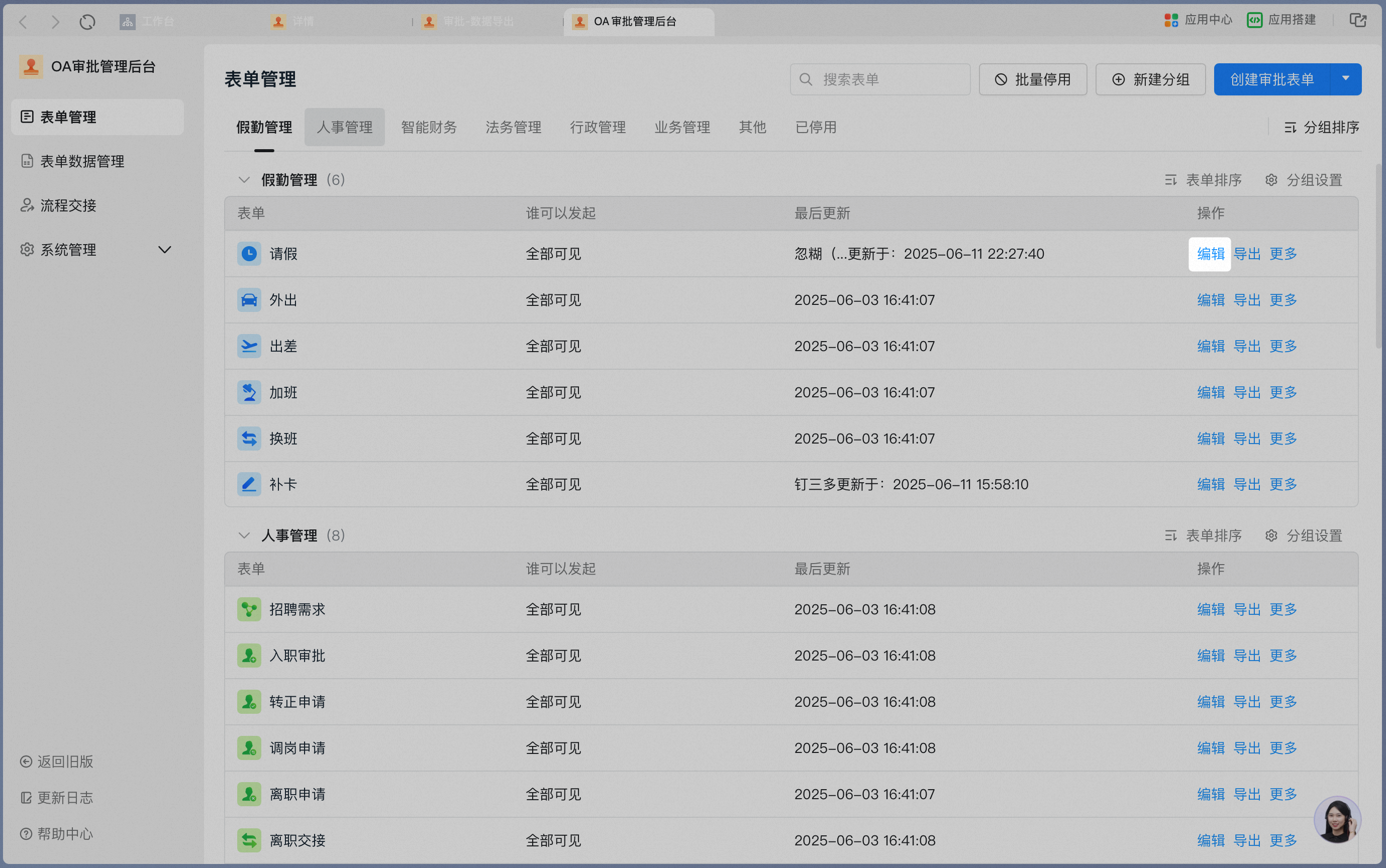
On the **Approval Admin Console** – **Form Management** page, click **Edit** in the Action column of the Form.
Click **Process Design** to open the main process design screen.

Click **Preview** in the top-right corner to generate a QR Code.

Scan the QR Code with your phone to simulate switching between Roles and selecting different conditions, then verify whether the Approval process flows as expected.
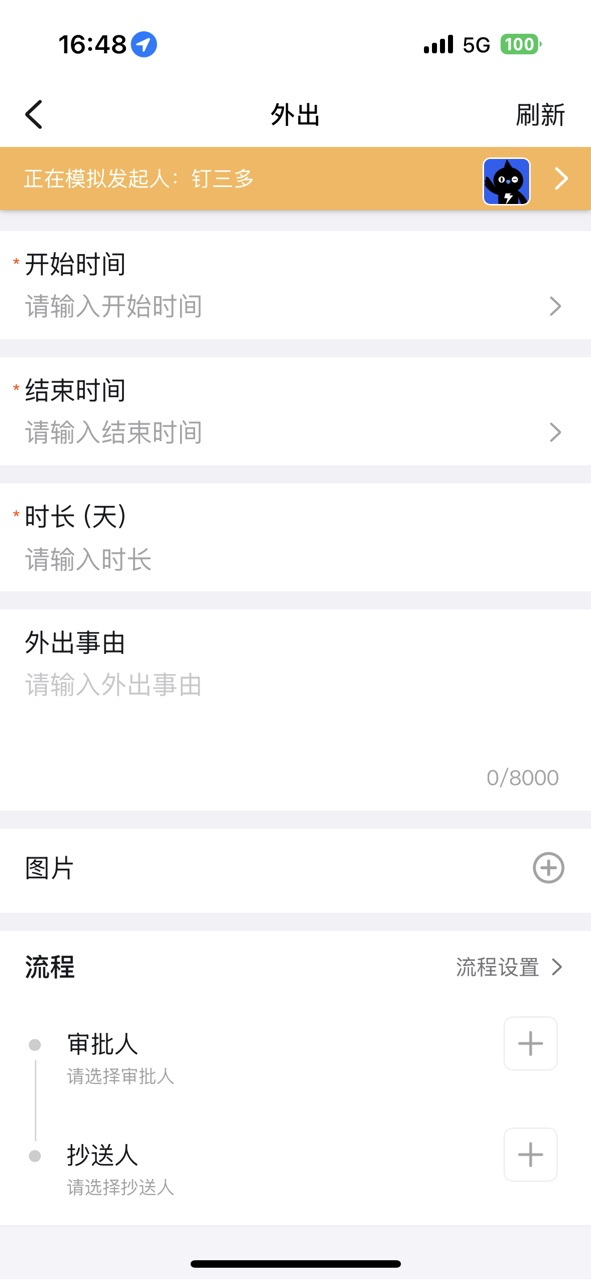
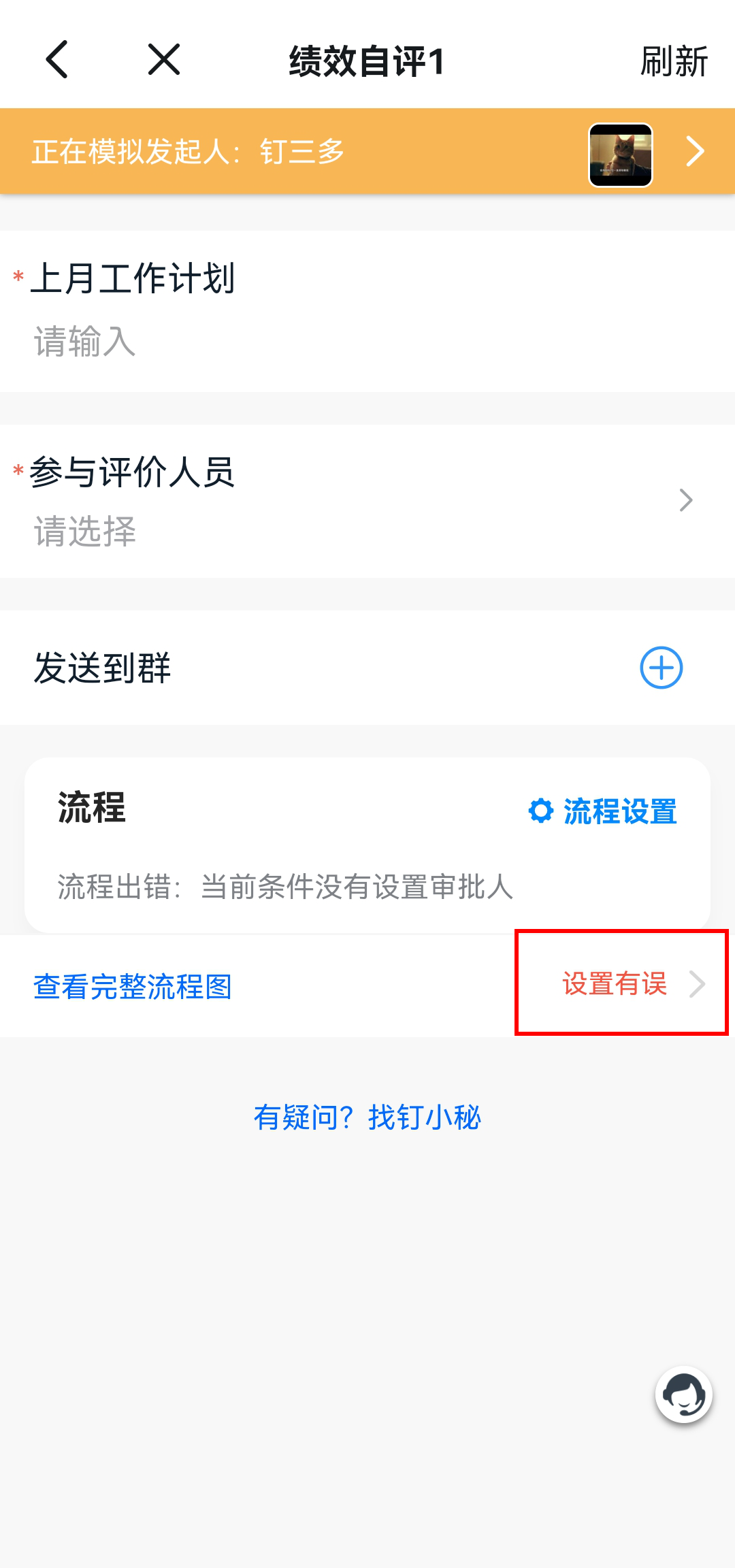
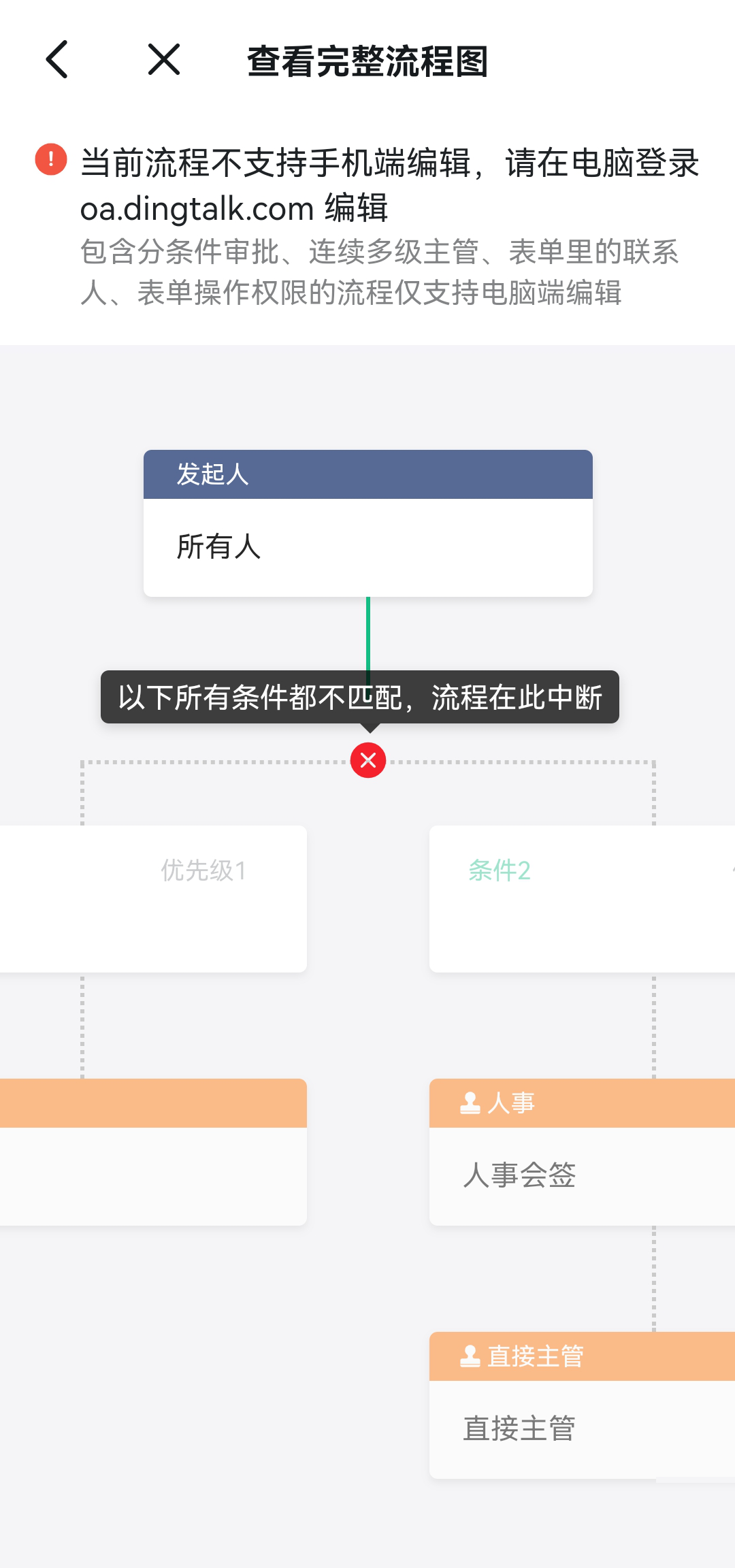
Start the process as the User who hit the error, then tap the red error message to jump into the node where the error occurred and inspect it.
## 3. Common issues and troubleshooting methods
| **No.** | **Issue** | **Troubleshooting method** |
| ------- | --------------------------------------------------------------------------------------------------------------------------------------------- | ------------------------------------------------------------------------------------------------------------------------------------------------------------------------------------------------------------------------------------------------------------------------------------------------------------------------------------------------------------------------------------------------------------------------------------------------------------------------------------------------------------------------------------------------------------------------------------------------------------------------------------------------------------------------------ |
| 1 | Submission fails on a conditional branch whose initiator condition is set to a specific Department or User.
| 1. In the Organization Contacts, check whether the Employee falls within the specified Department or User scope — click the specified Department and confirm the Employee is listed.
2. Check every conditional branch in the same way to make sure the Employee is included in the initiator scope. |
| 2 | Submission fails on a conditional branch whose initiator condition is set to a specific Role.
| 1. In Contacts, check whether the Employee is assigned to the Role. If not, click "Add User" to Add the Employee to the specified Role.
2. Check every conditional branch in the same way to make sure the Employee is included in the initiator scope. |
| 3 | Submission fails when a Multiselect box is used as the condition in a conditional branch. | 1. When a Multiselect box is the condition, check whether the match relation is set to "Full match" or "Contains any".
Full match: the branch is entered only when every option in the Multiselect is selected.
Contains any: the branch is entered when any one of the Multiselect options is selected.
2. To let the Employee enter this branch by choosing any single option, change the setting to "Contains any". |
| 4 | Submission fails when a Number Field such as reimbursement amount or leave request duration is used as the condition in a conditional branch. | When a Number Field such as reimbursement amount or leave request duration is the condition, check whether the Number ranges across all conditional branches together cover the full value range.
For example:
Condition 1: leave request duration \< 1 day; Condition 2: leave request duration > 1 day.
The case where leave request duration = 1 is missed.
When the leave request duration equals 1 day, no approver can be found. |
| 5 | Submission fails when multiple conditions are set within a conditional branch. | Conditions in the same Condition group have an "AND" relation, so all of them must be met before the branch is entered. To enter the branch when any single condition is met, Create two Condition groups within one condition — Condition groups have an "OR" relation between them.
For example:
Condition 1: initiator belongs to the Sales Department AND reimbursement amount > 1,000; Condition 2: reimbursement amount \<= 1,000.
The case "not in the Sales Department AND reimbursement amount > 1,000" is missed.
When the initiator is from the Marketing Department and the reimbursed marketing expense is > 1,000, no approver can be found. |
Take Issue 1 as an example: when the initiator condition is set to both a specific Department and specific Users, confirm one by one whether the Employee who hit the error is included:
