> ## Documentation Index
> Fetch the complete documentation index at: https://help.dingtalk.io/llms.txt
> Use this file to discover all available pages before exploring further.
# Detail control
> Learn how to use the Detail/Spreadsheet control in DingTalk OA Approval. It is designed for scenarios where multiple entries of the same type need to be filled in at once (such as item request applications), and can be combined with single-line input, amount, number, and select controls.
## 1. Detailed instructions
The \[Detail/Spreadsheet] control works like a List or Spreadsheet. Use it when multiple records with the same fields need to be filled in. You can combine it with controls such as single-line input, amount, number, and select. For example, in an item request application where an Employee needs to request several different items at once, the Admin can add the \[Detail/Spreadsheet] control in \[Form design].
### 1) How to set up
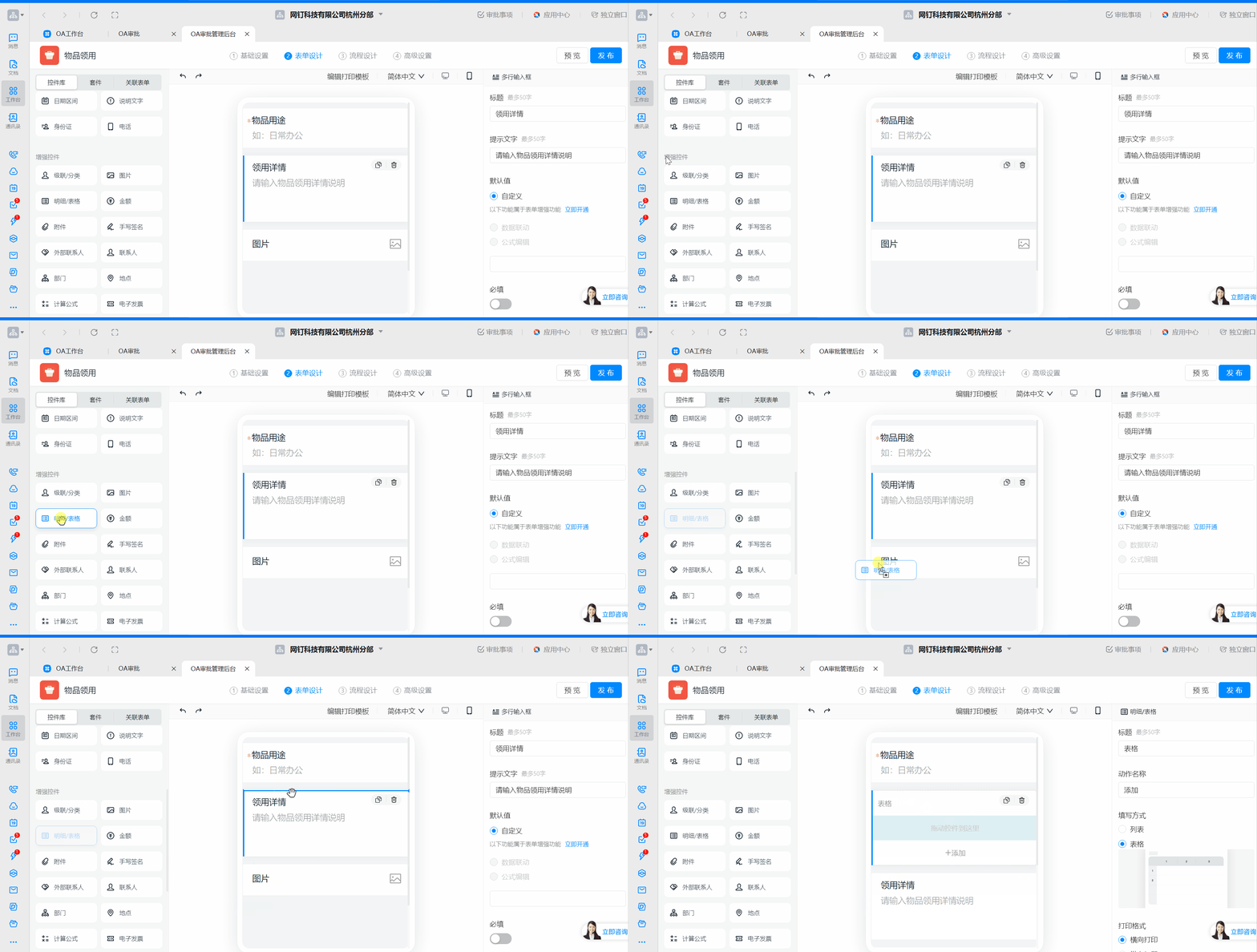
Drag the \[Detail/Spreadsheet] control from the control library on the left and drop it into the desired position on the Form.
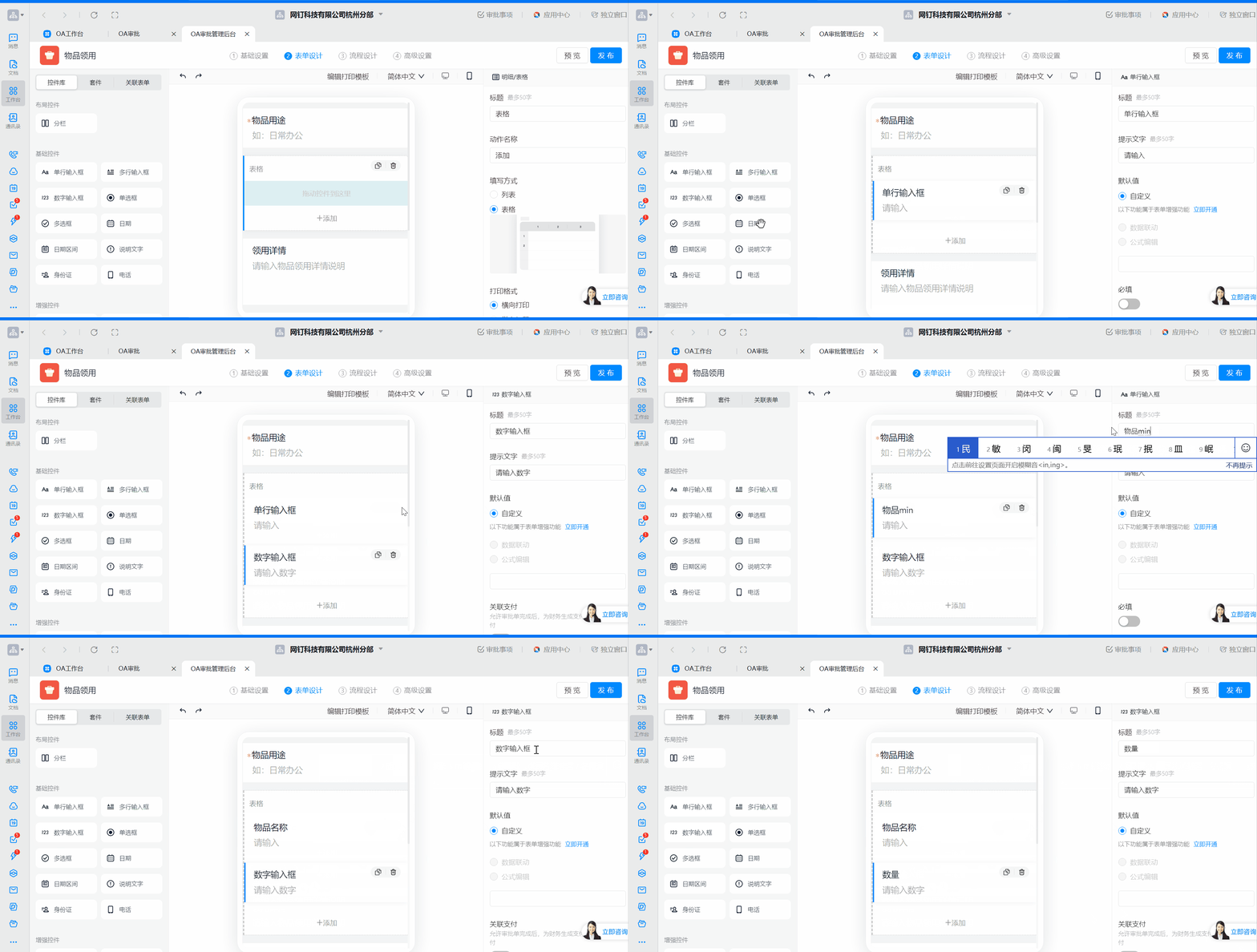
Drag other controls into the \[Detail/Spreadsheet] control as needed, such as \[Single-line input] and \[Number input], to record the item name and quantity.
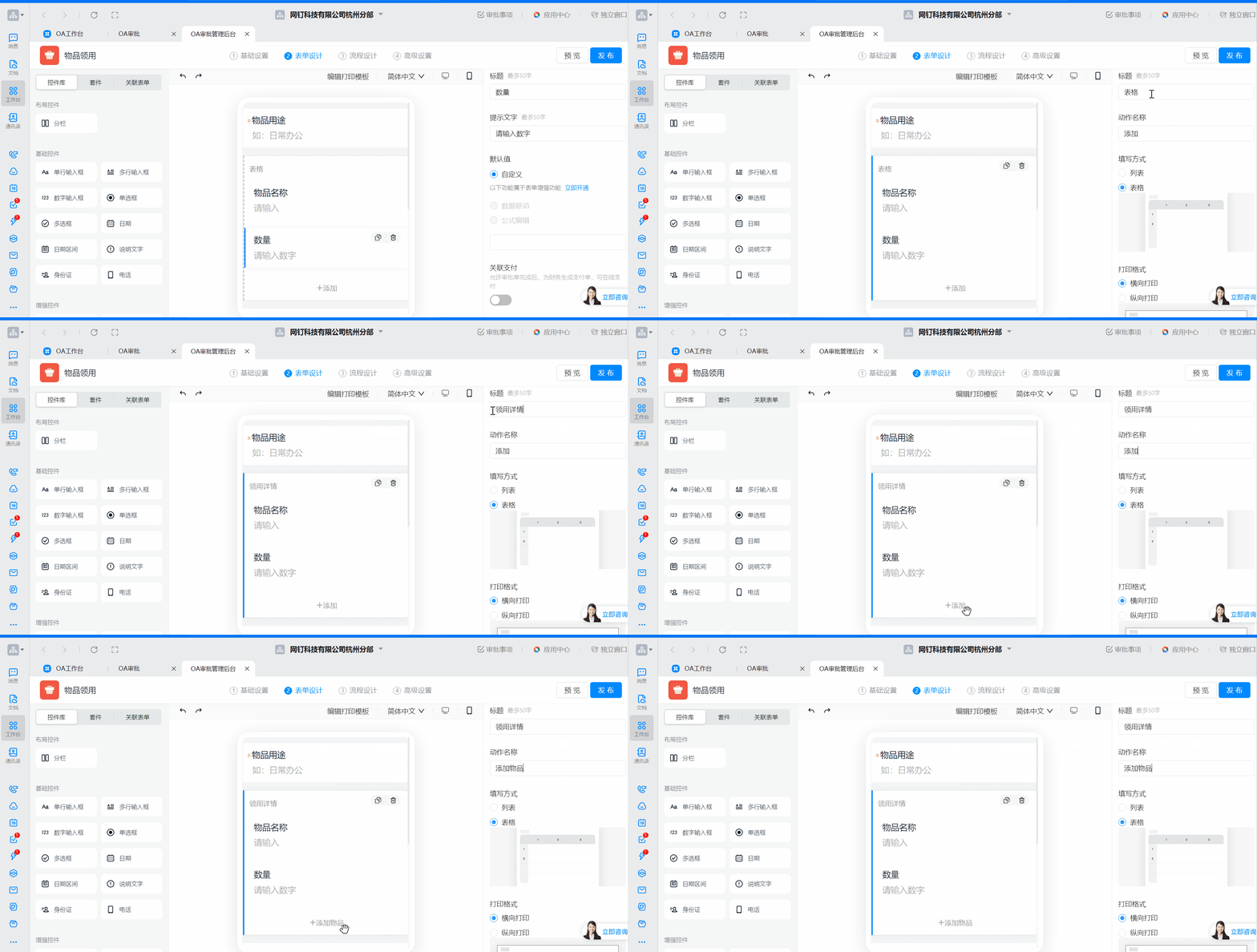
Click the \[Detail/Spreadsheet] control to set the Title and action name.
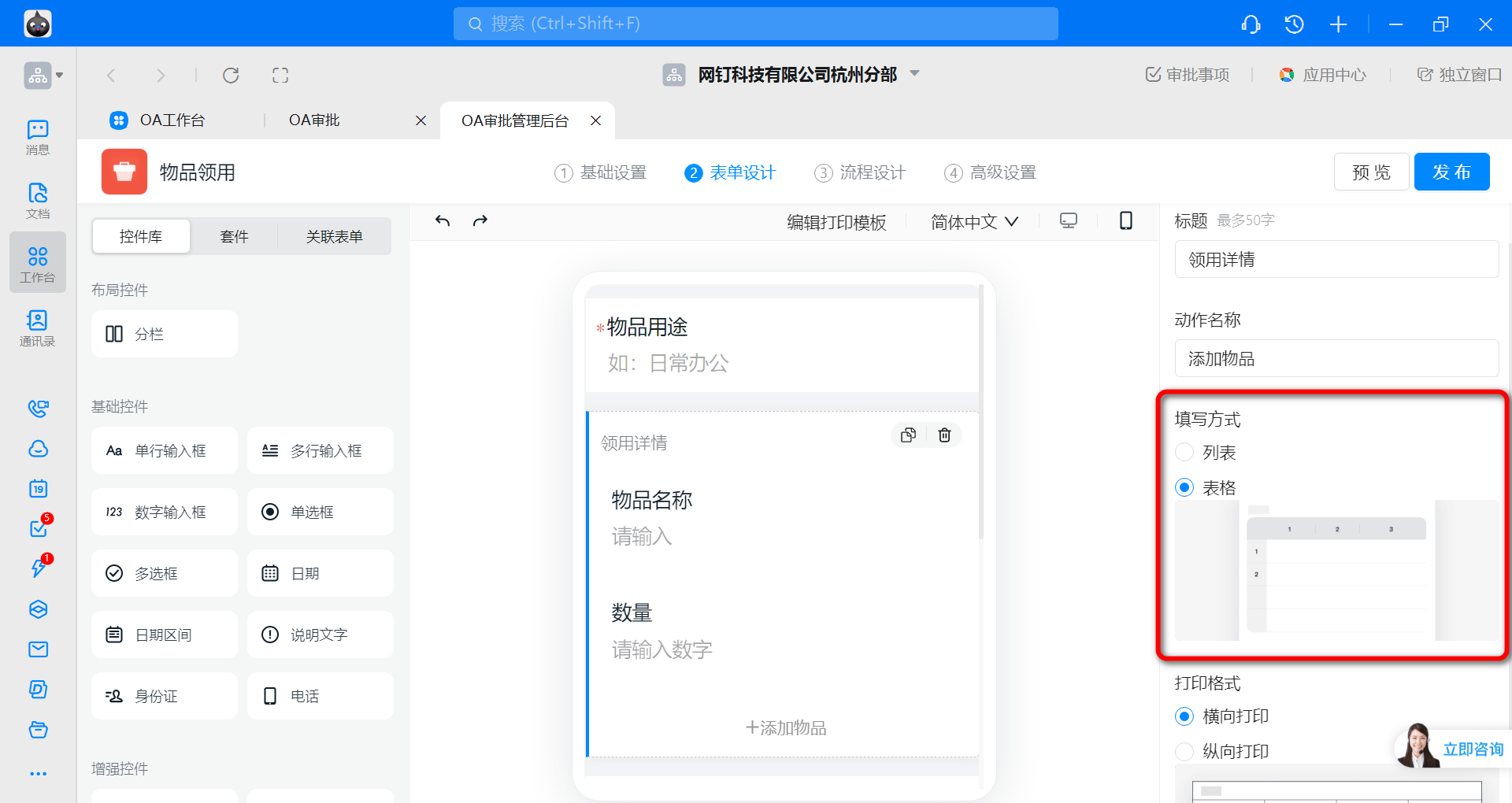
Set the **input method** to List or Spreadsheet.
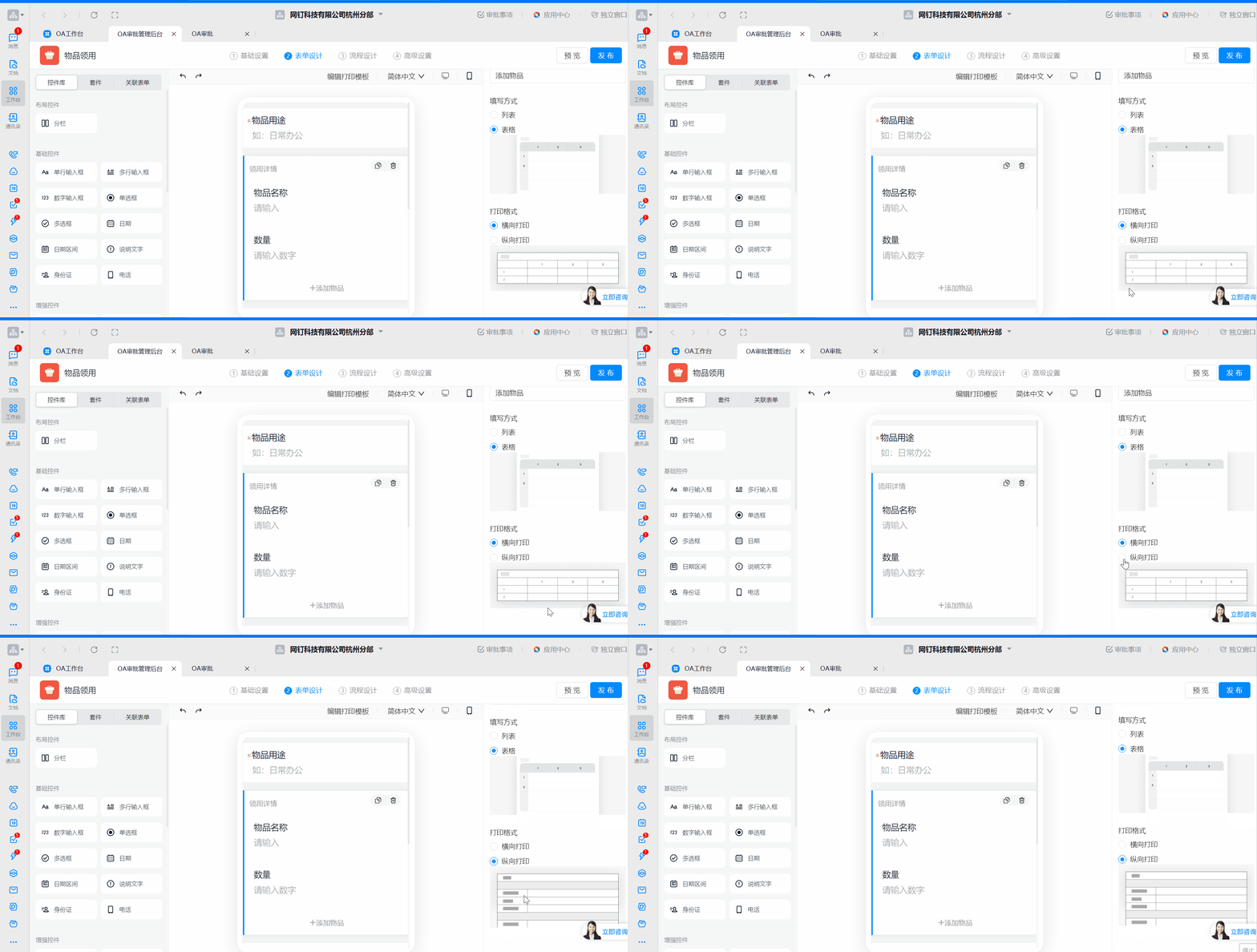
Set the print layout to horizontal or vertical.
Once configured, click "Publish" in the upper-right corner.
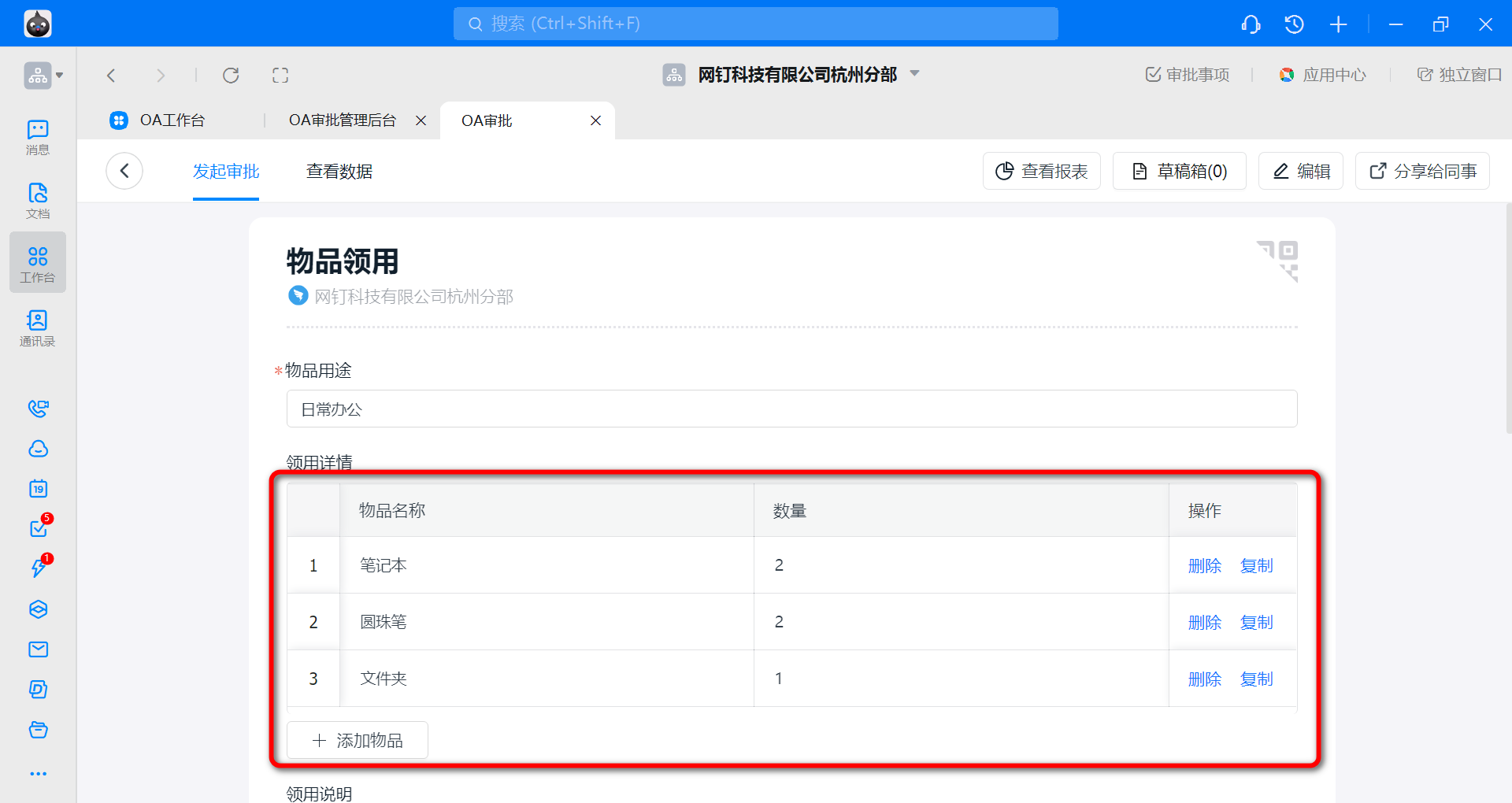
### 2) Preview of results
#### 1. List input
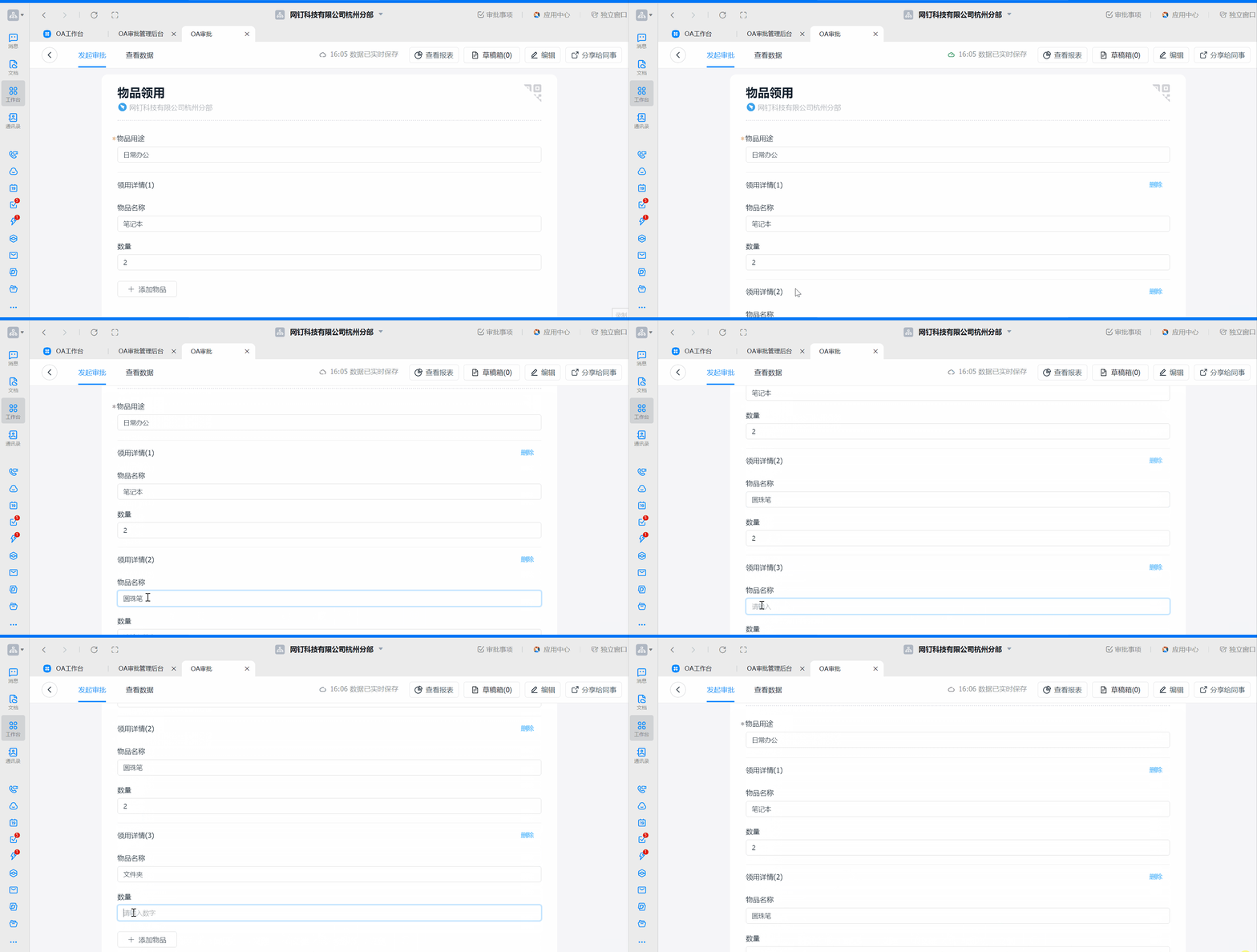
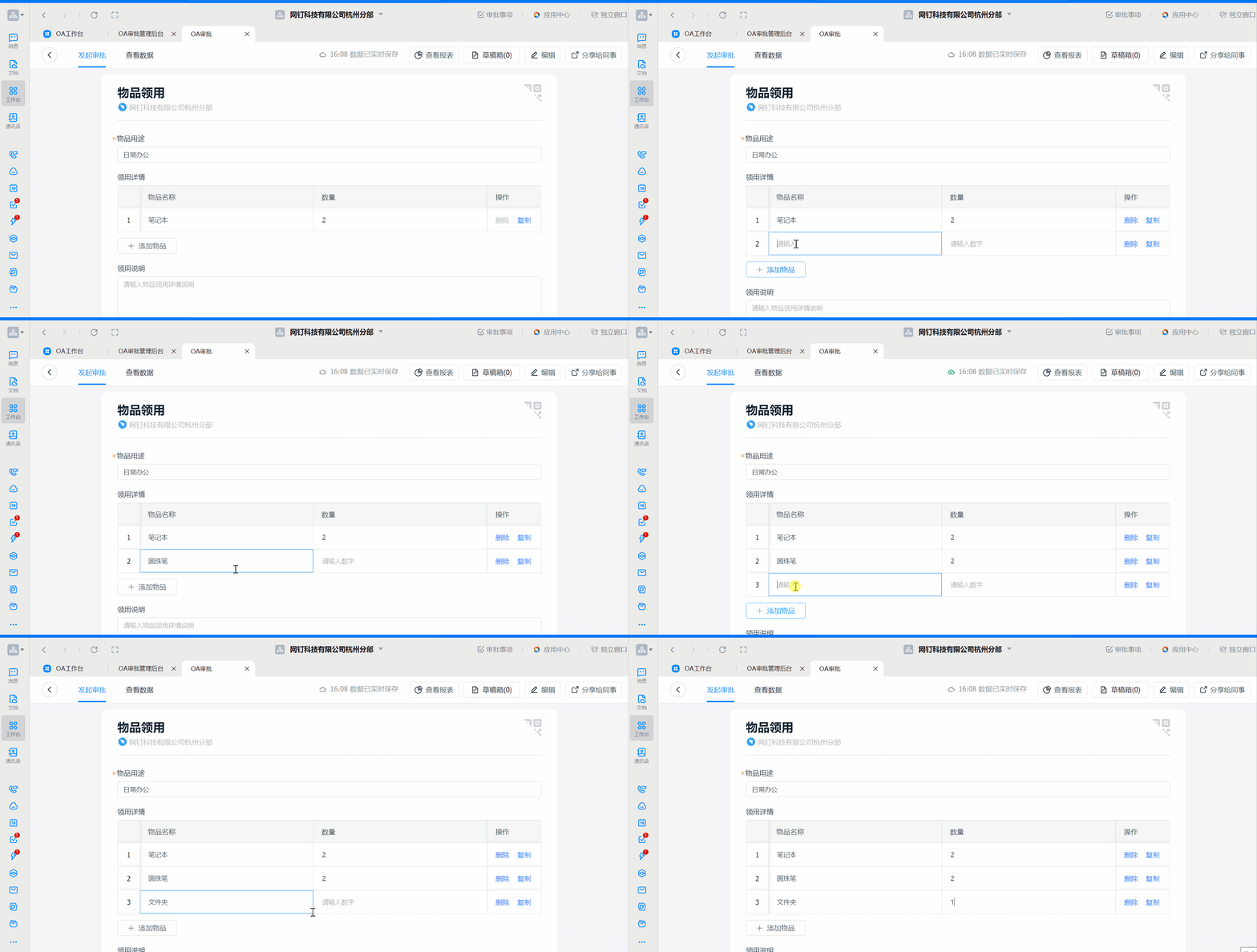
#### 2. Spreadsheet input