> ## Documentation Index
> Fetch the complete documentation index at: https://help.dingtalk.io/llms.txt
> Use this file to discover all available pages before exploring further.

# Cross-organization employee guide

> Employee guide for DingTalk cross-organization approval: learn how to initiate and process cross-organization approval forms on mobile and desktop for efficient collaboration with external partners.

## 1. Feature overview

Cross-organization approval lets you run approval processes with external organizations, addressing enterprise and government-enterprise needs across management, communication, collaboration, and business chains. It helps you connect more effectively with suppliers, distributors, platform merchants, and other business partners. This guide explains **how employees use the cross-organization approval feature**.

## 2. Applicable scenarios

* Your Organization uses cross-organization approval, and employees need to work with the feature.

* Other scenarios that require cross-organization approval.

## 3. Operation process

### 1. Mobile

<Steps>
  <Step title="Open cross-organization approval">
    On mobile DingTalk, go to **Workbench** > **OA Approval** > **More** (bottom right) > **Cross-Organization Approval**:

    <Frame>
      ![Path to open cross-organization approval on mobile DingTalk: Workbench, OA Approval, More, Cross-Organization Approval](https://alidocs.oss-cn-zhangjiakou.aliyuncs.com/res/vBPlN5jLQeJ64OdG/img/dee5cb8d-b2e3-4ce4-a844-5ccee8ab513c.png)
    </Frame>
  </Step>

  <Step title="View customer profile">
    Tap **Customer Profile** to view all customers you invited in this scenario (that is, customers for whom you are the follow-up person). Tap a customer to view profile details. To change the follow-up person, use the desktop client:

    <Frame>
      ![Mobile customer profile list and details page, showing customers for whom you are the follow-up person](https://alidocs.oss-cn-zhangjiakou.aliyuncs.com/res/vBPlN5jLQeJ64OdG/img/6f5afdc3-e07f-4184-80a6-9cffa83669a9.png)
    </Frame>
  </Step>

  <Step title="Invite external organization users">
    Tap **Invite External Organization Users** to invite external users to fill out the profile by sending a QR Code, sharing to DingTalk, or copying the Link:

    <Frame>
      ![Tap Invite External Organization Users on the mobile customer profile page to generate a shareable invitation QR Code](https://alidocs.oss-cn-zhangjiakou.aliyuncs.com/res/vBPlN5jLQeJ64OdG/img/000a6c77-7ecd-47cd-9cf0-75526d5a050d.png)
    </Frame>
  </Step>

  <Step title="Share the form">
    Tap **Initiate Approval** to share the Form directly:

    <Frame>
      ![Tap Initiate Approval on the mobile cross-organization approval page to share the Form directly with external users](https://alidocs.oss-cn-zhangjiakou.aliyuncs.com/res/vBPlN5jLQeJ64OdG/img/957e417a-09e5-49f2-83d6-49fdfc279176.png)
    </Frame>
  </Step>

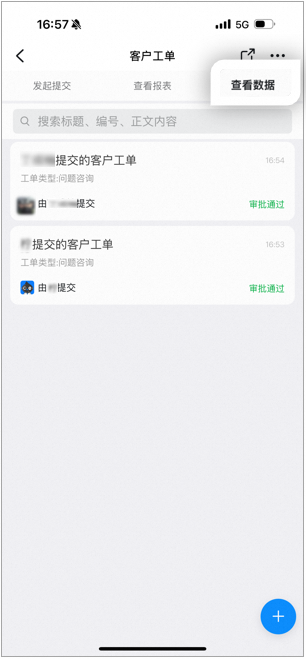
  <Step title="Initiate approval and view data">
    Tap a Form to initiate the Approval directly. Tap **View Data** to view every process Form Data record related to you (both submitted and processed by you):
    <div style={{maxWidth: '400px', margin: '16px auto'}}>
      <Frame>
        ![Mobile customer ticket View Data page, listing process Form Data records related to you](https://alidocs.oss-cn-zhangjiakou.aliyuncs.com/res/vBPlN5jLQeJ64OdG/img/8f7c65d9-ea9f-4929-852e-ce4f5e20edb8.png)
      </Frame>
    </div>
  </Step>

  <Step title="View Approval form details">
    Tap an Approval form to view details. Tap **···** at the bottom to resubmit or Download the File:

    <Frame>
      ![Mobile Approval form details page, with more actions at the bottom for resubmitting and downloading the File](https://alidocs.oss-cn-zhangjiakou.aliyuncs.com/res/vBPlN5jLQeJ64OdG/img/92577962-80d8-4a80-ab38-ab90aca69851.png)
    </Frame>
  </Step>

  <Step title="Initiate a new approval">
    Tap the **+** Button in the bottom right to initiate an Approval:

    <div style={{maxWidth: '400px', margin: '16px auto'}}>
      <Frame>
        ![Tap the plus Button in the bottom right of the mobile View Data page to initiate a new cross-organization approval](https://alidocs.oss-cn-zhangjiakou.aliyuncs.com/res/vBPlN5jLQeJ64OdG/img/89195683-970a-4902-97f4-106931cbe50e.png)
      </Frame>
    </div>
  </Step>
</Steps>

### 2. Desktop

<Steps>
  <Step title="Open cross-organization approval">
    On desktop DingTalk, go to **Workbench** > **OA Approval** > **Cross-Organization Approval**:

    <Frame>
      ![Desktop OA Approval cross-organization approval Home, showing profile forms and process forms for each scenario](https://alidocs.oss-cn-zhangjiakou.aliyuncs.com/res/vBPlN5jLQeJ64OdG/img/2892bdc0-9b3e-4906-beab-1d6507d9946c.png)
    </Frame>
  </Step>

  <Step title="View customer profile">
    Click the profile Form. You can only view customer profiles in this scenario that you invited by sharing the Form — that is, profiles for which you are the follow-up person:

    <Frame>
      ![Desktop customer profile List page, showing customer profiles for which you are the follow-up person](https://alidocs.oss-cn-zhangjiakou.aliyuncs.com/res/vBPlN5jLQeJ64OdG/img/9f11f72c-57ea-4525-96d7-1b3e72f399d7.png)
    </Frame>

    <Frame>
      ![The desktop customer profile List supports filtering by Created time and approval status](https://alidocs.oss-cn-zhangjiakou.aliyuncs.com/res/vBPlN5jLQeJ64OdG/img/7c9251ee-99b3-457a-9511-9c6e9cddce15.png)
    </Frame>
  </Step>

  <Step title="View profile details">
    Click a profile to view its details and change the follow-up person:

    <Frame>
      ![Desktop profile details side panel, for viewing profile Content and changing the follow-up person](https://alidocs.oss-cn-zhangjiakou.aliyuncs.com/res/vBPlN5jLQeJ64OdG/img/c88b8c4a-f77c-41f0-9611-9b608c31009f.png)
    </Frame>
  </Step>

  <Step title="Invite external organization users">
    Click **Invite External Organization Users** in the top right to invite external users to submit profiles by saving the QR Code, sharing to a DingTalk Chat window, or copying the Link:

    <Frame>
      ![Desktop Invite External Organization Users dialog — save the QR Code, Share to DingTalk, or Copy the Link](https://alidocs.oss-cn-zhangjiakou.aliyuncs.com/res/vBPlN5jLQeJ64OdG/img/985841b1-ff55-48cd-92fa-623d4c029a93.png)
    </Frame>
  </Step>

  <Step title="Initiate or share a process form">
    Click **Process Form** to initiate an Approval directly, or Share it with external users to fill out:

    <Frame>
      ![Process Form entry on the desktop cross-organization approval Page](https://alidocs.oss-cn-zhangjiakou.aliyuncs.com/res/vBPlN5jLQeJ64OdG/img/fbfc7423-e863-494f-af4e-6373c38f607a.png)
    </Frame>

    Fill out the Form directly to initiate the Approval:

    <Frame>
      ![Desktop process Form fill-out Page — fill in the fields and initiate a cross-organization approval directly](https://alidocs.oss-cn-zhangjiakou.aliyuncs.com/res/vBPlN5jLQeJ64OdG/img/7f224e6a-1f14-4cad-9d16-feb701986fc6.png)
    </Frame>

    Or Share it with external users to fill out:

    <Frame>
      ![Desktop Share to External Organization dialog — Share the process Form with external users to fill out](https://alidocs.oss-cn-zhangjiakou.aliyuncs.com/res/vBPlN5jLQeJ64OdG/img/f0100443-25b8-4a1b-8798-80ff79710d56.png)
    </Frame>
  </Step>

  <Step title="View data">
    Click **View Data** to open the Data Page, where you can view every process Form Data record related to you (both submitted and processed by you). Click a record to view its details:

    <Frame>
      ![Desktop View Data Page, listing process Form Data records related to you along with their details](https://alidocs.oss-cn-zhangjiakou.aliyuncs.com/res/vBPlN5jLQeJ64OdG/img/cfcd581d-9d24-4f34-be14-111aded71ae9.png)
    </Frame>
  </Step>

  <Step title="Initiate a new approval">
    Click **Create** in the top right to initiate an Approval:

    <Frame>
      ![Click Create in the top right of the desktop Data Page to initiate a cross-organization approval](https://alidocs.oss-cn-zhangjiakou.aliyuncs.com/res/vBPlN5jLQeJ64OdG/img/3e29c223-5252-412c-bc47-a0e5ced0bb5e.png)
    </Frame>
  </Step>
</Steps>

## 4. Related documents

<CardGroup cols={2}>
  <Card title="Cross-organization quick start" icon="rocket" href="/approval/cross-org-quick-start">
    Feature overview and basic operation process for cross-organization approval
  </Card>

  <Card title="Cross-organization admin guide" icon="user-gear" href="/approval/cross-org-admin-guide">
    How admins configure and manage cross-organization approval
  </Card>
</CardGroup>
