> ## Documentation Index
> Fetch the complete documentation index at: https://help.dingtalk.io/llms.txt
> Use this file to discover all available pages before exploring further.

# Initiator Handbook

> In DingTalk OA Approval, organization members who submit approval requests are collectively called initiators. This handbook walks the initiator through the end-to-end workflow — from opening the approval app, filling in and submitting a form, to tracking progress, undoing, and modifying an Approval form.

## 1. Role overview

<Note>
  In DingTalk OA Approval, organization members who submit approval requests are collectively called initiators.

  Initiator permissions:

  * Search for and view forms they are allowed to initiate (such as leave request, business trip, and reimbursement).

  * Fill in Form Fields by typing or selecting, following the rules set on the form.

  * Submit the form once the entered information is correct and every Required field is complete; when approvers must be picked manually, select approvers from the organization according to the rules set on the form.

  * Track approval progress at any point during the Approval process.

  * Undo or modify the Approval form during the Approval process, subject to the rules set on the form.

  * Download details of Approval forms within their management scope.

  **Note**: Form initiation Permissions, Form Fields, Required rules, Approval process, Undo, and modification rules are all configured by the organization's Approval Admin.
</Note>

## 2. Core actions

Initiator core actions are organized into the following 8 steps in order of use — jump to any step as needed:

| **Action**                | **Description**                                                                                        |
| ------------------------- | ------------------------------------------------------------------------------------------------------ |
| Open the Approval app     | Find the **OA Approval** app on the Workbench or in the sidebar                                        |
| Open the Approval form    | Find the Approval form you need on the Workbench, in OA Approval, or in the sidebar                    |
| Fill in the Approval form | Enter or select values to fill in the form as required                                                 |
| Submit the Approval form  | Submit the request once it meets the requirements; if submission fails, check against the common cases |
| View approval Progress    | Track Progress at any time in **OA Approval** — **Initiated by Me**                                    |
| Undo the Approval form    | The initiator can Undo an Approval form once the Admin has turned On Allow Undo                        |
| Modify the Approval form  | The initiator can modify an approved Approval form once the Admin has turned On Allow Modify           |
| Download approval details | Download Approval form details from the approval detail Page                                           |

### 1. Open the Approval app

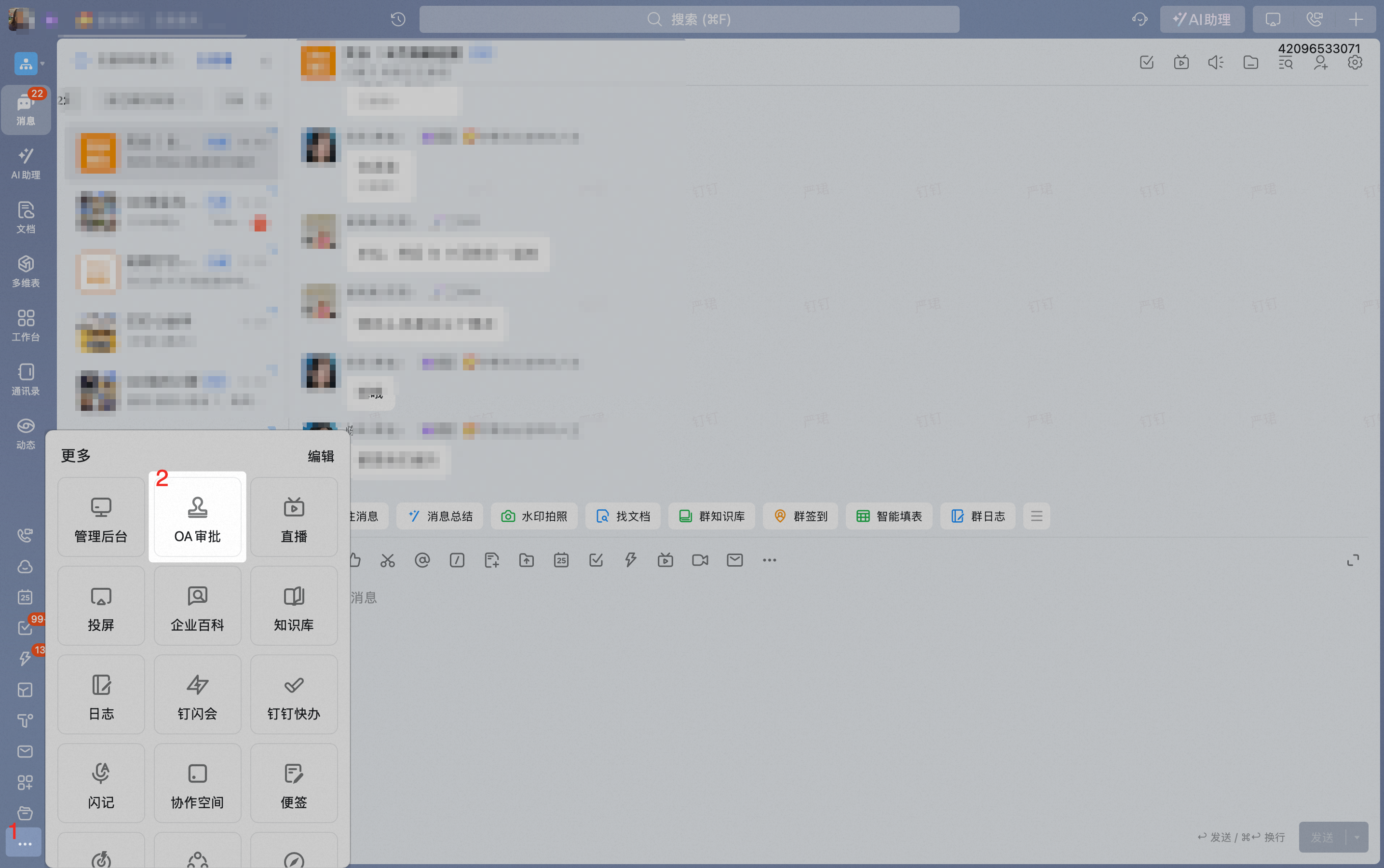
Organization members can find the **OA Approval** app on the **Workbench** or in the sidebar.

<Tabs>
  <Tab title="Mobile">
    <div style={{maxWidth:'400px',margin:'16px auto'}}>
      <p className="text-center font-semibold mb-2">Workbench</p>

      <Frame className="mb-4">
        ![OA Approval app entry on the mobile Workbench](https://alidocs.oss-cn-zhangjiakou.aliyuncs.com/res/8K4nyeZ9azDejnLb/img/42f4919f-6891-4d2e-b928-2e0317eb3a3e.png)
      </Frame>
    </div>
  </Tab>

  <Tab title="Desktop">
    <div className="flex gap-4">
      <div className="flex-1">
        <p className="text-center font-semibold mb-2">Workbench</p>

        <Frame className="mb-4">
          ![OA Approval app entry on the desktop Workbench](https://alidocs.oss-cn-zhangjiakou.aliyuncs.com/res/8K4nyeZ9azDejnLb/img/489c2f66-8b6c-4455-97d0-730b8254c88b.png)
        </Frame>
      </div>

      <div className="flex-1">
        <p className="text-center font-semibold mb-2">Sidebar</p>

        <Frame className="mb-4">
          ![OA Approval app entry in the desktop sidebar](https://alidocs.oss-cn-zhangjiakou.aliyuncs.com/res/8K4nyeZ9azDejnLb/img/7eb34596-ff2b-4433-9e01-4badbbbd4afb.png)
        </Frame>
      </div>
    </div>
  </Tab>
</Tabs>

### 2. Open the Approval form

Organization members can open an Approval form directly from the **Workbench**, or find one inside **OA Approval**.

<Tabs>
  <Tab title="Workbench">
    <div className="flex gap-4">
      <Frame>
        ![Locating an Approval form directly on the Workbench](https://alidocs.oss-cn-zhangjiakou.aliyuncs.com/res/8K4nyeZ9azDejnLb/img/3a40c138-8f6a-4109-944f-c09cdfc56911.png)
      </Frame>

      <Frame>
        ![Tapping a form on the Workbench to open the initiation page](https://alidocs.oss-cn-zhangjiakou.aliyuncs.com/res/8K4nyeZ9azDejnLb/img/5110bb47-85e8-4f92-a619-0d2bf9fe3360.png)
      </Frame>
    </div>
  </Tab>

  <Tab title="OA Approval">
    <div className="flex gap-4">
      <Frame>
        ![Searching or browsing by Group to find a form on the OA Approval Home](https://alidocs.oss-cn-zhangjiakou.aliyuncs.com/res/8K4nyeZ9azDejnLb/img/7145479d-f26e-46bf-b1ee-5b5fa230cbd4.png)
      </Frame>

      <Frame>
        ![Tapping a form inside OA Approval to open the initiation page](https://alidocs.oss-cn-zhangjiakou.aliyuncs.com/res/8K4nyeZ9azDejnLb/img/0803c123-86b5-46e8-919d-152837bd7d3a.png)
      </Frame>
    </div>
  </Tab>

  <Tab title="Sidebar">
    <div className="flex gap-4">
      <Frame>
        ![Opening OA Approval from the sidebar](https://alidocs.oss-cn-zhangjiakou.aliyuncs.com/res/8K4nyeZ9azDejnLb/img/dfbd04b9-efb1-43b4-8f98-701437177ea2.png)
      </Frame>

      <Frame>
        ![Finding the Approval form after entering from the sidebar](https://alidocs.oss-cn-zhangjiakou.aliyuncs.com/res/8K4nyeZ9azDejnLb/img/0fa964d0-a8b5-4da6-835b-459b508ea278.png)
      </Frame>
    </div>
  </Tab>
</Tabs>

### 3. Fill in the Approval form

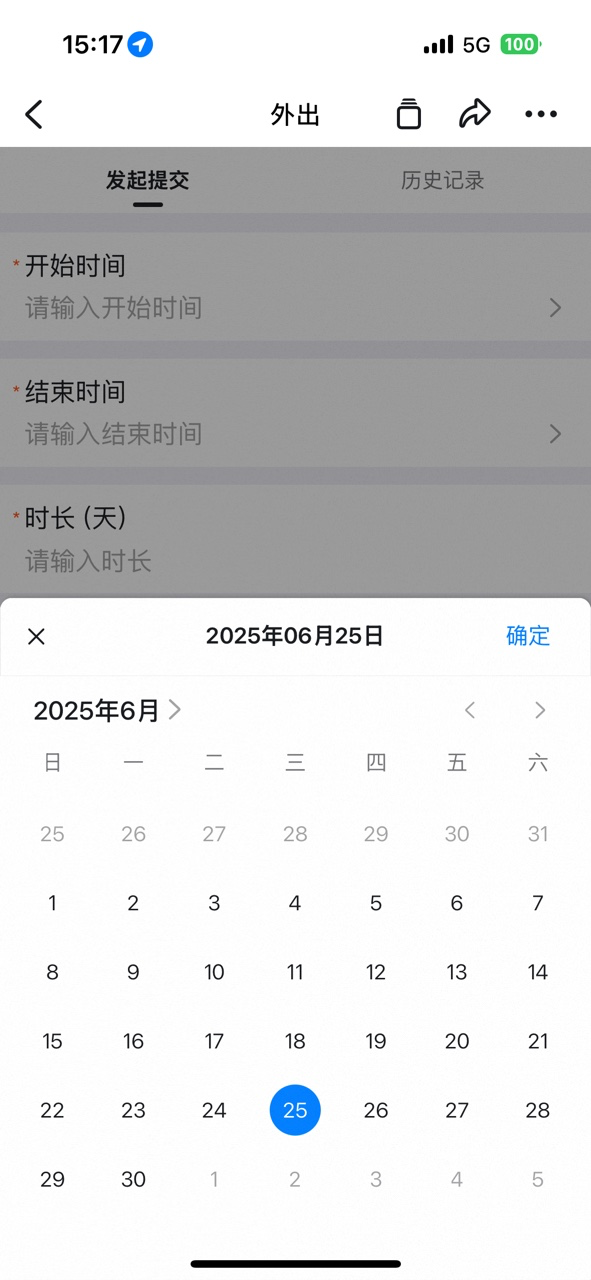
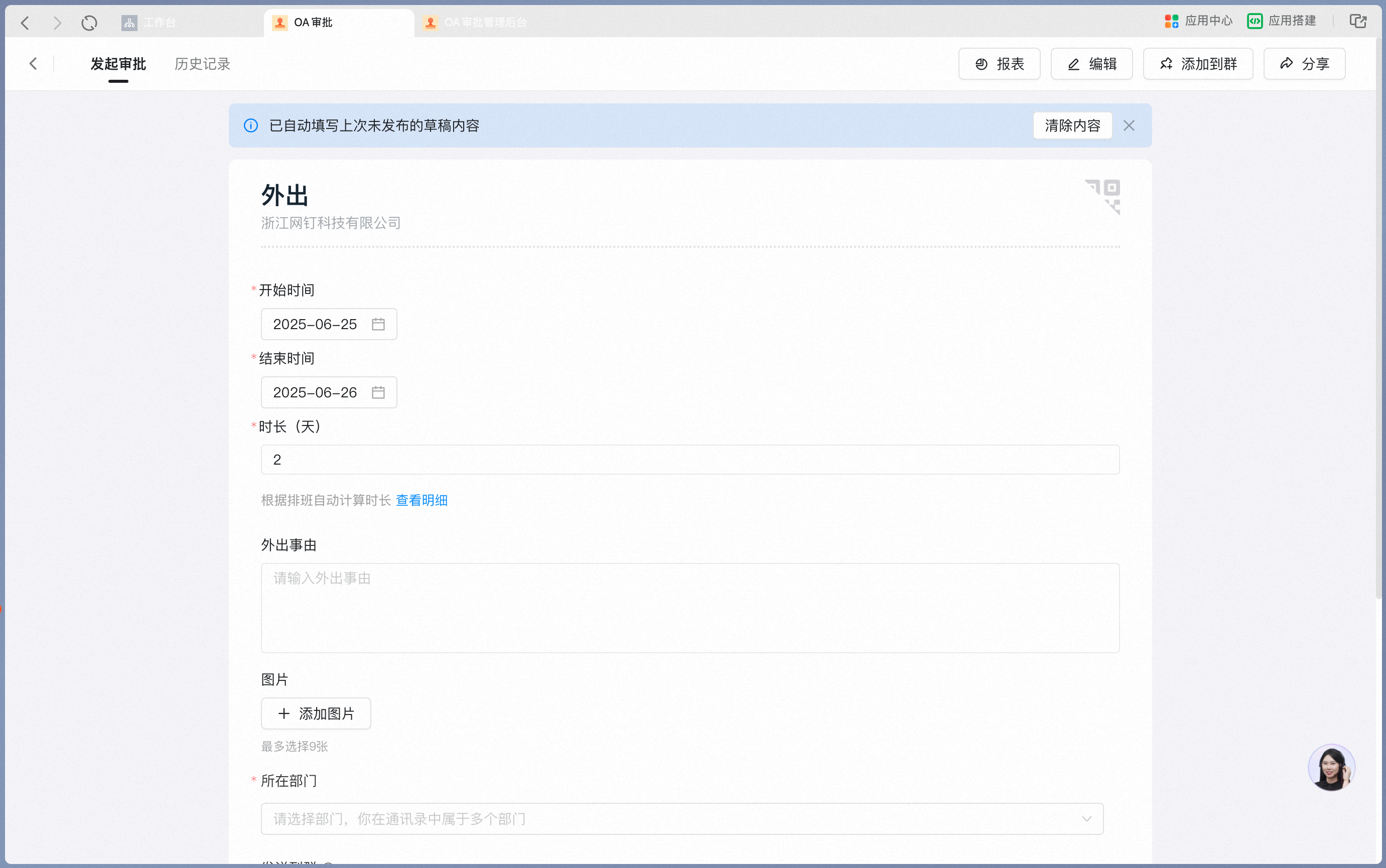
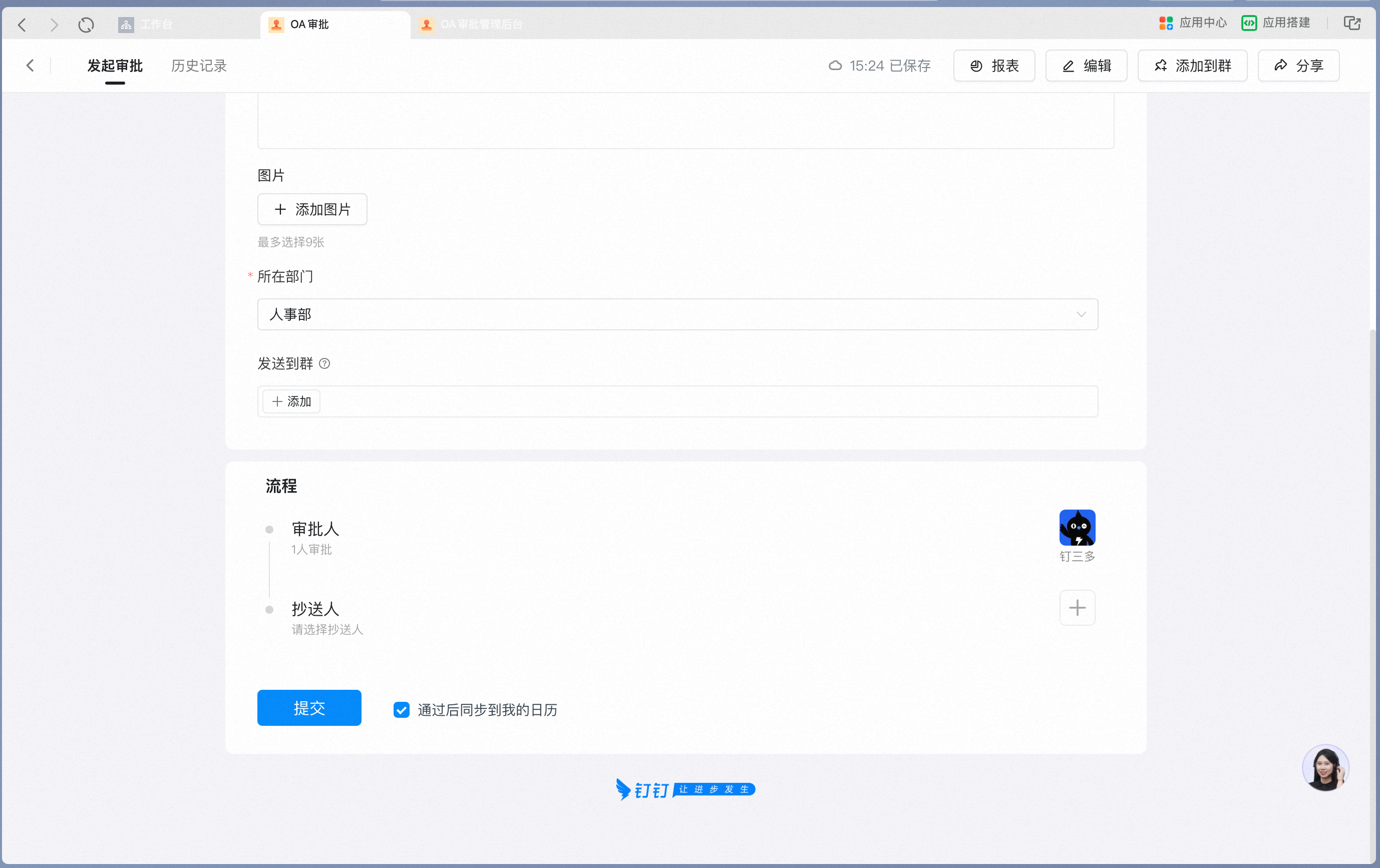
Organization members fill in the form by typing or selecting values, following the fields configured on the form.

<div className="flex gap-4">
  <div className="flex-1">
    <p className="text-center font-semibold mb-2">Desktop</p>

    <Frame className="mb-4">
      ![Filling in an Approval form on desktop](https://alidocs.oss-cn-zhangjiakou.aliyuncs.com/res/8K4nyeZ9azDejnLb/img/9ff1636a-c3e2-45bb-b468-0a33b2890c37.png)
    </Frame>

    <Frame className="mb-4">
      ![Filling Form Fields by selection on desktop](https://alidocs.oss-cn-zhangjiakou.aliyuncs.com/res/8K4nyeZ9azDejnLb/img/f0b22aab-1bba-45a5-a517-b4f33f16508d.png)
    </Frame>
  </div>

  <div className="flex-1">
    <p className="text-center font-semibold mb-2">Mobile</p>

    <Frame className="mb-4">
      ![Filling in an Approval form on mobile](https://alidocs.oss-cn-zhangjiakou.aliyuncs.com/res/8K4nyeZ9azDejnLb/img/464da10a-1ecb-4d99-8367-25a4584246bc.png)
    </Frame>

    <Frame className="mb-4">
      ![Filling Form Fields by selection on mobile](https://alidocs.oss-cn-zhangjiakou.aliyuncs.com/res/8K4nyeZ9azDejnLb/img/49a9ea67-c2ff-4df9-a88b-e0a06984ed90.png)
    </Frame>
  </div>
</div>

<Tip>
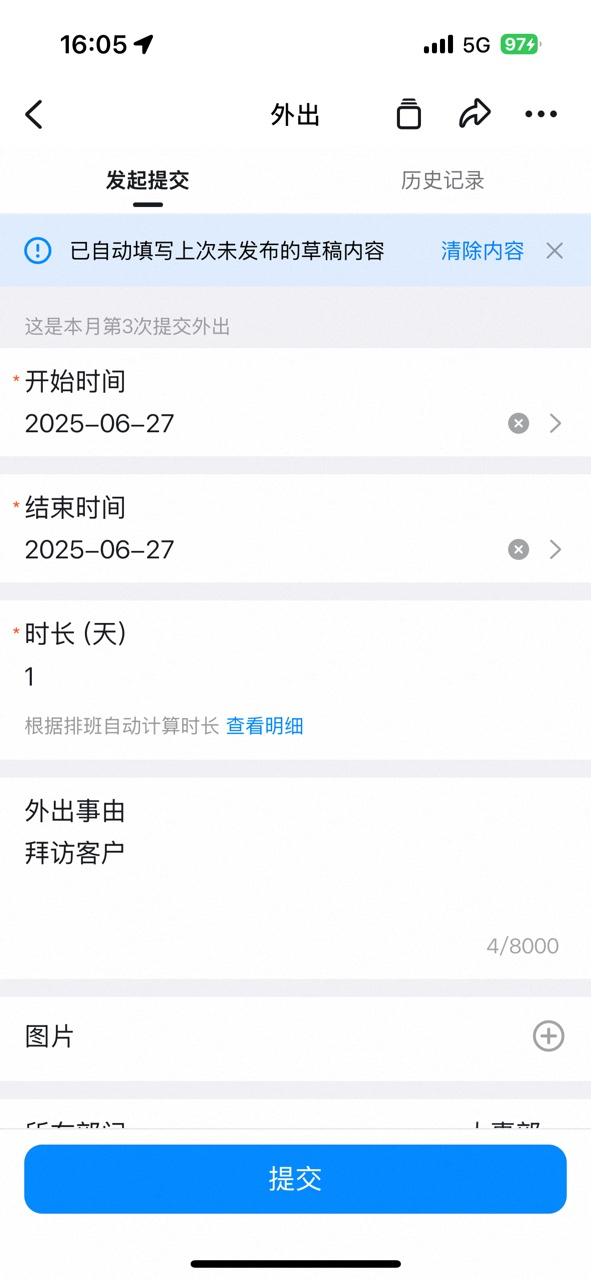
  If you leave the Approval form without submitting, whatever you have filled in is automatically saved as a draft. Tap "Clear Content" if you do not want to keep it.
</Tip>

<div className="flex gap-4">
  <div className="flex-1">
    <p className="text-center font-semibold mb-2">Desktop</p>

    <Frame className="mb-4">
      ![Auto-saved draft and Clear Content on desktop](https://alidocs.oss-cn-zhangjiakou.aliyuncs.com/res/8K4nyeZ9azDejnLb/img/92ea7bdd-bc11-4fba-b2ce-5f7cc6c75932.png)
    </Frame>
  </div>

  <div className="flex-1">
    <p className="text-center font-semibold mb-2">Mobile</p>

    <Frame className="mb-4">
      ![Auto-saved draft and Clear Content on mobile](https://alidocs.oss-cn-zhangjiakou.aliyuncs.com/res/8K4nyeZ9azDejnLb/img/c1faa0dc-6fd3-48fb-8da7-9257fc4f2b1f.png)
    </Frame>
  </div>
</div>

### 4. Submit the Approval form

Once the filled-in Content meets the requirements, organization members can tap Submit to send the approval request.

<div className="flex gap-4">
  <div className="flex-1">
    <p className="text-center font-semibold mb-2">Desktop</p>

    <Frame className="mb-4">
      ![Submitting an approval request on desktop](https://alidocs.oss-cn-zhangjiakou.aliyuncs.com/res/8K4nyeZ9azDejnLb/img/23367aaf-2d3b-4735-92f5-fe0ffb6bdf8f.png)
    </Frame>

    <Frame className="mb-4">
      ![Submission Success Page on desktop](https://alidocs.oss-cn-zhangjiakou.aliyuncs.com/res/8K4nyeZ9azDejnLb/img/8014240a-f0b0-42c9-a9b4-9a098d0c7a1d.png)
    </Frame>
  </div>

  <div className="flex-1">
    <p className="text-center font-semibold mb-2">Mobile</p>

    <Frame className="mb-4">
      ![Submitting an approval request on mobile](https://alidocs.oss-cn-zhangjiakou.aliyuncs.com/res/8K4nyeZ9azDejnLb/img/77b90fa1-ecd1-4648-a5d9-233df798ff54.png)
    </Frame>

    <Frame className="mb-4">
      ![Submission Success Page on mobile](https://alidocs.oss-cn-zhangjiakou.aliyuncs.com/res/8K4nyeZ9azDejnLb/img/4eba24f1-395c-4f4d-92a1-5456660fb4f8.png)
    </Frame>
  </div>
</div>

#### Common submission failure cases

If Submit shows a message saying the form cannot be initiated, check against these 6 common cases:

<Steps>
  <Step title="Case 1: A Required Field is empty">
    <Frame>
      ![Tips that a Required Field is empty](https://alidocs.oss-cn-zhangjiakou.aliyuncs.com/res/8K4nyeZ9azDejnLb/img/9a32e851-a2e1-4c10-b690-4a6a05ebb733.png)
    </Frame>

    Cause: One or more Required fields are empty.

    Fix: Follow the red Tips to complete the fields, then Submit.
  </Step>

  <Step title="Case 2: Initiating Department not selected">
    <Frame>
      ![Tips that an initiating Department must be selected](https://alidocs.oss-cn-zhangjiakou.aliyuncs.com/res/8K4nyeZ9azDejnLb/img/85f69cc7-694f-4632-8f52-d34780064978.png)
    </Frame>

    Cause: The organization User belongs to multiple departments, but no Department was selected when initiating.

    Fix: Select the Department this approval belongs to, then Submit.
  </Step>

  <Step title="Case 3: An Approval form already exists for the same time range">
    <Frame>
      ![Tips that an Approval form already exists in the same time range](https://alidocs.oss-cn-zhangjiakou.aliyuncs.com/res/8K4nyeZ9azDejnLb/img/2e28c511-db5d-4a53-9acb-a0957341a010.png)
    </Frame>

    Cause: For certain business types, an Approval form was already initiated for the same time range.

    Fix:

    1. View History, locate the existing request for the same time range, Undo it, then Submit again.

    2. If there is no Undo Button (the Admin has set the form as non-undoable), contact the Approval Admin to Delete the time-Repeat Approval form in the Admin Console (this also deletes the related system Data).

    You can forward the how-to to the Admin: [Admin managing form Data](/approval/admin-manage-form-data)

    3. If you cannot find the existing request, the Admin has already deleted the Approval form but removed only the form itself, not the associated system Data. Ask the Admin to first restore the Trash Data, delete the associated system Data, and then submit again.
  </Step>

  <Step title="Case 4: Manually-selected approver not chosen">
    <Frame>
      ![Tips that an approver must be selected](https://alidocs.oss-cn-zhangjiakou.aliyuncs.com/res/8K4nyeZ9azDejnLb/img/70d4fa43-5635-4285-afa8-38186789d618.png)
    </Frame>

    Cause: An Approval process node is set to "initiator selects", but the initiator submitted without picking an approver.

    Fix:

    1. Select an approver and Submit again.

    2. Contact the Admin to configure the approver.

    You can forward the how-to to the Admin: [Admin performing process design](/approval/admin-process-design)
  </Step>

  <Step title="Case 5: The process could not find an approver">
    <Frame>
      ![Tips that the process engine could not find an approver](https://alidocs.oss-cn-zhangjiakou.aliyuncs.com/res/8K4nyeZ9azDejnLb/img/3ada7932-eea2-42e6-9edc-4f1e12953095.png)
    </Frame>

    Cause: An Approval process node is misconfigured — the process engine could not find an approver.

    Fix: Contact the Admin to review the Approval process settings and configure the approver correctly.

    You can forward the how-to to the Admin: [Admin performing process design](/approval/admin-process-design)
  </Step>

  <Step title="Case 6: No branch condition matches">
    <Frame>
      ![Tips that no branch condition matches](https://alidocs.oss-cn-zhangjiakou.aliyuncs.com/res/8K4nyeZ9azDejnLb/img/f7418fd7-b1fb-4a94-89e5-aae92c19788a.png)
    </Frame>

    Cause: The Approval form uses conditional approval, and the branch conditions do not cover what the current initiator filled in.

    Fix: Contact the Admin to review the conditional approval settings.

    You can forward the how-to to the Admin: [Troubleshooting conditional approval errors](/approval/conditional-troubleshooting)
  </Step>
</Steps>

### 5. View approval Progress

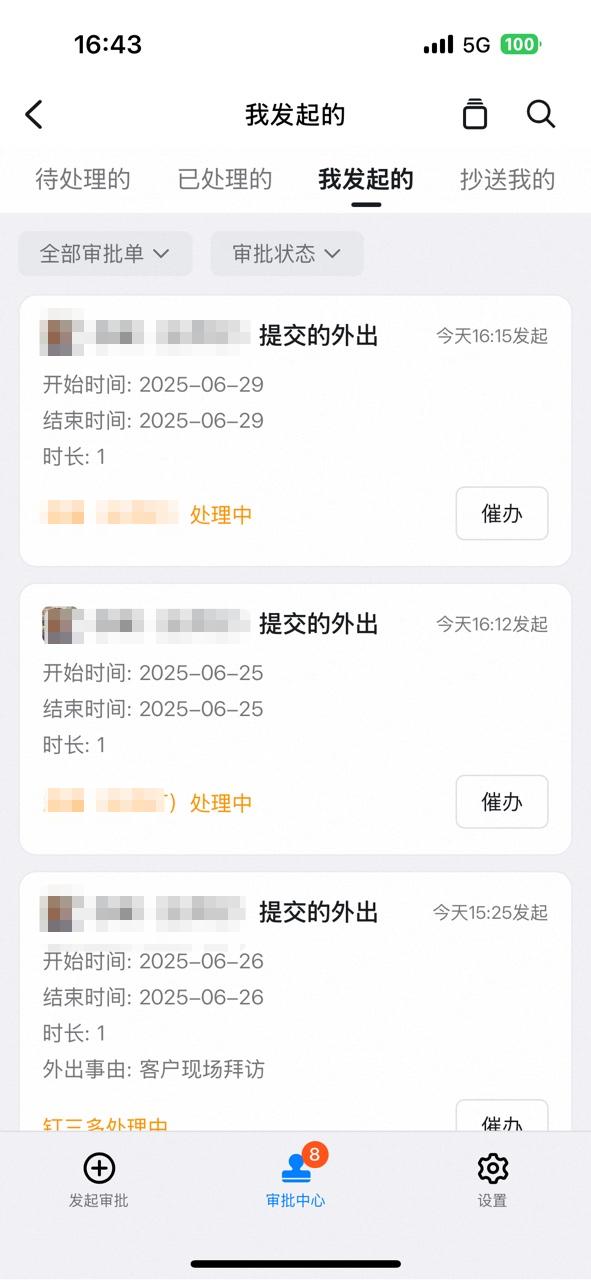
Once the request is submitted successfully, organization members can track Progress in **OA Approval** — **Initiated by Me**.

<div className="flex gap-4">
  <div className="flex-1">
    <p className="text-center font-semibold mb-2">Desktop</p>

    <Frame className="mb-4">
      ![Viewing approval Progress in Initiated by Me on desktop](https://alidocs.oss-cn-zhangjiakou.aliyuncs.com/res/8K4nyeZ9azDejnLb/img/531a0e31-264e-4876-811c-da0d48569e8c.png)
    </Frame>

    <Frame className="mb-4">
      ![Approval process Progress in the detail Page on desktop](https://alidocs.oss-cn-zhangjiakou.aliyuncs.com/res/8K4nyeZ9azDejnLb/img/ab645b4b-b702-400c-a1ce-679456ed5474.png)
    </Frame>
  </div>

  <div className="flex-1">
    <p className="text-center font-semibold mb-2">Mobile</p>

    <Frame className="mb-4">
      ![Viewing approval Progress in Initiated by Me on mobile](https://alidocs.oss-cn-zhangjiakou.aliyuncs.com/res/8K4nyeZ9azDejnLb/img/ba451f24-5db7-4991-b0ca-08ca1f332a69.png)
    </Frame>

    <Frame className="mb-4">
      ![Approval process Progress in the detail Page on mobile](https://alidocs.oss-cn-zhangjiakou.aliyuncs.com/res/8K4nyeZ9azDejnLb/img/9da5cfde-1e97-47e7-be06-c435cc231ec9.png)
    </Frame>
  </div>
</div>

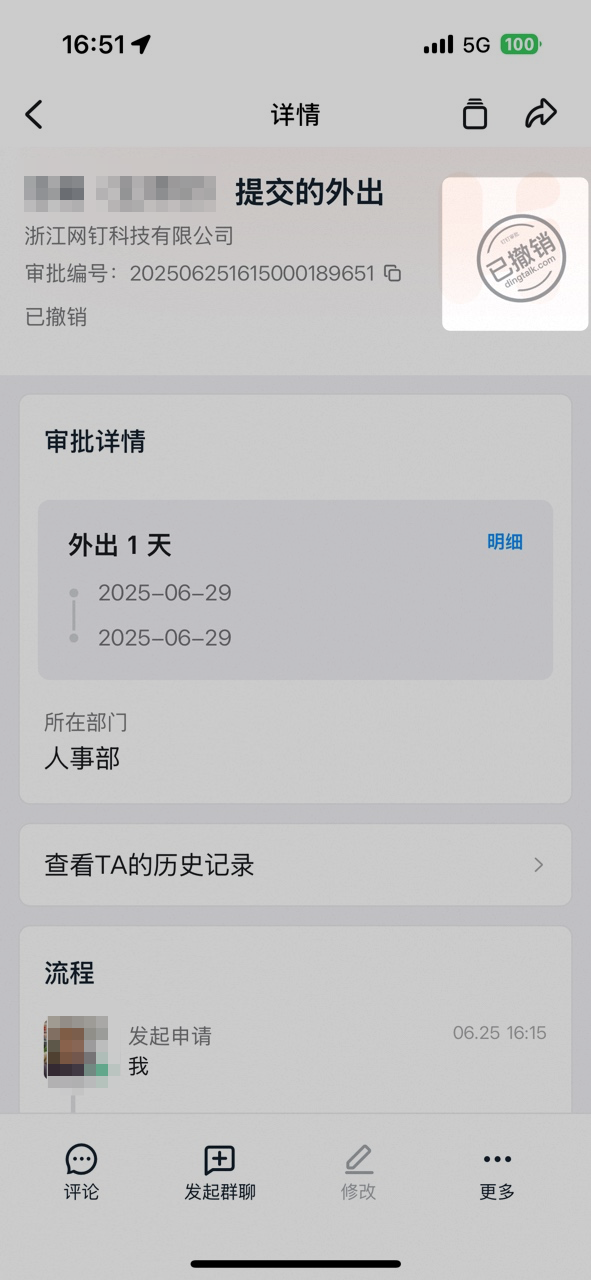
### 6. Undo the Approval form

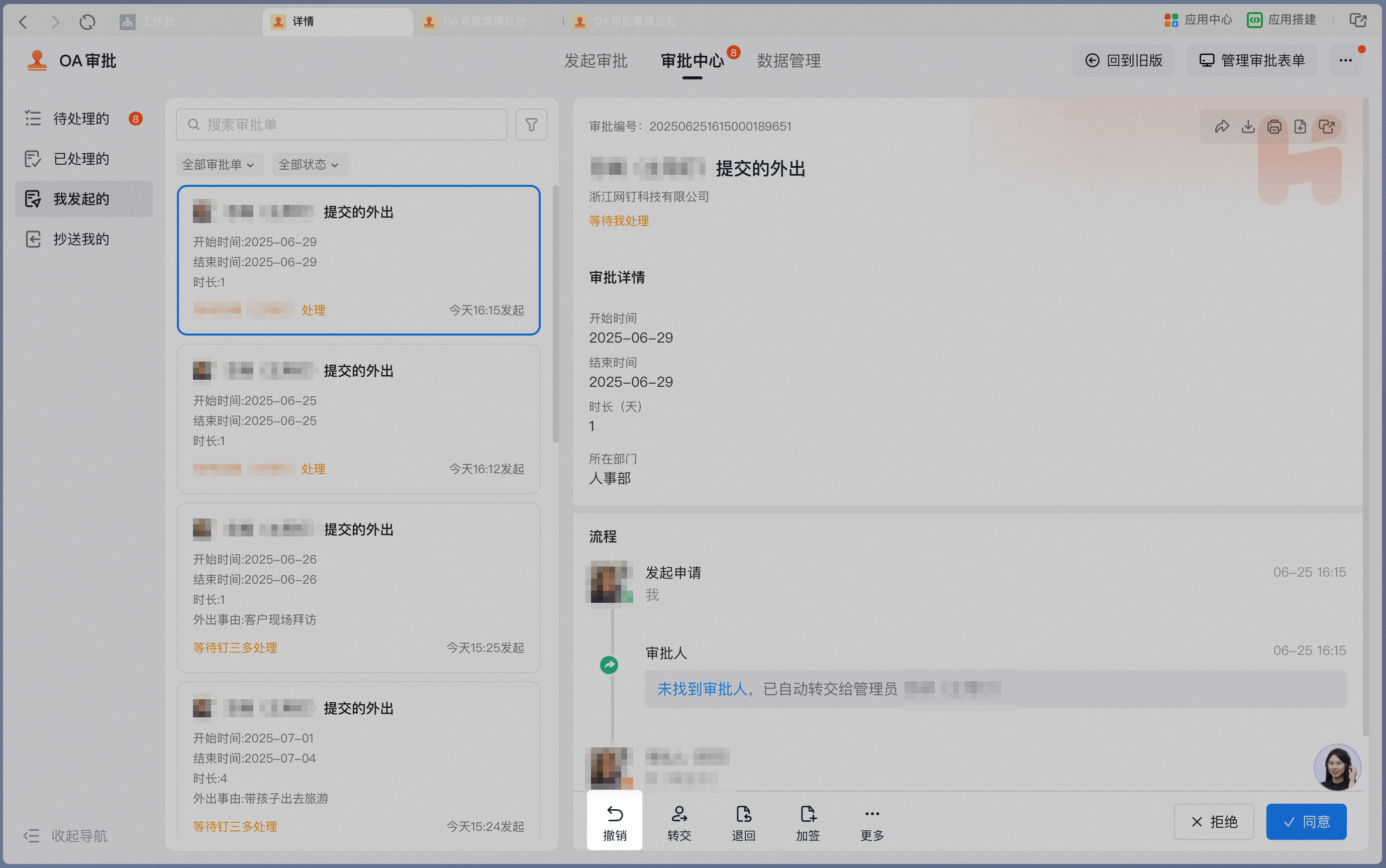
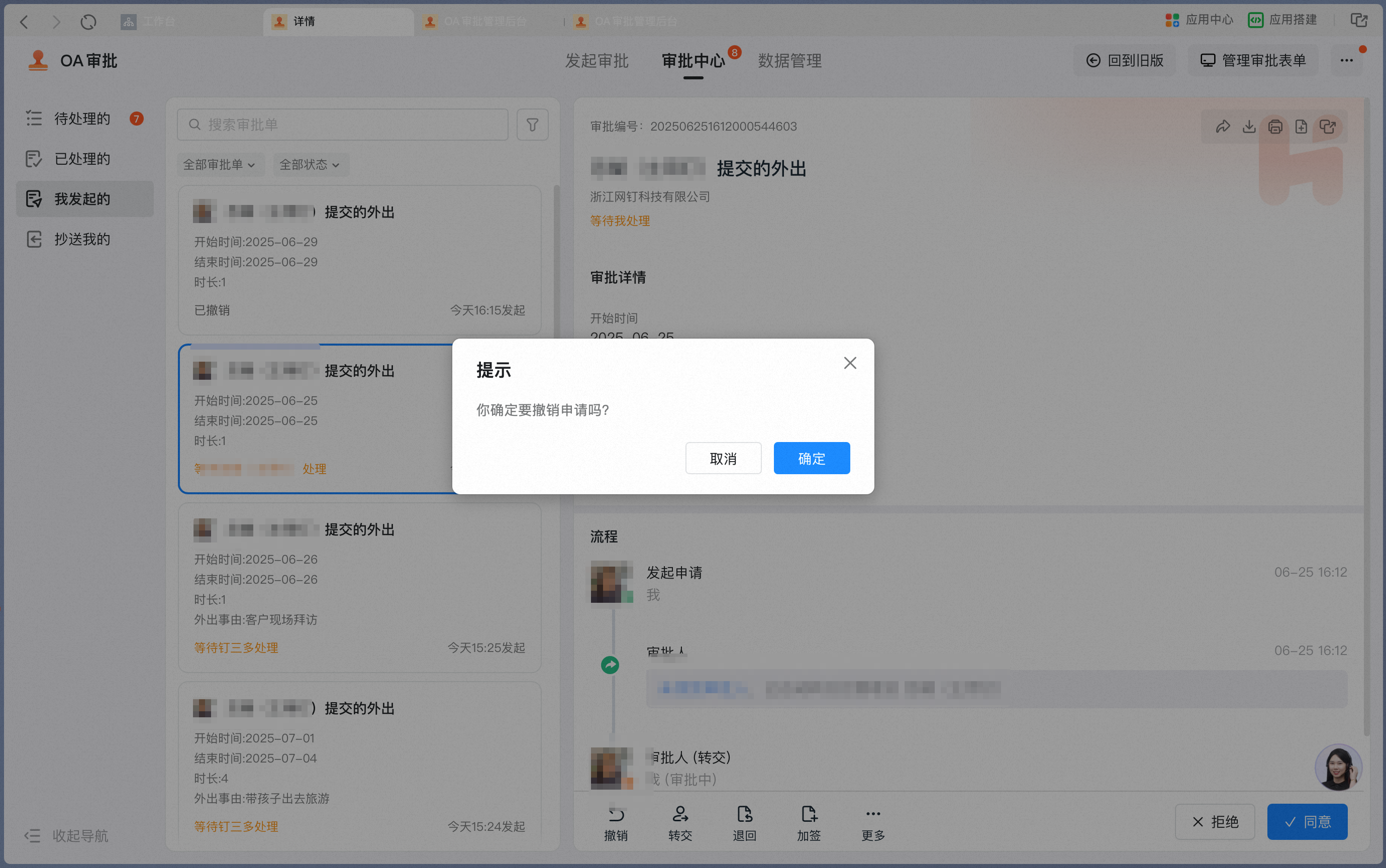
If the Admin has turned On Allow Undo, the initiator can Undo the Approval form.

<Note>
  If there is no Undo Button on the Approval form, the Admin has not enabled Undo Permissions — contact the organization's Approval Admin.
</Note>

<div className="flex gap-4">
  <div className="flex-1">
    <p className="text-center font-semibold mb-2">Desktop</p>

    <Frame className="mb-4">
      ![Tapping Undo on the approval detail Page on desktop](https://alidocs.oss-cn-zhangjiakou.aliyuncs.com/res/8K4nyeZ9azDejnLb/img/57b5c8d0-5098-4a32-bc6c-156c19f54283.png)
    </Frame>

    <Frame className="mb-4">
      ![Confirm the Undo on desktop](https://alidocs.oss-cn-zhangjiakou.aliyuncs.com/res/8K4nyeZ9azDejnLb/img/407df449-0641-4291-afa6-5a5d65666e1a.png)
    </Frame>

    <Frame className="mb-4">
      ![Approval form status after a successful Undo on desktop](https://alidocs.oss-cn-zhangjiakou.aliyuncs.com/res/8K4nyeZ9azDejnLb/img/8ad1674c-6e4a-4975-a607-af5eb8def02b.png)
    </Frame>
  </div>

  <div className="flex-1">
    <p className="text-center font-semibold mb-2">Mobile</p>

    <Frame className="mb-4">
      ![Tapping Undo on the approval detail Page on mobile](https://alidocs.oss-cn-zhangjiakou.aliyuncs.com/res/8K4nyeZ9azDejnLb/img/50bf4c6f-ecc8-4794-8e14-4cc18ff0146b.png)
    </Frame>

    <Frame className="mb-4">
      ![Confirm the Undo on mobile](https://alidocs.oss-cn-zhangjiakou.aliyuncs.com/res/8K4nyeZ9azDejnLb/img/10154dd6-c977-4448-b874-ba22f26f2b4e.png)
    </Frame>

    <Frame className="mb-4">
      ![Approval form status after a successful Undo on mobile](https://alidocs.oss-cn-zhangjiakou.aliyuncs.com/res/8K4nyeZ9azDejnLb/img/cd57a3cd-b03a-406d-8d4c-13457a9b3b58.png)
    </Frame>
  </div>
</div>

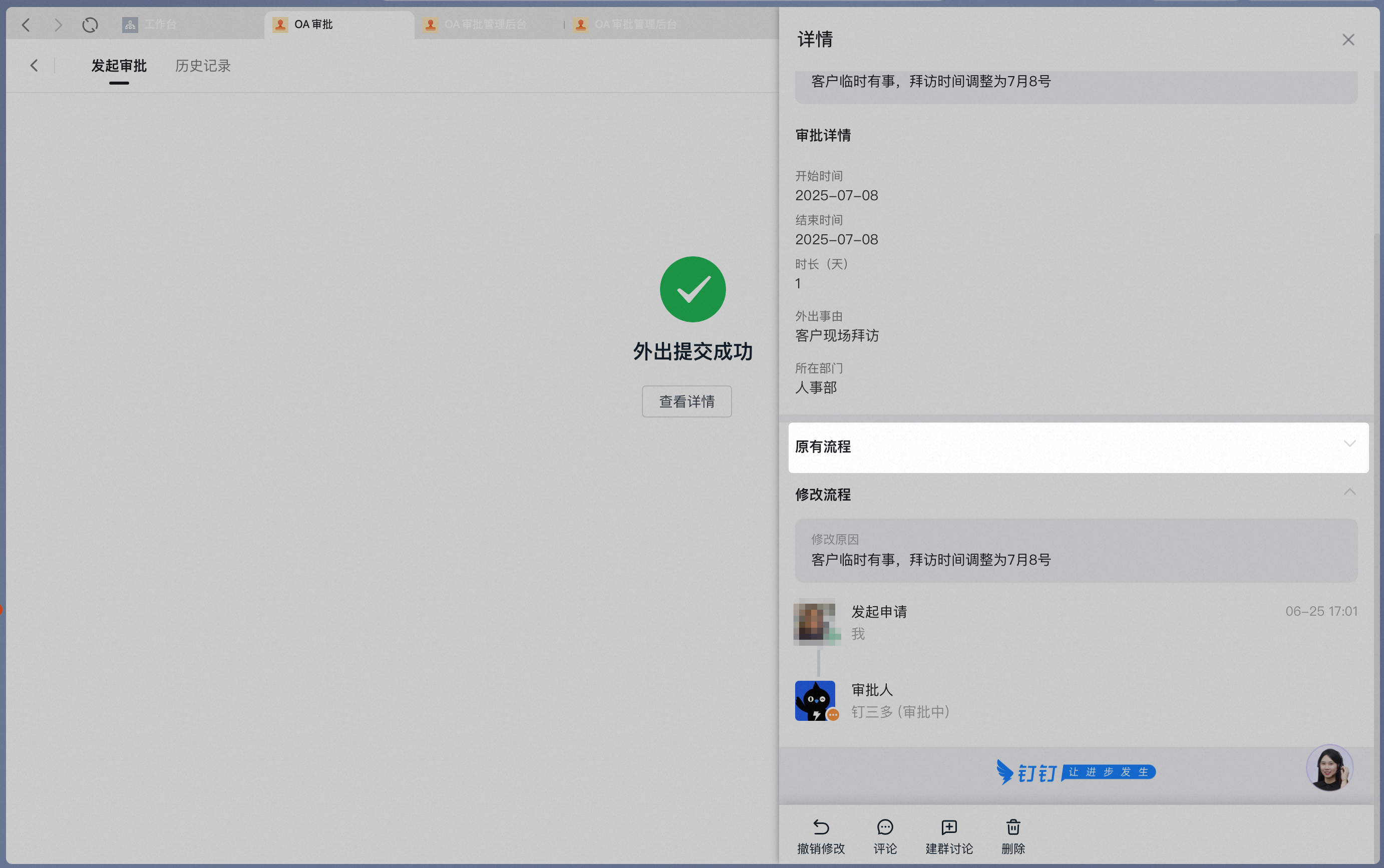
### 7. Modify the Approval form

If the Admin has turned On Allow Modify for **already-approved** Approval forms, the initiator can modify them. Modifying requires a reason for the change; once resubmitted, the original Approval form is attached to the modified one for easy reference.

<div className="flex gap-4">
  <div className="flex-1">
    <p className="text-center font-semibold mb-2">Desktop</p>

    <Frame className="mb-4">
      ![Tapping Modify on the approval detail Page on desktop](https://alidocs.oss-cn-zhangjiakou.aliyuncs.com/res/8K4nyeZ9azDejnLb/img/da503c56-54ce-4f27-8c13-54e7e82c7587.png)
    </Frame>

    <Frame className="mb-4">
      ![Entering a reason for modification and resubmitting on desktop](https://alidocs.oss-cn-zhangjiakou.aliyuncs.com/res/8K4nyeZ9azDejnLb/img/3984a00f-e2ed-4da0-b82c-e36219e83b20.png)
    </Frame>

    <Frame className="mb-4">
      ![Original Approval form attached to the modified one on desktop](https://alidocs.oss-cn-zhangjiakou.aliyuncs.com/res/8K4nyeZ9azDejnLb/img/60f6354e-cb4b-4912-98af-d21a681c82d6.png)
    </Frame>
  </div>

  <div className="flex-1">
    <p className="text-center font-semibold mb-2">Mobile</p>

    <Frame className="mb-4">
      ![Tapping Modify on the approval detail Page on mobile](https://alidocs.oss-cn-zhangjiakou.aliyuncs.com/res/8K4nyeZ9azDejnLb/img/aeb49e3c-eb33-4909-b844-6ee5a19812cc.png)
    </Frame>

    <Frame className="mb-4">
      ![Entering a reason for modification and resubmitting on mobile](https://alidocs.oss-cn-zhangjiakou.aliyuncs.com/res/8K4nyeZ9azDejnLb/img/65c35c24-fcb0-4831-97e9-b66e6732a7d4.png)
    </Frame>

    <Frame className="mb-4">
      ![Original Approval form attached to the modified one on mobile](https://alidocs.oss-cn-zhangjiakou.aliyuncs.com/res/8K4nyeZ9azDejnLb/img/919ce5cc-eb3e-44d6-82b4-8aff77631396.png)
    </Frame>
  </div>
</div>

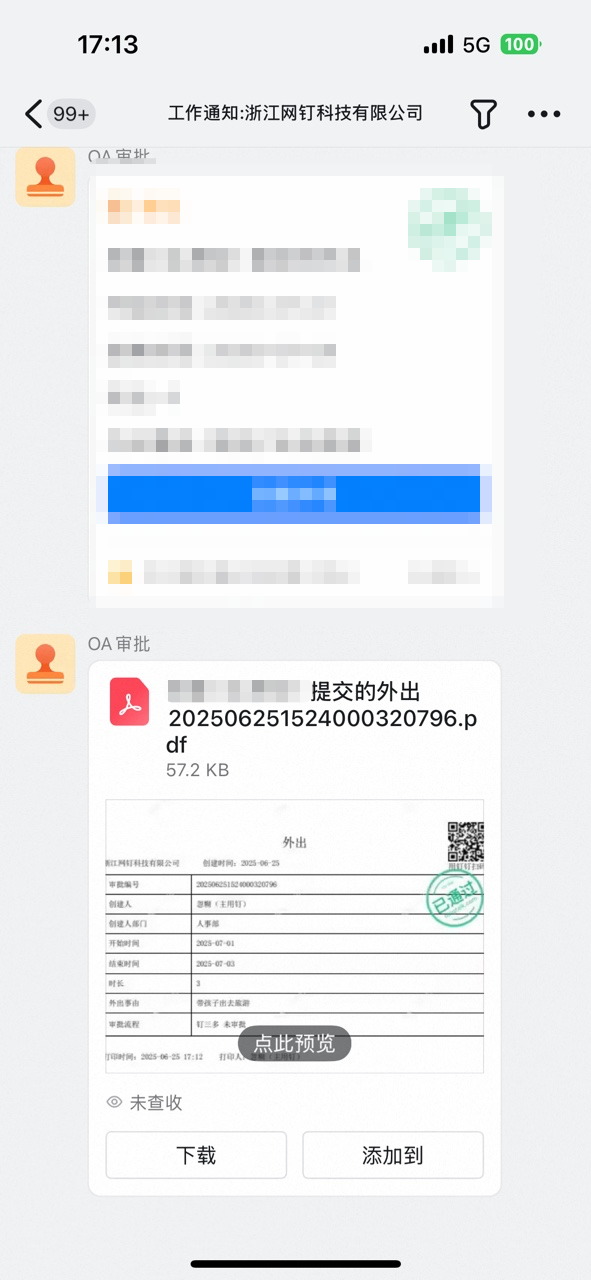
### 8. Download approval details

Organization members can Download approval details from the approval detail Page.

<div className="flex gap-4">
  <div className="flex-1">
    <p className="text-center font-semibold mb-2">Desktop</p>

    <Frame className="mb-4">
      ![Download entry on the approval detail Page on desktop](https://alidocs.oss-cn-zhangjiakou.aliyuncs.com/res/8K4nyeZ9azDejnLb/img/847b9b29-7939-47b3-b5b9-515dd049c1c3.png)
    </Frame>

    <Frame className="mb-4">
      ![Selecting a Download format on desktop](https://alidocs.oss-cn-zhangjiakou.aliyuncs.com/res/8K4nyeZ9azDejnLb/img/96baa34c-2955-4a39-8ff5-bf853541bb8b.png)
    </Frame>

    <Frame className="mb-4">
      ![Downloaded approval details on desktop](https://alidocs.oss-cn-zhangjiakou.aliyuncs.com/res/8K4nyeZ9azDejnLb/img/32c917cc-fa7c-4a2e-8339-4cb77277f2b3.png)
    </Frame>
  </div>

  <div className="flex-1">
    <p className="text-center font-semibold mb-2">Mobile</p>

    <Frame className="mb-4">
      ![Download entry on the approval detail Page on mobile](https://alidocs.oss-cn-zhangjiakou.aliyuncs.com/res/8K4nyeZ9azDejnLb/img/b260ba58-3738-4b42-ae8e-64efe06bf735.png)
    </Frame>

    <Frame className="mb-4">
      ![Downloaded approval details on mobile](https://alidocs.oss-cn-zhangjiakou.aliyuncs.com/res/8K4nyeZ9azDejnLb/img/70760a38-9890-45ec-8c1a-54b6fbbd1aa2.png)
    </Frame>
  </div>
</div>

## 3. Related documents

<CardGroup cols={2}>
  <Card title="Operation Interface" href="/approval/operation-interface">
    Get familiar with the Home, Approval Center, and other General operation interfaces
  </Card>

  <Card title="Operator Handbook" href="/approval/operator-guide">
    Learn how approvers, handlers, and CC recipients process Approval forms
  </Card>
</CardGroup>