> ## Documentation Index
> Fetch the complete documentation index at: https://help.dingtalk.io/llms.txt
> Use this file to discover all available pages before exploring further.
# Direct manager approval
> Set a direct manager as an approver by maintaining User direct managers in the DingTalk Admin Console and configuring a direct manager Step in the Approval process, so Approval forms route automatically to the upper-level manager.
## 1. Overview
Admins can set a direct manager as an approver.
A direct manager refers to a manager on a business-related reporting line other than the Contacts manager:
For example, in project management, project team Users on a specific project must report to the project manager and project director when handling project-related Approvals.
For example, in product R\&D, procurement, design, and production teams must report to the product development lead when handling Approvals related to that product's R\&D.
When you set a direct manager as an approver and the direct manager later changes, you only need to adjust the direct manager to keep the process running normally.
Direct manager updates take effect simultaneously on Approvals that have already been initiated but have not yet reached the current Step, as well as on process settings in approval templates.
## 2. Prerequisites
* Only the Approval Admin can perform process design, so you must first become an Approval Admin.
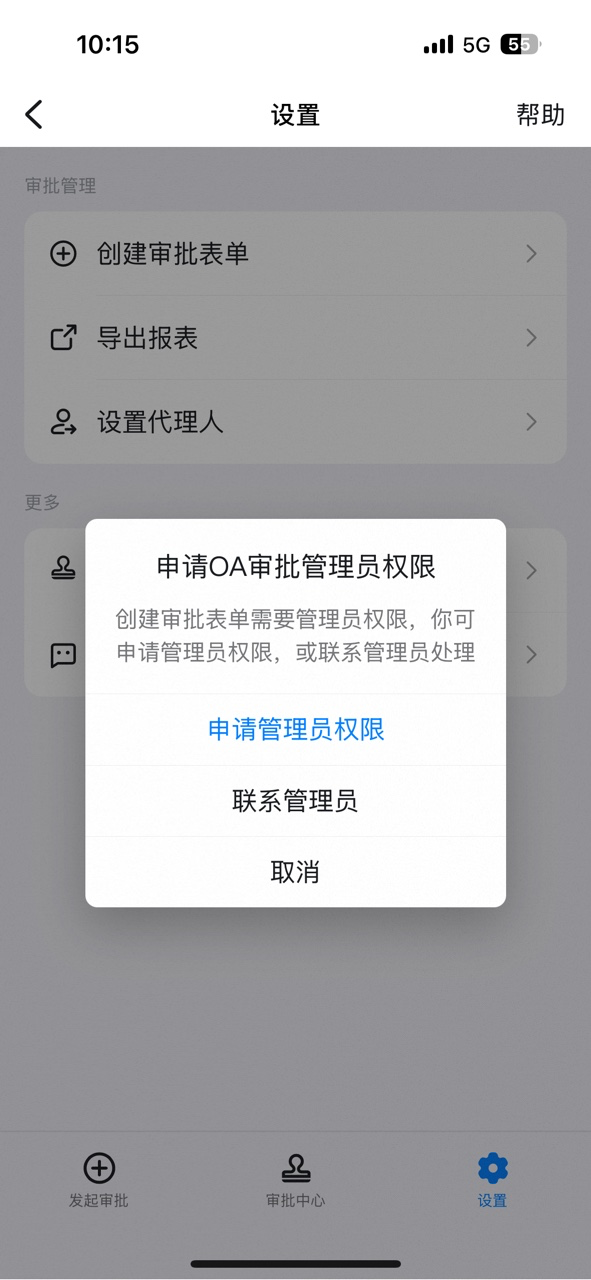
Non-Approval Admins: open DingTalk OA Approval, click \[Settings], click \[Create Approval form], click \[Request Admin Permissions], and click "Submit".


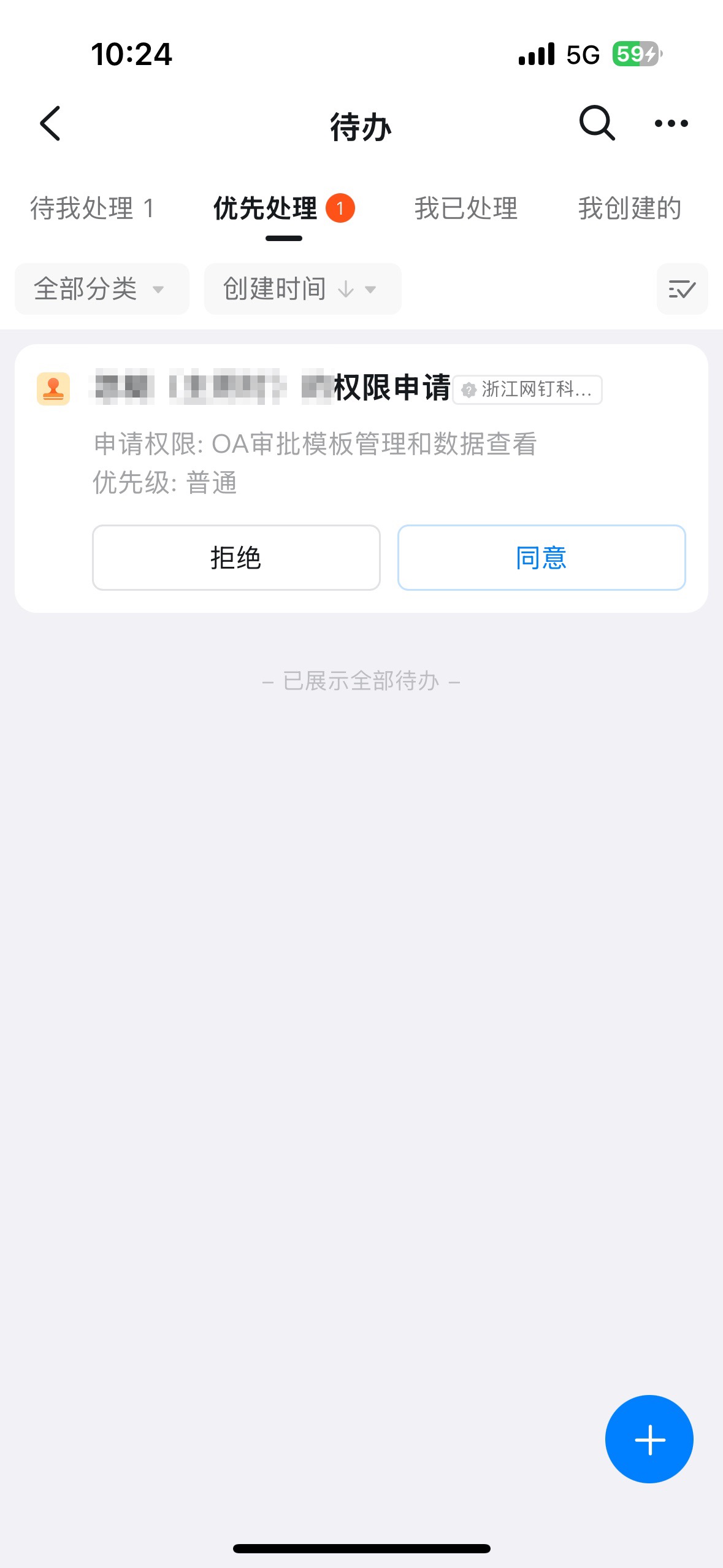
Once the Admin receives the pending Approval notification and approves it, the corresponding Employee is automatically granted Approval Admin permissions.
## 3. Steps
### 1. Set the direct manager
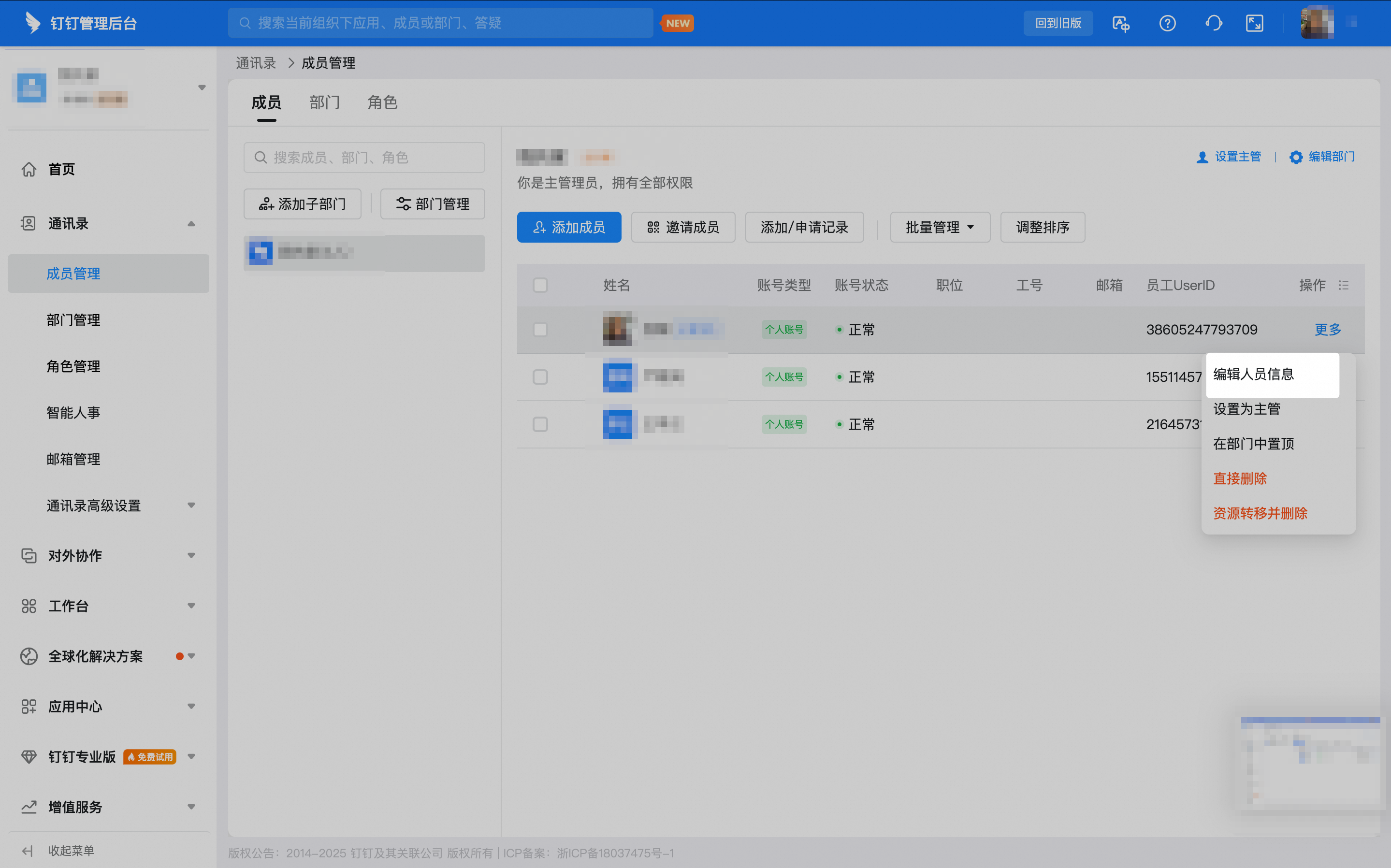
In the browser, the Admin opens the [DingTalk Admin Console](https://oa.dingtalk.io), then clicks \[Contacts] - \[User Management] to open the User List:

Locate the target User, click \[More] on the right, and select \[Edit User Info]:
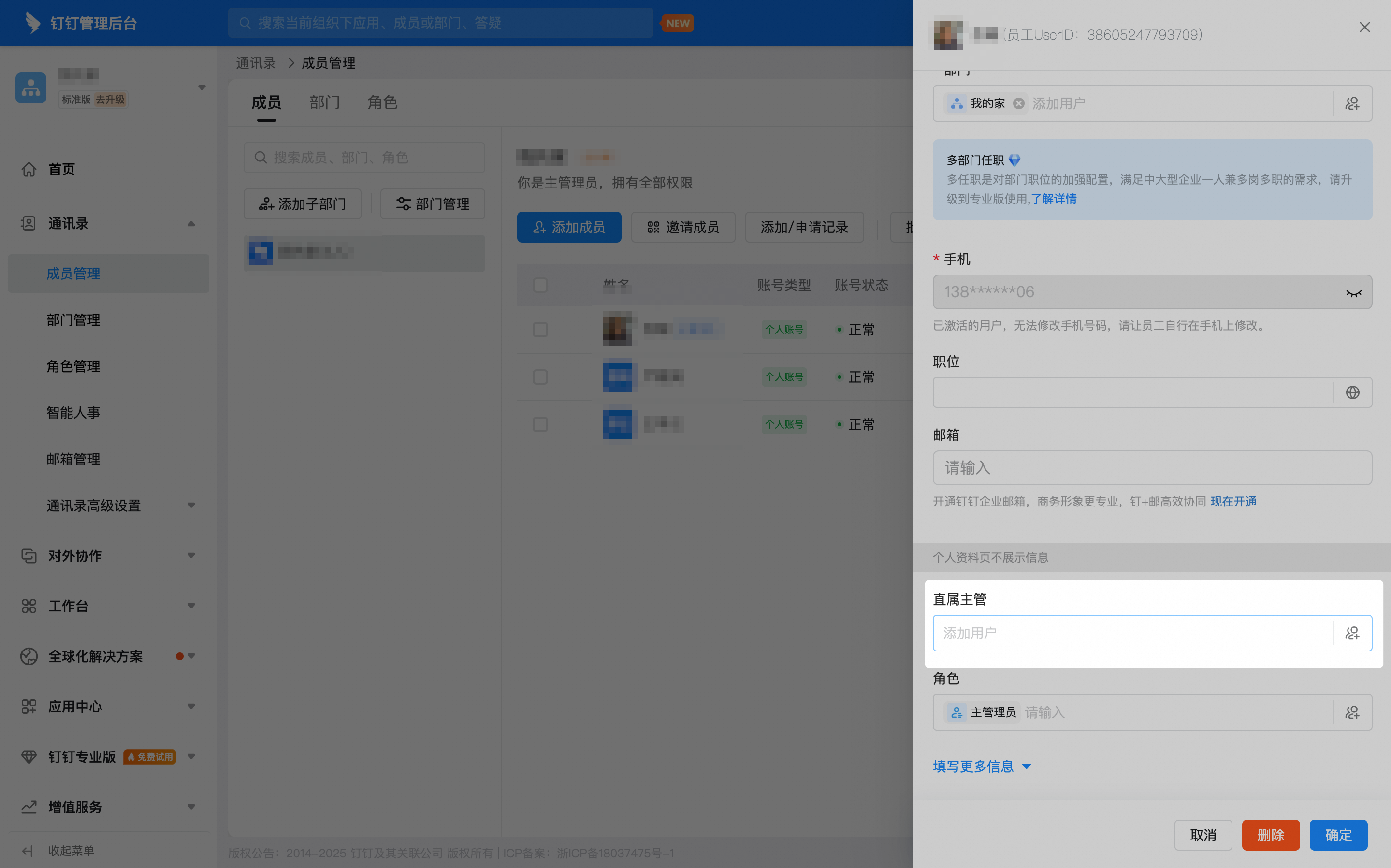
In the "Direct Manager" field of the Edit User Info panel, add the corresponding User, then click \[Confirm] to Save:
### 2. Set the direct manager as approver in the Approval process
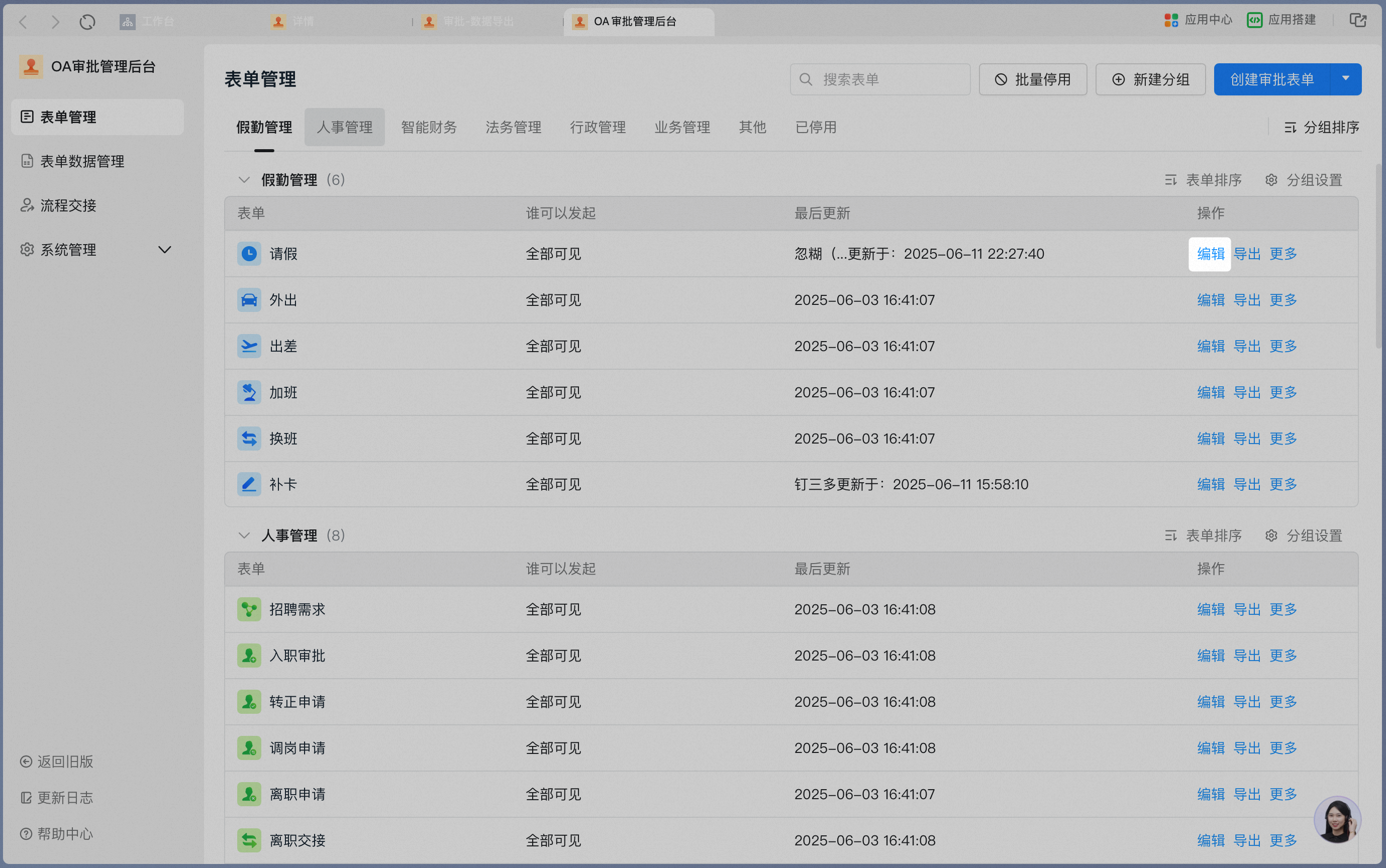
On the "**Approval Admin Console**" - "**Form Management**" page, click \[**Edit**] in the Form Action column.
Click \[**Process Design**] to open the main process design interface.

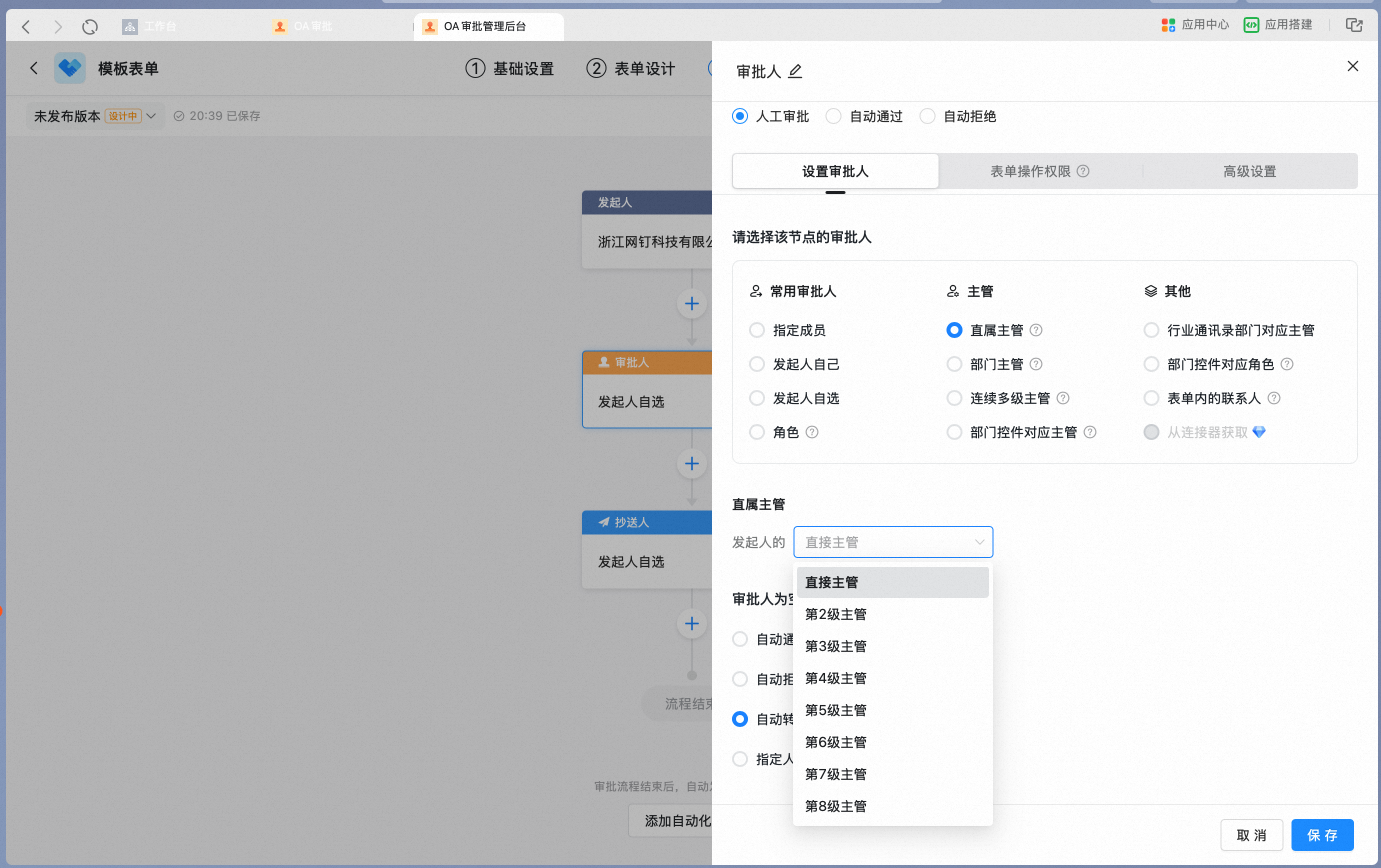
Click the "**Approver Card**" to open approver Settings. Under "Select the approver for this node", select direct manager approval. You can then Configure which level of the initiator's direct manager acts as the approver.