> ## Documentation Index
> Fetch the complete documentation index at: https://help.dingtalk.io/llms.txt
> Use this file to discover all available pages before exploring further.
# Role-based approver
> Learn how to set a role as an approver: configure roles and their management scope, then add role nodes to the approval process. Includes FAQs on approval order and the number of roles per node.
## 1. Overview
Admins can set a role as an approver.
A role represents a professional category within a team, such as HR, Administration, or Finance. Each role can include one or more members.
When a role is set as the approver and a member of that role leaves or changes position, you only need to replace the approver within the role and adjust the management scope. The process continues to run normally.
Role changes take effect immediately on approvals that have not yet reached the current node, as well as on the process settings within approval templates.
## 2. Prerequisites
* Only an Approval Admin can perform process design, so you must first become an Approval Admin.
If you are not an Approval Admin, open DingTalk OA Approval, tap **Settings**, tap **Create Approval Form**, tap **Request Admin Permissions**, and then tap **Submit**.

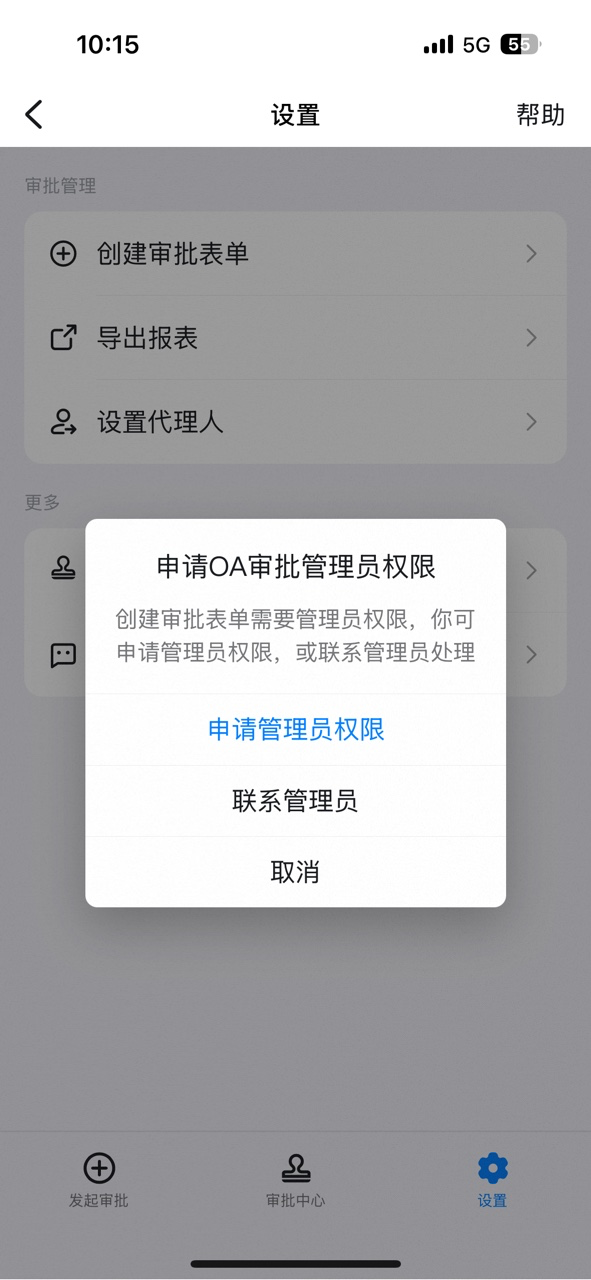

Once the Admin receives and approves the request, the employee automatically obtains Approval Admin permissions.

## 3. Steps
### 3.1 Configure roles
In your browser, go to the [DingTalk Admin Console](https://oa.dingtalk.io) and click **Configure Roles**.
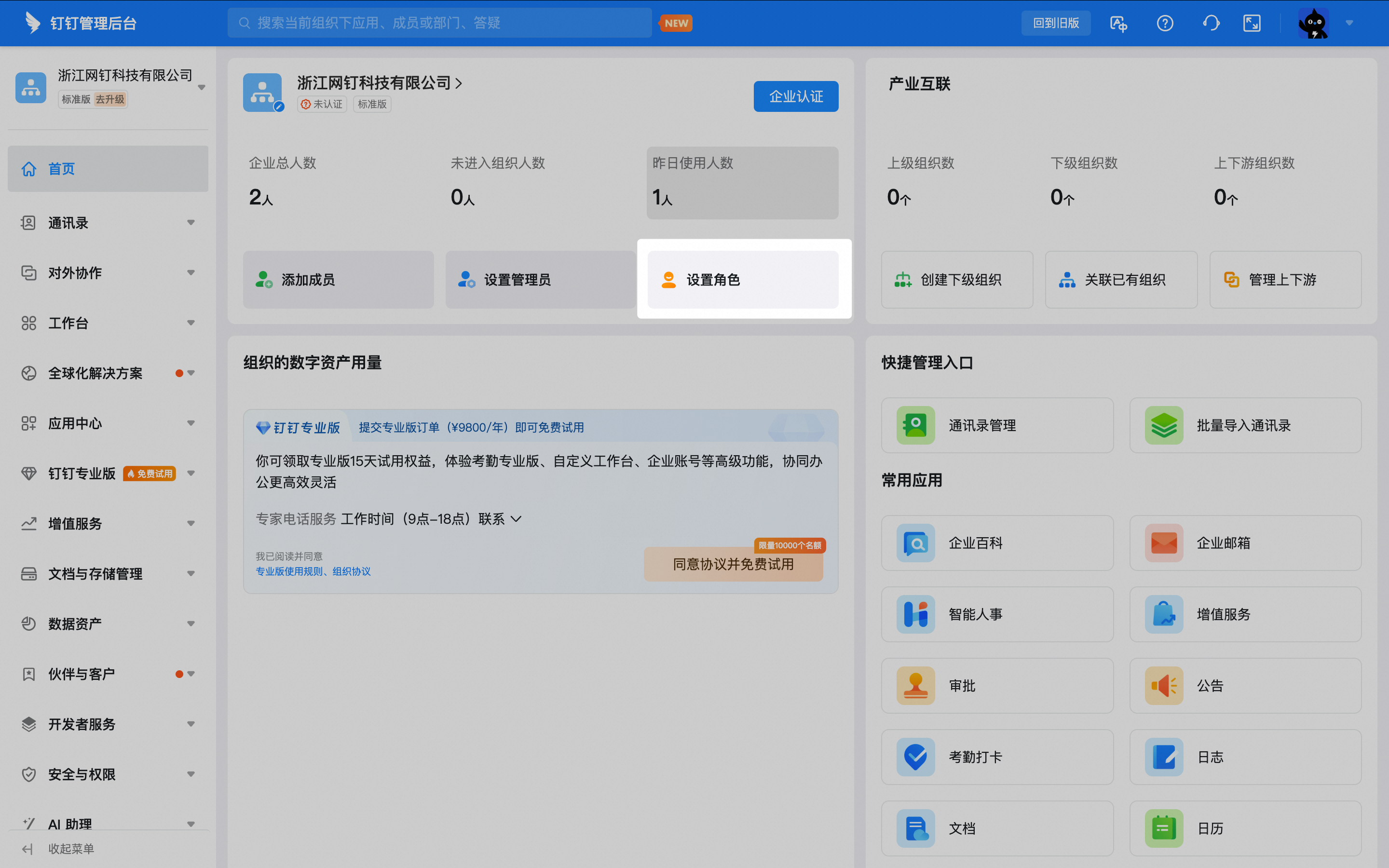
To add users to an existing role, open the role list, click **Add User**, select the users, and click **Confirm**.
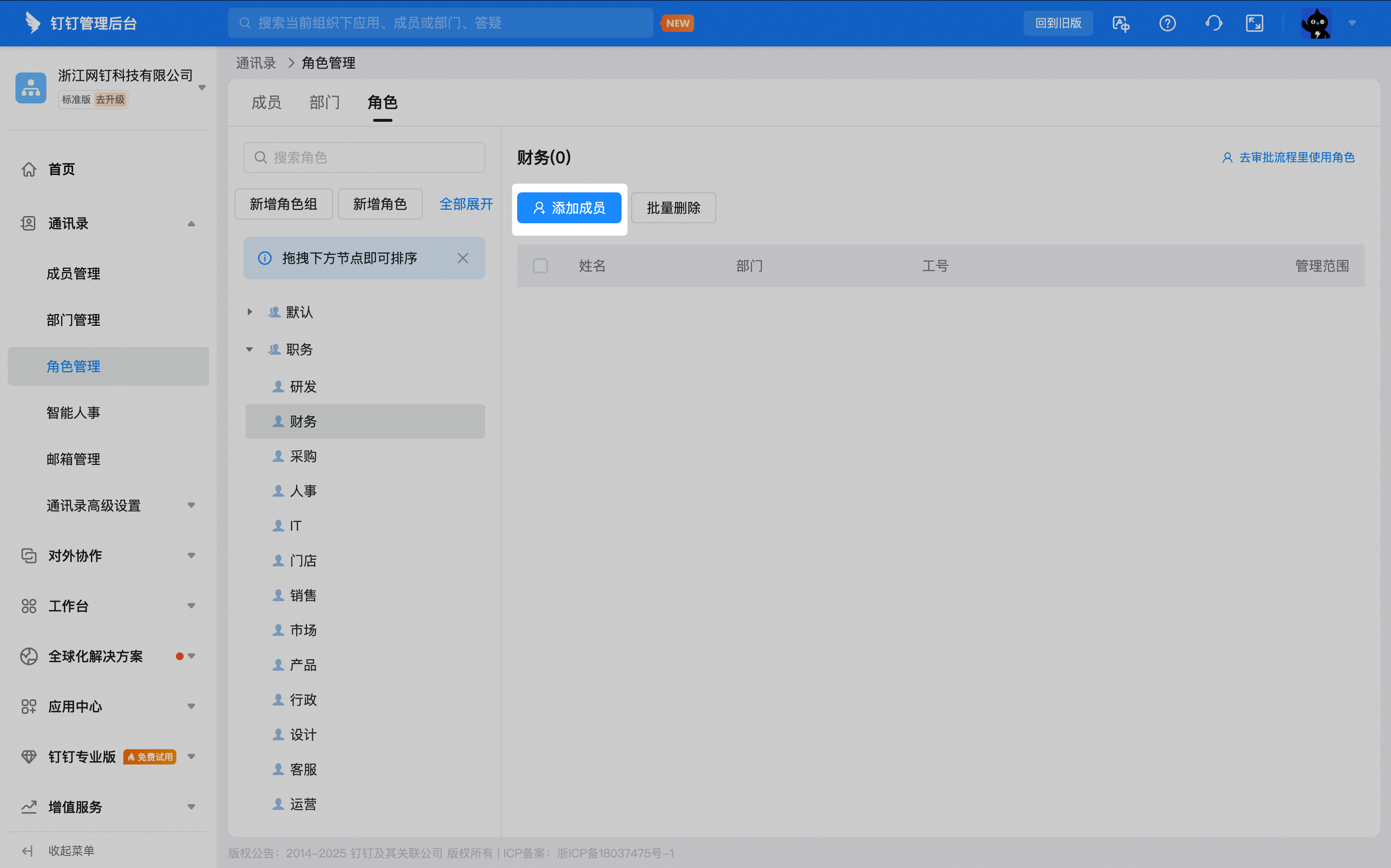
Go to the role management page and select the target role from the role list on the left:

Click **Add User**:
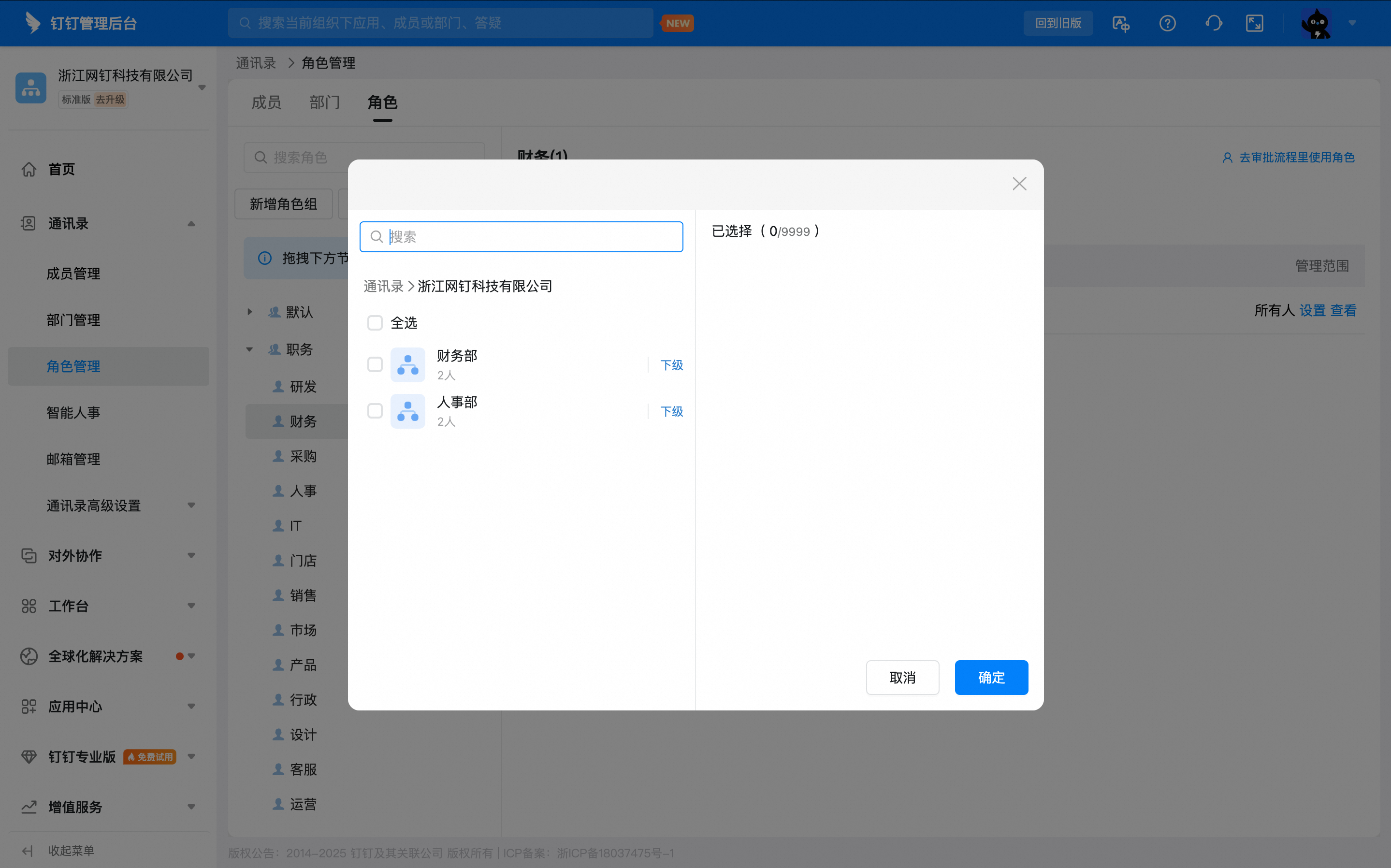
In the dialog, select the users and click **Confirm**:

To add a new role, click **New Role Group** or **New Role** and customize a role group or role as needed.
On the role management page, click **New Role Group** or **New Role**:

In the dialog, enter the role name, select the group it belongs to, and save:

### 3.2 Configure the role's management scope
When a role is set in the approval process and its management scope is configured in Contacts, after the initiator submits the approval, the system **precisely** matches the corresponding approver in the role based on the initiator's department.
In the role member list, click **Set Management Scope** to the right of the member, and select the departments covered by that member's management scope in the dialog:
Once configured, you can view each member's management scope in the role member list:

### 3.3 Default role management
Default roles include Person in Charge, Manager, Super Admin, and Sub Admin. You cannot add users to them from the role list.
1. Person in Charge
The Super Admin of the organization must configure this in DingTalk Mobile > Contacts > Organization Management > Person in Charge Settings.

2. Manager
Go to **Contacts** > **Department Management**, select the target department, and drag it to the right. Click **...** and choose **Set Department Manager**.

3. Super Admin
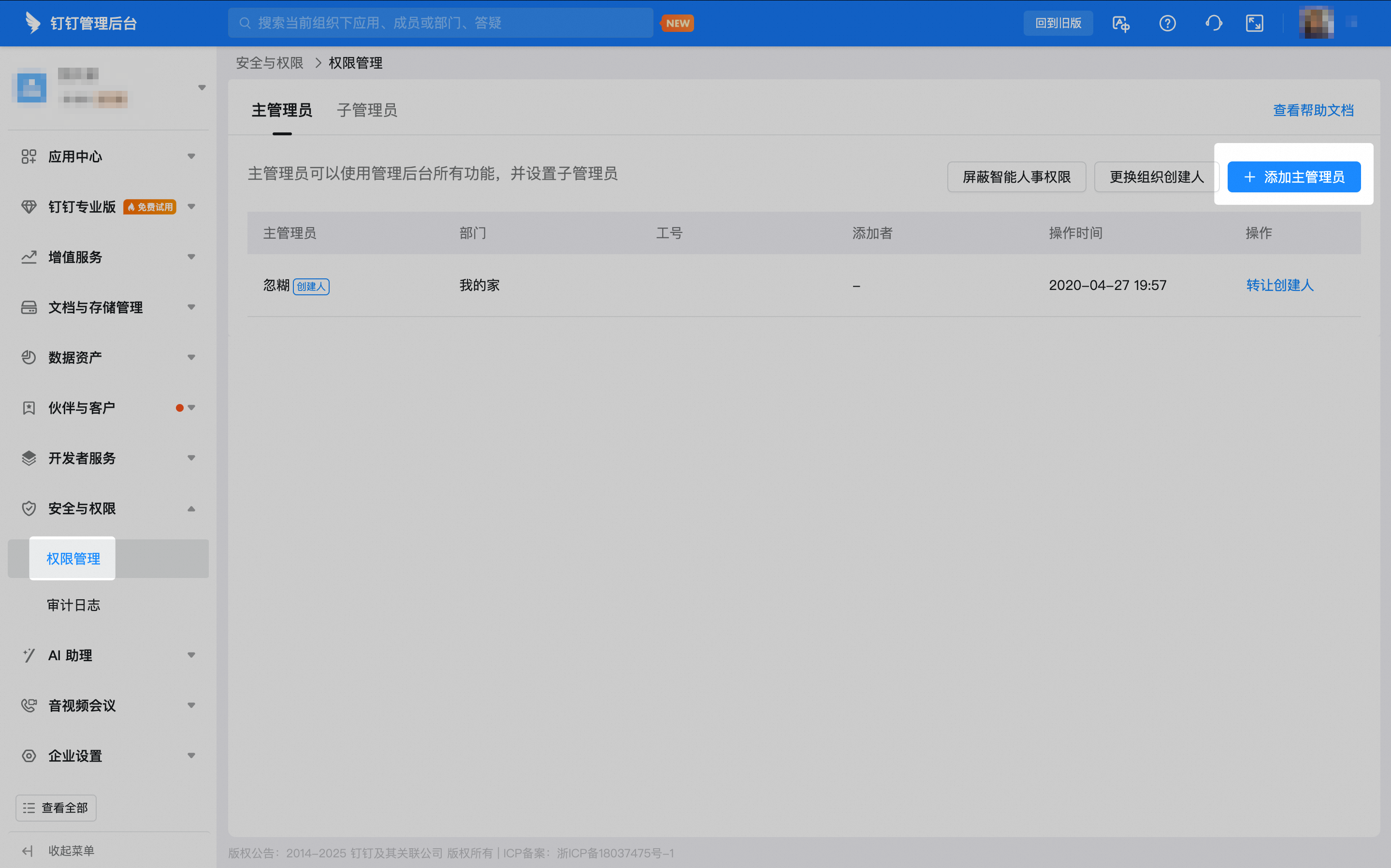
The Super Admin can configure this from **Security & Permissions > Manage Permissions > Super Admin > Add Super Admin**. Settings sync automatically after you save.
4. Set a Sub Admin
The Super Admin can add Sub Admins in DingTalk Mobile from **Contacts** > **Organization Management** > **Admin Settings**:

### 3.4 Set a role as approver in the approval process
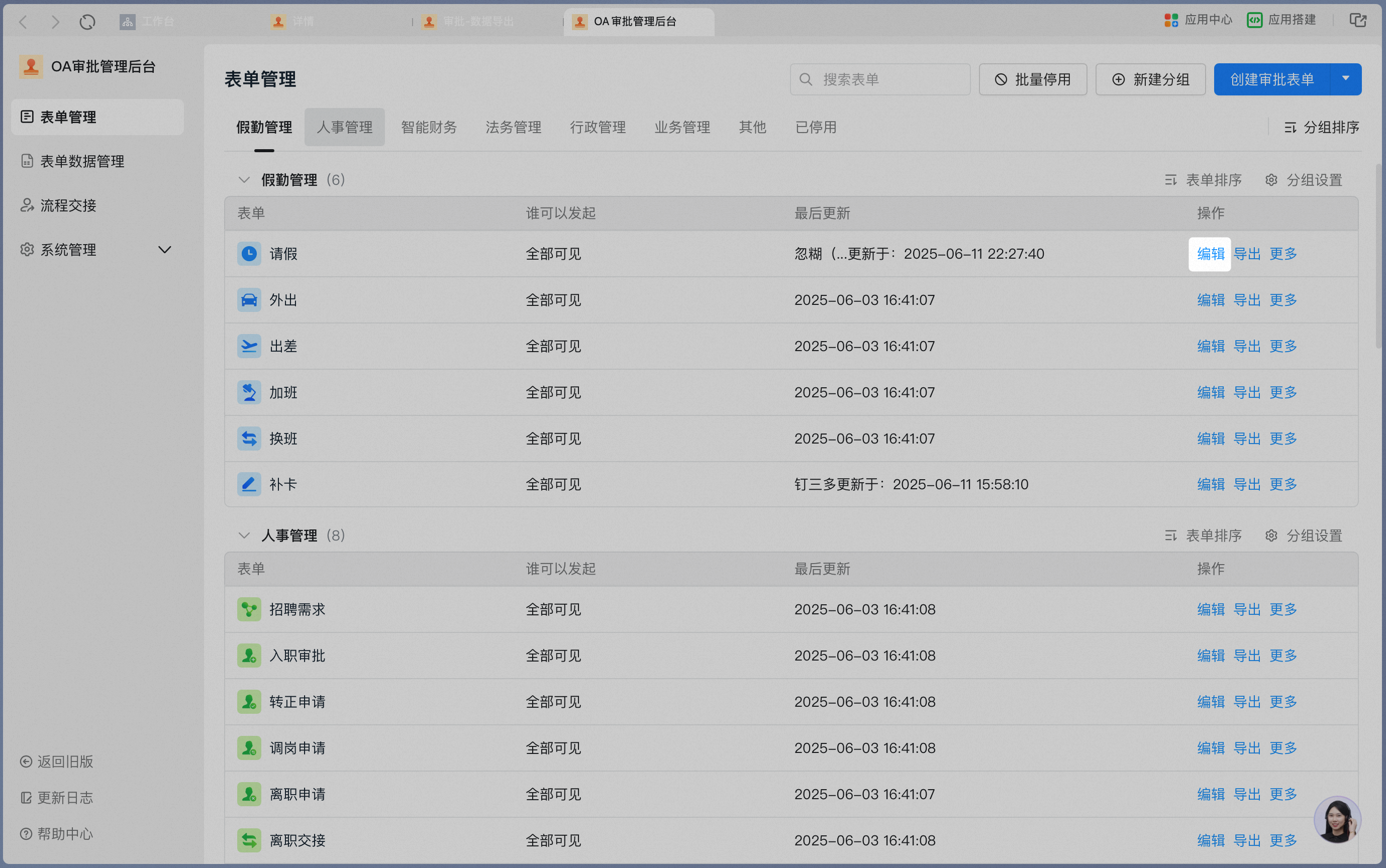
On the **Approval Admin Console** > **Form Management** page, click **Edit** in the Action column of the target form.
Click **Process Design** to open the process design workspace.

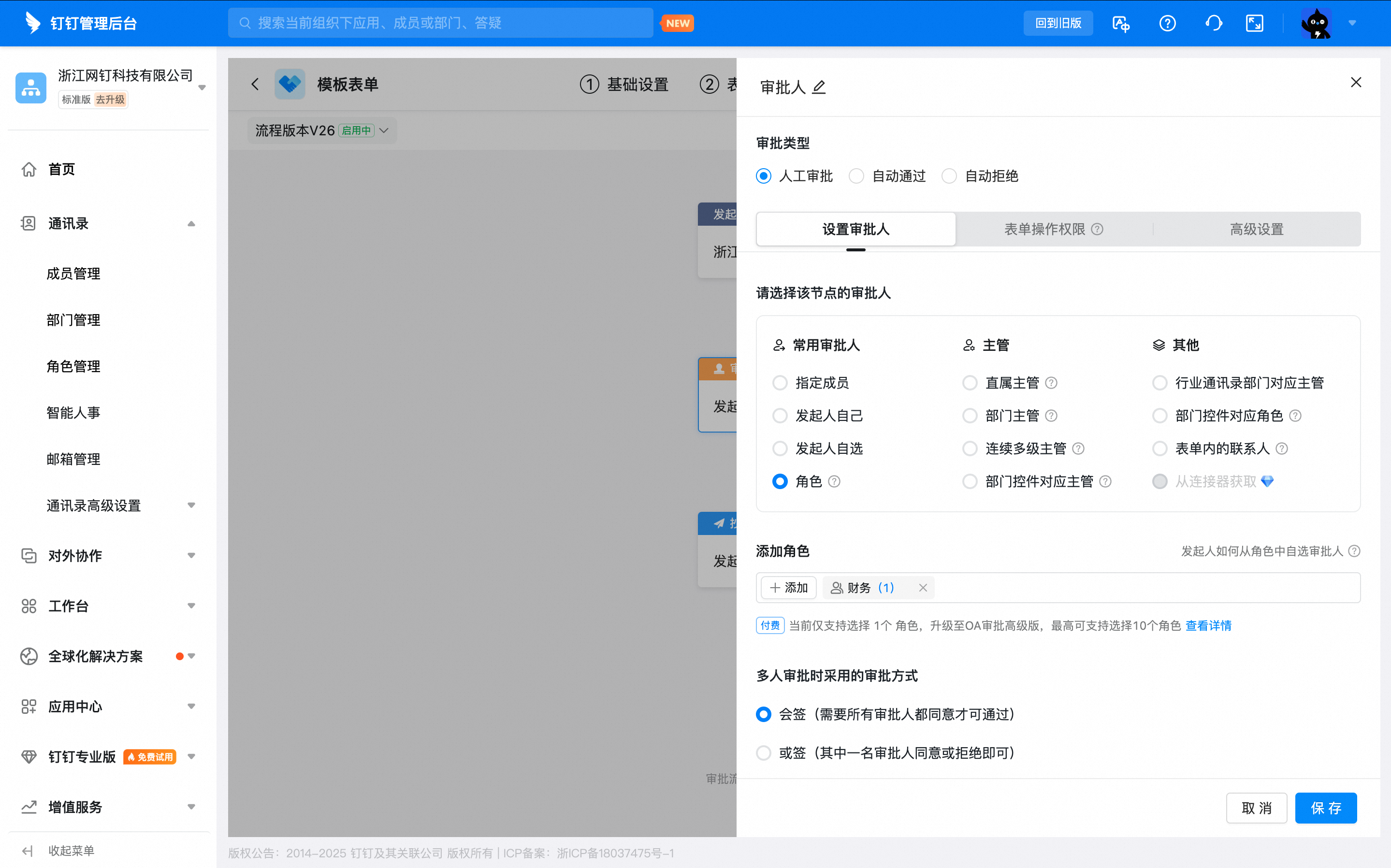
Click the **Approver Card** to open the approver settings. Under **Select approver for this node**, choose **Role approval**, and click **Add Role**.
## 4. FAQ
If a role has multiple members with no management scope configured, and the approval form is set to be approved by that role, the members approve in random order.
The Standard edition supports 1 role per node. The Premium edition supports up to 10 roles per node.
Yes. Role changes take effect immediately on approvals that have not yet reached the current node, as well as on the process settings within approval templates.
The difference lies in the **management scope**:
* **Role**: When the approver is set to a role, after the initiator submits the approval form, the role's **management scope** is determined by the initiator's department.
* **Role corresponding to a department field in the form**: When a department field is added to the form and the approver is set to the role corresponding to that field, after the initiator submits the approval form, the role's management scope is determined by the department selected in the form.