> ## Documentation Index
> Fetch the complete documentation index at: https://help.dingtalk.io/llms.txt
> Use this file to discover all available pages before exploring further.
# Admin quickstart
> Quickstart guide for DingTalk Attendance admins. Covers the core configuration entries and steps for full-scenario attendance, leave, and overtime management, and helps admins set up organization attendance quickly.
## 1. Feature overview
DingTalk Attendance is a professional, intelligent attendance management tool. It delivers full-scenario solutions across attendance, leave, and overtime, helping organizations improve attendance management efficiency.
DingTalk Attendance lets organizations customize employee attendance, leave, and overtime rules in the Admin Console. Employees must clock in and submit overtime requests in DingTalk Attendance according to the rules set by the organization, and the system records attendance data automatically.
## 2. Use cases
* Daily organization attendance: Record employee clock-in and clock-out times, late arrivals, and early leaves.
* Field attendance: Ideal for scenarios where employees clock in from non-fixed locations, helping organizations track team attendance.
* Chain industry management: Centrally manage attendance data across multi-location stores.
* Flexible scheduling: Suitable for project teams and freelancers.
* Overtime management: Track overtime duration to streamline approval and compensatory leave.
* Other attendance-related scenarios.
## 3. Workflow
**There are two ways to access the Attendance Admin Console:**
Go to [**Admin Console**](https://oa.dingtalk.io) > Workbench > App Management, find the Attendance app (or search for Attendance in the search box at the top of the DingTalk Admin Console), and click Enter to open the app admin console.

Open DingTalk on desktop, then find the Attendance app on the Workbench (or search for Attendance in the search box in the upper right corner) to open the Attendance admin console.

**⚠️ Notes:**
After you open the **Attendance** admin console, you will see the interface below. (Note: The interface may vary slightly based on your admin permissions.)

* **Attendance Overview**: View the number of employees who clocked in, along with quick entries to key attendance settings.
* **Attendance Group Management**: Create attendance groups and configure their members, attendance types, and clock-in methods.
* **Shift Management**: Add shifts, set shift times, and configure flexible clock-in.
* **Scheduling Management**: Edit schedules for shift-based attendance groups.
* **Attendance Rules Management**: Configure overtime rules, business trip rules, makeup clock-in rules, and other rules.
* **Leave Management**: Configure leave grant rules and adjust employee leave balances.
* **Attendance Statistics**: View and export employee attendance data, and manage attendance reports.
* **Attendance Analytics**: View employee clock-in status, such as clock-in count, attendance rate, and leave count.
* **Attendance Confirmation**: Upload Excel attendance sheets and send them to employees for confirmation.
* **Attendance Automation**: Connect attendance data with different apps to automate workflows.
* **Attendance Operations**: Set contact points for admins or supervisors when employees cannot clock in, are unscheduled, or have questions about attendance statistics.
* **Time Clock Management**: Add or manage Time Clocks bound to the organization, edit device names, and view SN codes.
## 4. Get started with Attendance
Attendance covers shift management, attendance group management, attendance rules management, leave management, and data management. Follow the 5 steps below to get started with attendance management quickly.
### Shift management
DingTalk Attendance lets admins set shifts, that is, define clock-in and clock-out times and clock-in rules within a day. Once configured, shifts can be used in attendance groups.
#### Path
Open **DingTalk on desktop > Workbench > Attendance > Shift Management**, then click **Add Shift** to create a new shift. (If your organization already has shifts, click **Edit** to open the modification page.)
**⚠️ Notes:**
The shift owner can delete and modify their own shifts. By default, the shift owner is the shift creator. You can add other admins to co-manage the shift.

#### Adding a shift includes the following
**⚠️ Notes:**
1. Shift owner: The shift owner can delete and modify their own shifts. By default, the shift owner is the shift creator. You can add other admins to co-manage the shift.
2. Set clock-in period: Clock-ins outside the clock-in period are not counted as attendance.
3. Late departure allows late arrival next day: If an employee leaves late after work on the first day, they can arrive late on the second day. Only supported for fixed shift attendance with in-office clock-in.
4. Shift working hours: Attendance statistics for working hours, leave, business trip, and field records are based on this time.
5. Set basic information: Set the shift name and owner.
6. Set the shift's attendance times. You can set multiple clock-in/clock-out sessions or a single clock-in/clock-out session with a clock-in period. Clock-ins outside the clock-in period are not counted as attendance.

3. Configure flexible clock-in.
| **Flexibility type** | **Description** |
| ------------------------------------------------------------------------------------------------ | ------------------------------------------------------------------------------------------------------------------------------------------------ |
| **Allow late arrival with late departure, and early arrival with early departure** | Late arrival allows late departure, and early arrival allows early departure. This feature is not supported for shifts with 4 clock-ins per day. |
| **Late arrival or early departure within a certain number of minutes is not marked as an error** | Set how many minutes of late arrival or early departure are not counted as late arrival or early leave. |
| **Late departure allows late arrival next day** | If an employee leaves late after work on the first day, they can arrive late on the second day. |
4. Set the number of minutes of late arrival that count as severe late arrival or absenteeism-level late arrival.

### Attendance group management
DingTalk Attendance manages attendance based on "attendance groups." Follow the steps below to edit attendance rules.
#### Path
Open **DingTalk on desktop > Workbench > Attendance > Attendance Group Management**, then click **Add Attendance Group** to create a new attendance group. (If your organization already has attendance groups, click **Edit** to open the modification page.)

#### Editing attendance rules includes the following
1. Set basic information: Set the attendance group name, owner, and participants.
2. Set the attendance type: DingTalk Attendance provides 4 attendance types. Select and configure as needed, then select the work shifts.
| **Attendance type** | **Description** | **Applicable scope** |
| ----------------------------- | ---------------------------------------------------------------------------------------------- | ------------------------------------------------------------------------------------- |
| **Fixed shift attendance** | Set fixed clock-in and clock-out times. Employees clock in and out at fixed times. | For example, public institutions, manufacturing, and finance with fixed office hours. |
| **Shift-based attendance** | Schedule shifts for each employee. Employees clock in and out based on their scheduled shifts. | For example, rotation systems in factories and stores. |
| **Flexible shift attendance** | No fixed clock-in and clock-out times. Employees clock in freely within a time range. | For example, flexible employment such as temporary and part-time workers. |
3. Set the clock-in method: DingTalk Attendance provides 4 clock-in methods. Select and configure as needed.
| **Clock-in method** | **Description** | **Applicable scope** |
| ------------------------------ | ------------------------------------------------------------------------------------------------- | ---------------------------------------------------------------------- |
| **Location-based clock-in** | Set a geographic location range. Employees clock in after arriving at the specified location. | Has a fixed work location. |
| **Wi-Fi clock-in** | Set specified Wi-Fi networks. Employees clock in after connecting to the specified Wi-Fi. | Has fixed office Wi-Fi. |
| **Time Clock clock-in** | Set up a DingTalk Time Clock. Employees clock in via the Time Clock. | Has a fixed work location with a Time Clock installed. |
| **Zhidian Bluetooth clock-in** | Employees clock in after connecting to the Time Clock's Bluetooth within the set Bluetooth range. | Has a fixed work location with a smart Bluetooth Time Clock installed. |
Learn more about **the differences between the 4 clock-in methods (location, Wi-Fi, Zhidian Bluetooth, Time Clock).**
4. More attendance settings: Configure additional attendance rules for the attendance group, including overtime rules, field clock-in, holiday clock-in, makeup clock-in rules, photo clock-in, and facial recognition clock-in rules.

### Attendance rules management
DingTalk Attendance also provides management capabilities for overtime, makeup clock-in, field, business trip, and other rules, so you can easily manage a wide range of rules within your organization.
Open **DingTalk on desktop > Workbench > Attendance > Attendance Rules Management**, then click the rule you want to configure.
| **Rule name** | **Description** |
| ----------------------------- | ------------------------------------------------------------------------------------------------------------------------------------------------------------------------------------------------------- |
| Overtime rules | Set the overtime rule name, applicable attendance group scope, overtime calculation method, and more. |
| Field and business trip rules | Set the field and business trip rule name, applicable scope, clock-in rules, and clock-in time range. |
| Makeup clock-in rules | Set the rule name, applicable scope, number of makeup clock-ins, makeup clock-in time limit, and makeup clock-in type. |
| Other rules | Set the attendance Allowlist, clock-in required when starting or ending leave, half-day duration definition, clock-in rules outside the attendance group, and whether to allow photo approval clock-in. |

### Leave management
DingTalk Attendance also provides leave management capabilities, so you can easily manage various types of leave within your organization.
#### Path
Open **DingTalk on desktop > Workbench > Attendance > Leave Management**. DingTalk Attendance provides templates for annual leave, personal leave, compensatory leave, and more. Click **Edit** to modify and use them, or click **Add Leave Rule** to create a new leave type.
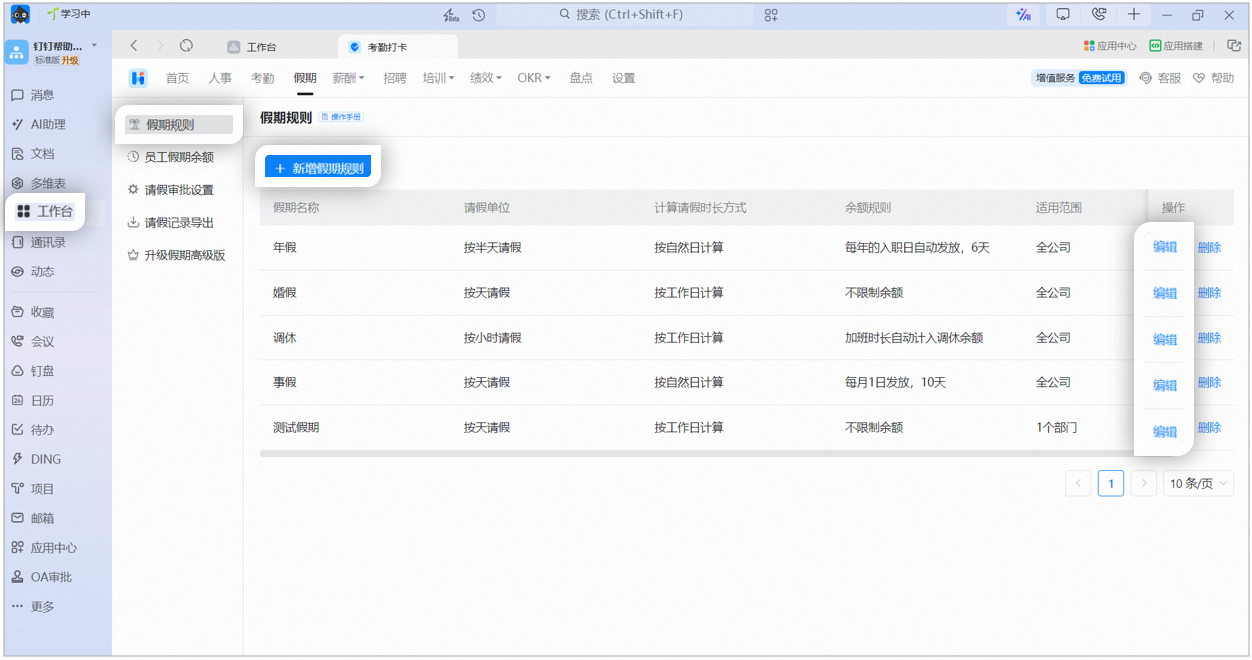
#### Editing leave rules includes the following
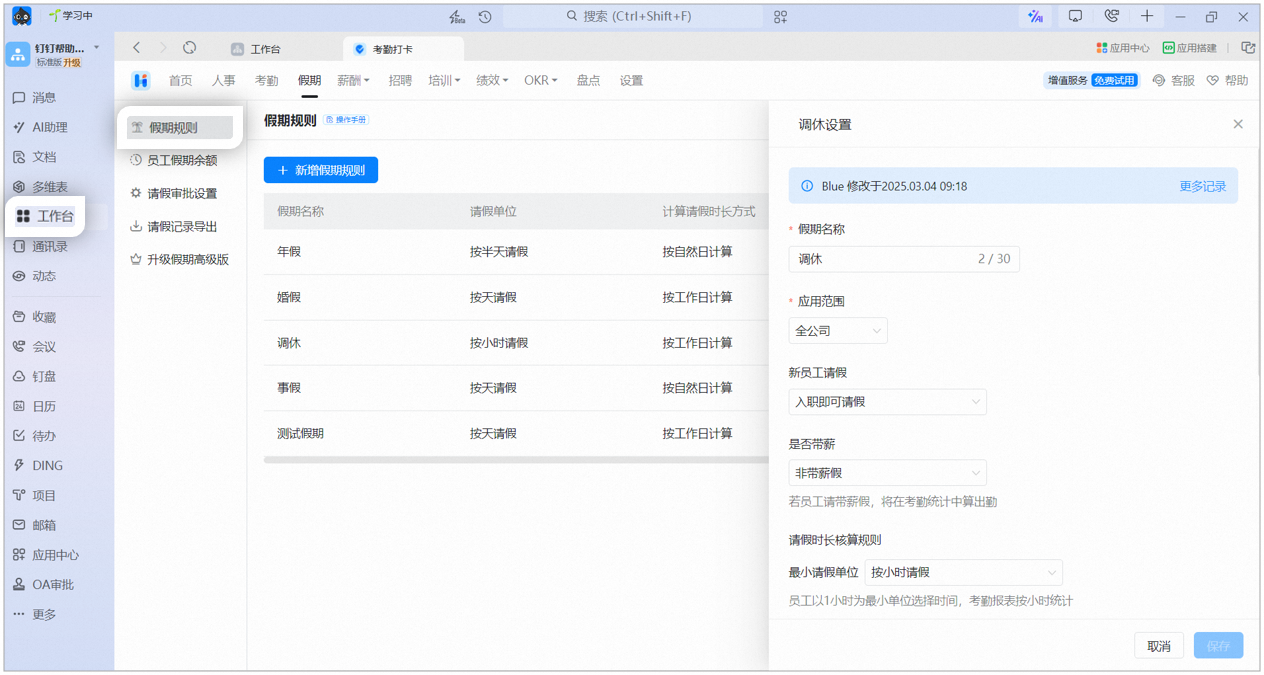
1. Basic information: Set the leave name, owner, applicable scope, and other content.
2. Edit grant rules: When the leave is **quota-based**, set the grant rules as well, including the grant cycle and grant amount. (Unlimited leave does not require this step.)
3. Limit leave usage duration: Set whether to allow extension after leave expires, the duration that can be retained after expiration, and reminders before leave expires.
**⚠️ Notes:**
1. Whether paid: If an employee takes paid leave, it counts as attendance in attendance statistics.
2. Minimum leave unit: If leave is taken by the hour, employees select time in units of 1 hour, and attendance reports are calculated by the hour.
### Data management
DingTalk Attendance records employee attendance data automatically, and you can view and manage it easily in the Attendance admin console.
Attendance Statistics: Open **DingTalk on desktop > Workbench > Attendance > Attendance Statistics** to view and export employee attendance data. If an employee's clock-in result is incorrect, manually edit the error result.
