> ## Documentation Index
> Fetch the complete documentation index at: https://help.dingtalk.io/llms.txt
> Use this file to discover all available pages before exploring further.

# Attendance group FAQ

> Answers to common questions about attendance group configuration, including how to set up a shift-based attendance group, add shifts, and schedule shifts, helping Admins quickly create and maintain attendance groups.

<AccordionGroup>
  <Accordion id="q1" title="How do I set up a shift-based attendance group?">
    When employees in the same attendance group have different working hours, choose **shift-based attendance** to customize their shifts.
  </Accordion>
</AccordionGroup>

## Steps

<Steps>
  <Step>
    As an Admin, open DingTalk on desktop > Workbench > Attendance > Attendance Group Management > Add Attendance Group.
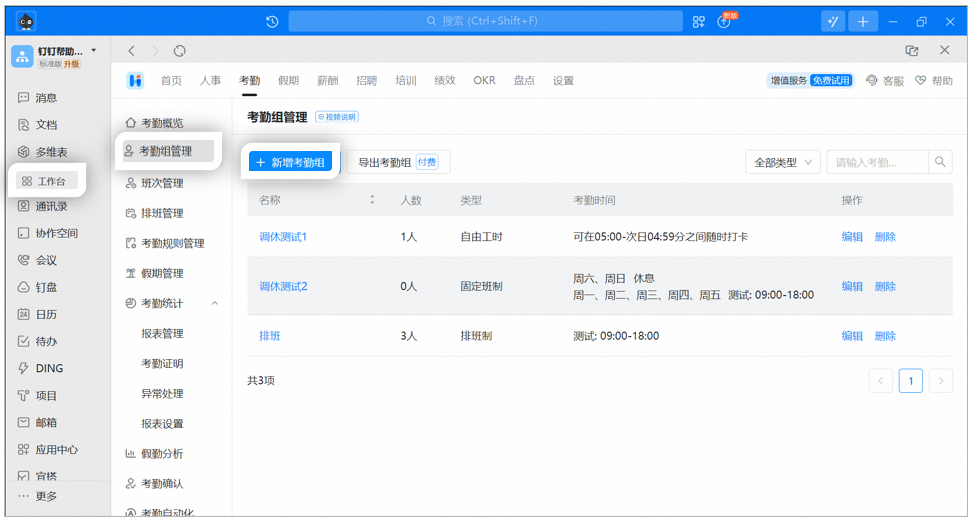
    <Frame caption="Example of the Add Attendance Group page on desktop">
      ![Add Attendance Group page on desktop](https://alidocs.oss-cn-zhangjiakou.aliyuncs.com/res/Mp7ld7bB8VgjxOBQ/img/31af1e7a-aa2a-403f-986f-582f76054ca9.png)
    </Frame>
  </Step>

  <Step>
    Click Attendance Time Settings > Shift-based (clock in and out by shift).

    <Frame caption="Example of the shift-based attendance setup page on desktop">
      ![Shift-based attendance setup page on desktop](https://alidocs.oss-cn-zhangjiakou.aliyuncs.com/res/Mp7ld7bB8VgjxOBQ/img/de31c12f-733c-4904-8eee-5093b65fadde.png)
    </Frame>
  </Step>

  <Step>
    Fill in the basic information for the attendance group and select the applicable shifts. Configure the remaining options according to the on-page instructions, and click Save when done.

    <Frame caption="Example of selecting shifts under shift-based attendance on desktop">
      ![Selecting shifts under shift-based attendance on desktop](https://alidocs.oss-cn-zhangjiakou.aliyuncs.com/res/Mp7ld7bB8VgjxOBQ/img/1ac7cd18-cc80-4a36-a225-190927dfe124.png)
    </Frame>

    <AccordionGroup>
      <Accordion id="q2" title="How do I add a new shift?">
        The shift owner can **delete** or **modify** their own shift. By default, the **shift creator** can invite other Admins to co-manage the shift.

        As an Admin, open **DingTalk on desktop > Workbench > Attendance > Shift Management > Add Shift**, and create shifts for shift-based attendance based on your company's needs.

        <Frame caption="Example of the Add Shift page on desktop">
          ![Add Shift page on desktop](https://alidocs.oss-cn-zhangjiakou.aliyuncs.com/res/Mp7ld7bB8VgjxOBQ/img/6a3d76aa-199d-4f27-9641-753d6f86bf47.png)
        </Frame>
      </Accordion>

      <Accordion id="q3" title="How do I schedule shifts?">
        Admins, attendance group owners, and scheduling owners can schedule shifts for attendance users. DingTalk currently supports the following scheduling methods: **daily scheduling, cycle-based scheduling, and Excel bulk scheduling**.
      </Accordion>
    </AccordionGroup>
  </Step>
</Steps>

## Daily scheduling

1. As an Admin, open **DingTalk on desktop > Workbench > Attendance > Scheduling Management > the corresponding attendance group** to schedule shifts. On the schedule Table, click the **attendance date** for the **attendance user** and select a shift.

<Frame caption="Example of daily scheduling on desktop">
  ![Daily scheduling on desktop](https://alidocs.oss-cn-zhangjiakou.aliyuncs.com/res/Mp7ld7bB8VgjxOBQ/img/568e34f5-ef2f-4390-8521-962b70d9d79e.png)
</Frame>

1. Click a specific date to assign the same shift to **all users** in the attendance group with **one click**.

<Frame caption="Example of the shift scheduling page on desktop">
  ![Shift scheduling page on desktop](https://alidocs.oss-cn-zhangjiakou.aliyuncs.com/res/Mp7ld7bB8VgjxOBQ/img/8f1b7bad-52be-425b-919c-44f2e0a49b3f.png)
</Frame>

## Cycle-based scheduling

1. If no scheduling cycle has been set, add one by following these steps: **Scheduling Management > Scheduling Cycle Settings > Add Scheduling Cycle**. You will then be redirected to the setup page.

<Frame caption="Example of setting a scheduling cycle on desktop">
  ![Setting a scheduling cycle on desktop](https://alidocs.oss-cn-zhangjiakou.aliyuncs.com/res/Mp7ld7bB8VgjxOBQ/img/7c183c1e-1b2b-4949-8229-dc50c771fc30.png)
</Frame>

2. Once a cycle is set, click the employee's name and select **cycle-based scheduling** to **schedule an entire month's shifts in one go**.

<Frame caption="Example of cycle-based scheduling on desktop">
  ![Cycle-based scheduling on desktop](https://alidocs.oss-cn-zhangjiakou.aliyuncs.com/res/Mp7ld7bB8VgjxOBQ/img/15d11dc2-314f-4ef0-ab29-c2791570f6fb.png)
</Frame>

## Excel bulk scheduling

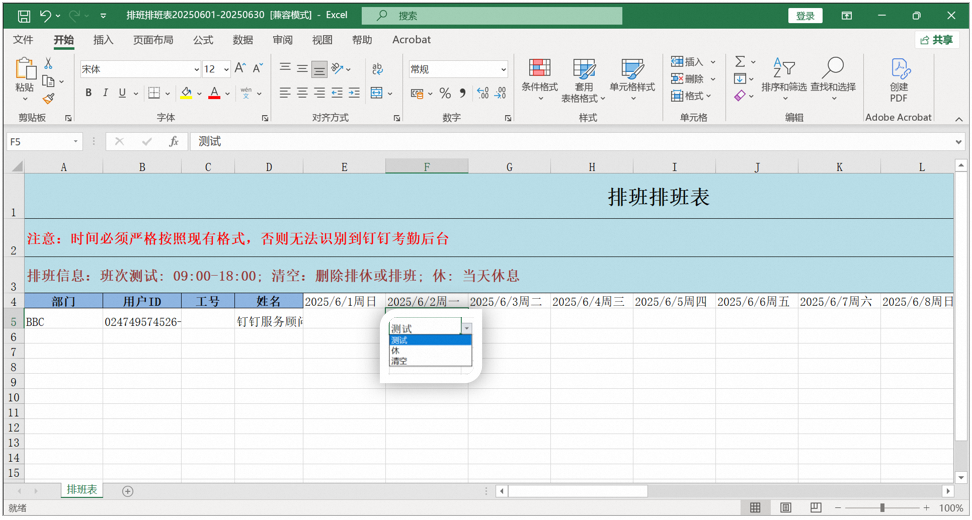
Click **Excel Bulk Scheduling > Download Schedule Table >** schedule shifts for employees in the downloaded schedule Table **>** then **import the schedule Table** and click **Save**.
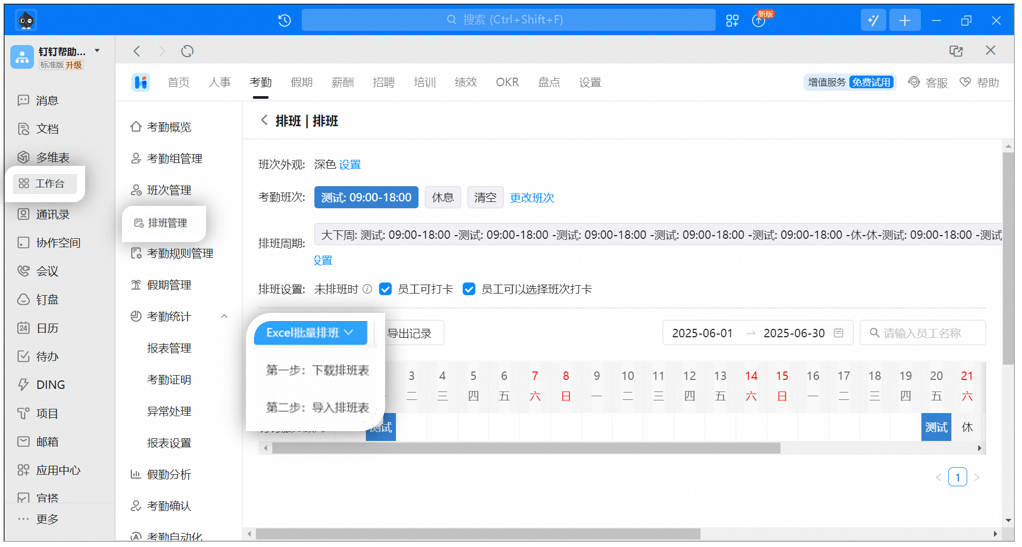
<Frame caption="Example of Excel bulk scheduling download/import on desktop">
  ![Excel bulk scheduling download and import on desktop](https://alidocs.oss-cn-zhangjiakou.aliyuncs.com/res/Mp7ld7bB8VgjxOBQ/img/8a0e356f-8cb7-4ecc-92cf-ab36c7d5ab8b.png)
</Frame>

<Frame caption="Example of an Excel schedule Table">
  ![Excel schedule Table](https://alidocs.oss-cn-zhangjiakou.aliyuncs.com/res/Mp7ld7bB8VgjxOBQ/img/0d98e51d-5858-4ded-9d2a-c87c3f778d4e.png)
</Frame>

<Note>
  **Note:**

  Be sure to **add attendance shifts in advance** before downloading the schedule Table. Otherwise, the downloaded Excel file will not include any shifts.
</Note>
