> ## Documentation Index
> Fetch the complete documentation index at: https://help.dingtalk.io/llms.txt
> Use this file to discover all available pages before exploring further.
# How to turn off developer mode
> DingTalk attendance anti-cheating requires developer mode to be turned off before clock-in. This guide provides step-by-step instructions for disabling developer options on Huawei/Honor, Xiaomi/Redmi, OPPO, vivo, and other Android devices.
To keep attendance data accurate and maintain a fair working environment, turn off developer mode before you clock in. Select your phone brand below to view the corresponding steps.
Open the **Settings** screen on your phone, then tap **System & updates**.
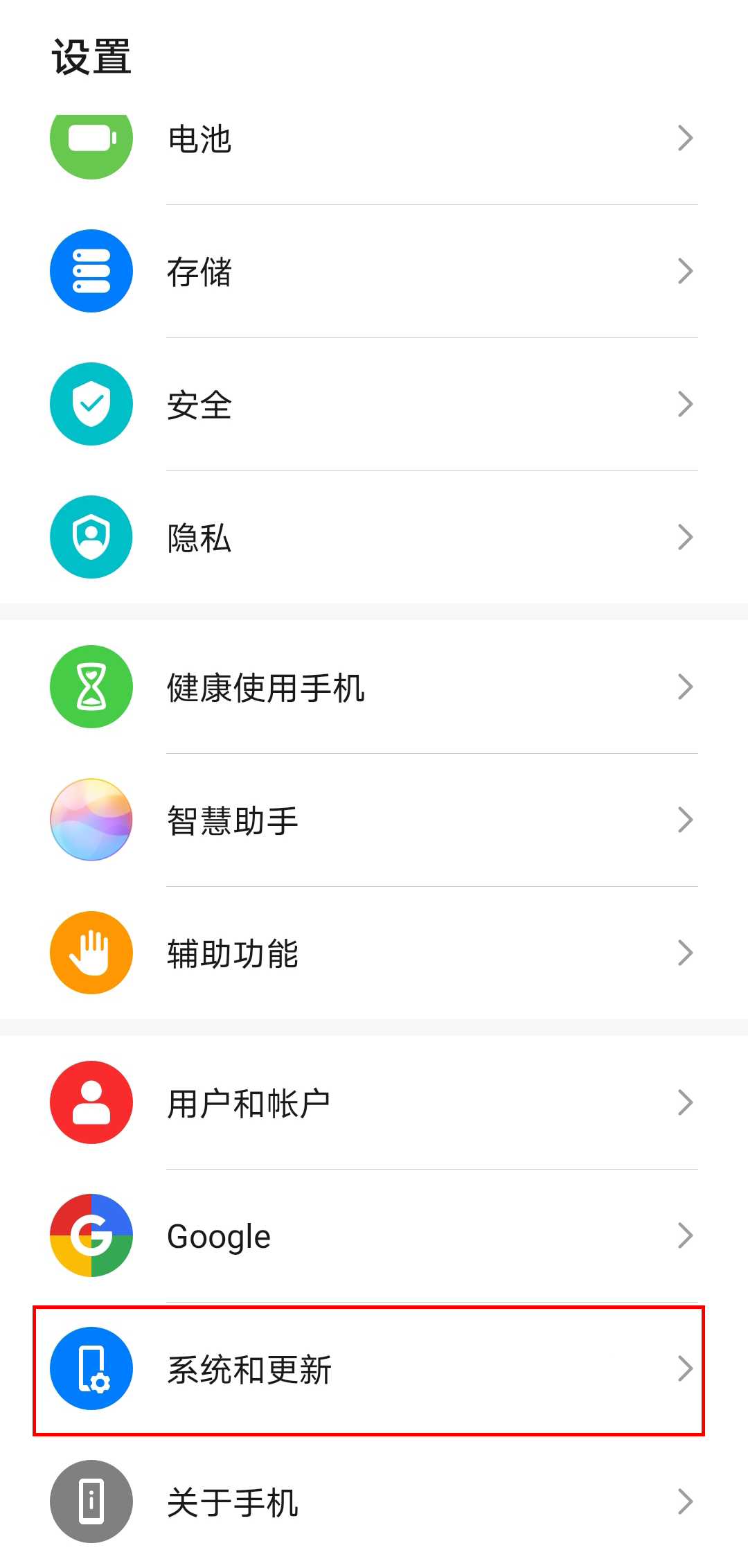 Find **Developer options** under **System & updates**.
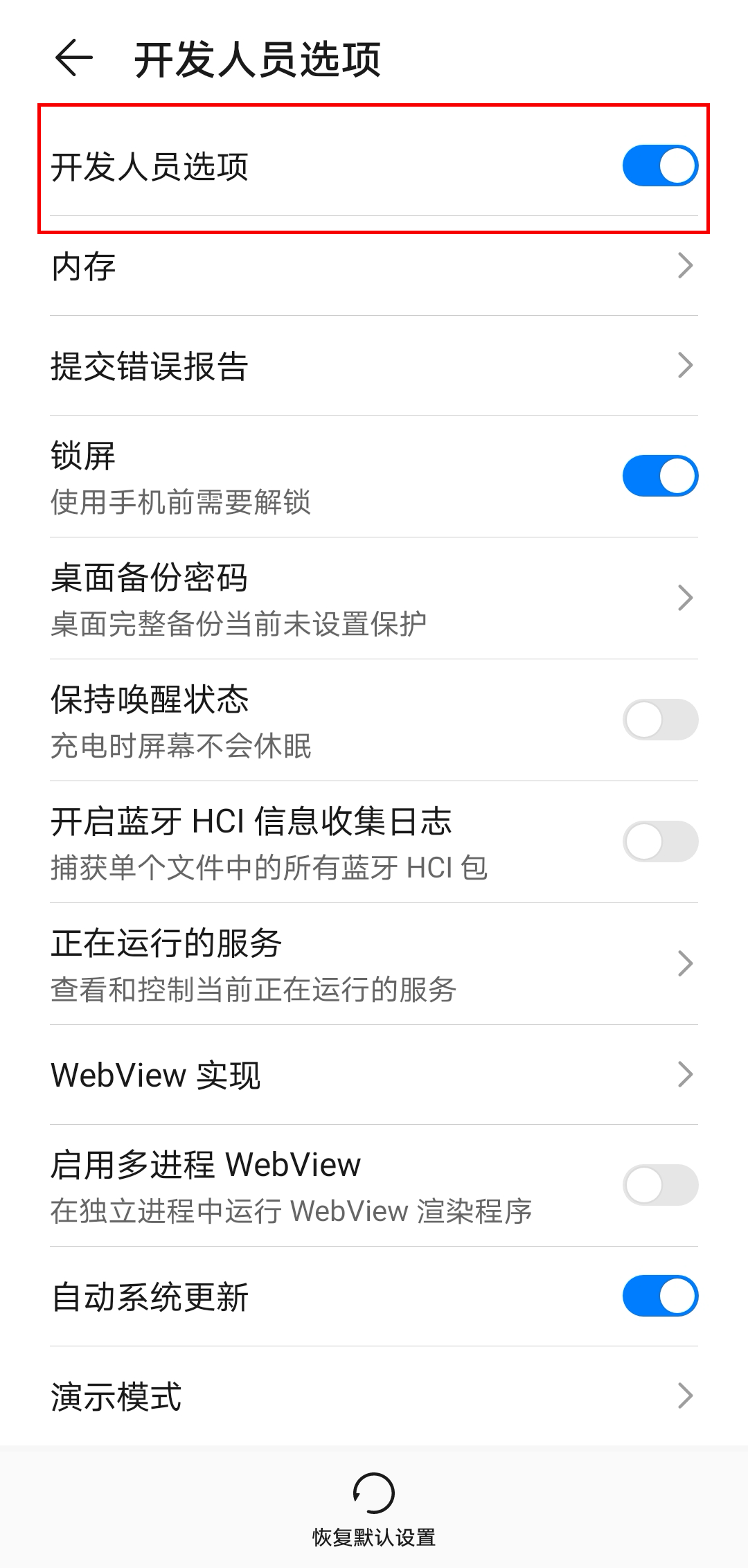
 Open the **Developer options** page, then turn off Developer options.
 Open the **Settings** screen on your phone, then tap **Additional settings**.
 Find **Developer options** on the **Additional settings** screen.
 Open the **Developer options** page, then turn off Developer options.
 On the **Settings** screen of your phone, find **System & updates**.
 On the **System & updates** screen, find **Developer options**.
 On the **Developer options** screen, turn off Developer options.
 On the **Settings** screen of your phone, tap **System management**.
 On the **System management** screen, tap **Developer options**.
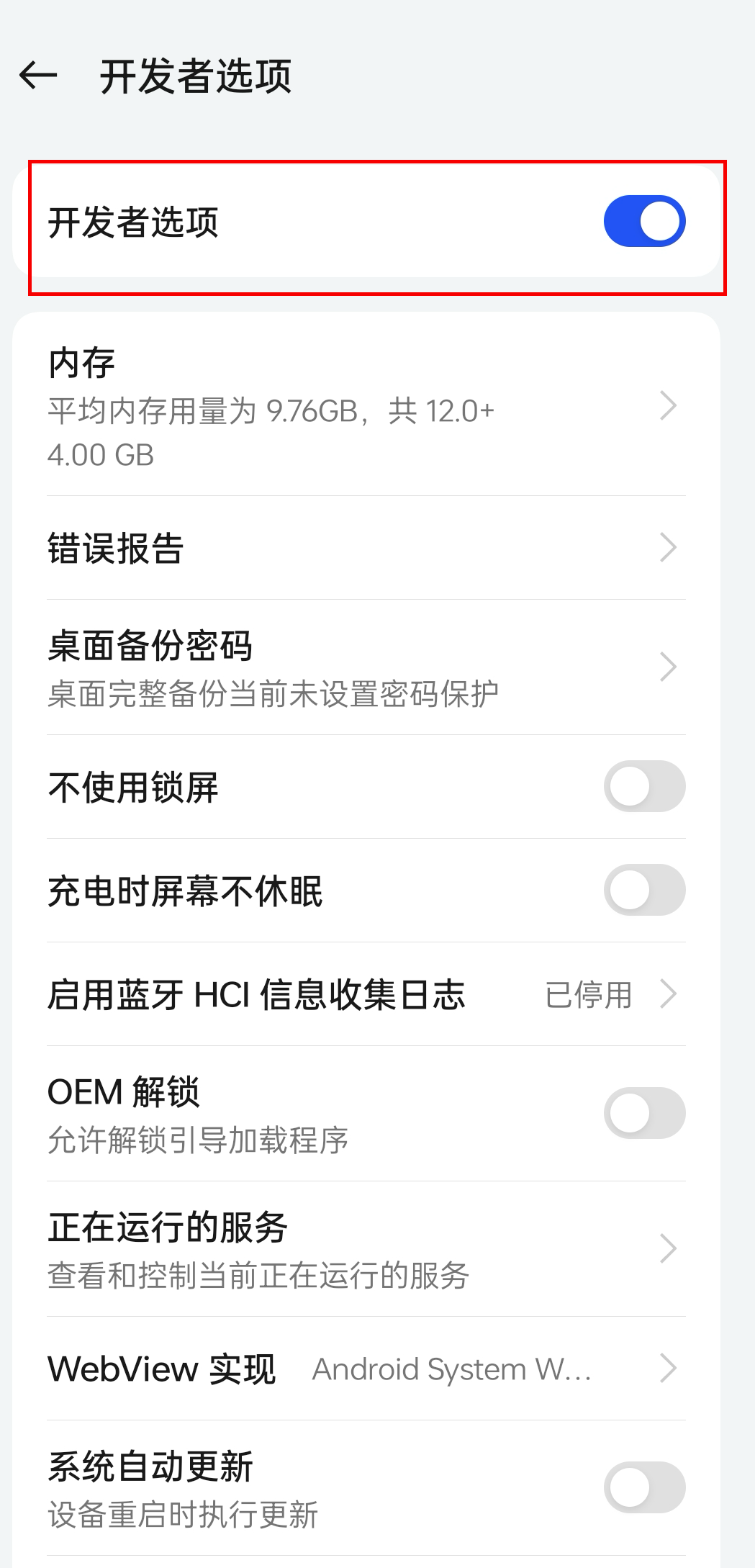
 On the **Developer options** screen, turn off Developer options.
 The following example uses a Huawei phone. Other phones work in a similar way (this method may not apply to some older models).
On the **Settings** page of your phone, search for **Developer**. An entry similar to **Developer options** appears.
The following example uses a Huawei phone. Other phones work in a similar way (this method may not apply to some older models).
On the **Settings** page of your phone, search for **Developer**. An entry similar to **Developer options** appears.
 Tap to open the Developer options screen, then turn off Developer options.
 Because Android phones are highly fragmented, the steps to turn off developer options may vary slightly even between two units of the same model. Follow the actual steps shown on your device.