> ## Documentation Index
> Fetch the complete documentation index at: https://help.dingtalk.io/llms.txt
> Use this file to discover all available pages before exploring further.

# How to fix inaccurate location

> Troubleshoot inaccurate DingTalk attendance GPS positioning: update the App, turn On Wi-Fi and location services, check location Permissions and phone security software restrictions, with step-by-step illustrated guidance for background location settings on Huawei phones.

Given the current limitations of positioning technology and the complex, ever-changing positioning environments, location errors are unavoidable. Once you have confirmed that the inaccurate location is not caused by your surroundings (such as an enclosed environment like a basement or elevator), try the following steps.

## 1. General troubleshooting steps

<Steps>
  <Step title="Update the DingTalk App to the latest version">
    Update to the latest version for the best location experience.
  </Step>

  <Step title="Turn on Wi-Fi">
    You do not need to connect to a wireless network—just turn on the switch. Wi-Fi scanning can correct minor deviations based on nearby hotspots.
  </Step>

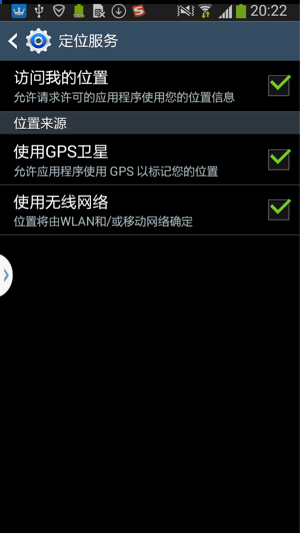
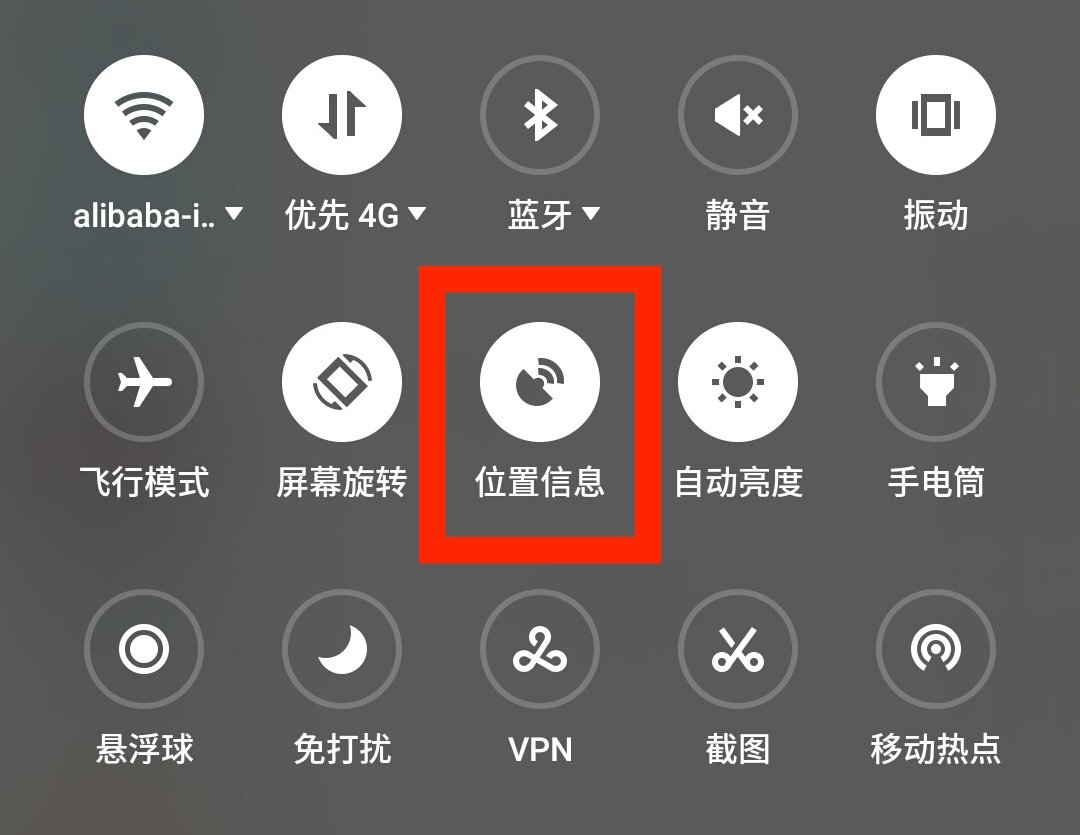
  <Step title="Turn on the location service switch">
    <div style={{display: 'flex', gap: '12px', justifyContent: 'center', flexWrap: 'wrap', margin: '16px 0'}}>
      <img src="https://gw.alicdn.com/tfs/TB1rO8qRXXXXXaSaXXXXXXXXXXX-1080-835.jpg" alt="Turn on the location service switch" style={{width: '52%', minWidth: '260px', borderRadius: '8px', boxShadow: '0 2px 12px rgba(0,0,0,0.08)', margin: 0}} />

      <img src="https://gw.alicdn.com/tfs/TB18U4gQXXXXXXMXFXXXXXXXXXX-300-534.png" alt="Location service switch settings" style={{width: '26%', minWidth: '160px', borderRadius: '8px', boxShadow: '0 2px 12px rgba(0,0,0,0.08)', margin: 0}} />
    </div>
  </Step>

  <Step title="Check whether the DingTalk App has location permission">
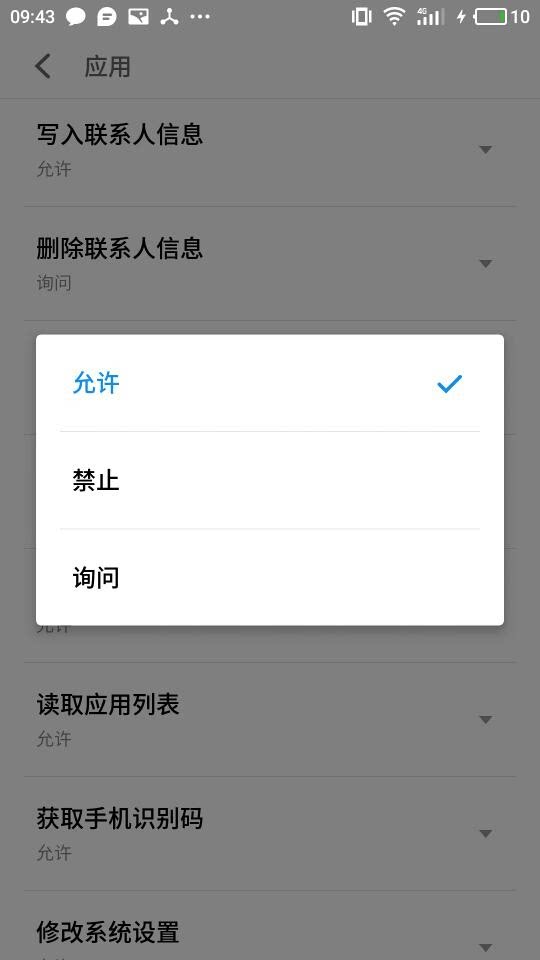
    Go to Phone Settings → App Management → Manage permissions → Get location, and verify that location access is allowed.

    <div style={{display: 'flex', gap: '12px', justifyContent: 'center', flexWrap: 'wrap', margin: '16px 0'}}>
      <img src="https://gw.alicdn.com/tfs/TB1elFmQXXXXXbMXpXXXXXXXXXX-540-960.png" alt="Check the DingTalk App location permission" style={{width: '30%', minWidth: '180px', borderRadius: '8px', boxShadow: '0 2px 12px rgba(0,0,0,0.08)', margin: 0}} />
    </div>
  </Step>

  <Step title="Check whether security management software has disabled location permission">
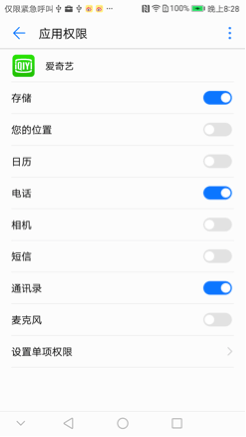
    Check whether the security management software installed on your phone has disabled the App's location permission. Such software is usually preinstalled on Huawei, OPPO, vivo, and Xiaomi phones.

    <div style={{display: 'flex', gap: '12px', justifyContent: 'center', flexWrap: 'wrap', margin: '16px 0'}}>
      <img src="https://gw.alicdn.com/tfs/TB1EWXuQXXXXXa3XXXXXXXXXXXX-246-437.png" alt="Check the location permission settings in security management software" style={{width: '30%', minWidth: '180px', borderRadius: '8px', boxShadow: '0 2px 12px rgba(0,0,0,0.08)', margin: 0}} />
    </div>
  </Step>
</Steps>

## 2. Background location settings on Huawei phones

<Note>
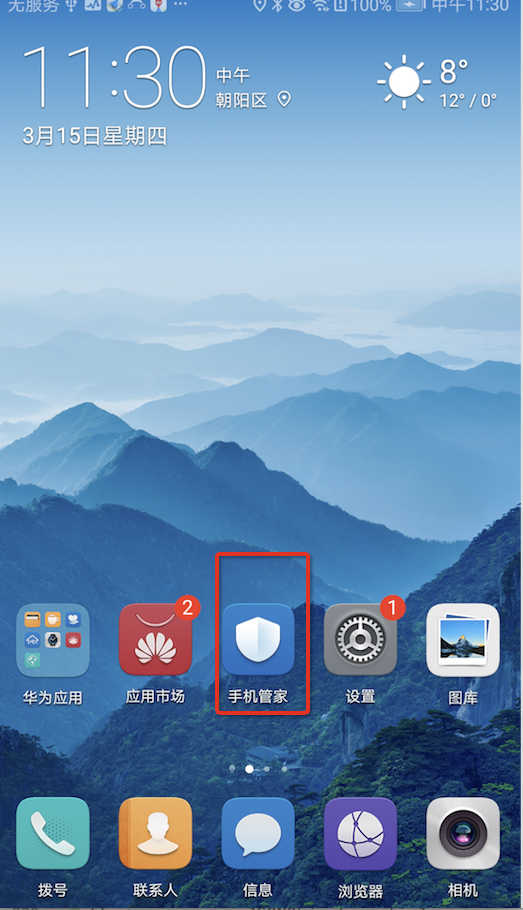
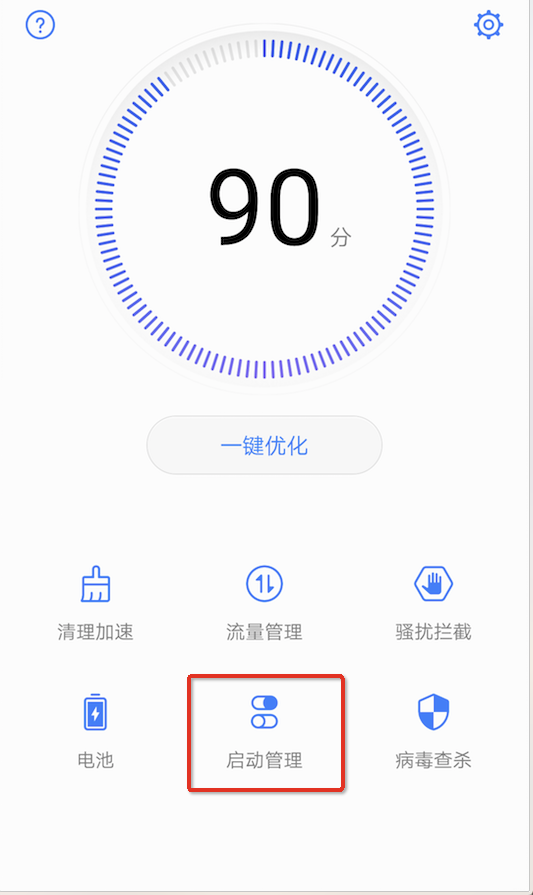
  On some Huawei phones, background location has recently been found to be restricted (even a foreground service cannot perform background location). The root cause is that Huawei's security software, Phone Manager, restricts the App's background activity. Follow the steps below to fix it.
</Note>

<Steps>
  <Step title="Open Huawei's Phone Manager app">
    <div style={{display: 'flex', gap: '12px', justifyContent: 'center', flexWrap: 'wrap', margin: '16px 0'}}>
      <img src="https://a.amap.com/lbs/static/locSDK/%E5%8D%8E%E4%B8%BA%E5%90%8E%E5%8F%B0%E5%AE%9A%E4%BD%8D/11.png" alt="Open Huawei Phone Manager" style={{width: '30%', minWidth: '180px', borderRadius: '8px', boxShadow: '0 2px 12px rgba(0,0,0,0.08)', margin: 0}} />
    </div>
  </Step>

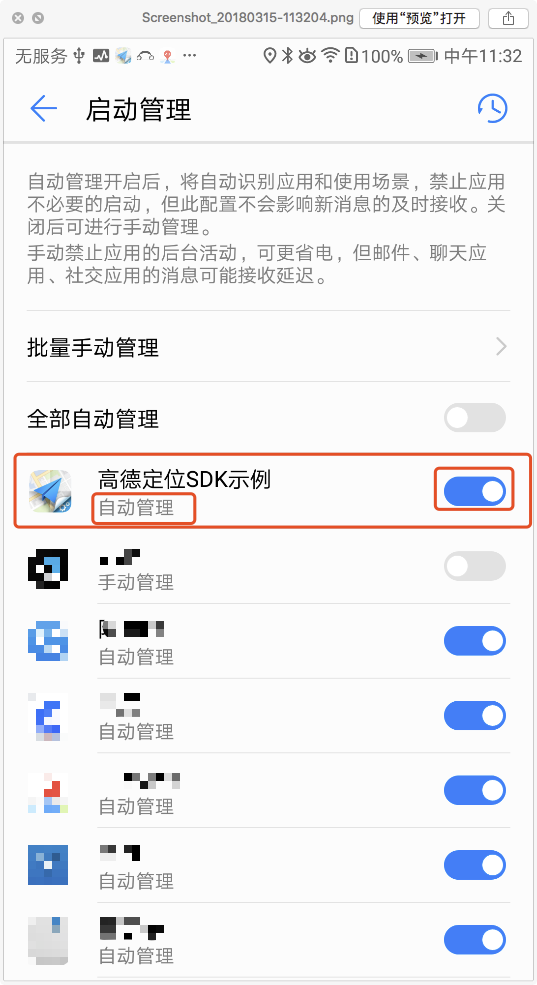
  <Step title="Go to the launch management screen">
    <div style={{display: 'flex', gap: '12px', justifyContent: 'center', flexWrap: 'wrap', margin: '16px 0'}}>
      <img src="https://a.amap.com/lbs/static/locSDK/%E5%8D%8E%E4%B8%BA%E5%90%8E%E5%8F%B0%E5%AE%9A%E4%BD%8D/22.png" alt="Go to the launch management screen" style={{width: '30%', minWidth: '180px', borderRadius: '8px', boxShadow: '0 2px 12px rgba(0,0,0,0.08)', margin: 0}} />
    </div>
  </Step>

  <Step title="Go to the manual management screen">
    Check whether the App is set to auto management. If it is, tap the toggle (or the App name) to go to the manual management screen.

    <div style={{display: 'flex', gap: '12px', justifyContent: 'center', flexWrap: 'wrap', margin: '16px 0'}}>
      <img src="https://a.amap.com/lbs/static/locSDK/%E5%8D%8E%E4%B8%BA%E5%90%8E%E5%8F%B0%E5%AE%9A%E4%BD%8D/33.png" alt="Go to the manual management screen" style={{width: '30%', minWidth: '180px', borderRadius: '8px', boxShadow: '0 2px 12px rgba(0,0,0,0.08)', margin: 0}} />
    </div>
  </Step>

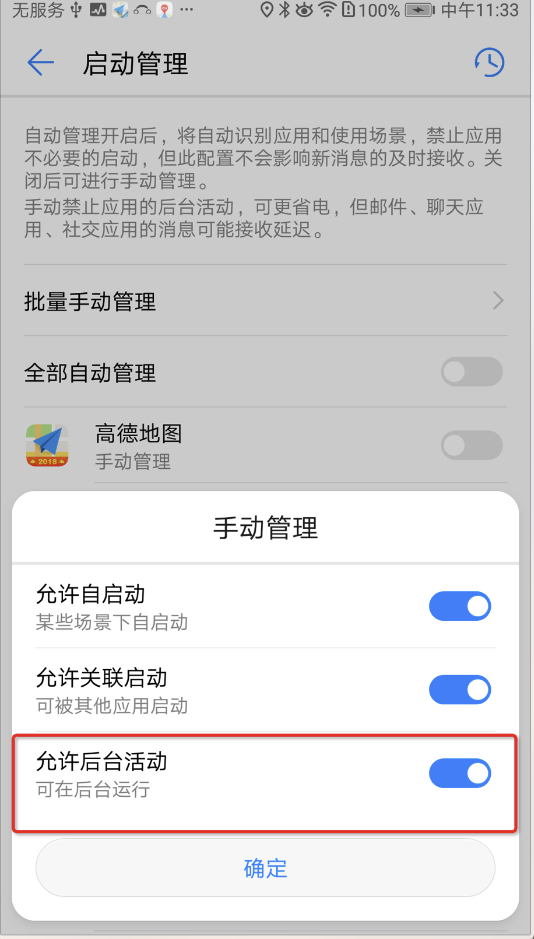
  <Step title="Turn on Allow background activity">
    <div style={{display: 'flex', gap: '12px', justifyContent: 'center', flexWrap: 'wrap', margin: '16px 0'}}>
      <img src="https://a.amap.com/lbs/static/locSDK/%E5%8D%8E%E4%B8%BA%E5%90%8E%E5%8F%B0%E5%AE%9A%E4%BD%8D/44.png" alt="Turn on Allow background activity" style={{width: '30%', minWidth: '180px', borderRadius: '8px', boxShadow: '0 2px 12px rgba(0,0,0,0.08)', margin: 0}} />
    </div>
  </Step>

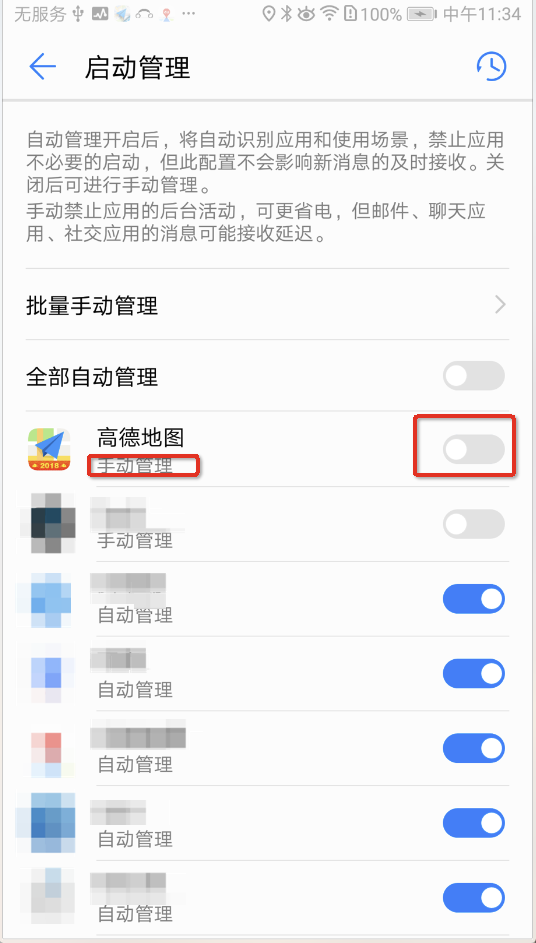
  <Step title="Confirm the manual management status">
    After you tap Confirm, the App is switched to manual management.
    <div style={{display: 'flex', gap: '12px', justifyContent: 'center', flexWrap: 'wrap', margin: '16px 0'}}>
      <img src="https://a.amap.com/lbs/static/locSDK/%E5%8D%8E%E4%B8%BA%E5%90%8E%E5%8F%B0%E5%AE%9A%E4%BD%8D/55.png" alt="App is set to manual management" style={{width: '30%', minWidth: '180px', borderRadius: '8px', boxShadow: '0 2px 12px rgba(0,0,0,0.08)', margin: 0}} />
    </div>
  </Step>
</Steps>