> ## Documentation Index
> Fetch the complete documentation index at: https://help.dingtalk.io/llms.txt
> Use this file to discover all available pages before exploring further.
# Field clock-in
> Guide to DingTalk attendance field clock-in settings: enable field clock-in to record employees' clock-in time and location when working off-site, on business trips, or from home. Supports detailed rules such as approval, alias, and photo requirements, on-site/field record updates, location fine-tuning, and FAQs.
## 1. Feature overview
When employees need to clock in while working off-site, on business trips, or from home, enable the **Field clock-in** feature to record their clock-in time and location. Field records count toward employees' working hours. Once field clock-in is enabled, all members of the attendance group can use it. To restrict access, also enable **Field clock-in requires approval** so that only approved users can clock in from the field.
## 2. Applicable scenarios
Scenarios where employees work outside company premises and their attendance data needs to be recorded for reporting.
## 3. Procedure
### 1. Enable field clock-in
An authorized Admin can go to **DingTalk mobile → Workbench → Attendance → Settings → Add attendance group / Edit existing attendance group → More settings → Field rules → toggle "Allow field clock-in" on or off**.
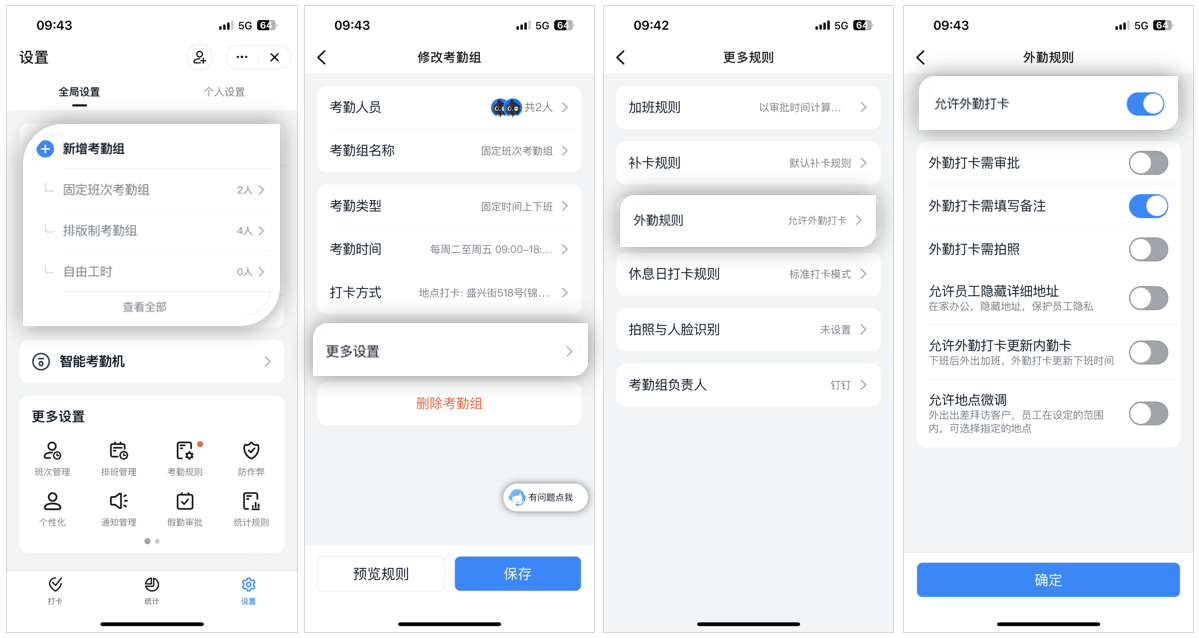 An authorized Admin can go to **DingTalk desktop → Workbench → Attendance → Attendance group management → Select add attendance group / existing attendance group → Edit → Field rules → toggle "Allow field clock-in" on or off**.
 ### 2. Configure detailed rules
Configure detailed field clock-in rules to better verify and manage employees' field work.
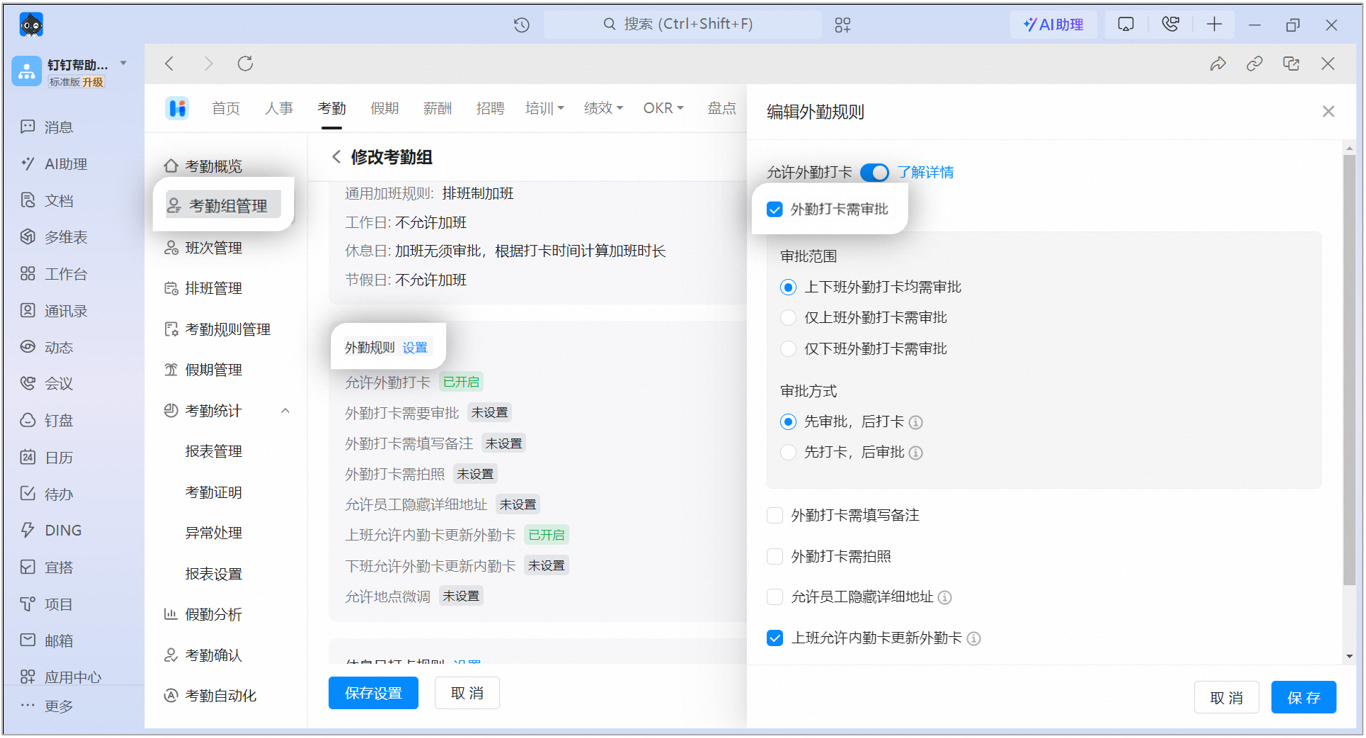
Once enabled, employees can complete a field clock-in only when they have an approved off-site or business-trip application covering the current time. Set the approval scope and method as needed.
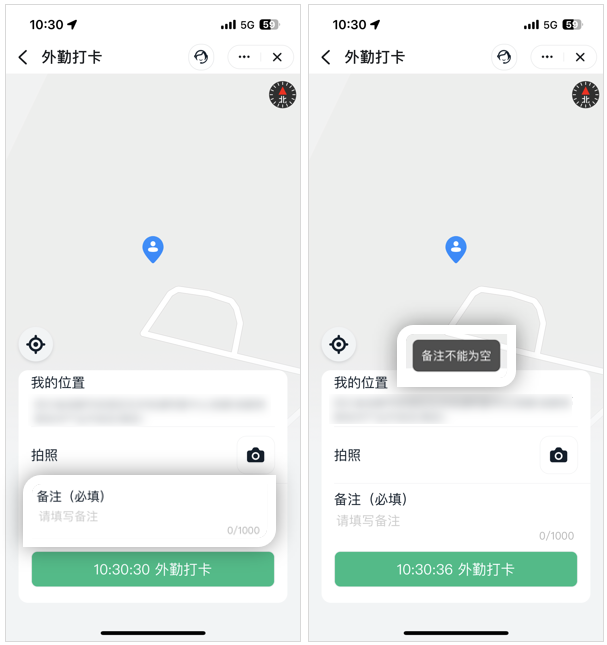
Once enabled, employees must enter an alias to complete a field clock-in.
Once enabled, employees must take a photo to complete a field clock-in.
Once enabled, a **Hide detailed address** option appears on the clock-in page during a field clock-in.
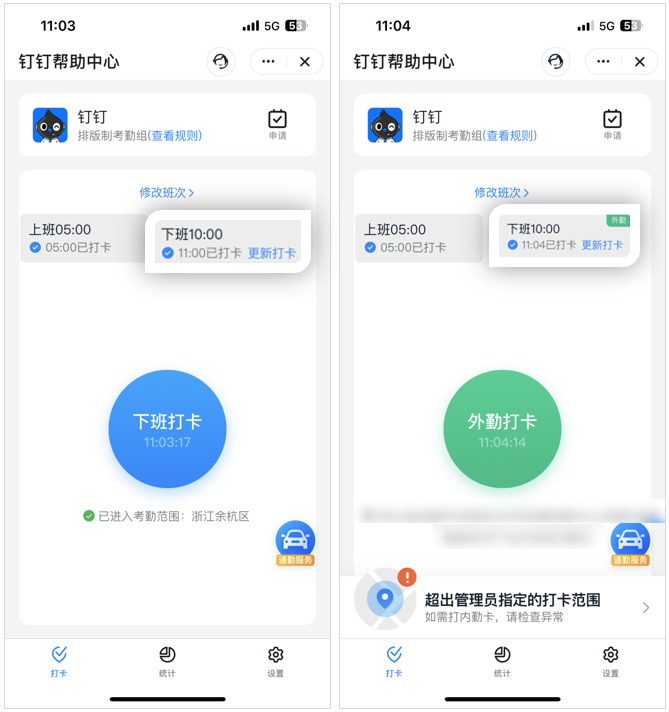
**Allow an on-site record to update a field record for clock-in:** Once enabled, when both an on-site record and a field record exist within the clock-in time range, the earlier on-site record is used as the clock-in record. This suits organizations or teams that require on-site work. If employees start the shift off-site and return to the office later, we recommend keeping this off.
**Allow a field record to update an on-site record for clock-out:** Once enabled, when both an on-site record and a field record exist within the clock-out time range, the later field record is used as the clock-out record. This suits organizations or teams where employees work overtime off-site after hours and need to update the clock-out time.
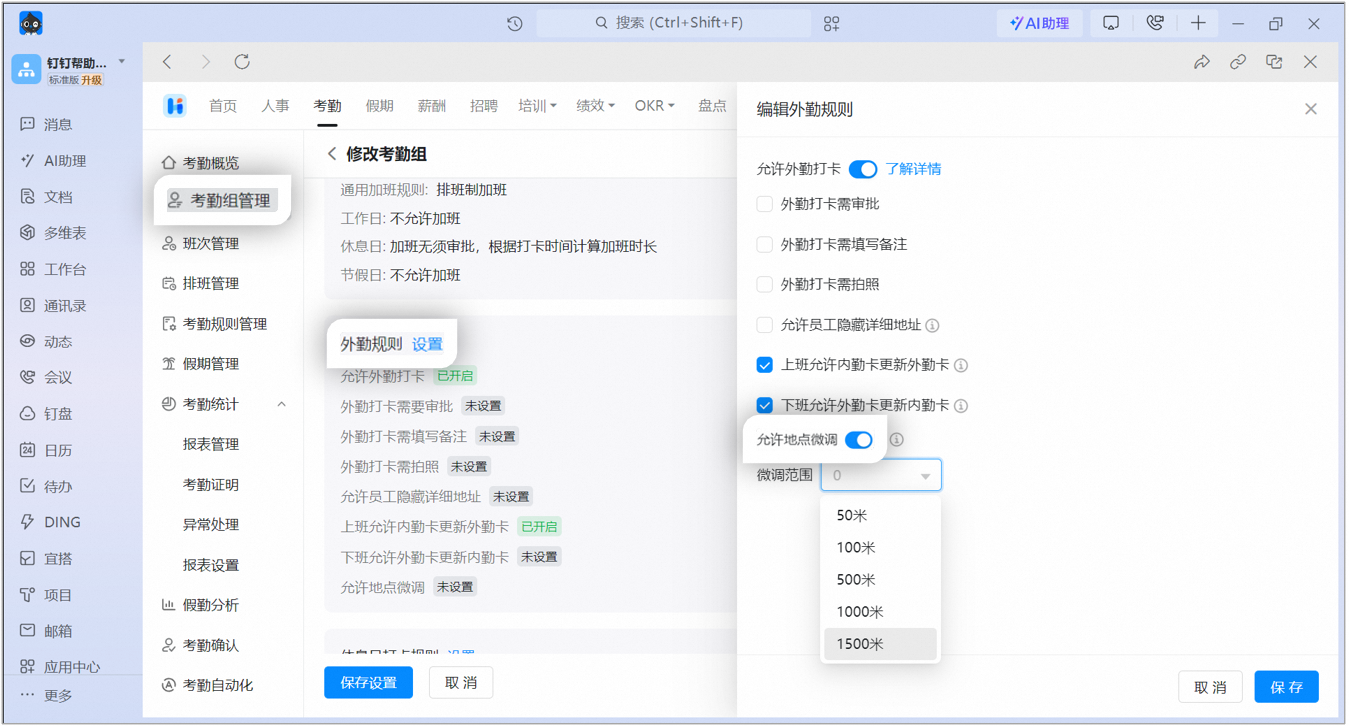
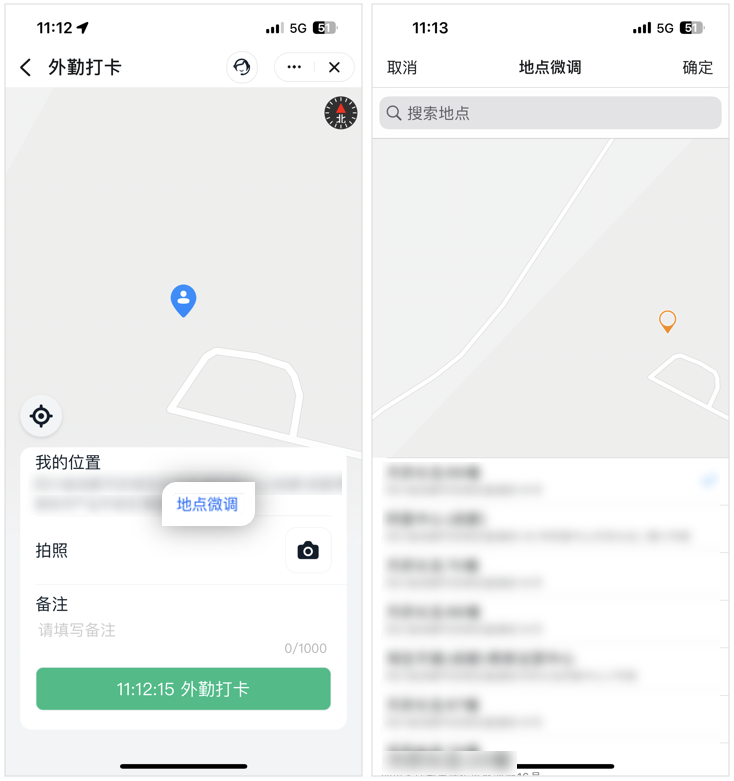
Once enabled, employees can fine-tune their location during a field clock-in.
### 3. How employees clock in
When employees are **outside the clock-in location range** or **not connected to the designated network**, they can tap **Field clock-in** and fill in the information required by the Admin to complete the field clock-in.
### 2. Configure detailed rules
Configure detailed field clock-in rules to better verify and manage employees' field work.
Once enabled, employees can complete a field clock-in only when they have an approved off-site or business-trip application covering the current time. Set the approval scope and method as needed.
Once enabled, employees must enter an alias to complete a field clock-in.
Once enabled, employees must take a photo to complete a field clock-in.
Once enabled, a **Hide detailed address** option appears on the clock-in page during a field clock-in.
**Allow an on-site record to update a field record for clock-in:** Once enabled, when both an on-site record and a field record exist within the clock-in time range, the earlier on-site record is used as the clock-in record. This suits organizations or teams that require on-site work. If employees start the shift off-site and return to the office later, we recommend keeping this off.
**Allow a field record to update an on-site record for clock-out:** Once enabled, when both an on-site record and a field record exist within the clock-out time range, the later field record is used as the clock-out record. This suits organizations or teams where employees work overtime off-site after hours and need to update the clock-out time.
Once enabled, employees can fine-tune their location during a field clock-in.
### 3. How employees clock in
When employees are **outside the clock-in location range** or **not connected to the designated network**, they can tap **Field clock-in** and fill in the information required by the Admin to complete the field clock-in.
 ## 4. FAQ
Currently, the attendance report cannot directly count or automatically summarize field clock-ins. We recommend viewing the report online or exporting it, then filtering field clock-ins in the spreadsheet and summarizing them manually.
When the Admin has not enabled field clock-in, the button appears gray when you try to clock in outside the attendance range, and the message shows: Field clock-in is closed.
Field clock-in can currently be enabled only at the attendance group level. To set it by department, create a separate attendance group for each department.
Clocking in outside the attendance range counts as a field clock-in. Field clock-in currently has no area restrictions, and you cannot set a field clock-in range. Employees can perform a field clock-in at any address that Amap can locate.
When employees enable **Hide detailed address**, the field clock-in location shows only province, city, district, and county. The Admin also sees only this information in the attendance management console.
If an employee updates a field clock-in, the Admin can see the photos before and after the update in the attendance management console.
If an employee updates a field clock-in, the Admin can see the aliases entered before and after the update in the attendance management console.
After **Field clock-in requires approval** is enabled, tapping **Submit approval** takes employees directly to the available application form page.
## 4. FAQ
Currently, the attendance report cannot directly count or automatically summarize field clock-ins. We recommend viewing the report online or exporting it, then filtering field clock-ins in the spreadsheet and summarizing them manually.
When the Admin has not enabled field clock-in, the button appears gray when you try to clock in outside the attendance range, and the message shows: Field clock-in is closed.
Field clock-in can currently be enabled only at the attendance group level. To set it by department, create a separate attendance group for each department.
Clocking in outside the attendance range counts as a field clock-in. Field clock-in currently has no area restrictions, and you cannot set a field clock-in range. Employees can perform a field clock-in at any address that Amap can locate.
When employees enable **Hide detailed address**, the field clock-in location shows only province, city, district, and county. The Admin also sees only this information in the attendance management console.
If an employee updates a field clock-in, the Admin can see the photos before and after the update in the attendance management console.
If an employee updates a field clock-in, the Admin can see the aliases entered before and after the update in the attendance management console.
After **Field clock-in requires approval** is enabled, tapping **Submit approval** takes employees directly to the available application form page.