> ## Documentation Index
> Fetch the complete documentation index at: https://help.dingtalk.io/llms.txt
> Use this file to discover all available pages before exploring further.
# Bulk import locations/Wi-Fi
> Learn how to bulk import and export attendance locations and Wi-Fi networks. Admins can use templates to add locations or Wi-Fi networks in bulk when configuring clock-in methods, with answers to common questions such as import errors and how to obtain latitude and longitude.
## 1. Feature overview
Users in your organization can clock in from their mobile device at fixed locations or over a fixed Wi-Fi connection. When configuring location-based clock-in or Wi-Fi clock-in, Admins can use **Bulk Import/Export Clock-in Methods** to **add attendance locations and attendance Wi-Fi networks** in bulk.
## 2. Use cases
* Employees clock in from mobile devices.
* Employees clock in at fixed locations.
## 3. Workflow
### Bulk import attendance locations and Wi-Fi networks
Download the spreadsheet template. On DingTalk desktop, go to **Workbench > Attendance > Attendance Group Management > Edit attendance group > Clock-in Method settings > Export Clock-in Methods** to obtain the template along with any existing location or Wi-Fi information.
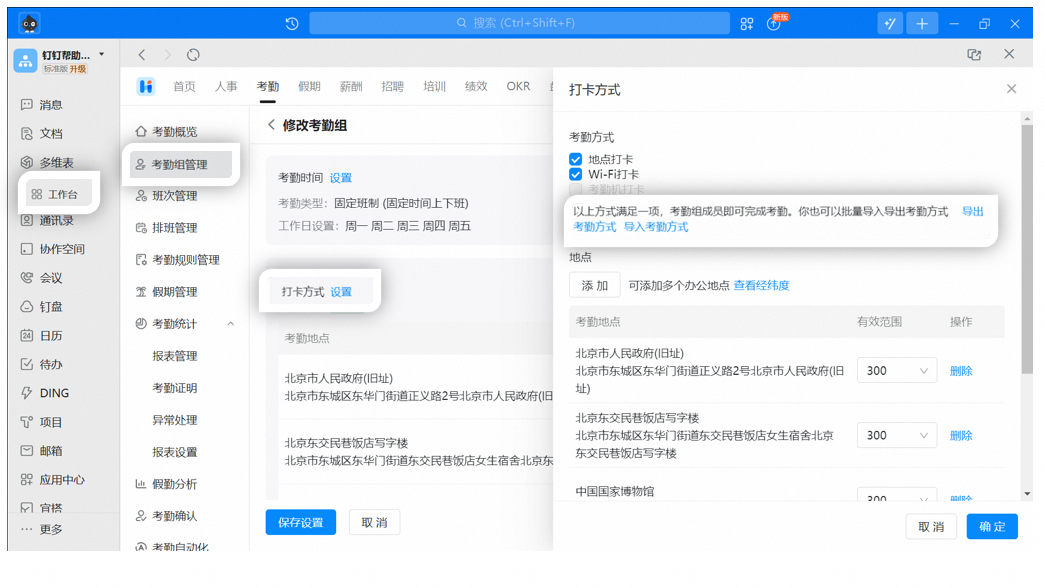
**Notes:**
For both location-based clock-in and Wi-Fi clock-in, attendance group members can complete their clock-in as long as one method is satisfied. Multiple clock-in methods can coexist, depending on which methods the Organization Admin selects.
Fill in the spreadsheet. Enter or edit the information in the Excel spreadsheet as required, then Save the file once the information is correct.
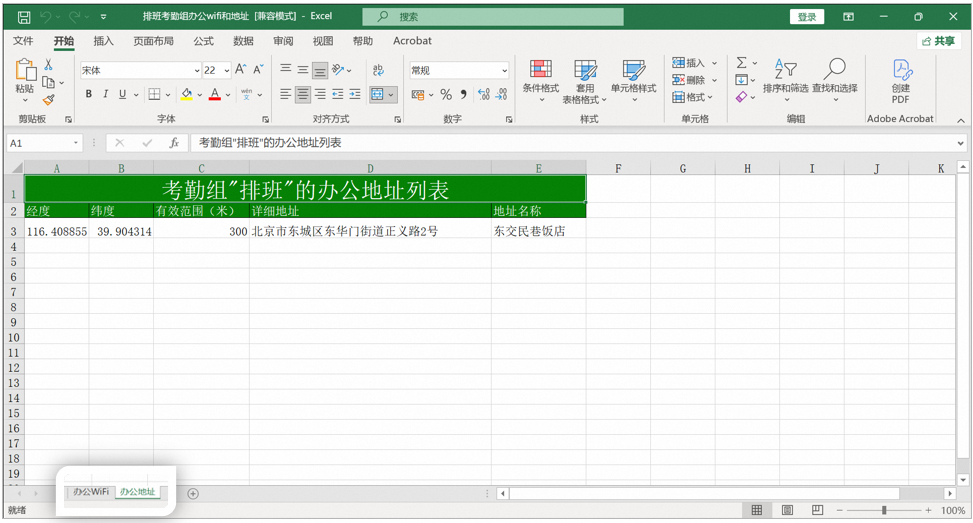
Import clock-in methods. On DingTalk desktop, go to **Workbench > Attendance > Attendance Group Management > Edit attendance group > Clock-in Method settings > Import Clock-in Methods** to import the attendance location or Wi-Fi information. Only the Excel format is currently supported.

## 4. FAQ
This happens because every required field in the import spreadsheet must be filled in. Complete the spreadsheet before importing.
On **DingTalk desktop**, go to **Workbench > Attendance > Attendance Group Management > Edit attendance group > Clock-in Method settings > Add Location** to view the latitude and longitude.
Importing attendance locations overwrites existing data. To keep existing addresses, do not delete them in Excel after exporting. Add new entries on top of the existing data before importing.
An organization can add up to **10,000 attendance groups**, with **up to 5,000 users** per attendance group. Each attendance group can have up to **1,000 Wi-Fi networks and addresses**.