> ## Documentation Index
> Fetch the complete documentation index at: https://help.dingtalk.io/llms.txt
> Use this file to discover all available pages before exploring further.
# Granular leave permissions
> Learn how to configure granular leave management permissions in DingTalk. After upgrading to Smart Leave, you can independently set the scope and granular permissions for Sub Admins, enabling them to manage leave rules without OA Approval permissions.
## 1. Overview
**After upgrading to Smart Leave permissions**, you can configure leave management permissions independently, including **management scope** and **granular permissions**. Sub Admins no longer need OA Approval permissions—simply select the **Smart Leave** permission, and they can set leave rules through **DingTalk Mobile/Desktop > Workbench > Smart Leave**.
## 2. Use cases
* **Clear hierarchy:** In organizations with complex structures and many departments, managers at different Tiers oversee different scopes of decision-making.
* **Geographic distribution:** For multinational or multi-regional companies, branch offices in different locations may follow their own HR policies, so leave management permissions must align with local company regulations.
## 3. How to use
### Upgrade leave management permissions
**Existing users**: To upgrade, open **DingTalk Desktop > Workbench > Smart HR > Leave Home**. In the **Leave Management Permission Upgrade** Card that appears, select **Upgrade for Free** and wait for the upgrade to complete.
**Note:** After the upgrade, existing OA Approval Sub Admins automatically receive leave management permissions, and you can also configure granular permissions under Manage permissions. New Approval Admins must manually select the Smart Leave permission to access leave management.

### Assign leave management permissions
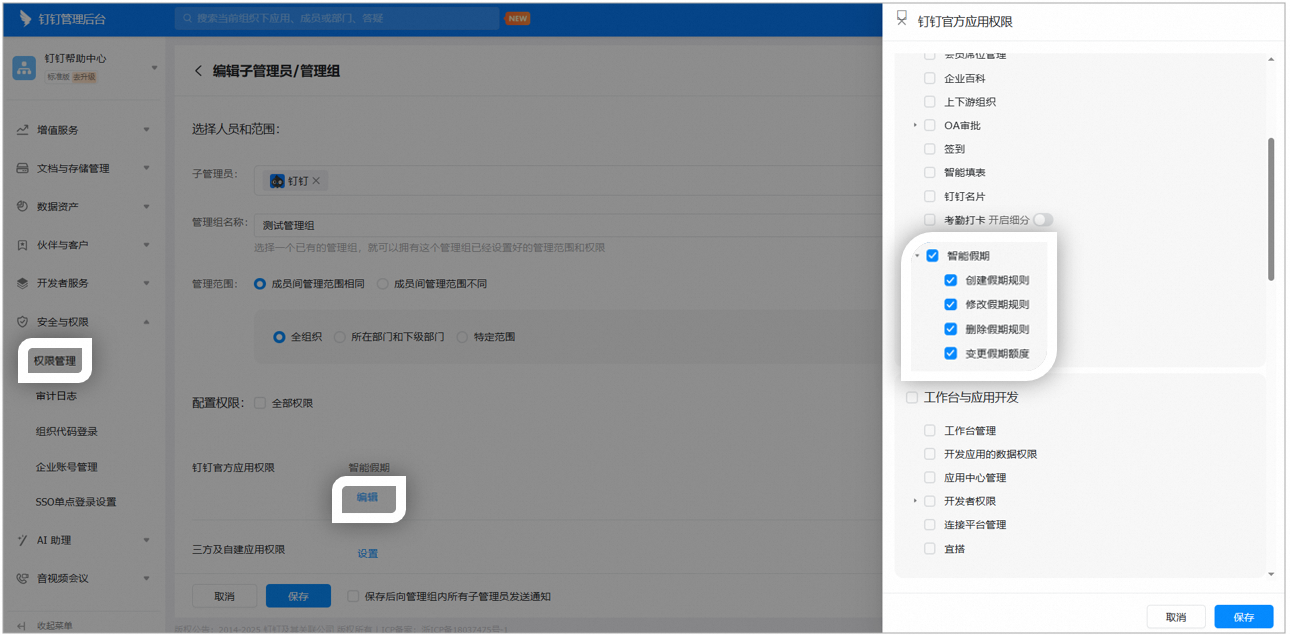
Go to [**Admin Console**](https://oa.dingtalk.io) **> Security & Permissions > Manage permissions > Sub Admin >** click **Edit** for the corresponding admin group **>** click **Edit** under DingTalk Official App permissions **> Smart Leave** to configure granular leave management permissions for different Sub Admins.
Smart Leave permissions include:
1. Create leave rules
2. Modify leave rules
3. Delete leave rules
4. Change leave quotas
## 4. FAQ
If you have not upgraded to Smart Leave, Approval Admins have leave management permissions by default, and granular leave management permissions cannot be configured. After upgrading to Smart Leave, if a Sub Admin needs to access leave management through OA Approval, they must have both OA Approval and Smart Leave permissions. Authorized Admins can go to **Admin Console > Security & Permissions > Manage permissions > Sub Admin >** click **Edit** for the corresponding admin group **>** then click **Edit** under DingTalk Official App permissions to configure the relevant permissions.