> ## Documentation Index
> Fetch the complete documentation index at: https://help.dingtalk.io/llms.txt
> Use this file to discover all available pages before exploring further.
# Overtime rules FAQ
> Answers to common questions about overtime rules, including how to set up pre-shift overtime, configure overtime rules for workdays and rest days, and choose overtime compensation methods.
Whether a clock-in before the shift starts counts as overtime depends on the overtime rules configured by the Organization's Admin.
The following four types of overtime rules currently support pre-shift overtime:
**Rule descriptions:**
**1. Calculated by approval duration**: Employees submit an Approval form directly, and overtime is counted once the form is approved.
**2. Calculated by clock-in duration within the approved period**: For example, if an employee's shift starts at 8:00 AM and they need to work 2 extra hours before the shift, they submit an overtime request for 6:00 AM–8:00 AM. The employee clocks in as usual before 6:00 AM and does not need to clock in again at 8:00 AM. Once the request is approved, the system records 2 hours of overtime.
**3. Calculated by the smaller value between approval duration and clock-in duration**: The overtime duration is the smaller of the approval duration and the clock-in duration. The clock-in period does not need to fall within the approval period.
**4. No approval required, calculated by clock-in duration**: Employees only need to clock in.
Configure the overtime calculation method to match your needs:
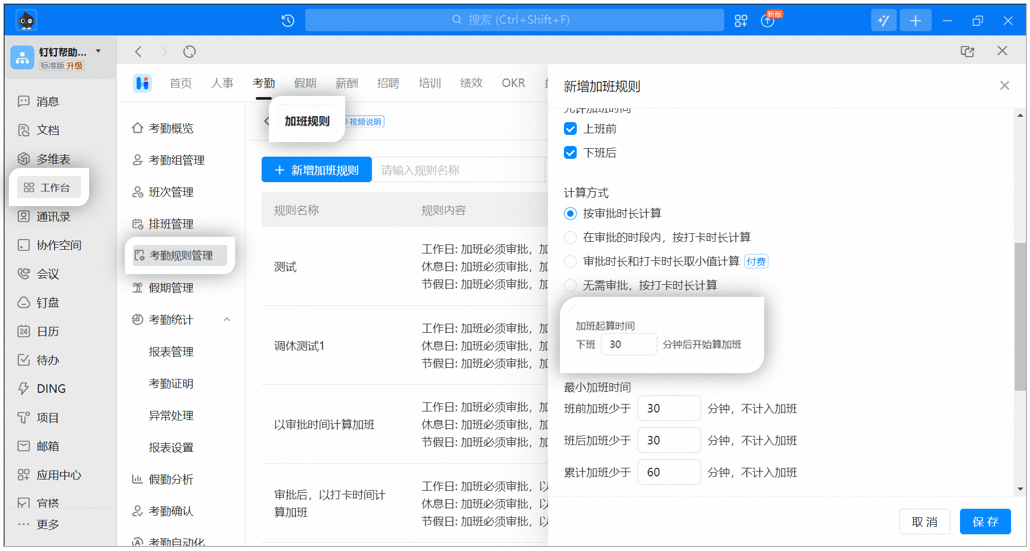
* **Count overtime only after X minutes past the shift-end time;**
* **Do not count overtime if post-shift overtime is less than X minutes;**
* **Do not count overtime if the cumulative overtime is less than X minutes;**
* **Whether to deduct break time;**
* **Whether overtime is counted as compensatory leave, overtime pay, or left to the employee's choice.**
**Path**: The Admin opens **DingTalk on desktop > Workbench > Attendance > Attendance Rules > Overtime Rules > Edit** the corresponding overtime rule.
**Notes:**
For example, if the shift-end time is 18:00:
1. If the overtime rule counts overtime 0 minutes after the shift ends and does not exclude overtime under 0 minutes for the day, overtime duration is calculated immediately after the shift ends.
2. If the overtime rule counts overtime 30 minutes after the shift ends and excludes cumulative overtime under 30 minutes, overtime duration is calculated only after 19:00.
The Admin opens **DingTalk on desktop > Workbench > Attendance > Attendance Rules > Overtime Rules > Create/Edit overtime rule > Rest Day > Allow overtime**, then selects the calculation method, decides whether to deduct break time, and chooses whether to convert overtime to compensatory leave or overtime pay based on the Organization's needs.
The Admin opens **DingTalk on desktop > Workbench > Attendance > Attendance Rules > Overtime Rules > Edit the corresponding overtime rule > Count overtime X minutes after shift ends**.
DingTalk Attendance supports converting overtime to compensatory leave, overtime pay, or letting employees choose. The Admin configures this in the overtime rules.
**Path**: The Admin opens **DingTalk on desktop > Workbench > Attendance > Attendance Rules > Overtime Rules > Edit/Create overtime rule**. On the overtime rule Settings Page, **turn On Count overtime duration as compensatory leave or overtime pay**, then configure **Convert overtime to compensatory leave**, **Count as overtime pay**, or **Employee's choice** based on the Organization's needs.
For example, a Company wants to track employees' overtime but does not convert overtime to compensatory leave or overtime pay.
The Admin opens **DingTalk on desktop > Workbench > Attendance > Attendance Rules > Overtime Rules > Edit** the corresponding overtime rule **> turn Off Count overtime duration as compensatory leave or overtime pay**.
The Admin opens **DingTalk on desktop > Workbench > Attendance > Attendance Rules > Overtime Rules > Edit/Create overtime rule > turn On Deduct break time**. Two methods are currently supported: **Deduct by break period** or **Deduct by overtime duration**.
**Rule descriptions:**
**1. Deduct by break period**: For overtime spanning multiple days, the system cannot automatically deduct break periods, so you must adjust them manually when submitting the Approval form. For an attendance group with flexible working hours, even if **Deduct break time** is enabled in the overtime rules, the system does not automatically deduct break time when an overtime Approval form is submitted, so manual adjustment is required.
**2. Deduct by overtime duration** — note the following:
Deductions for every X hours **cannot be stacked**, and up to 2 decimal places are supported.
When multiple deduction rules exist, the rule with the longer duration is applied, and deductions are not stacked. For example, if two deduction rules are set—one deducting 1 hour for every 5 hours of daily overtime, and another deducting 0.5 hours for every 4 hours of daily overtime—an employee who works 5 hours of overtime has a total deduction of 1 hour.
If a Company only compensates overtime on rest days and needs to track rest-day overtime only:
The Admin opens **DingTalk on desktop > Workbench > Attendance > Attendance Rules > Overtime Rules > Edit** the corresponding overtime rule **> turn Off Allow overtime** for the relevant Date type.

For example, in a same-day clock-in and clock-out setup, a Company needs employees to work overtime until 7:00 AM the next day before clocking out.
**Depending on whether the Admin has set the latest clock-in time in the scheduling rules, there are generally two scenarios:**
**If the latest clock-out time is set, the maximum overtime duration is calculated up to that latest clock-out time.**
## Mobile
The Admin opens **DingTalk on mobile > Workbench > Attendance > Settings > More Settings > Shift Management > tap the corresponding shift > Clock-in time settings** to set the earliest and latest clock-in and clock-out times.

## Desktop
The Admin opens **DingTalk on desktop > Workbench > Attendance > Shift Management > Edit the corresponding shift > Set clock-in period** to set the earliest and latest clock-in and clock-out times.
**Notes:**
Set clock-in period: Clock-ins outside the specified period are not counted toward attendance.


**Notes:**
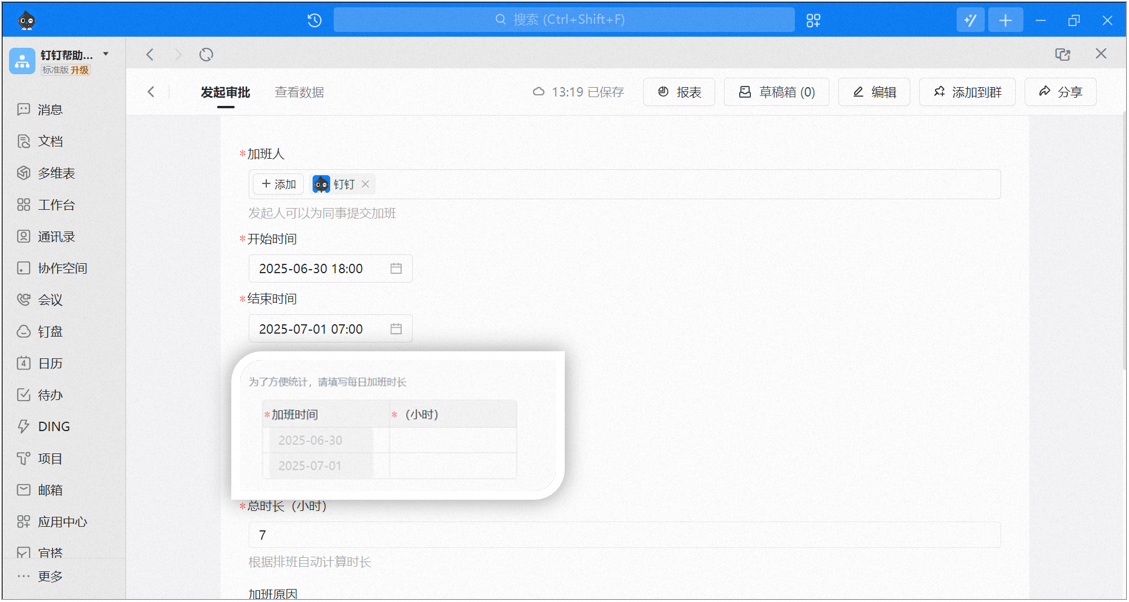
1. Once the latest clock-in time is set, select the overtime period and fill it in when submitting an overtime Approval form.
2. If the requested overtime duration is within the maximum allowed duration, the system automatically calculates and displays the total overtime duration.
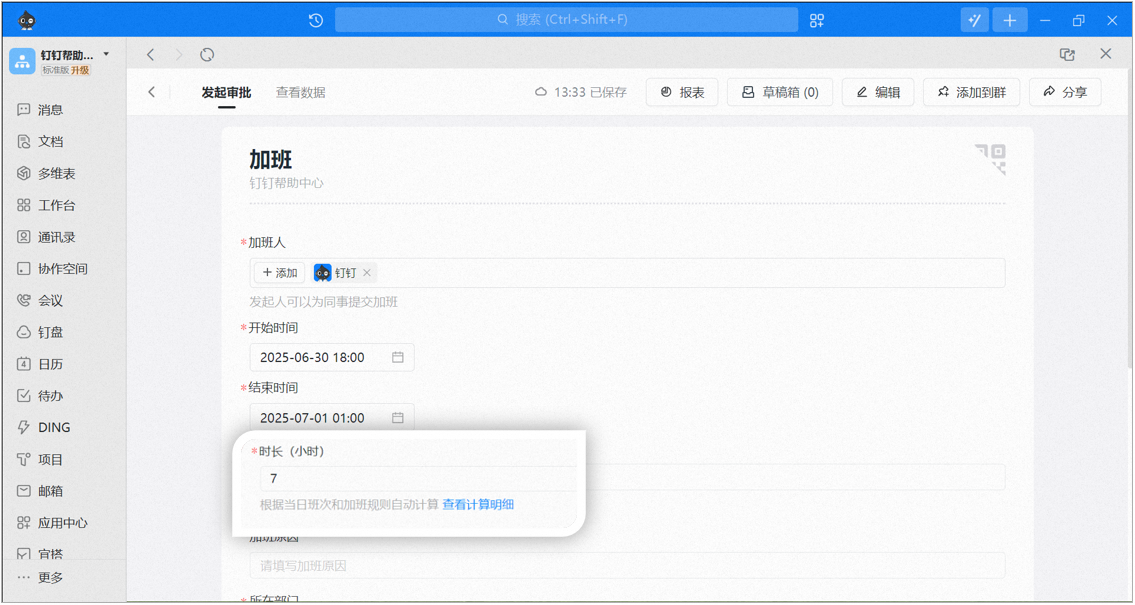
**If the latest clock-out time is not set, the maximum overtime duration is calculated up to 5:00 AM the next day by default.**
**Rule descriptions:**
If the requested overtime duration exceeds the maximum overtime duration for the day, adjust the daily overtime duration manually to ensure accurate tracking.