> ## Documentation Index
> Fetch the complete documentation index at: https://help.dingtalk.io/llms.txt
> Use this file to discover all available pages before exploring further.
# Overtime rules
> Configure overtime rules for DingTalk Attendance: flexibly set the overtime calculation method and duration conversion, and share data between clock-in records and overtime approvals to help your organization manage employee overtime efficiently.
## 1. Overview
DingTalk overtime management lets you flexibly configure how overtime is calculated, how overtime duration is converted, and more. Employee clock-in records are also integrated with overtime approvals, helping you boost team management efficiency.
**2. Use cases**
Set different overtime rules for **workdays, rest days, and public holidays** for your employees.
## 3. How to configure
1. An Admin with the required permissions can open **DingTalk on desktop > Workbench > Attendance > Manage attendance rules > Overtime rules**.

2. Click **Add overtime rule / Edit** to set the overtime rule based on your organization's needs.

## 4. Overtime rule details
### Default rules
**Note:**
1. **Calculate overtime based on the approved duration:** Overtime must be approved, and the overtime duration follows the Approval form.
By default, this rule applies to **the entire Company and cannot be changed**, unless other overtime rules are configured.
This rule **cannot be deleted**, but you can modify the rule name, rule details, overtime duration unit, and more.
2. **Calculate overtime based on clock-in time after approval:** Overtime must be approved. The overtime duration is based on clock-in time but cannot exceed the duration on the Approval form.
3. **Calculate overtime based on clock-in time:** Overtime does not require approval. The overtime duration is calculated based on clock-in time.

### Edit overtime rules
For each overtime rule, you can edit the **rule name and application scope**, and set different rule details for **workdays, rest days, and public holidays**, including **whether to allow overtime, overtime calculation method, minimum overtime duration, deducted break time, whether the overtime duration counts as compensatory leave or overtime pay**, and **More rule settings**.
#### Rule name
Set different overtime rule names based on your organization's needs.
#### Application scope
The overtime application scope **can only be set by attendance group**. You can set **different overtime rules for different attendance groups**.
#### Whether to allow overtime
**An Admin with the required permissions** can separately configure whether to allow overtime for **workdays / rest days / public holidays**.
1. **Allow overtime on:** Employees follow the overtime rule you configured for that Date type.
2. **Allow overtime off:** Employees cannot submit overtime requests for that Date type, and any time worked will not count as overtime.
#### Overtime calculation method
Rules for how the overtime calculation method takes effect:
1. When **Clock-in required for both the start and end of overtime** is enabled:
Only **Calculate based on clock-in duration within the approved time range** takes effect; other calculation methods do not.
Overtime longer than 24 hours does not take effect.
Not applicable to flexible working hours attendance groups or rest days.
2. When **Clock-in required for both the start and end of overtime** is not enabled, overtime is calculated according to the method the Admin has set.
| **Overtime calculation method** | **Description** |
| ------------------------------------------------------------------------------------------------------------------------ | ------------------------------------------------------------------------------------------------------------------------------------------------------------------------------------------------ |
| Calculate based on approved duration | Employees do **not need to clock in** for overtime. The overtime duration follows the Approval form. |
| Calculate based on clock-in duration within the approved time range | Employees **must submit an Approval form and clock in** (and the clock-in times must fall within the approved time range on the form). |
| Calculate based on clock-in duration without approval | **No Approval form required.** Overtime is calculated based on clock-in duration. |
| Take the smaller of approved duration and clock-in duration
(**Requires the Premium or Enterprise plan for Leave**) | The overtime duration is calculated as the **smaller of the approved duration and the clock-in duration** (both must be met). Clock-in times do not need to fall within the approved time range. |

#### Minimum overtime duration
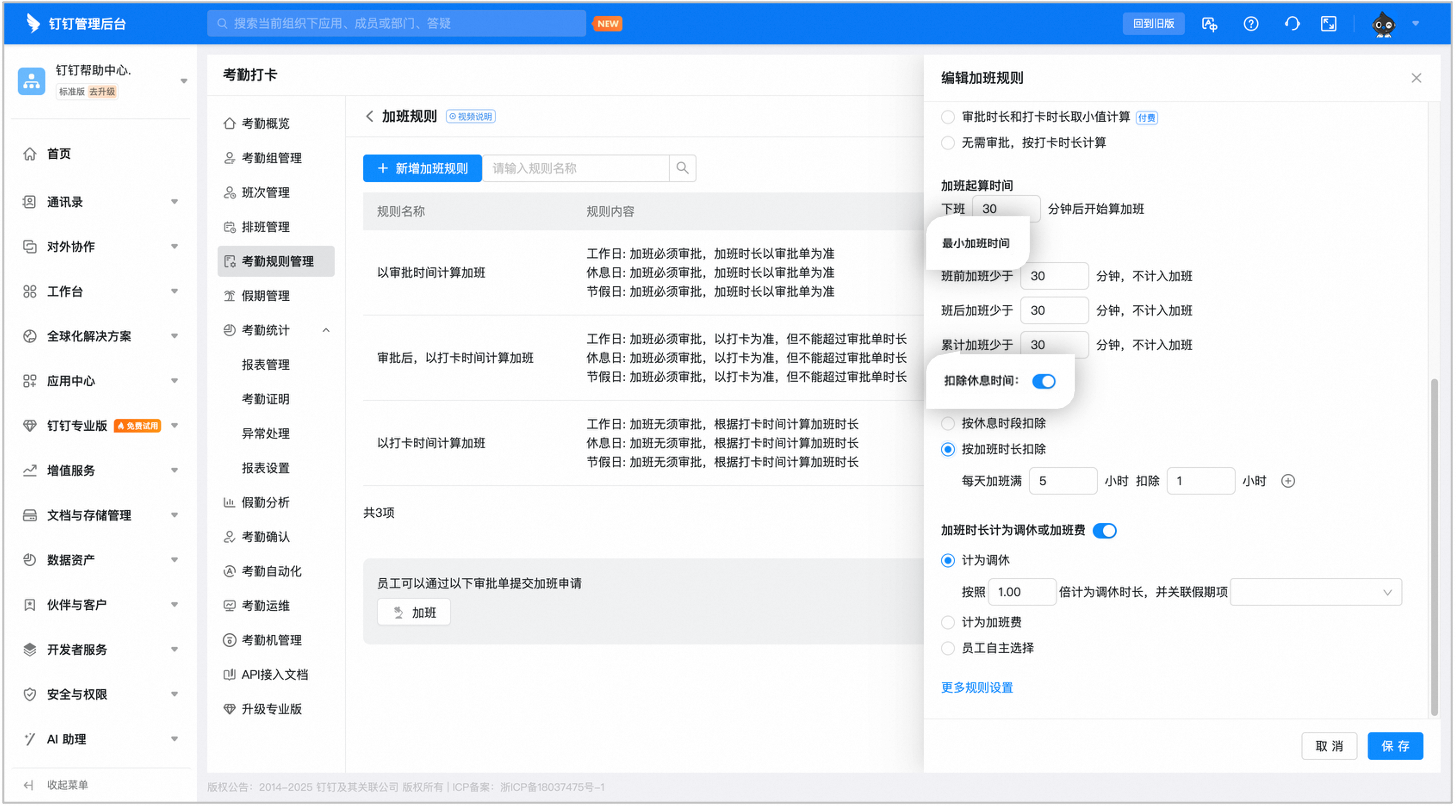
Overtime rules support setting a minimum overtime duration. You can specify that **overtime before the shift / overtime after the shift / cumulative overtime** shorter than XX minutes will not count as overtime. The difference between **overtime before / after the shift shorter than** and **cumulative overtime shorter than** is as follows:
1. **Overtime before / after the shift shorter than:** Overtime worked within a certain period **before the shift starts or after the shift ends does not count toward overtime duration**. For example, if set to 30 minutes, overtime within 30 minutes after the shift ends will not be counted.
2. **Cumulative overtime shorter than:** When the **total duration of an employee's single or multiple overtime sessions does not reach the set value**, it will not count as overtime.
#### Deducted break time
Overtime rules support deducting break time in two ways:
1. Deduct by break period.
2. Deduct by overtime duration.
#### Overtime duration counted as compensatory leave or overtime pay
Overtime rules support converting overtime into **compensatory leave / overtime pay / employee's choice**. The differences are as follows:
1. **Count as compensatory leave:** The overtime duration is converted into compensatory leave. To link the leave type, see the FAQ at the bottom of this article.
2. **Count as overtime pay:** The overtime duration is converted into overtime pay. You can view and summarize overtime duration in reports for regular payroll calculation.
3. **Employee's choice:** Let employees choose the conversion method when submitting an overtime request.
**Note:** You can also turn this option off, so the overtime duration counts as neither compensatory leave nor overtime pay.

#### More rule settings
##### Overtime duration unit
In **Overtime rules > More rule settings**, you can also set the overtime duration unit. The Default is hours, and you can change it to days as needed.


##### Overtime duration rounding rules
**An Admin with the required permissions** can set whether the overtime duration is rounded, with the following options:
1. **No rounding:** The overtime duration is not rounded and is calculated using the actual duration.
2. **Round down:** Set XX hours as the minimum increment. Any period shorter than XX hours will not count as overtime.
3. **Round up / Round to nearest:** This is a **paid feature** and requires the **Premium or Enterprise plan for DingTalk Attendance**.

##### Daily conversion duration
The overtime duration supports setting a daily conversion duration. Configure it based on your organization's needs.
## 5. View overtime data
### Admins view overtime data
#### Mobile
Open **DingTalk on mobile > Workbench > Attendance > Statistics > Team statistics > Weekly / Monthly statistics >** tap **Overtime >** tap a **User** to view overtime details.

#### Desktop
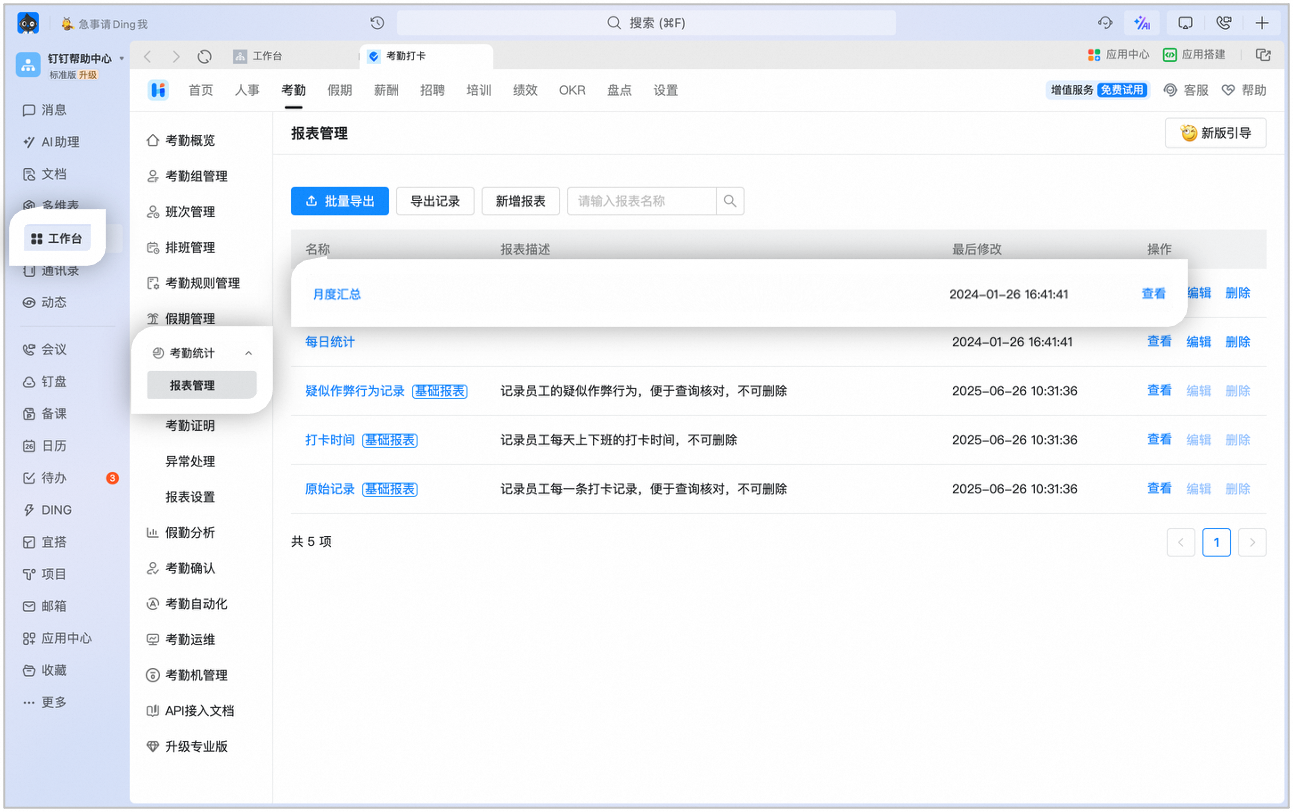
Open **DingTalk on desktop > Workbench > Attendance > Attendance statistics > Manage reports > Monthly summary > View** to view overtime data, or filter by **specific date / department / User** to **export a report** for review.
### Employees view overtime data
Open **DingTalk on mobile > Workbench > Attendance > Statistics > Team statistics > Weekly / Monthly statistics >** tap **Overtime** to view overtime details.

## 6. Submit an overtime request
### Mobile
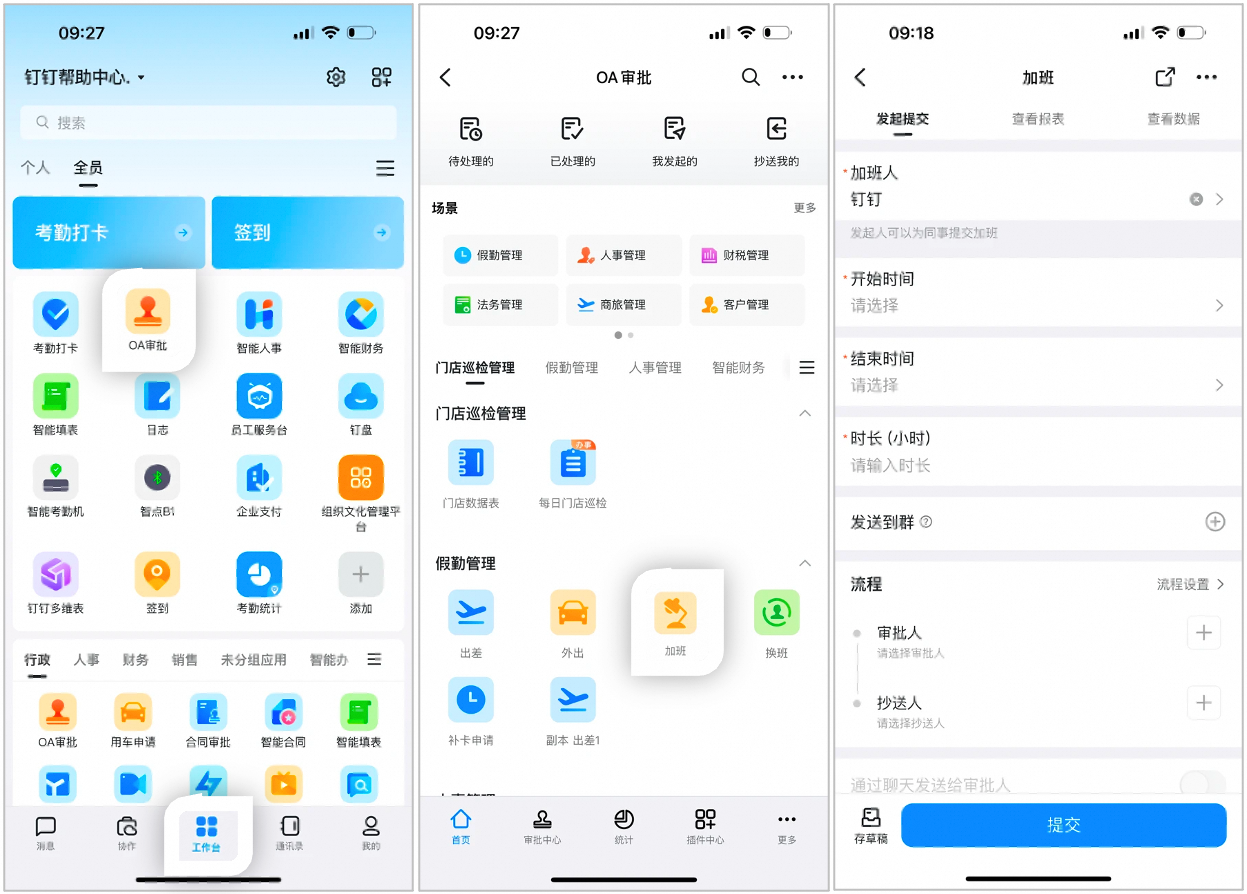
Open **DingTalk on mobile > Workbench > OA Approval > Overtime >** fill out the request as required, then tap **Submit**.
### Desktop
Open **DingTalk on desktop > Workbench > OA Approval > Overtime >** fill out the request as required, then click **Submit**.

## 7. FAQ
Overtime rules **can only be configured on desktop**.
Permissions for overtime rules must be granted to employees by the Organization Admin. **An Admin with the required permissions** can go to **Admin Console > Security and permissions > Manage permissions > Admin settings** to **view or edit** whether a specific Admin has overtime management permissions.
When creating or editing an overtime rule for the first time, on the rule edit page, click **Link leave type**. The system provides a **compensatory leave** type by default. Click **Save** to apply. You can also link other leave types, but note that the leave grant method must be set to **automatically added to balance from overtime duration**.
If the Admin configures a new overtime rule, it takes effect immediately after **Save** is clicked. After adjusting the overtime rules, past overtime dates will not follow the new rules unless you re-adjust the shifts for the corresponding dates. If you do re-adjust those shifts, past overtime dates will follow the new overtime rules.
Example: An employee worked overtime on November 12. On November 14, the Admin modified the overtime rules and re-adjusted this employee's shift on November 12. In this case, the overtime rule for this employee on November 12 will follow the latest overtime rule.
Public holiday overtime shown in reports only includes the 7 statutory holidays announced by the State Council each year: New Year's Day (1 day), Spring Festival (3 days), Qingming Festival (1 day), Labor Day (1 day), Dragon Boat Festival (1 day), National Day (3 days), and Mid-Autumn Festival (1 day), totaling 11 days. For example, if you enable automatic rest scheduling for statutory holidays, 7 rest days will be scheduled during the National Day period from October 1 to 7. However, if a User works overtime, only October 1, 2, and 3 count as public holiday overtime.