> ## Documentation Index
> Fetch the complete documentation index at: https://help.dingtalk.io/llms.txt
> Use this file to discover all available pages before exploring further.
# Report management
> Learn how DingTalk attendance report management collects, processes, analyzes, and displays attendance data to help organizations track attendance, support payroll calculation, and inform management decisions.
## 1. Overview
Report management is a tool for collecting, processing, analyzing, and displaying data. It helps organizations understand their operations and make informed decisions.
## 2. Use cases
* Employee attendance statistics
* Leave usage tracking
## 3. How to use
### View reports
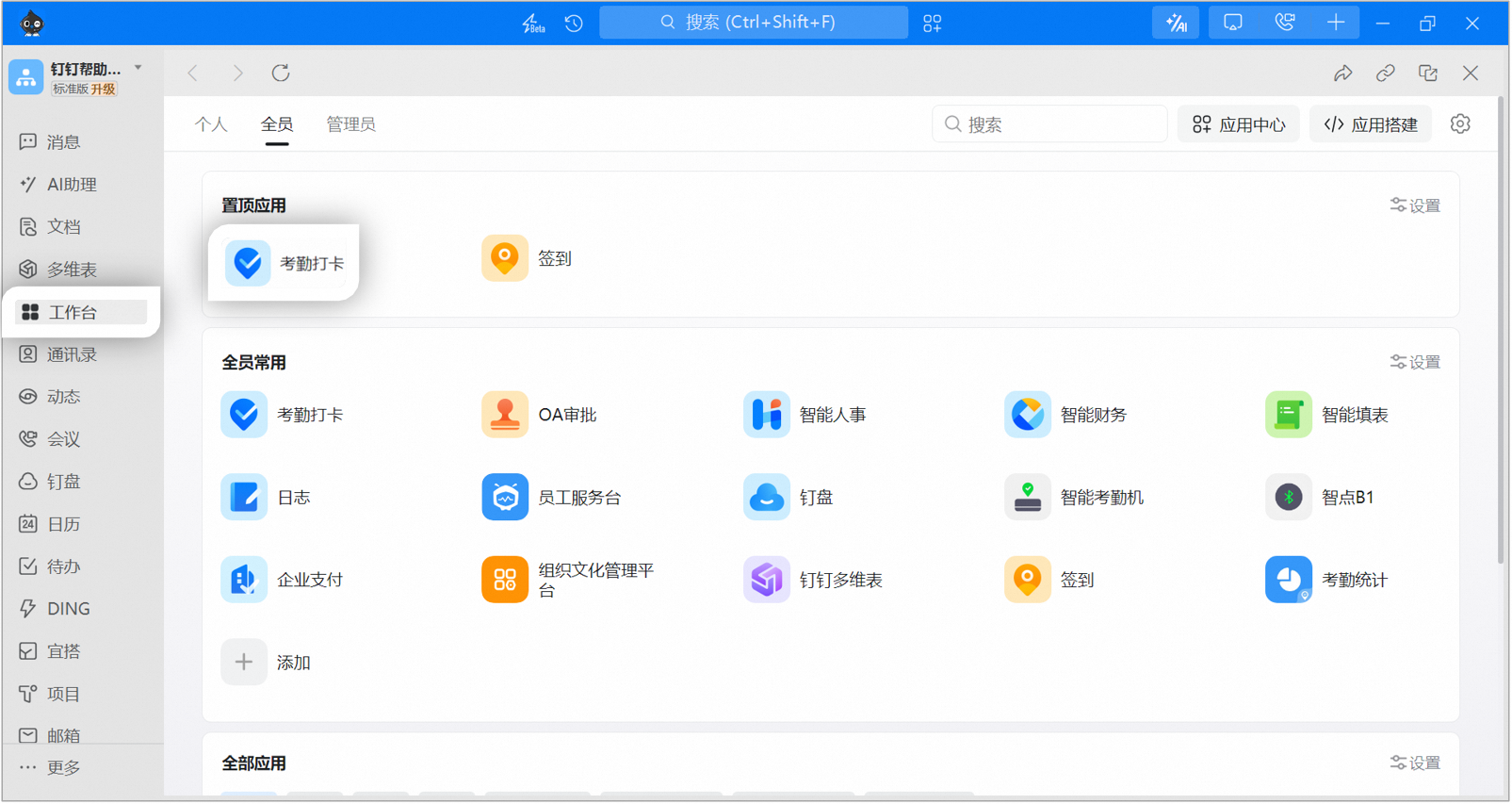
Admins with the required permissions can open DingTalk desktop > Workbench > Attendance.
Go to Attendance statistics > Report management > Select the target report > Click View to see the statistical details.

**Report descriptions:**
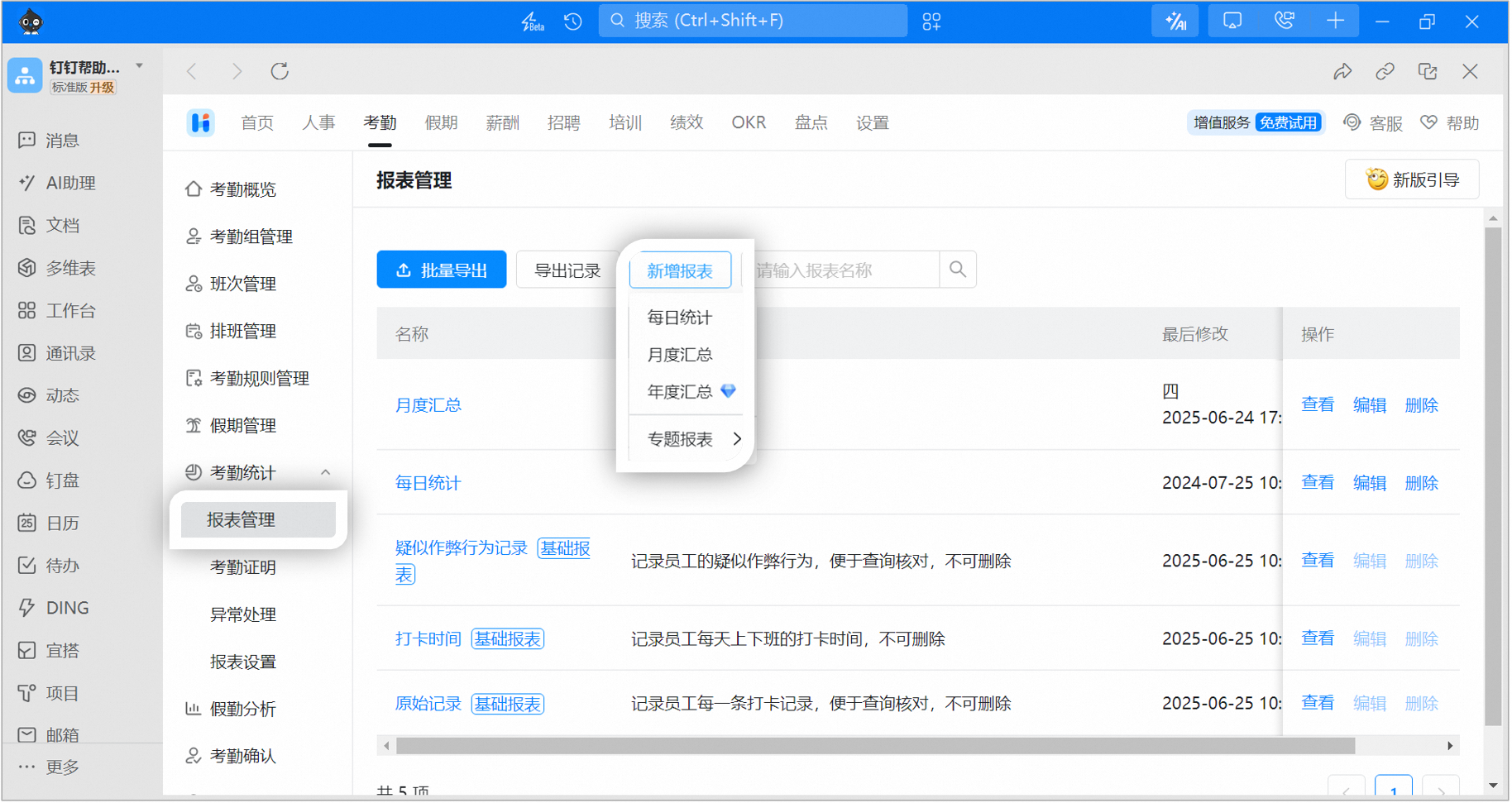
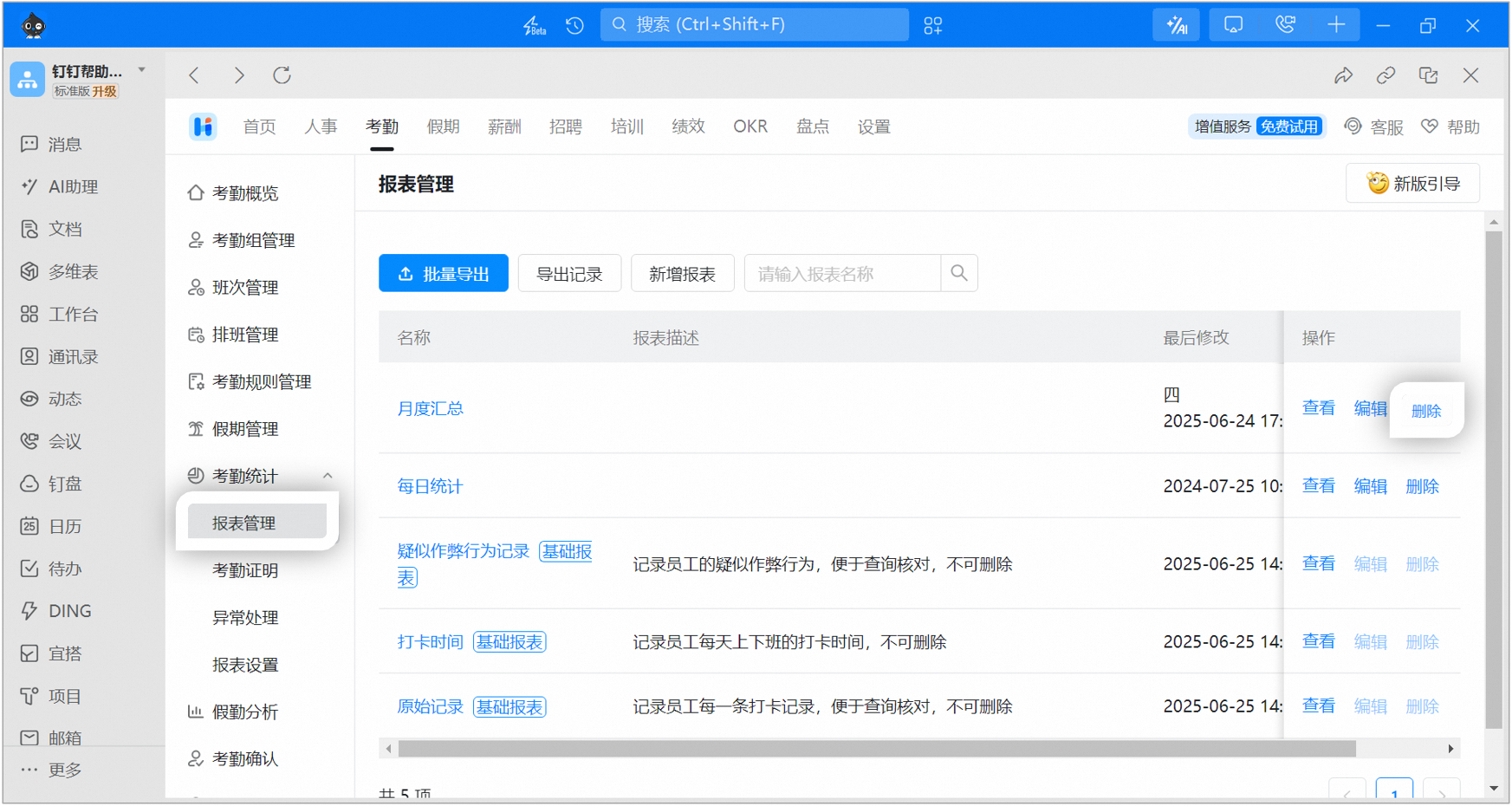
1. Monthly summary: aggregated monthly attendance data.
2. Daily statistics: aggregated daily attendance data.
3. Suspected cheating records (basic report): records employees' suspected cheating behavior for review. Cannot be deleted.
4. Clock-in time (basic report): records employees' daily clock-in and clock-out times. Cannot be deleted.
5. Original records (basic report): records every clock-in entry from employees for review. Cannot be deleted.
### Export reports
Go to Attendance statistics > Report management > Select the target report > Click View > Export report.
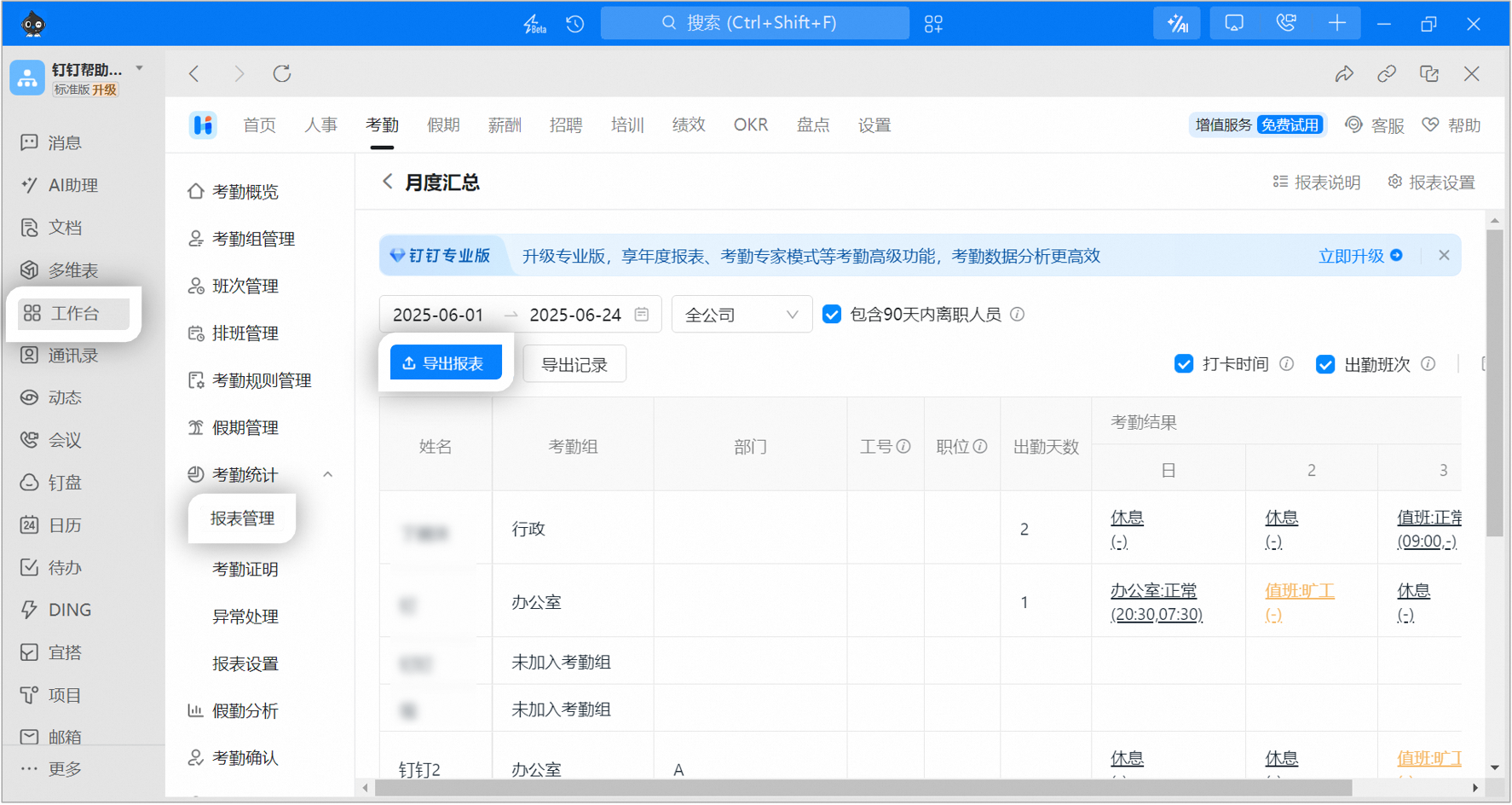
For details, see [**How to export attendance reports**](/attendance/export-attendance-report).
### Create a report
Go to Attendance statistics > Report management > Click Add report > Select the report type.
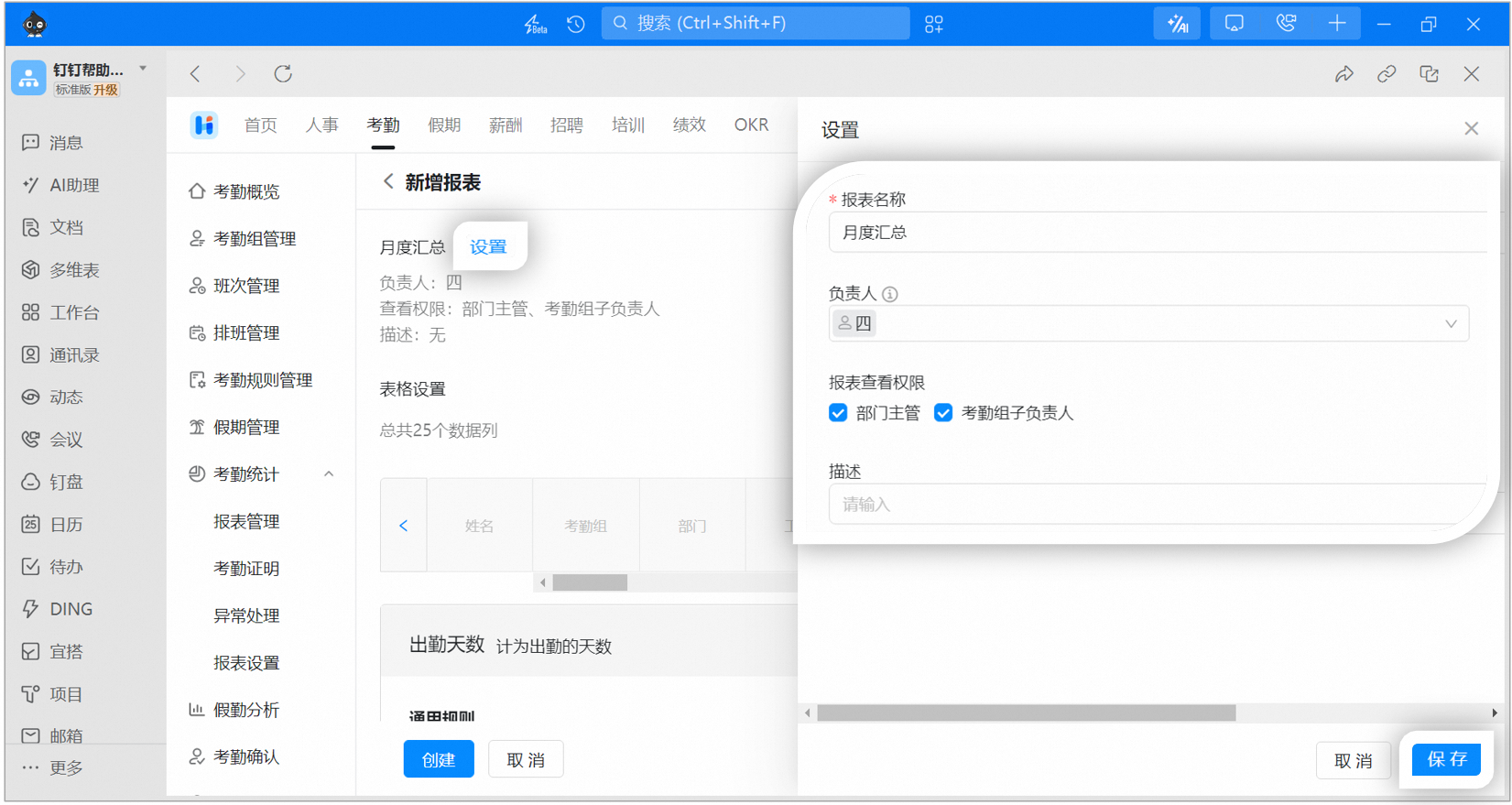
Click Settings > Configure the report name, owner, view permission, and description > Save.
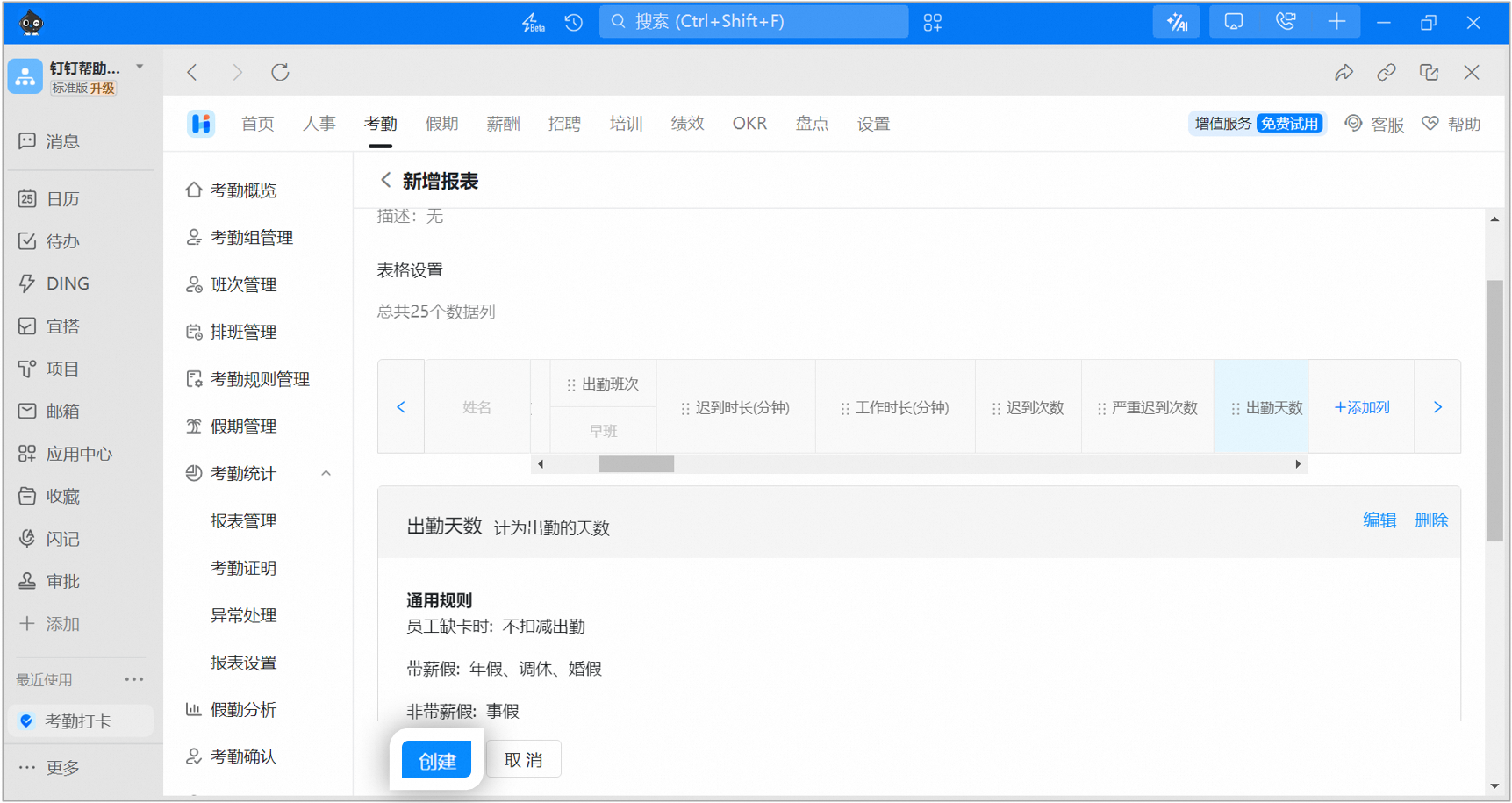
Select Add column > Select the fields to associate > Save.


Click the column name to edit or delete it.
**General rules (whether a leave type is paid can be set in the leave rules. Path:** Admins with the required permissions can open **DingTalk desktop > Workbench > Attendance > Leave management > Leave rules > Edit an existing leave type or Create a leave rule):**
1. When an employee has a missed clock-in: do not deduct attendance.
2. Paid leave: annual leave, compensatory leave, marriage leave.
3. Unpaid leave: personal leave.
4. Whether to deduct attendance when an employee takes unpaid leave: do not deduct attendance.
5. When an employee is on a business trip: attendance is calculated based on clock-in results.
6. When an employee is out on business: attendance is calculated based on clock-in results.

#### Long-press and drag column names to reorder

#### Click Create to finish adding the report
### Configure reports
**Attendance statistics > Report management >** Open the target report's **View > Report settings**.

### Delete reports
**Attendance statistics > Report management >** Select the target report **> Delete**.
### View export records
**Attendance statistics > Report management >** Select the target report **> View > Export records**.

### Basic reports
The system provides preset reports—**Suspected cheating records, Clock-in time, and Original records**—that cannot be edited or deleted. You can export these reports and view their export records.
**Report descriptions:**
1. Suspected cheating records (basic report): records employees' suspected cheating behavior for review. Cannot be deleted.
2. Clock-in time (basic report): records employees' daily clock-in and clock-out times. Cannot be deleted.
3. Original records (basic report): records every clock-in entry from employees for review. Cannot be deleted.
