> ## Documentation Index
> Fetch the complete documentation index at: https://help.dingtalk.io/llms.txt
> Use this file to discover all available pages before exploring further.
# Scheduling management
> Learn how DingTalk attendance scheduling management helps organizations flexibly arrange employee shifts and work timetables, balancing business needs with employee experience while improving scheduling efficiency and reducing management costs.
## 1. Feature overview
Scheduling management is a key activity in enterprise operations. It focuses on how to effectively arrange employee work schedules to meet business needs while optimizing resource use and safeguarding work-life balance. A well-designed scheduling management system improves productivity, reduces costs, and helps boost employee satisfaction and team cohesion.
## 2. Use cases
Employees have irregular or inconsistent start and end times each day.
## 3. Procedure
### Mobile
Authorized Admins can go to **DingTalk mobile app > Workbench > Attendance > Settings > Scheduling management >** select the target attendance group **> Scheduling**, choose the target date, and select **Shift/Cycle** to schedule.

### Desktop
Authorized Admins can go to **DingTalk desktop app > Workbench > Attendance > Scheduling management > select the target attendance group > Scheduling**.

## 4. Scheduling methods
After configuring the relevant scheduling settings, use any of the following methods to edit the schedule. Click **Save** to finish scheduling.
While editing the schedule, click the Calendar box to switch between years and months.
### Schedule by day
Click a Cell in the scheduling area, select **Schedule by day**, and then select a **shift** or **Rest**.

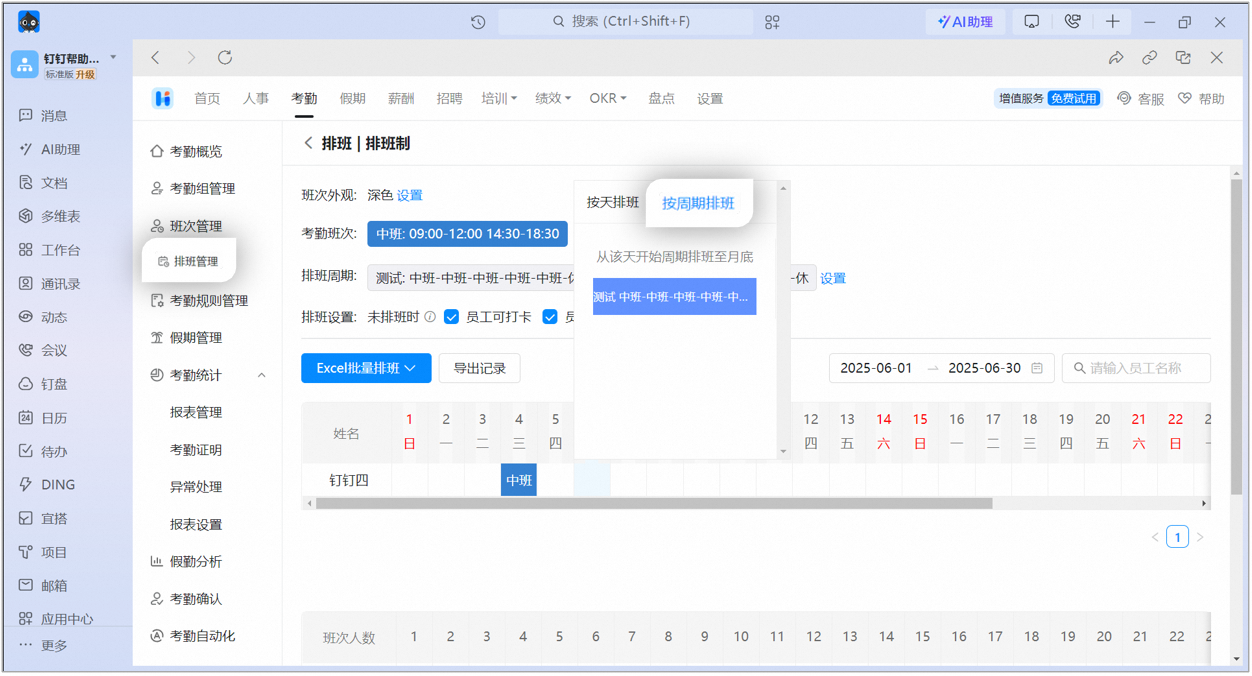
### Schedule by cycle
Click a Cell in the scheduling area, select **Schedule by cycle**, and then click the target cycle. Scheduling follows the selected cycle from that day through the last day of the month.
### Batch scheduling
Assign the same shift in batch by Date. Click the **Date** in the first row, and then select a shift to assign it to all Employees in the attendance group on that day.

### Excel scheduling
Click **Download schedule template**, arrange shifts for Employees in the exported Excel Table, and then click **Import schedule template**.
**⚠️ Note:** Add attendance shifts first, so that the corresponding shift options appear in the downloaded Excel Table.
