> ## Documentation Index
> Fetch the complete documentation index at: https://help.dingtalk.io/llms.txt
> Use this file to discover all available pages before exploring further.
# Time Clock check-in
> Learn how to configure DingTalk Time Clock check-in. Admins can disable location-based, Wi-Fi, field, and Bluetooth clock-in so that Employees can only clock in via facial recognition or fingerprint on the Time Clock. Includes FAQs such as how to purchase a Time Clock.
## 1. Overview
Admins can disable **Location**, **Wi-Fi clock-in**, **field clock-in**, and **Time Clock Bluetooth clock-in** directly on the mobile app, so that Organization Users can only clock in via facial recognition or fingerprint on the Time Clock.
## 2. Use cases
* Employees clock in at a fixed Location.
* Employees do not use mobile phones to clock in.
* The Organization uses multiple clock-in methods at the same time.
## 3. Procedure
### Admin configuration path
#### Attendance group settings
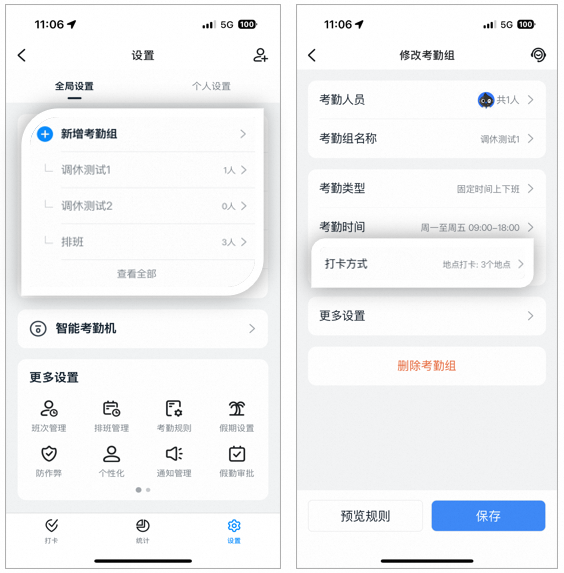
* **Mobile:** Go to **DingTalk Mobile > Workbench > Attendance > Settings > Add attendance group**, or **Edit an existing attendance group**.
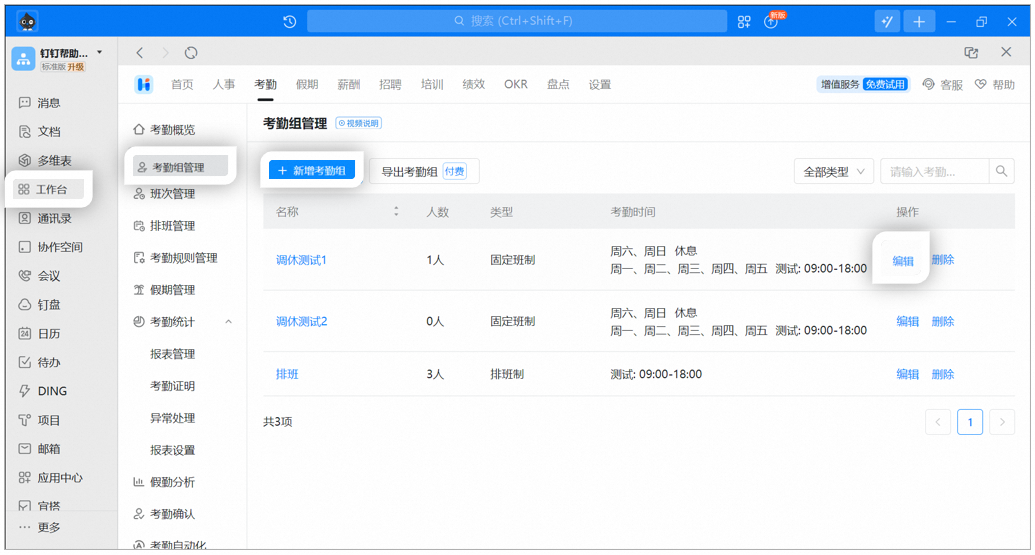
* **Desktop:** Go to **DingTalk Desktop > Workbench > Attendance > Attendance group management > Add attendance group**, or **Edit an existing attendance group**.
#### Enable Time Clock-only check-in
* **Mobile:** Go to **DingTalk Mobile > Workbench > Attendance > Settings >** tap the target **attendance group > Clock-in method >** disable any **clock-in methods** you do not need (if not disabled, multiple clock-in methods coexist) **>** select **Time Clock check-in**.

* **Desktop:** Go to **DingTalk Desktop > Workbench > Attendance > Attendance group management >** click **Edit** on the target attendance group **> Clock-in method settings >** clear any **clock-in methods you do not need** (if not disabled, multiple clock-in methods coexist) **>** select **Time Clock check-in**.

**⚠️ Notes:**
1. Time Clock check-in appears only after the Organization has bound a Time Clock. Once bound, Time Clock check-in is enabled by default. Simply clear the other clock-in methods.
2. If the Organization has bound a Modian access control device, Time Clock check-in does not appear in the desktop clock-in methods, and the Modian access control device does not appear either. Only DingTalk Time Clocks bound on the mobile app are displayed.
3. Only the mobile app supports binding devices.
4. Whether using location-based clock-in, Wi-Fi clock-in, or Time Clock check-in, Employees can complete attendance with any one of these methods, and multiple methods can coexist. The available options depend on the clock-in methods selected by the Organization.
## 4. FAQ
You can also purchase smart office hardware via **DingTalk Mobile > Me > Discover > Smart Hardware**.
Go to **DingTalk Mobile > Workbench > Attendance > Settings > Smart Time Clock >** tap the bound Time Clock **> Bluetooth clock-in > Settings** in the top-right corner **> Disable Bluetooth clock-in**.
Go to **DingTalk Mobile > Workbench > Attendance > Settings >** select the target attendance group **> More Settings > Field rules > Allow field clock-in**.