> ## Documentation Index
> Fetch the complete documentation index at: https://help.dingtalk.io/llms.txt
> Use this file to discover all available pages before exploring further.
# Facial recognition clock-in
> Learn how to use facial recognition clock-in in DingTalk Attendance. Once enabled, Employees must pass facial recognition before clocking in, effectively preventing buddy punching. Includes FAQs on viewing facial recognition photos and photo overlay rules.
## 1. Feature overview
DingTalk supports facial recognition for attendance clock-in. Once enabled, Employees must pass facial recognition before their clock-in succeeds.
## 2. Use cases
Scenarios where Organization Employees need facial recognition to record attendance clock-ins.
## 3. Procedure
### Enable facial recognition
#### Mobile
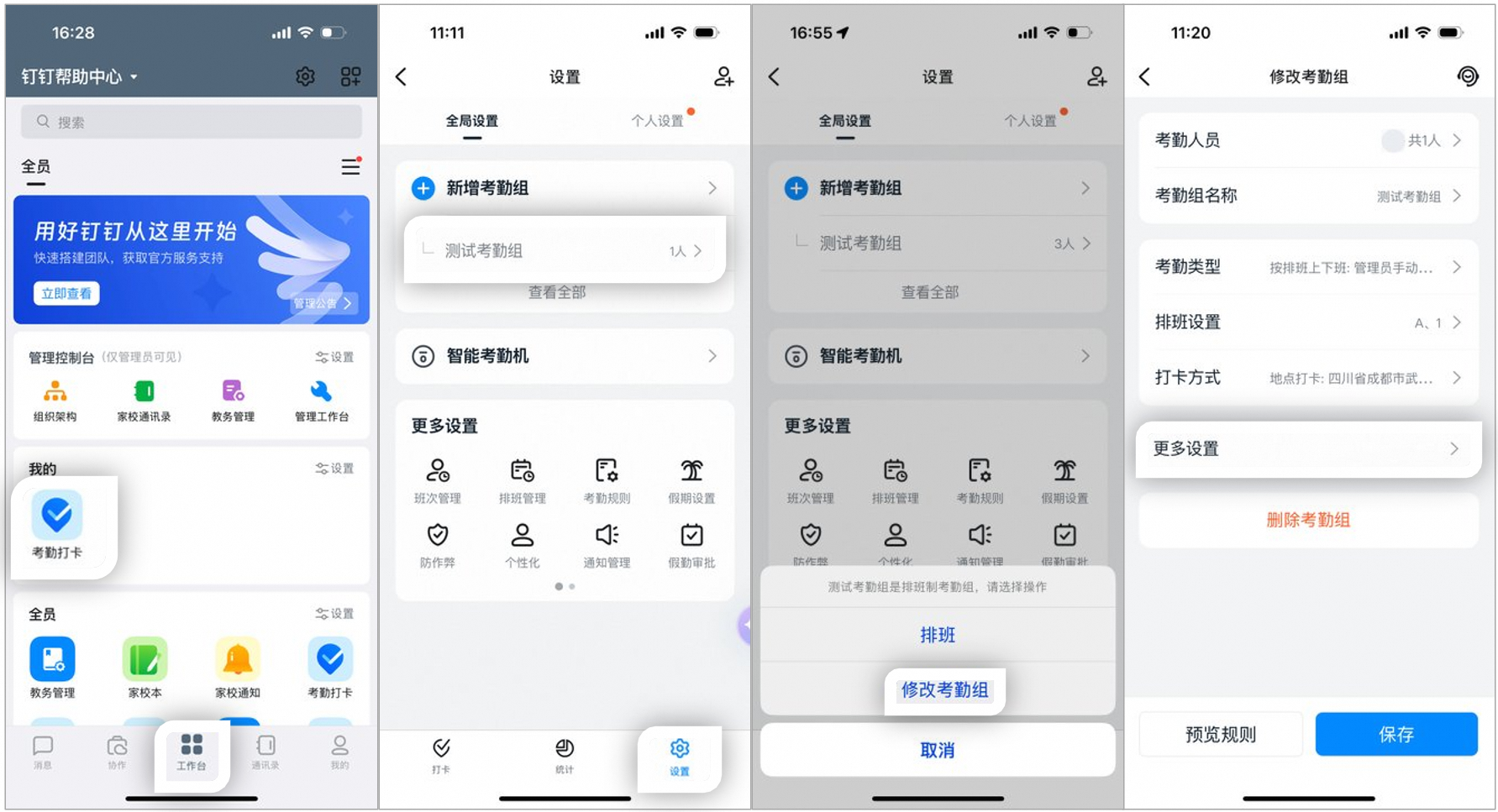
1.1 An Admin with the required Permissions can open **DingTalk mobile app > Workbench > Attendance > Settings >**, find the target attendance group, and tap **Edit attendance group > More settings**.
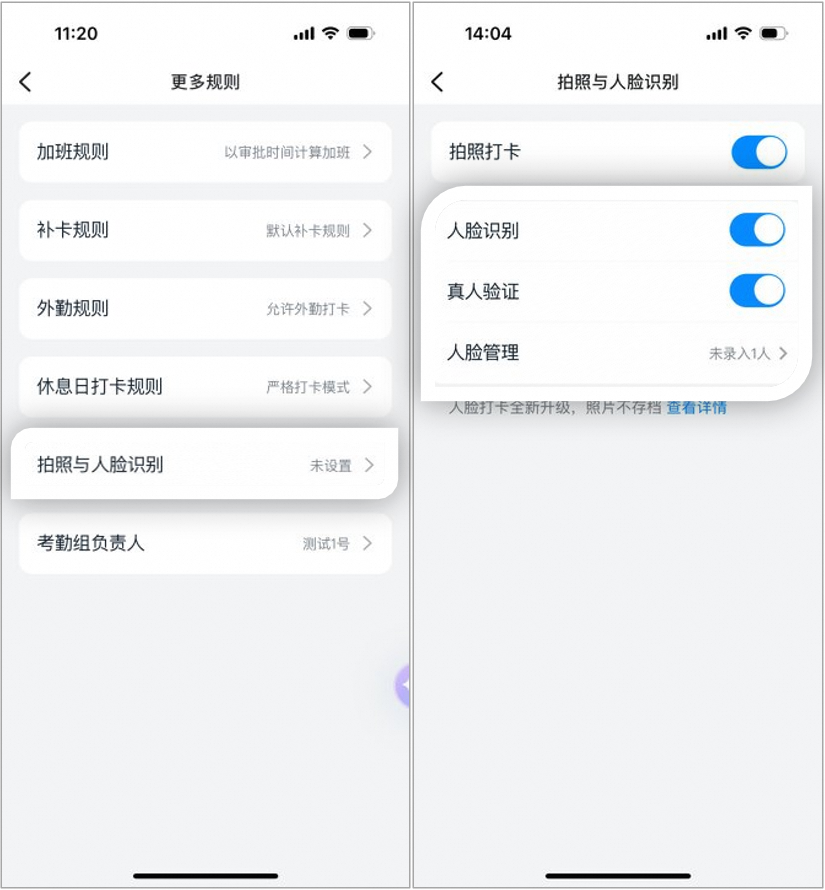
1.2 Tap **Photo and facial recognition >** and toggle **facial recognition** on or off.
#### Desktop
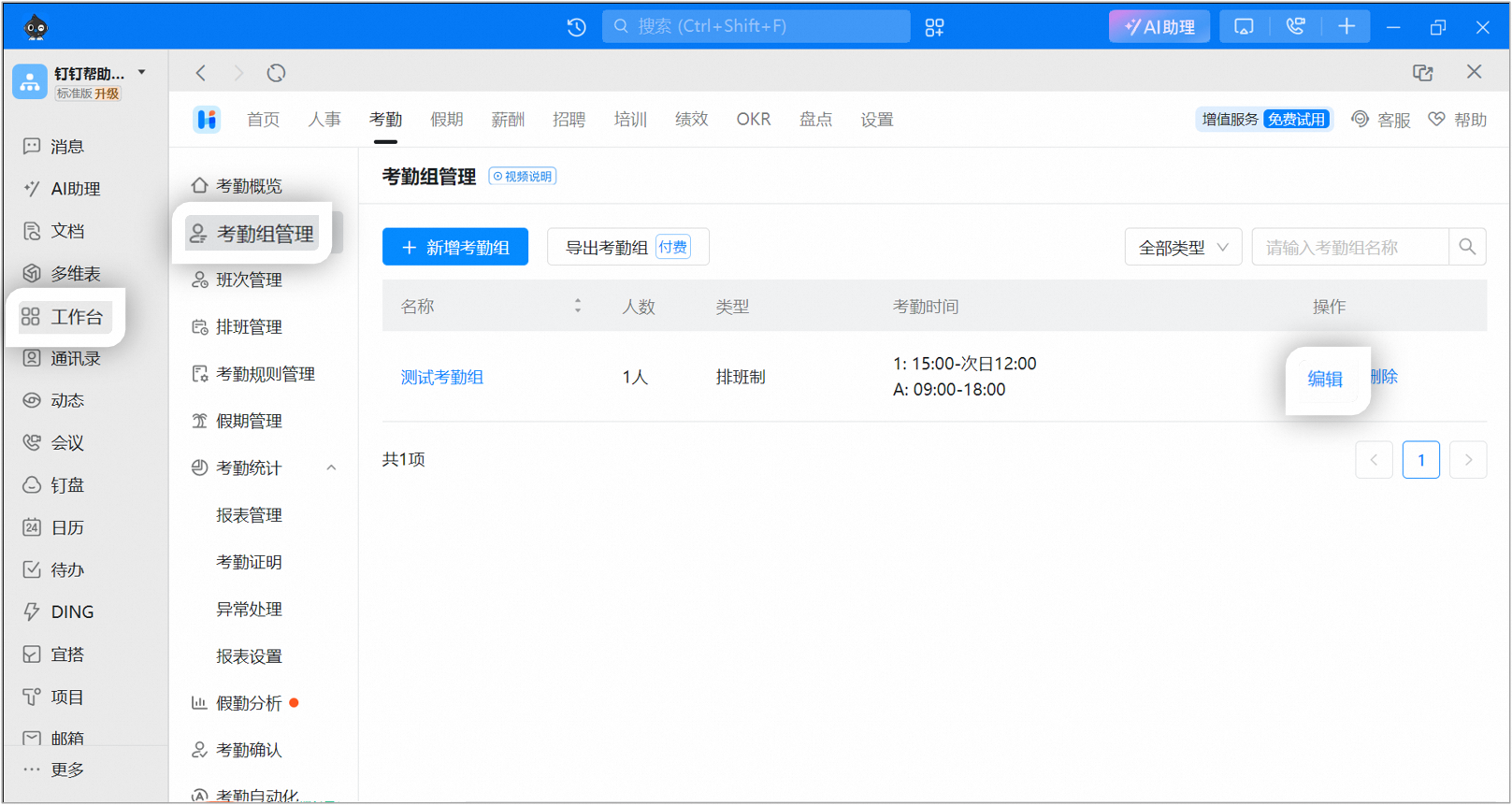
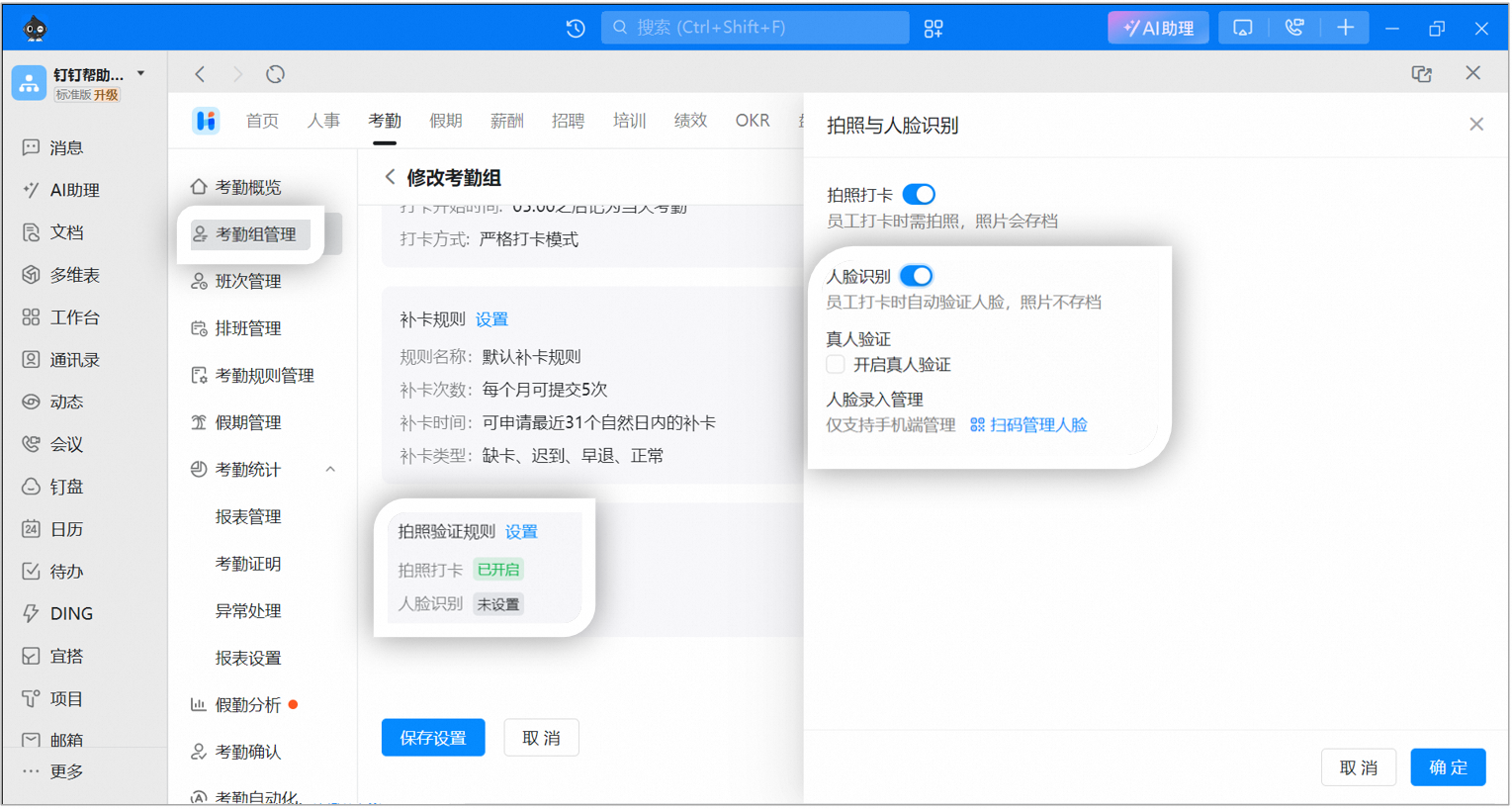
An Admin with the required Permissions can open **DingTalk desktop app > Workbench > Attendance > Attendance group management >**, click **Edit** next to the target attendance group, go to **Photo verification rules >**, and toggle **facial recognition** on or off.
**Notes:**
1. Facial recognition: the Employee's face is verified automatically at clock-in, and photos are not archived.
2. Face enrollment management: available on the mobile app only.
**Notes:**
* To require Employees to perform specified actions such as blinking or shaking their head to prevent cheating, the Admin can select **Enable liveness detection** below after enabling facial recognition. Employees must then complete the specified actions such as blinking or head shaking during facial recognition.
* Liveness detection is available only after DingTalk is upgraded to version 4.7.16 or later. Please remind Employees to upgrade as soon as possible.
### Manage face enrollment
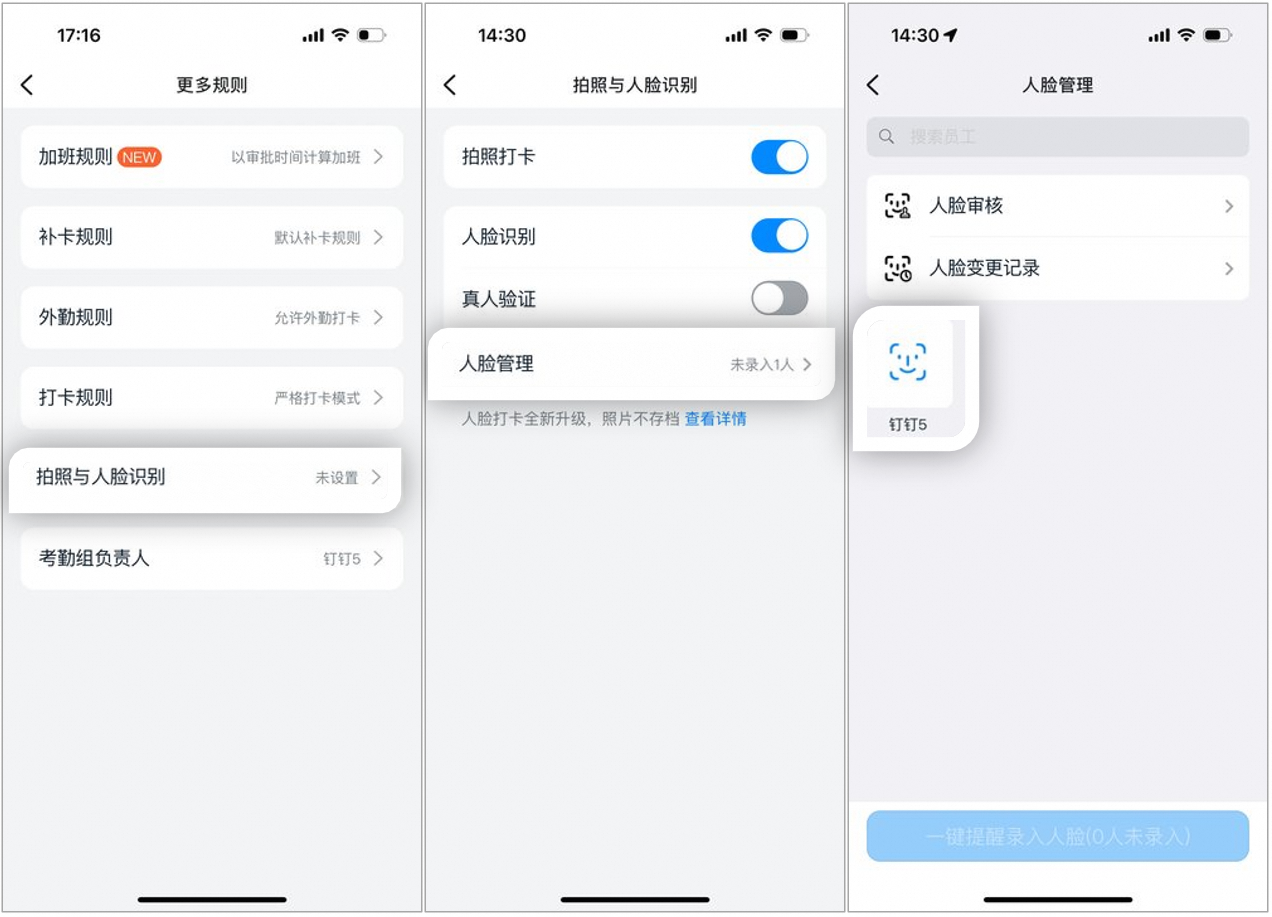
3.1 After facial recognition is enabled, an Admin with the required Permissions can open **DingTalk mobile app > Workbench > Attendance > Settings >**, tap the target attendance group, and tap **Edit attendance group > More settings**.

3.2 Tap **Photo and facial recognition >**, turn on **facial recognition > Face management**, and tap the target Employee to enroll their face.
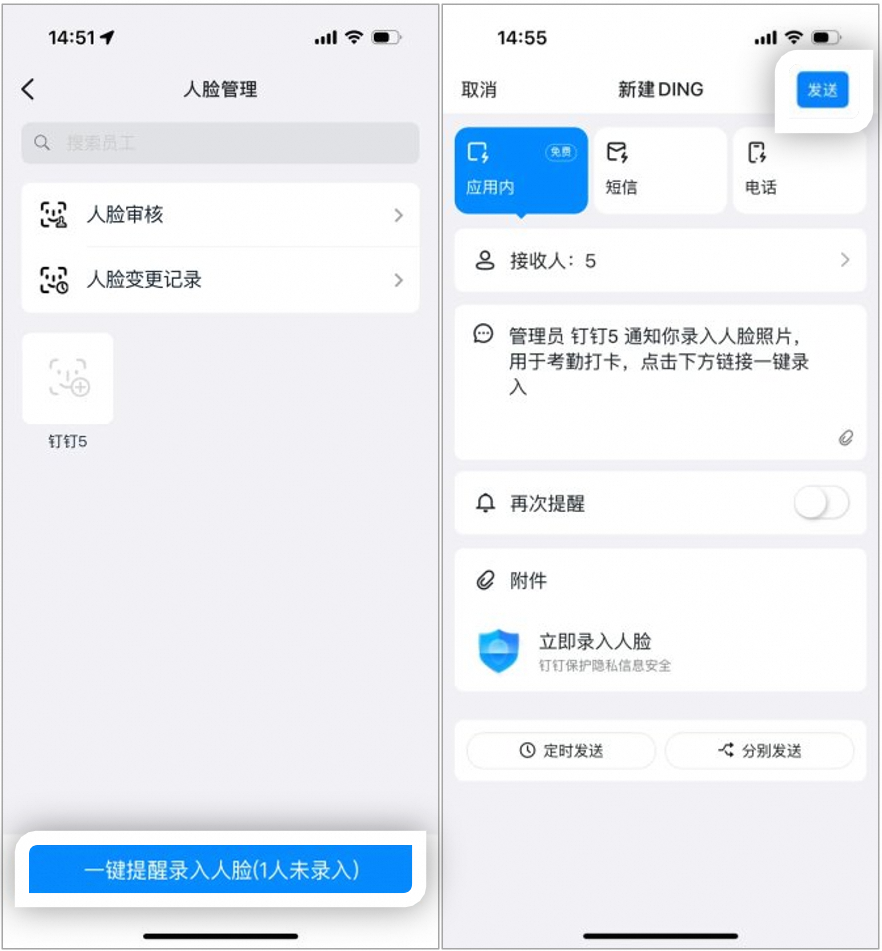
* The Admin can also tap **One-tap reminder to enroll face** to send a **DING** message to Employees. After receiving the message, Employees can enroll their own face on the DingTalk mobile app. The one-tap reminder is delivered via DING only.
## 4. FAQs
Photo clock-in and facial recognition are now separate features. If both are enabled, the Employee must take a photo and complete facial recognition.
Facial recognition photos are not saved and are used only for verification. If you need photos to be displayed, the Admin can set up photo clock-in.
After enabling facial recognition, you can also turn on liveness detection, which requires the Employee to perform facial movements during recognition.
If the attendance group is set to Time Clock only, the **Photo verification rules** entry is not available.
Troubleshooting steps:
1. Check whether DingTalk is up to date, the lighting is sufficient, and the network connection is stable.
2. If facial recognition still fails, Delete and re-enroll the face. The path is as follows:
An Admin with the required Permissions can open **DingTalk mobile app > Workbench > Attendance > Settings >**, tap the target attendance group, then tap **Edit attendance group > More settings > Photo and facial recognition >**, and turn on **facial recognition > Face management > Select the target Employee > Delete** or **Re-enroll**.