> ## Documentation Index
> Fetch the complete documentation index at: https://help.dingtalk.io/llms.txt
> Use this file to discover all available pages before exploring further.
# Set up field clock-in
> Learn how to configure field clock-in in DingTalk Attendance. Once enabled, the system records the time and location whenever employees clock in while working outside, on business trips, or from home, and counts these entries toward working hours. Enable the approval requirement to restrict who can use field clock-in.
## 1. Overview
When employees need to clock in while working outside, on a business trip, or from home, enable the **Field clock-in** feature. The system records both the clock-in time and location, and field clock-in entries count toward working hours. Once **Field clock-in** is enabled, every member of the attendance group can use it. To restrict access, enable the approval requirement so that only employees with an approved request can clock in.
## 2. Use cases
Field clock-in applies when employees work outside the company premises and their attendance data still needs to be recorded for reporting.
## 3. Procedure
### Enable field clock-in
#### Mobile
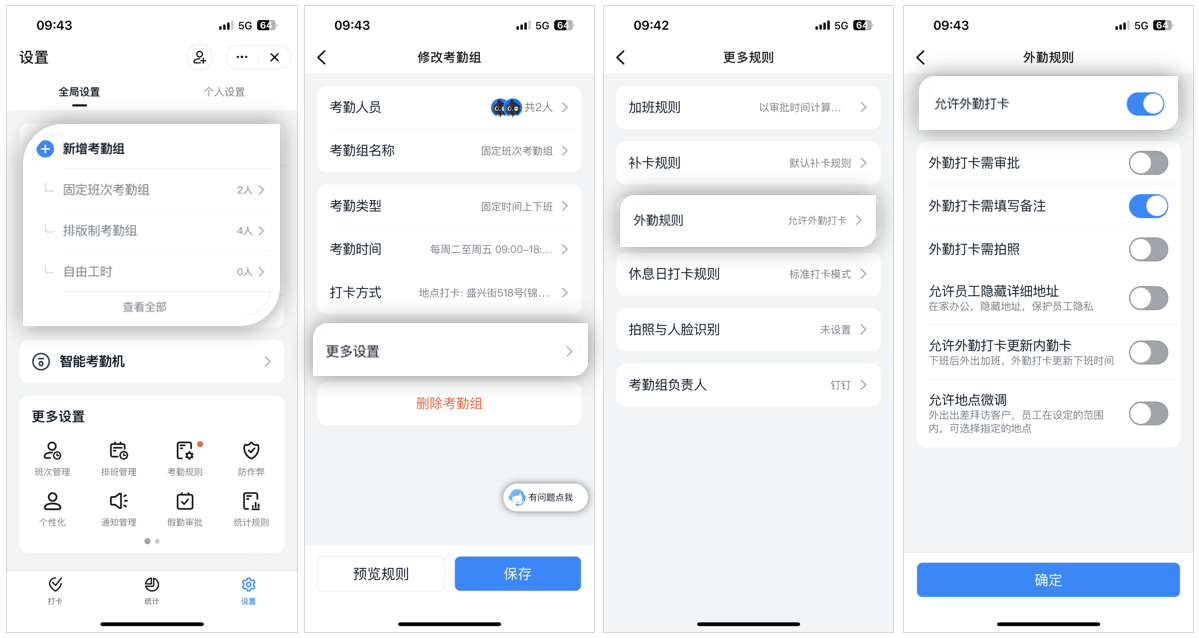
Admins with the required permissions can go to **Mobile DingTalk > Workbench > Attendance > Settings > Add attendance group / Edit existing attendance group > More settings > Field rules >** and toggle **Allow field clock-in** on or off.
#### Desktop
Admins with the required permissions can go to **Desktop DingTalk > Workbench > Attendance > Attendance group management > Add attendance group / Select existing attendance group > Edit > Field rules >** and toggle **Allow field clock-in** on or off.

### Configure detailed rules
Configure the detailed rules for field clock-in to better verify and manage field attendance.
#### Field clock-in requires approval
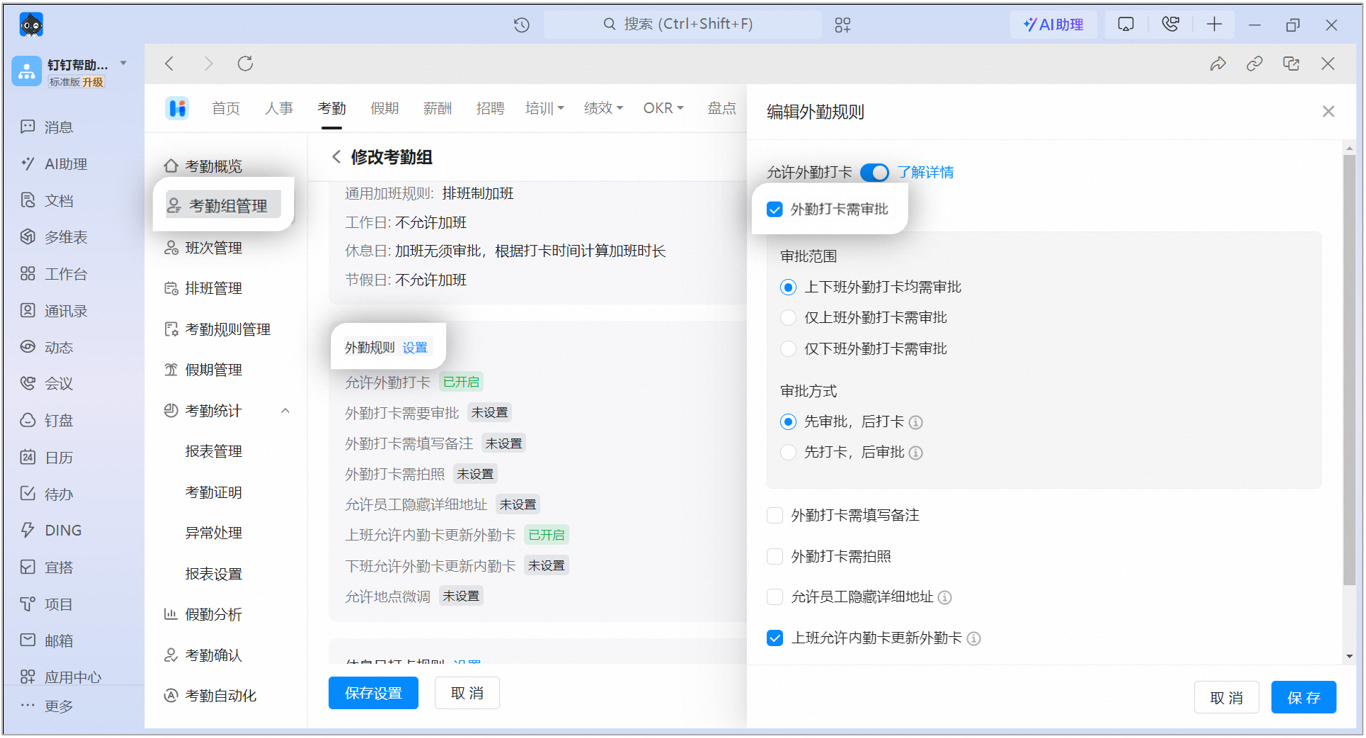
Once enabled, employees must have an approved outing or business trip request that covers the current time to complete a field clock-in. Configure the approval scope and method as needed.

#### Field clock-in requires an alias
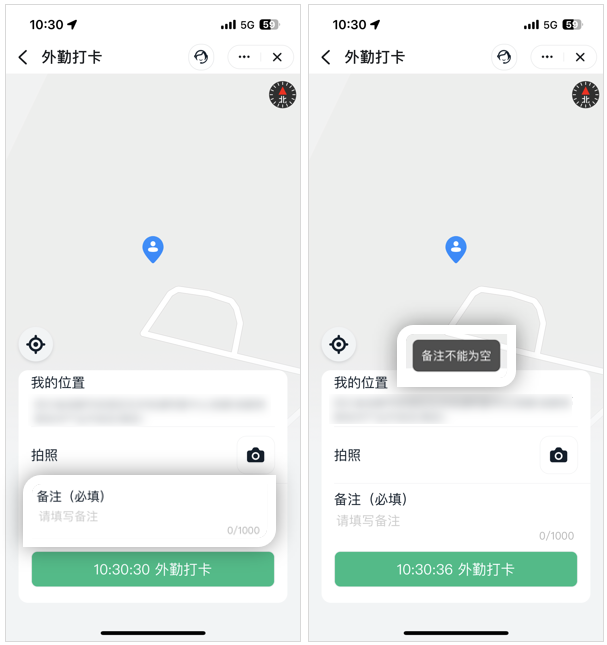
Once enabled, employees must enter an alias to complete a field clock-in.
#### Field clock-in requires a photo
Once enabled, employees must take a photo before completing a field clock-in.

#### Allow employees to hide detailed address
Once enabled, a **Hide detailed address** option appears on the clock-in page when employees perform a field clock-in.
#### Allow office and field clock-in entries to overwrite each other
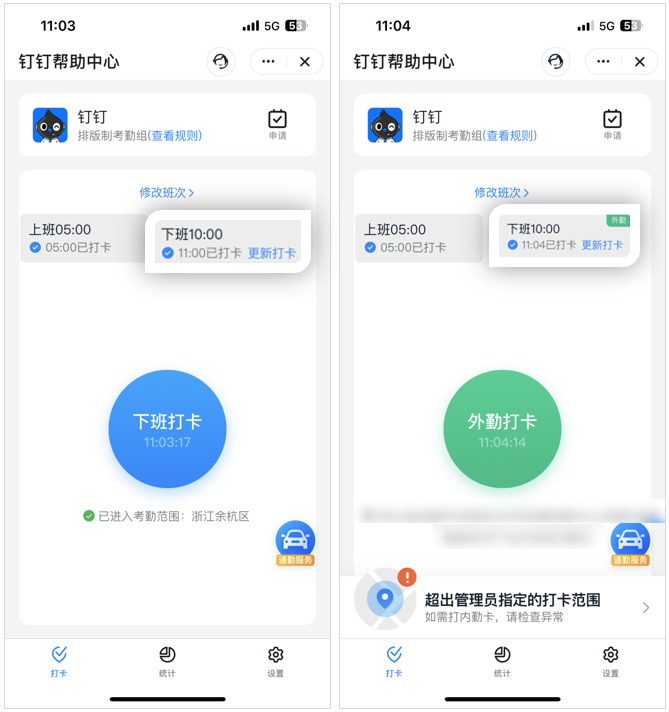
**Allow office clock-in to overwrite field clock-in for check-in**: Once enabled, if both an office clock-in and a field clock-in fall within the check-in time window, the earlier office clock-in is used as the check-in record. This suits organizations or teams that require employees to check in at the office. If employees may leave to work outside at the start of the day and then return to the office, keep this option off.
**Allow field clock-in to overwrite office clock-in for check-out**: Once enabled, if both an office clock-in and a field clock-in fall within the check-out time window, the later field clock-in is used as the check-out record. This suits organizations or teams whose employees work overtime outside the office and need to update their check-out time.

Once enabled, employees can overwrite office and field clock-in entries.
#### Allow location fine-tuning
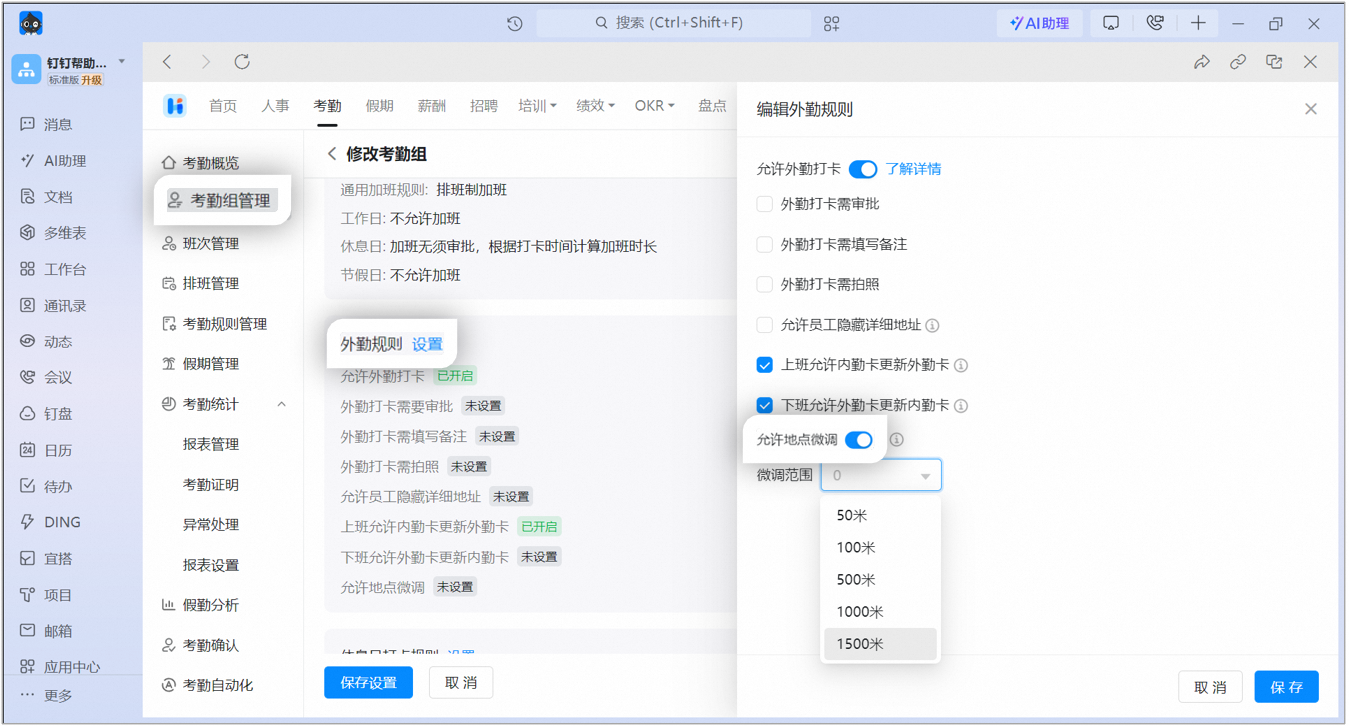
Once enabled, employees can fine-tune their own location when performing a field clock-in.
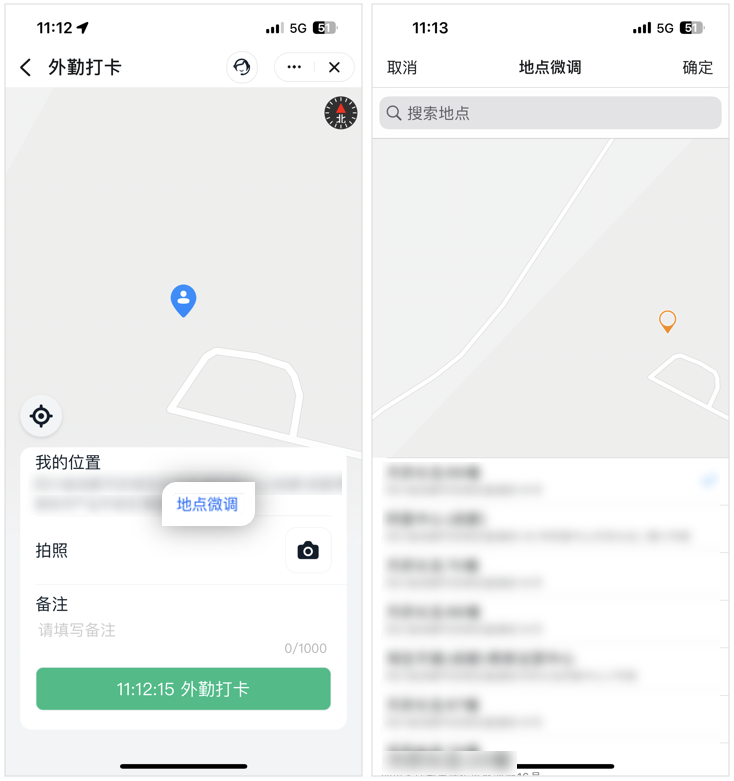
### How employees clock in
When employees are **outside the designated clock-in area** or **not connected to the required network**, they can tap the **Field clock-in** button and fill in the information required by the Admin to complete a field clock-in.

## 4. FAQ
The attendance report does not currently support counting or automatically summarizing field clock-in entries. As a workaround, view the attendance report online or export it, and then filter by field clock-in in the spreadsheet to summarize the entries manually.
When the Admin has disabled field clock-in, the button appears gray if you try to clock in outside the attendance area, and the system displays the message: Field clock-in is disabled.
The Allow field clock-in setting is currently only available at the attendance group level. To apply it by department, create a separate attendance group for each department.
Any clock-in performed outside the attendance area is considered a field clock-in. Field clock-in currently has no area restrictions, and setting a field clock-in area is not supported. Any location that Amap can locate is eligible for field clock-in.
When an employee enables Hide detailed address, the field clock-in address shows only the province, city, and district. The Admin also sees only the province, city, and district in the Attendance Admin Console.
If an employee updates a field clock-in, Admins can see both the original and updated photos in the Attendance Admin Console.
If an employee updates a field clock-in, Admins can see both the original and updated aliases in the Attendance Admin Console.
Once field clock-in requires approval is enabled, employees are taken directly to the available request form page after tapping **Submit for approval**.