> ## Documentation Index
> Fetch the complete documentation index at: https://help.dingtalk.io/llms.txt
> Use this file to discover all available pages before exploring further.
# Photo clock-in
> Learn about the DingTalk Attendance photo clock-in feature. Once enabled, employees must take a photo for every clock-in, and photos automatically carry watermarks showing the time, location, and user, helping organizations verify the clock-in environment.
## 1. Feature overview
DingTalk Attendance supports the **photo clock-in** feature. Once enabled, **employees must take a photo for every clock-in to complete it successfully**. Each photo automatically carries watermarks showing the clock-in time, location, and employee name, helping organizations verify the surrounding environment at the moment of clock-in.
## 2. Use cases
Capture visit environments during field clock-in, or take verification photos of the workplace after facial recognition.
## 3. Steps
### Enable photo clock-in
#### Mobile
1.1 An Admin with the required permissions can go to **DingTalk Mobile > Workbench > Attendance > Settings**, then find and open the target **attendance group** (for shift-based attendance groups, tap **Edit attendance group** to enter) **> More settings**.

1.2 Tap **Photo and facial recognition**, then turn **photo clock-in** on or off.

#### Desktop
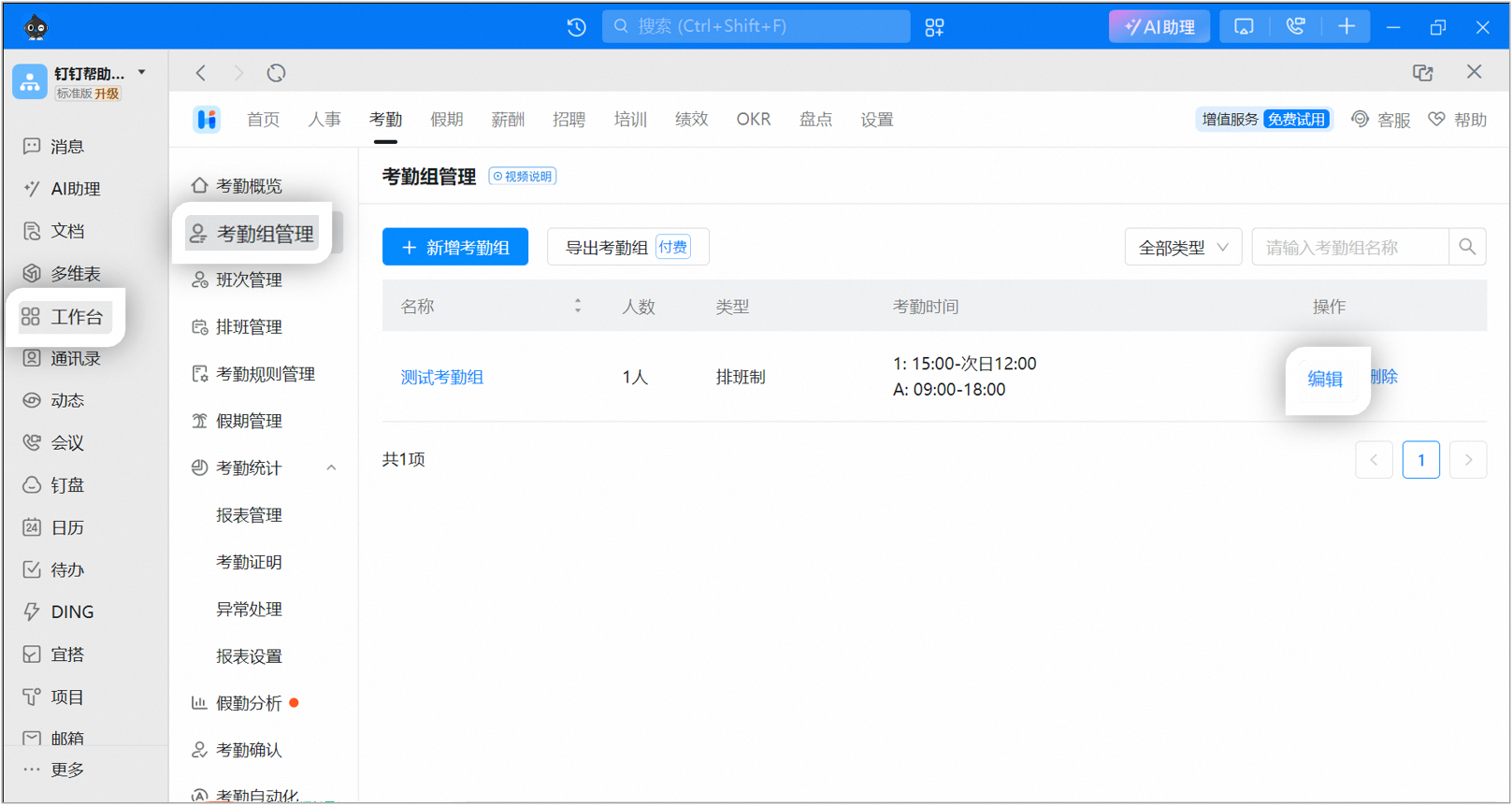
An Admin with the required permissions can go to **DingTalk Desktop > Workbench > Attendance > Attendance group management**, click **Edit** next to the target attendance group **> Photo verification rules**, then turn **photo clock-in** on or off.
**Notes:**
1. Photo clock-in: Employees must take a photo when clocking in, and the photo is archived.
2. Facial recognition: Employees are verified automatically by facial recognition when clocking in, and the photo is not archived.

### Photo clock-in for employees
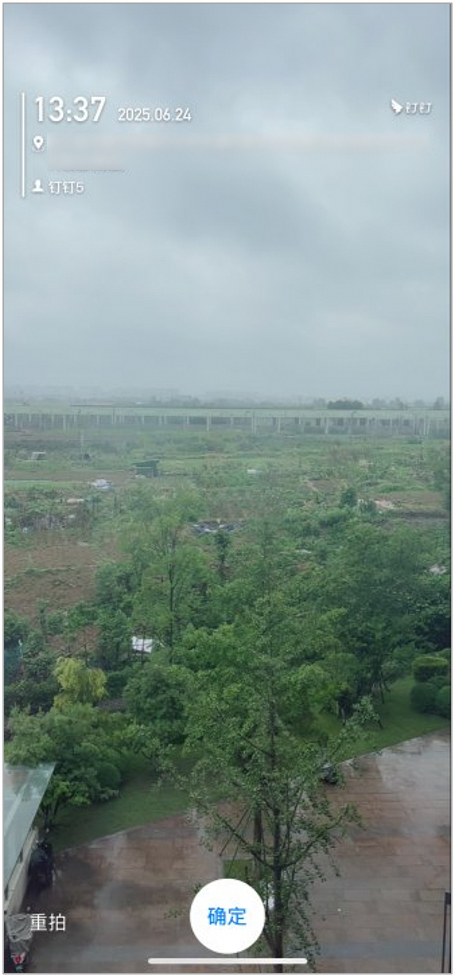
After tapping the clock-in button, employees **must first take a photo** and tap **Confirm** to use it before the clock-in can be completed.
**Each photo automatically carries watermarks showing the clock-in time, location, and employee name.**
After clocking in, employees can view the watermarked photo in their clock-in records, and Admins can view it in the raw records in the Attendance Admin Console.
## 4. FAQ
Yes. If both are enabled, employees must take a photo and pass facial recognition.
If the attendance group is set to allow clock-in only via the Time Clock, the \[Photo verification rules] entry is unavailable.
Only the Super Admin of the organization or a Sub Admin with attendance permissions can perform this action. Contact an Admin with the required permissions to go to [**Admin Console**](https://oa.dingtalk.io) **> Security and permissions > Manage permissions**, then assign the **Super Admin/Sub Admin** role.