> ## Documentation Index
> Fetch the complete documentation index at: https://help.dingtalk.io/llms.txt
> Use this file to discover all available pages before exploring further.
# Shift-based attendance
> Learn how to set up shift-based attendance with support for daily, cyclical, batch, and Excel-based scheduling. Employees can select their own shift for clock-in when no shift is assigned. Ideal for organizations with multiple rotating shifts.
## 1. Feature overview
If your organization uses shift-based attendance, meaning employees start and end work at different times based on different shifts, you can easily manage it in DingTalk Attendance. DingTalk Attendance supports multiple scheduling methods, including daily, cyclical, batch, and Excel-based scheduling. It also lets employees select their own shift for clock-in and flexible clock-in when the Admin has not assigned a shift.
## 2. Use cases
* Customer service staff working in rotation
* Nurses in hospitals working on a three-shift rotation
* Morning and evening shift arrangements in the retail industry
## 3. Procedure
### Select scheduled shifts as the attendance time
#### 1.1 Mobile procedure
Open **Mobile DingTalk** and go to **Workbench > Attendance > Settings > Global Settings > Create attendance group > Attendance type > Scheduled shifts**. Complete the setup as prompted, then tap **Save**.

#### 1.2 Desktop procedure
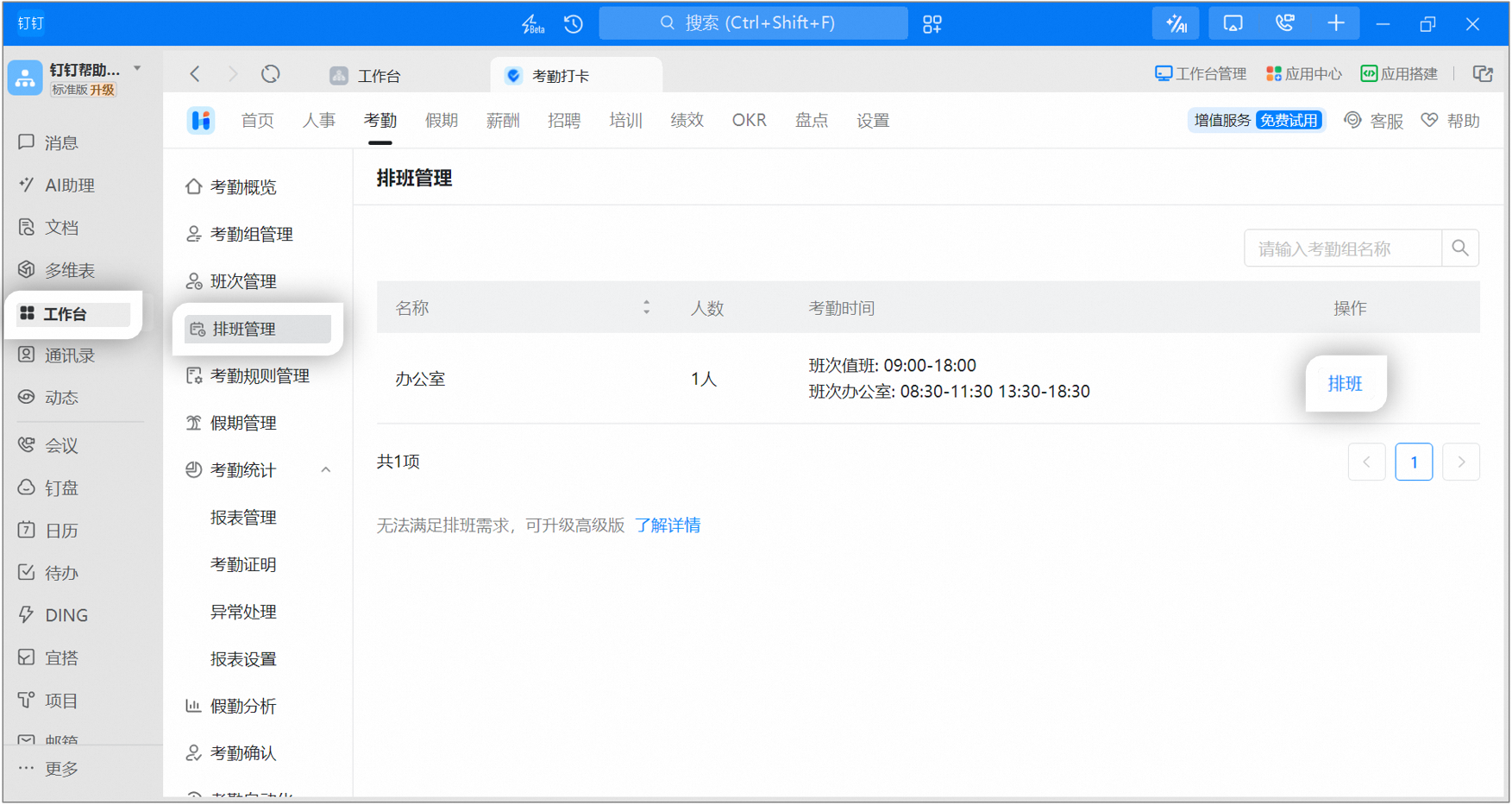
Open **Desktop DingTalk** and click **Workbench > Attendance > Attendance Group Management > Create attendance group**.

Go to **Attendance time setting > Shift-based attendance (Scheduled shifts)**. Configure the remaining settings as needed. After creating the attendance group, go to Schedule Management to schedule shifts for it.

If a shift-based attendance group already exists, go to Schedule Management, select the attendance group, and edit the schedule.
### Schedule settings
On the Schedule Management page, configure the attendance shifts, scheduling cycle, and whether employees can select their own shift for clock-in.
Attendance shifts: Click the input box and select the existing shifts in the pop-up window.
Scheduling cycle: Enables quick scheduling based on a fixed cycle. Suitable for industries such as catering, manufacturing, logistics and trade, customer service, and hospitals. Click Create scheduling cycle, set the cycle name, the number of days, and the shift for each day, then click Confirm.
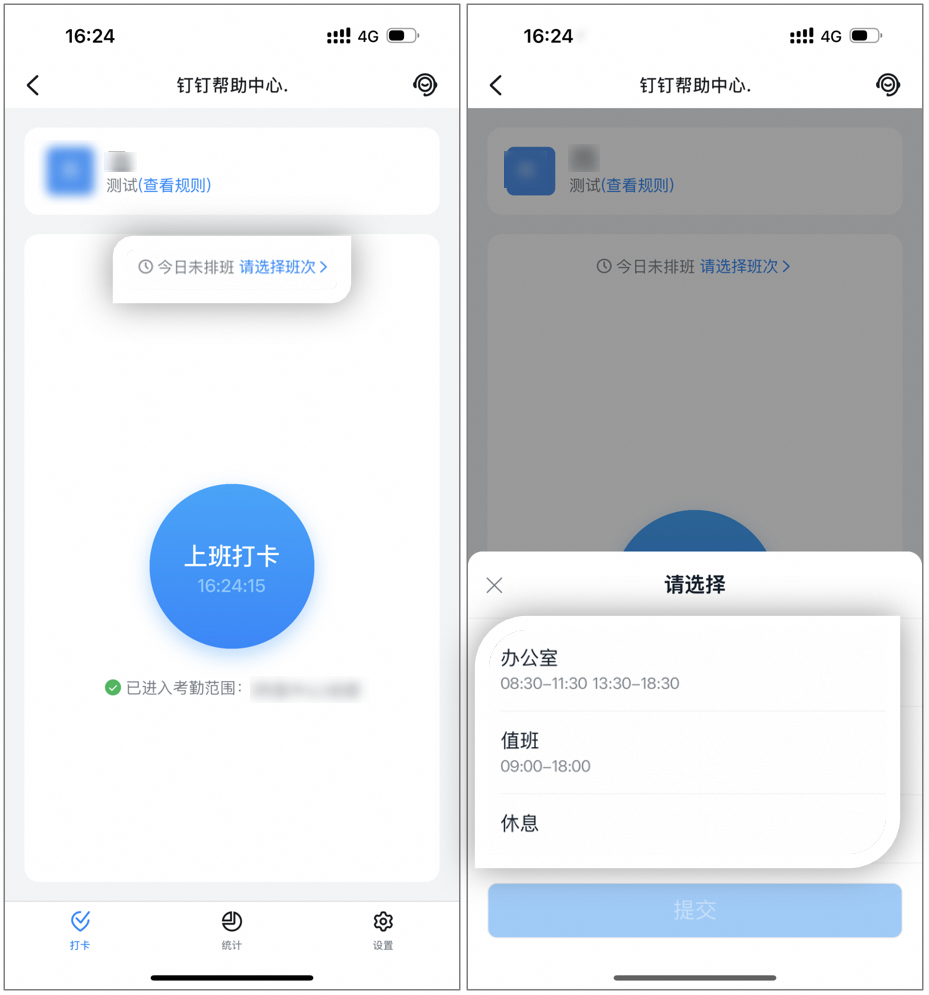
Allow employees to select their own shift for clock-in when no shift is assigned: When enabled, employees can choose their own shift for clock-in if the Admin has not assigned one. Once the Admin assigns a shift, employees can no longer select or change it on their own.
## 3. Scheduling methods
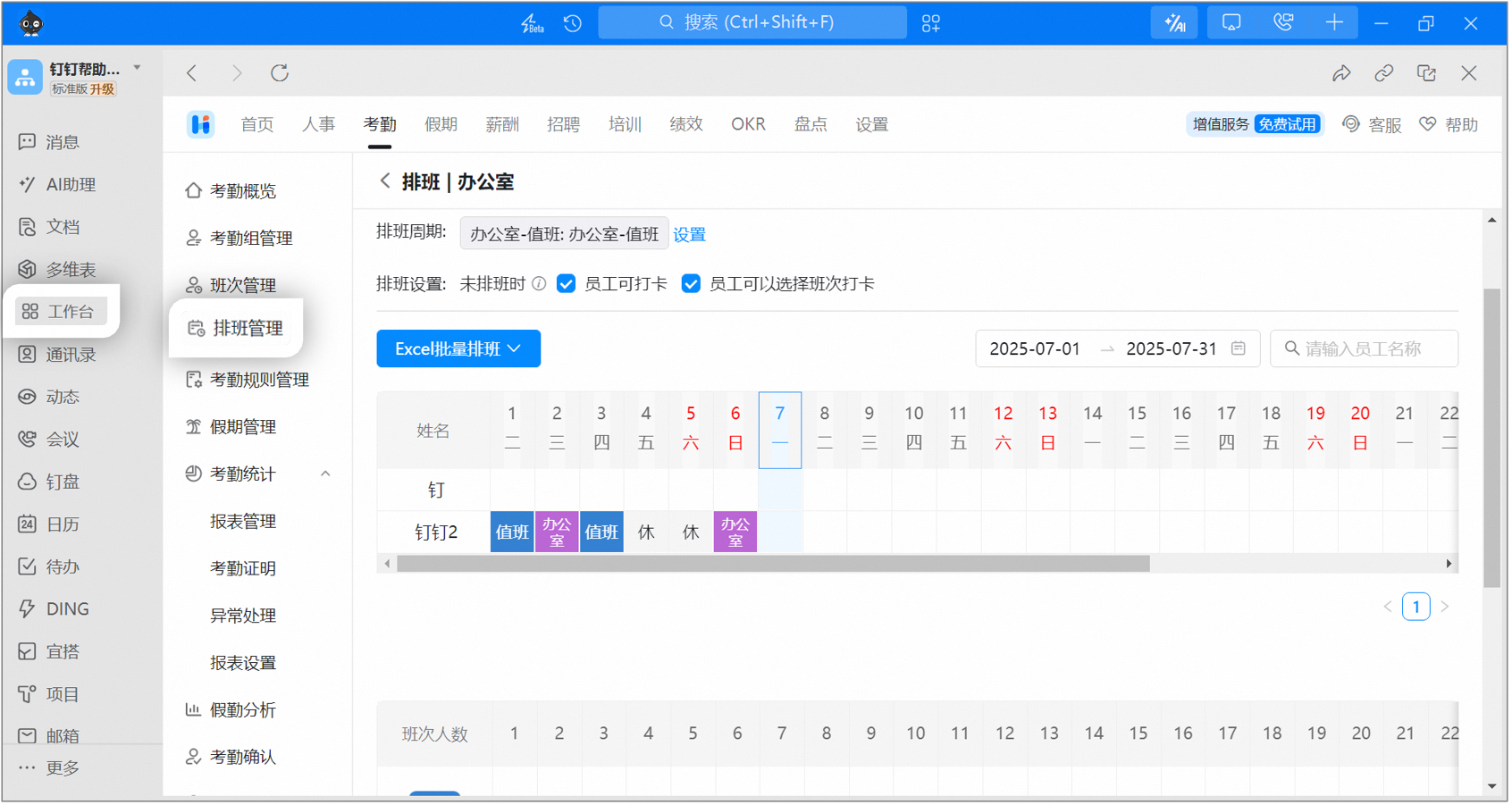
After completing the schedule settings, use any of the following methods to edit the schedule. Click **Save** to finish scheduling.
While editing the schedule, click the Calendar box to switch between months and years.
### Daily scheduling
Click a cell in the schedule area, select **Daily scheduling**, then click to select **a shift** or **Rest**.

### Cyclical scheduling
Click a cell in the schedule area, select **Cyclical scheduling**, then click the corresponding cycle. The schedule is applied cyclically from that day through the last day of the month.

### Batch scheduling
Select a specific day, such as May 7, and apply the same shift change to all employees on that day.
### Excel scheduling (desktop)
Click **Excel batch scheduling > Download schedule template**, assign shifts to employees in the exported Excel file, then click **Import schedule** after completing the schedule.
Add attendance shifts first so that the corresponding shift options appear in the downloaded Excel file.

## 4. Related actions
### Employees selecting their own shift
If the Admin has enabled **Allow employees to select their own shift for clock-in when no shift is assigned** on the Schedule Management page, employees can open **Mobile DingTalk > Workbench > Attendance > Select shift** when the Admin has not assigned a shift. Tap **Submit** after selecting a shift, then complete the clock-in.
### Automatic shift matching
The **automatic shift matching** feature under Scheduled shifts is a new, simple, and flexible attendance scheduling method. It does not require the attendance administrator to schedule shifts manually in advance. Instead, the DingTalk Attendance system automatically matches the closest shift based on the matching method set by the Admin and the actual clock-in time of employees. Admins can also review and modify the results flexibly. For details, see [**Automatic shift matching**](/attendance/auto-shift-matching-admin).
## 5. FAQs
For temporary shift swaps, you can either adjust the attendance schedule manually in DingTalk or use the leave request or compensatory leave feature.
If no shift-based attendance group exists, create one first. Path: Open **Desktop DingTalk** and click **Workbench > Attendance > Attendance Group Management > Create attendance group > Attendance time setting > Shift-based attendance (Scheduled shifts)**. Configure the remaining settings as needed.
Yes, attendance shifts are required. They are used to edit schedules, configure shifts within scheduling cycles, and provide shift options for employees to choose from.
An employee can select only one shift per day.
Once the Admin has assigned a shift, employees must clock in according to it and cannot select or change the shift on their own.
After an employee selects a shift, the Admin can still change it in Schedule Management. Once the Admin makes the change, the employee can no longer modify it.
Path for the Admin to change the schedule: Click a cell in the schedule area, select **Daily scheduling**, then click to select **a shift** or **Rest**.
