> ## Documentation Index
> Fetch the complete documentation index at: https://help.dingtalk.io/llms.txt
> Use this file to discover all available pages before exploring further.
# Wi-Fi clock-in
> Learn how to set up Wi-Fi clock-in for DingTalk Attendance by matching the router's MAC address. Enter the full MAC address and find answers to common issues, such as iOS clock-in failures and clock-in across multiple Wi-Fi networks.
## 1. Overview
Wi-Fi clock-in matches the MAC address of the Wi-Fi router with the MAC address of the network the employee connects to. Enter the **complete MAC address**. For the pros and cons of each clock-in method, see [**Differences between clock-in methods**](/attendance/clock-in-methods-comparison).
## 2. Use cases
This method suits organizations with fixed workplaces that record attendance by connecting to a designated company Wi-Fi network. No extra equipment is required.
## 3. Procedure
### Mobile
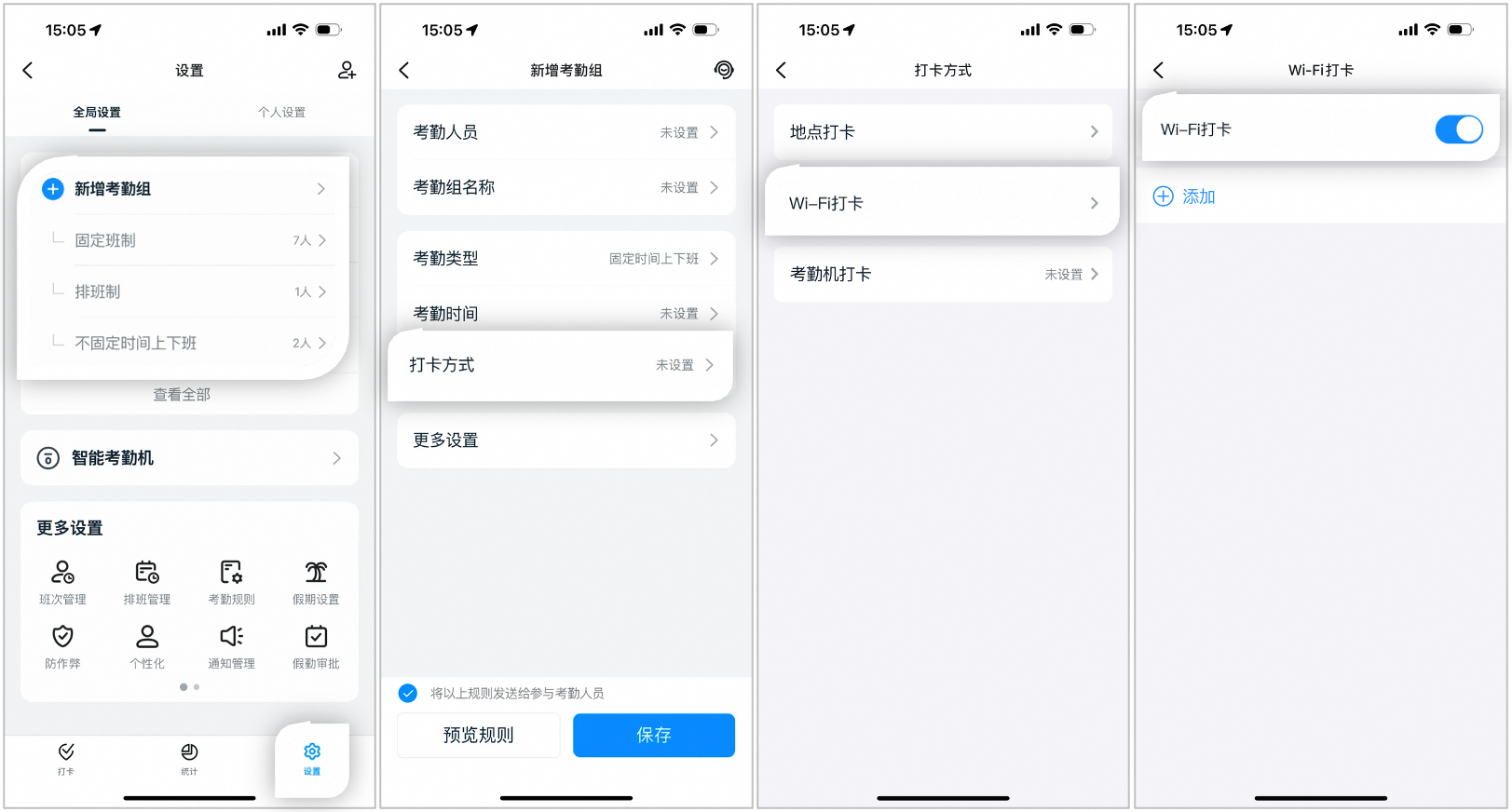
An Admin with the required Permissions can go to **DingTalk mobile app > Workbench > Attendance > Settings > Global Settings > Add attendance group or Edit an existing attendance group > Clock-in method**.
### Desktop
An Admin with the required Permissions can go to DingTalk desktop app > Workbench > Attendance > Attendance Group Management > Add attendance group, or click Edit to modify an existing attendance group.

Go to Clock-in method > Settings and select Wi-Fi clock-in.

## 4. FAQ
A single Wi-Fi network may have multiple MAC addresses. iOS devices identify the network by the **Wi-Fi** MAC address. We recommend that the Admin use an Android phone to add the MAC address of each Wi-Fi network.
Set multiple clock-in Locations and multiple clock-in Wi-Fi networks. Employees can tap to clock in as soon as they reach any of the Locations or connect to any of the Wi-Fi networks.
You can add up to **1,000** Wi-Fi networks to a single attendance group.