> ## Documentation Index
> Fetch the complete documentation index at: https://help.dingtalk.io/llms.txt
> Use this file to discover all available pages before exploring further.

# Shift FAQs

> Answers to frequently asked questions about shift settings, including how to add a shift and how to guide admins to the shift management page in the Admin Console to create, edit, and maintain shifts.

<AccordionGroup>
  <Accordion id="q1" title="How do I add a shift?">
    If an attendance group has multiple shifts configured, you can choose from them during scheduling.
  </Accordion>
</AccordionGroup>

## Mobile

<Steps>
  <Step>
    Open DingTalk on mobile > **Workbench** > **Attendance** > **Settings** > **Shift Management** > **Add Shift**.

    **⚠️ Notes:**

    Total working hours: Close/\*hours are counted as one day of attendance (the number of days is editable).

    <Frame caption="Adding a shift on mobile">
      ![Add shift screen on mobile DingTalk](https://alidocs.oss-cn-zhangjiakou.aliyuncs.com/res/MAeqxebJ4e9RdO8j/img/3129cc0c-f558-4b85-866d-58956fc7979c.png)
    </Frame>
  </Step>

  <Step>
    Tap an existing shift and edit it.

    **⚠️ Notes:**

    If this shift is currently in use by an attendance group, any changes will affect that attendance group.
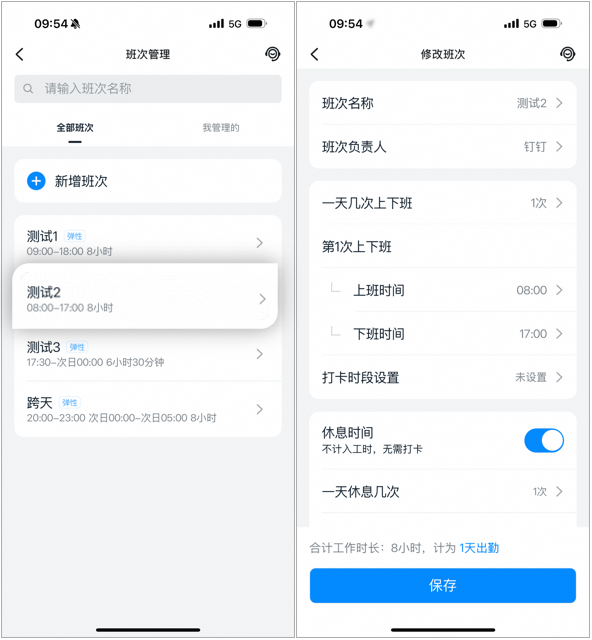
    <Frame caption="Editing an existing shift on mobile">
      ![Edit shift screen on mobile DingTalk](https://alidocs.oss-cn-zhangjiakou.aliyuncs.com/res/MAeqxebJ4e9RdO8j/img/db46789e-b05a-40e1-8e2e-22db82147546.png)
    </Frame>
  </Step>

  <Step>
    If an attendance group already exists, open DingTalk on mobile > **Workbench** > **Attendance** > **Settings** > select the target attendance group > **Edit Attendance Group** > **Scheduling Settings** > **Attendance Shifts**, then tap the target shift to edit it.

    **⚠️ Notes:**

    If this shift is currently in use by an attendance group, any changes will affect that attendance group.
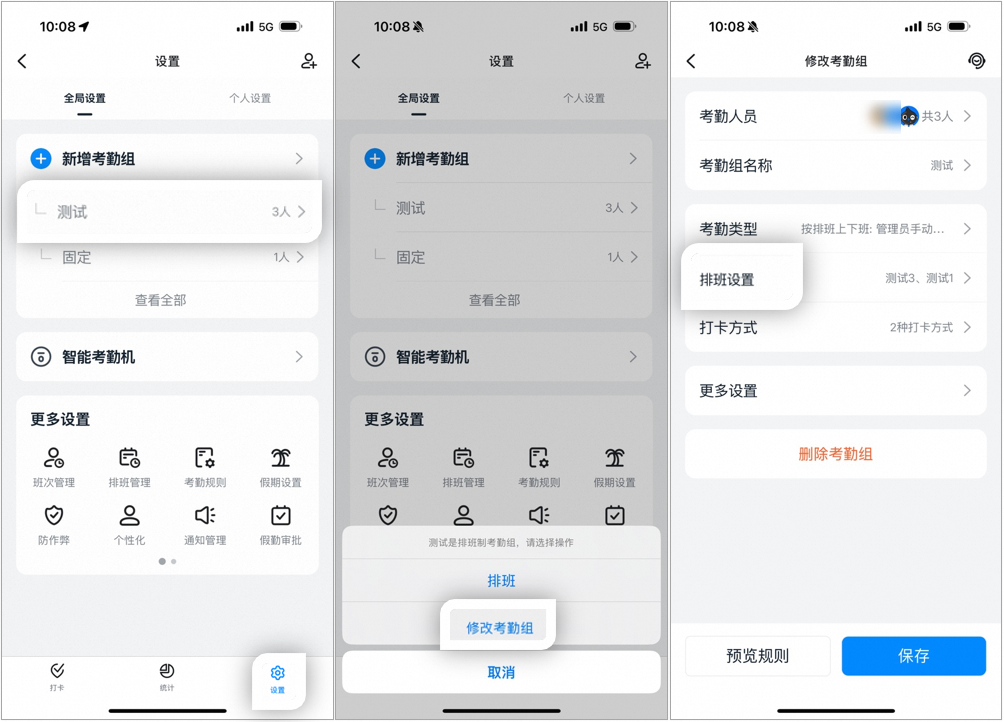
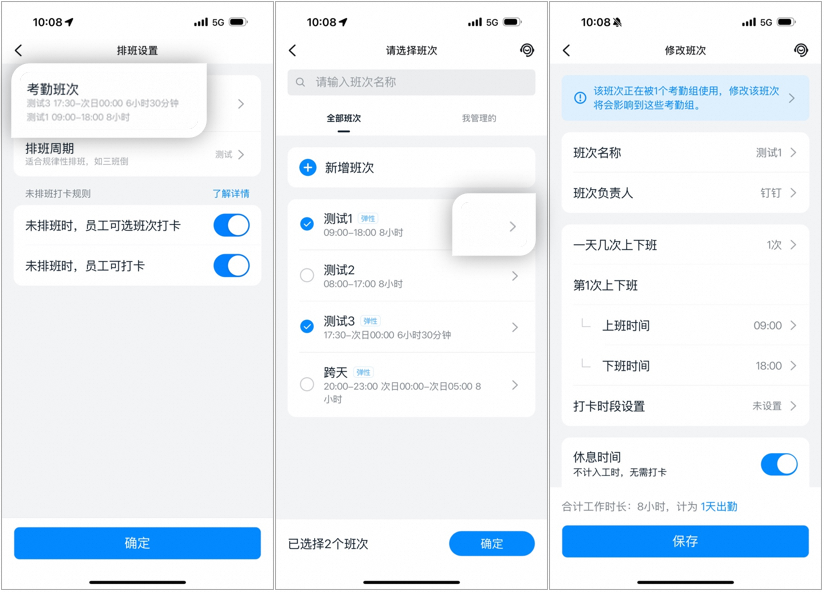
    <Frame caption="Editing a shift within an existing attendance group on mobile">
      ![Attendance group scheduling settings on mobile DingTalk](https://alidocs.oss-cn-zhangjiakou.aliyuncs.com/res/MAeqxebJ4e9RdO8j/img/0794c3dd-80a4-4aab-b8d6-7fd019bcd026.png)
    </Frame>

    <Frame caption="Editing a shift within an existing attendance group on mobile">
      ![Shift edit screen within an attendance group on mobile DingTalk](https://alidocs.oss-cn-zhangjiakou.aliyuncs.com/res/MAeqxebJ4e9RdO8j/img/87fe2619-d03b-4832-b015-484d84813032.png)
    </Frame>
  </Step>
</Steps>

## Desktop

<Steps>
  <Step>
    Go to [**Admin Console**](https://oa.dingtalk.io) > **Workbench** > **App Center** > **Attendance** > **Shift Management** > **Add Shift**.

    **⚠️ Notes:**

    1. Shift owner: The shift owner can delete or modify their own shift. The shift creator is the default owner, and other admins can be added for collaborative management.

    2. Clock-in time range: Clock-ins made outside the configured time range do not count toward attendance.

    3. Late off, late in the next day: If an employee works late on the first day, they may arrive later the next day. This option is supported only for on-site clock-ins under fixed shift attendance.

    4. Shift working hours: This value serves as the basis for working-hours attendance statistics, as well as statistics for leave requests, business trips, and outings.
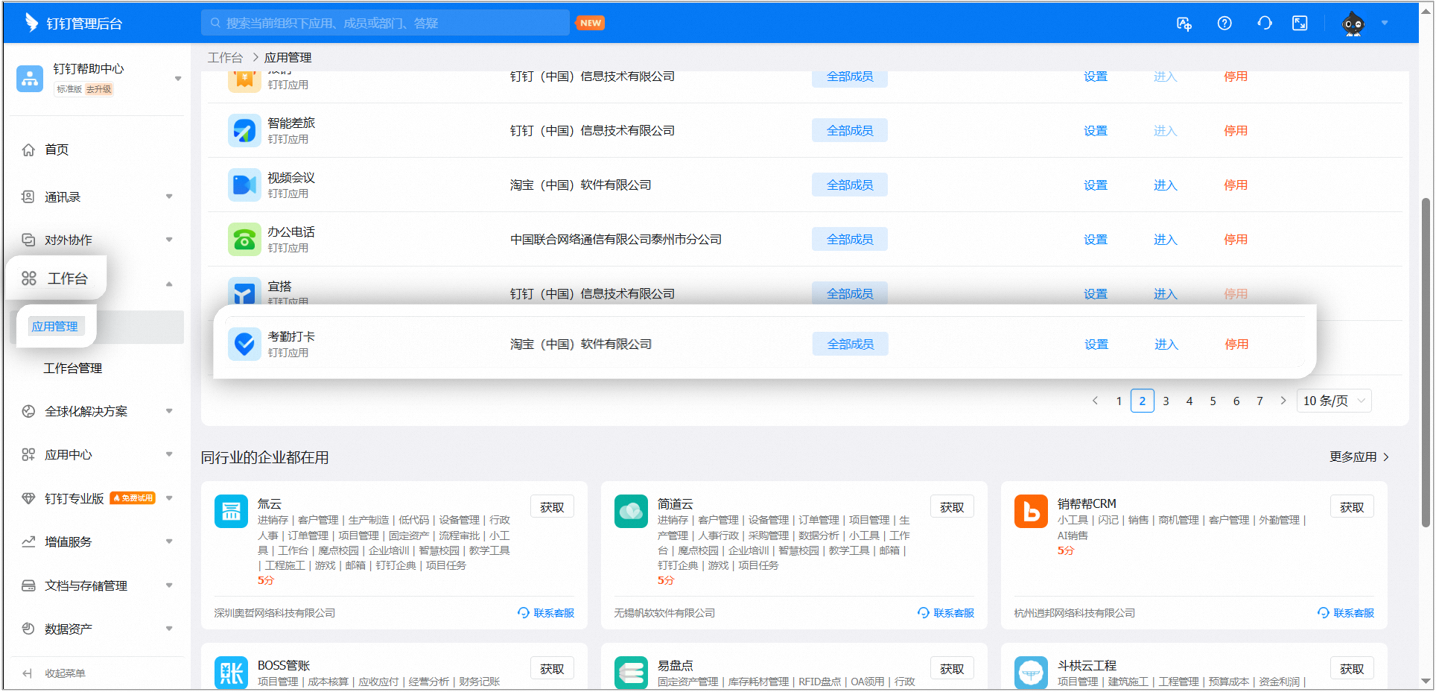
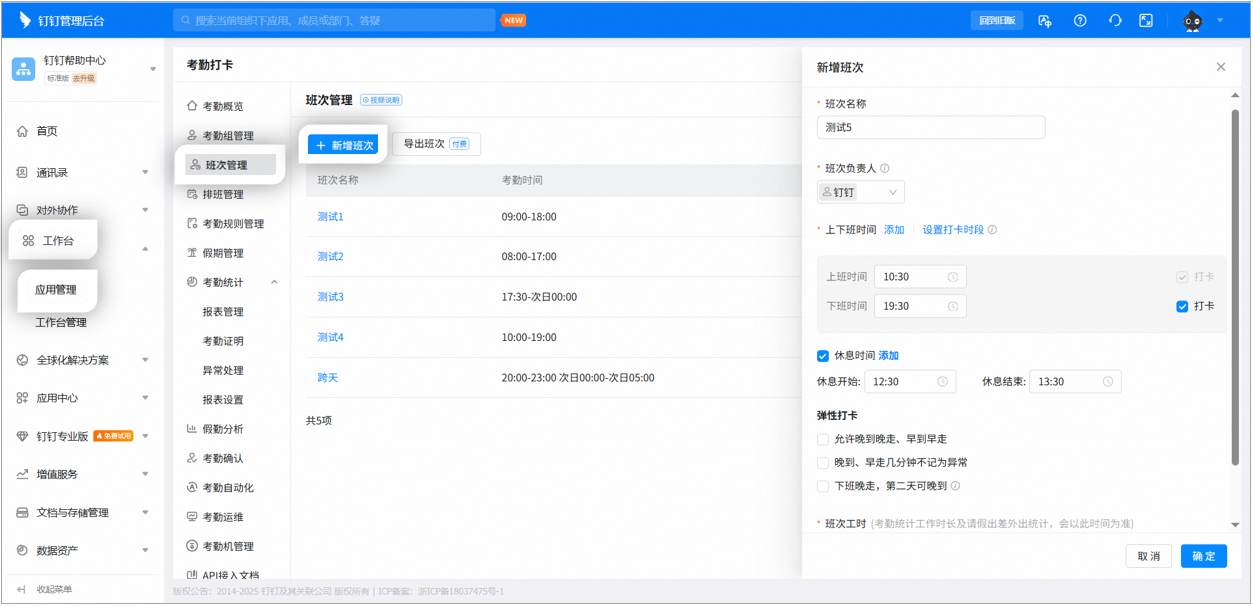
    <Frame caption="Adding a shift on desktop">
      ![Add shift page in the Admin Console](https://alidocs.oss-cn-zhangjiakou.aliyuncs.com/res/MAeqxebJ4e9RdO8j/img/6e88033f-73fa-4b3f-8b96-bc012ed52f09.png)
    </Frame>

    <Frame caption="Adding a shift on desktop">
      ![Shift configuration details in the Admin Console](https://alidocs.oss-cn-zhangjiakou.aliyuncs.com/res/MAeqxebJ4e9RdO8j/img/165ac52d-b151-4816-acbb-d8101225e55a.png)
    </Frame>
  </Step>

  <Step>
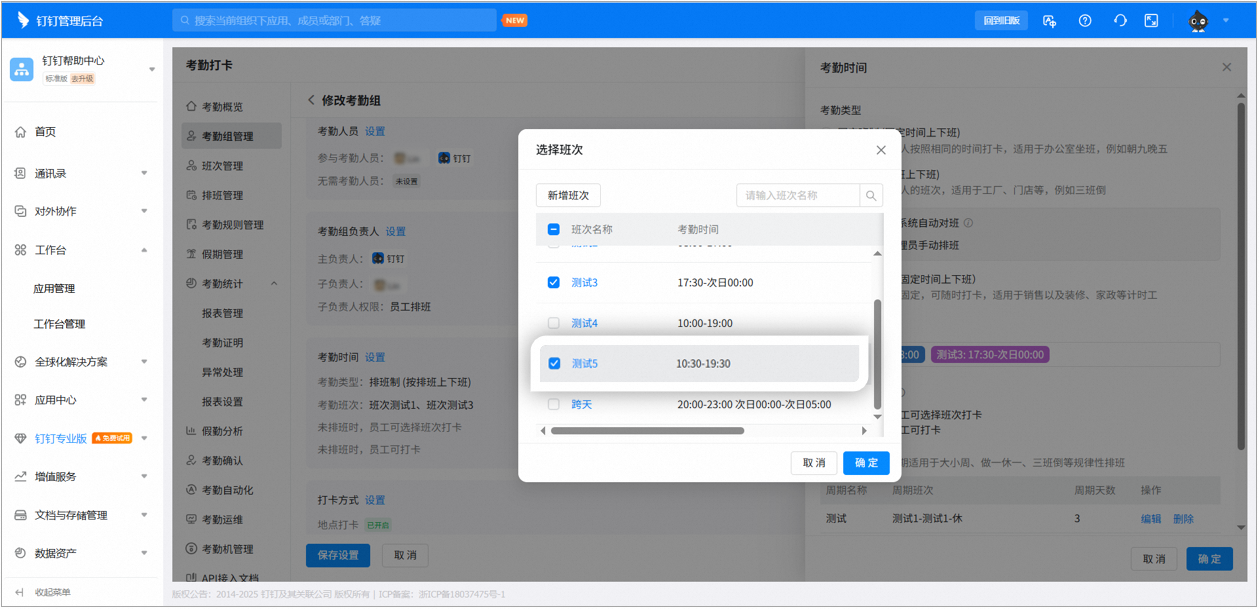
    After creating the shift, go to **Attendance Group Management** > **Edit Attendance Group** > **Attendance Time Settings** > **Attendance Shifts**, and add the new shift.
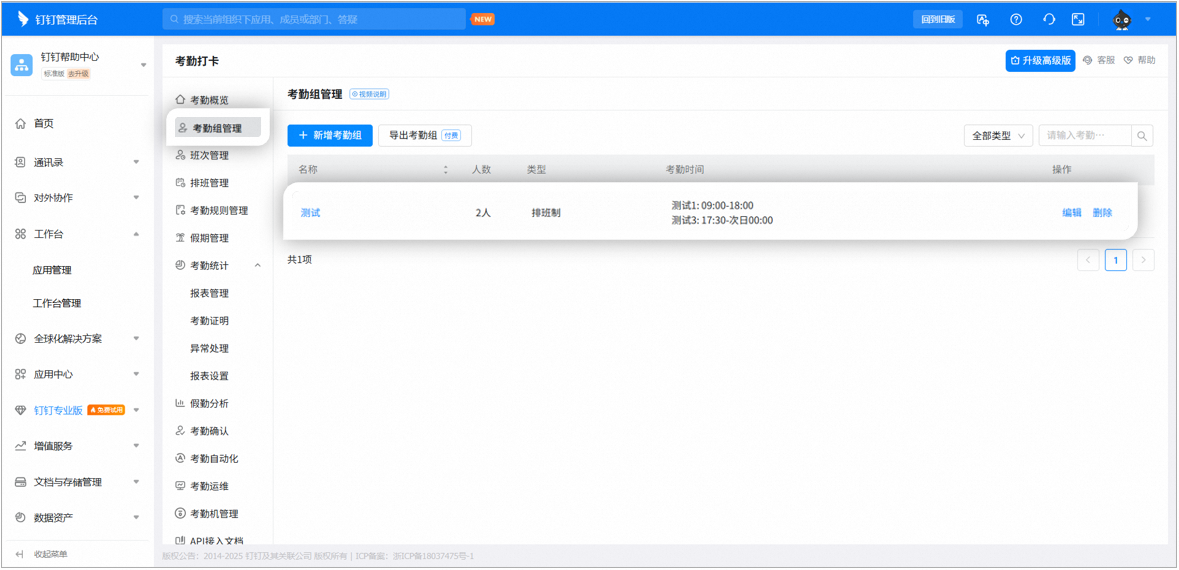
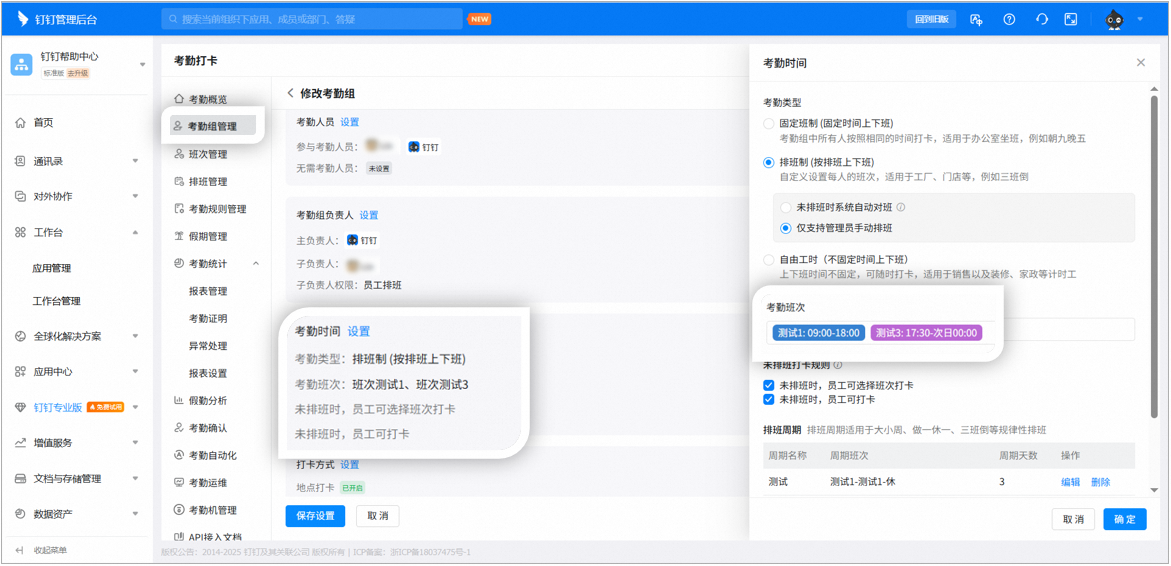
    <Frame caption="Adding the shift to an attendance group on desktop">
      ![Attendance group management page in the Admin Console](https://alidocs.oss-cn-zhangjiakou.aliyuncs.com/res/MAeqxebJ4e9RdO8j/img/4e42b2cb-4110-48fe-93c6-1444395ecabe.png)
    </Frame>

    <Frame caption="Adding the shift to an attendance group on desktop">
      ![Attendance time settings in the Admin Console](https://alidocs.oss-cn-zhangjiakou.aliyuncs.com/res/MAeqxebJ4e9RdO8j/img/29b122c9-635f-4632-af85-d85a87a32026.png)
    </Frame>

    <Frame caption="Adding the shift to an attendance group on desktop">
      ![Attendance shift selection in the Admin Console](https://alidocs.oss-cn-zhangjiakou.aliyuncs.com/res/MAeqxebJ4e9RdO8j/img/36d108f6-0fed-43cc-8126-0f3f6b9aa011.png)
    </Frame>
  </Step>
</Steps>