> ## Documentation Index
> Fetch the complete documentation index at: https://help.dingtalk.io/llms.txt
> Use this file to discover all available pages before exploring further.

# How to Create Files or Folders

> Create files and folders directly in DingTalk Drive on desktop or mobile, with multiple entry methods on each platform, so individuals and teams can organize and manage files independently.

The DingTalk Drive home page supports creating and uploading files or folders, making it easier for enterprises and users to manage files independently.

## Desktop

1. Open **DingTalk Drive**. In **Recents**, click **New** in the upper-right corner, then select the file type or folder you want to create.

![](https://alidocs.oss-cn-zhangjiakou.aliyuncs.com/res/5VLqXLb2k0xBwqX1/img/7cac3504-df35-4686-b235-2dd83761ade0.png?x-oss-process=image/crop,x_0,y_69,w_3456,h_2165/ignore-error,1)

2. On the DingTalk Drive home page, open **My Files**. You can also open **My Docs** on the Docs home page and go to **My Files (from DingTalk Drive)**. Click **New** in the upper-right corner to create a file type, upload files, or upload folders.

![](https://alidocs.oss-cn-zhangjiakou.aliyuncs.com/res/5VLqXLb2k0xBwqX1/img/e036bc31-9a18-4572-98f4-cdd66e83ba7f.png?x-oss-process=image/crop,x_0,y_69,w_3456,h_2165/ignore-error,1)

![](https://alidocs.oss-cn-zhangjiakou.aliyuncs.com/res/5VLqXLb2k0xBwqX1/img/23951d22-9176-4f71-9d84-b21663edc440.png?x-oss-process=image/crop,x_0,y_69,w_3456,h_2165/ignore-error,1)

3. On the DingTalk Drive home page, open **Team Files**. Create a folder first, then enter the folder to create file types, upload files, or upload folders.

![](https://alidocs.oss-cn-zhangjiakou.aliyuncs.com/res/5VLqXLb2k0xBwqX1/img/5071b39b-d655-45ff-bd35-03789e608967.png?x-oss-process=image/crop,x_0,y_69,w_3456,h_2165/ignore-error,1)

![](https://alidocs.oss-cn-zhangjiakou.aliyuncs.com/res/5VLqXLb2k0xBwqX1/img/9cc6fcc2-53aa-45b0-98f4-523d982d5b5b.png?x-oss-process=image/crop,x_0,y_69,w_3456,h_2165/ignore-error,1)

![](https://alidocs.oss-cn-zhangjiakou.aliyuncs.com/res/5VLqXLb2k0xBwqX1/img/d0327639-b009-470b-950a-2bcbd723894e.png?x-oss-process=image/crop,x_0,y_69,w_3456,h_2165/ignore-error,1)

When creating a folder in **Team Files**, configure the corresponding permissions:

* **Add specified people:** Add members in the organization who can access the folder.

* **Security configuration:** Use file preview watermarks, anti-leakage protection, and flexible permission settings to reduce the risk of sensitive team information leakage and protect data security.

![](https://alidocs.oss-cn-zhangjiakou.aliyuncs.com/res/5VLqXLb2k0xBwqX1/img/754d85c2-c580-44e2-b925-c717b7e50548.png?x-oss-process=image/crop,x_0,y_69,w_3456,h_2165/ignore-error,1)

## Mobile

### Method 1

Open DingTalk, go to **Workbench**, and select **DingTalk Drive**. You can also search for the **DingTalk Drive** app in the DingTalk search box.

As on desktop, you can open **Recent** or **My Files** and tap the **+** button in the lower-right corner to create folders, documents, sheets, collection forms, mind maps, whiteboards, and more.

<div style={{display: 'flex', gap: '12px', justifyContent: 'center', flexWrap: 'wrap', margin: '16px 0'}}>
  <img src="https://alidocs.oss-cn-zhangjiakou.aliyuncs.com/res/5VLqXLb2k0xBwqX1/img/3d4e543e-69f1-4d17-a9d9-046145ff9691.png" alt="IMG_5015.png" style={{width: '32%', minWidth: '180px', borderRadius: '8px', boxShadow: '0 2px 12px rgba(0,0,0,0.08)', margin: 0}} />

  <img src="https://alidocs.oss-cn-zhangjiakou.aliyuncs.com/res/5VLqXLb2k0xBwqX1/img/0878ae34-429c-4dfc-b6b3-af775d574ae2.png" alt="IMG_5016.png" style={{width: '32%', minWidth: '180px', borderRadius: '8px', boxShadow: '0 2px 12px rgba(0,0,0,0.08)', margin: 0}} />

  <img src="https://alidocs.oss-cn-zhangjiakou.aliyuncs.com/res/5VLqXLb2k0xBwqX1/img/eaf4cdee-2849-46c6-b34a-0ca5c144e347.png" alt="IMG_5017.png" style={{width: '32%', minWidth: '180px', borderRadius: '8px', boxShadow: '0 2px 12px rgba(0,0,0,0.08)', margin: 0}} />
</div>

As on desktop, in **Team Files**, you must first create a folder and configure permissions. Then tap the **+** button in the lower-right corner to create folders, documents, sheets, collection forms, mind maps, whiteboards, and more.

<div style={{display: 'flex', gap: '12px', justifyContent: 'center', flexWrap: 'wrap', margin: '16px 0'}}>
  <img src="https://alidocs.oss-cn-zhangjiakou.aliyuncs.com/res/5VLqXLb2k0xBwqX1/img/4bc7ff5f-a16a-40f4-a5ea-2609d16464a5.png" alt="IMG_5022.png" style={{width: '32%', minWidth: '180px', borderRadius: '8px', boxShadow: '0 2px 12px rgba(0,0,0,0.08)', margin: 0}} />

  <img src="https://alidocs.oss-cn-zhangjiakou.aliyuncs.com/res/5VLqXLb2k0xBwqX1/img/90a508ba-97f5-4333-9fa3-406644f705f6.png" alt="IMG_5024.png" style={{width: '32%', minWidth: '180px', borderRadius: '8px', boxShadow: '0 2px 12px rgba(0,0,0,0.08)', margin: 0}} />

  <img src="https://alidocs.oss-cn-zhangjiakou.aliyuncs.com/res/5VLqXLb2k0xBwqX1/img/a37fd022-a219-4395-8d1b-fc1317285349.png" alt="IMG_5025.png" style={{width: '32%', minWidth: '180px', borderRadius: '8px', boxShadow: '0 2px 12px rgba(0,0,0,0.08)', margin: 0}} />
</div>

### Method 2

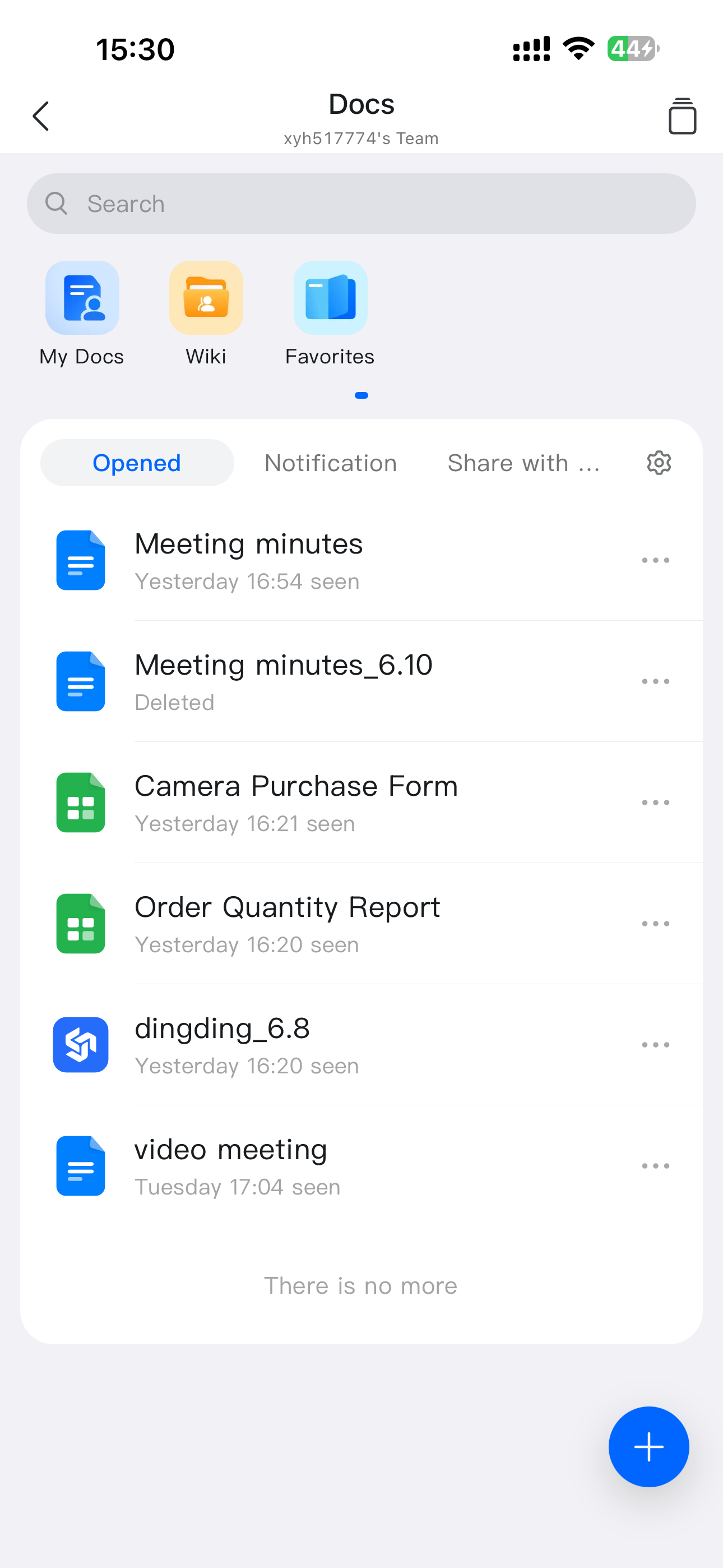
In DingTalk, go to **More** and select **Docs**. Under **My Files (from DingTalk Drive)**, tap the **+** button in the lower-right corner to create folders, documents, sheets, collection forms, mind maps, whiteboards, and more.

<div style={{display: 'flex', gap: '12px', justifyContent: 'center', flexWrap: 'wrap', margin: '16px 0'}}>
  <img src="https://alidocs.oss-cn-zhangjiakou.aliyuncs.com/res/5VLqXLb2k0xBwqX1/img/96ace002-fe16-4a15-a9c1-cf947ff811e9.png" alt="IMG_5026.png" style={{width: '32%', minWidth: '180px', borderRadius: '8px', boxShadow: '0 2px 12px rgba(0,0,0,0.08)', margin: 0}} />

  <img src="https://alidocs.oss-cn-zhangjiakou.aliyuncs.com/res/5VLqXLb2k0xBwqX1/img/b452b618-130b-440d-b2f6-bcf42cf84cea.png" alt="IMG_5027.png" style={{width: '32%', minWidth: '180px', borderRadius: '8px', boxShadow: '0 2px 12px rgba(0,0,0,0.08)', margin: 0}} />

  <img src="https://alidocs.oss-cn-zhangjiakou.aliyuncs.com/res/5VLqXLb2k0xBwqX1/img/82e9a4db-f333-43ef-a2eb-5dd887c48ddc.png" alt="IMG_5028.png" style={{width: '32%', minWidth: '180px', borderRadius: '8px', boxShadow: '0 2px 12px rgba(0,0,0,0.08)', margin: 0}} />
</div>