> ## Documentation Index
> Fetch the complete documentation index at: https://help.dingtalk.io/llms.txt
> Use this file to discover all available pages before exploring further.
# How to Invite Others to a Video Meeting?
> Five ways to invite people to a DingTalk video meeting: chat group share, contact selector, meeting ID link, dial-out, and joining via the in-meeting participant list.
Before or during a DingTalk video meeting, you can invite others by **sharing a meeting card**, **sending meeting information** including the meeting ID and join link, or **adding participants**.
***
## Invite Others on Desktop
### Invite When Starting a Meeting
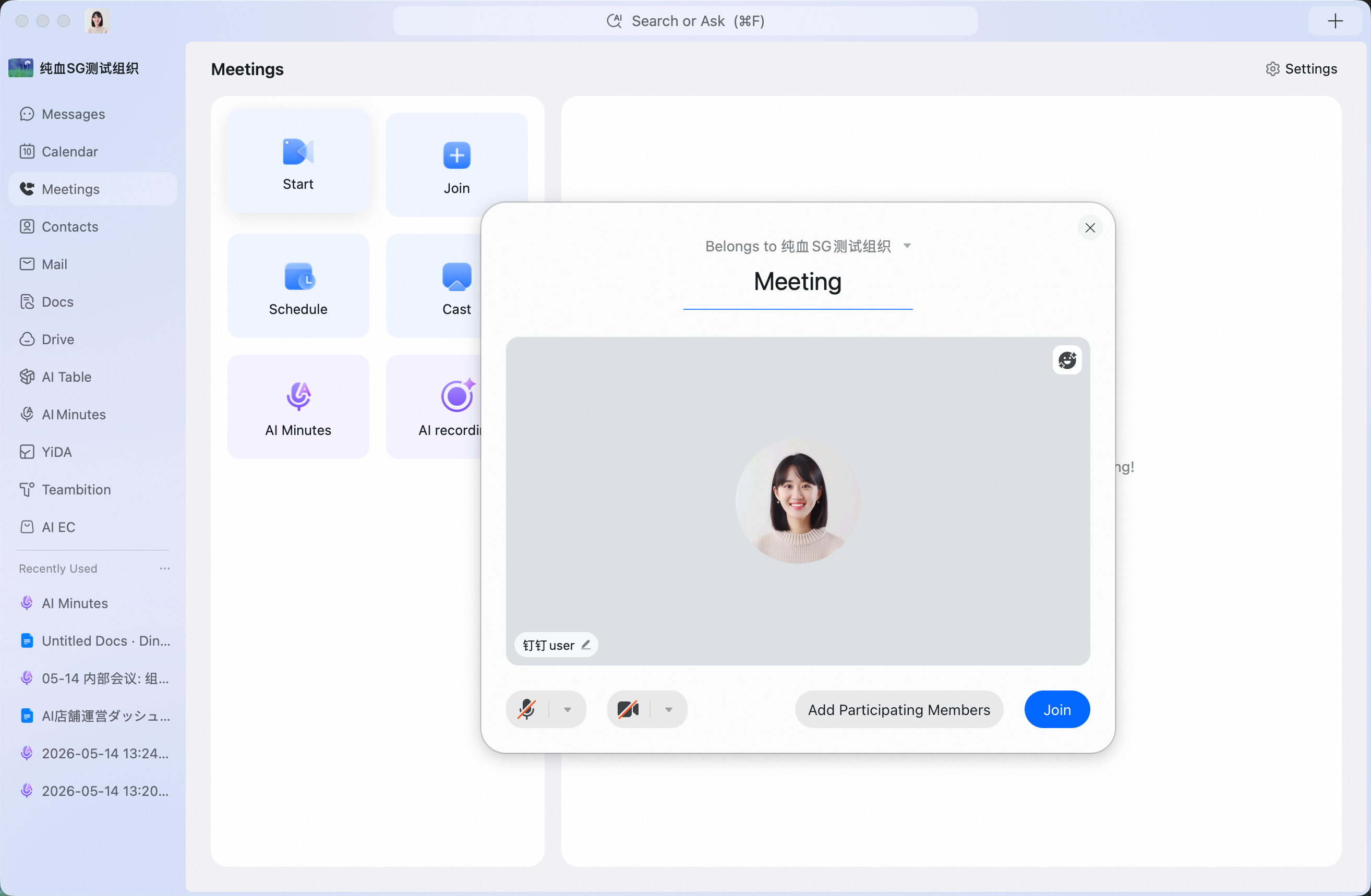
On the desktop **Start Meeting** screen, click **Add Participants** >> select the people to invite. You can invite members in your organization or DingTalk friends.
### Invite When Scheduling a Meeting
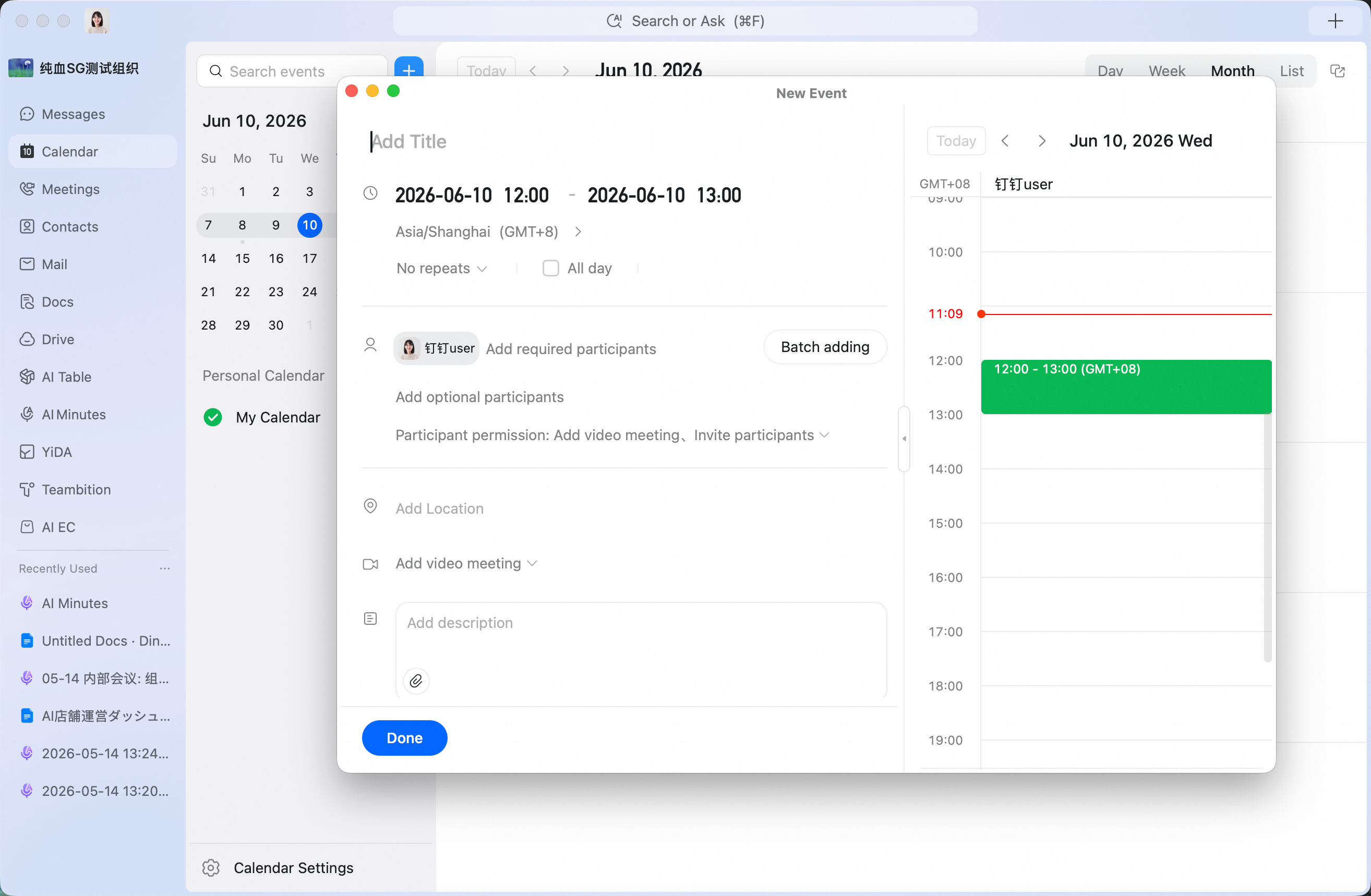
On the Meetings page, select **Schedule Meeting** >> in the pop-up, select **Add Participants** >> search for participants by entering text, or use batch add to add multiple participants.
### Invite from Calendar
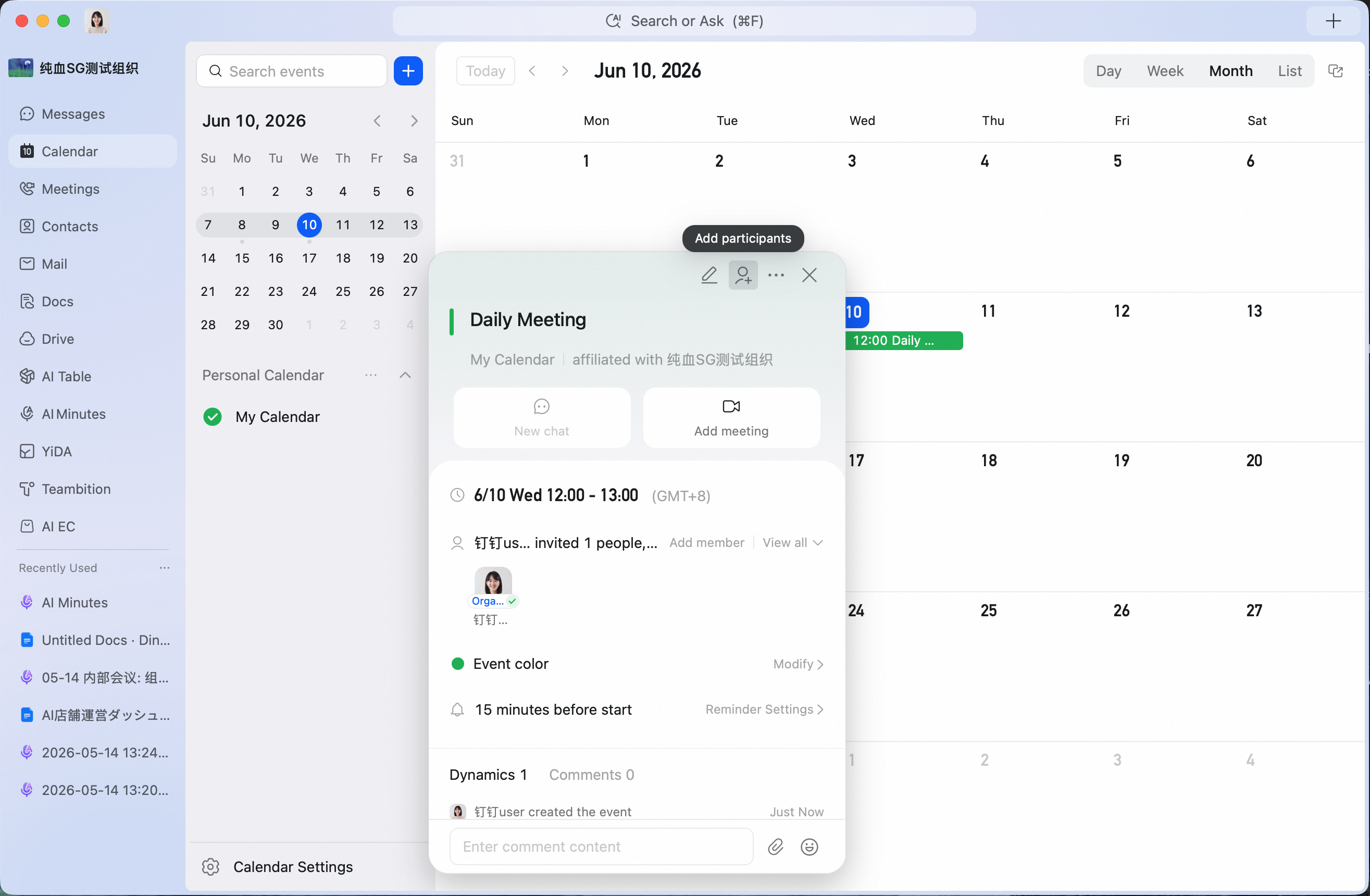
**Invite by adding participants:** Click **Calendar** on the left to open Calendar >> view the event and click the meeting event you want >> click **Add Members** at the top of the meeting card >> select and add participants.
### Invite During a Meeting
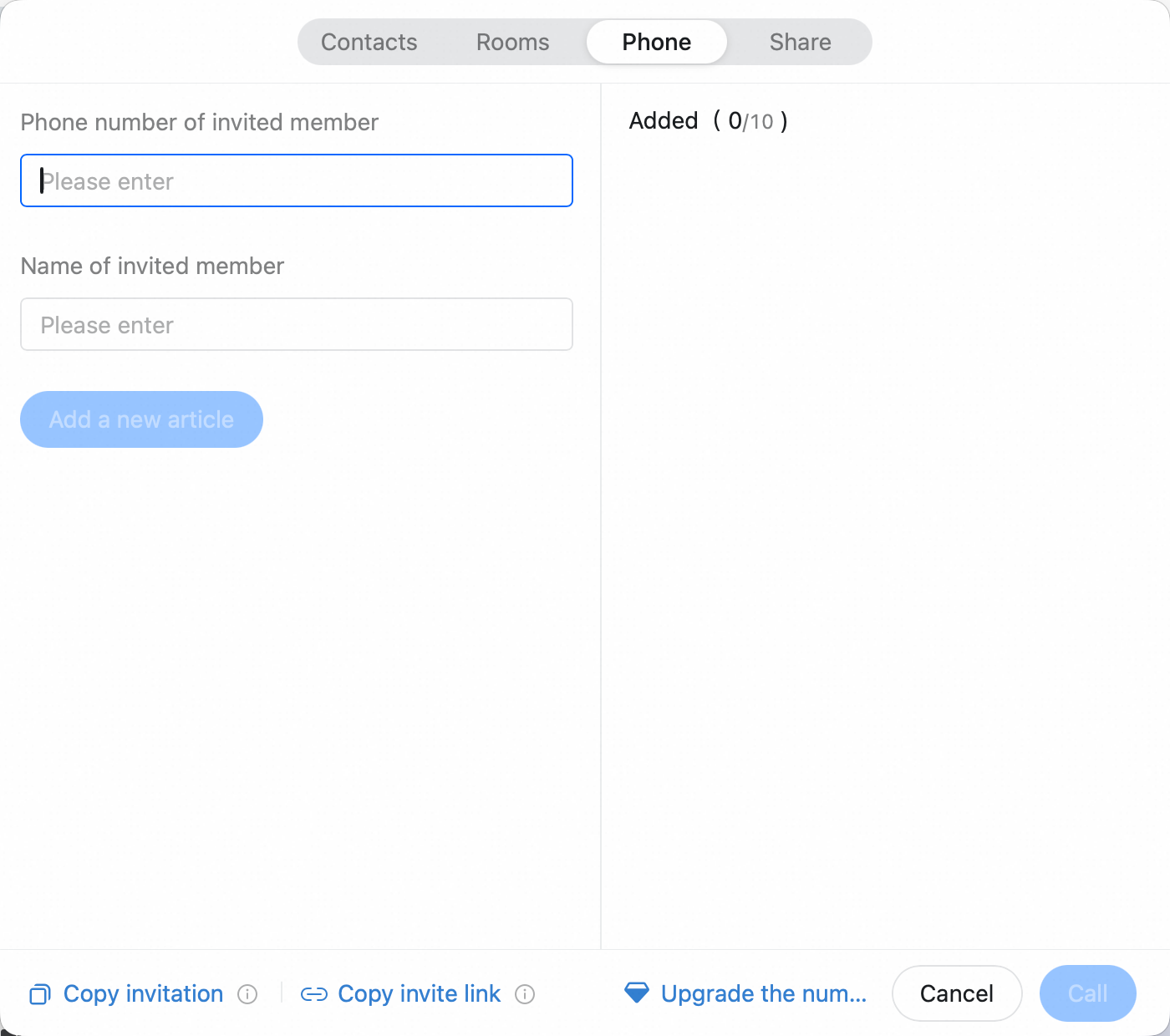
**Method 1:** During a meeting, click **Invite** at the bottom of the meeting screen >> choose **Contacts** to call participants through DingTalk, **Meeting Room** to call a meeting room by phone, or **Share to Chat** to send a meeting card in a chat >> select the participants to invite.
**Method 2:** During a meeting, click **Invite** at the bottom of the meeting screen >> click **Copy Join Information** or **Copy Join Link** at the bottom >> notify participants through chat, email, or other channels.
**Contacts**

**Send in a chat**
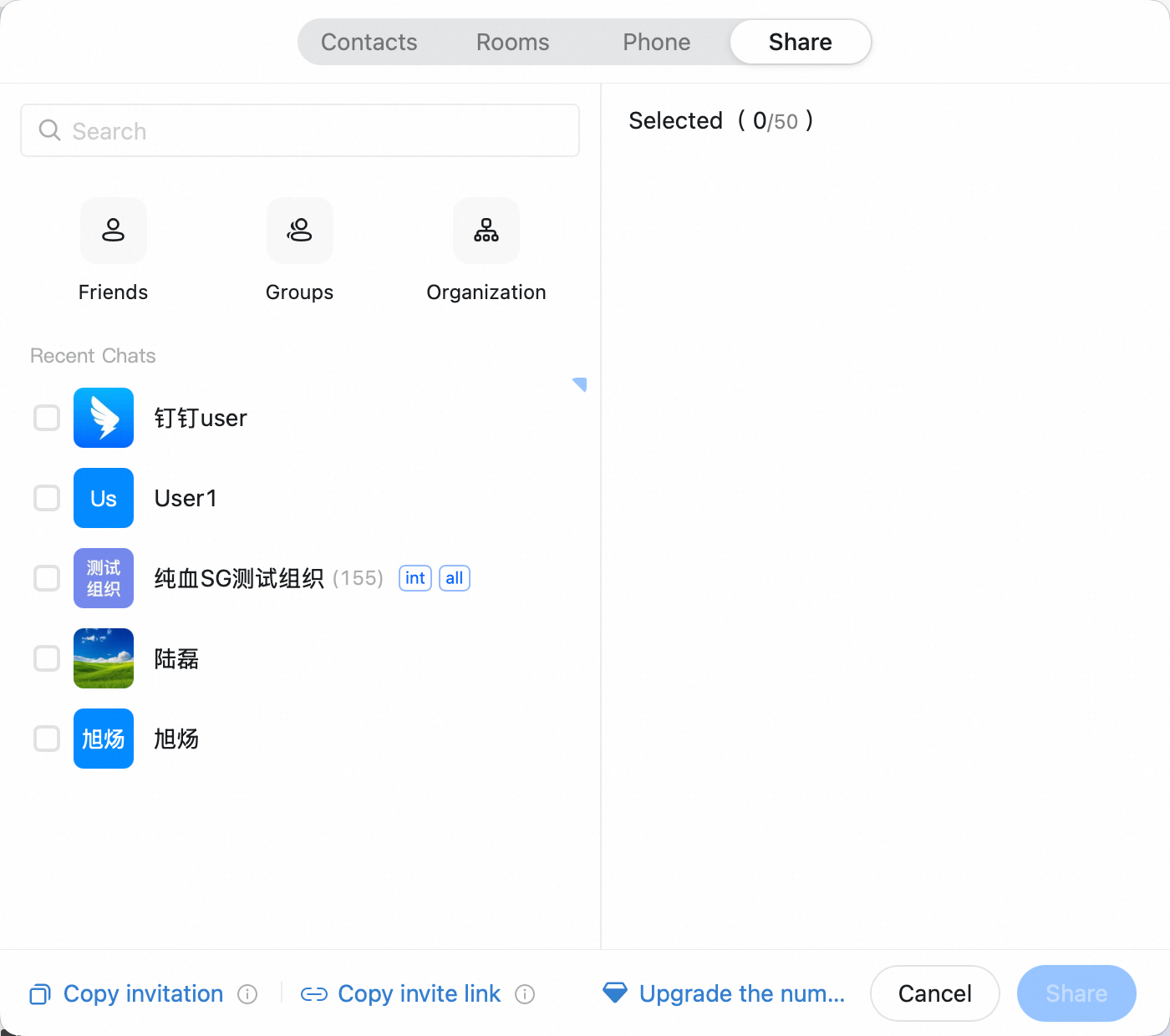
**Meeting Room**

**meeting card**

**By phone**
## Invite Others on Mobile
### Invite When Starting a Meeting
Open the DingTalk mobile app >> tap **Meetings** in the lower-right corner >> select **Start Meeting** >> choose to start a video meeting >> tap **Add Participants** at the bottom of the pop-up >> select the participants to invite.
### Invite When Scheduling a Meeting
Open the DingTalk mobile app >> tap **Meetings** in the lower-right corner >> select **Schedule Meeting** >> tap the edit icon in the upper-right corner >> tap the **+** icon to add participants >> select the participants to invite.
### Invite from Calendar
**Invite using join information:** Open the DingTalk mobile app >> tap **Calendar** in the upper-left corner >> tap the meeting you want to enter >> open meeting details >> tap **More Information** next to the meeting ID >> tap **Copy** to copy the join information >> notify participants through chat, email, or other channels.
### Invite During a Meeting
During a meeting, tap **Members** at the bottom >> on the member management page, tap **Invite** at the bottom >> select **DingTalk Contacts** or **Meeting Room** >> select the participants to invite.


