> ## Documentation Index
> Fetch the complete documentation index at: https://help.dingtalk.io/llms.txt
> Use this file to discover all available pages before exploring further.
# How to Join a Video Meeting?
> Join a DingTalk video meeting by tapping a chat invite, dialing the meeting ID, opening a calendar reminder, or scanning the QR code shown on the meeting host's screen.
DingTalk video meetings support multiple ways to join. You can join through a **meeting card**, **meeting ID**, **join link**, **meeting list**, **calendar**, or the **quick entry bar**.
***
## Join a Meeting on Desktop
### Join with a Meeting ID
Open and sign in to the DingTalk desktop client >> click **Meetings** on the left >> click **Join Meeting** >> enter the **meeting ID** >> click **Enter Meeting**.

### Join with a Join Link
> To join from a browser, allow camera and microphone permissions on your computer.
Open the **join link** >> enter **your name** >> click **Join Meeting**. To open the DingTalk client and join, click **Open DingTalk** at the bottom of the page.
### Join with a Meeting Card
Click the **meeting card** sent by the other person in a chat window >> click **Join Meeting** at the bottom.

### Join from the Meeting List
Open and sign in to the DingTalk desktop client >> click **Meetings** on the left >> find the meeting you want in the meeting list on the right >> click **Join**.
> Scheduled meetings, ongoing meetings, and meetings you joined and then left are all shown in the meeting list.

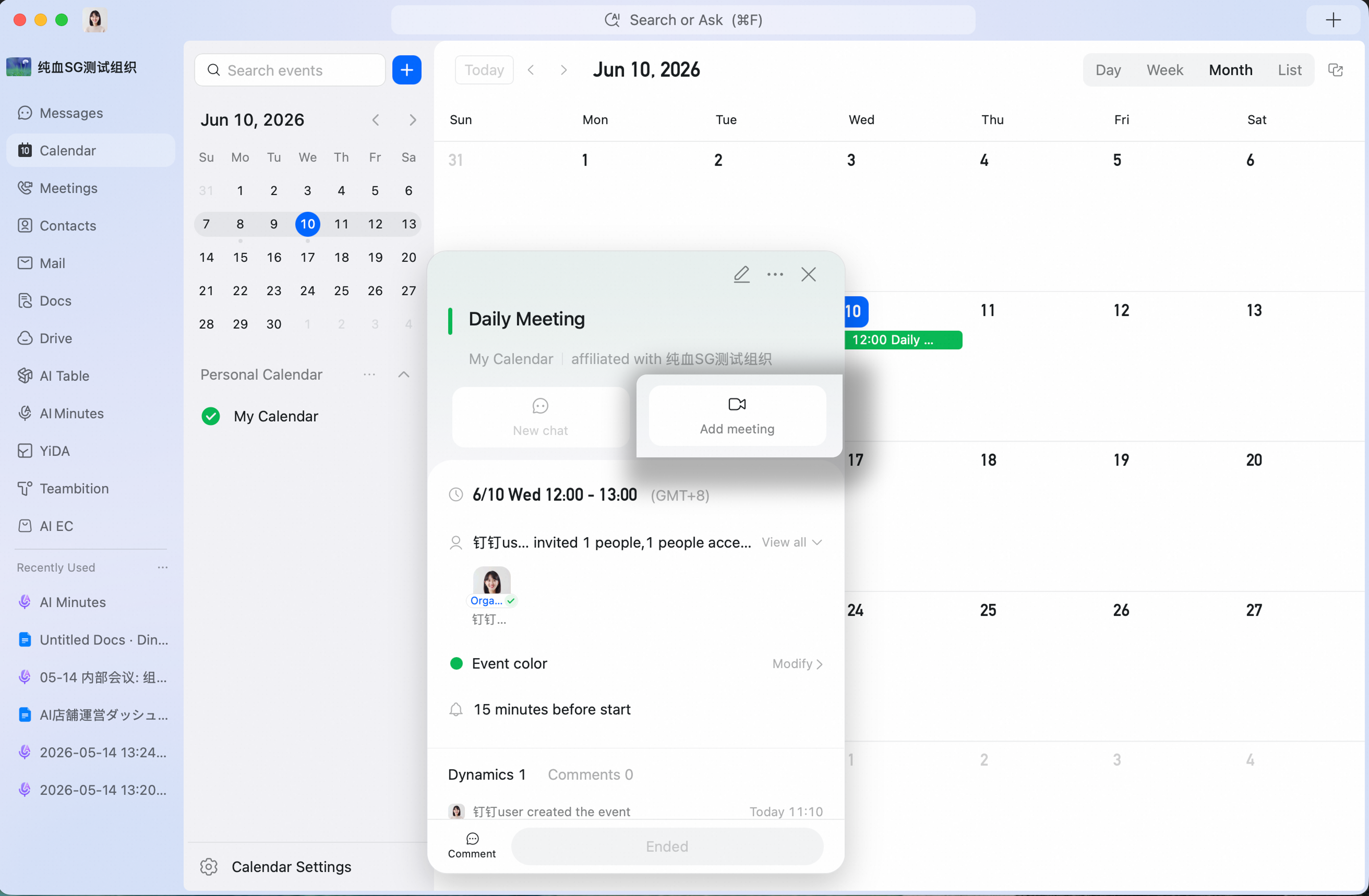
### Join from Calendar
Open and sign in to the DingTalk desktop client >> click **Calendar** on the left >> select the meeting you want >> click **Join Meeting**.
### Join from the Plus Panel in the Upper-Right Corner
Open and sign in to the DingTalk desktop client >> click the **+** icon in the upper-right corner >> click **Join Meeting**.

## Join a Meeting on Mobile
### Join with a Meeting ID
Open the DingTalk mobile app >> tap the **Calls** icon in the upper-right corner >> tap **Join Meeting** >> enter the **meeting ID** to join.
### Join with a Join Link
> To join from a browser, allow camera and microphone permissions.
In a mobile chat, tap the **join link** sent by the other person >> tap **Enter Meeting** >> enter **your name** >> tap **Enter Meeting**. To open the DingTalk client and join, tap **Open DingTalk** at the bottom of the page.
### Join with a Meeting Card
Open the mobile app >> in a chat, tap the **meeting card** sent by the other person >> tap **Join Meeting**.

### Join from the Meeting List
Open the DingTalk mobile app >> tap the **Calls** icon in the upper-right corner >> find the meeting you want in the meeting list >> tap **Join**.
> Scheduled meetings, ongoing meetings, and meetings you joined and then left are all shown in the meeting list.
### Join from Calendar
Open the DingTalk mobile app >> tap **Calendar** at the bottom >> tap the meeting you want in Calendar >> select **Join Meeting**.
### Join from the Reminder Bar
For meetings that have already started, you can quickly join from the **reminder bar at the top of the mobile chat list**.


