> ## Documentation Index
> Fetch the complete documentation index at: https://help.dingtalk.io/llms.txt
> Use this file to discover all available pages before exploring further.

# How to Turn Mute On or Off?

> Mute and unmute your microphone in a DingTalk meeting using the toolbar button, the spacebar to push-to-talk, or host controls to mute/unmute participants.

During a meeting, the **host** and **all participants** can mute themselves or others as permitted, reducing interruptions and helping the meeting run smoothly.

***

## How Participants Turn Mute On or Off on Desktop

### Before the Meeting Starts

On the pre-meeting screen, click the **Mute** button in the lower-left menu to turn mute on or off.

![](https://alidocs.oss-cn-zhangjiakou.aliyuncs.com/res/8oLl9521Aok5Nlap/img/0548f78d-cf5a-4ecd-bcb7-4473c5054706.png?x-oss-process=image/crop,x_0,y_439,w_2514,h_1883/ignore-error,1)

### During the Meeting

On the meeting screen, click the **Mute** button in the lower-left menu to turn mute on or off.

![](https://alidocs.oss-cn-zhangjiakou.aliyuncs.com/res/8oLl9521Aok5Nlap/img/a1888373-76ef-490e-a9cf-62ada26ba5ed.png?x-oss-process=image/crop,x_0,y_0,w_4034,h_2801/ignore-error,1)

***

## How Participants Turn Mute On or Off on Mobile

### Before the Meeting Starts

On the pre-meeting screen, tap **Mute** in the lower-left corner to turn mute on or off.

<div style={{display: 'flex', gap: '12px', justifyContent: 'center', flexWrap: 'wrap', margin: '16px 0'}}>
  <img src="https://alidocs.oss-cn-zhangjiakou.aliyuncs.com/res/NpQlK5jBykMGLqDv/img/19d3248d-891b-4280-9cf9-84b39911d688.png?x-oss-process=image/crop,x_0,y_788,w_2432,h_4492/ignore-error,1" alt="image.png" style={{width: '32%', minWidth: '180px', borderRadius: '8px', boxShadow: '0 2px 12px rgba(0,0,0,0.08)', margin: 0}} />
</div>

### During the Meeting

On the meeting screen, tap **Mute** in the lower-left corner to turn mute on or off.

<div style={{display: 'flex', gap: '12px', justifyContent: 'center', flexWrap: 'wrap', margin: '16px 0'}}>
  <img src="https://alidocs.oss-cn-zhangjiakou.aliyuncs.com/res/NpQlK5jBykMGLqDv/img/ef1825a4-48ee-4501-97f9-e2ec961e185b.png?x-oss-process=image/crop,x_0,y_245,w_2510,h_5209/ignore-error,1" alt="image.png" style={{width: '32%', minWidth: '180px', borderRadius: '8px', boxShadow: '0 2px 12px rgba(0,0,0,0.08)', margin: 0}} />
</div>

***

## How Hosts Manage Mute on Desktop

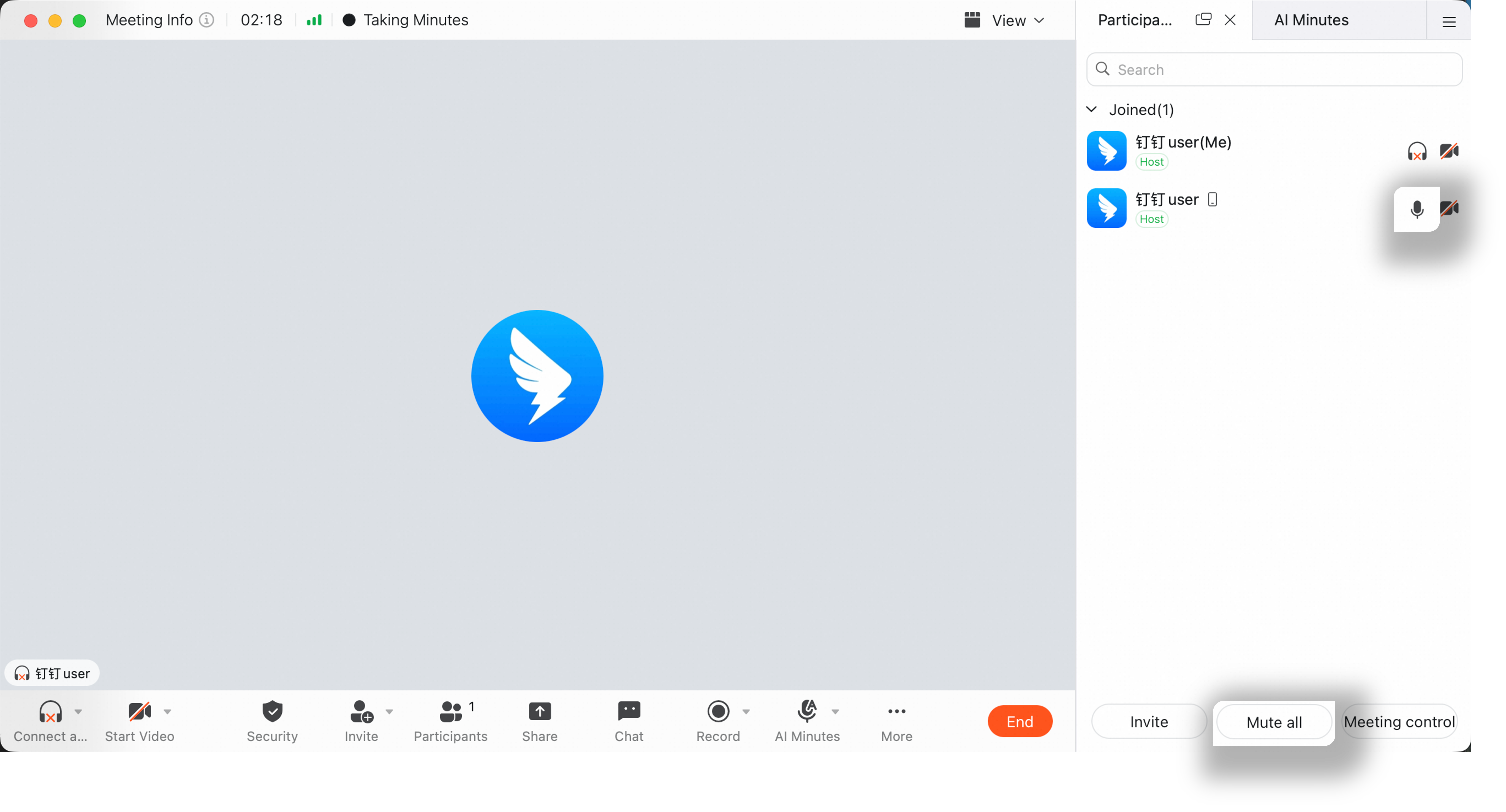
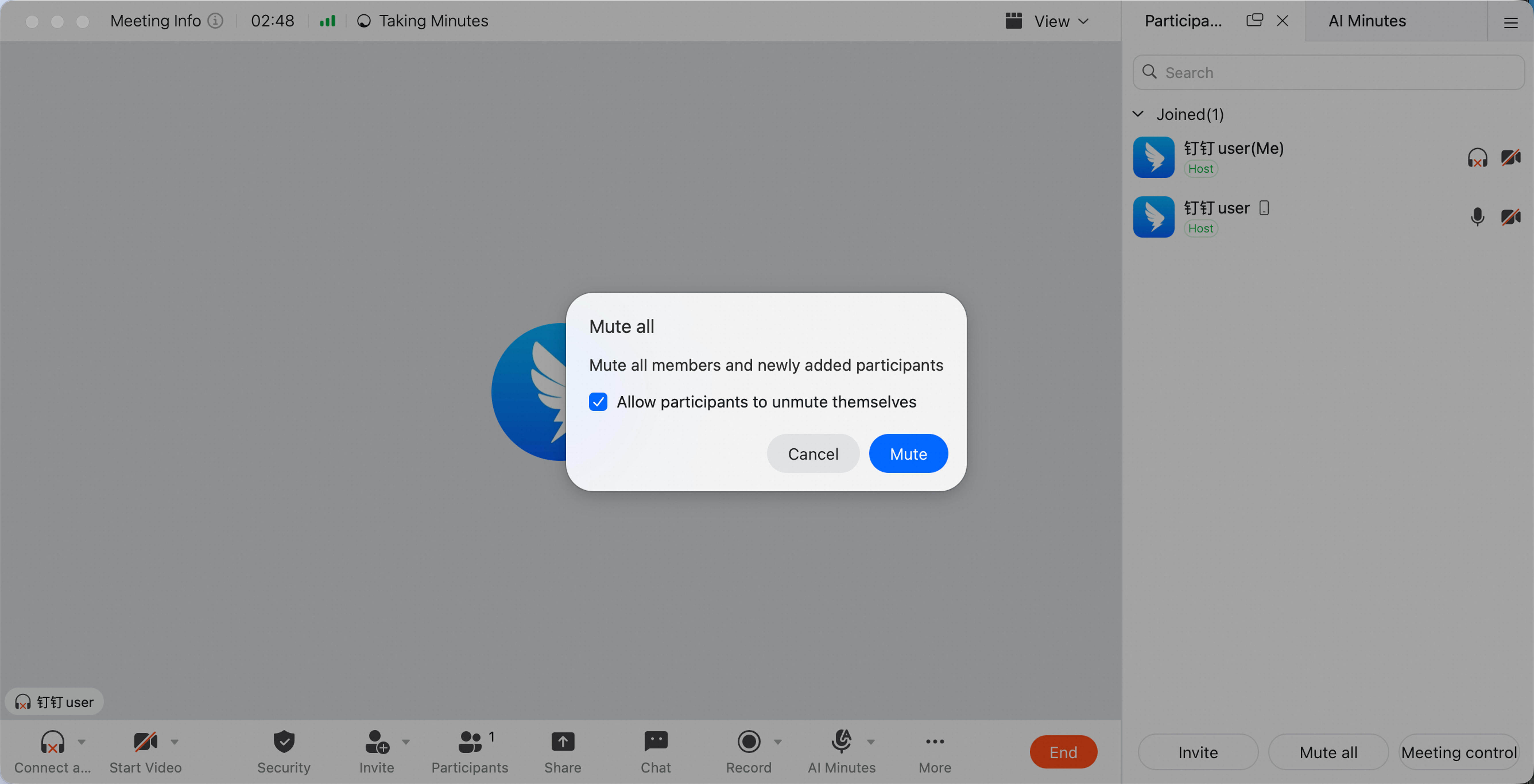
Hosts can manage audio in two ways: mute selected members or mute everyone.

* **Mute selected members:** During the meeting, click **Members** at the bottom >> view the member management sidebar on the right >> select a member and click the **Mute** icon to mute or unmute them.

* **Mute everyone:** During the meeting, click **Members** at the bottom >> click **Mute All** in the lower-right area >> choose whether to allow participants to **unmute themselves**.

> If participants are not allowed to unmute themselves, only the host can unmute them. Members can request to be unmuted by the host.
![](https://alidocs.oss-cn-zhangjiakou.aliyuncs.com/res/8oLl9521Aok5Nlap/img/5444b484-d9f8-415a-8417-e8faa96884ed.png)

![](https://alidocs.oss-cn-zhangjiakou.aliyuncs.com/res/8oLl9521Aok5Nlap/img/1bbaf656-eae6-4760-a46a-d4c81b3fd404.png)

***

## How Hosts Manage Mute on Mobile

During the meeting, tap **Members** in the lower-right corner >> select a participant to mute or unmute, or tap **Mute All** at the bottom.

<div style={{display: 'flex', gap: '12px', justifyContent: 'center', flexWrap: 'wrap', margin: '16px 0'}}>
  <img src="https://alidocs.oss-cn-zhangjiakou.aliyuncs.com/res/8oLl9521Aok5Nlap/img/dadc8545-f4aa-4bc8-85e5-0ee0009cc481.png?x-oss-process=image/crop,x_2486,y_238,w_2450,h_5146/ignore-error,1" alt="image.png" style={{width: '32%', minWidth: '180px', borderRadius: '8px', boxShadow: '0 2px 12px rgba(0,0,0,0.08)', margin: 0}} />
</div>
