> ## Documentation Index
> Fetch the complete documentation index at: https://help.dingtalk.io/llms.txt
> Use this file to discover all available pages before exploring further.
# How to Start or Schedule a Video Meeting?
> Two ways to launch a DingTalk video meeting: start an instant meeting for ad-hoc discussions, or schedule one in advance with a reminder and shareable join link.
DingTalk Meetings provides two ways to start a meeting: **Start a Meeting** and **Schedule a Meeting**. Starting a meeting is suitable for ad hoc meetings that begin immediately. Scheduling a meeting lets you reserve a time in advance and start the meeting at the scheduled time.
***
## Start a Meeting Guide
## Start a Meeting on Desktop
### Start from the Meetings Page
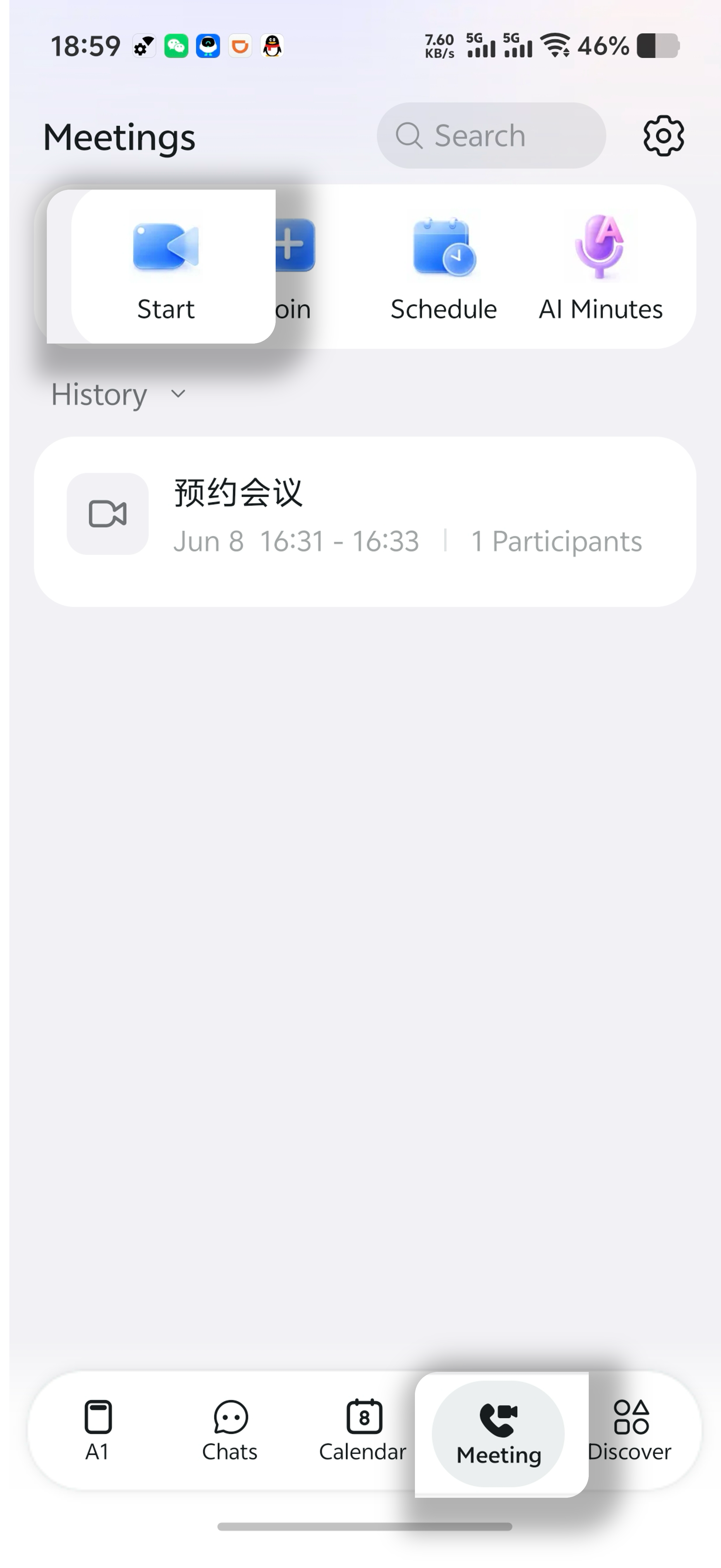
Open and sign in to the DingTalk desktop client >> click **Meetings** on the left side of the client >> enter the Meetings page >> click **Start Meeting**.

### Start from a Chat Window
Open and sign in to the DingTalk desktop client >> click the **+** icon below the chat input box >> select **Video and Calls**.

## Start a Meeting on Mobile
### Start from the Meetings Page
Open and sign in to the DingTalk mobile app >> tap the **Calls** icon in the upper-right corner >> tap **Start Meeting**.
***
## Schedule a Meeting Guide
## Schedule a Meeting on Desktop
### Schedule from the Meetings Page
**Method 1:** Open the DingTalk desktop client >> click **Meetings** on the left side >> click **Schedule Meeting** >> set the meeting time and participants >> click **Done**.


### Schedule from the Calendar Page
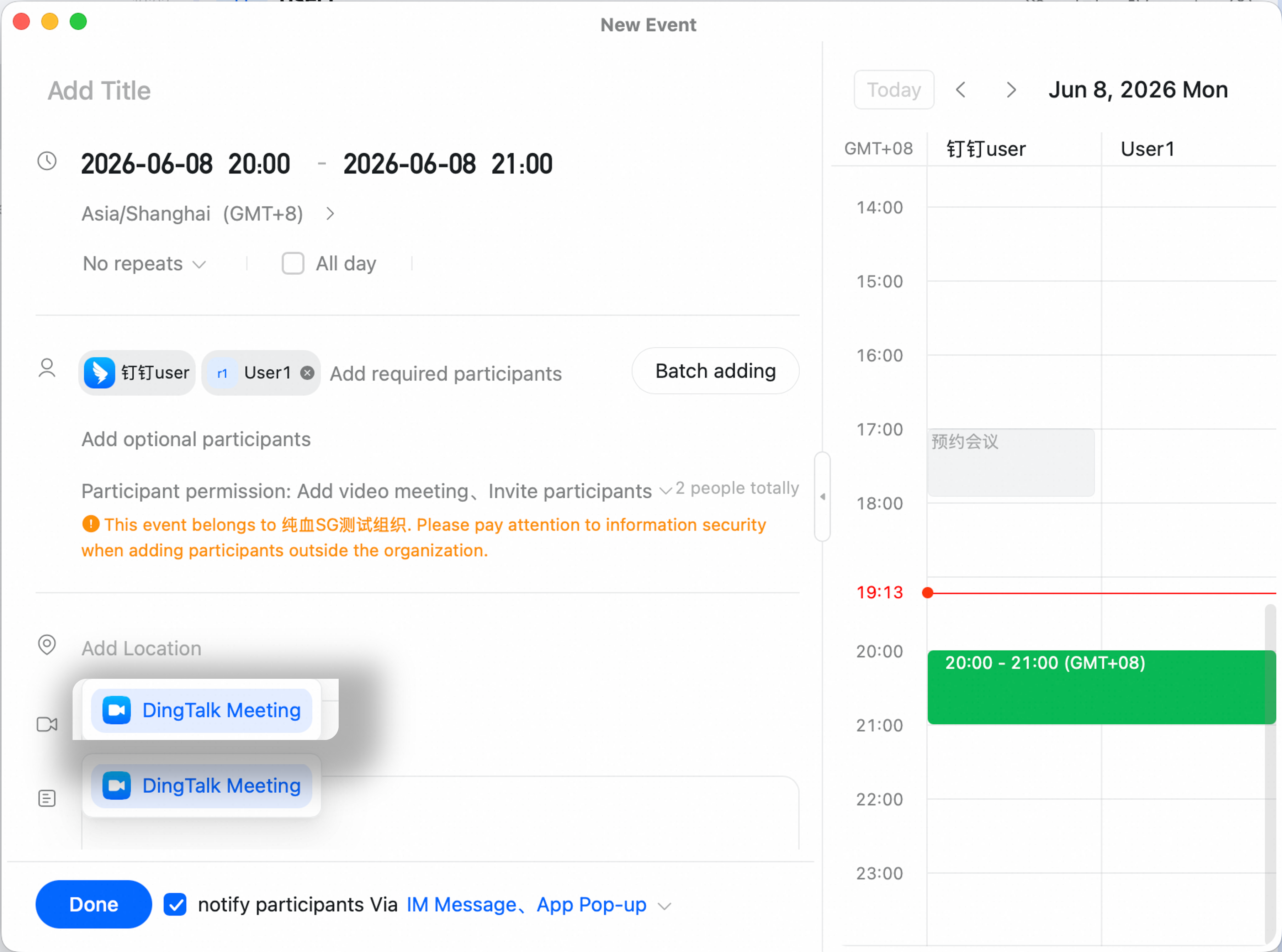
Open the DingTalk desktop client >> click **Calendar** on the left side >> click the **+** button in the upper-left corner >> select the meeting time and participants >> click **Add Video Meeting** >> select **DingTalk Video Meeting** >> click **Done**.

### Schedule from a Chat Window
Click the **+** icon below the chat input box >> click **Event** >> select the meeting time and participants >> click **Add Video Meeting** >> select **DingTalk Video Meeting** >> click **Done**.

## Schedule a Meeting on Mobile
### Schedule from the Meetings Page
Open the DingTalk mobile app >> tap the **Calls** icon in the upper-right corner >> select **Schedule Meeting**.
### Schedule from the Calendar Page
Open the DingTalk mobile app >> tap **Calendar** at the bottom >> tap the icon in the lower-right corner to create a new event >> scroll down and tap **Add Video Meeting** >> select **DingTalk Video Meeting**.

### Schedule from a Chat Window
Open a chat window in the DingTalk mobile app >> tap the **+** icon in the lower-right corner >> tap **Event** to create a new event >> scroll down and tap **Add Video Meeting** >> select **DingTalk Video Meeting**.

***
## Configurable Options for Scheduled Meetings
* Configure the meeting **title**, **time**, and **participants**. After you finish scheduling, the meeting can be viewed in **Calendar**.
* To set up a **recurring meeting**, click **Does not repeat** >> select a repeat rule >> customize the settings.
* Add a **meeting room**. This feature does not support recurring meetings. If your organization has registered offline meeting rooms in DingTalk Smart Meeting Rooms, you can select or reserve an offline meeting room here.
* Add a **video meeting**. You can add a DingTalk video meeting.
* Set a **meeting reminder**, or choose no reminder.
* After the meeting is created, you can obtain the **meeting ID and join information**.