> ## Documentation Index
> Fetch the complete documentation index at: https://help.dingtalk.io/llms.txt
> Use this file to discover all available pages before exploring further.
# How to Log In to the Admin Console
> Sign in to the DingTalk Admin Console as an organization administrator via web browser or desktop client to manage members, security policies, and enterprise features.
The Admin Console is the unified entry point for organization administrators to configure and manage their DingTalk organization. Through the Admin Console, you can manage members, set security policies, and configure various enterprise features.
***
## Who Can Log In
Only organization administrators can log in to the Admin Console. Regular members do not have access.
## Login Methods
### Method 1: Web Login
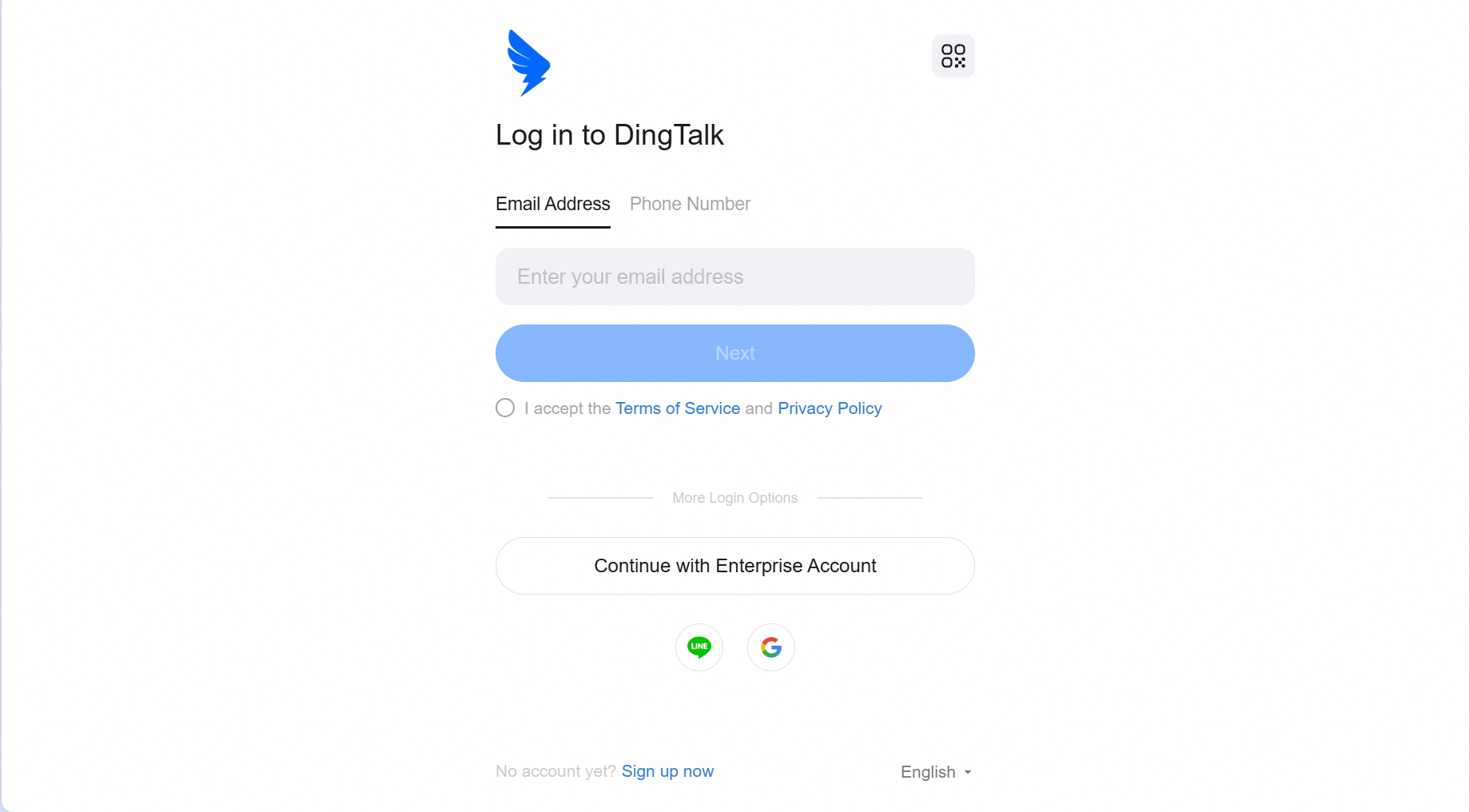
Open a browser and visit [https://oa.dingtalk.io/](https://oa.dingtalk.io/)
Choose any of the following methods to complete login:
* Email login: Enter your registered email and password
* Phone number login: Enter your phone number and log in via verification code
* QR code login: Open DingTalk on your mobile phone and scan the QR code on the page
* Enterprise account login: Use the account assigned by your enterprise
* Third-party account login: Log in through a linked third-party account
### Method 2: Access from Desktop Client
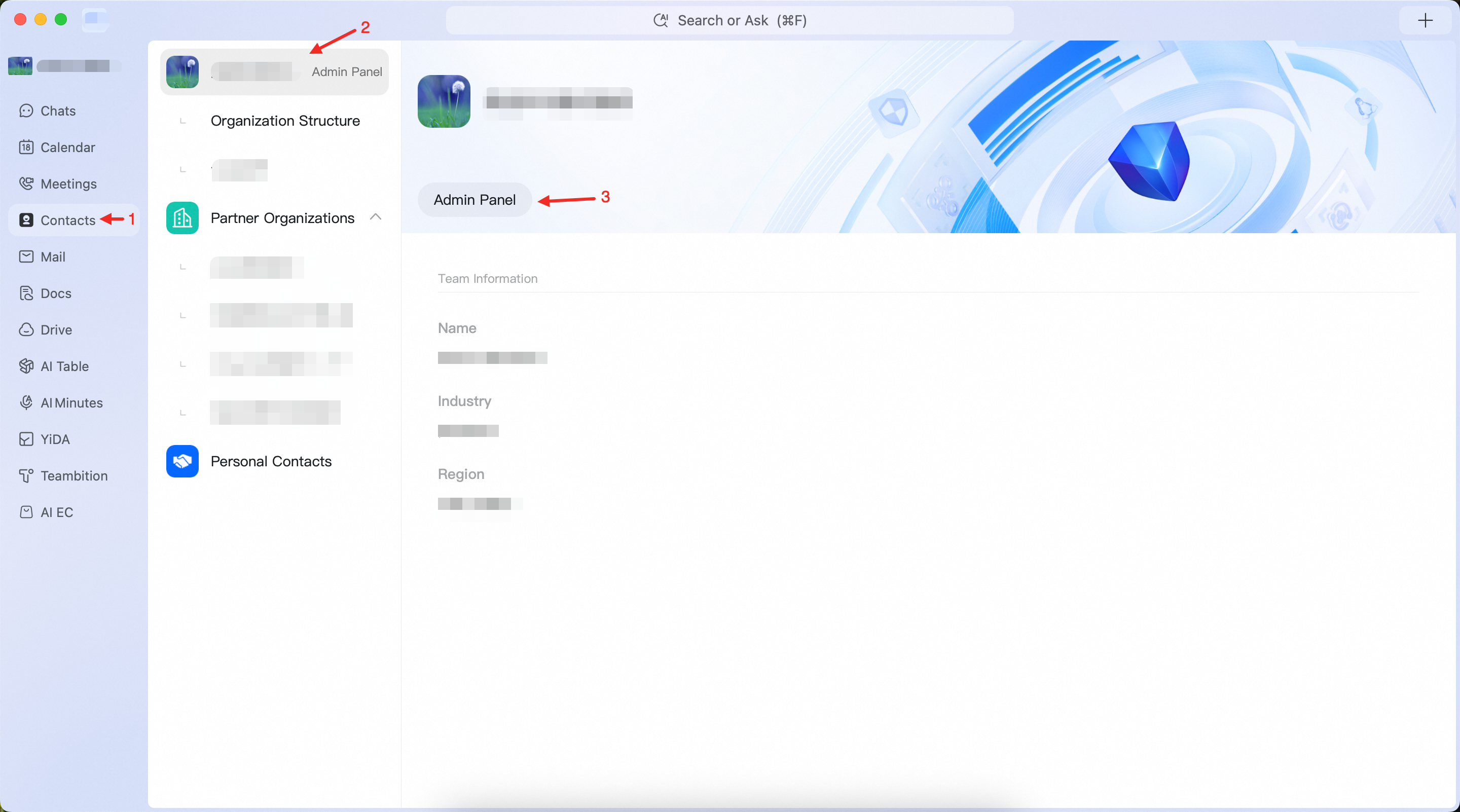
If you have installed the DingTalk desktop client, you can quickly access the Admin Console through either of the following two methods:
* Entry 1: Click the avatar in the top-left corner → Click **Admin Console** in the dropdown menu
* Entry 2: Go to **Contacts** → Click the **Organization Name** → Click **Admin Panel**
After clicking, you will be automatically redirected to the Admin Console web page.
## Homepage Overview
After logging in, you will enter the Admin Console homepage.
Click the avatar in the top-right corner to log out. Click the language button to switch the Admin Console language.
The left side contains the feature navigation bar, while the right side displays an overview of basic organization data and quick access entries.