> ## Documentation Index
> Fetch the complete documentation index at: https://help.dingtalk.io/llms.txt
> Use this file to discover all available pages before exploring further.
# Partner Organizations
> Connect two independent organizations to share contacts, chat, meet, and co-edit documents across headquarters, subsidiaries, and external partners.
A Partner Organization is a cross-organization collaboration feature that helps establish trusted collaborative relationships between two independent organizations. Once collaboration is established, members from both organizations can easily find contacts, start chats, hold meetings, and collaboratively edit documents as if they were colleagues, breaking down communication barriers between organizations.
A Partner Organization is suitable for the following scenarios:
* Intra-group collaboration: Deep collaboration between headquarters and overseas branches, where members from both sides are visible to each other and share contact directories.
* Parent-subsidiary collaboration: Establishing collaborative relationships between a parent company and multiple subsidiaries to achieve unified management and information sharing.
* Cross-enterprise collaboration: Establishing lightweight collaboration with external partners, allowing members within specified scopes to view and contact each other.
***
## Admin Guide
### Establishing Collaboration
**Prerequisites**
Before using the Partner Organization feature, please confirm that the following conditions are met:
1. Entitlement requirements: Both organizations must have Partner Organization-related entitlements or seats.
2. Administrator permissions: The operator must be the primary administrator of the organization or a sub-administrator with relevant permissions.
Establishing a collaborative relationship requires joint completion by administrators from both organizations, divided into three steps: Send Invitation → Accept Invitation → Final Confirmation.
1. Log in to the Admin Console and click **Partner Organizations (Cross-border Partner Organizations)** in the navigation bar.
2. Click **Invite Partner** on the page.
3. Select the collaborative members to be shared from your organization (see "Collaboration Settings Instructions" below).
4. Read and check the **Risk Disclosure**.
5. Click **Create Invite Link**, and the system will generate an invitation link.
6. Copy the link and send it to the other organization's administrator.
The invitation link is valid for 24 hours from generation and will automatically expire afterward.
1. Click the received invitation link and log in to the Admin Console.
2. Confirm the other party's collaboration settings and fill in your own organization's collaboration settings.
3. Read and check the **Risk Disclosure**.
4. Click **Accept Invitation**, confirm the information in the pop-up window, and then click **Confirm**.
5. After acceptance, the status of this organization in your list will be **Pending (Partner)**, and in the other party's list it will be **To Confirm**.
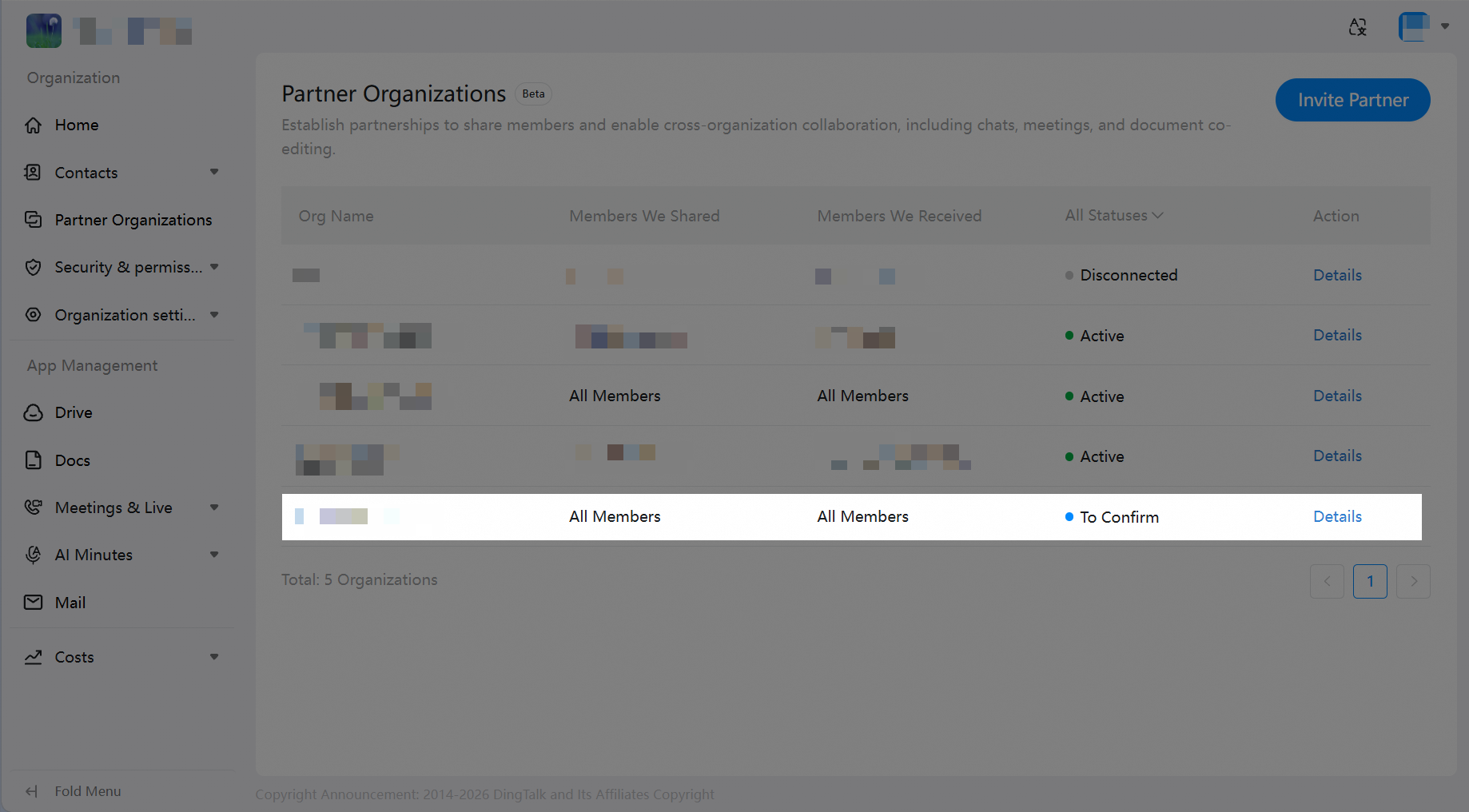
1. Log in to the Admin Console, go to **Partner Organizations (Cross-border Partner Organizations)**, and find the organization with status "To Confirm".
2. Click to enter the details page and review the collaboration settings of both parties.
3. After confirming everything is correct, click **Confirm** and complete the final confirmation in the pop-up window.
4. The collaborative relationship is officially established, and the status of both organizations changes to **Active**.
If you do not agree to collaborate, you can click **Decline**. After decline, you can still re-establish collaboration by sending a new invitation link.
### Managing Collaboration
#### Viewing the Partner Organization List
Path: Admin Console > Partner Organization
On the Partner Organization list page, you can:
* View all collaborative organizations and their current statuses.
* Filter organizations by status using the status filter box. Available statuses include: Active, To Confirm, Pending (Partner), Declined, Disconnected.
* Click on any organization to enter its details page.
 #### Collaboration Settings
When establishing collaboration or editing later, administrators need to configure the following settings:
* Collaborative Members Shared from Your Organization
Set which members from your organization will be shared with the other organization. The other party can view and search for these members in their contact directory.
| Option | Description |
| ---------------------- | ----------------------------------------------------------------------- |
| Share all members | All members of your organization are visible to the collaborating party |
| Share selected members | Only specified members are visible to the collaborating party |
* Permissions Granted to the Other Party
| Permission Item | Description |
| ------------------- | ---------------------------------------------------------------------------------------------------------------------------------------------------------------------------------------------------------------------------------------------------------- |
| Default Permissions | The other party can view and search for your collaborative members; initiate chats or meetings with your collaborative members; collaboratively edit documents with your collaborative members; view the availability status of your collaborative members |
* Editing Method
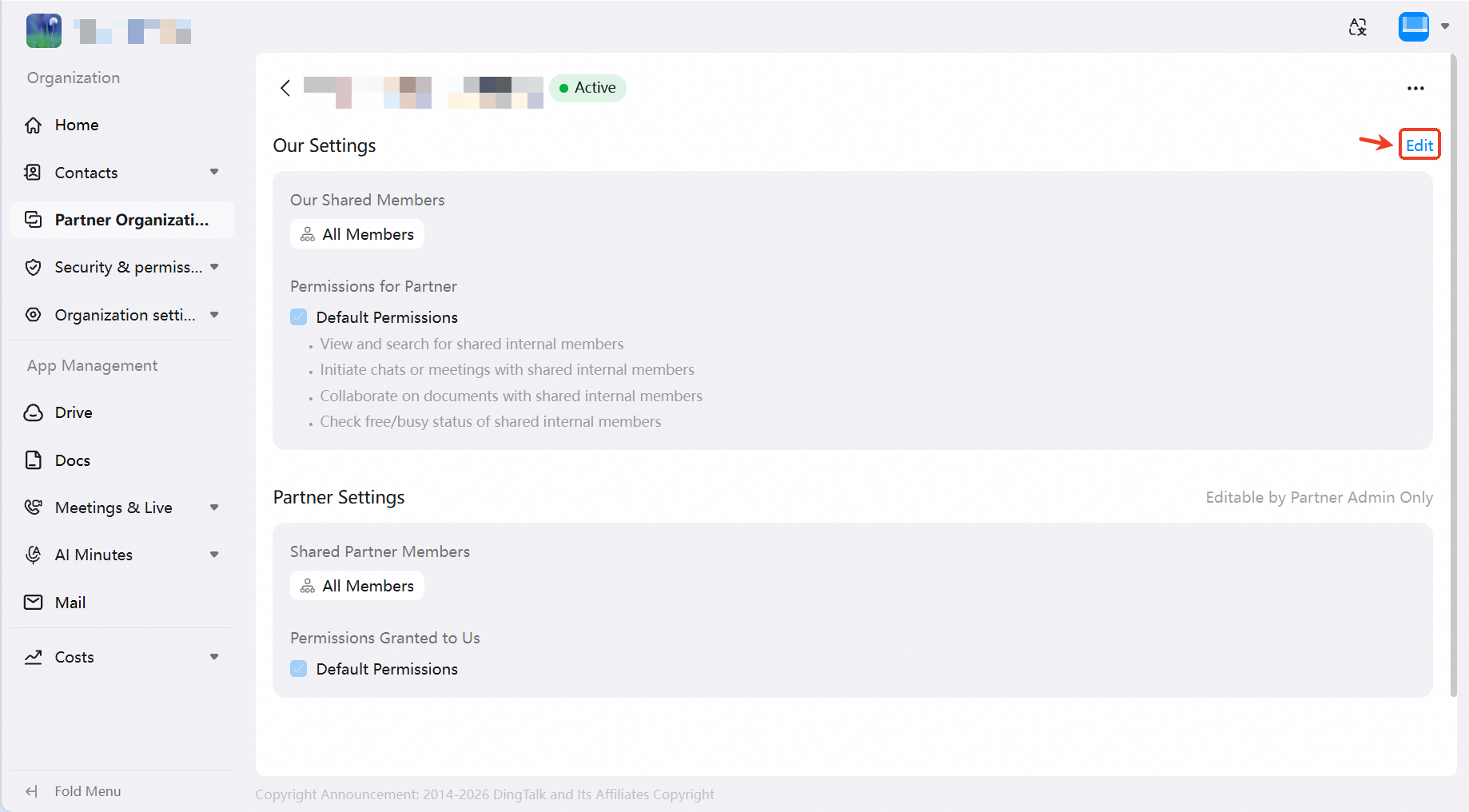
1. Enter the Partner Organization details page.
2. Click the **Edit** button, and the "Your Settings" section will become editable.
3. Modify the relevant settings and click **Confirm Changes**.
4. Complete the save after secondary confirmation.
* You can only edit your own settings; the other party's settings are read-only.
* After settings are changed, the system will automatically notify the other party's administrator.
#### Collaboration Settings
When establishing collaboration or editing later, administrators need to configure the following settings:
* Collaborative Members Shared from Your Organization
Set which members from your organization will be shared with the other organization. The other party can view and search for these members in their contact directory.
| Option | Description |
| ---------------------- | ----------------------------------------------------------------------- |
| Share all members | All members of your organization are visible to the collaborating party |
| Share selected members | Only specified members are visible to the collaborating party |
* Permissions Granted to the Other Party
| Permission Item | Description |
| ------------------- | ---------------------------------------------------------------------------------------------------------------------------------------------------------------------------------------------------------------------------------------------------------- |
| Default Permissions | The other party can view and search for your collaborative members; initiate chats or meetings with your collaborative members; collaboratively edit documents with your collaborative members; view the availability status of your collaborative members |
* Editing Method
1. Enter the Partner Organization details page.
2. Click the **Edit** button, and the "Your Settings" section will become editable.
3. Modify the relevant settings and click **Confirm Changes**.
4. Complete the save after secondary confirmation.
* You can only edit your own settings; the other party's settings are read-only.
* After settings are changed, the system will automatically notify the other party's administrator.

### Terminating Collaboration
#### Termination Method
To terminate the collaborative relationship with an organization, follow these steps:
1. Enter the Partner Organization details page.
2. Click the **More (three dots)** button in the top-right corner and select **Disconnect**.
3. Read the risk description for terminating collaboration in the pop-up window.
4. Type "confirm" in the input box to acknowledge the risks.
5. Click **Confirm Disconnection**.
Terminating collaboration is a unilateral operation that does not require approval from the other party and takes effect immediately.
#### Impact After Termination
Please carefully understand the following impacts before termination:
| Impact Item | Description |
| -------------------------- | ----------------------------------------------------------------------------------------------------------------------------------------------------------------------------------------------------------------------------------- |
| Contact Search Restriction | If no conversations occurred between collaborative members before termination, members from the other organization will become completely invisible and unsearchable after termination |
| Private Chat Downgrade | If private chats occurred before termination, members from both sides must add each other as personal contacts to continue sending chat messages after termination |
| Exit Group Chats | Members from both sides will exit all internal groups created by the other organization |
| Data Access Revocation | Ownership of collaborative data belongs to the organization of the application owner (such as documents, audio/video meetings, AI transcription, etc.). The other party's collaborative members' access permissions will be revoked |
After termination, both administrators will receive system notifications. To re-establish collaboration after termination, you need to go through the invitation process again.
***
## Member Guide
Once the collaborative relationship is established, organization members can use the following features in the client without any additional setup.
### Viewing the Partner Organization Contact Directory
1. Open the Contacts page.
2. Click the **Partner Organizations** entry to enter the collaborative organization list.
3. Select the corresponding organization to view its department structure and member list.
4. Click on a member to view their personal information.
1. Click **Contacts** > **Partner Organizations** to expand the collaborative organization list.
2. Click on the corresponding organization to view its departments and members.
3. Click on a member to view their personal information.
The Partner Organization entry is only displayed when a collaborative relationship has been established.
 ### Collaboration Capabilities Overview
You can perform the following collaborative operations with members from collaborative organizations:
* Search Contacts: Search for the other party's members through the search box on the homepage.
* Start Chats: Conduct one-on-one or group chats with the other party's members.
* Audio/Video Meetings: Invite the other party's members to join audio/video meetings.
* Collaborative Documents: @mention or share documents with the other party's members for co-editing.
* Calendar: View the availability status of the other party's members, create schedules, and add them as participants.
* Email: Add the other party's members as recipients or CC recipients.
* AI Transcription: Share AI transcription with the other party's members.
* DingDrive: Share DingDrive files with the other party's members.
***
## Frequently Asked Questions
Yes. Collaborative organizations form a mesh structure, and one organization can establish collaborative relationships with up to 20 organizations separately, with each collaboration group operating independently.
The invitation link is valid for 24 hours. After expiration, the initiating administrator needs to generate a new invitation link.
Yes. After decline, the initiator can re-establish collaboration by sending a new invitation link. The new collaboration settings will overwrite the previous data.
Yes. After termination, you need to go through the invitation process again. After re-establishing collaboration, the new collaboration settings will overwrite the previous data.
Data generated during collaboration (such as group chat data, documents, audio/video meetings, AI transcription, etc.) belongs to the organization of the member who initiated the application. Entitlement usage is also borne by the initiating organization.
### Collaboration Capabilities Overview
You can perform the following collaborative operations with members from collaborative organizations:
* Search Contacts: Search for the other party's members through the search box on the homepage.
* Start Chats: Conduct one-on-one or group chats with the other party's members.
* Audio/Video Meetings: Invite the other party's members to join audio/video meetings.
* Collaborative Documents: @mention or share documents with the other party's members for co-editing.
* Calendar: View the availability status of the other party's members, create schedules, and add them as participants.
* Email: Add the other party's members as recipients or CC recipients.
* AI Transcription: Share AI transcription with the other party's members.
* DingDrive: Share DingDrive files with the other party's members.
***
## Frequently Asked Questions
Yes. Collaborative organizations form a mesh structure, and one organization can establish collaborative relationships with up to 20 organizations separately, with each collaboration group operating independently.
The invitation link is valid for 24 hours. After expiration, the initiating administrator needs to generate a new invitation link.
Yes. After decline, the initiator can re-establish collaboration by sending a new invitation link. The new collaboration settings will overwrite the previous data.
Yes. After termination, you need to go through the invitation process again. After re-establishing collaboration, the new collaboration settings will overwrite the previous data.
Data generated during collaboration (such as group chat data, documents, audio/video meetings, AI transcription, etc.) belongs to the organization of the member who initiated the application. Entitlement usage is also borne by the initiating organization.