> ## Documentation Index
> Fetch the complete documentation index at: https://help.dingtalk.io/llms.txt
> Use this file to discover all available pages before exploring further.
# Trusted Devices
> Restrict DingTalk sign-in to approved desktop and mobile devices by managing trusted devices individually or in bulk and enforcing access policies.
**Feature Description:** Manage which devices are allowed or restricted from signing in to DingTalk, and configure the corresponding enforcement policies.
***
## Admin Console Navigation
In the left navigation pane, go to **Security & permission > Security > Access Control > Trusted Device**.
 ## Personal Trusted Device Management
Navigation path: in the left navigation pane, go to **Security & permission > Security > Access Control > Trusted Device > Personal Device**.
## Personal Trusted Device Management
Navigation path: in the left navigation pane, go to **Security & permission > Security > Access Control > Trusted Device > Personal Device**.
 ### Adding a Desktop Personal Trusted Device
Administrators can enter the employee name, select the platform (Windows or Mac), and fill in the device's MAC address (format: xx:xx:xx:xx:xx:xx). Multiple MAC addresses are supported with no limit on the number. **Once the information is entered and saved**, the device becomes trusted (takes effect immediately by default), and the employee can use it to sign in to DingTalk.
### Adding a Desktop Personal Trusted Device
Administrators can enter the employee name, select the platform (Windows or Mac), and fill in the device's MAC address (format: xx:xx:xx:xx:xx:xx). Multiple MAC addresses are supported with no limit on the number. **Once the information is entered and saved**, the device becomes trusted (takes effect immediately by default), and the employee can use it to sign in to DingTalk.
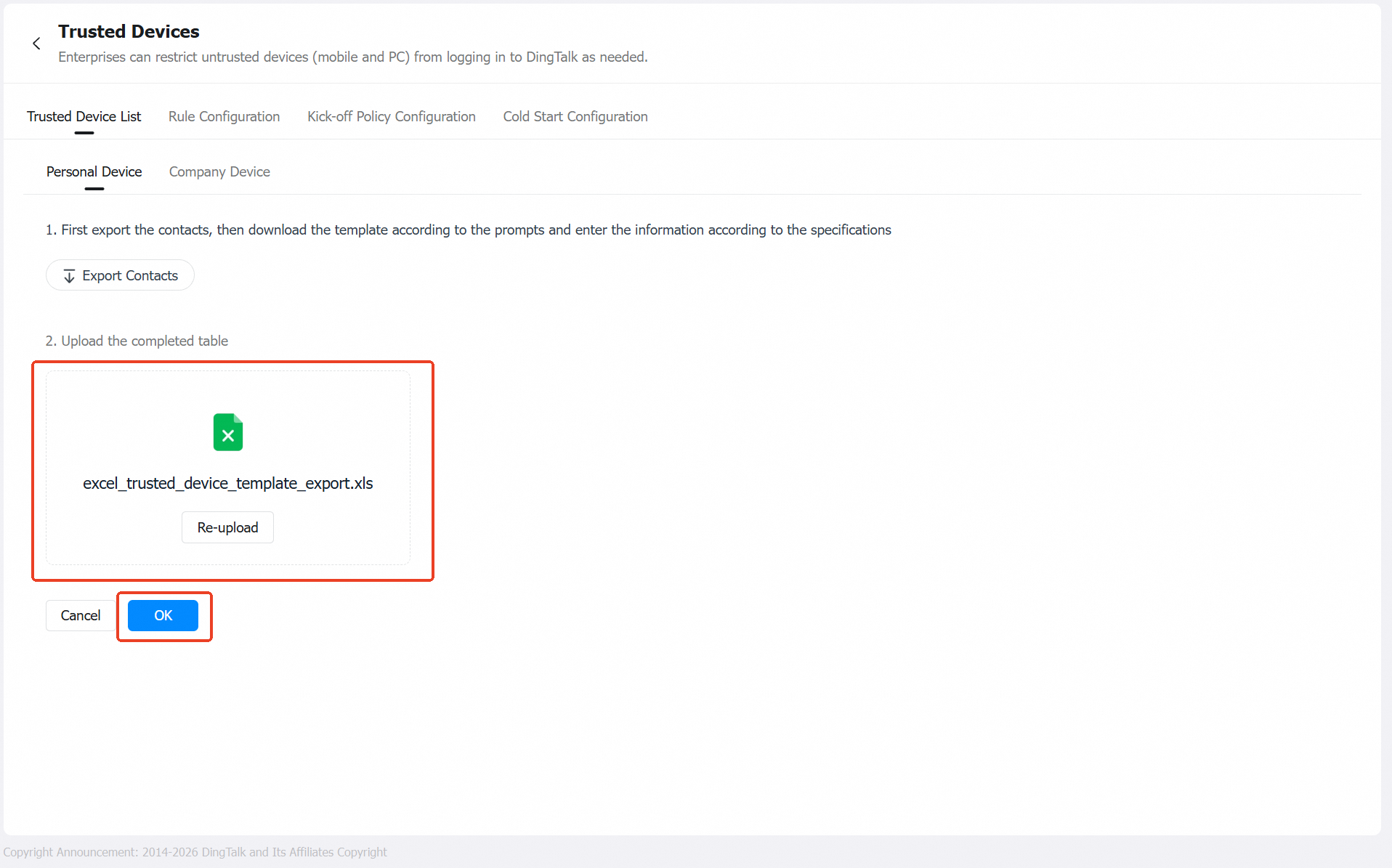
 A template is provided for administrators to **bulk-add desktop personal trusted devices**.
1. **Export** the batch import template.
2. Follow the template's instructions and **enter the data** in the required format.
3. **Upload** the template and **click Confirm** to complete the import (re-uploading is supported). The devices listed in the template will become trusted (takes effect immediately by default) and can be used to sign in to DingTalk.
Batch import only supports MAC addresses of employees already in the organization's directory. To add new employees, first invite them to join from the Contacts section.
### Adding a Mobile Personal Trusted Device
Mobile devices cannot be added from the admin console. When an employee attempts to sign in to DingTalk on an untrusted mobile device, they will be prompted to apply for trusted device status.
**Employee side:** **Click "To apply"** to proceed to Step 2. **Select the device type, agree to the terms, and submit the application.** This completes the personal trusted device application.
The "company device" option here does not refer to "shared trusted devices." It simply indicates that the device is company-owned.
**Admin side:** Administrators can **approve or reject** employees' trusted device applications, from either the approval message or the admin console.
Administrators can **approve or reject** employees' trusted device applications. Devices that have already been processed in the admin console will be synced here automatically, so no duplicate action is needed.
The following fields are provided: company, employee name, employee ID, department, device name, application time, and current number of trusted devices. Administrators can **approve or reject** each application.
* **When approved:** The device becomes trusted, and the employee can use it to sign in to DingTalk.
* **When rejected:** The device remains untrusted, and the employee cannot use it to sign in to DingTalk.
A template is provided for administrators to **bulk-add desktop personal trusted devices**.
1. **Export** the batch import template.
2. Follow the template's instructions and **enter the data** in the required format.
3. **Upload** the template and **click Confirm** to complete the import (re-uploading is supported). The devices listed in the template will become trusted (takes effect immediately by default) and can be used to sign in to DingTalk.
Batch import only supports MAC addresses of employees already in the organization's directory. To add new employees, first invite them to join from the Contacts section.
### Adding a Mobile Personal Trusted Device
Mobile devices cannot be added from the admin console. When an employee attempts to sign in to DingTalk on an untrusted mobile device, they will be prompted to apply for trusted device status.
**Employee side:** **Click "To apply"** to proceed to Step 2. **Select the device type, agree to the terms, and submit the application.** This completes the personal trusted device application.
The "company device" option here does not refer to "shared trusted devices." It simply indicates that the device is company-owned.
**Admin side:** Administrators can **approve or reject** employees' trusted device applications, from either the approval message or the admin console.
Administrators can **approve or reject** employees' trusted device applications. Devices that have already been processed in the admin console will be synced here automatically, so no duplicate action is needed.
The following fields are provided: company, employee name, employee ID, department, device name, application time, and current number of trusted devices. Administrators can **approve or reject** each application.
* **When approved:** The device becomes trusted, and the employee can use it to sign in to DingTalk.
* **When rejected:** The device remains untrusted, and the employee cannot use it to sign in to DingTalk.
 In the admin console, administrators can **approve or reject** employees' trusted device applications.
* Individual approvals: **Approve** or **Reject**.
* Batch approvals: **Batch Approve** or **Batch Reject**.
* **When approved:** The device becomes trusted, and the employee can use it to sign in to DingTalk.
* **When rejected:** The device entry is removed from the list, and the employee cannot use it to sign in to DingTalk. Administrators may also provide a rejection reason and choose whether to allow the employee to reapply.
### Managing the Personal Trusted Device List
* You can search the trusted device list by multiple dimensions, including employee name, device trust status (all, pending approval, trusted), client type (all, Windows, Mac, Android, iOS), MAC address (xx:xx:xx:xx:xx:xx, desktop only), and registration/application time.
* You can **report as lost, delete, batch delete, or promote to a shared trusted device** (lost or deleted devices will be **forced to sign out of DingTalk**). The device list can also be exported locally.
In the admin console, administrators can **approve or reject** employees' trusted device applications.
* Individual approvals: **Approve** or **Reject**.
* Batch approvals: **Batch Approve** or **Batch Reject**.
* **When approved:** The device becomes trusted, and the employee can use it to sign in to DingTalk.
* **When rejected:** The device entry is removed from the list, and the employee cannot use it to sign in to DingTalk. Administrators may also provide a rejection reason and choose whether to allow the employee to reapply.
### Managing the Personal Trusted Device List
* You can search the trusted device list by multiple dimensions, including employee name, device trust status (all, pending approval, trusted), client type (all, Windows, Mac, Android, iOS), MAC address (xx:xx:xx:xx:xx:xx, desktop only), and registration/application time.
* You can **report as lost, delete, batch delete, or promote to a shared trusted device** (lost or deleted devices will be **forced to sign out of DingTalk**). The device list can also be exported locally.


## Company Trusted Device Management
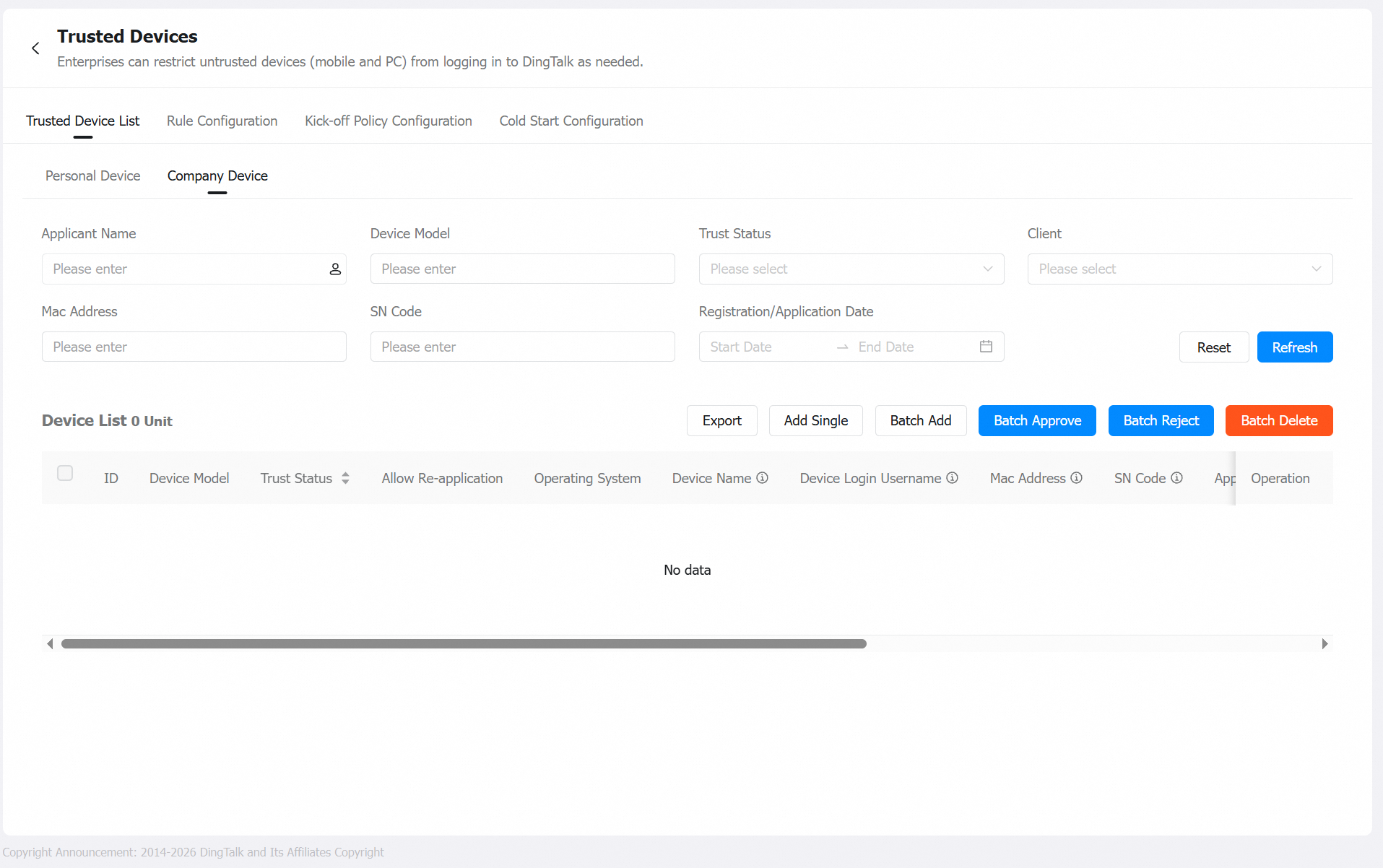
Navigation path: in the left navigation pane, go to **Security & permission > Security > Access Control > Trusted Device > Company Device**.
 ### Adding a Desktop Company Device
Administrators can add a single desktop shared trusted device by entering the device name, selecting the platform (Windows or Mac), and filling in the device's MAC address (format: xx:xx:xx:xx:xx:xx; multiple MAC addresses are supported with no limit). **Once the information is entered and saved**, the device becomes trusted. Employees within the designated scope can use the device to sign in to DingTalk.
### Adding a Desktop Company Device
Administrators can add a single desktop shared trusted device by entering the device name, selecting the platform (Windows or Mac), and filling in the device's MAC address (format: xx:xx:xx:xx:xx:xx; multiple MAC addresses are supported with no limit). **Once the information is entered and saved**, the device becomes trusted. Employees within the designated scope can use the device to sign in to DingTalk.
 A template is provided for administrators to **batch-add desktop personal trusted devices**.
1. **Export** the batch import template.
2. Follow the template's instructions and **enter the data** in the required format.
3. **Upload** the template and **click Confirm** to complete the import (re-uploading is supported). The devices listed in the template will become trusted, and employees within the designated scope can use them to sign in to DingTalk.
Batch import only supports MAC addresses of employees already in the organization's directory. To add new employees, first invite them to join from the Contacts section. Imported shared devices are **available to all employees by default**.
### Managing the Shared Trusted Device List
* You can search the trusted device list by multiple dimensions, including device name, client type (all, Windows, Mac), MAC address (xx:xx:xx:xx:xx:xx, desktop only), and registration/application time.
* You can configure the **available employee scope (all employees / specific employees)**, as well as **delete or batch delete** trusted devices (deleted devices will be **forced to sign out of DingTalk**). The device list can also be exported locally.
A template is provided for administrators to **batch-add desktop personal trusted devices**.
1. **Export** the batch import template.
2. Follow the template's instructions and **enter the data** in the required format.
3. **Upload** the template and **click Confirm** to complete the import (re-uploading is supported). The devices listed in the template will become trusted, and employees within the designated scope can use them to sign in to DingTalk.
Batch import only supports MAC addresses of employees already in the organization's directory. To add new employees, first invite them to join from the Contacts section. Imported shared devices are **available to all employees by default**.
### Managing the Shared Trusted Device List
* You can search the trusted device list by multiple dimensions, including device name, client type (all, Windows, Mac), MAC address (xx:xx:xx:xx:xx:xx, desktop only), and registration/application time.
* You can configure the **available employee scope (all employees / specific employees)**, as well as **delete or batch delete** trusted devices (deleted devices will be **forced to sign out of DingTalk**). The device list can also be exported locally.


## Rule Configuration
Navigation path: in the left navigation pane, go to **Security & permission > Security > Access Control > Trusted Device > Rule Configuration**.
 ## Kick-off Policy Configuration
Navigation path: in the left navigation pane, go to **Security & permission > Security > Access Control > Trusted Device > Kick-off Policy Configuration**.
## Kick-off Policy Configuration
Navigation path: in the left navigation pane, go to **Security & permission > Security > Access Control > Trusted Device > Kick-off Policy Configuration**.
 ## Cold Start Configuration
Navigation path: in the left navigation pane, go to **Security & permission > Security > Access Control > Trusted Device > Cold Start Configuration**.
## Cold Start Configuration
Navigation path: in the left navigation pane, go to **Security & permission > Security > Access Control > Trusted Device > Cold Start Configuration**.
 ### Enforcement Settings
* **Auto-approve first mobile device and collect information:** When enabled, an employee's first mobile personal device is auto-approved and becomes a trusted device.
* **Auto-collect mobile device information:** When enabled, if an employee signs in on an untrusted mobile device, the device information is automatically collected. The trust status remains unchanged (still untrusted), and the administrator can approve it from the device list.
* **Auto-approve first desktop device and collect information:** When enabled, an employee's first desktop personal device is auto-approved and becomes a trusted device.
* **Auto-collect desktop device information:** When enabled, if an employee signs in on an untrusted desktop device, the device information is automatically collected. The trust status remains unchanged (still untrusted), and the administrator can approve it from the device list.
### Enforcement Settings
* **Auto-approve first mobile device and collect information:** When enabled, an employee's first mobile personal device is auto-approved and becomes a trusted device.
* **Auto-collect mobile device information:** When enabled, if an employee signs in on an untrusted mobile device, the device information is automatically collected. The trust status remains unchanged (still untrusted), and the administrator can approve it from the device list.
* **Auto-approve first desktop device and collect information:** When enabled, an employee's first desktop personal device is auto-approved and becomes a trusted device.
* **Auto-collect desktop device information:** When enabled, if an employee signs in on an untrusted desktop device, the device information is automatically collected. The trust status remains unchanged (still untrusted), and the administrator can approve it from the device list.
 ## Q\&A
| Item | Description |
| ---------------------- | ------------------------------------------------------------------------------------------------------------------------------------------------------------------------------------------------------------------------------------------------------------------ |
| **Prerequisites** | Collecting employee device information requires first signing the *Trusted Device Information Collection* agreement. |
| **Supported Versions** | Desktop (version 8.3.15 and above); Mobile (version 8.3.15 and above) |
| **Enforcement Method** | After approval, the policy takes effect immediately by default. Desktop: Configurable in Admin Console > Policy Settings > Enforcement Settings > Effective Time. Mobile: Configurable in Admin Console > Policy Settings > Enforcement Settings > Effective Time. |
*How do I cold-start the trusted device feature if my organization has already been using DingTalk and then purchases trusted devices?*
**A1:**
An employee signed in to DingTalk on Device A on January 1, 2022, before the organization had purchased the trusted device feature.
The organization purchased trusted devices on January 1, 2023. However, the employee had already signed in on an untrusted device back on January 1, 2022, so Device A is outside of device management.
Using the "Remove users on untrusted devices" feature, you can force DingTalk to sign out from Device A. After the forced sign-out, you can start the trusted device onboarding process from scratch.
The current trusted device policy settings require importing some data before they can be used. This will be optimized in the future.
**A2:** This feature is under development. Stay tuned.
**A3:** As long as the MAC address used at sign-in matches any one of the MAC addresses registered in the admin console, the device can sign in normally.
**A4:** Personal trusted devices are tied to specific individuals within the organization. For example, if Company A enables the trusted device module, and Employee A of Company A applies for a personal trusted device (Device X), then no other employee in Company A can use Device X to sign in.
**A5:** When "Auto-collect mobile device information" is enabled, if an employee signs in to DingTalk on an untrusted mobile device, the request does not go through the approval flow — the administrator will not receive an application. However, the device information will appear in the admin console device list, where the administrator can choose to approve or reject it. If the employee submits a formal application before the administrator processes it from the console, the administrator will receive the application, and the console list will overwrite the previously auto-collected device information.
**A6:** No.
**A7:** Importing follows an additive logic, not an overwrite logic.
**Case 1:** If the admin console already contains trusted device information for Employees 1–5, and the administrator adds 10 entries for Employees 6–15 in the template, uploading the template will add entries for Employees 6–15, resulting in a total of 15 entries.
**Case 2:** If Employee 1 already has one Windows trusted device, and the administrator adds another Windows trusted device for Employee 1 in the template, after uploading, Employee 1 will have two Windows trusted devices.
**A8:** Due to compliance and system limitations, the unique identifier cannot be obtained.
## Q\&A
| Item | Description |
| ---------------------- | ------------------------------------------------------------------------------------------------------------------------------------------------------------------------------------------------------------------------------------------------------------------ |
| **Prerequisites** | Collecting employee device information requires first signing the *Trusted Device Information Collection* agreement. |
| **Supported Versions** | Desktop (version 8.3.15 and above); Mobile (version 8.3.15 and above) |
| **Enforcement Method** | After approval, the policy takes effect immediately by default. Desktop: Configurable in Admin Console > Policy Settings > Enforcement Settings > Effective Time. Mobile: Configurable in Admin Console > Policy Settings > Enforcement Settings > Effective Time. |
*How do I cold-start the trusted device feature if my organization has already been using DingTalk and then purchases trusted devices?*
**A1:**
An employee signed in to DingTalk on Device A on January 1, 2022, before the organization had purchased the trusted device feature.
The organization purchased trusted devices on January 1, 2023. However, the employee had already signed in on an untrusted device back on January 1, 2022, so Device A is outside of device management.
Using the "Remove users on untrusted devices" feature, you can force DingTalk to sign out from Device A. After the forced sign-out, you can start the trusted device onboarding process from scratch.
The current trusted device policy settings require importing some data before they can be used. This will be optimized in the future.
**A2:** This feature is under development. Stay tuned.
**A3:** As long as the MAC address used at sign-in matches any one of the MAC addresses registered in the admin console, the device can sign in normally.
**A4:** Personal trusted devices are tied to specific individuals within the organization. For example, if Company A enables the trusted device module, and Employee A of Company A applies for a personal trusted device (Device X), then no other employee in Company A can use Device X to sign in.
**A5:** When "Auto-collect mobile device information" is enabled, if an employee signs in to DingTalk on an untrusted mobile device, the request does not go through the approval flow — the administrator will not receive an application. However, the device information will appear in the admin console device list, where the administrator can choose to approve or reject it. If the employee submits a formal application before the administrator processes it from the console, the administrator will receive the application, and the console list will overwrite the previously auto-collected device information.
**A6:** No.
**A7:** Importing follows an additive logic, not an overwrite logic.
**Case 1:** If the admin console already contains trusted device information for Employees 1–5, and the administrator adds 10 entries for Employees 6–15 in the template, uploading the template will add entries for Employees 6–15, resulting in a total of 15 entries.
**Case 2:** If Employee 1 already has one Windows trusted device, and the administrator adds another Windows trusted device for Employee 1 in the template, after uploading, Employee 1 will have two Windows trusted devices.
**A8:** Due to compliance and system limitations, the unique identifier cannot be obtained.