> ## Documentation Index
> Fetch the complete documentation index at: https://help.dingtalk.io/llms.txt
> Use this file to discover all available pages before exploring further.
# 图片
> 支持在AI表格应用中插入图片组件,展示和管理静态或动态图像,丰富可视化内容。
## **功能简介**
支持在AI表格应用中插入图片组件,展示和管理静态或动态图像,丰富可视化内容。
**典型的适用场景包括:**
* **企业品牌与装饰:** 在仪表盘的头部、侧边栏或背景中,插入公司Logo、品牌标识,或使用装饰性底图提升整体视觉美感。
* **指标形象化说明:** 为关键数据指标或图表配图,使用图标、示意图帮助用户更直观地理解数据含义(如用“上升箭头”图示配合增长指标)。
* **背景与底图:** 在数据大屏或复杂报告中,将地图、建筑平面图、设备示意图等作为背景底图,并在其上叠加动态数据点或热力图,实现数据与实景的结合展示。
## **操作流程**
### **添加图片组件**
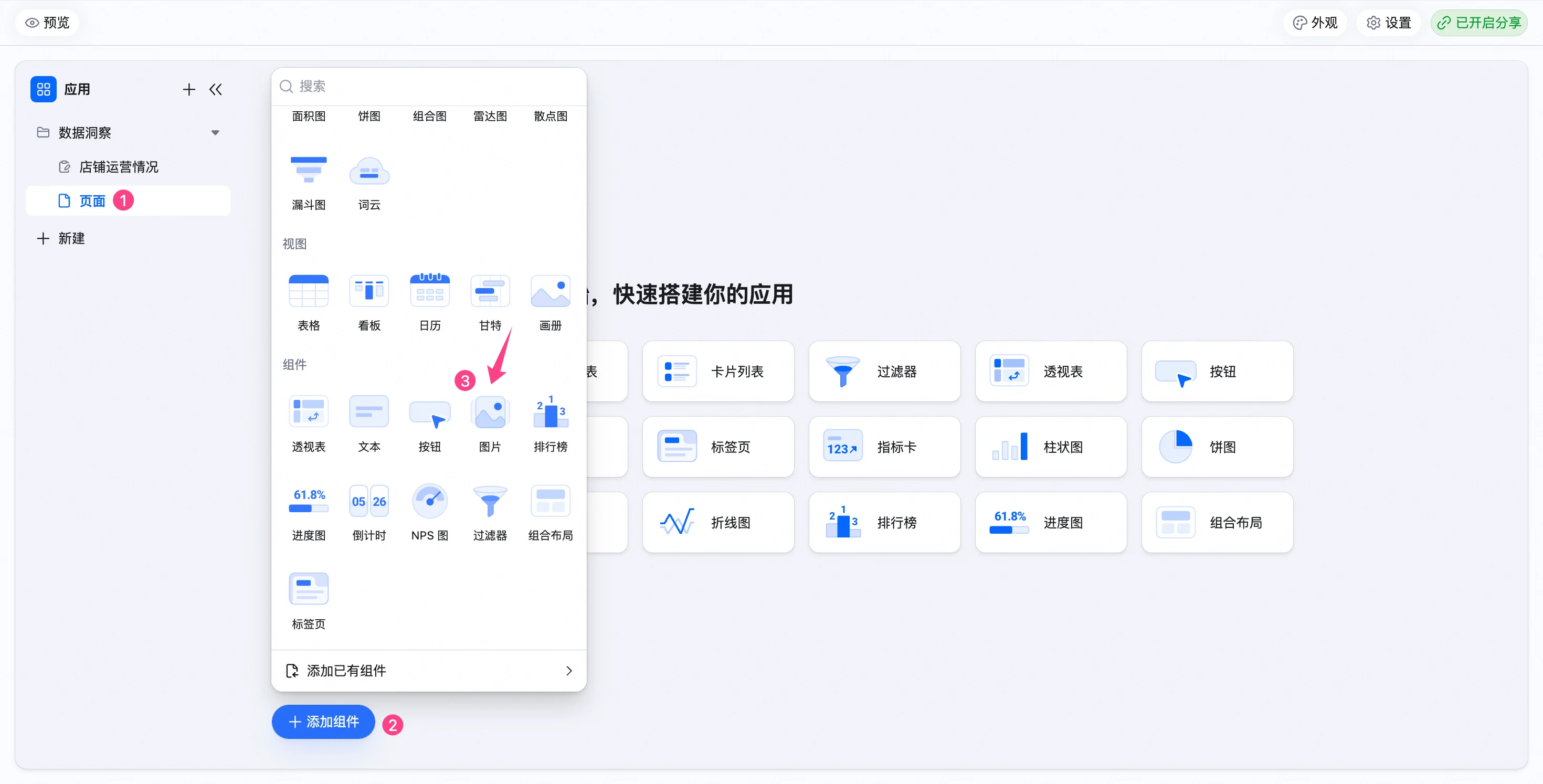
1. 进入AI表格应用模块。
2. 在左侧导航栏选择需要添加组件的目标页面。
3. 点击页面左下角的 **+ 添加组件** ,然后选择 **图片** 。

 ### **基础配置**
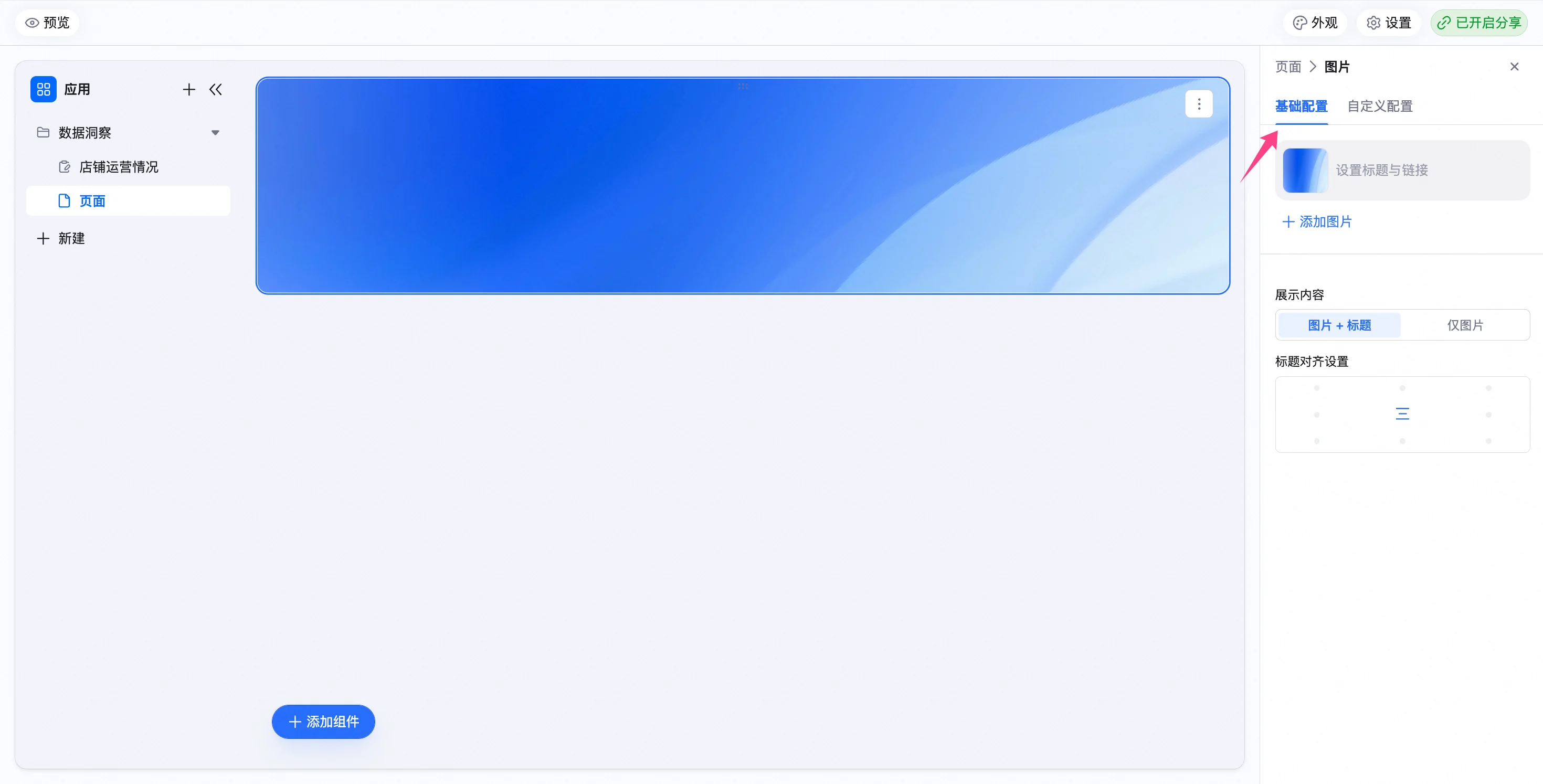
在添加组件后,通过右侧面板的 **基础配置** 进行以下设置:
### **基础配置**
在添加组件后,通过右侧面板的 **基础配置** 进行以下设置:
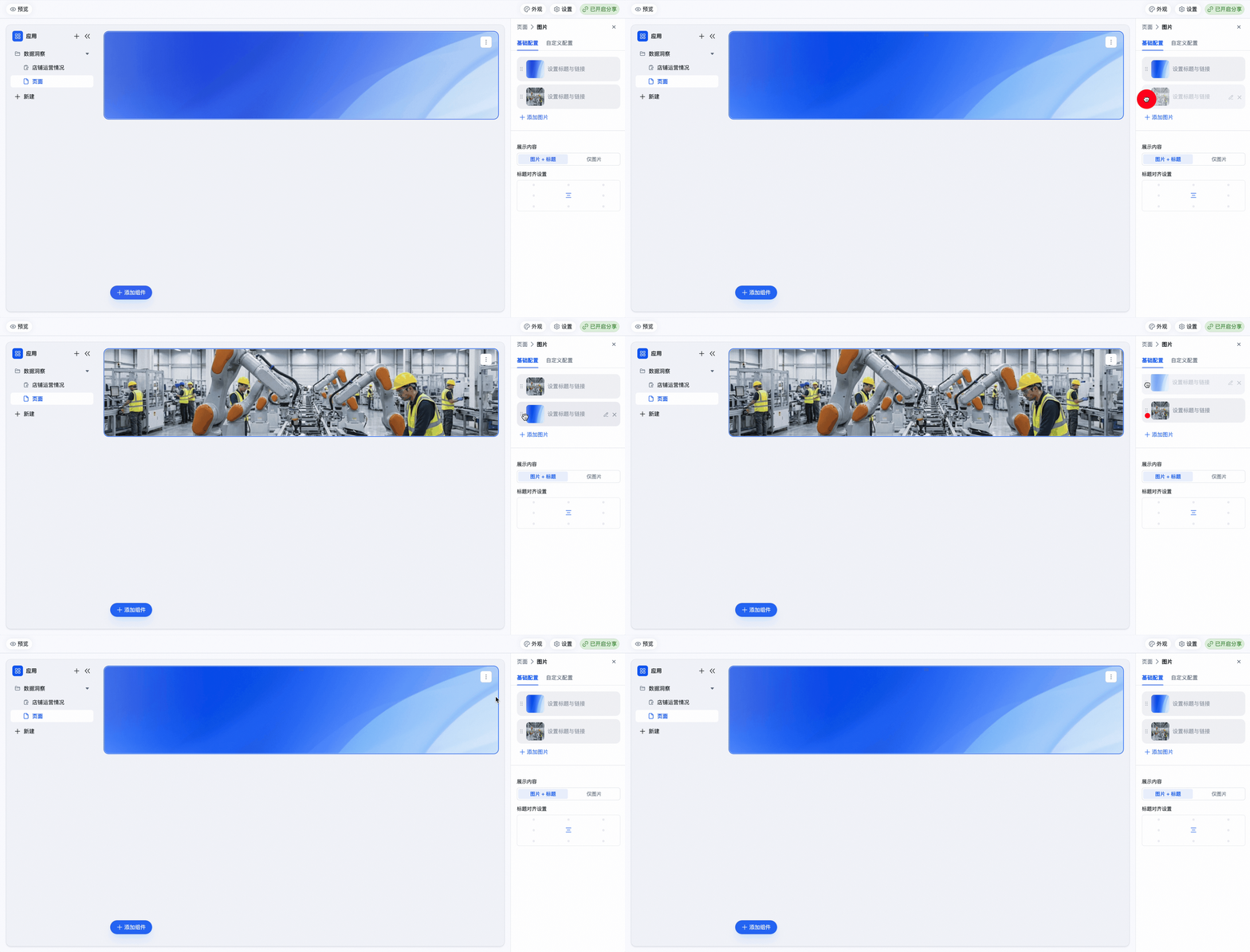
 * **图片管理**
* **添加图片:** 点击 **+ 添加图片** ,从本地上传图片。支持上传 JPG、PNG、JPEG、SVG、GIF和WEBP 等格式类型,图片大小不得超过20 MB,最多20 张。
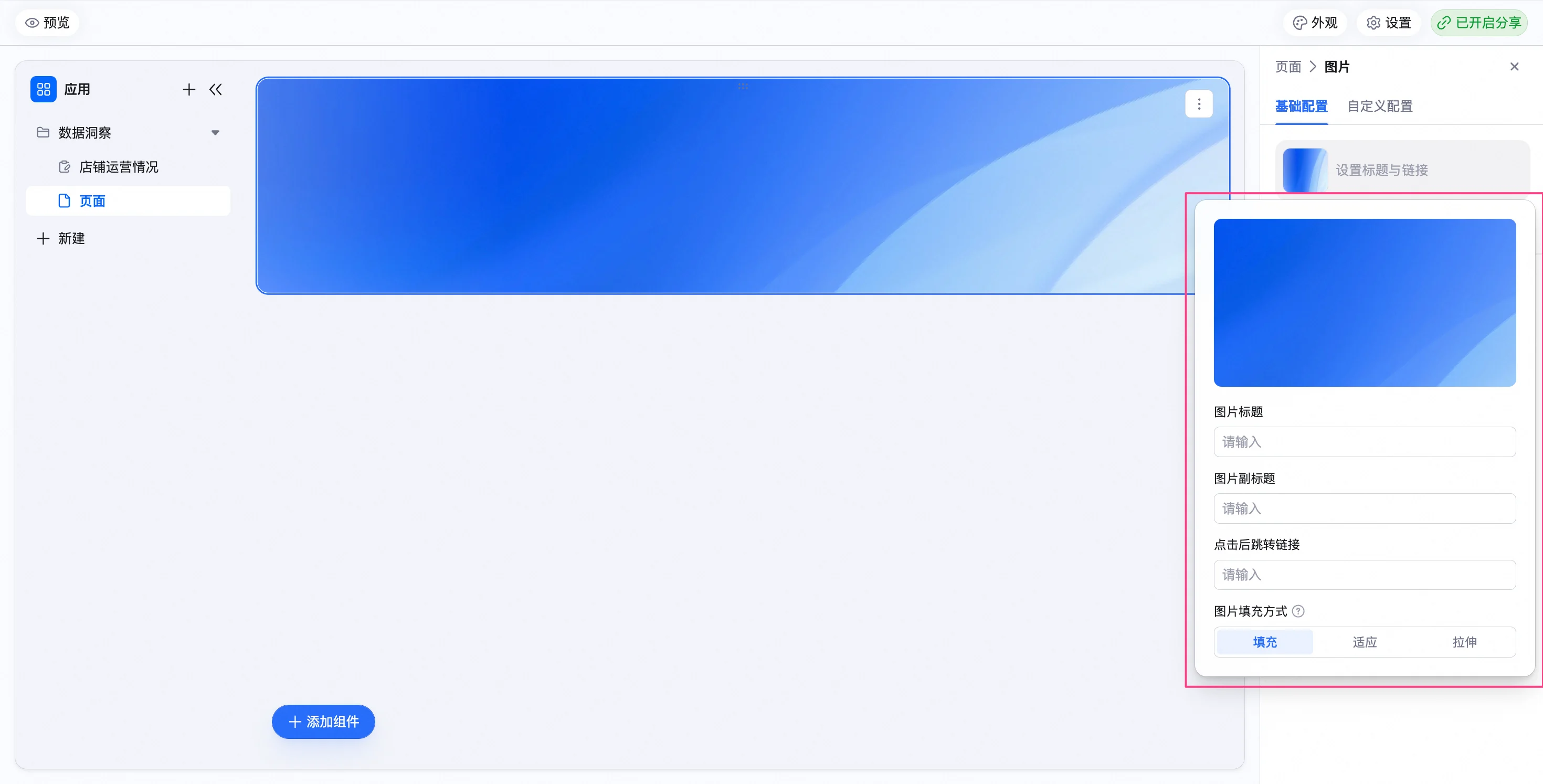
* **编辑图片:** 鼠标悬浮至图片上,点击右侧的 **编辑** 图标,可为图片添加标题、副标题、跳转链接和图片填充方式,也可以重新上传图片。
* **图片管理**
* **添加图片:** 点击 **+ 添加图片** ,从本地上传图片。支持上传 JPG、PNG、JPEG、SVG、GIF和WEBP 等格式类型,图片大小不得超过20 MB,最多20 张。
* **编辑图片:** 鼠标悬浮至图片上,点击右侧的 **编辑** 图标,可为图片添加标题、副标题、跳转链接和图片填充方式,也可以重新上传图片。
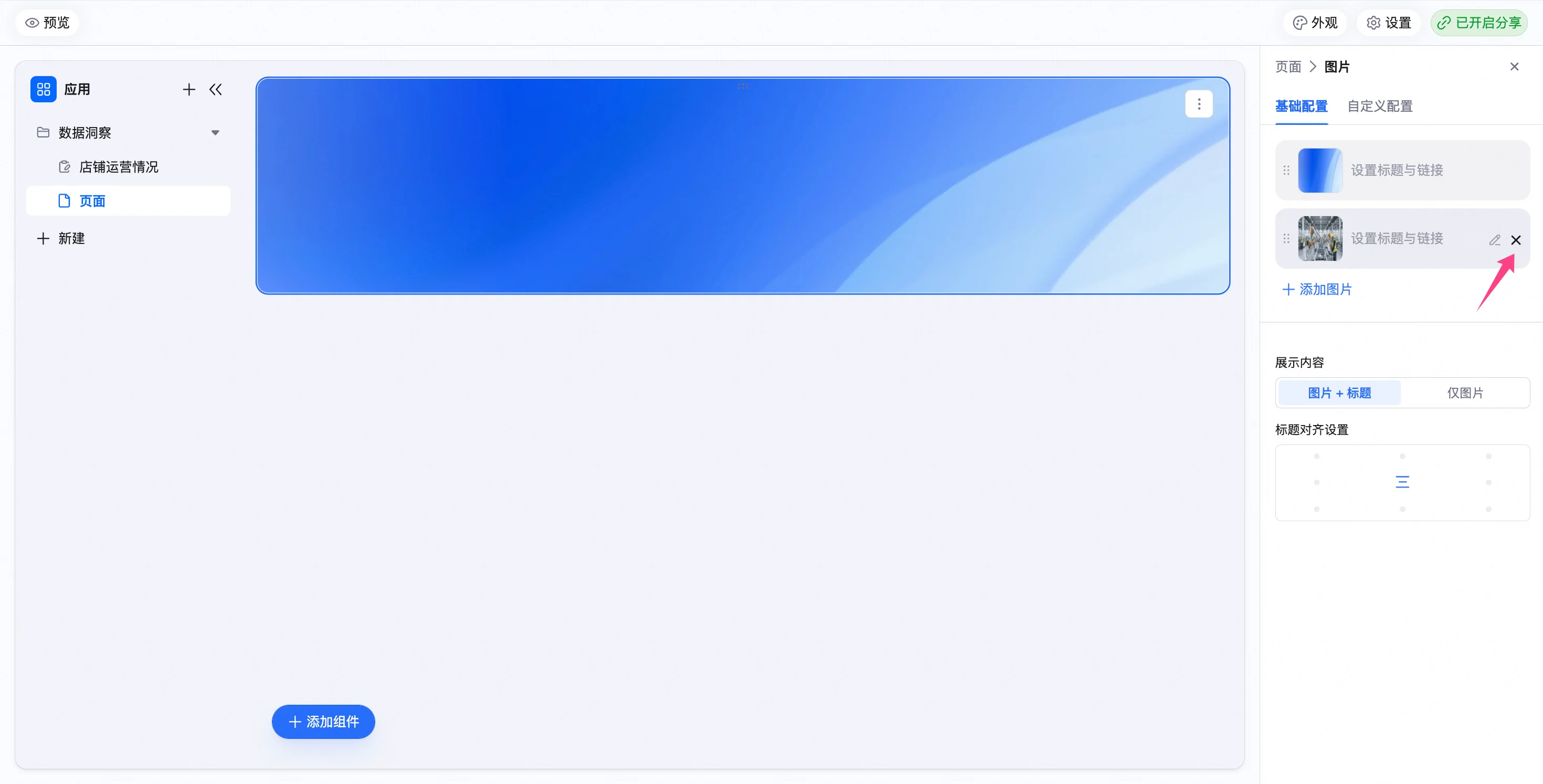
 * **删除图片:**鼠标悬浮至图片上,点击右侧的**删除** 图标,可以直接删除图片。
 * **调整顺序:** 上传图片数量大于1张时,支持拖拽图片左侧的 图标调整图片展示顺序。
 * **展示内容**
* 支持切换图片展示内容,包括图片+标题或仅图片,选择仅图片时,图片上配置的标题内容不展示。
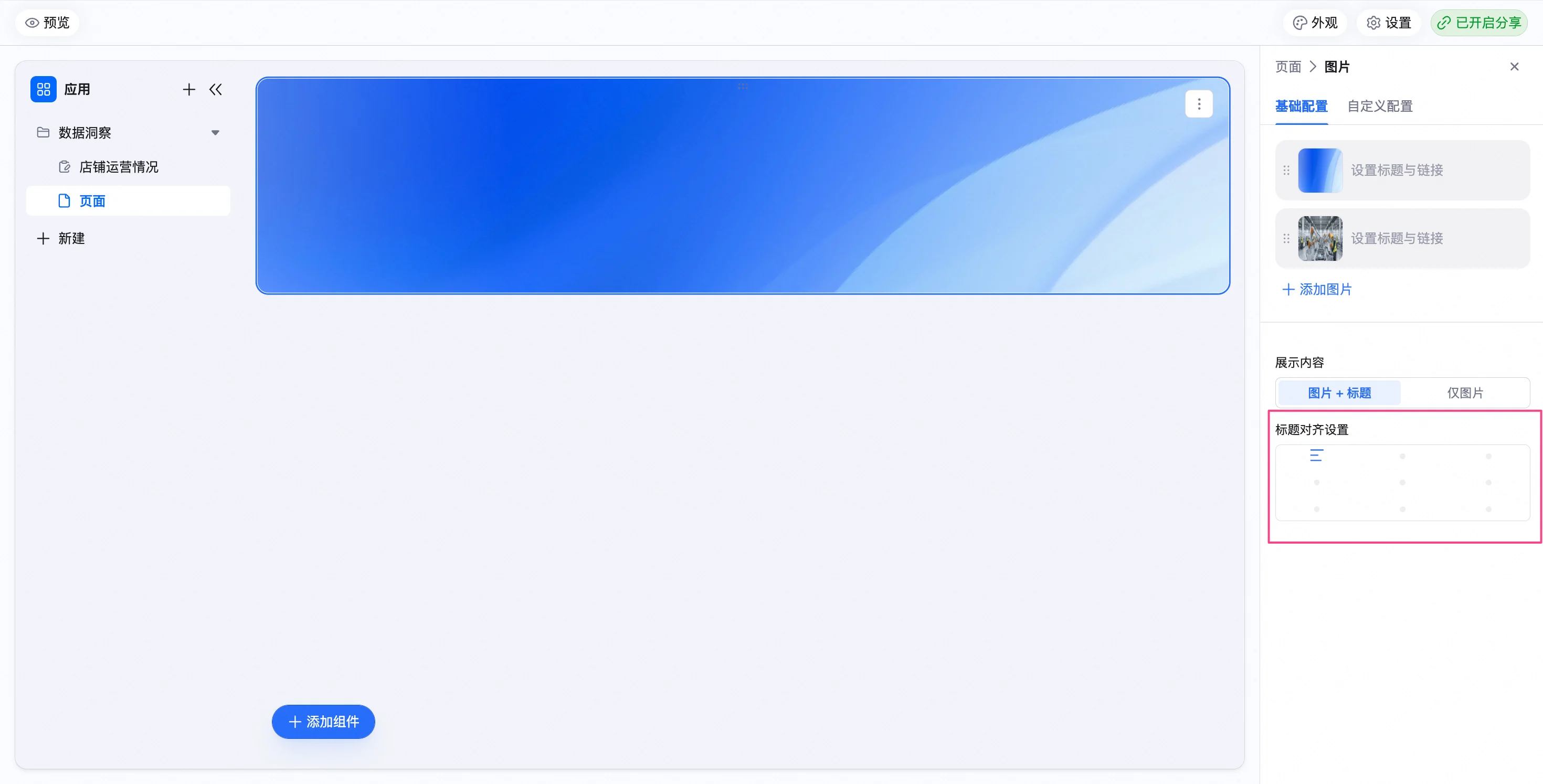
* **文本对齐设置**
* 可以调整图片文字的展示位置,如设置在图片的左上、左中、左下、居中位置等。
* **展示内容**
* 支持切换图片展示内容,包括图片+标题或仅图片,选择仅图片时,图片上配置的标题内容不展示。
* **文本对齐设置**
* 可以调整图片文字的展示位置,如设置在图片的左上、左中、左下、居中位置等。
 ### **自定义配置**
在右侧面板 **自定义配置** 中,进一步调整组件的视觉与交互效果:
### **自定义配置**
在右侧面板 **自定义配置** 中,进一步调整组件的视觉与交互效果:
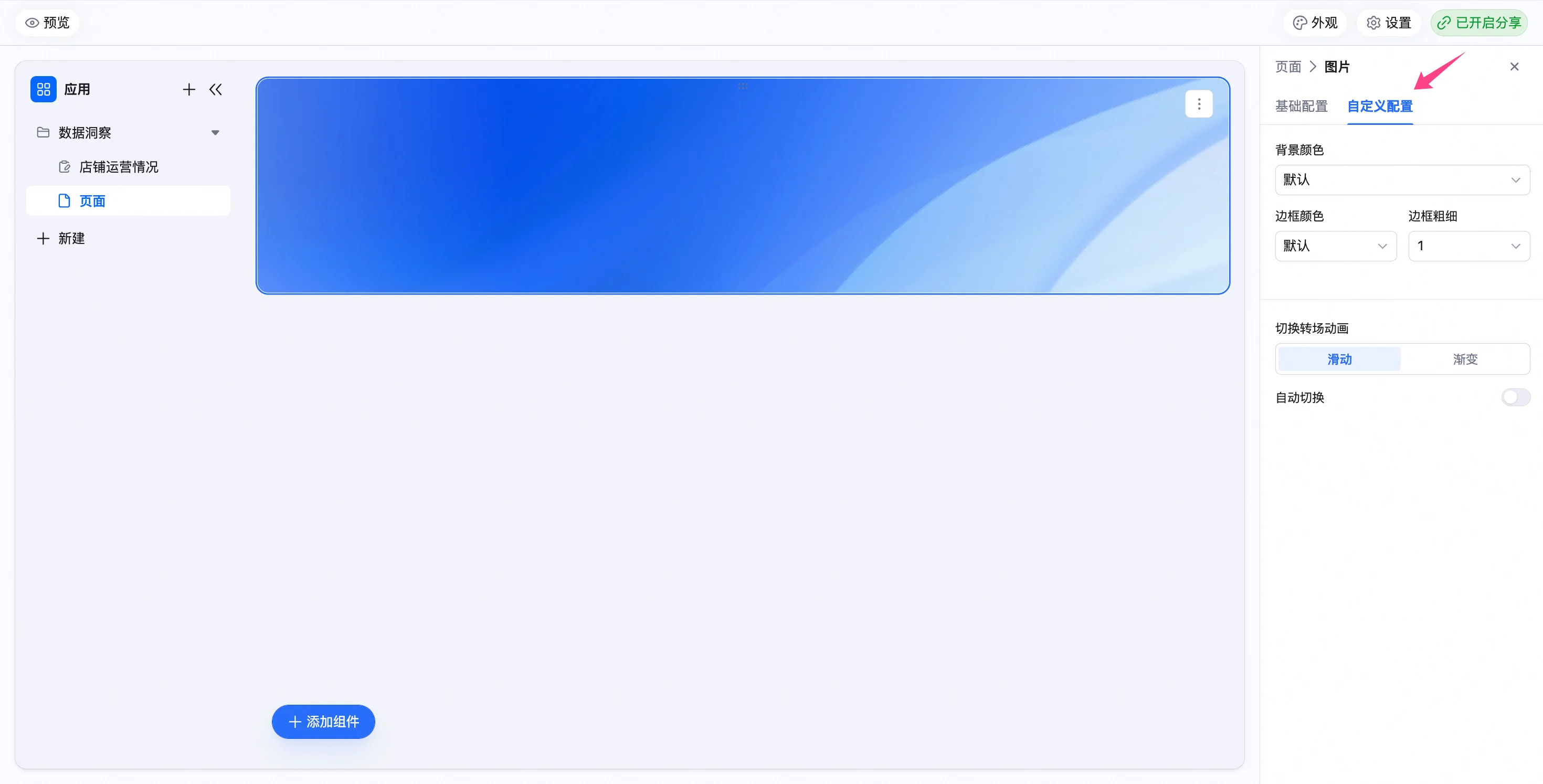 * **背景颜色:** 支持设置组件背景颜色。
* **边框颜色:** 下拉配色板选择边框颜色。
* **边框粗细:** 下拉选择边框粗细。
* **切换转场动画:** 上传图片超过1张时可以设置。支持选择图片轮播时的切换效果(**滑动** 或 **渐变**)。
* **自动切换:** 上传图片超过1张时可以设置。开启后图片以轮播效果展示,关闭时需要手动切换图片至下一张。
* **切换间隔(秒):** 上传图片超过1张时可以设置。默认为5秒,支持手动调整。
### **组件管理**
* **操作菜单**
选中组件后,点击其右上角的 图标,将展开操作菜单,您可以在此进行以下操作:
* **背景颜色:** 支持设置组件背景颜色。
* **边框颜色:** 下拉配色板选择边框颜色。
* **边框粗细:** 下拉选择边框粗细。
* **切换转场动画:** 上传图片超过1张时可以设置。支持选择图片轮播时的切换效果(**滑动** 或 **渐变**)。
* **自动切换:** 上传图片超过1张时可以设置。开启后图片以轮播效果展示,关闭时需要手动切换图片至下一张。
* **切换间隔(秒):** 上传图片超过1张时可以设置。默认为5秒,支持手动调整。
### **组件管理**
* **操作菜单**
选中组件后,点击其右上角的 图标,将展开操作菜单,您可以在此进行以下操作:
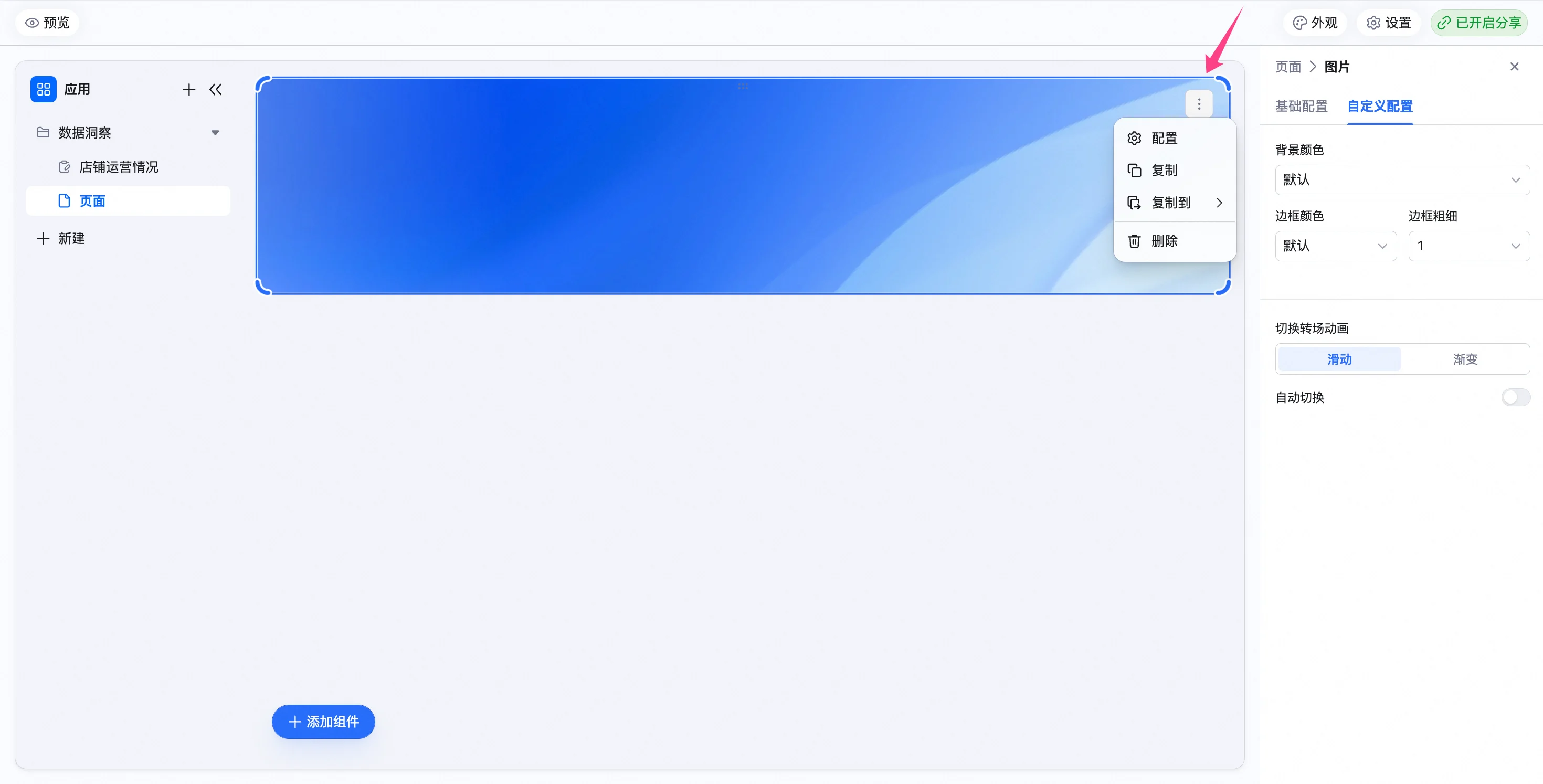 * **配置**:快速打开该组件的属性配置面板。
* **复制**:在当前页面内复制一个相同的组件。
* **复制到**:将组件复制到本应用内的其他指定页面。
* **删除**:将组件从当前页面中移除。
* **调整大小与位置**
* **配置**:快速打开该组件的属性配置面板。
* **复制**:在当前页面内复制一个相同的组件。
* **复制到**:将组件复制到本应用内的其他指定页面。
* **删除**:将组件从当前页面中移除。
* **调整大小与位置**
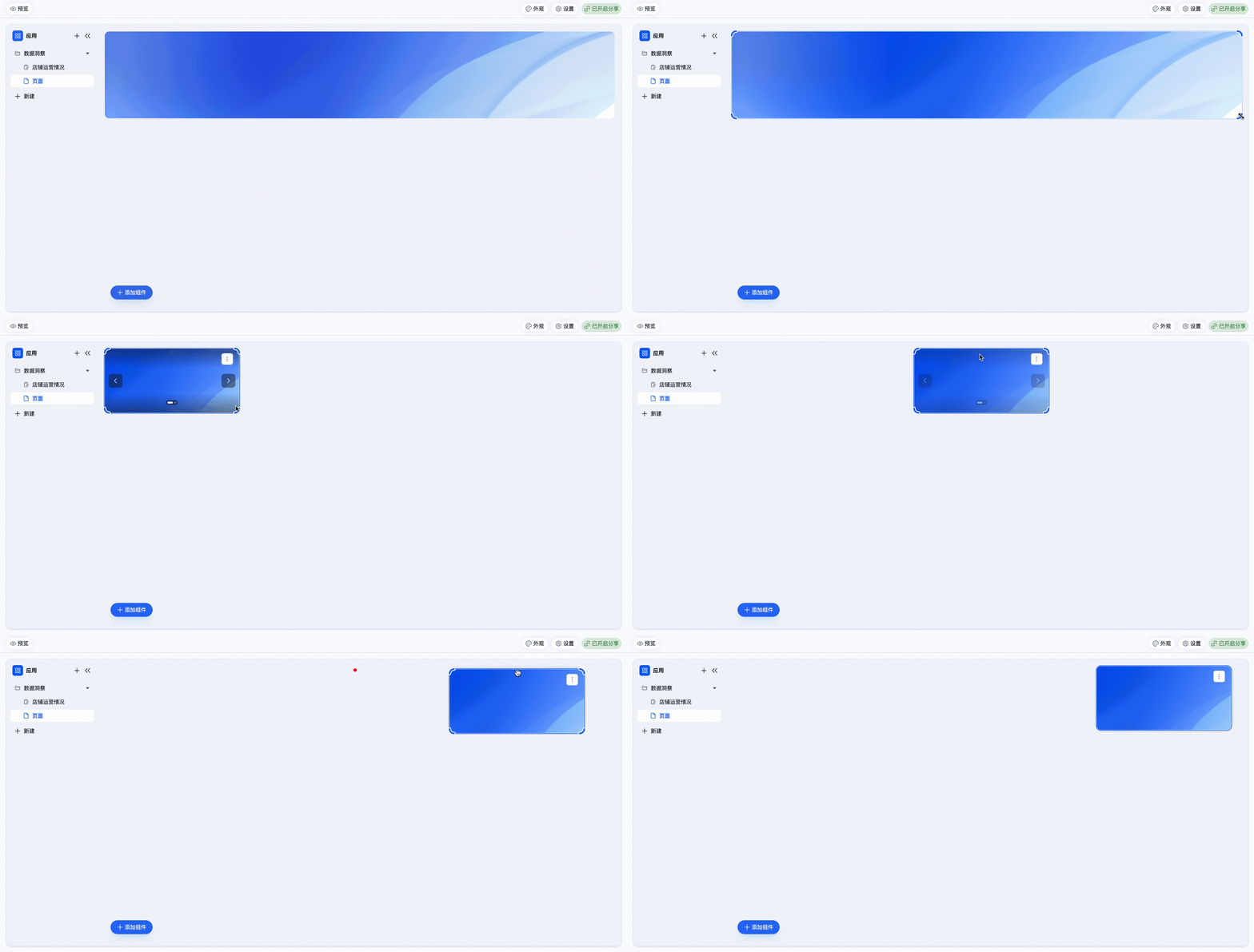 * **调整大小**:将鼠标悬停在组件右下边角通,并拖动拖拽手柄,即可自由调整组件的宽度和高度。
* **移动位置**:将鼠标移至组件上方,浮现 图标,按住鼠标左键并拖动,可在页面内拖拽组件调整位置。
## 常见问题
#### 问:最多可以上传多少张图片?
答:20张。
#### 问:单张图片的大小限制是多少?
答:20M。
* **调整大小**:将鼠标悬停在组件右下边角通,并拖动拖拽手柄,即可自由调整组件的宽度和高度。
* **移动位置**:将鼠标移至组件上方,浮现 图标,按住鼠标左键并拖动,可在页面内拖拽组件调整位置。
## 常见问题
#### 问:最多可以上传多少张图片?
答:20张。
#### 问:单张图片的大小限制是多少?
答:20M。