> ## Documentation Index
> Fetch the complete documentation index at: https://help.dingtalk.io/llms.txt
> Use this file to discover all available pages before exploring further.

# 明细控件

> 介绍钉钉OA审批明细/表格控件的使用方法：适用于一次填写多条同类数据的场景（如物品领用申请），可配合单行输入框、金额、数字、单选框等控件组合使用。

## 一、详细操作说明

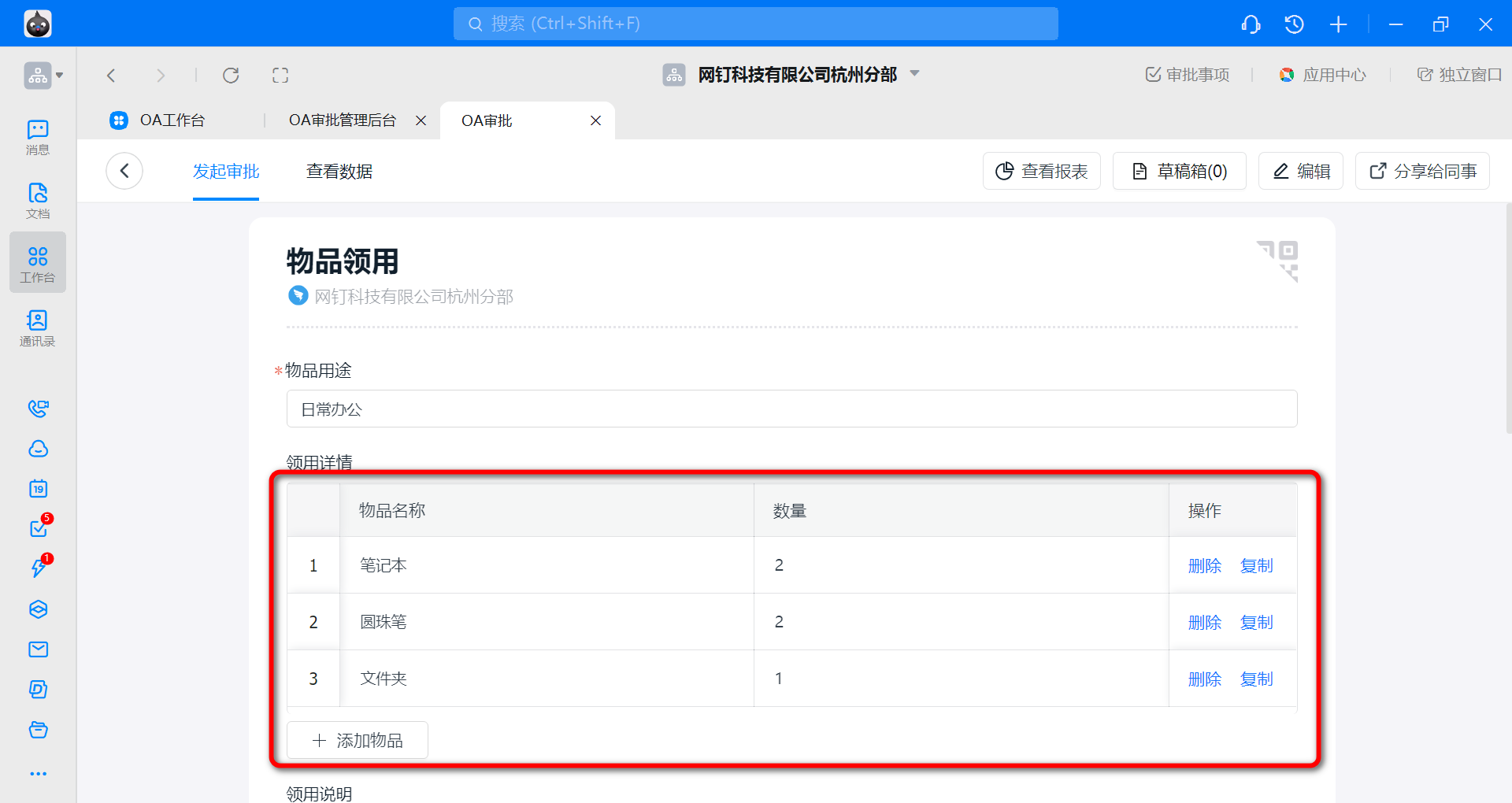
【明细/表格】控件相当于列表或表格，在需要填写多条具有相同字段的数据时使用，可配合单行输入框、金额、数字、单选框等控件一起使用，例如物品领用申请，员工需要一次申请多个不同物品，管理员可在【表单设计】中使用【明细/表格】控件

<Frame>
  ![image.png](https://alidocs.oss-cn-zhangjiakou.aliyuncs.com/res/AmPdnpmdDExgqw98/img/91d0066c-2c4d-4a75-9cc6-7bbc65b12606.png)
</Frame>

### 一）设置方法

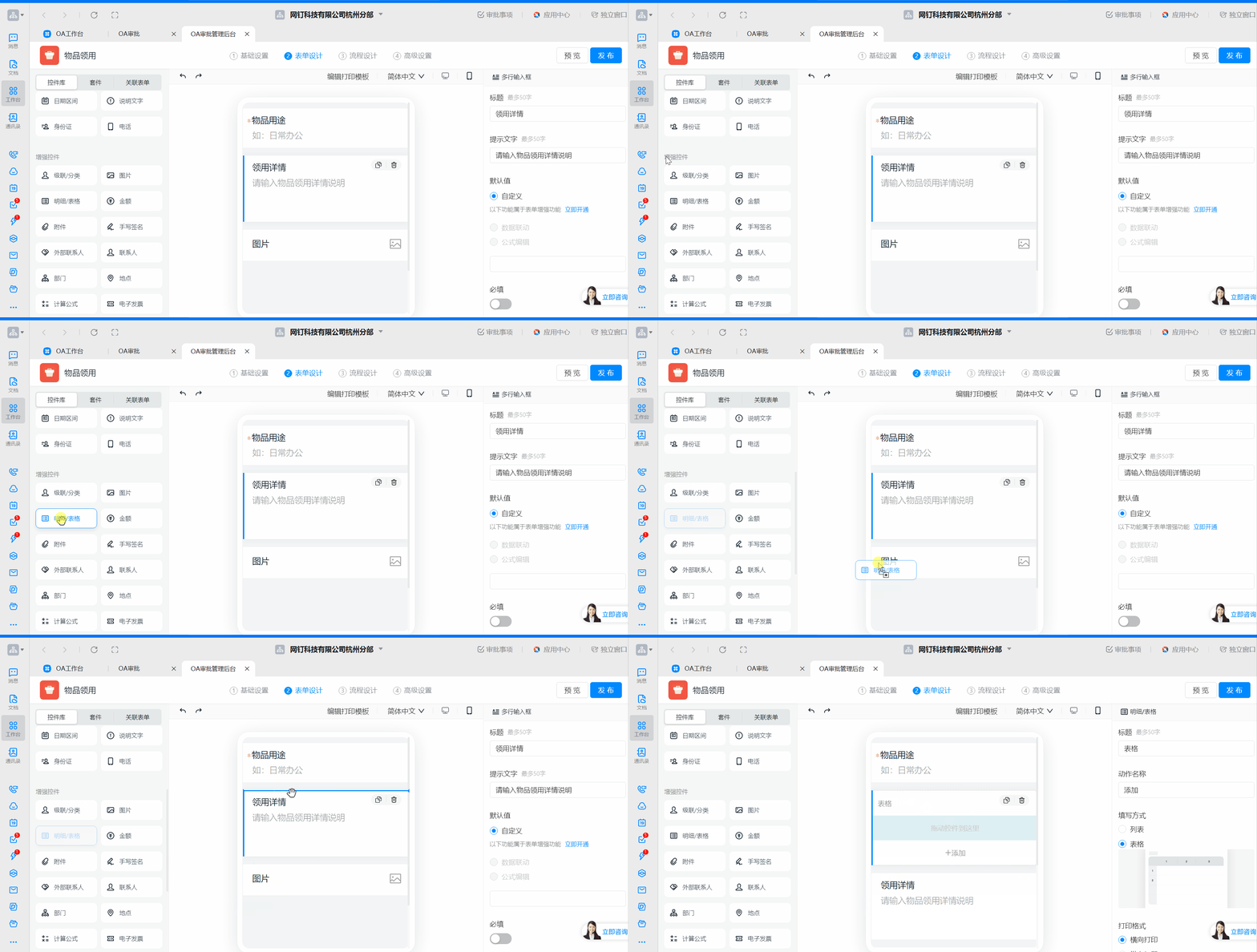
将【明细/表格】控件从左侧控件库中拖放至表单合适的位置

<Frame>
  ![明细1.gif](https://alidocs.oss-cn-zhangjiakou.aliyuncs.com/res/AmPdnpmdDExgqw98/img/5847dc3c-4b41-4530-9016-a5ea132aed68.gif)
</Frame>

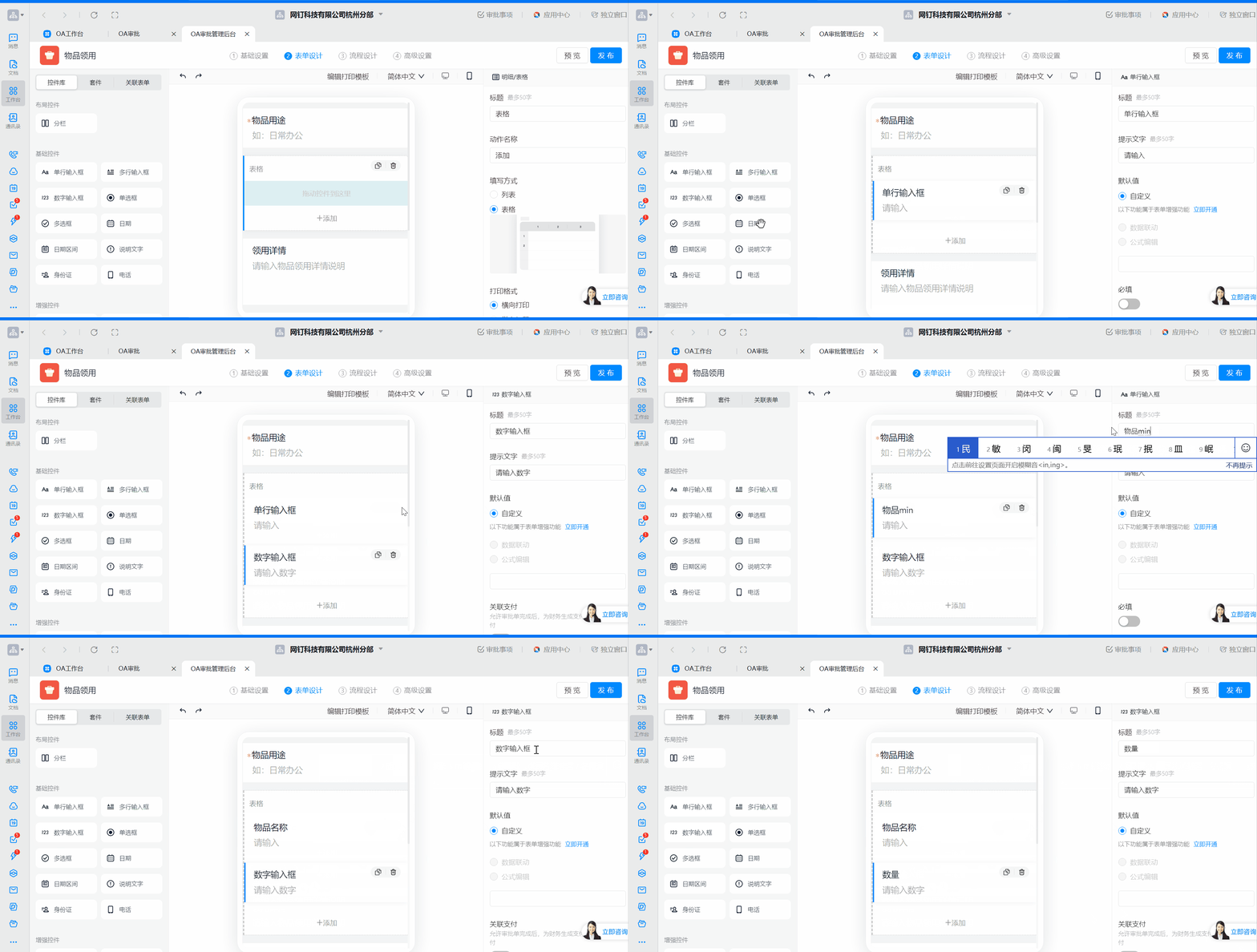
根据需要将其他控件拖入【明细/表格】控件中，如【单行输入框】和【数字输入框】，用于填写领用物品名称和数量

<Frame>
  ![明细2.gif](https://alidocs.oss-cn-zhangjiakou.aliyuncs.com/res/AmPdnpmdDExgqw98/img/3fc6cc4c-2221-4626-8419-76d941537f58.gif)
</Frame>

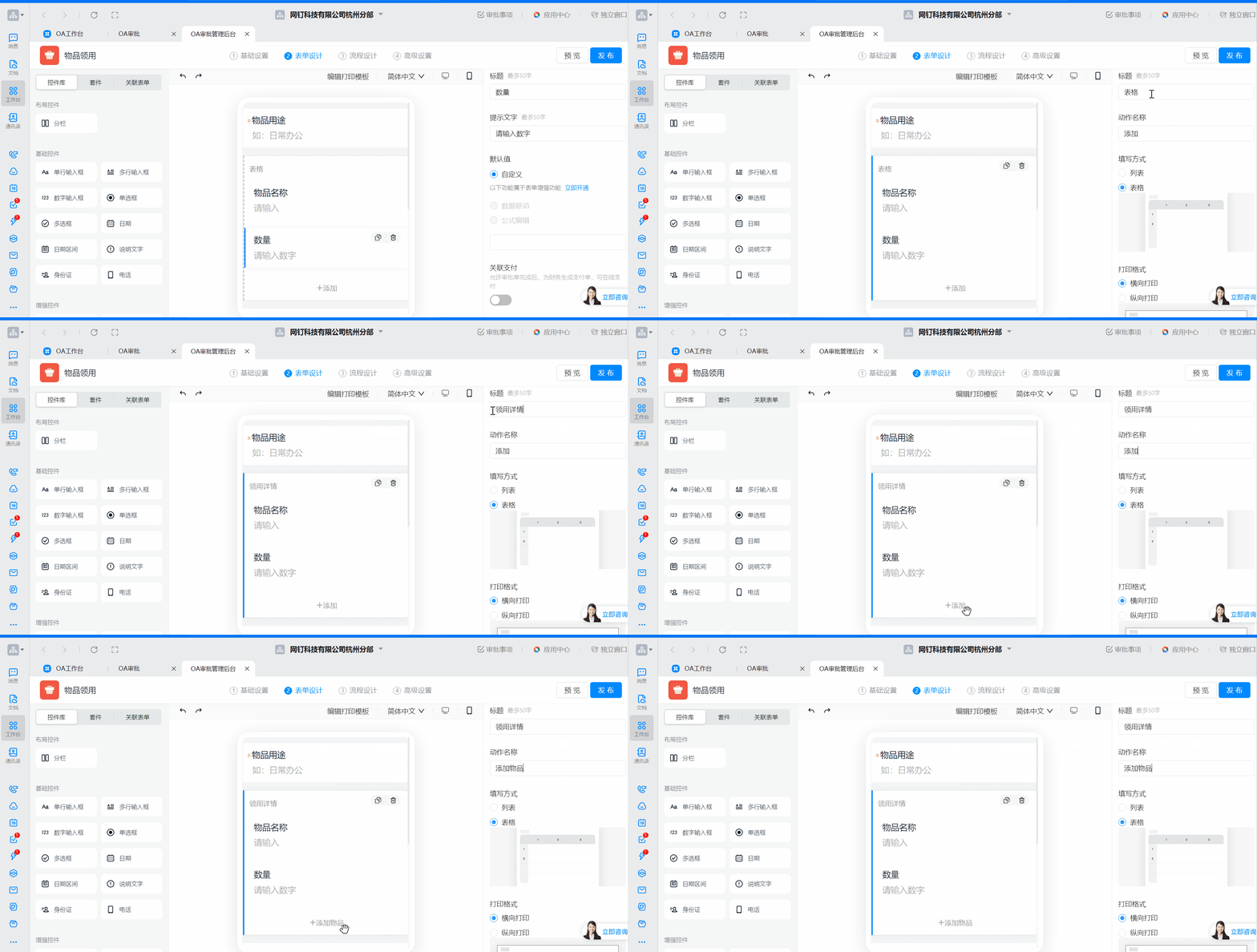
点击【明细/表格】控件可设置标题，动作名称

<Frame>
  ![明细3.gif](https://alidocs.oss-cn-zhangjiakou.aliyuncs.com/res/AmPdnpmdDExgqw98/img/9b7a1af1-16ce-4854-b63e-83985ef4e9aa.gif)
</Frame>

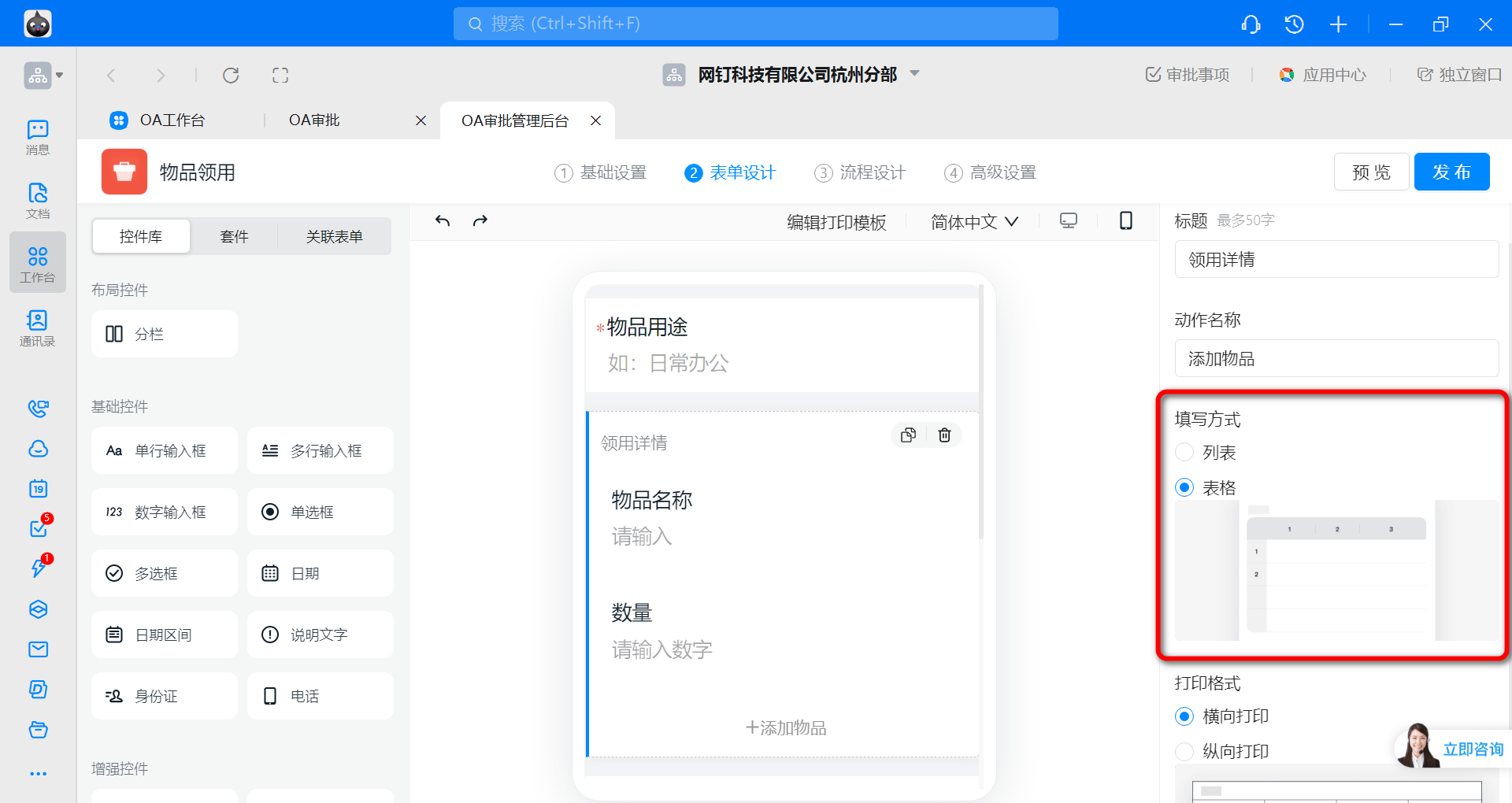
可以选择 **填写方式** 为列表或表格

<Frame>
  ![image.png](https://alidocs.oss-cn-zhangjiakou.aliyuncs.com/res/AmPdnpmdDExgqw98/img/e67a21b0-4314-400e-b99a-cf5481883ac5.png)
</Frame>

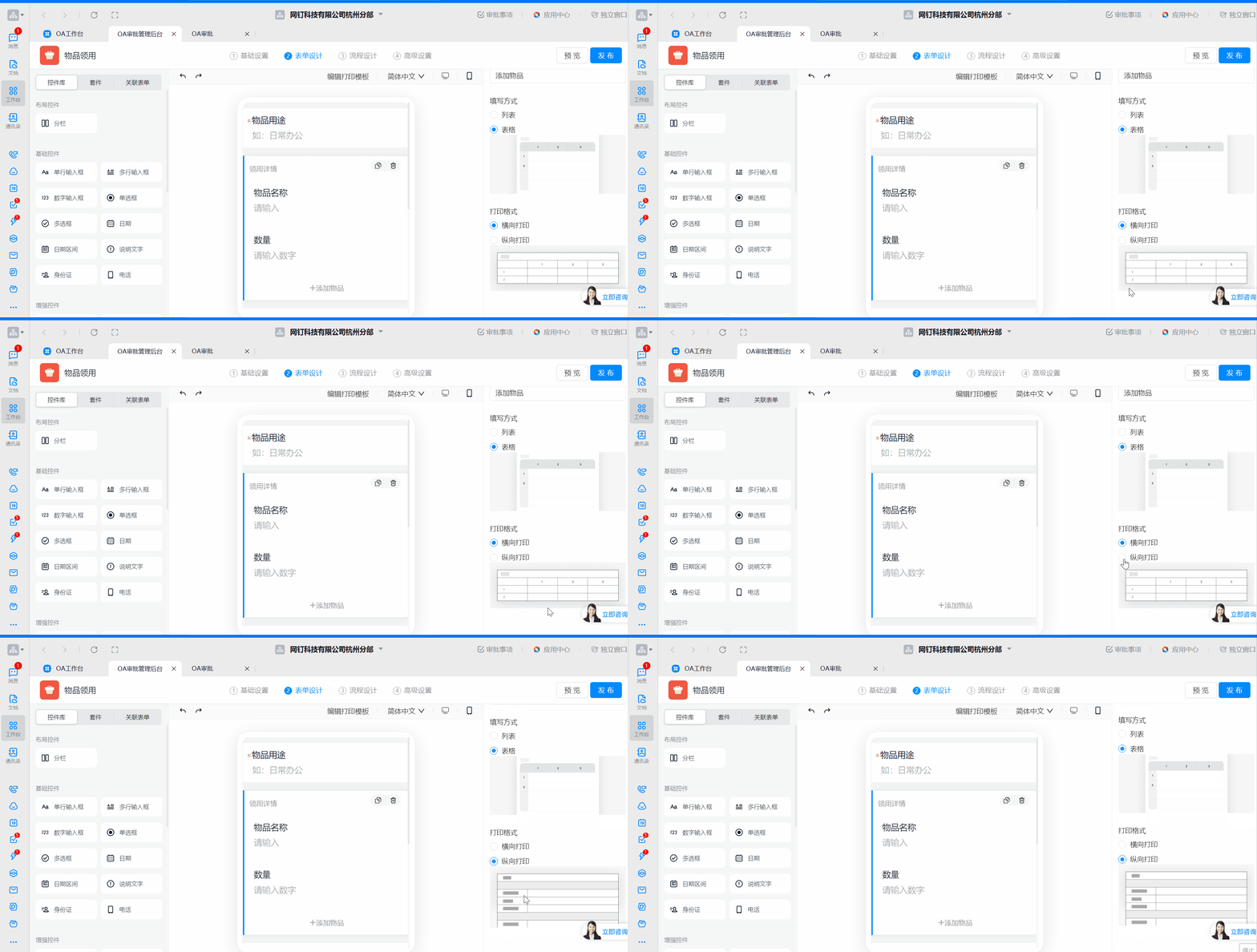
可设置打印格式为横向或纵向

<Frame>
  ![明细6.gif](https://alidocs.oss-cn-zhangjiakou.aliyuncs.com/res/AmPdnpmdDExgqw98/img/bda9b7de-1610-4b80-a282-a0c38c86d799.gif)
</Frame>

设置完毕后点击右上角”发布“即可

### 二）设置效果展示

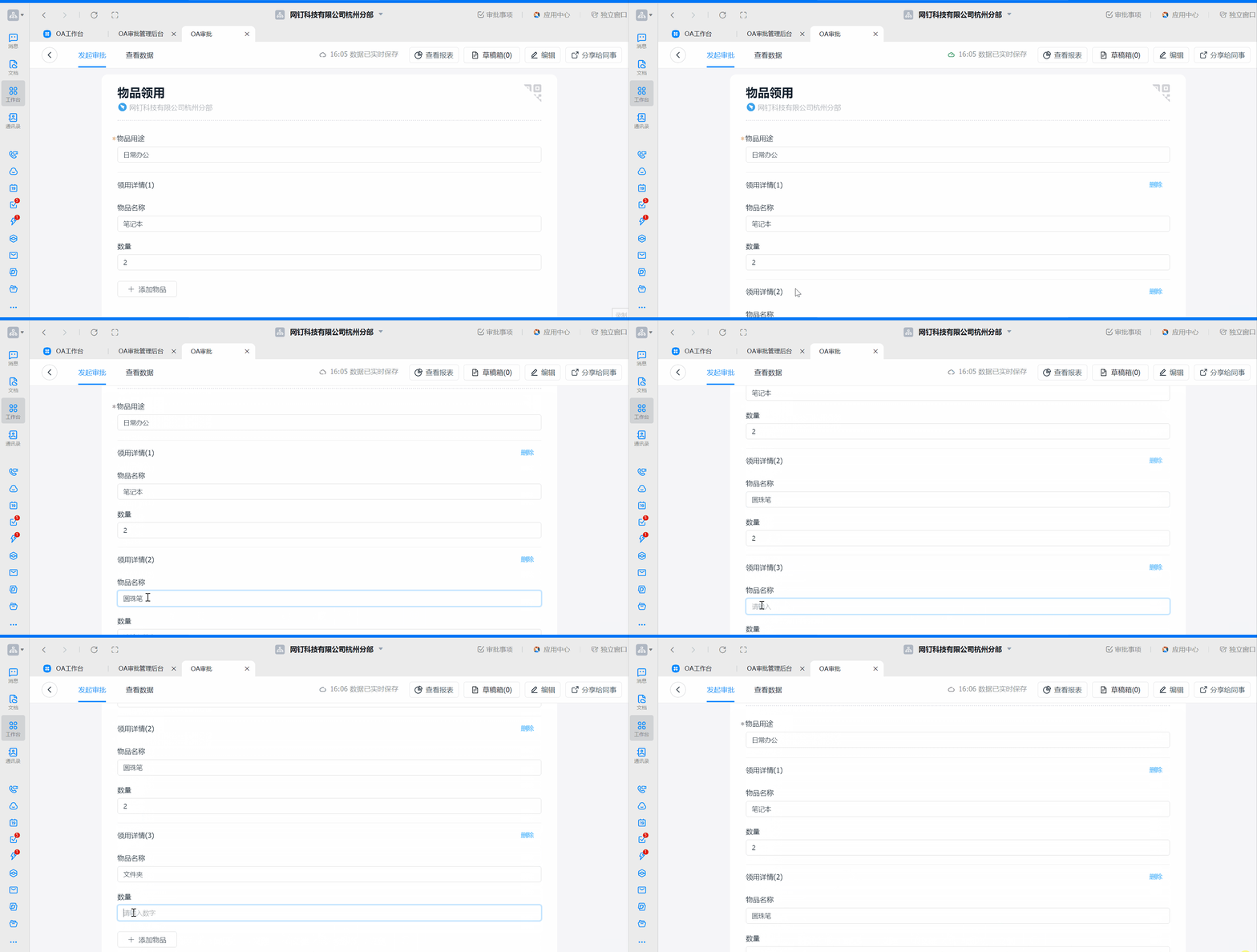
#### 1、列表填写效果

<Frame>
  ![明细4.gif](https://alidocs.oss-cn-zhangjiakou.aliyuncs.com/res/AmPdnpmdDExgqw98/img/662ff02f-710f-4c26-9e9f-7b3178592f42.gif)
</Frame>

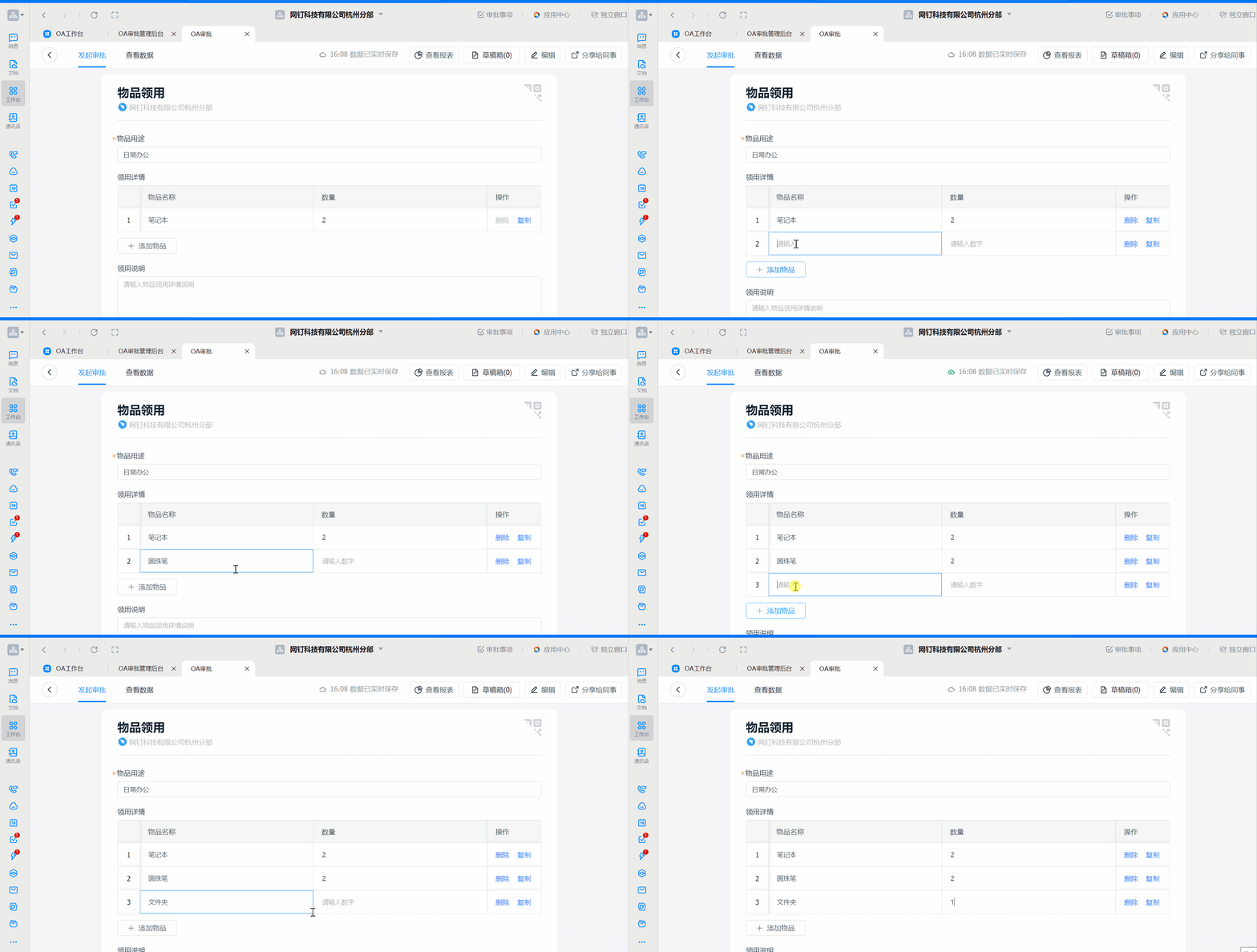
#### 2、表格填写效果

<Frame>
  ![明细5.gif](https://alidocs.oss-cn-zhangjiakou.aliyuncs.com/res/AmPdnpmdDExgqw98/img/fd10a162-cba2-429d-9900-3884162f9bf6.gif)
</Frame>