> ## Documentation Index
> Fetch the complete documentation index at: https://help.dingtalk.io/llms.txt
> Use this file to discover all available pages before exploring further.

# 如何上传文件/文件夹？

> 电脑端或手机端把文件和文件夹上传到钉盘，让重要的个人和团队文件集中存储、组织有序、跨设备易管理。

钉盘首页支持上传文件/文件夹，将重要的个人及团队文件进行储存与管理。

### 电脑端操作方式：

在钉盘首页「最近」、「我的文件」页面下或文档首页「我的文档」中的「我的文件（来自于钉盘）」中，点击右上角「上传」，即可上传文件和文件夹；同时也支持从桌面直接拖拽上传。

![](https://alidocs.oss-cn-zhangjiakou.aliyuncs.com/res/Pd6l2Z795eaXMl7M/img/c5dee9e5-89cd-4c6b-a8e4-b94f5bcab83f.png?x-oss-process=image/crop,x_0,y_69,w_3456,h_2165/ignore-error,1)

![](https://alidocs.oss-cn-zhangjiakou.aliyuncs.com/res/Pd6l2Z795eaXMl7M/img/b5cc06e7-9856-4f28-83aa-05e3680bc300.png?x-oss-process=image/crop,x_0,y_69,w_3456,h_2165/ignore-error,1)

![](https://alidocs.oss-cn-zhangjiakou.aliyuncs.com/res/Pd6l2Z795eaXMl7M/img/11f8513d-53f2-4f6c-8252-d249c11fda77.png?x-oss-process=image/crop,x_0,y_69,w_3456,h_2165/ignore-error,1)

在钉盘首页或文档首页的「团队文件」中，选择目标文件夹，在文件夹中点击右上角「上传」，即可上传文件和文件夹；同时也支持从桌面直接拖拽上传。

![](https://alidocs.oss-cn-zhangjiakou.aliyuncs.com/res/Pd6l2Z795eaXMl7M/img/ba83d415-a849-4d7b-99a8-1d7f146f35d6.png?x-oss-process=image/crop,x_0,y_69,w_3456,h_2165/ignore-error,1)

![](https://alidocs.oss-cn-zhangjiakou.aliyuncs.com/res/Pd6l2Z795eaXMl7M/img/e94e418a-aaf0-43ce-bdff-fa9d89e587ed.png?x-oss-process=image/crop,x_0,y_69,w_3456,h_2165/ignore-error,1)

### 手机端操作方式：

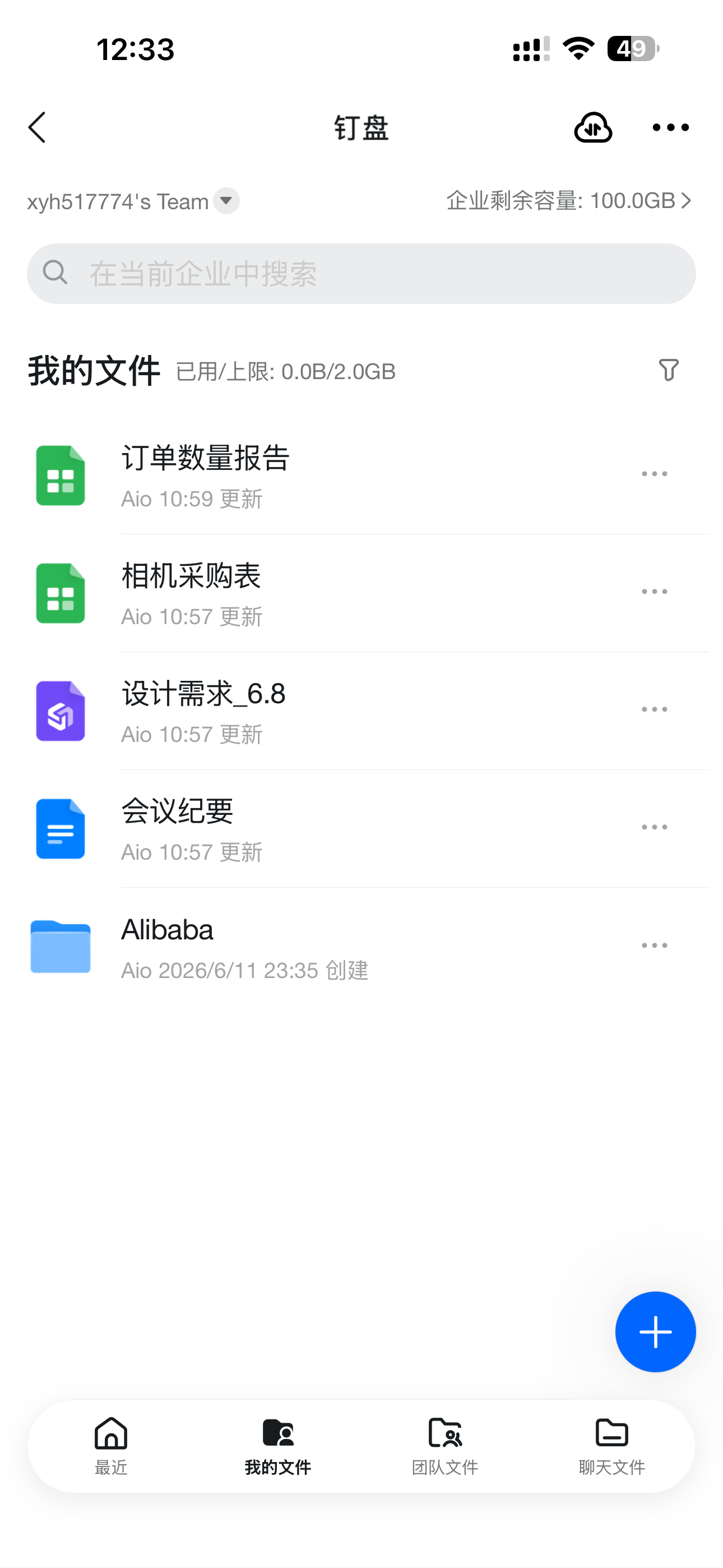
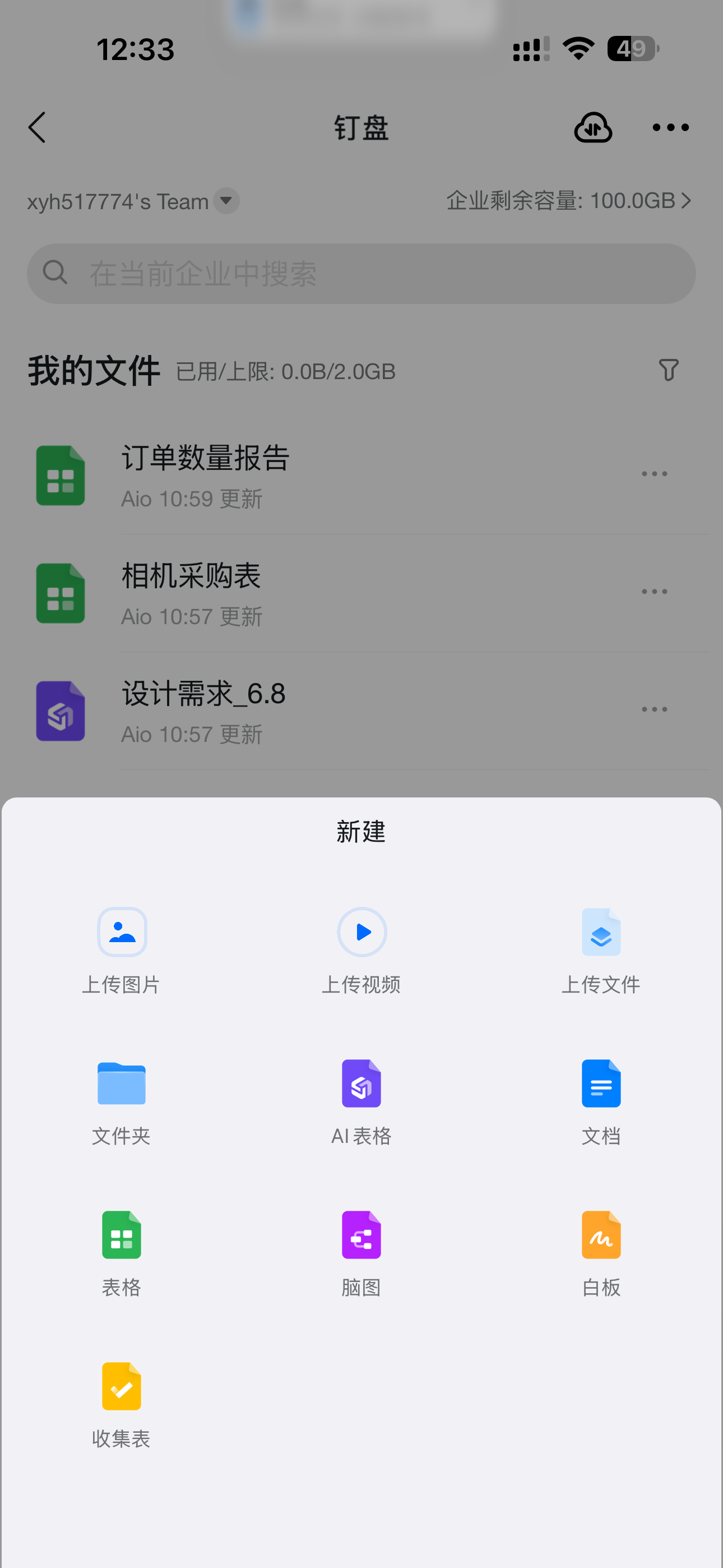
进入钉钉,点击「发现」选择「钉盘」或在钉钉搜索框搜索应用「钉盘」，与电脑端相同，可在「最近」、「我的文件」页面下，点击右下角「“**+**”」，上传图片、文件、视频等。

<div style={{display: 'flex', gap: '12px', justifyContent: 'center', flexWrap: 'wrap', margin: '16px 0'}}>
  <img src="https://alidocs.oss-cn-zhangjiakou.aliyuncs.com/res/Pd6l2Z795eaXMl7M/img/81cb8f8b-bb7f-4feb-af2a-d7631982b298.png" alt="IMG_5131.png" style={{width: '32%', minWidth: '180px', borderRadius: '8px', boxShadow: '0 2px 12px rgba(0,0,0,0.08)', margin: 0}} />

  <img src="https://alidocs.oss-cn-zhangjiakou.aliyuncs.com/res/Pd6l2Z795eaXMl7M/img/ad0ed8c6-eb8c-4deb-8f52-3745f9224cea.png" alt="IMG_5132.png" style={{width: '32%', minWidth: '180px', borderRadius: '8px', boxShadow: '0 2px 12px rgba(0,0,0,0.08)', margin: 0}} />

  <img src="https://alidocs.oss-cn-zhangjiakou.aliyuncs.com/res/Pd6l2Z795eaXMl7M/img/8e77c777-ed98-42a2-981a-4fc9b8800b75.png" alt="IMG_5133.png" style={{width: '32%', minWidth: '180px', borderRadius: '8px', boxShadow: '0 2px 12px rgba(0,0,0,0.08)', margin: 0}} />
</div>

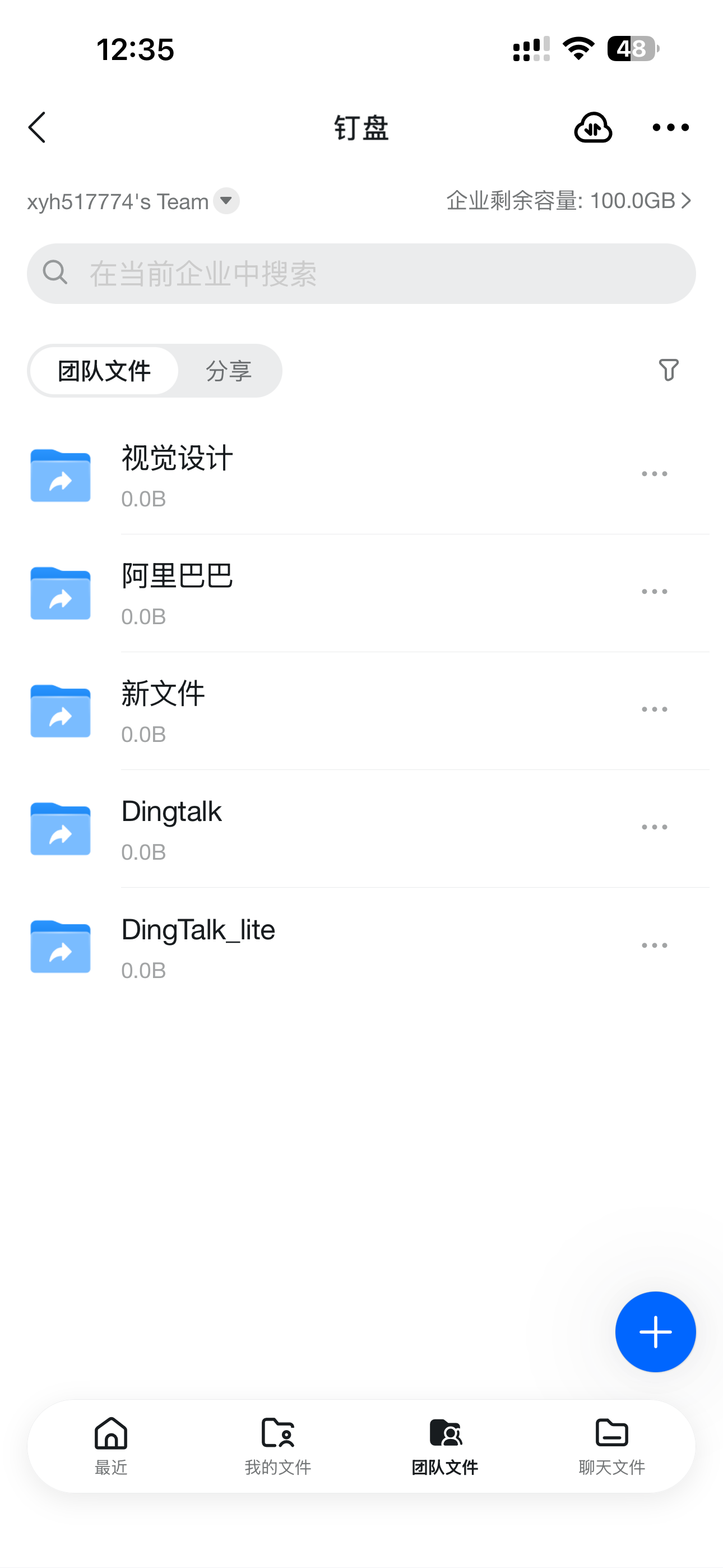
如要在团队文件中上传文件，与电脑端一致，在「团队文件」页面下，选择目标文件夹，才可点击右下角「“**+**”」，上传图片、文件、视频等。

<div style={{display: 'flex', gap: '12px', justifyContent: 'center', flexWrap: 'wrap', margin: '16px 0'}}>
  <img src="https://alidocs.oss-cn-zhangjiakou.aliyuncs.com/res/Pd6l2Z795eaXMl7M/img/7fa2a9d9-7be7-4dfb-a9d9-3013cee25590.png" alt="IMG_5134.png" style={{width: '32%', minWidth: '180px', borderRadius: '8px', boxShadow: '0 2px 12px rgba(0,0,0,0.08)', margin: 0}} />

  <img src="https://alidocs.oss-cn-zhangjiakou.aliyuncs.com/res/Pd6l2Z795eaXMl7M/img/ca91abd5-20a6-4ff9-b67a-db9aea965ca7.png" alt="IMG_5135.png" style={{width: '32%', minWidth: '180px', borderRadius: '8px', boxShadow: '0 2px 12px rgba(0,0,0,0.08)', margin: 0}} />

  <img src="https://alidocs.oss-cn-zhangjiakou.aliyuncs.com/res/Pd6l2Z795eaXMl7M/img/7cc718f9-5494-4089-a49a-47ede49adfc5.png" alt="IMG_5136.png" style={{width: '32%', minWidth: '180px', borderRadius: '8px', boxShadow: '0 2px 12px rgba(0,0,0,0.08)', margin: 0}} />
</div>