> ## Documentation Index
> Fetch the complete documentation index at: https://help.dingtalk.io/llms.txt
> Use this file to discover all available pages before exploring further.

# iFrame

> 本页面介绍了如何通过iFrame组件将其他网页的内容嵌入到当前设计器页面中，并详细说明了选择组件、设置iFrame地址以及高级属性配置的操作步骤。

## 1. 简介

将其他网页的内容嵌入到你当前的设计器页面中，下面以嵌入钉钉宜搭帮助文档的网址为例子。

## 2. 操作步骤

### 2.1 选择组件

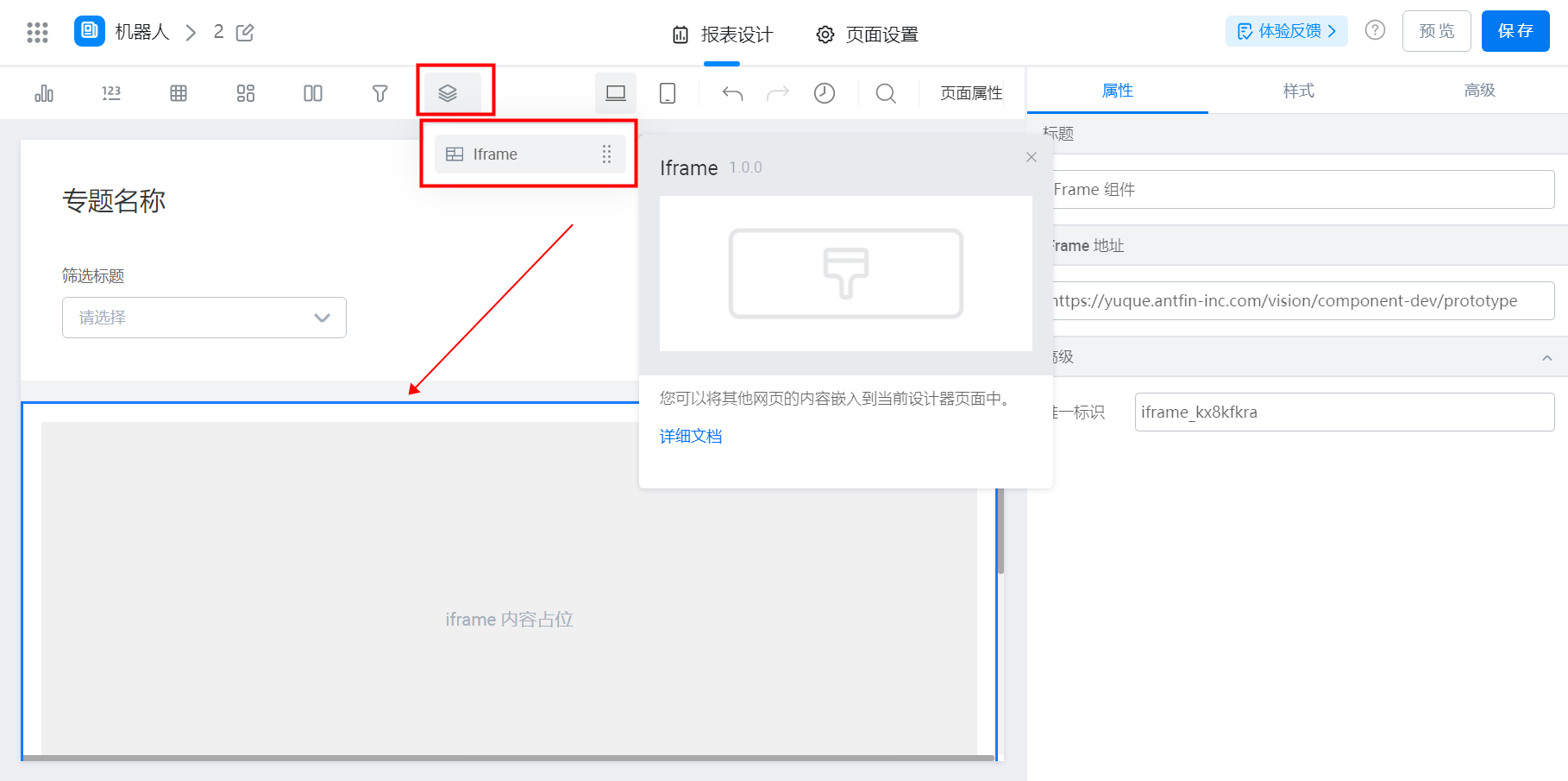
打开报表，从上方其他 >> 选择 iFrame 拖入到页面中

<Frame>
  ![](https://yida-support.oss-cn-shanghai.aliyuncs.com/static/png/1639635173767-77f2e171-a5d3-4656-aad6-f1afb64a6e2a.png)
</Frame>

添加组件

### 2.2 属性设置

#### 2.2.1 iFrame 地址

点击 iFrame 组件，右侧属性找到 iFrame 地址，输入宜搭官网地址

<Frame>
  ![](https://yida-support.oss-cn-shanghai.aliyuncs.com/static/png/1639635302063-a922cf30-c194-40d2-b361-debb95499c44.png)
</Frame>

添加网址

<Frame>
  ![](https://yida-support.oss-cn-shanghai.aliyuncs.com/static/png/1639640740640-4b0373ae-c212-4515-af47-cf28aa89cec9.png)
</Frame>

展示效果

#### 2.2.2 高级

展示组件的唯一标识

<Frame>
  ![](https://yida-support.oss-cn-shanghai.aliyuncs.com/static/png/1639641057819-9512790e-05a0-422e-81ab-92b0f6d2b1ed.png)
</Frame>

## 3. 扩展阅读

[如何在 2.0 报表使用 3.0 报表功能](https://docs.aliwork.com/docs/yida_support/yida_qalist/_1/_3/pbz3an)

<Frame>
  ![](https://yida-support.oss-cn-shanghai.aliyuncs.com/static/png/1634875245908-d5922803-4267-48f5-8548-afa8bf380160.png)
</Frame>