> ## Documentation Index
> Fetch the complete documentation index at: https://help.dingtalk.io/llms.txt
> Use this file to discover all available pages before exploring further.

# 分栏

> 本页面介绍了布局组件的使用方法，包括选择组件、配置布局（如列比例、列间距、行间距）和样式设置。

## 1. 简介

主要是用于布局，可以与其他组件一起共用

<Frame>
  ![](https://yida-support.oss-cn-shanghai.aliyuncs.com/static/png/1639968475596-5fecee31-7b60-4d31-99b2-d6b94e8a6440.png)
</Frame>

亮点：可以自行控制组件的大小，但无法移动分栏的位置（靠左、居中、靠右）

<Frame>
  ![](https://yida-support.oss-cn-shanghai.aliyuncs.com/static/png/1639968631882-d7f84ef4-0241-4a1f-9dd4-971c0ee0d507.png)
</Frame>

## 2. 操作步骤

### 2.1 选择组件

选择组件并拖动到设计器中，可以往里面添加组件

<Frame>
  ![](https://yida-support.oss-cn-shanghai.aliyuncs.com/static/png/1639968664514-9070e7cc-2d17-41da-a945-ceafd74f5d66.png)
</Frame>

添加组件

### 2.2 配置布局

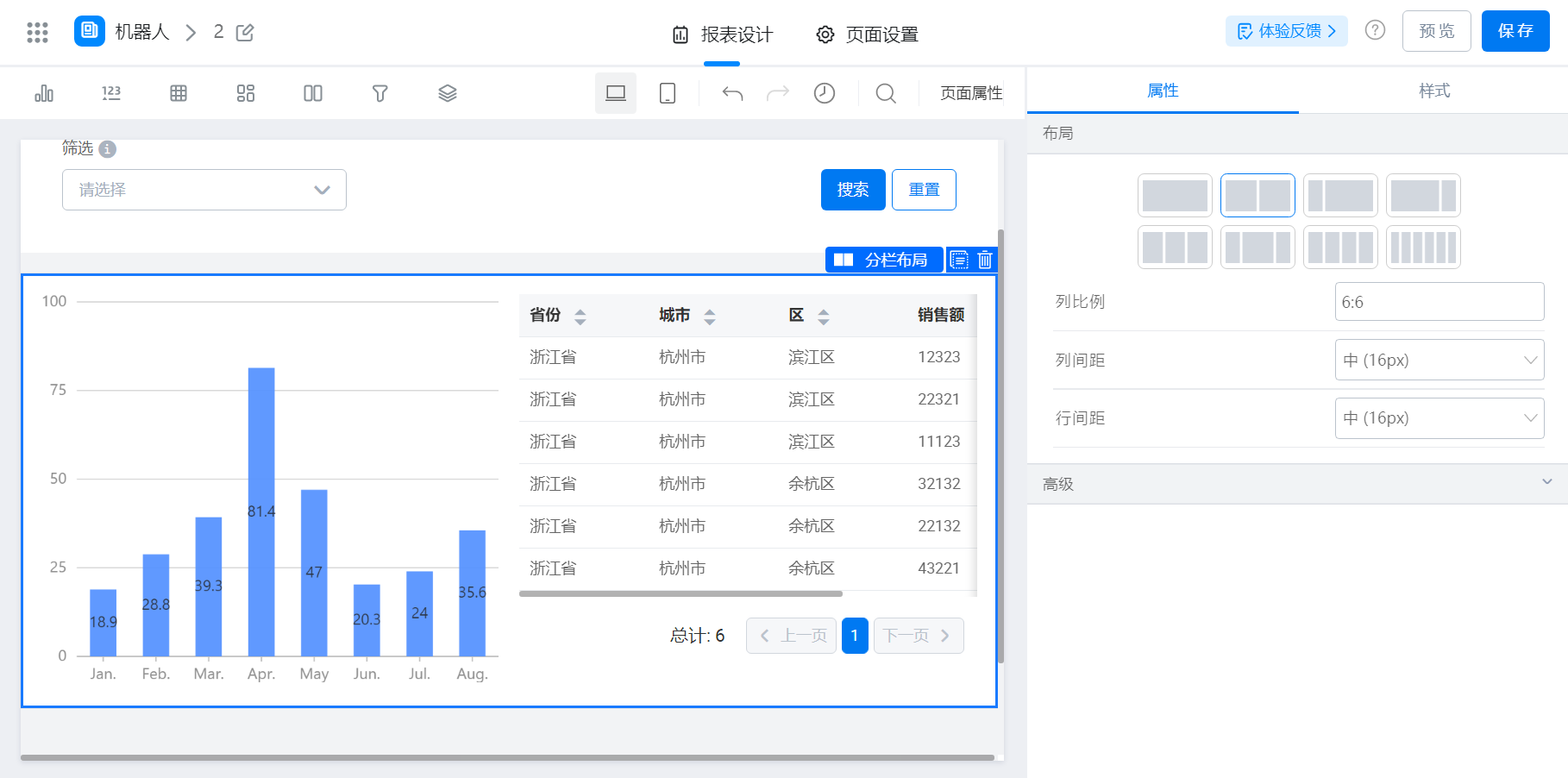
* 布局 ：默认为二分栏，支持调整为一分栏（相当于是容器）、三分栏、四分栏与六分栏

* 列比例 ：支持调整，在12比例中调整，例如：3：9  、9：3、8：4、3：6：3

* 列间距 ：支持选项有：超大、大、中、小、超小、无或自定义

* 行间距 ：支持选项有：超大、大、中、小、超小、无或自定义

<Frame>
  ![](https://yida-support.oss-cn-shanghai.aliyuncs.com/static/png/1639968720634-2b3c55d9-4807-4154-9057-964ed5b9be00.png)
</Frame>

设置布局

### 2.3 配置样式

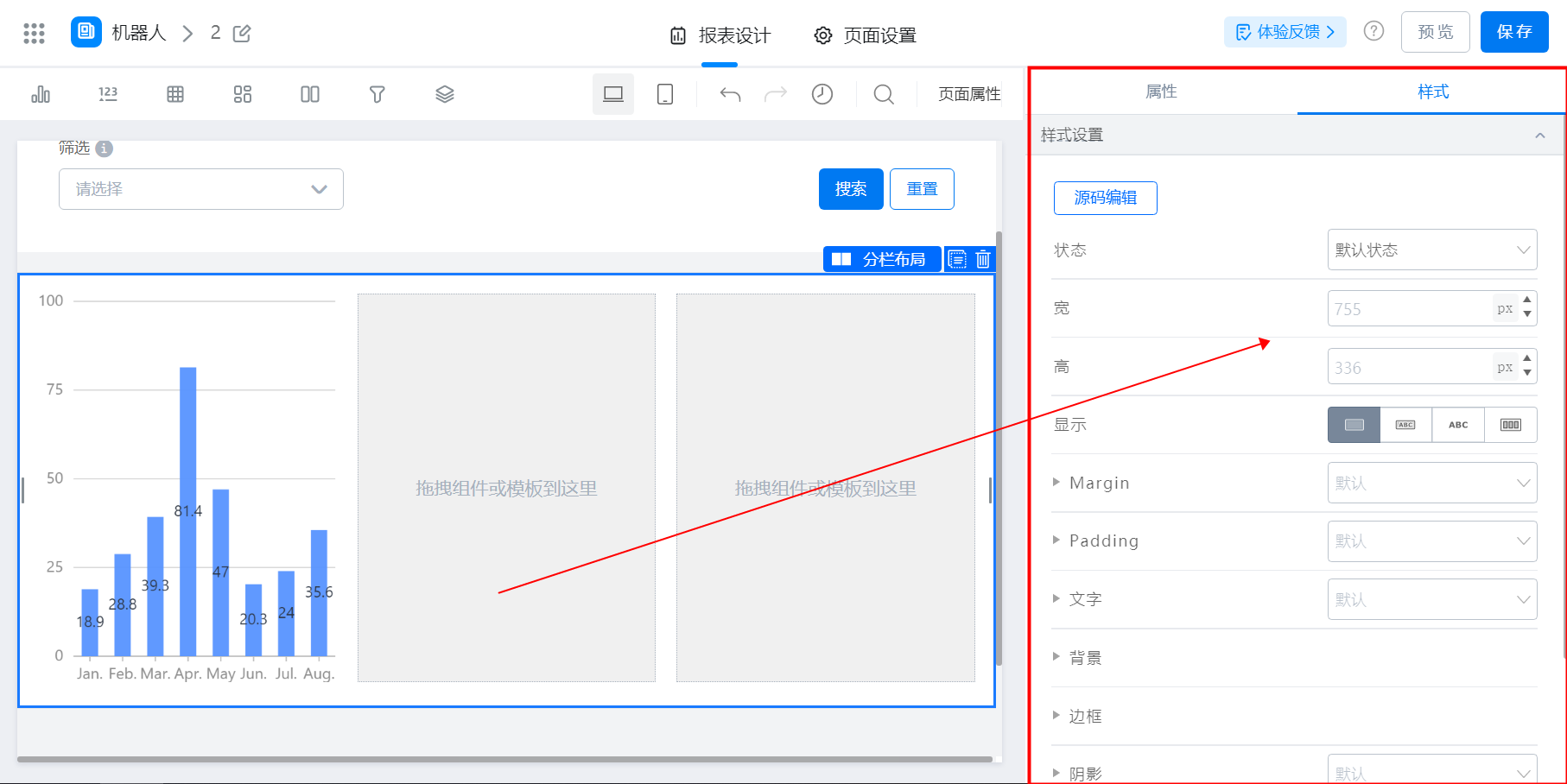
支持调整默认状态与其他样式

<Frame>
  ![](https://yida-support.oss-cn-shanghai.aliyuncs.com/static/png/1639968889558-6ffa2d50-14f4-46f0-a799-8868d2273602.png)
</Frame>

样式设置