

 Developer Guide
Prerequisites
- You have a publicly accessible request URL.
- You have developer permissions in the DingTalk Developer Console of your organization.
- You have an internal app in your DingTalk organization.
Procedure
1
Open the app details page
Log in to the Developer Console, click the target app, and go to the app details page.
2
Select HTTP push
Click Development Configuration > Event Subscription, and select HTTP push.
3
Configure HTTP information
4
Develop the event subscription server
After the configuration is complete, you need to develop the event subscription server. For more information, see Develop an HTTP push server.
5
Save
After server-side development is complete and the HTTP push server is started, click Save. The event subscription list appears only after you save.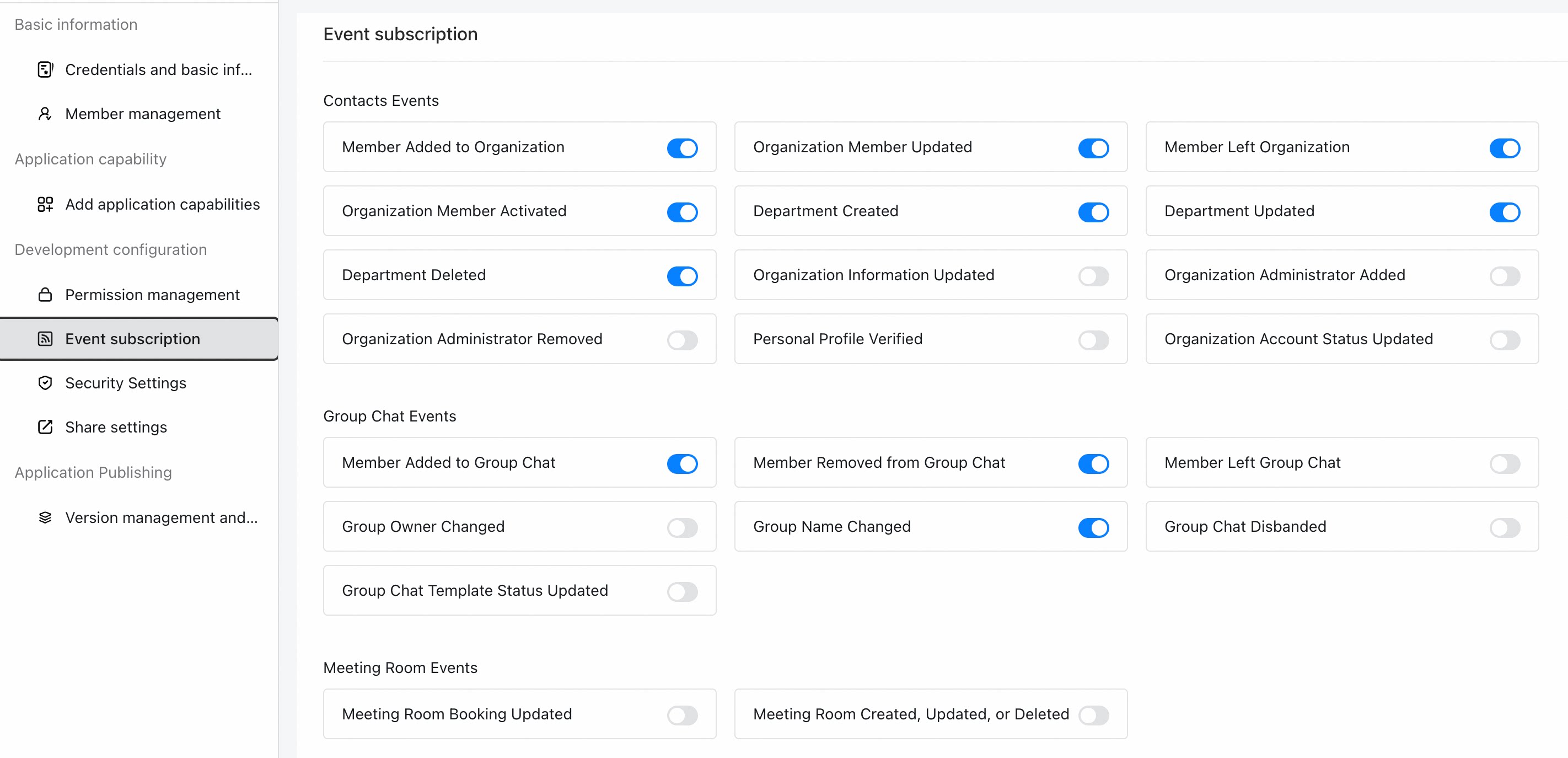
FAQ
The page reports “Verification of the returned field value in the HTTP request result failed”
The page reports “Verification of the returned field value in the HTTP request result failed”
Causes:Construct a main method, use the four field values returned by the callback URL, call the encryption API, and verify whether the returned value is the 
- One of the field values in the JSON returned to the DingTalk server is incorrect.
- The information returned to the DingTalk server is not in JSON format.
Verify that the content in Develop an HTTP push server is correct.
success string. For example:- If you get the
successstring, the returned value is correct. The problem lies in the incorrect format of the value parameters that the callback API returns to the DingTalk server. Confirm them again. - If an error occurs at runtime, common errors and causes are as follows: