

 Developer Guide
The sign-in pages displayed during DingTalk sign-in vary slightly across IDaaS platforms (such as JumpCloud, Okta, Microsoft Entra ID, and Google Workspace), but the overall flow is the same (organization code → email and password → additional verification). If your organization uses a provider other than JumpCloud, follow the prompts on your actual sign-in page.
Before you begin
Before signing in, check with your IT admin for the following information:- Your organization code (provided by your IT admin to identify your company account).
- Your work email account and password.
- The JumpCloud Protect app or another authenticator app installed on your mobile device. If it is not installed yet, you will be guided through the installation and binding during your first sign-in.
Sign in to DingTalk
1
Download and install DingTalk
Download the client for your platform from www.dingtalk.io/download. Supported platforms include Windows, macOS, iOS, and Android. Choose the version that matches your device.
2
Continue with Enterprise Account
Open DingTalk after installation. On the sign-in page, select Continue with Enterprise Account.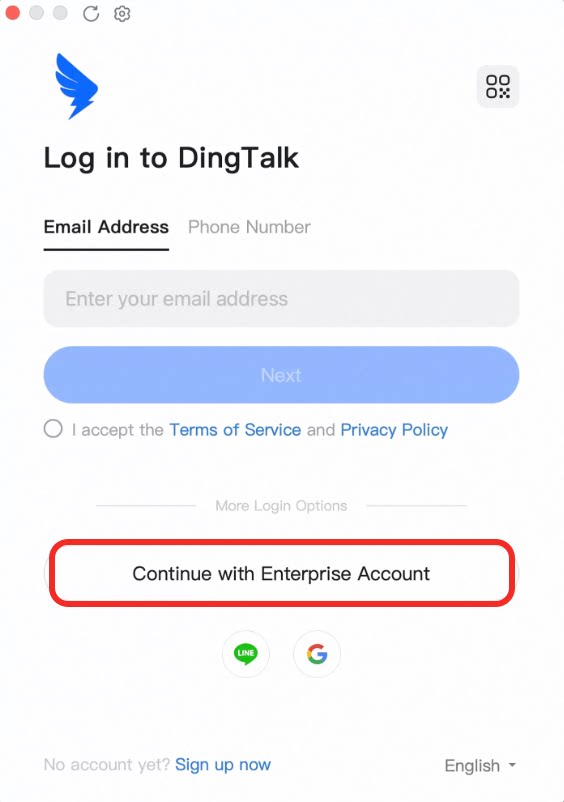
3
Enter your organization code
In the dialog that appears, enter the organization code provided by your IT admin, then click Next.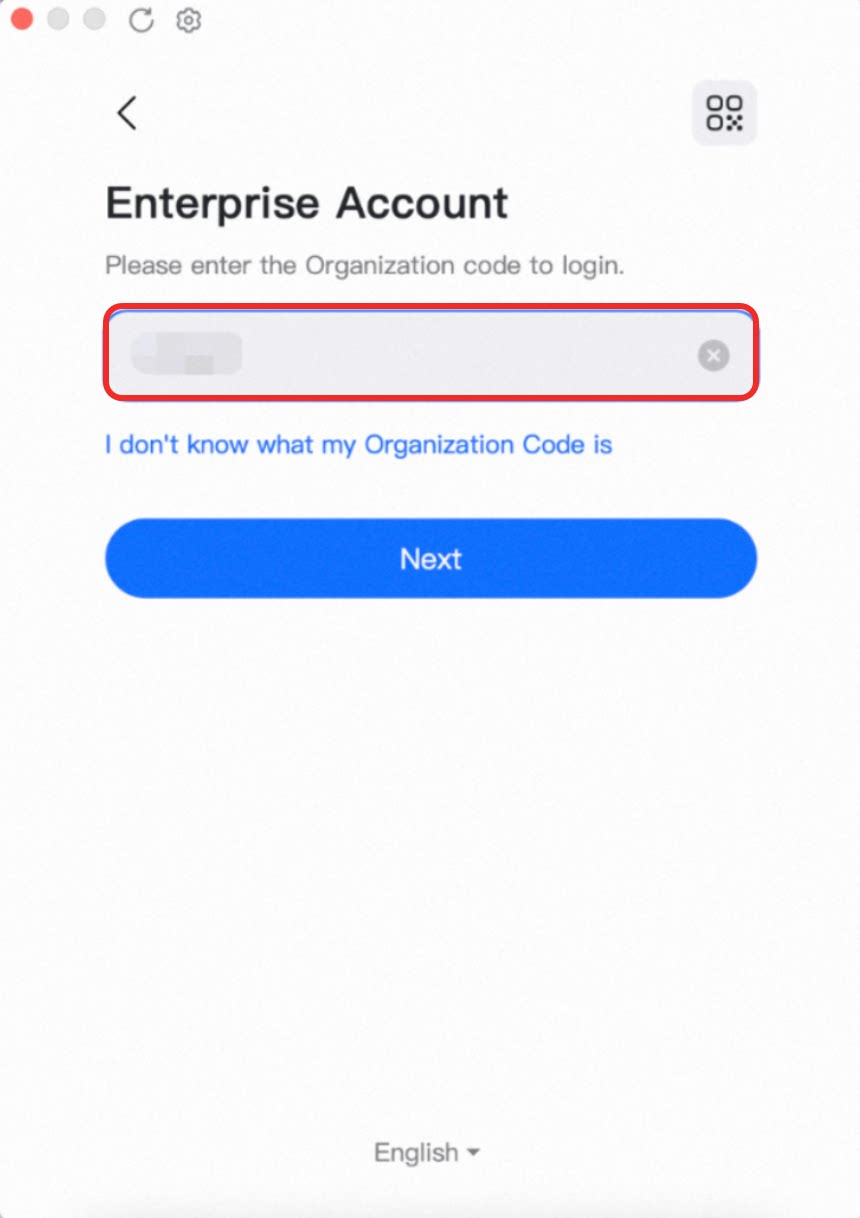
The organization code is a unique identifier issued by your IT admin after your organization enables SSO. Do not use someone else’s organization code. If you lose or forget it, contact your IT department to get a new one.
4
Enter your work email and password
Enter your work email address and email password, then click SSO Login.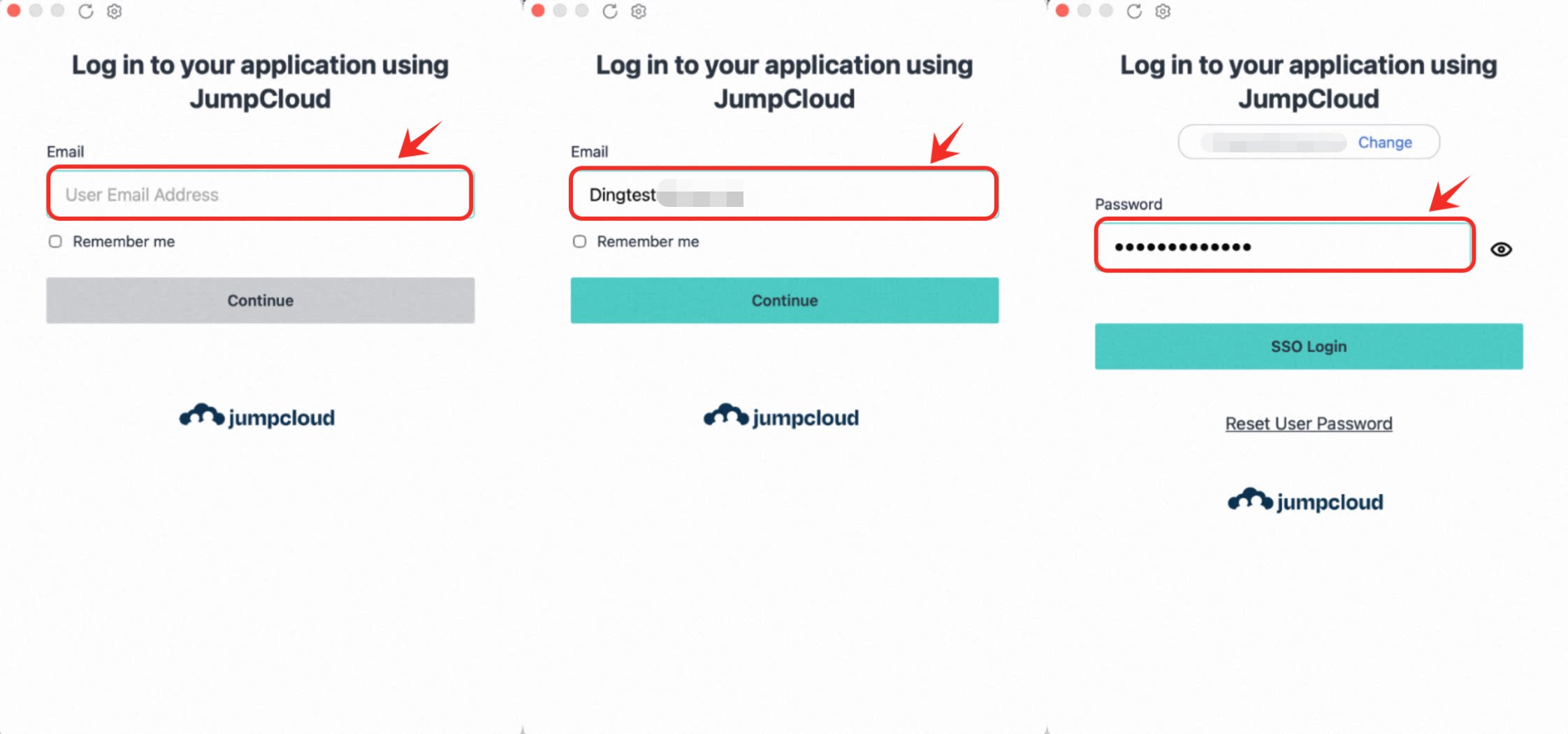
The email and password here are managed by your organization’s identity service (IDaaS, for example JumpCloud) and are not related to the DingTalk account system. If you forget your password, reset it through the Forgot password process of your company’s IT system.
5
Choose a verification method
After you click SSO Login, if your organization requires multi-factor authentication (MFA), the Set Up MFA page appears. Select JumpCloud Protect from the list of MFA methods, and then click Continue. On the next page, select I Have the App.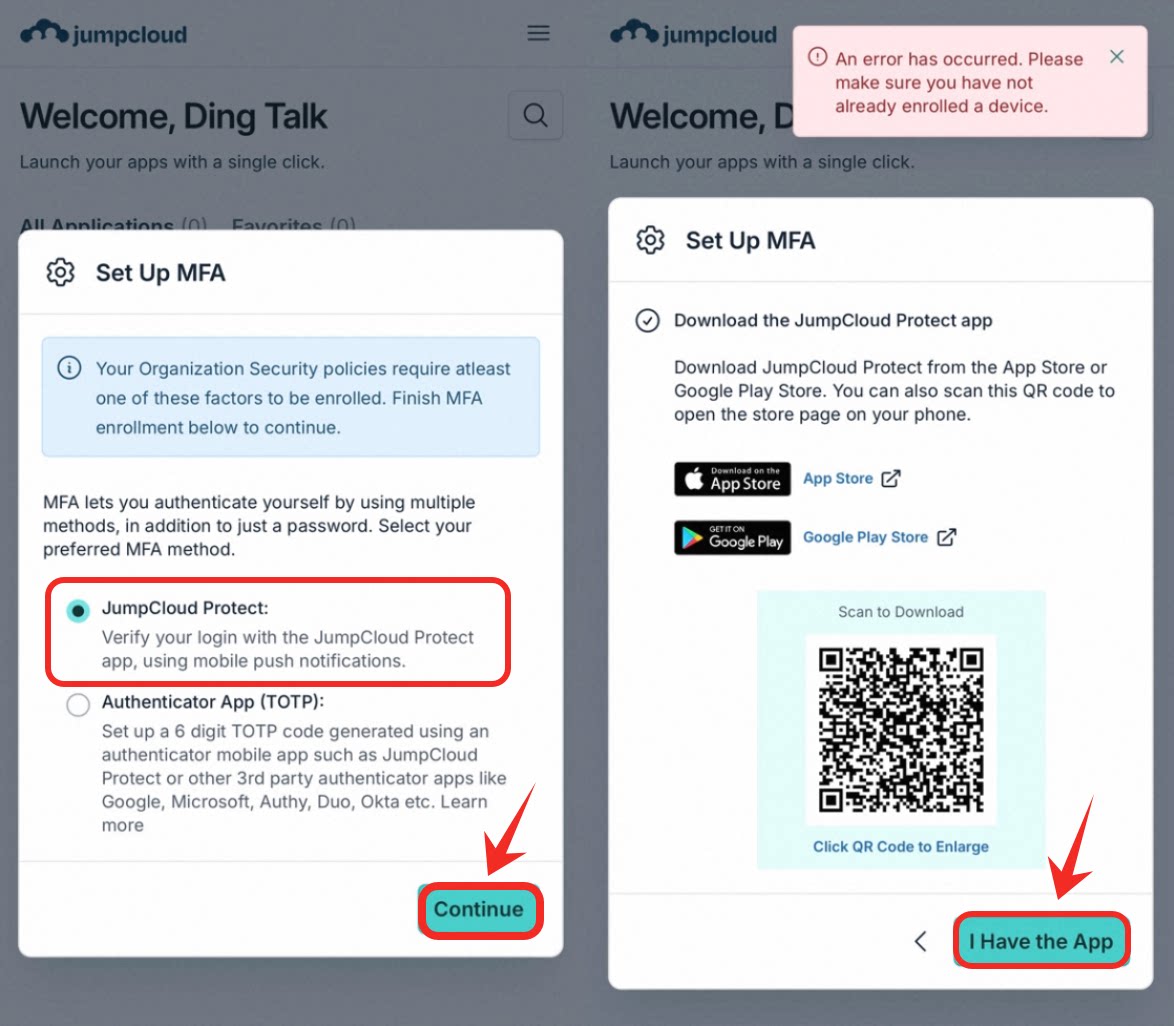
If this is your first sign-in and the JumpCloud Protect app is not installed yet, the page will guide you to download JumpCloud Protect or another compatible authenticator app (such as Google Authenticator or Microsoft Authenticator) on your phone and complete the binding. Follow the on-screen prompts to finish the installation and first-time binding, then return to this step.
6
Enter the verification code to finish sign-in
Open the JumpCloud Protect app on your phone and follow these steps to get a one-time verification code. If this is your first-time binding, tap Add Account and scan the QR code shown on the DingTalk sign-in page to complete device binding.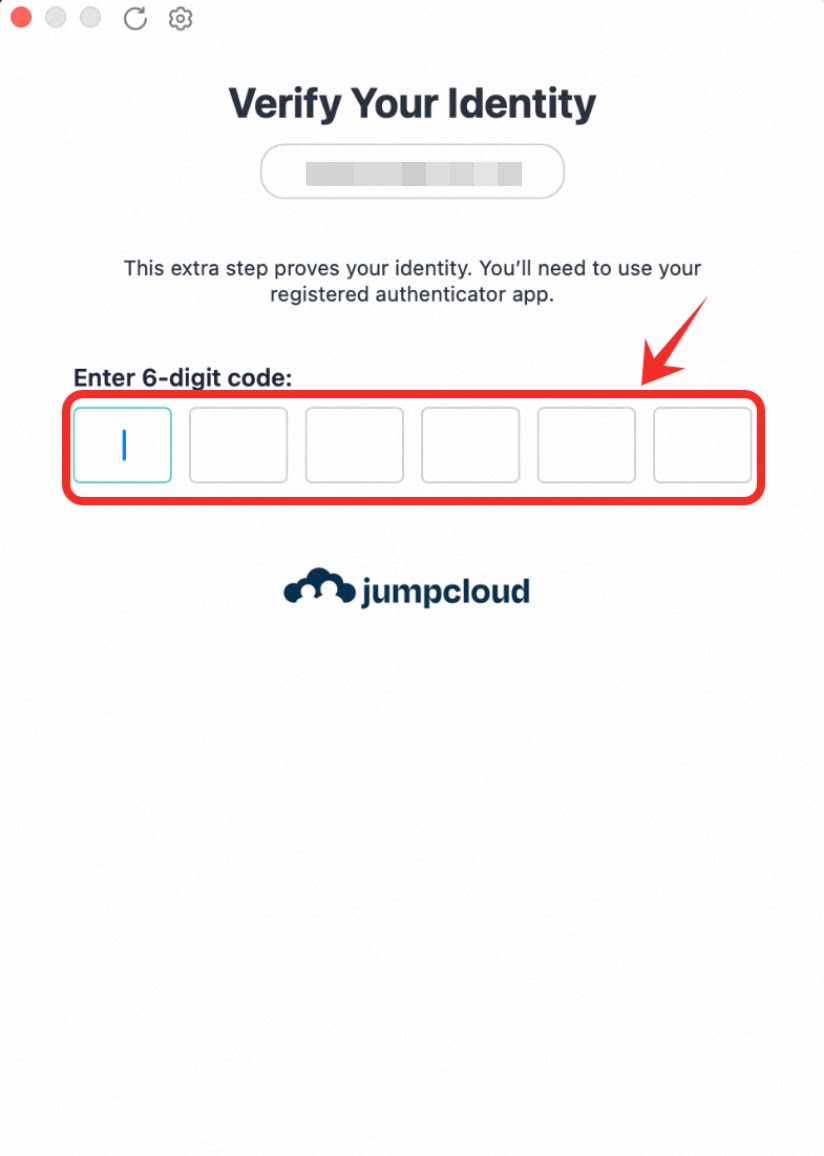
- Find and tap the DingTalk entry to open the one-time verification code page.
- Check the 6-digit verification code displayed on the screen. It is usually valid for 30 seconds.
- Enter the 6-digit verification code into the verification code field of the DingTalk desktop sign-in window, then click Confirm.
- After verification succeeds, your account is signed in with SSO.
For security reasons, authenticator apps generally do not allow screenshots of the verification code page, so no screenshot is provided for this step. Follow the instructions above on your phone instead.
7
Start a direct message
After signing in, you can find members of your organization in DingTalk and start a conversation: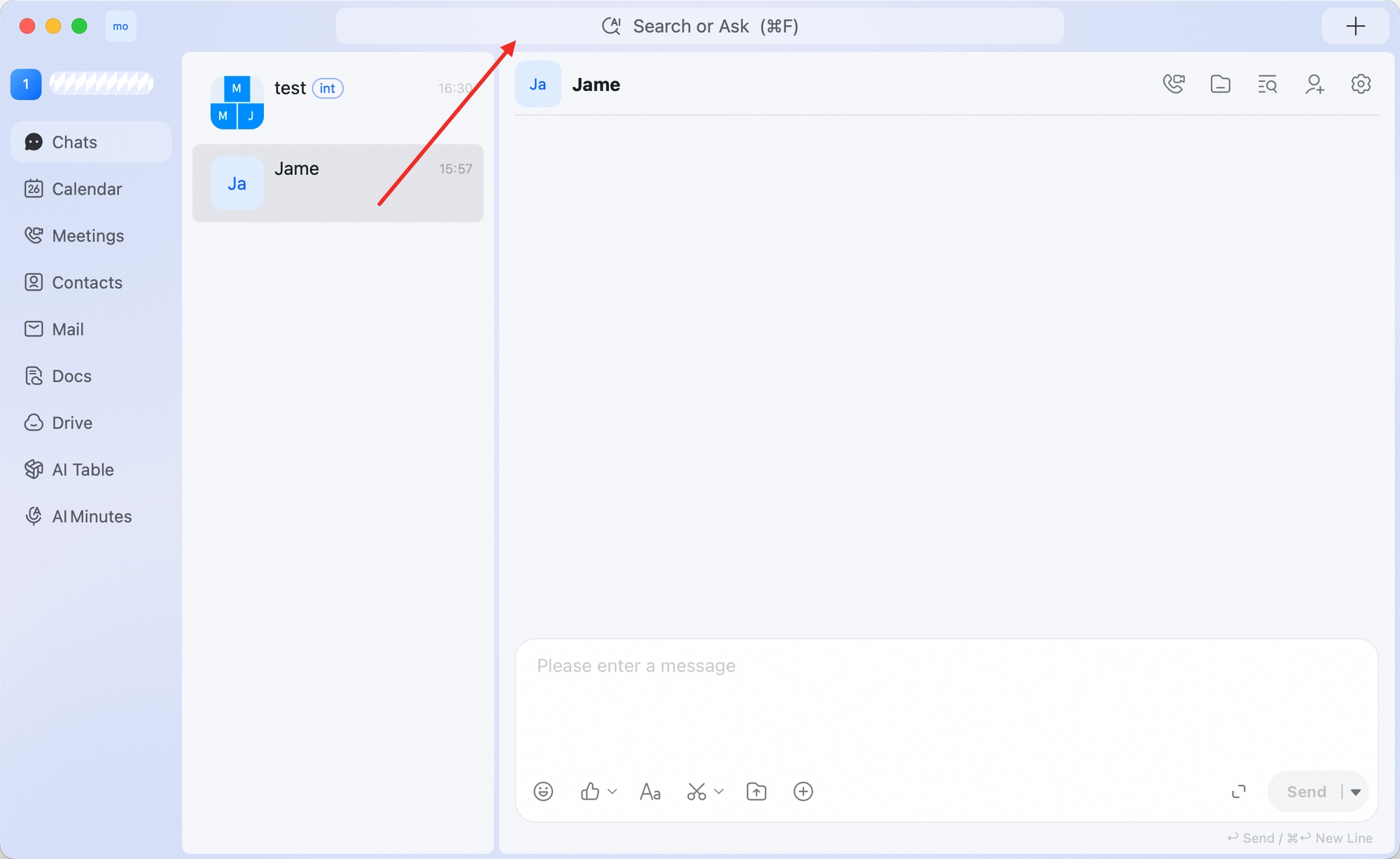
- Click the search bar at the top of DingTalk desktop.
- Type the contact’s name.
- Select the contact from the search results.
- Type your message in the input box.
- Press Enter or click Send.
Sign in to DingMail
1
Open Mail and enter your DingMail address
Open DingTalk desktop, click Mail in the left sidebar, enter your DingMail address, then click Continue.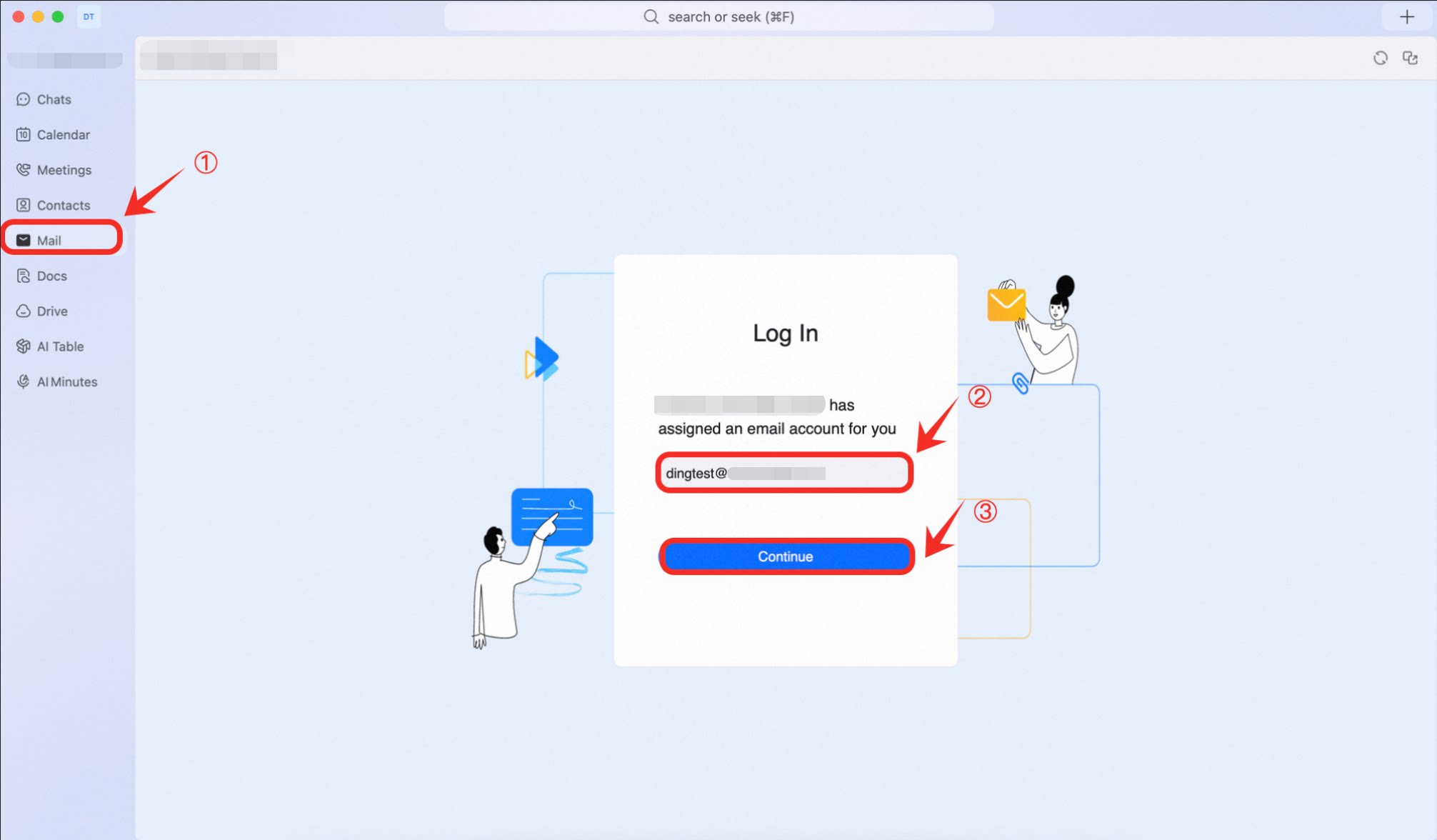
2
Enter your work email
Enter your work email address (not a DingMail address), then click Continue.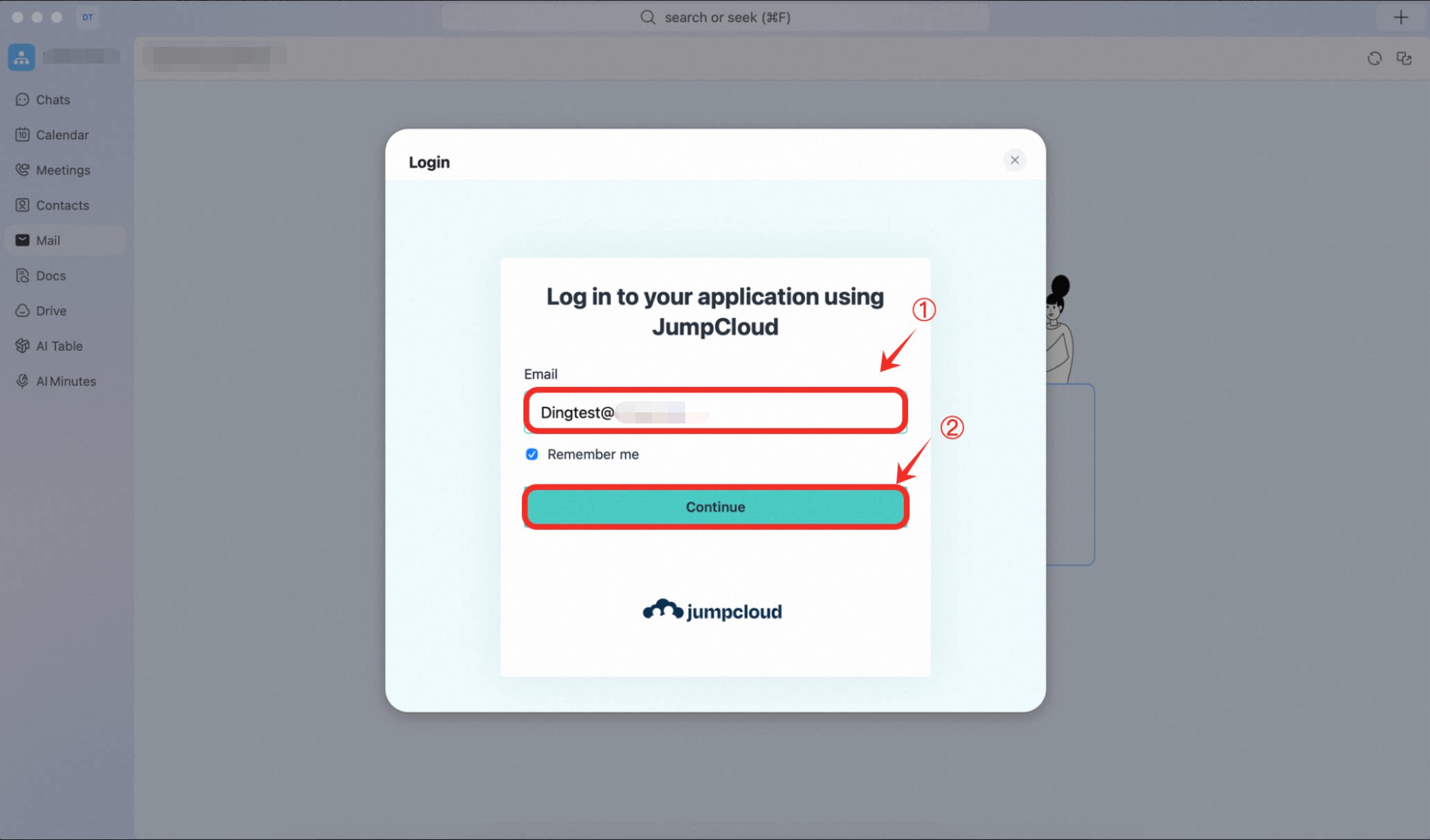
3
Enter your email password
Enter your email password, then click SSO Login.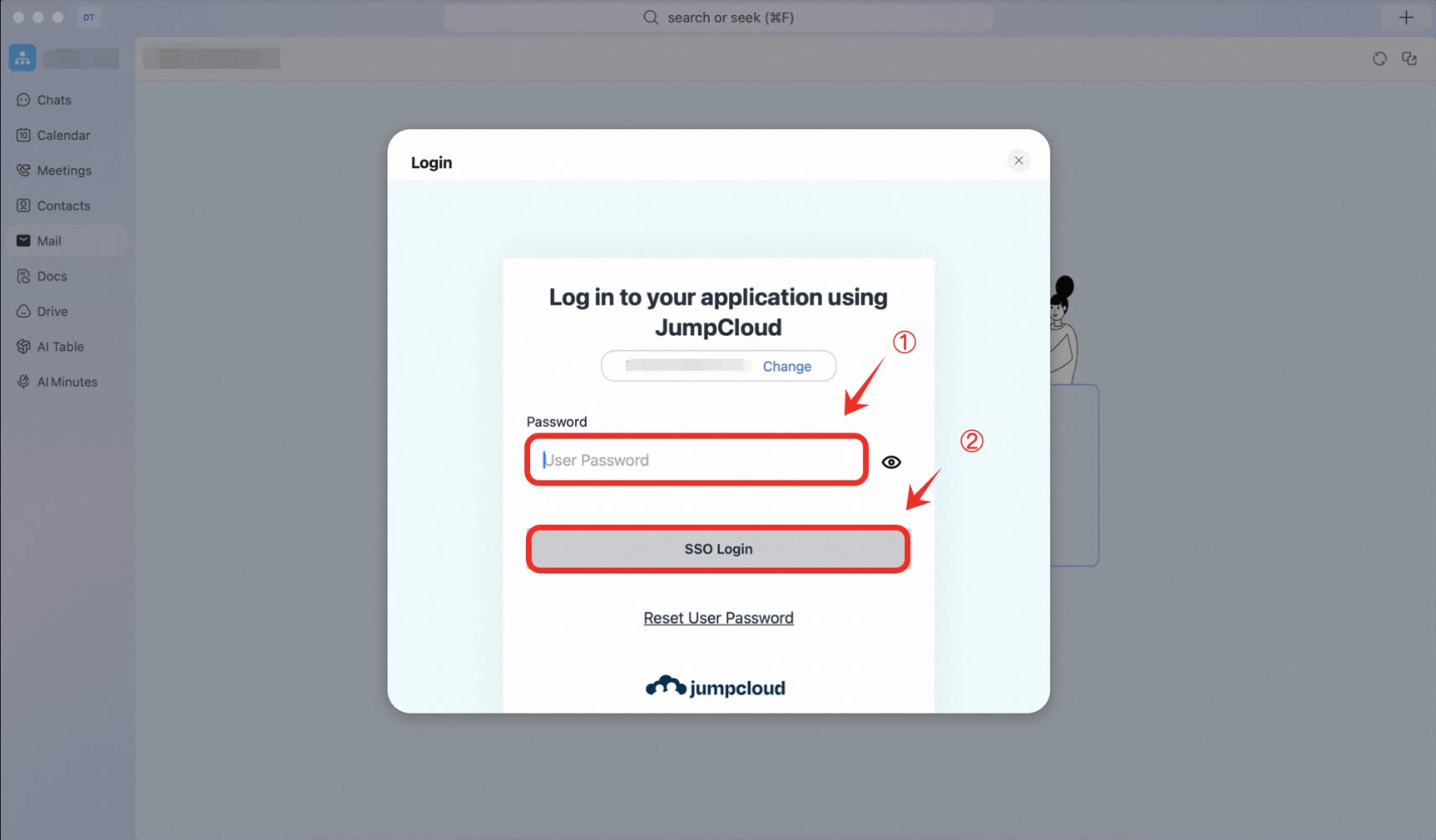
4
Enter the verification code
Enter the 6-digit verification code from your authenticator app.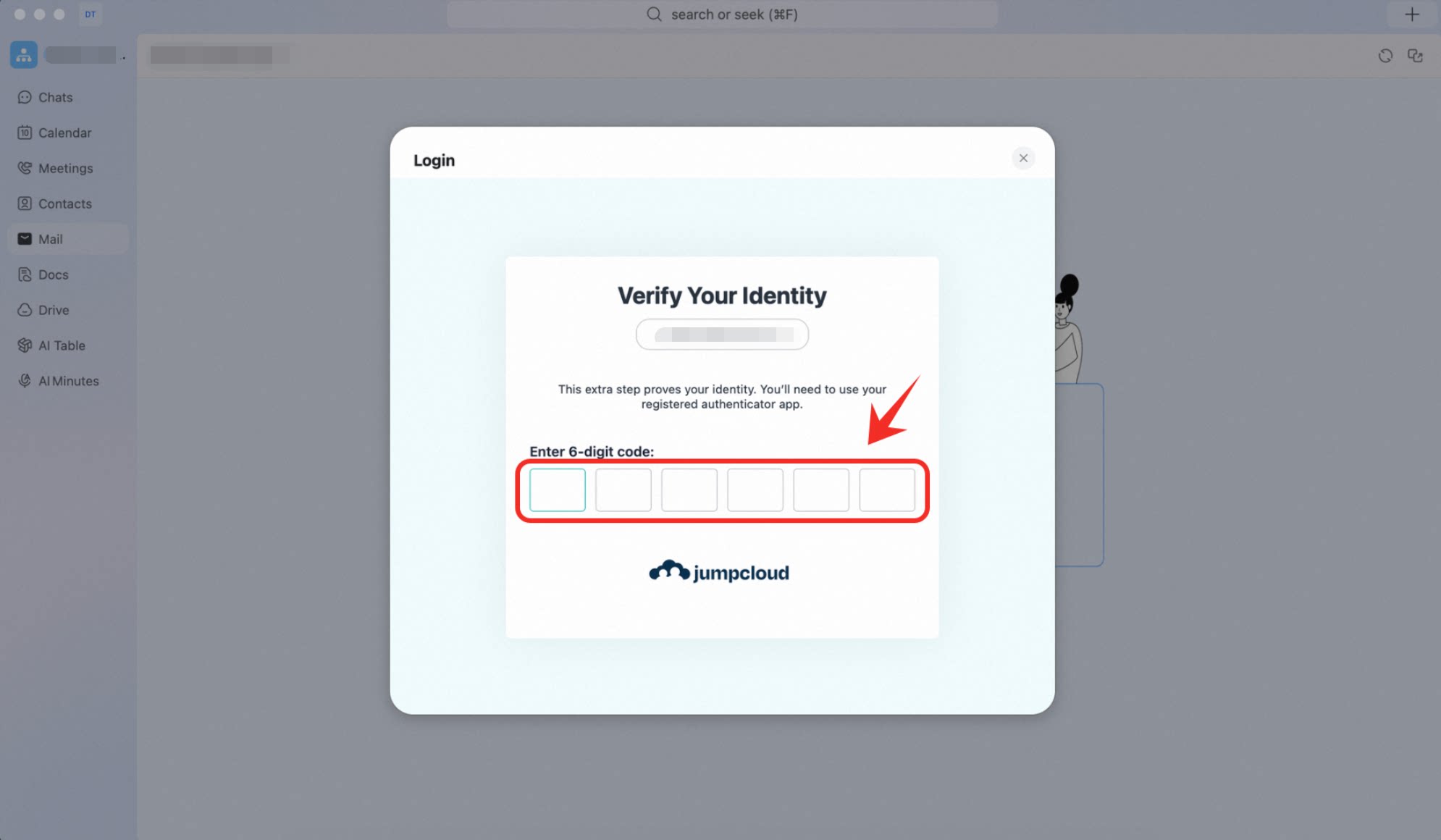
5
Start using DingMail
After verification succeeds, DingMail is ready to use.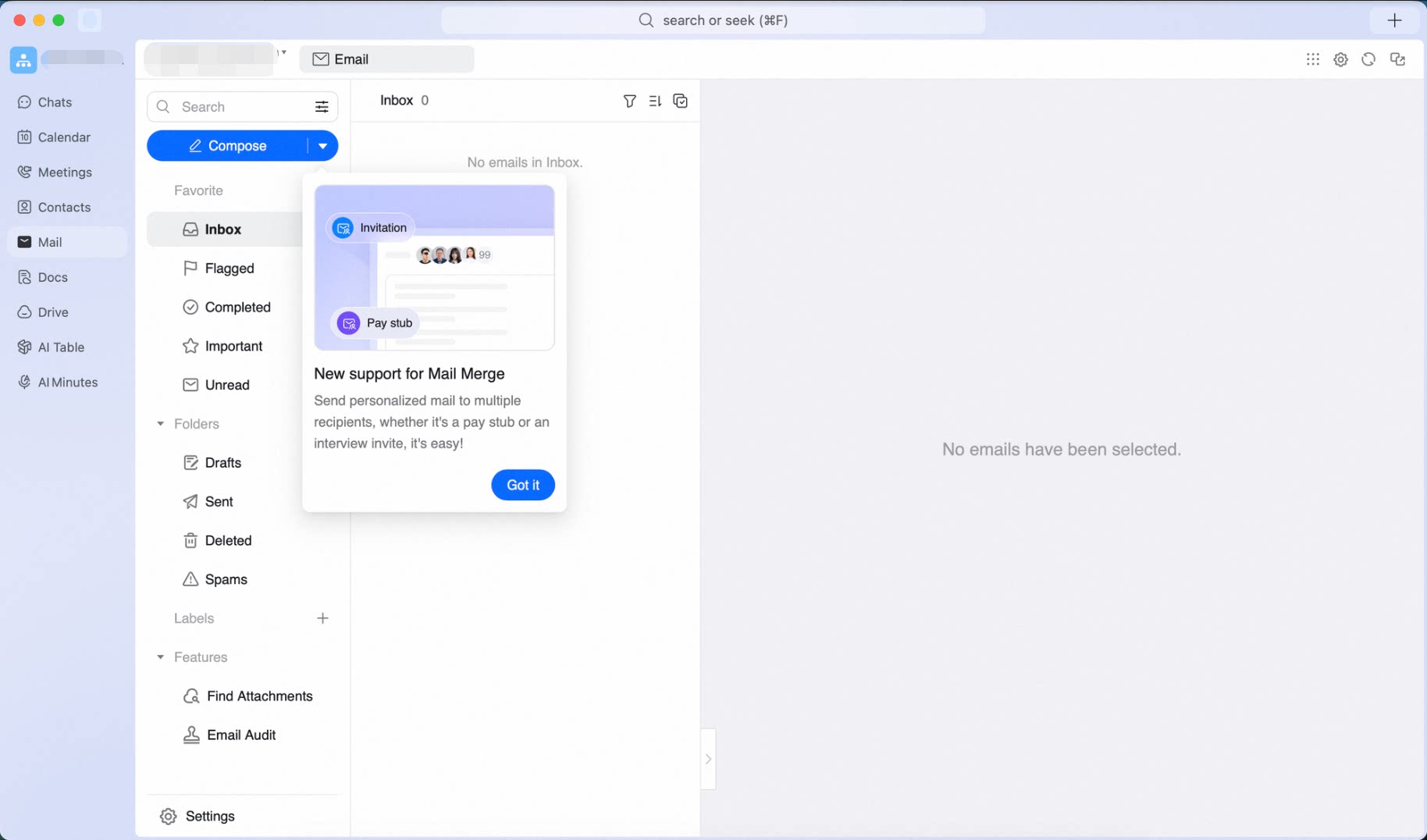
FAQ
I did not receive an organization code. What should I do?
I did not receive an organization code. What should I do?
Contact your IT admin. Organization codes are assigned by the enterprise admin when your organization activates DingTalk Enterprise Edition.
I forgot my email password. What should I do?
I forgot my email password. What should I do?
The password used for SSO sign-in is managed by your organization’s IDaaS platform (such as JumpCloud), not by DingTalk. Reset it through the “Forgot password” process of your company’s IT system, or contact your IT admin for help.
The verification code from JumpCloud Protect is rejected
The verification code from JumpCloud Protect is rejected
TOTP verification codes refresh every 30 seconds. Make sure that:
- Time on your phone is set to sync automatically.
- You enter the code before it expires.
- You selected the correct entry for the account you are signing in with.
JumpCloud Protect stops working after I switch phones
JumpCloud Protect stops working after I switch phones
Contact your IT admin to reset your MFA binding in the JumpCloud console, then scan the QR code again on your new phone to rebind.
My organization does not use JumpCloud. Can I still follow this guide?
My organization does not use JumpCloud. Can I still follow this guide?
The overall flow is the same (organization code → email and password → verification code), but the sign-in authorization pages look different depending on the IDaaS provider (Okta, Microsoft Entra ID, Google Workspace, and so on). Follow the prompts on your actual page, or contact your IT department.