Chats
Chats Calendar
 Meetings
 Contacts
 Mail
Mail Docs
Docs Drive
Drive AI Table
 AI Minutes
 Attendance
 Approval
 YiDA
YiDA Admin Console
Entry Points
Desktop
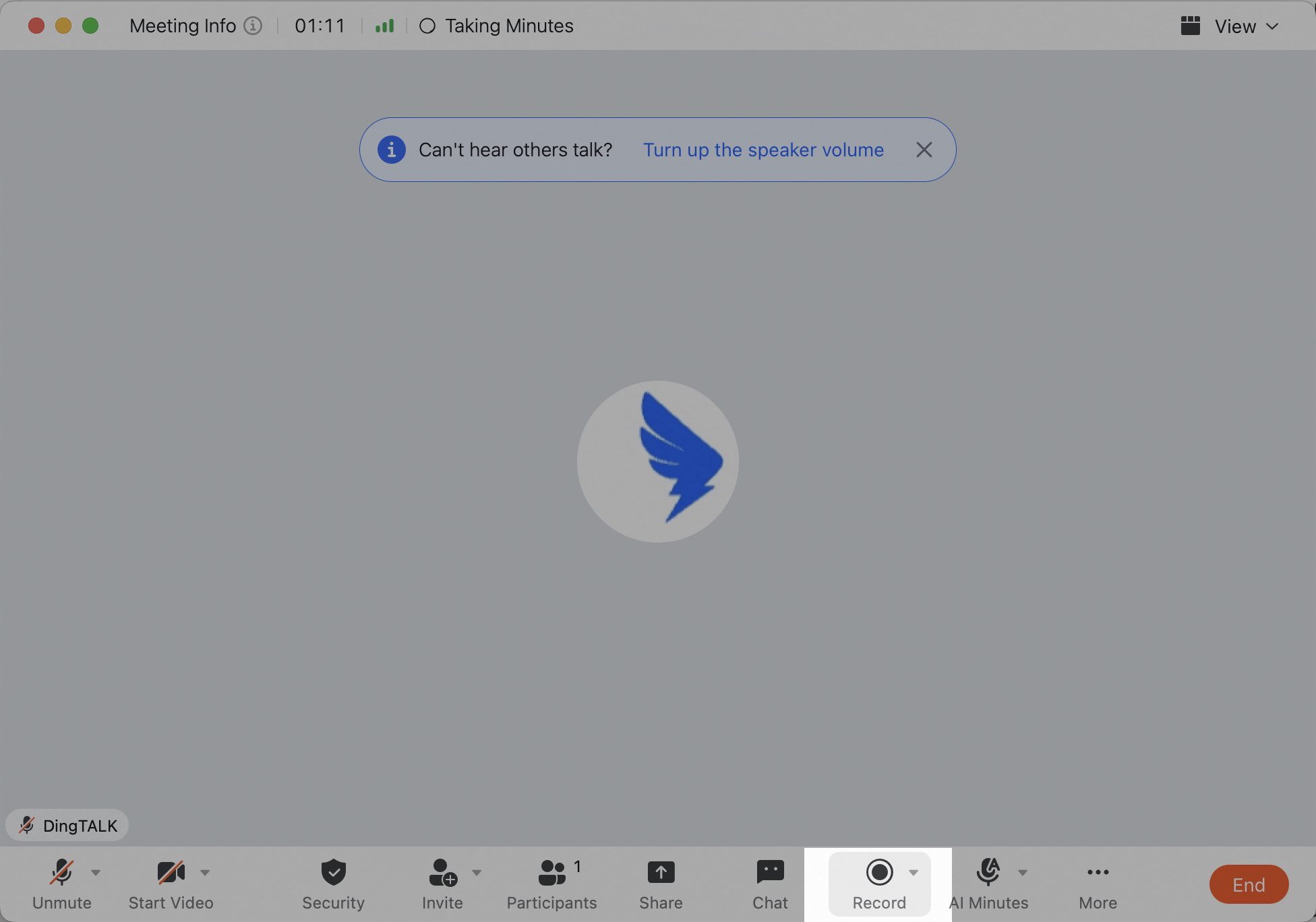
On desktop, click the AI Minutes icon in the left navigation bar in DingTalk, or search for AI Minutes from the search box. Search for “AI Minutes”.
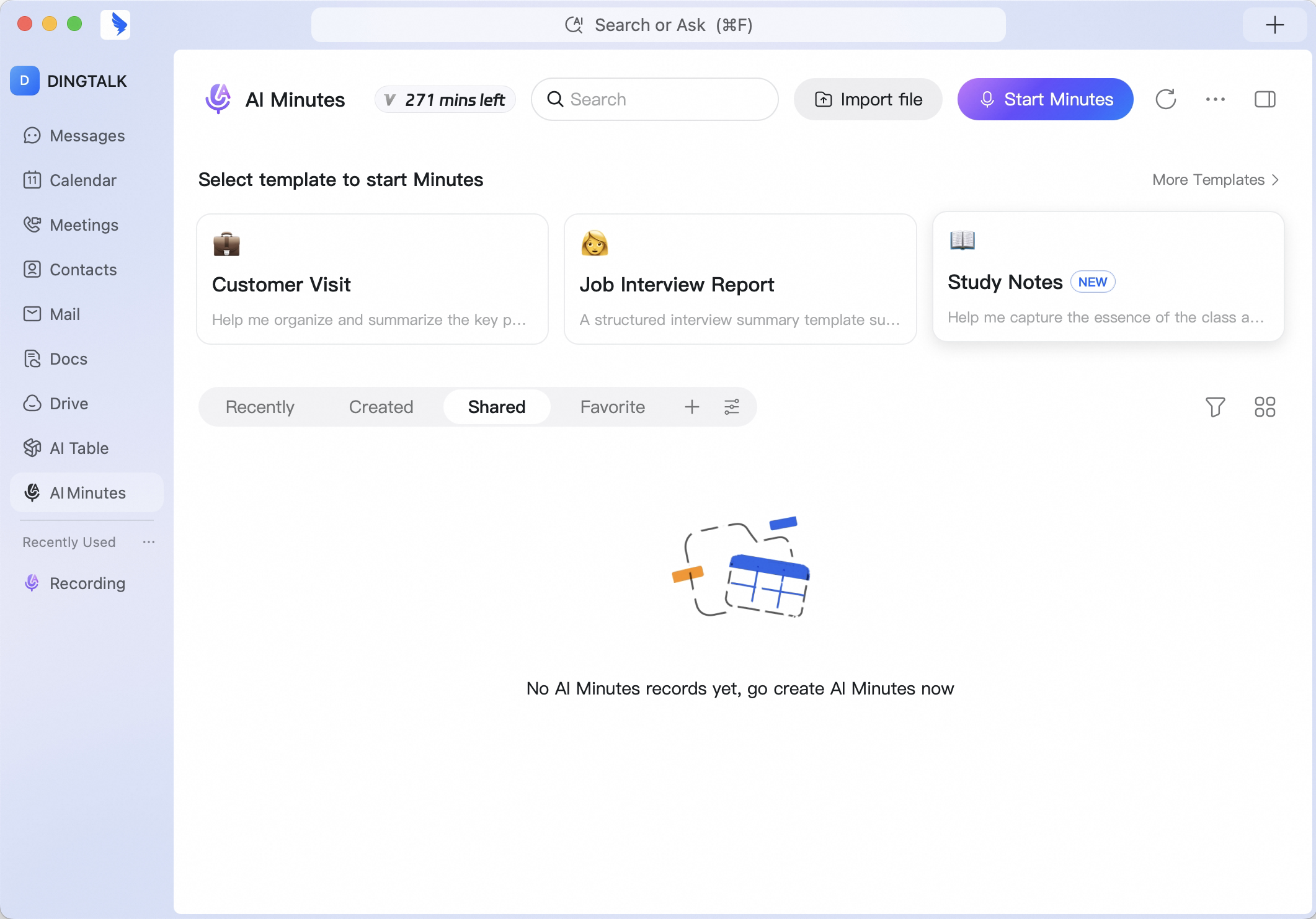 Open the AI Minutes home page.
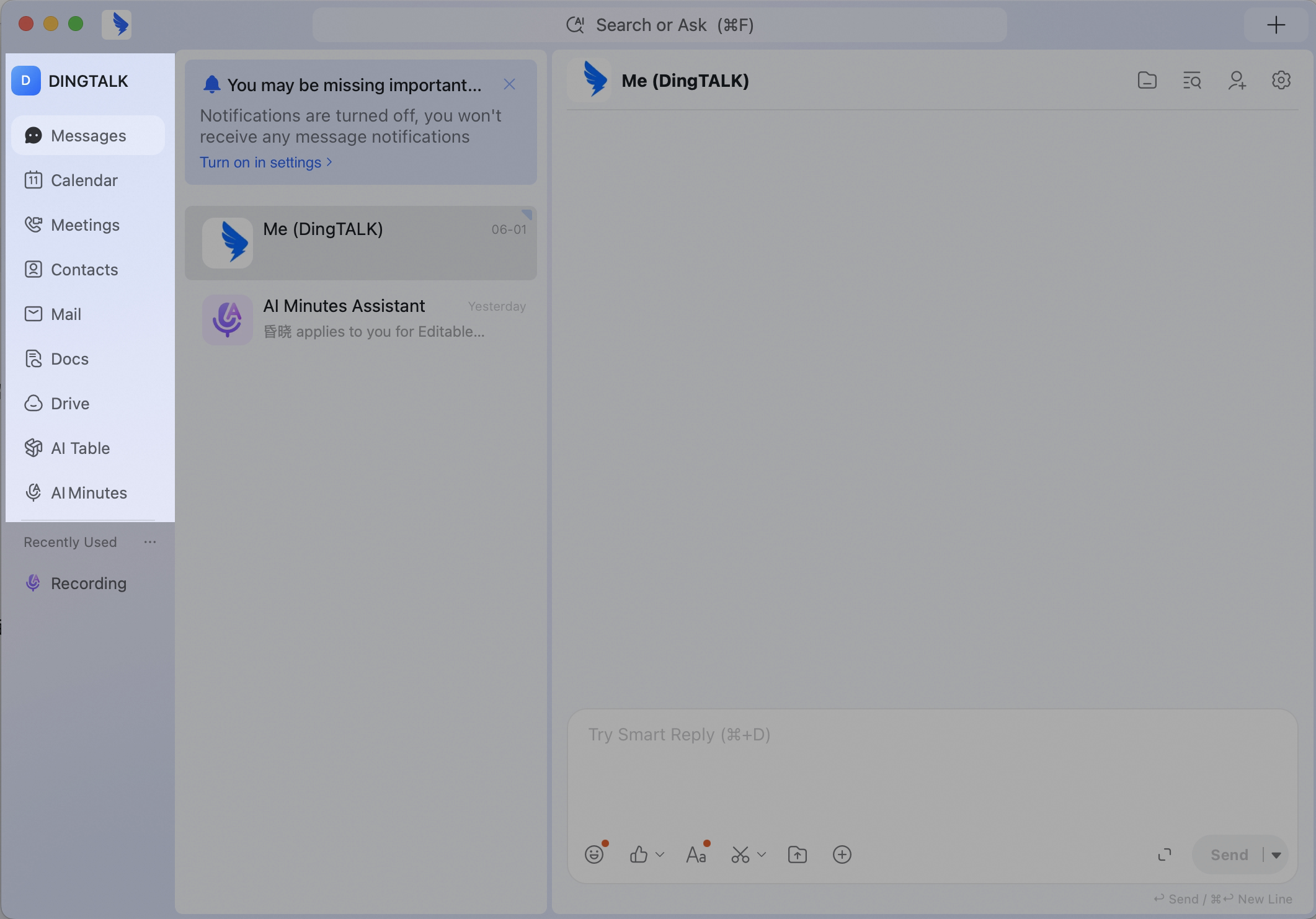 Click AI Minutes in the left navigation bar.
Mobile
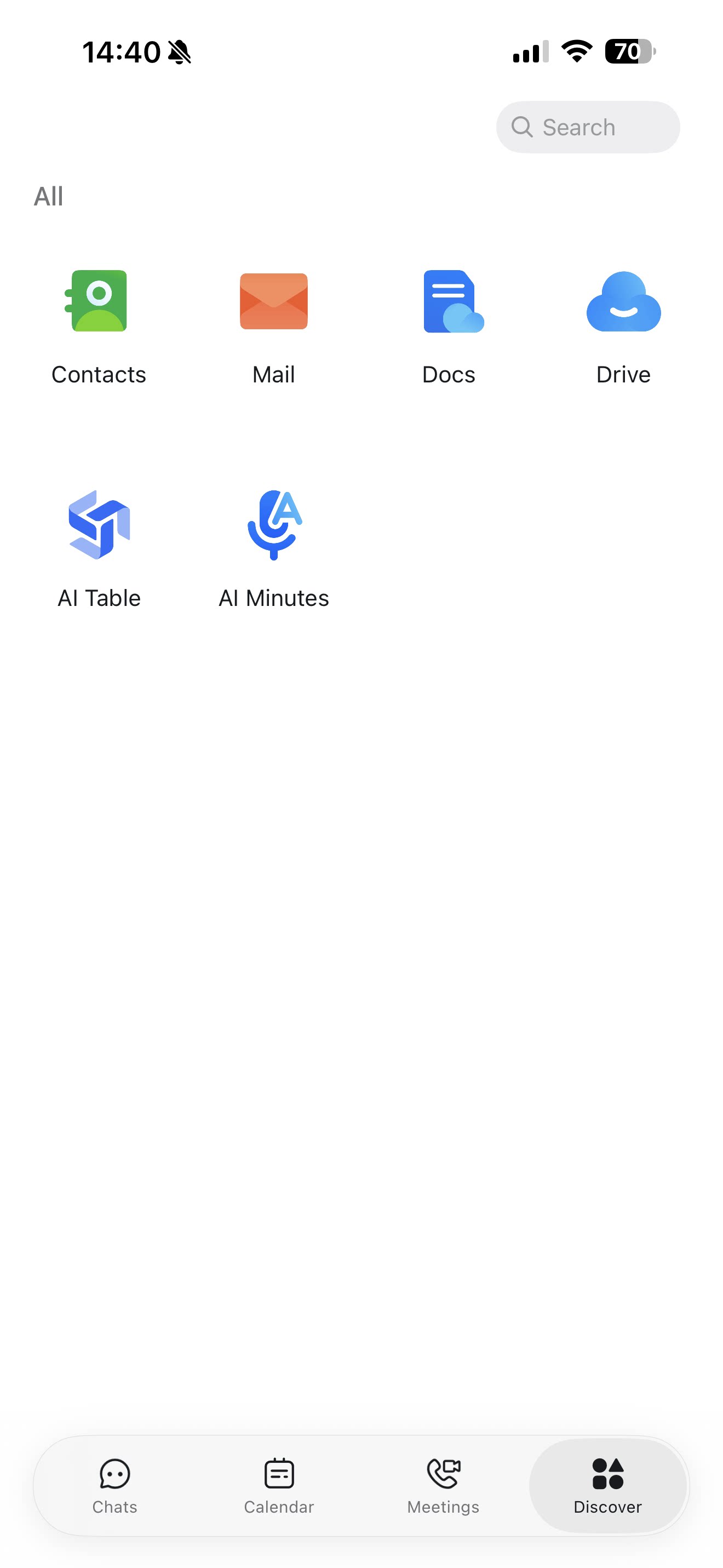
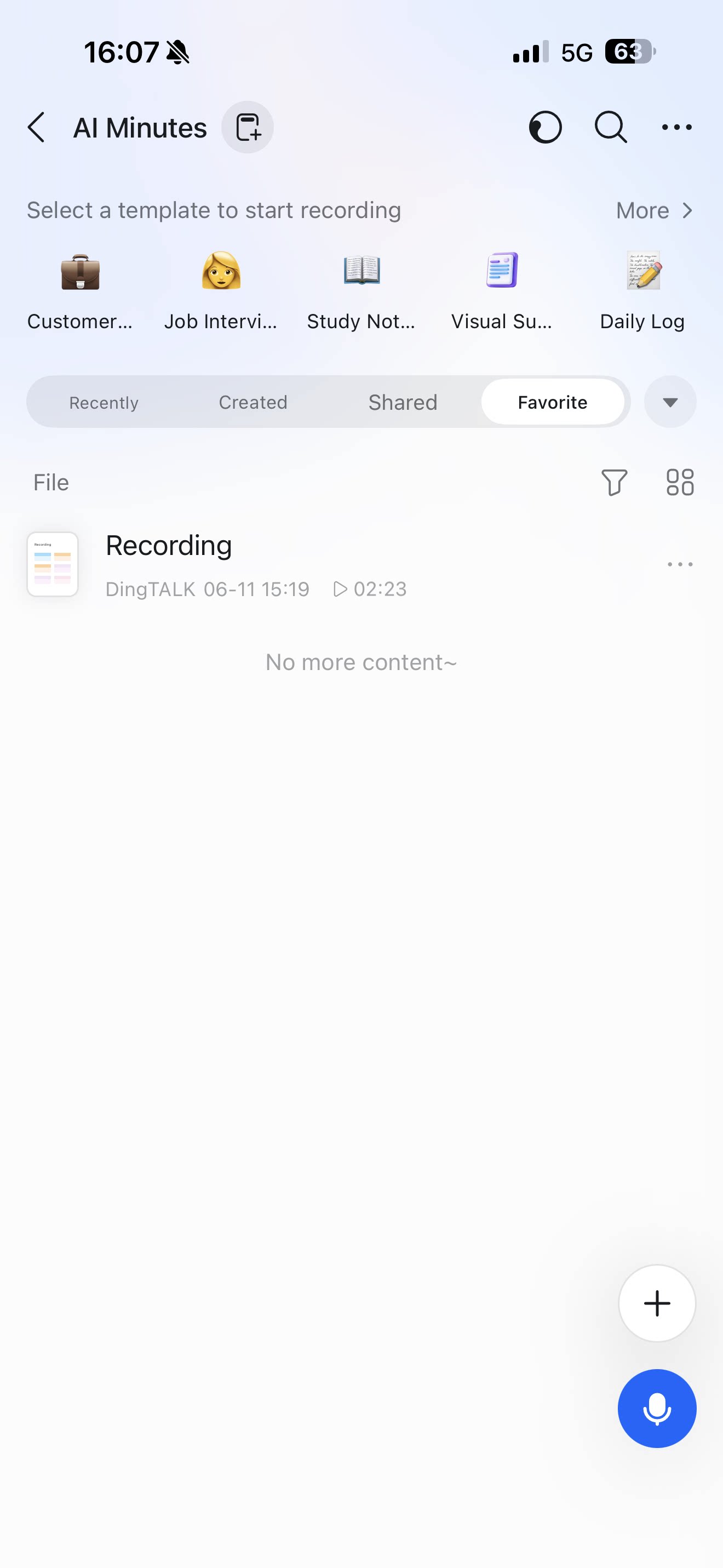
On mobile, tap Meetings or Discover at the bottom of the DingTalk home screen, then find AI Minutes.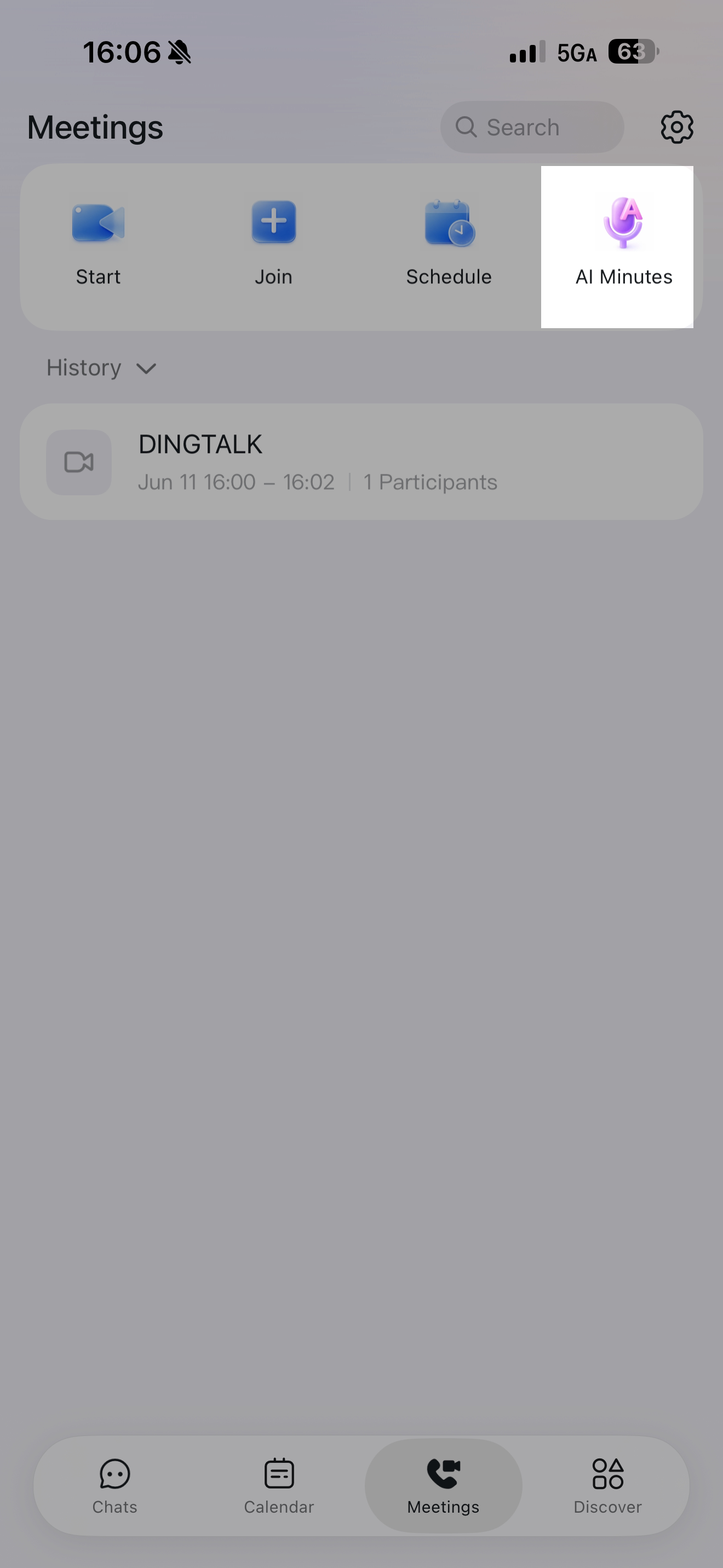
Method 1: Quickly Start AI Minutes
- Open AI Minutes from the left navigation bar.
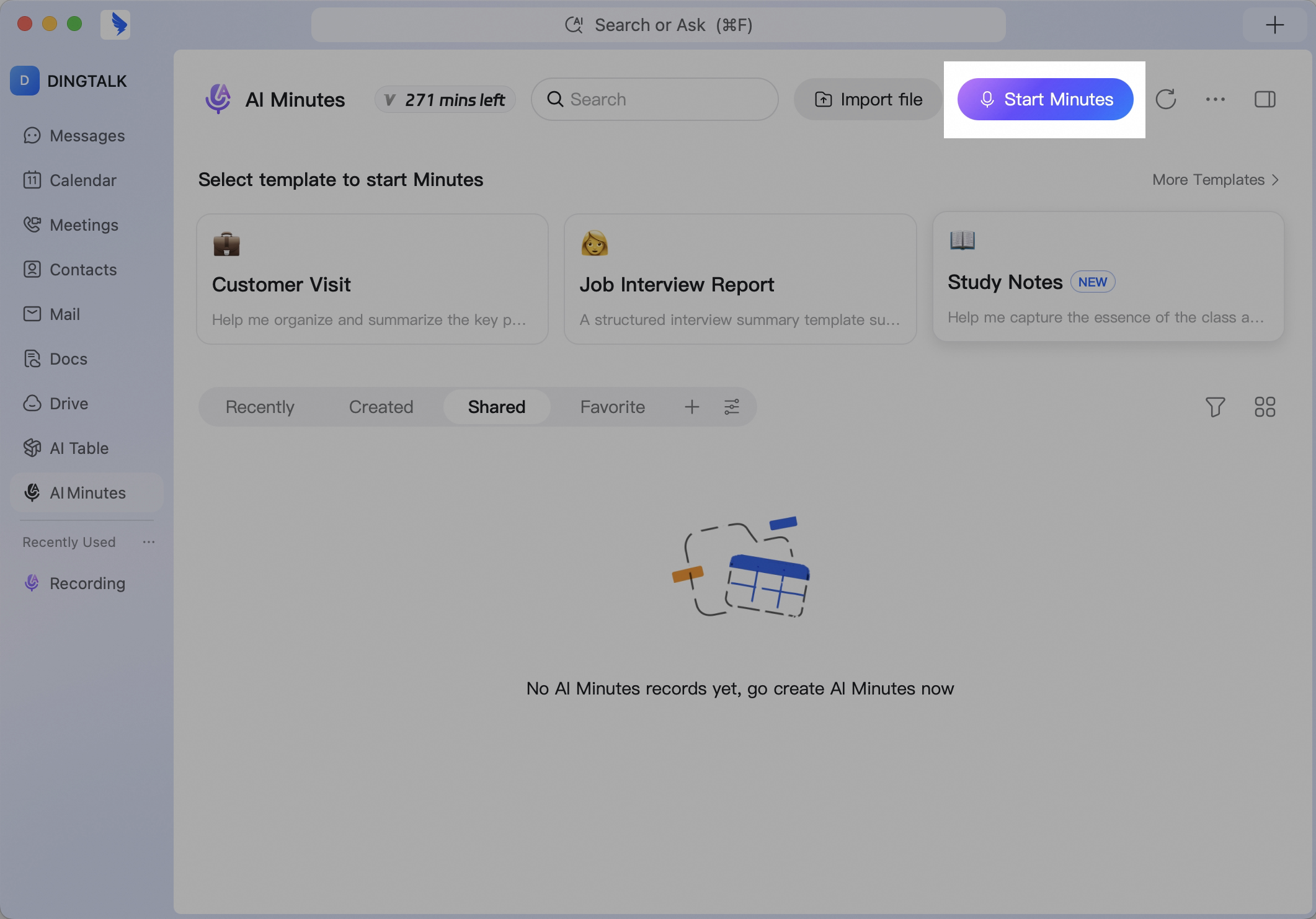
- On the AI Minutes home page, click Start recording. The recording will be transcribed into text in real time.
Method 2: Start AI Minutes With a Template
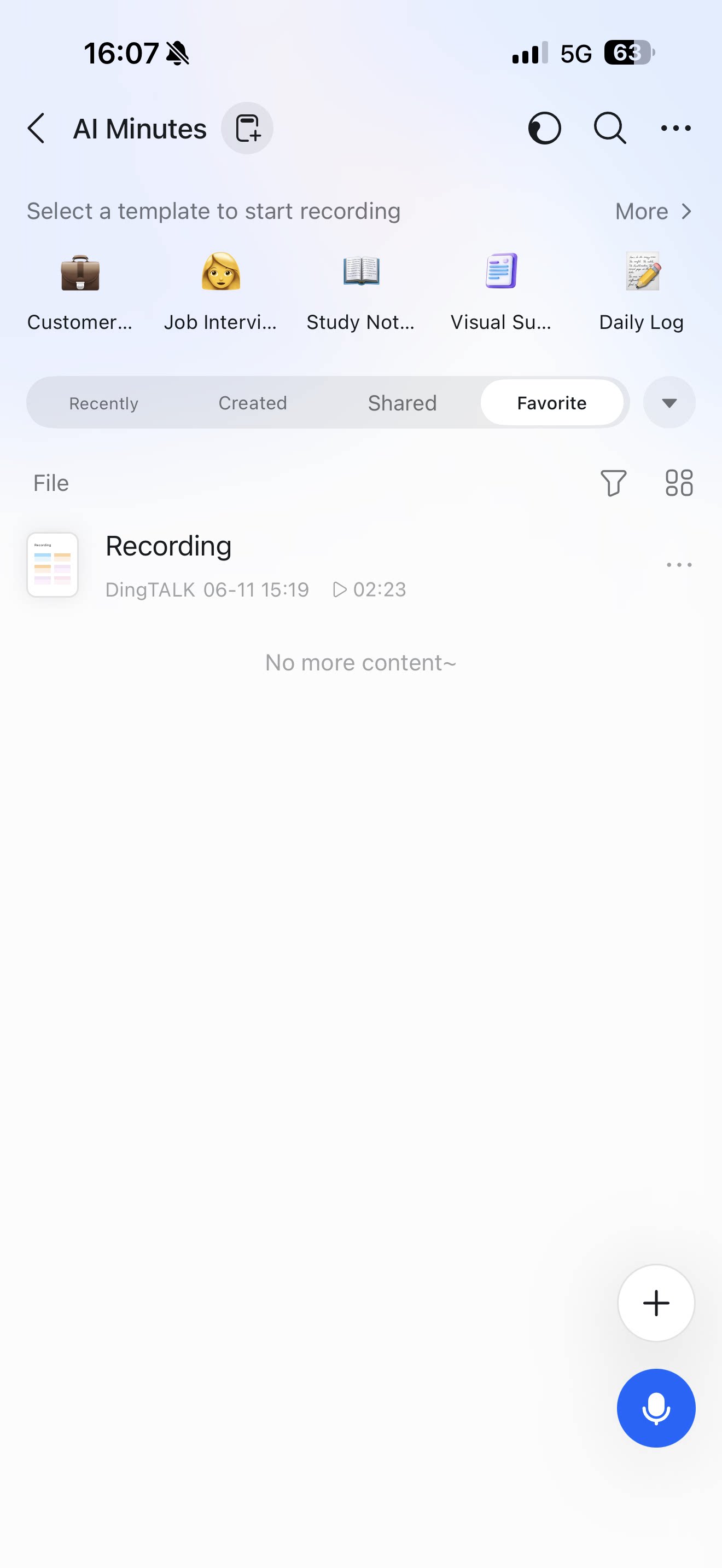
If you already know the meeting scenario, click a specific template to start recording directly. AI will use the selected template to better match the meeting context. Click More templates to view 36 professional templates provided by AI Minutes. The templates cover scenarios such as study notes, meeting minutes, daily records, interview reports, customer service, and guided tours, helping you quickly generate clearer and more relevant minutes.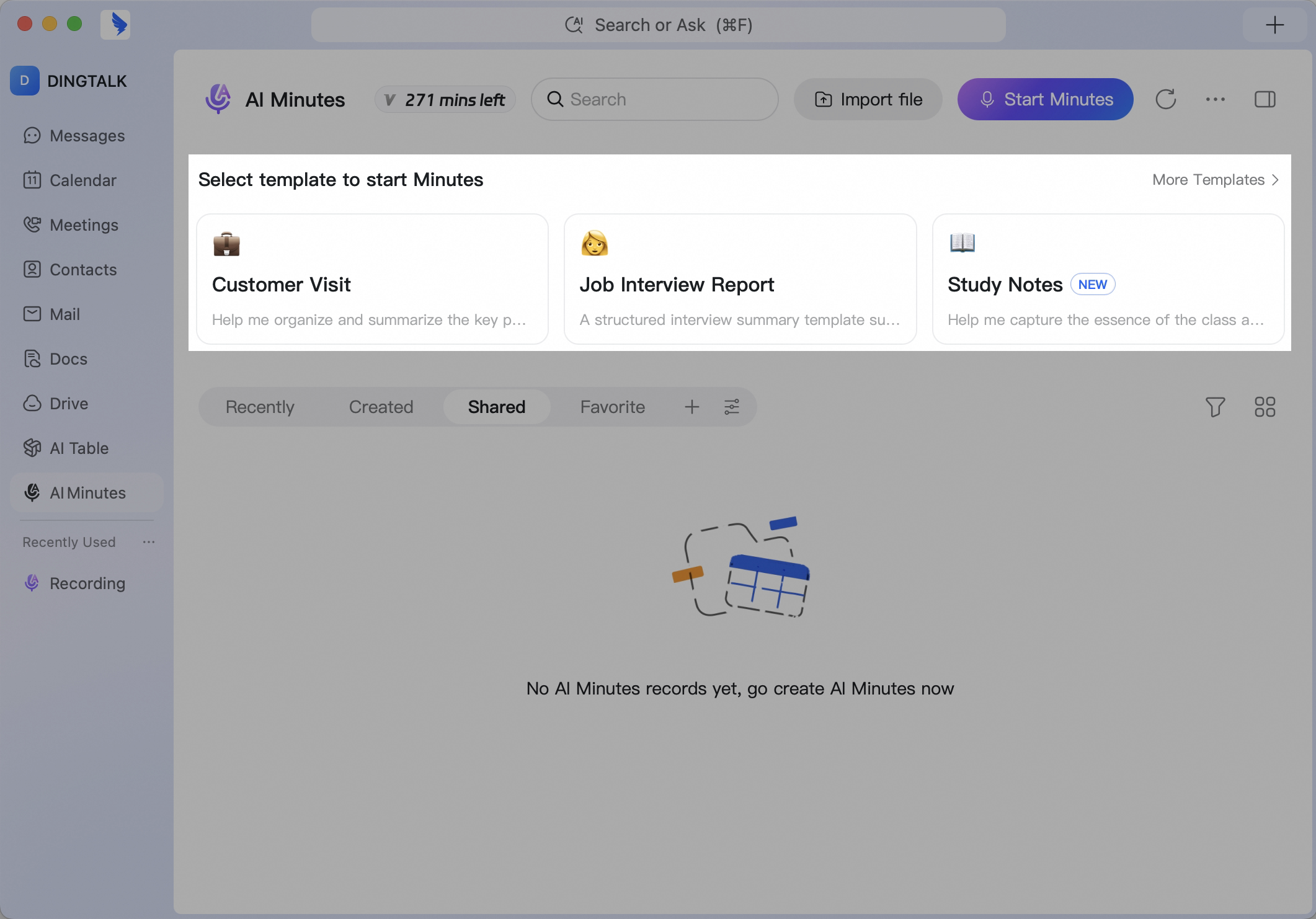
Create a Custom Template
You can write prompts manually or import a sample for automatic parsing.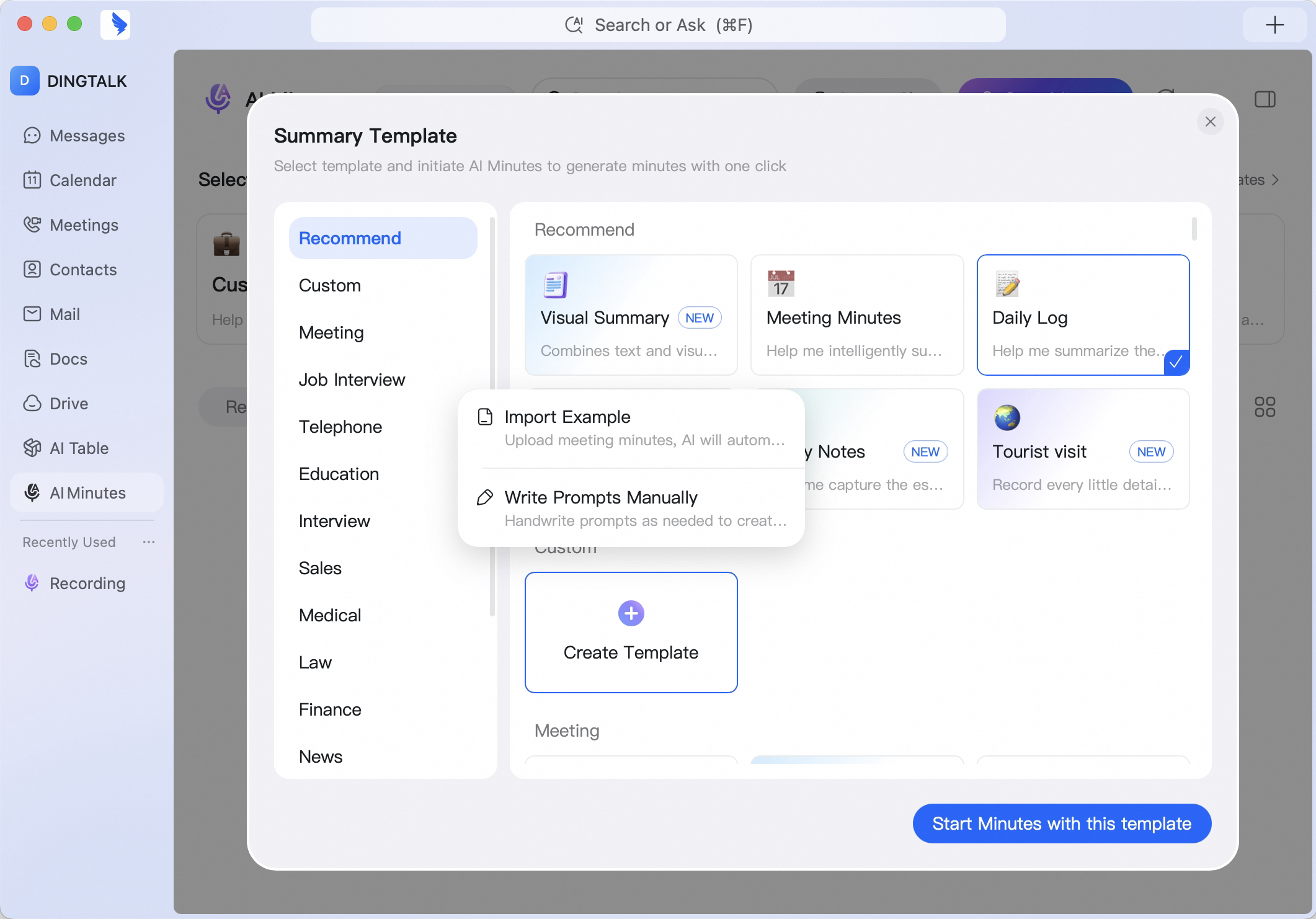 After creating a custom template, you can select and use it for recordings.
You can also choose its scope. Personal templates are only available to you, while organization templates are synced to the selected members’ AI Minutes template libraries.
After creating a custom template, you can select and use it for recordings.
You can also choose its scope. Personal templates are only available to you, while organization templates are synced to the selected members’ AI Minutes template libraries.
Method 3: Upload Local Audio or Video Files
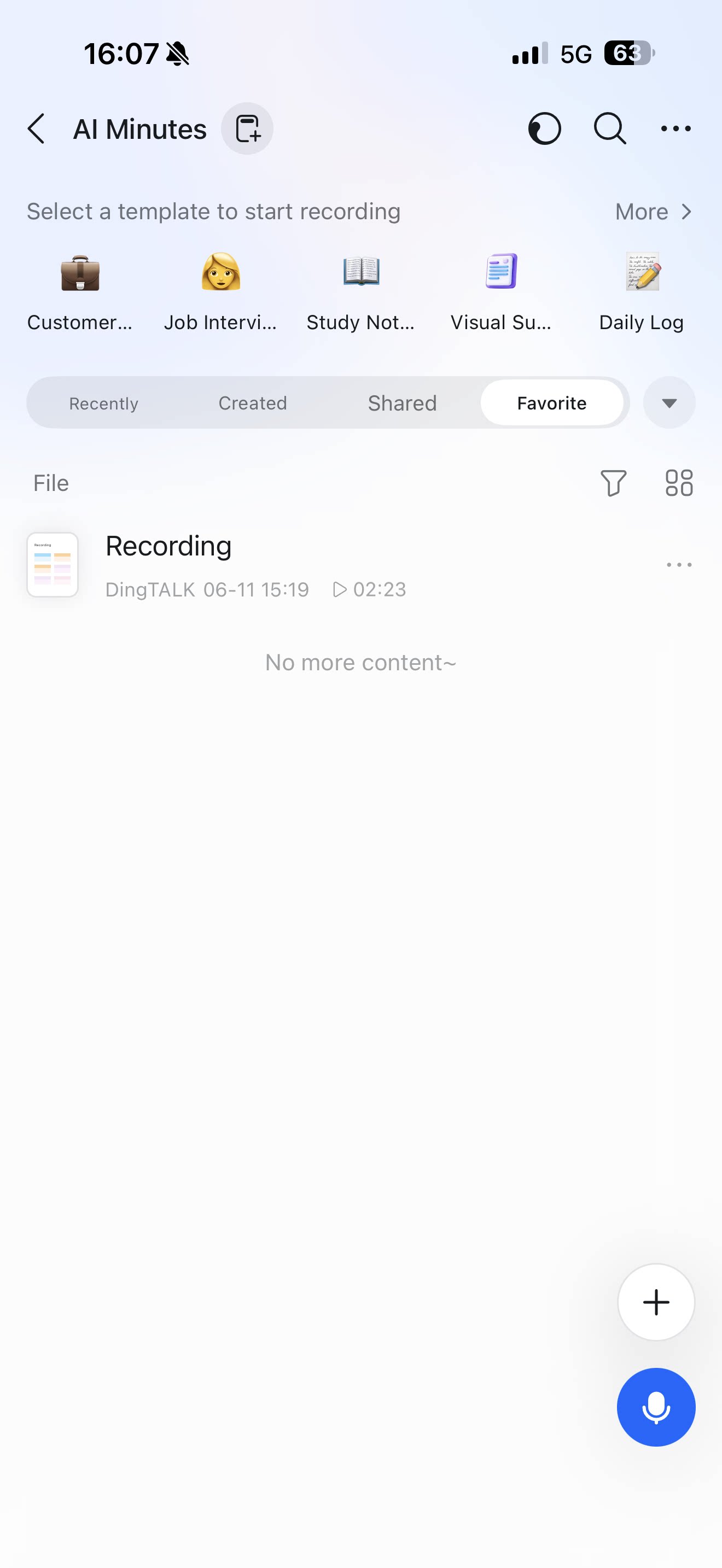
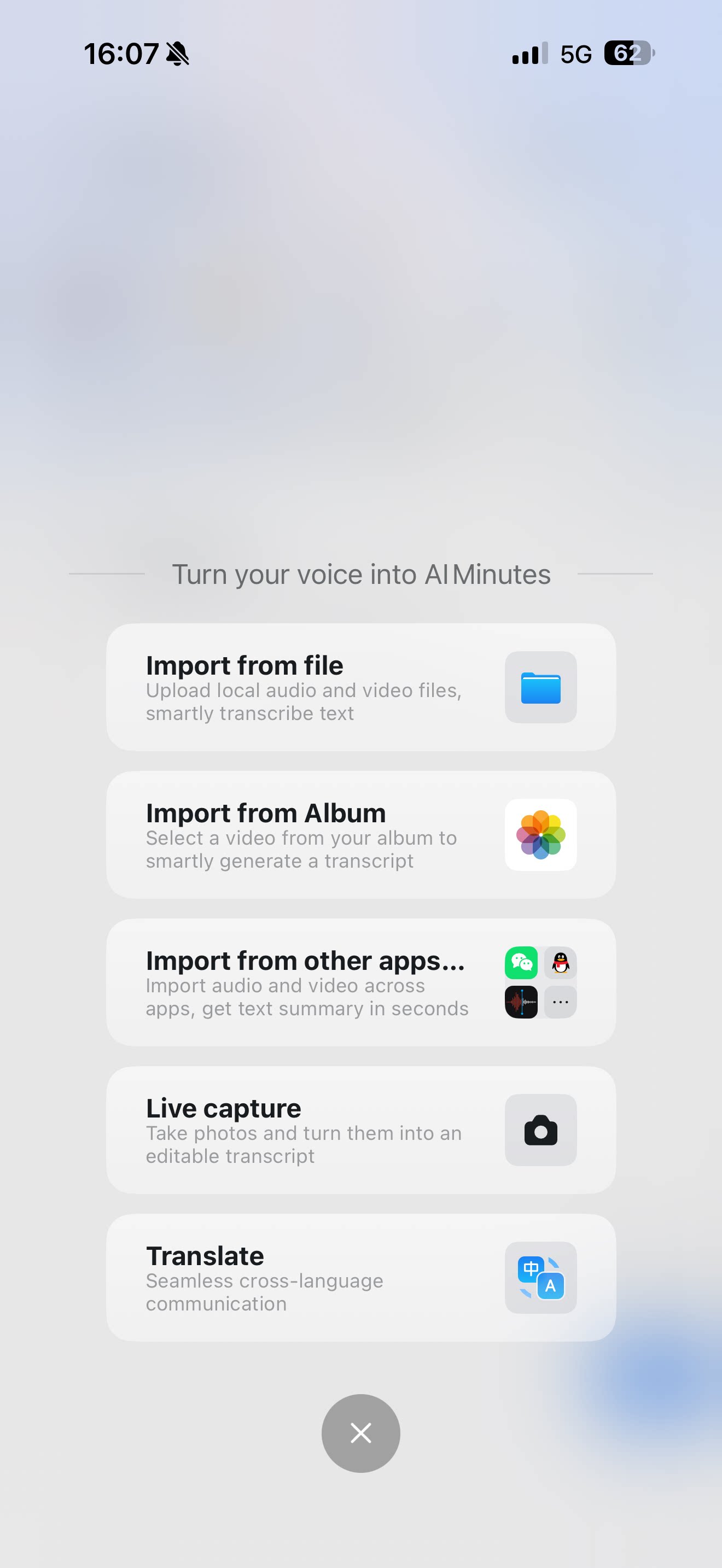
After entering the AI Minutes home page, click Import file on the right side of the search box, then add the audio or video files that need to be transcribed. Batch upload of multiple audio and video files is supported, with no limit on the number of files.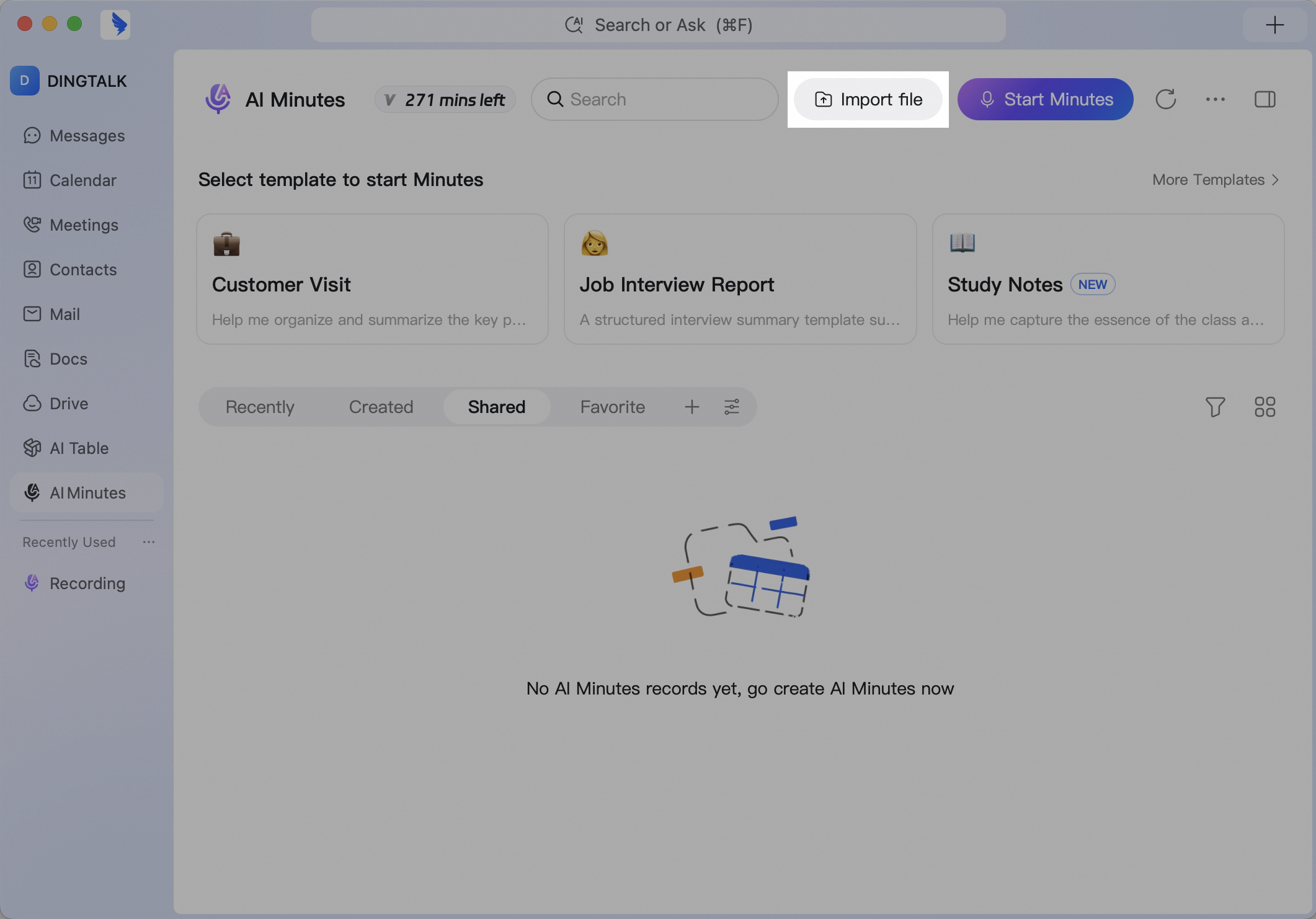 On mobile, tap the + button above the recording button in the lower-right corner, then choose files from your album or another app to import audio or video for transcription.
Method 4: Start AI Minutes From a DingTalk Video Meeting
Path 1
Click AI Minutes at the bottom of a video meeting to open the AI Minutes panel on the right. AI Minutes will automatically transcribe the meeting and display the transcript in real time. You can manually turn AI Minutes off or on again. After the meeting ends, the owner of the transcript file will receive the AI Minutes file from AI Minutes Assistant.
Path 2
After starting a DingTalk video meeting, the host can click Record > Cloud recording in the bottom toolbar to record the meeting. Participants can click Record > Cloud recording to request that the host start recording. After the meeting ends, the recording file owner will receive the AI Minutes file from DingTalk AI Minutes Assistant.