Chats
Chats Calendar
 Meetings
 Contacts
 Mail
Mail Docs
Docs Drive
Drive AI Table
 AI Minutes
 Attendance
 Approval
 YiDA
YiDA Admin Console
- Protection against eavesdropping: Call data is protected for security.
- No call charges: Use the feature without paying phone charges.
- HD audio quality: Audio quality exceeds traditional phone calls, with noise suppression, echo cancellation, and other audio algorithms.
- Caller business card: Shows the caller card for colleagues and business partners.
How to Use Voice Calls
Make or End a Voice Call on Mobile
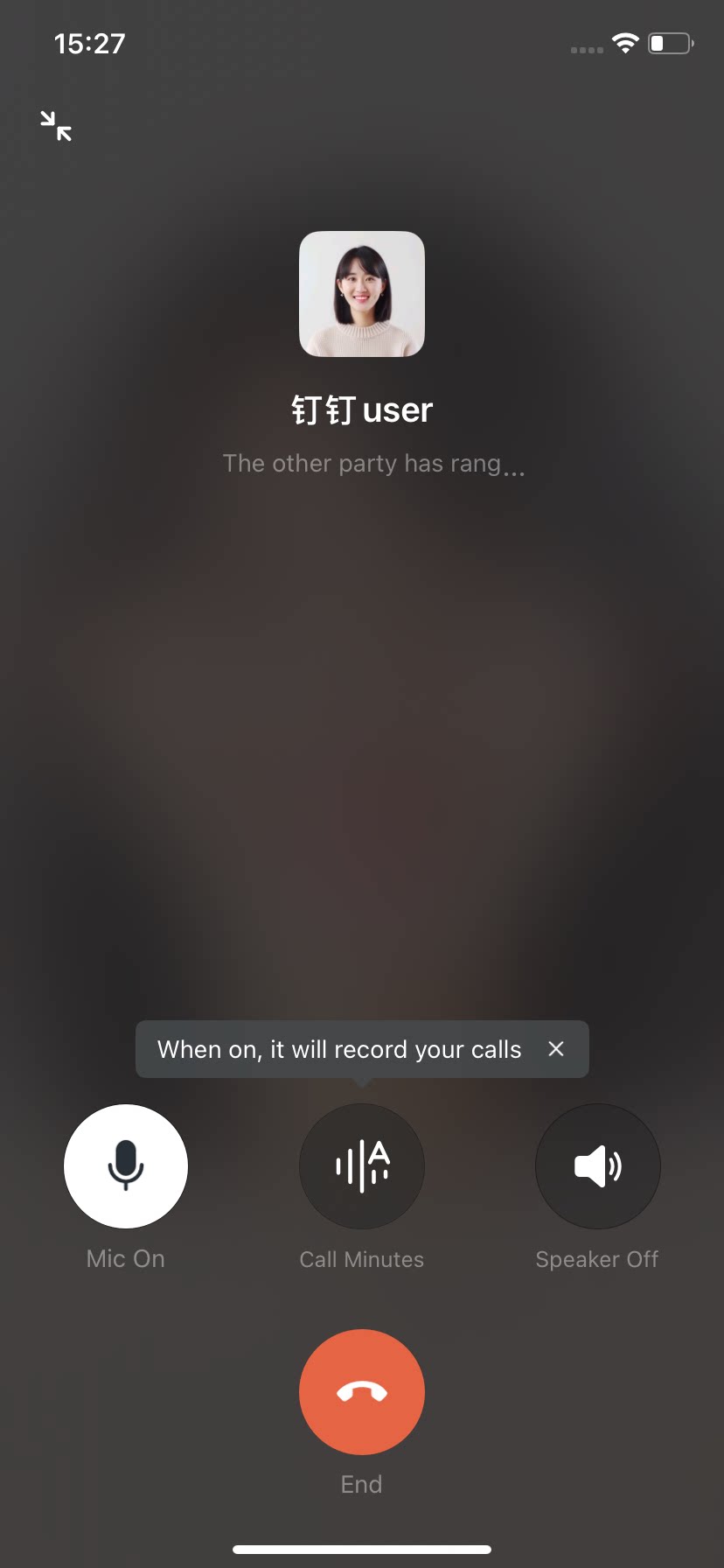
Make a call: Open a one-on-one chat on mobile >> tap the + button on the right side of the input box >> select Voice Call >> tap Voice Call to call the other person. You can also open a one-on-one chat on mobile >> tap the icon in the upper-right corner >> select Voice Call >> tap Voice Call to call the other person.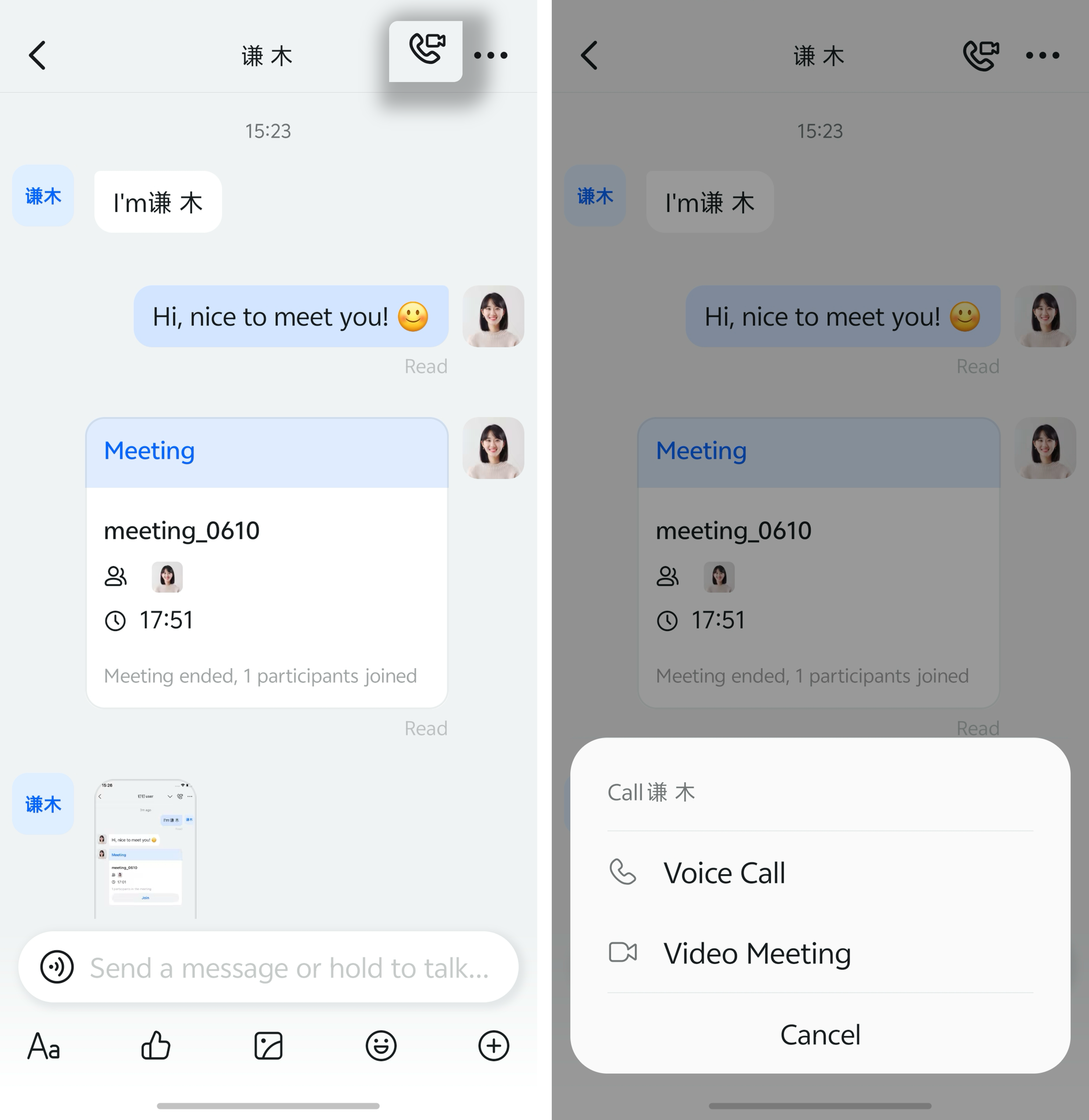 End a call: When the other person has not answered or after the voice call is connected, tap Cancel or Hang up at the bottom to cancel or end the call.
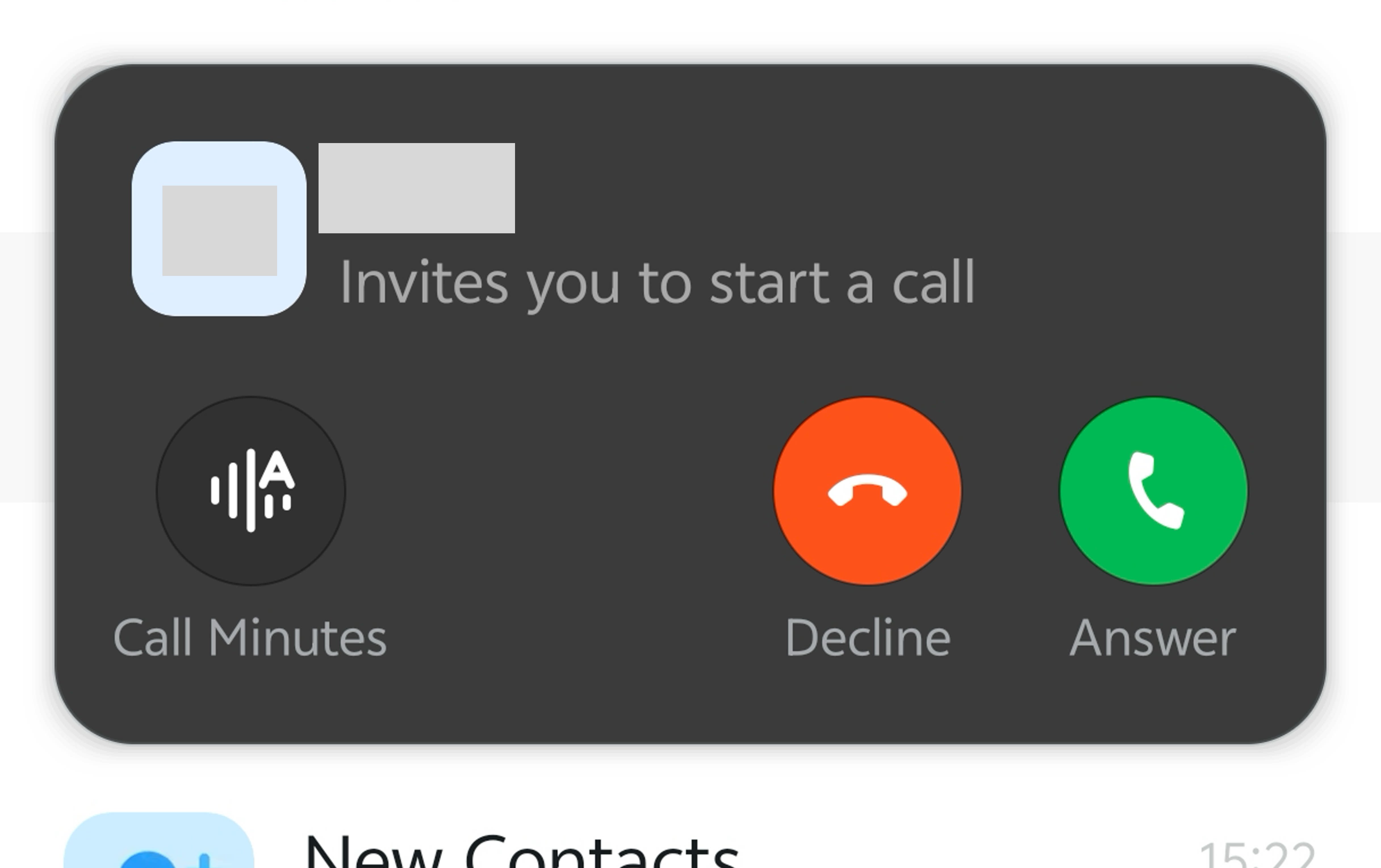
When you receive a DingTalk voice call, the mobile app displays an incoming call pop-up even if you are not currently on the DingTalk screen, so you will not miss important calls.
Make or End a Voice Call on Desktop
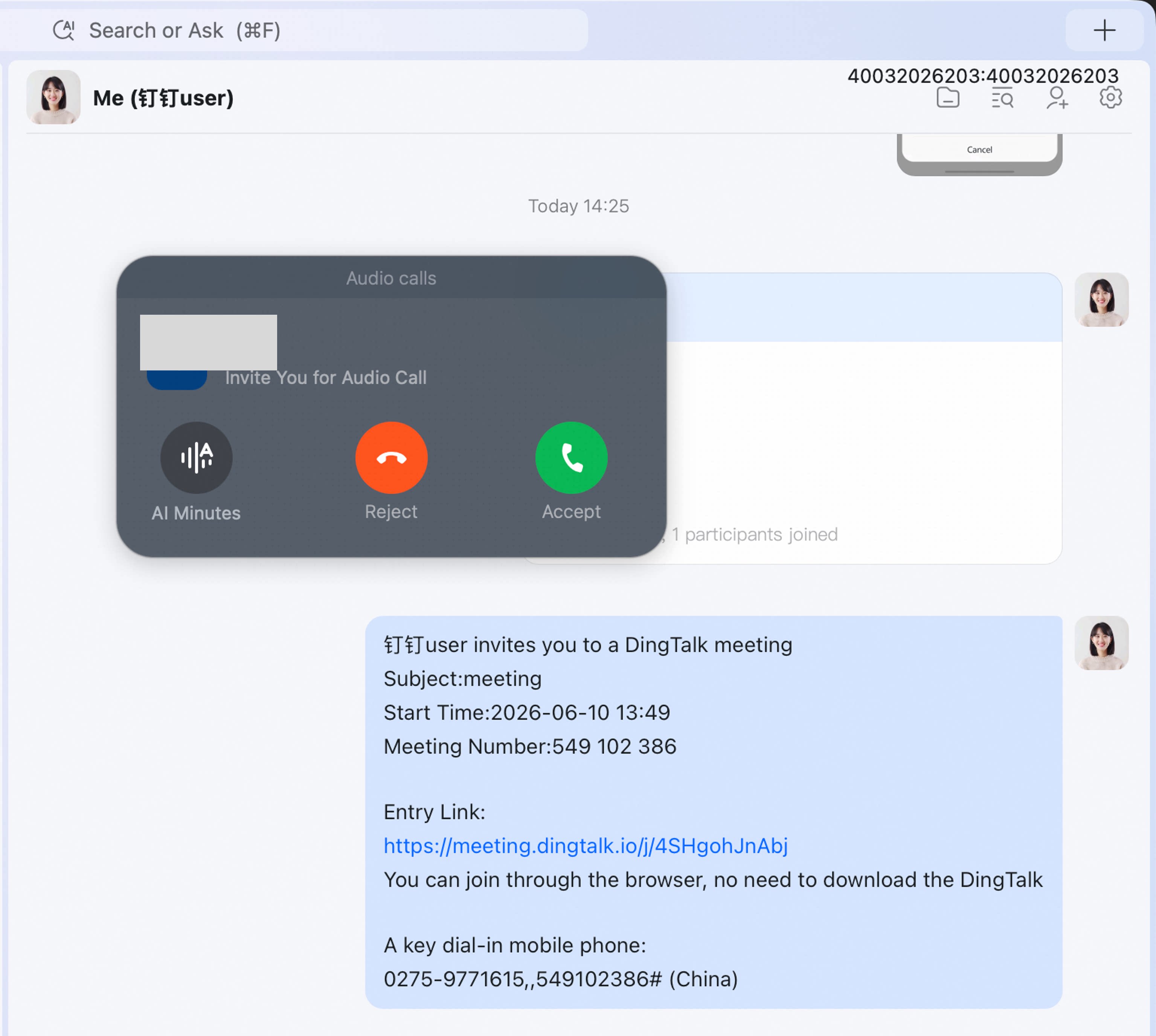
Make a call: Open a one-on-one chat in DingTalk desktop >> click the icon in the upper-right corner >> click Voice Call to call the other person. End a call: When the other person has not answered or after the voice call is connected, click the hang-up icon on the call screen to end the call.