

 Chats
Chats Calendar
 Meetings
 Contacts
 Mail
Mail Docs
Docs Drive
Drive AI Table
 AI Minutes
 Attendance
 Approval
 YiDA
YiDA Admin Console
How to Troubleshoot Audio Issues?
Microphone Permission Warning
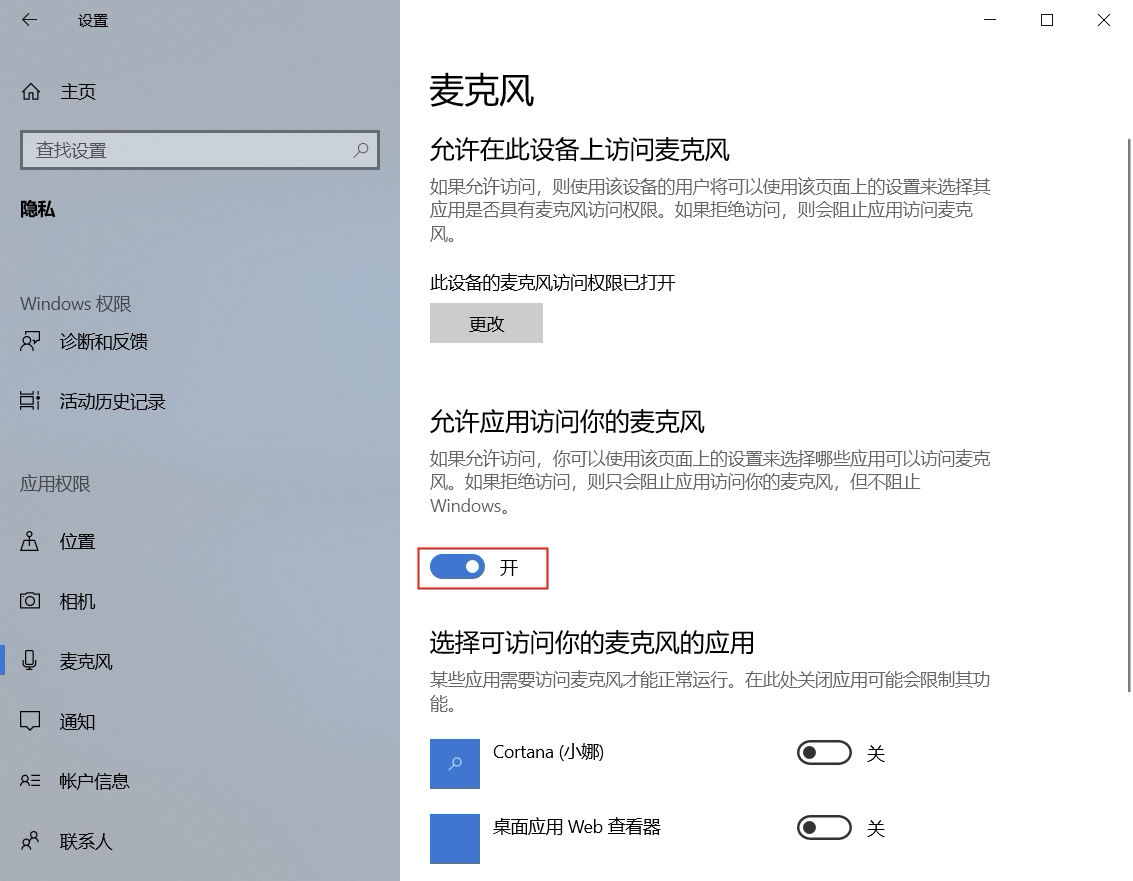
- Windows: Go to Windows Settings > Privacy > Microphone, and turn on Allow apps to access your microphone.
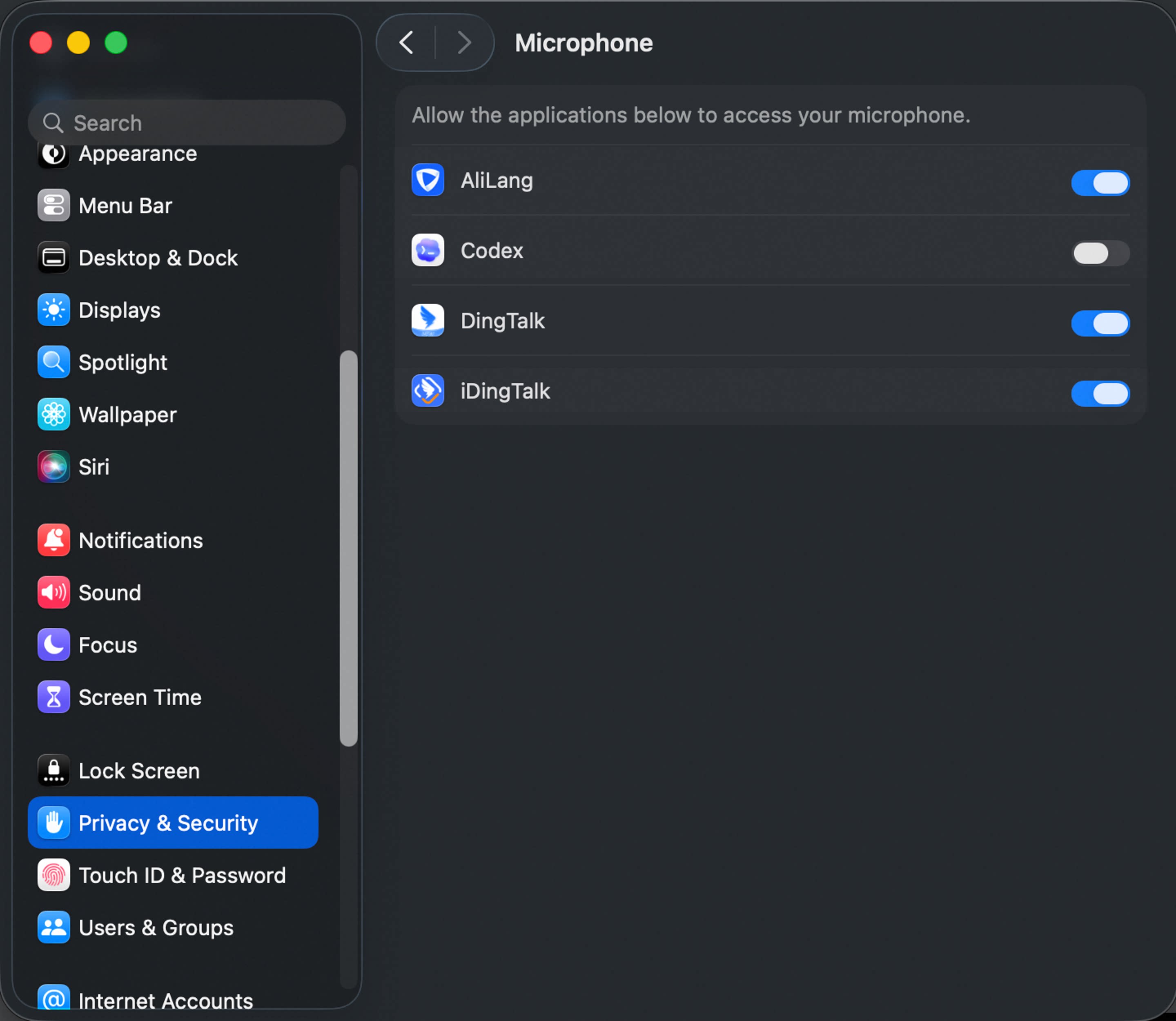
- Mac: Go to System Preferences > Security & Privacy > Microphone, select DingTalk, then restart DingTalk.
 Mac
Mac
You Cannot Hear Other Participants, or Their Volume Is Low
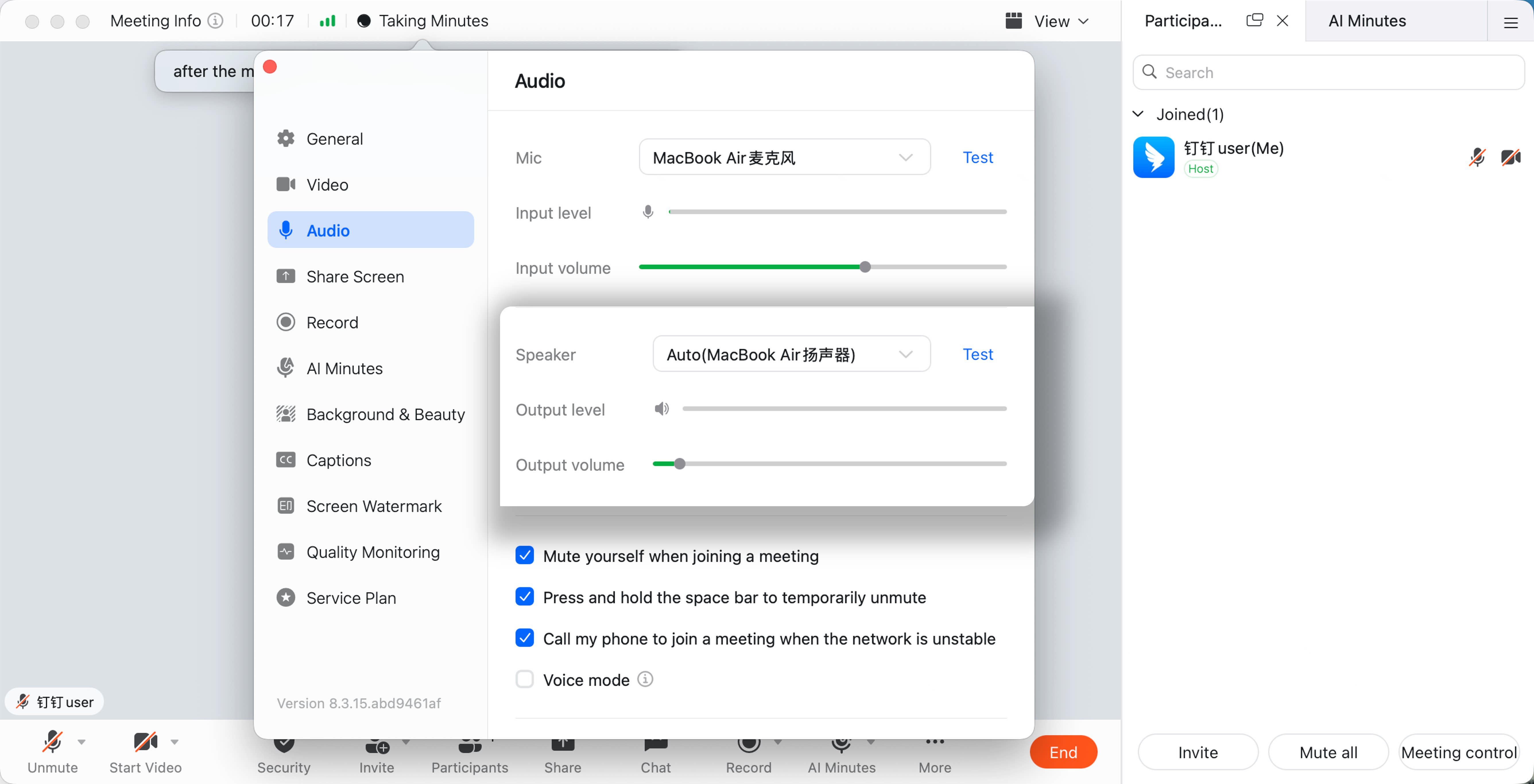
Check DingTalk Meetings Speaker Settings
In the DingTalk meeting window, go to More > Settings > Audio. Check whether the correct speaker is selected and whether the volume is set high enough. Use the test function to verify that the speaker works normally.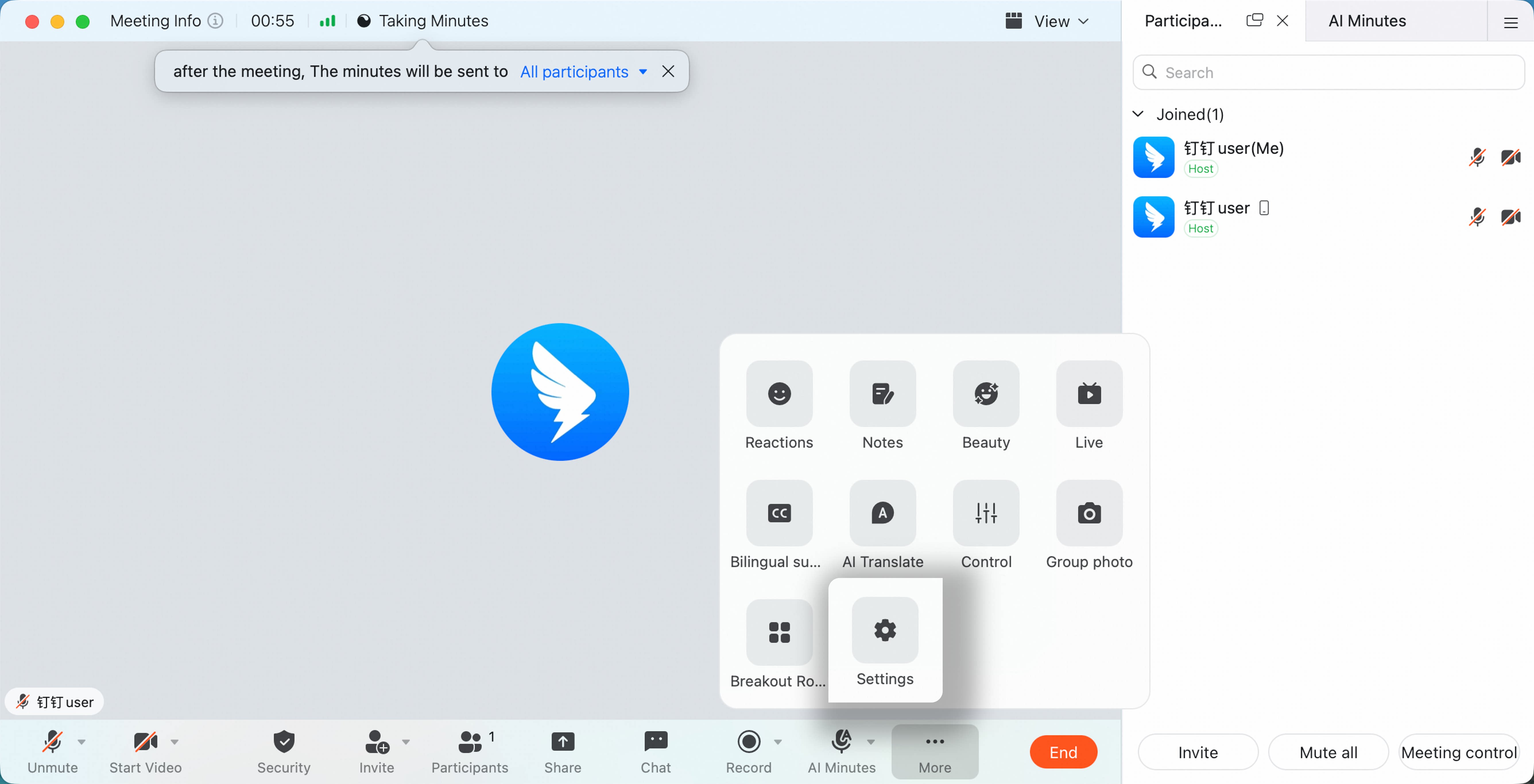
Check Whether Screen Sharing Includes Audio
If the current speaker is sharing their screen, ask them to check whether Share Computer Audio is enabled.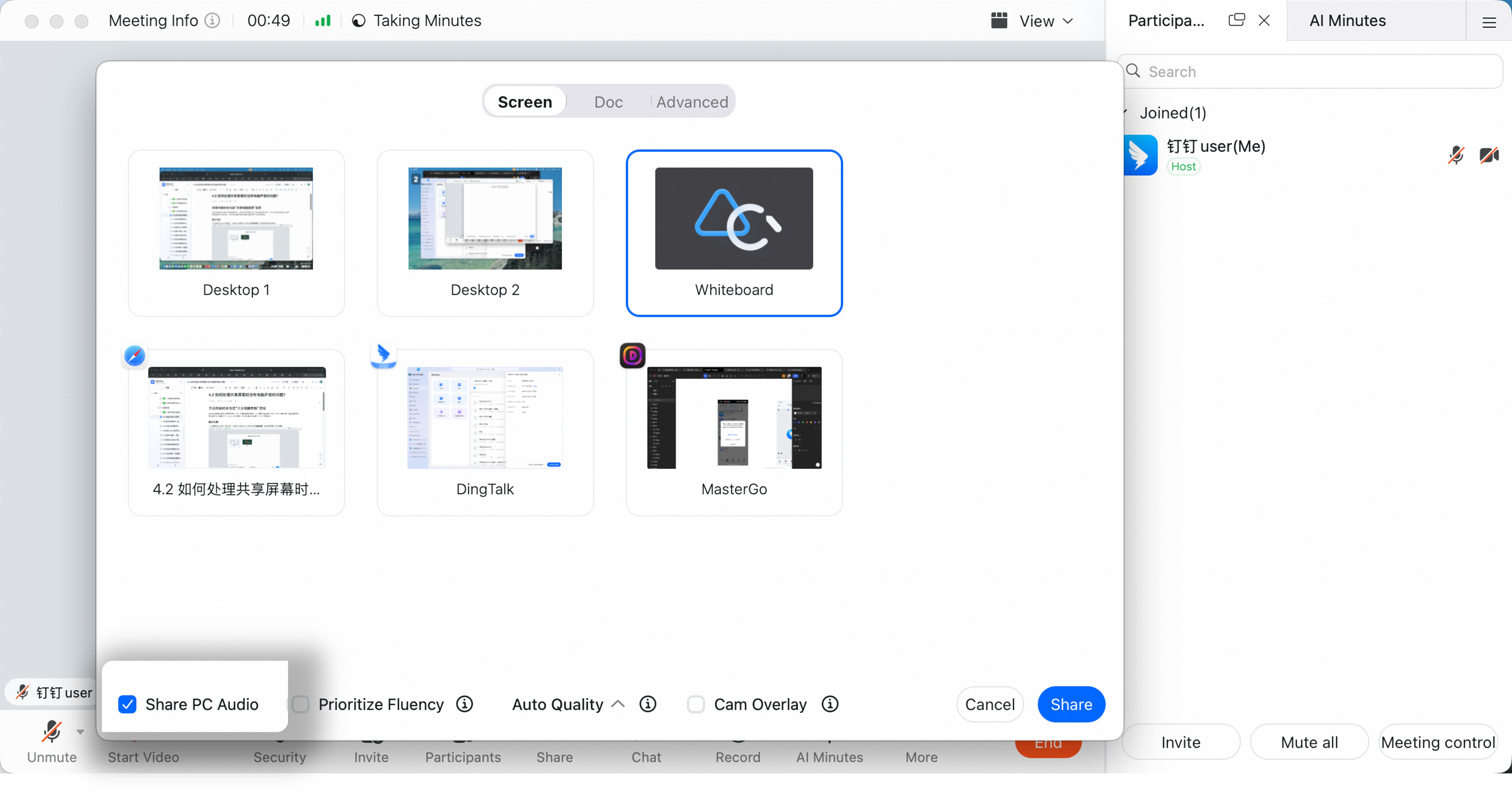
Check Computer Speaker Settings
Windows:- Go to Settings > System > Sound and check whether the correct output device and volume are selected.
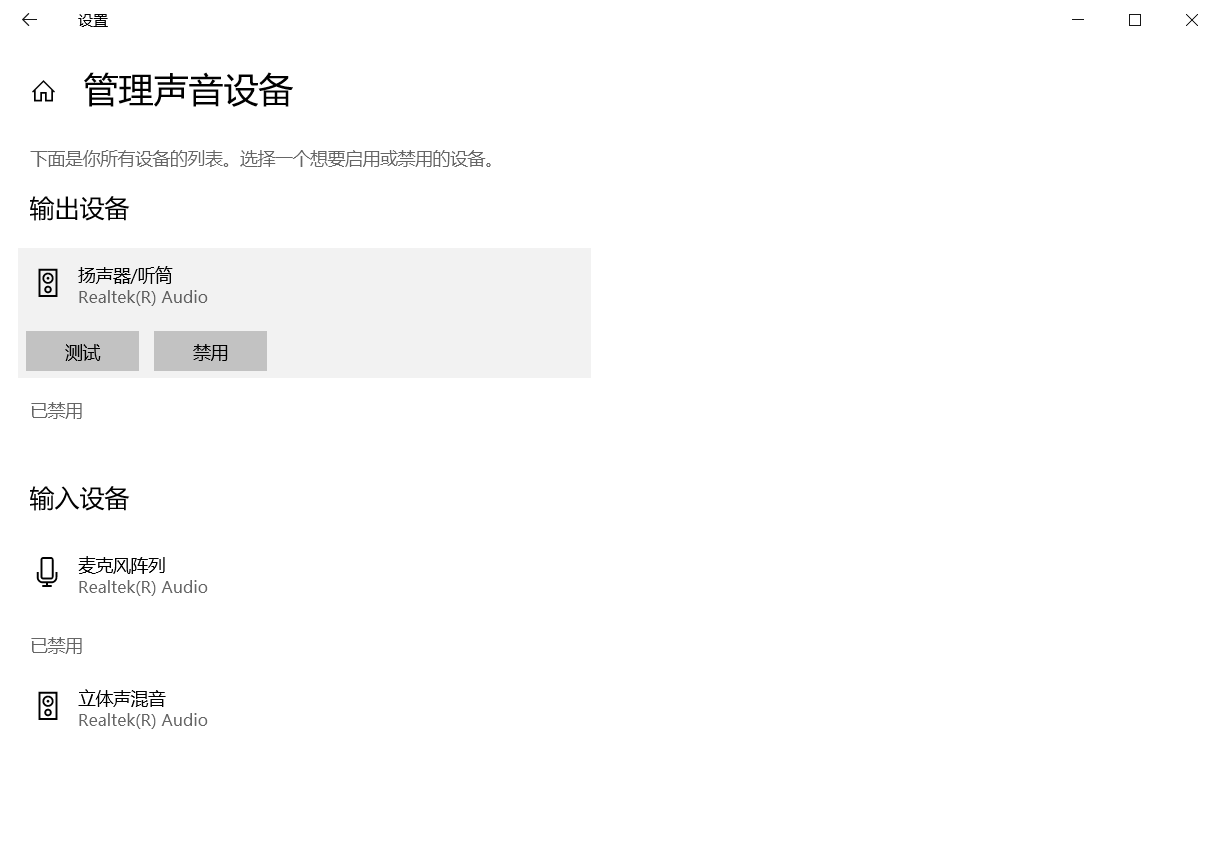
- In Sound, click Manage sound devices and test the output device.
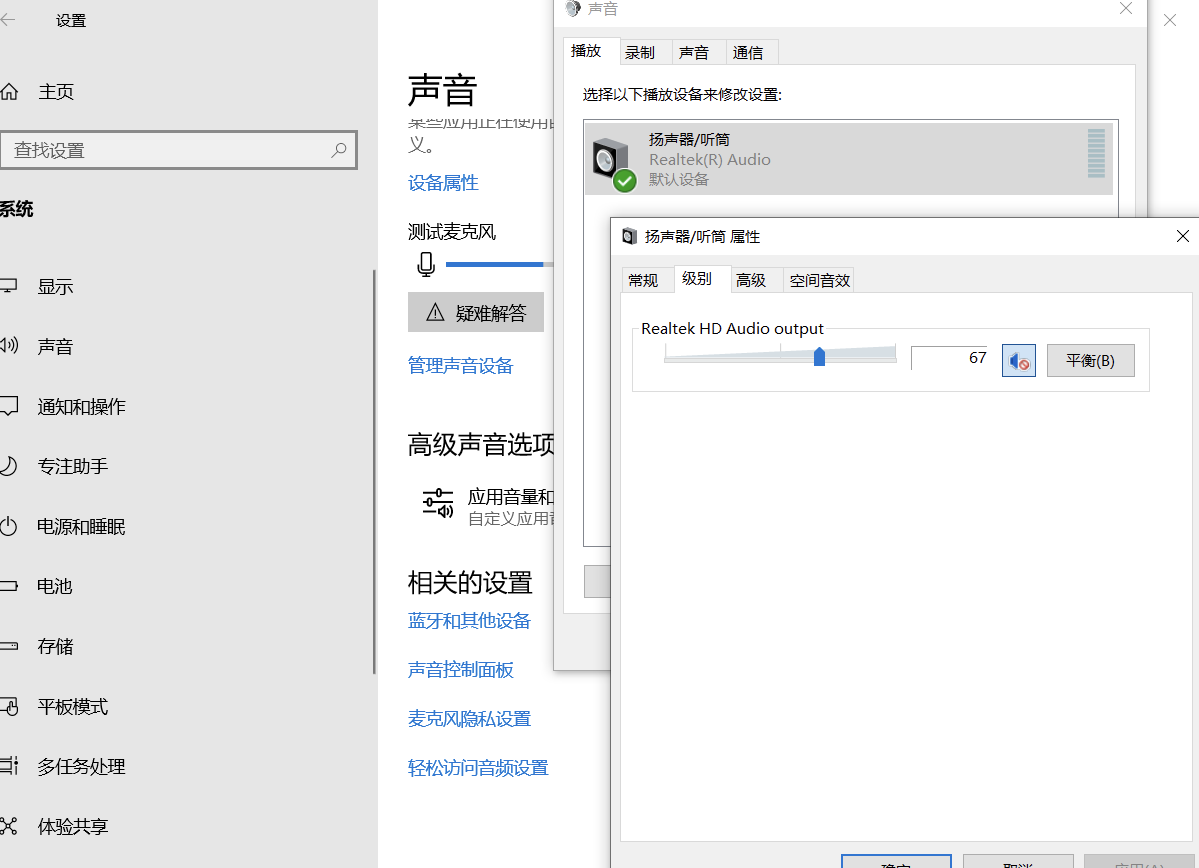
- Open Sound Control Panel, double-click the speaker or headset, and adjust output levels.
- Go to Settings > System > Sound and check whether the correct output device and volume are selected.
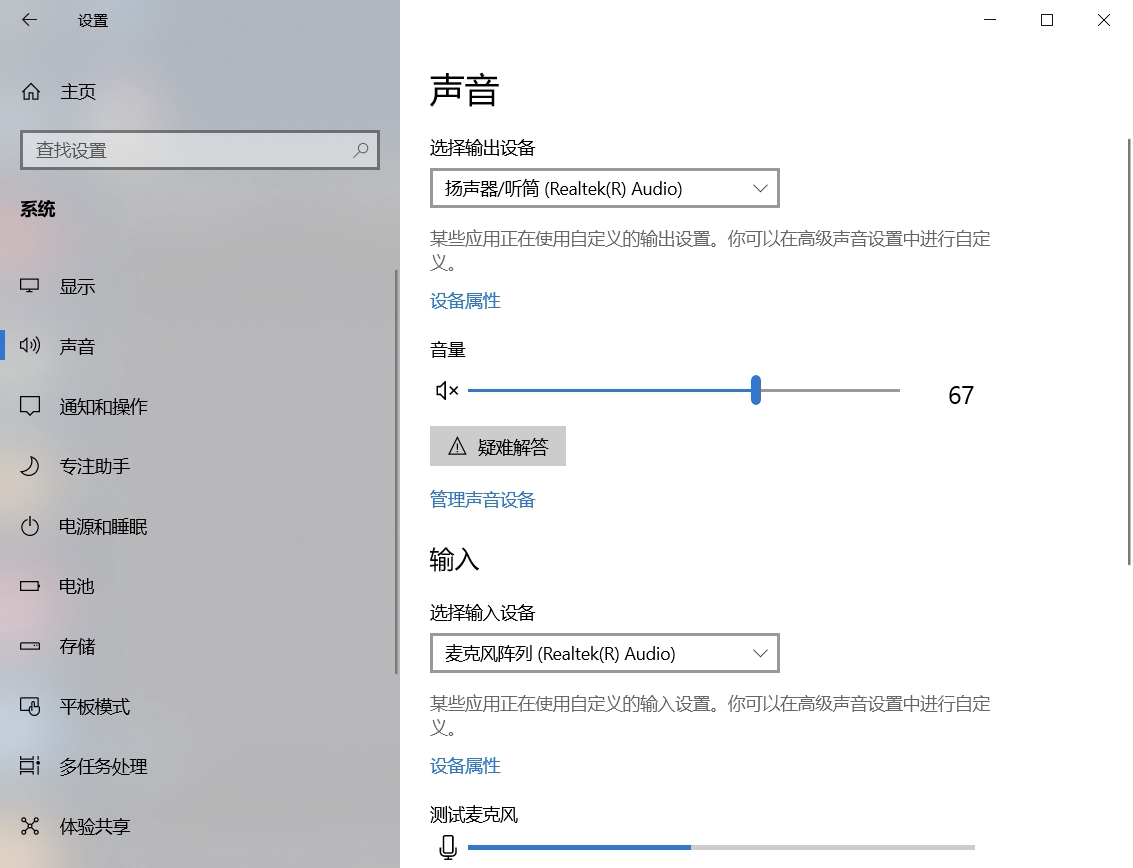
- In Sound, click Manage sound devices and test the output device.
- Open Sound Control Panel, double-click the speaker or headset, and adjust output levels.
 Mac
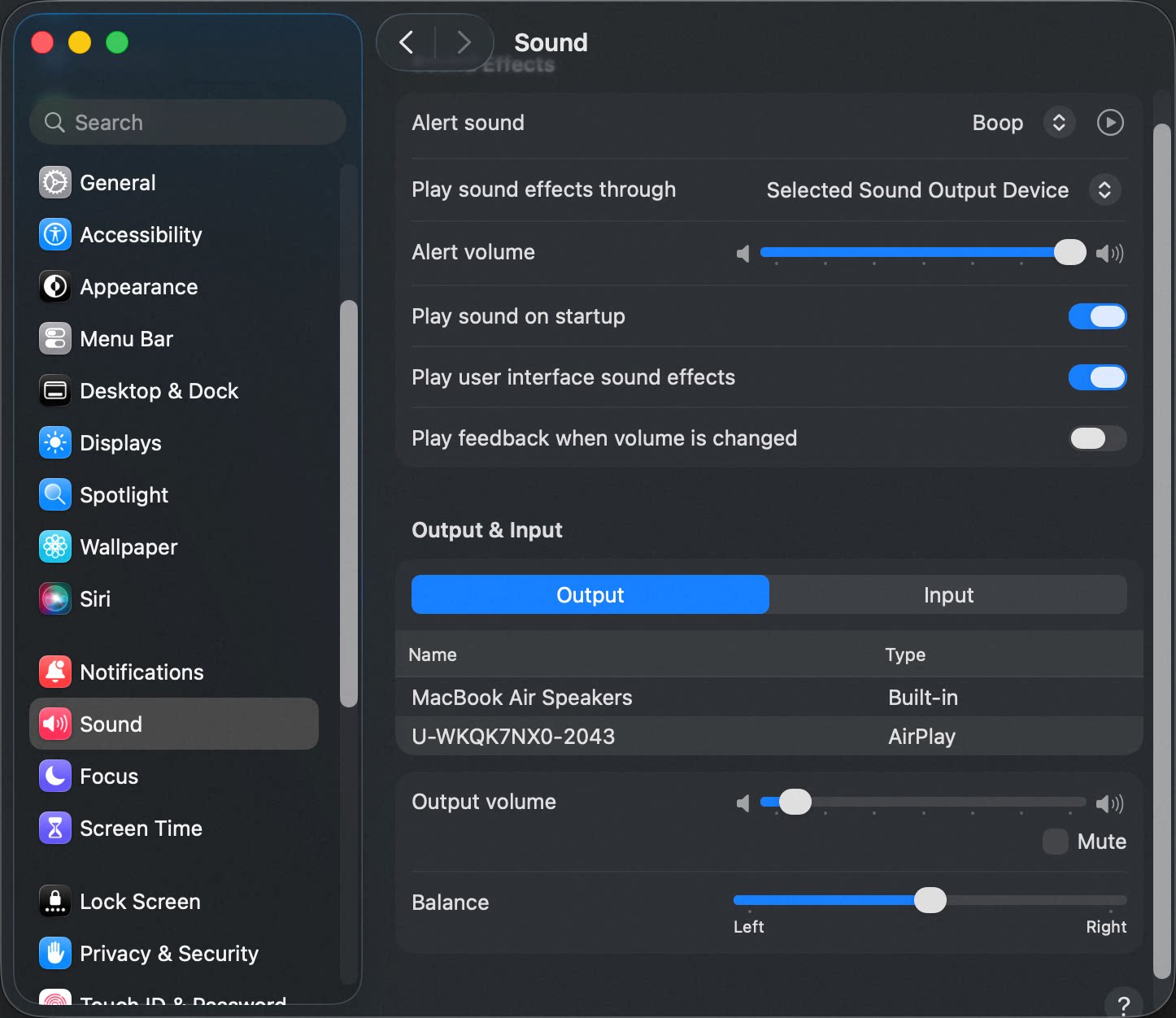
Go to System Preferences > Sound > Output, and check whether output volume is normal.
Mac
Go to System Preferences > Sound > Output, and check whether output volume is normal.
Other Participants Cannot Hear You, or Your Volume Is Low
Check DingTalk Meetings Microphone Settings
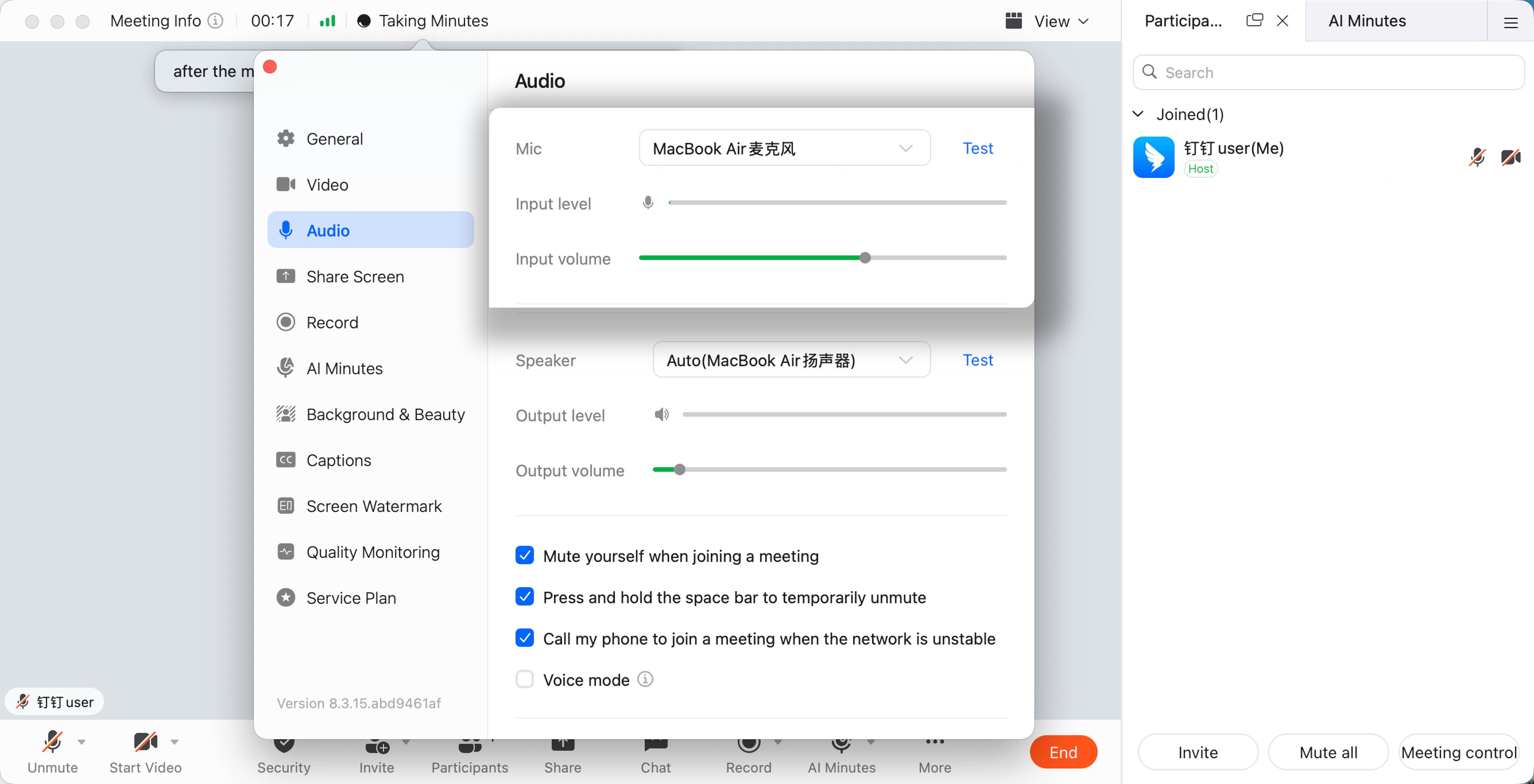
In the DingTalk meeting window, go to More > Settings > Audio. Check whether the correct microphone is selected and whether input volume is high enough. Speak near the computer microphone and check whether the microphone level moves.
If You Are Sharing Your Screen
- Check whether Share Computer Audio is enabled.
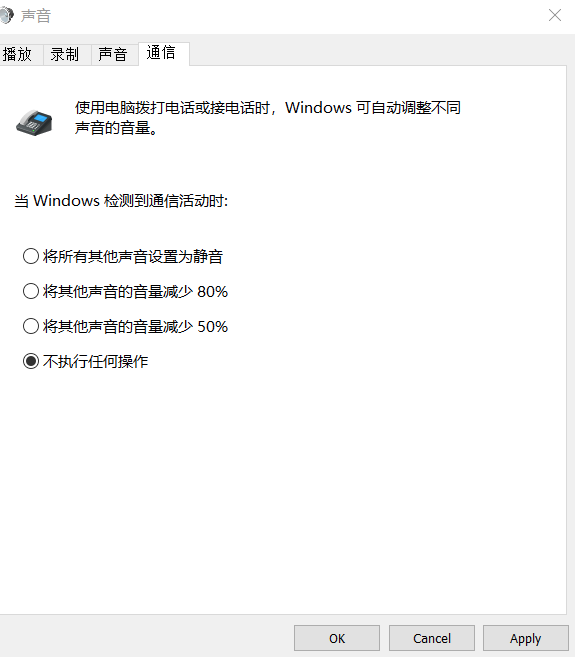
- On Windows, go to Settings > System > Sound > Sound Control Panel > Communications, and set it to Do nothing.
windows
- On Windows, go to Settings > System > Sound > Sound Control Panel > Communications, and set it to Do nothing.
Check Computer Microphone Settings
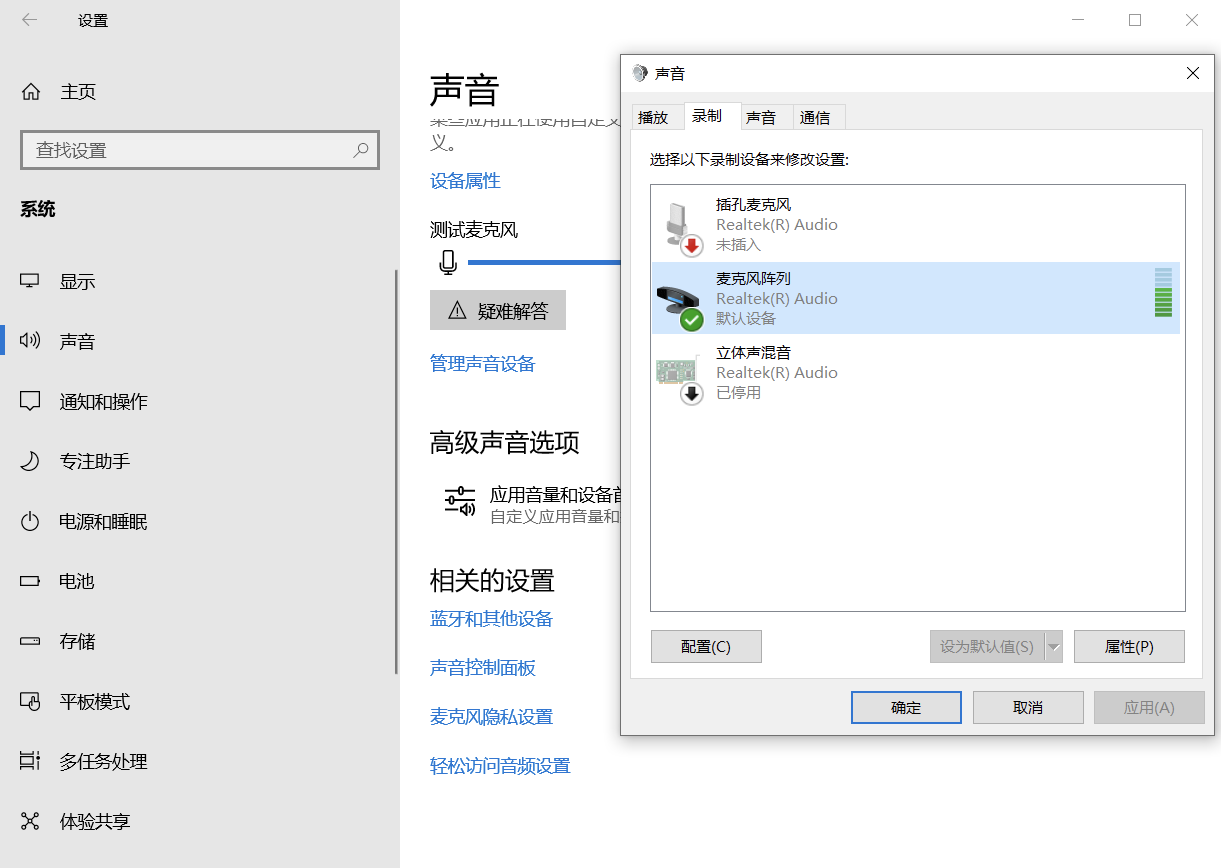
Windows:- Go to Settings > System > Sound, check whether the correct input device is selected, and confirm the microphone level moves when you speak.
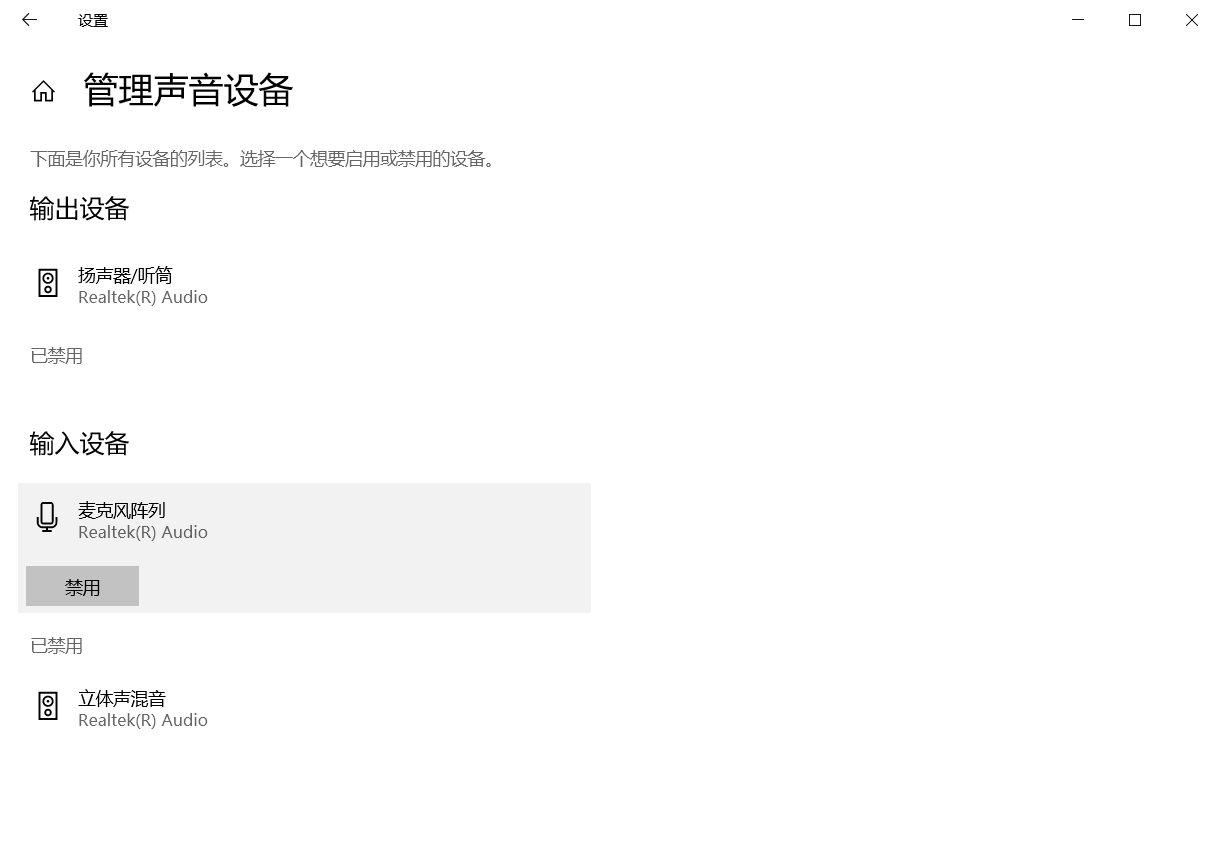
- In Sound, click Manage sound devices and check whether the input device is enabled.
- Open Sound Control Panel, click Recording, select the microphone, open Levels, and increase microphone input.
- Go to Settings > System > Sound, check whether the correct input device is selected, and confirm the microphone level moves when you speak.
- In Sound, click Manage sound devices and check whether the input device is enabled.
- Open Sound Control Panel, click Recording, select the microphone, open Levels, and increase microphone input.
 Mac
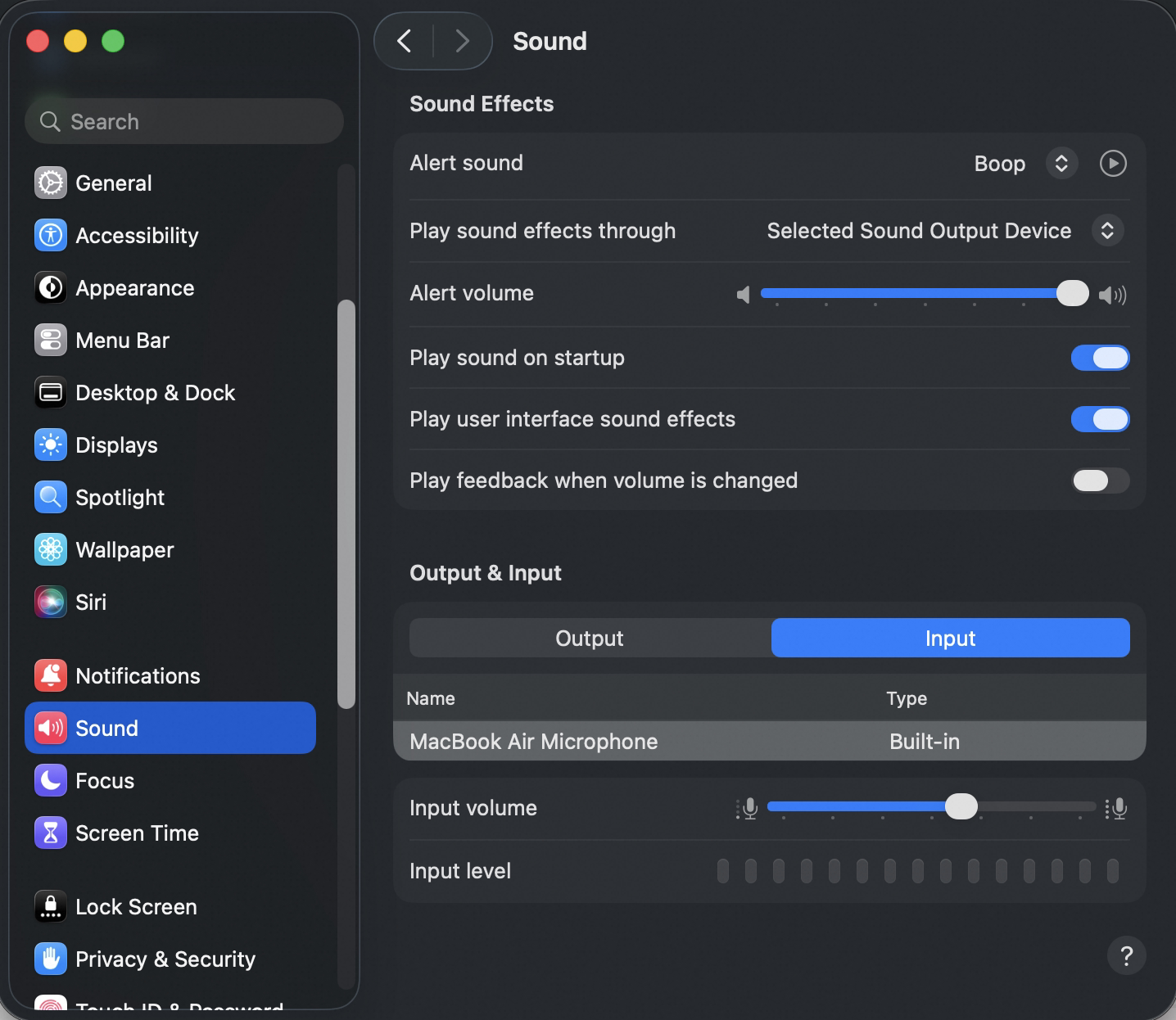
Go to System Preferences > Sound > Input, and check whether the input level responds when you speak.
Mac
Go to System Preferences > Sound > Input, and check whether the input level responds when you speak.
Noise During a Meeting
Noise generally falls into three scenarios:- All or most participants hear noise.
- Only one specific participant hears noise.
- Some participants hear noise while others do not.
Scenario 1: Everyone or Most People Hear Noise
This is usually caused by one participant’s microphone picking up noise.- The host can check noise reports, mute the reported participant, and ask them to self-check.
- The muted participant should check whether the environment is noisy. Use DingTalk’s Test Microphone function in audio settings. Move to a quieter location if possible, use a headset if needed, and lower microphone pickup volume.
- If environmental noise is not the cause, try switching microphones, such as between a headset and the device’s built-in microphone.
- If there is no noise report, the issue is likely network-related.
Scenario 2: Only One Person Hears Noise
Ask that participant to:- Close other audio playback apps, such as music players or voice chat tools.
- Use DingTalk’s Test Speaker function to check playback volume and device status. If playback is abnormal, replace the playback device, such as switching from speakers to headphones.
- If test playback is normal but meeting audio stutters or changes speed, the issue is likely downstream network quality.
Scenario 3: Some Participants Hear Noise
This is often multiple cases of Scenario 2. The host can ask affected participants to run the same checks.Audio Stutters, Speeds Up, or Slows Down
This is usually caused by network connection issues, such as network card problems, other high-bandwidth apps, weak uplink quality, jitter, or congestion.- First rule out environmental or device issues by following the noise checks above.
- Check Wi-Fi or mobile signal strength. If the network is poor, switch to a better network or join by phone if available.
- If the network card is uncertain, test communication in another app.
- If the issue persists, turn off high-bandwidth features such as video and screen sharing to prioritize voice quality.
Echo During a Meeting
Echo can be local echo, where you hear your own voice return, or remote echo, where another participant hears their own voice.- For local echo, first rule out system configuration issues or multiple devices in the same room. Ask other meeting rooms to check for remote echo leakage.
- For remote echo, ask the affected room to mute its microphone or speaker to determine whether that room is the source. If the echo stops, keep the microphone and speaker farther apart, avoid obstacles within 30 cm of speakers, keep speaker volume below about 80%, reduce microphone pickup volume, and use external microphones where possible.
- If echo continues, open the microphone only when speaking, use a headset for solo attendance, or leave and rejoin the meeting.