Chats
Chats Calendar
 Meetings
 Contacts
 Mail
Mail Docs
Docs Drive
Drive AI Table
 AI Minutes
 Attendance
 Approval
 YiDA
YiDA Admin Console
Join a Meeting on Desktop
Join with a Meeting ID
Open and sign in to the DingTalk desktop client >> click Meetings on the left >> click Join Meeting >> enter the meeting ID >> click Enter Meeting.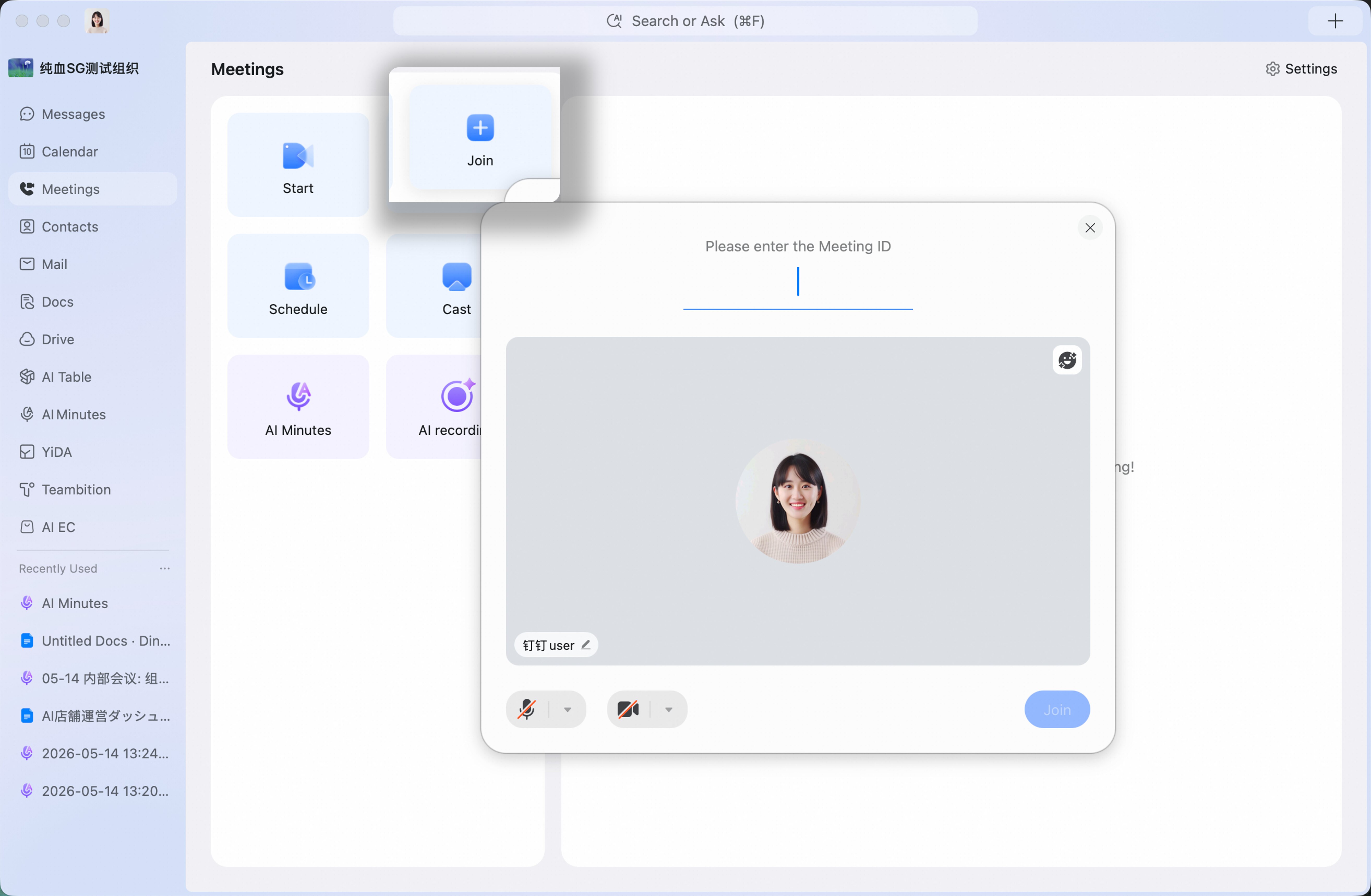
Join with a Join Link
To join from a browser, allow camera and microphone permissions on your computer.Open the join link >> enter your name >> click Join Meeting. To open the DingTalk client and join, click Open DingTalk at the bottom of the page.
Join with a Meeting Card
Click the meeting card sent by the other person in a chat window >> click Join Meeting at the bottom.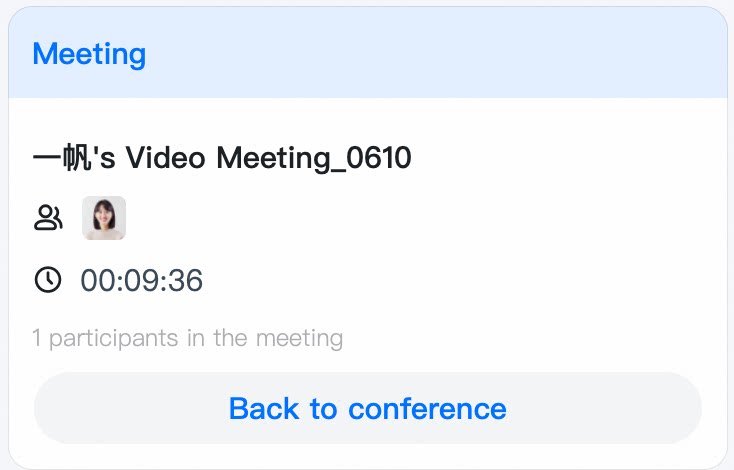
Join from the Meeting List
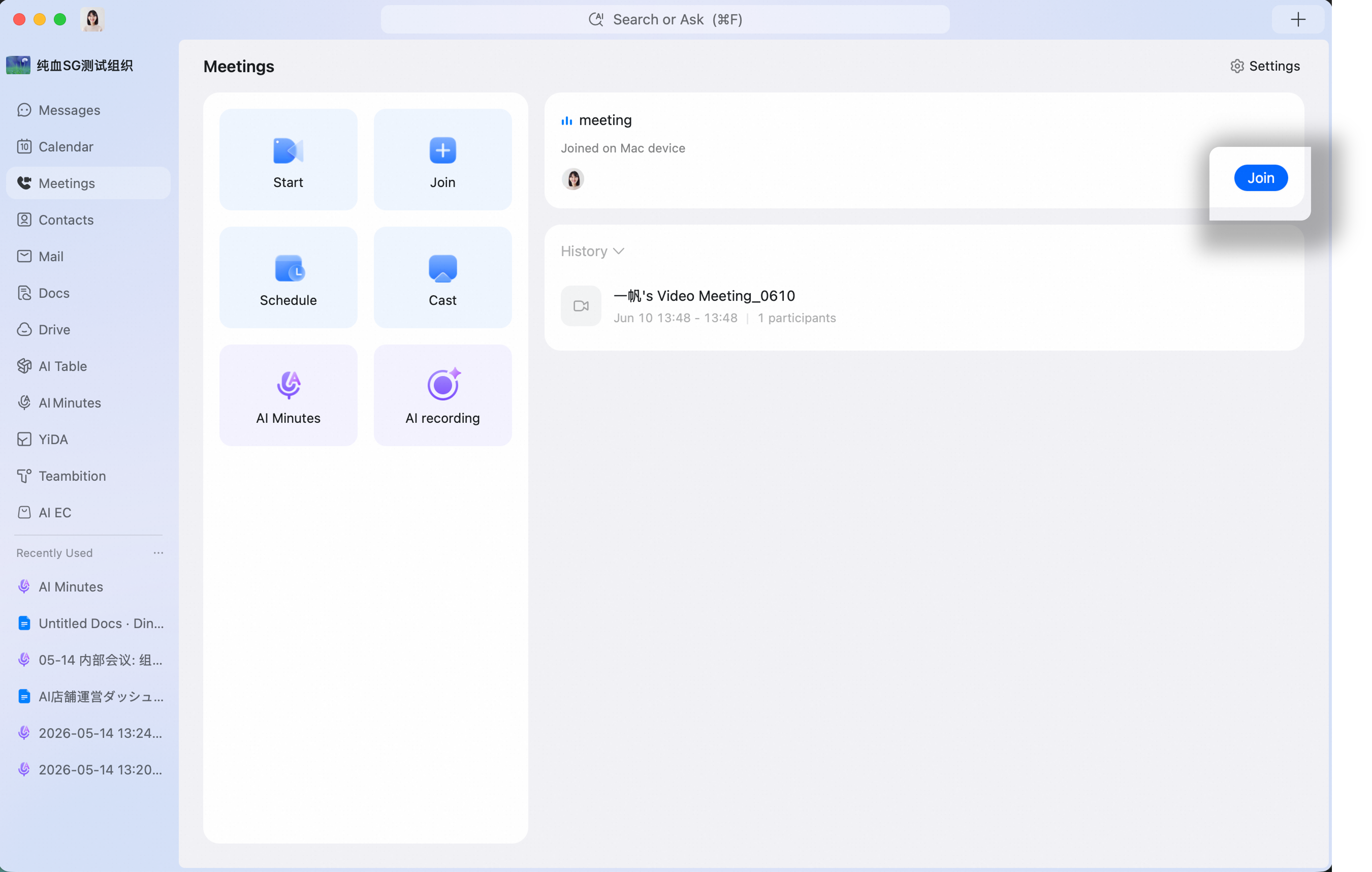
Open and sign in to the DingTalk desktop client >> click Meetings on the left >> find the meeting you want in the meeting list on the right >> click Join.Scheduled meetings, ongoing meetings, and meetings you joined and then left are all shown in the meeting list.
Join from Calendar
Open and sign in to the DingTalk desktop client >> click Calendar on the left >> select the meeting you want >> click Join Meeting.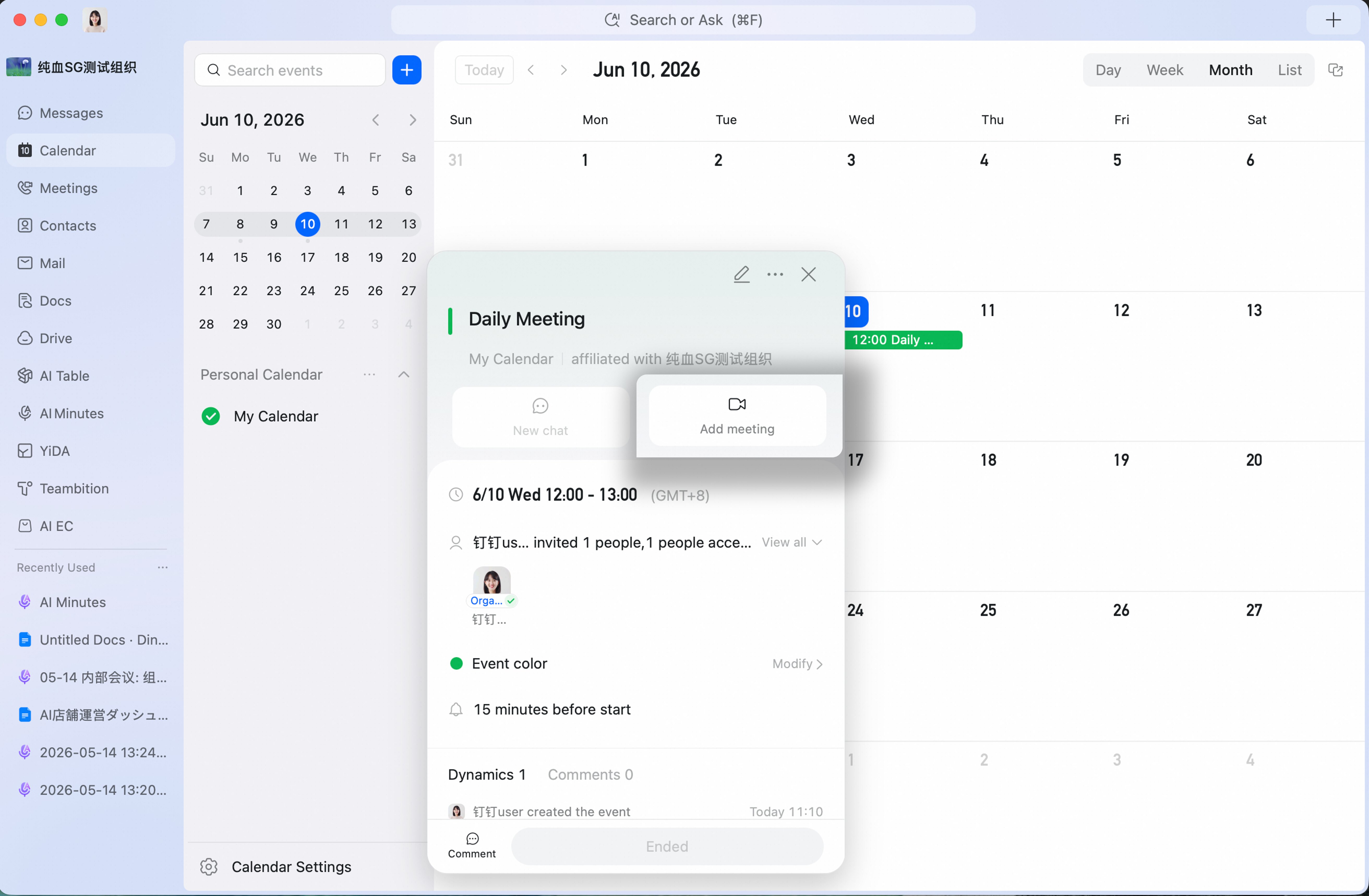
Join from the Plus Panel in the Upper-Right Corner
Open and sign in to the DingTalk desktop client >> click the + icon in the upper-right corner >> click Join Meeting.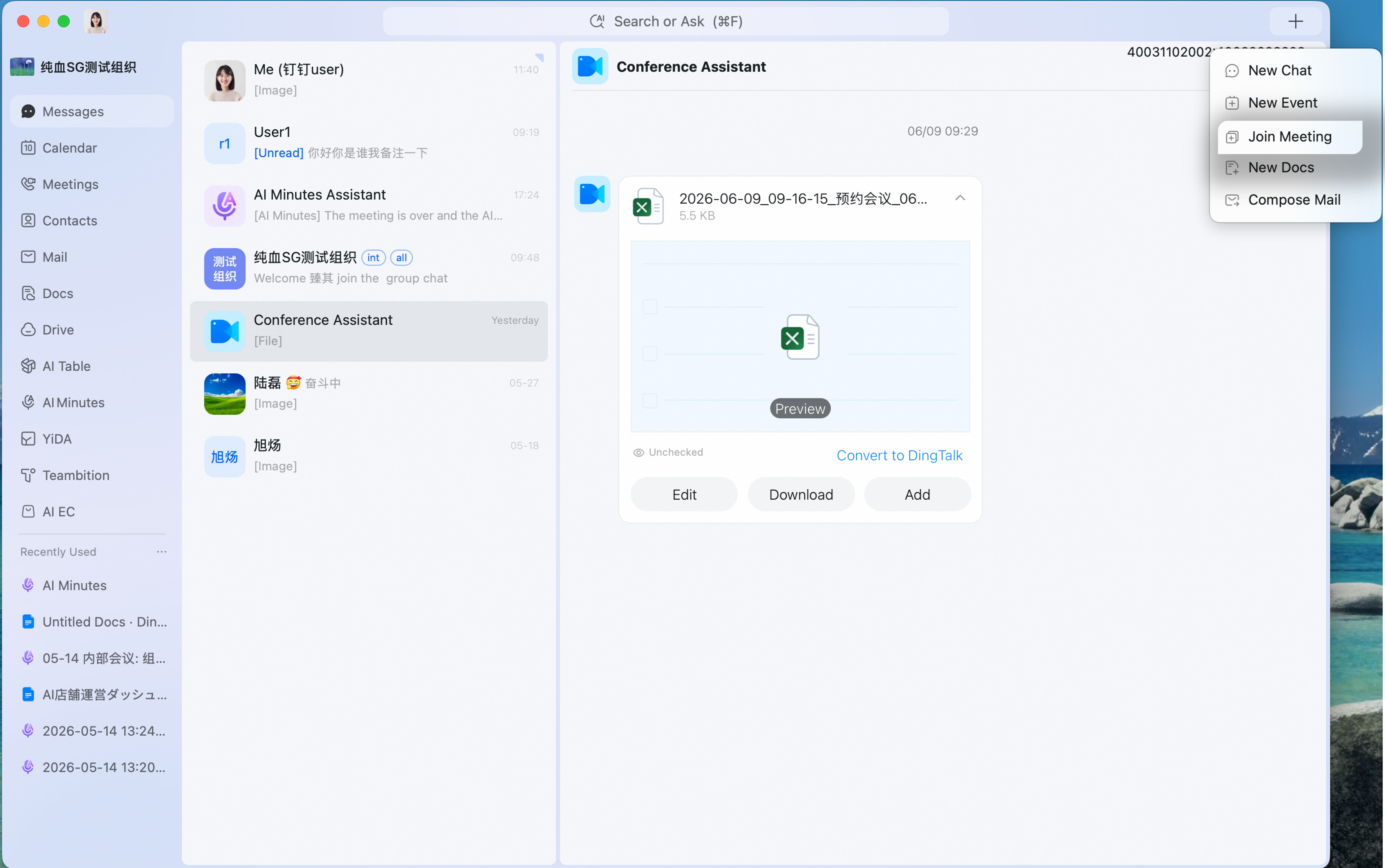
Join a Meeting on Mobile
Join with a Meeting ID
Open the DingTalk mobile app >> tap the Calls icon in the upper-right corner >> tap Join Meeting >> enter the meeting ID to join.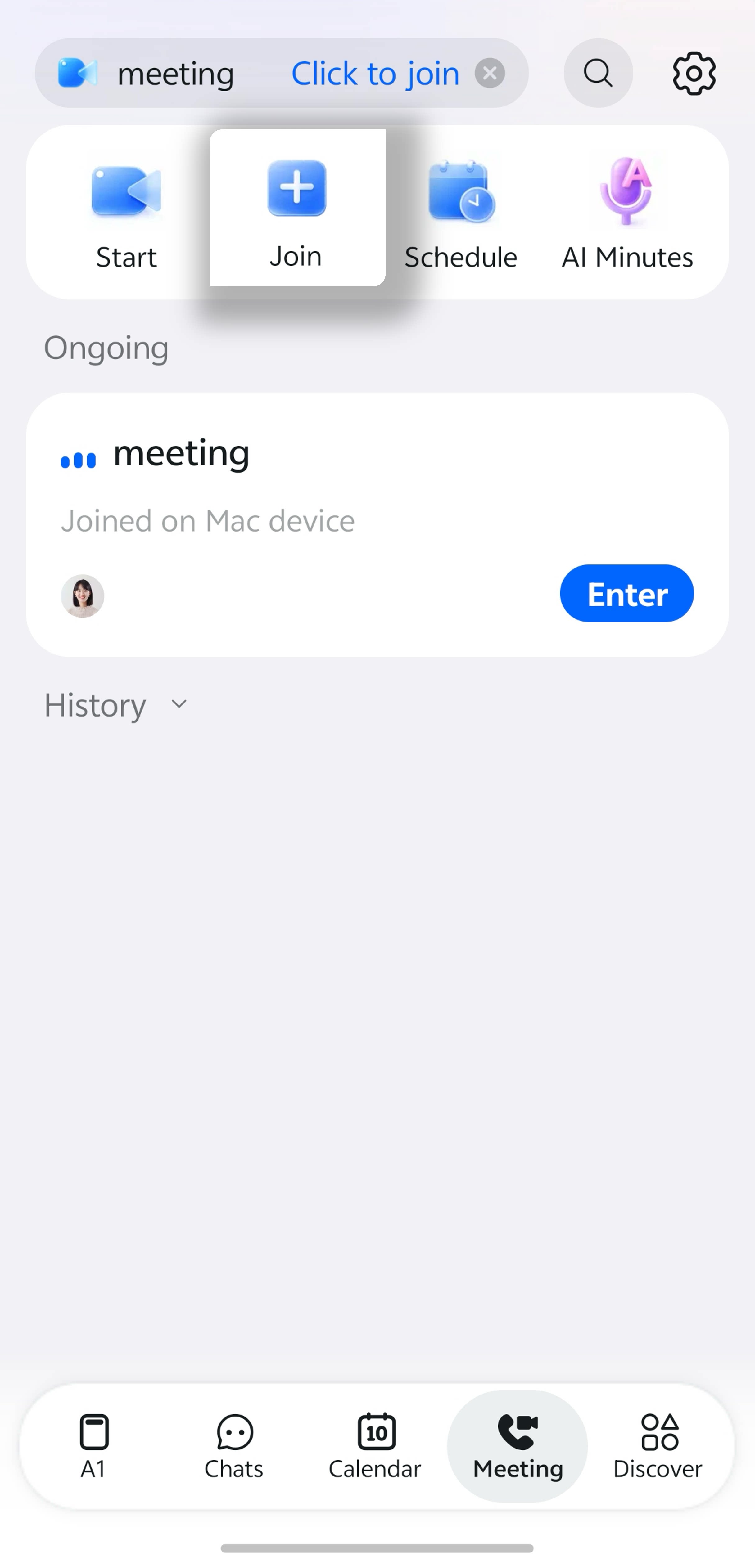
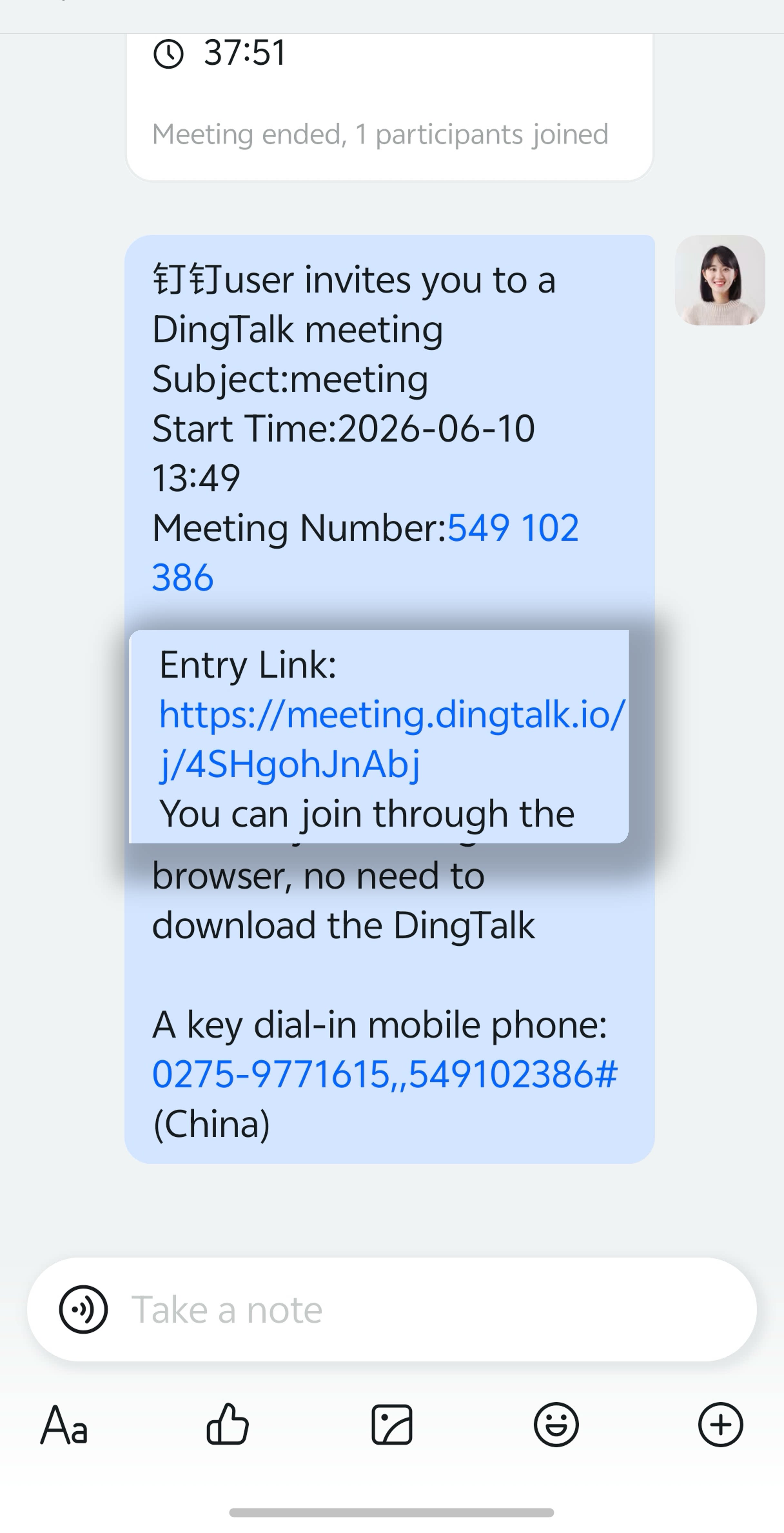
Join with a Join Link
To join from a browser, allow camera and microphone permissions.In a mobile chat, tap the join link sent by the other person >> tap Enter Meeting >> enter your name >> tap Enter Meeting. To open the DingTalk client and join, tap Open DingTalk at the bottom of the page.
Join with a Meeting Card
Open the mobile app >> in a chat, tap the meeting card sent by the other person >> tap Join Meeting.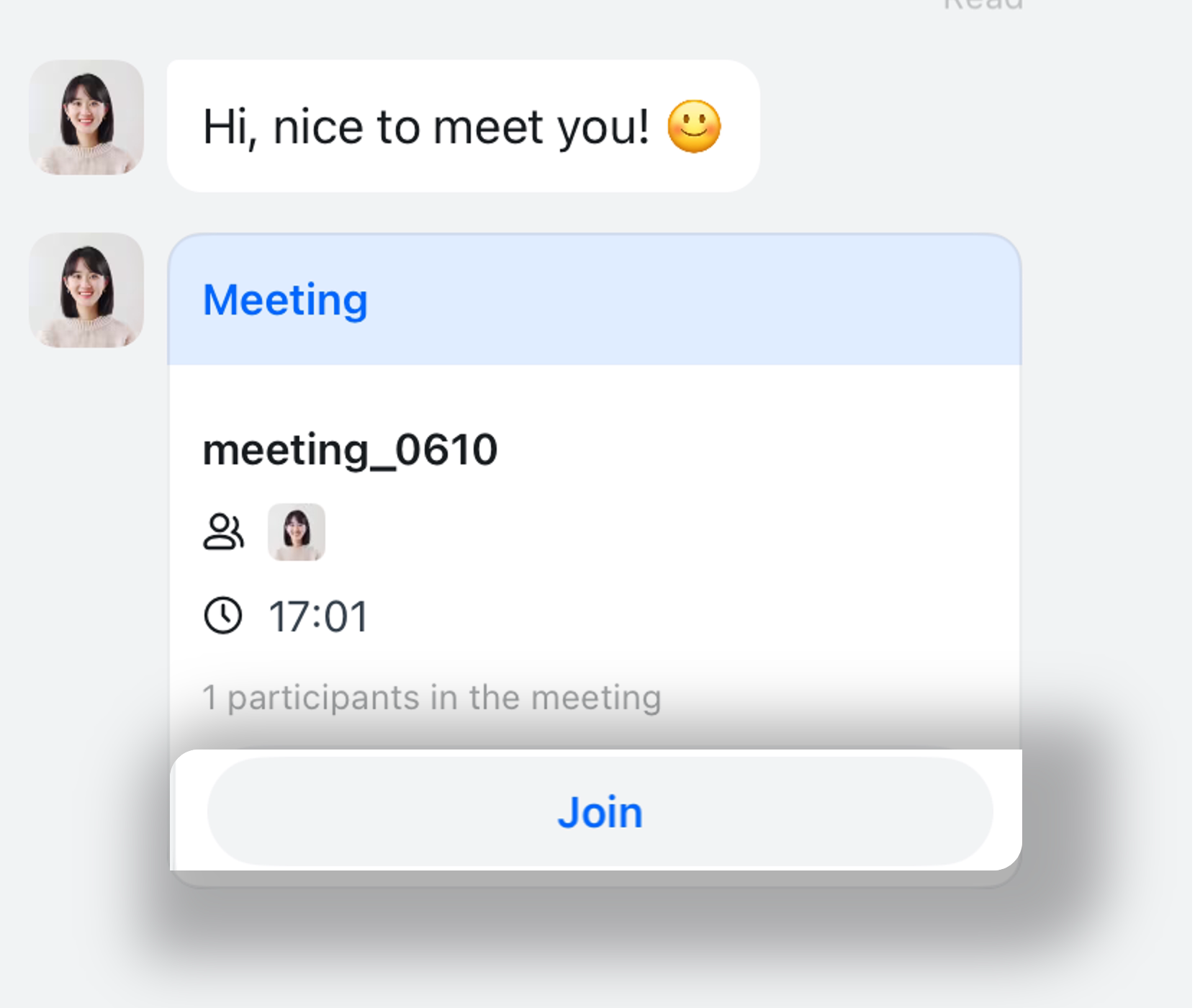
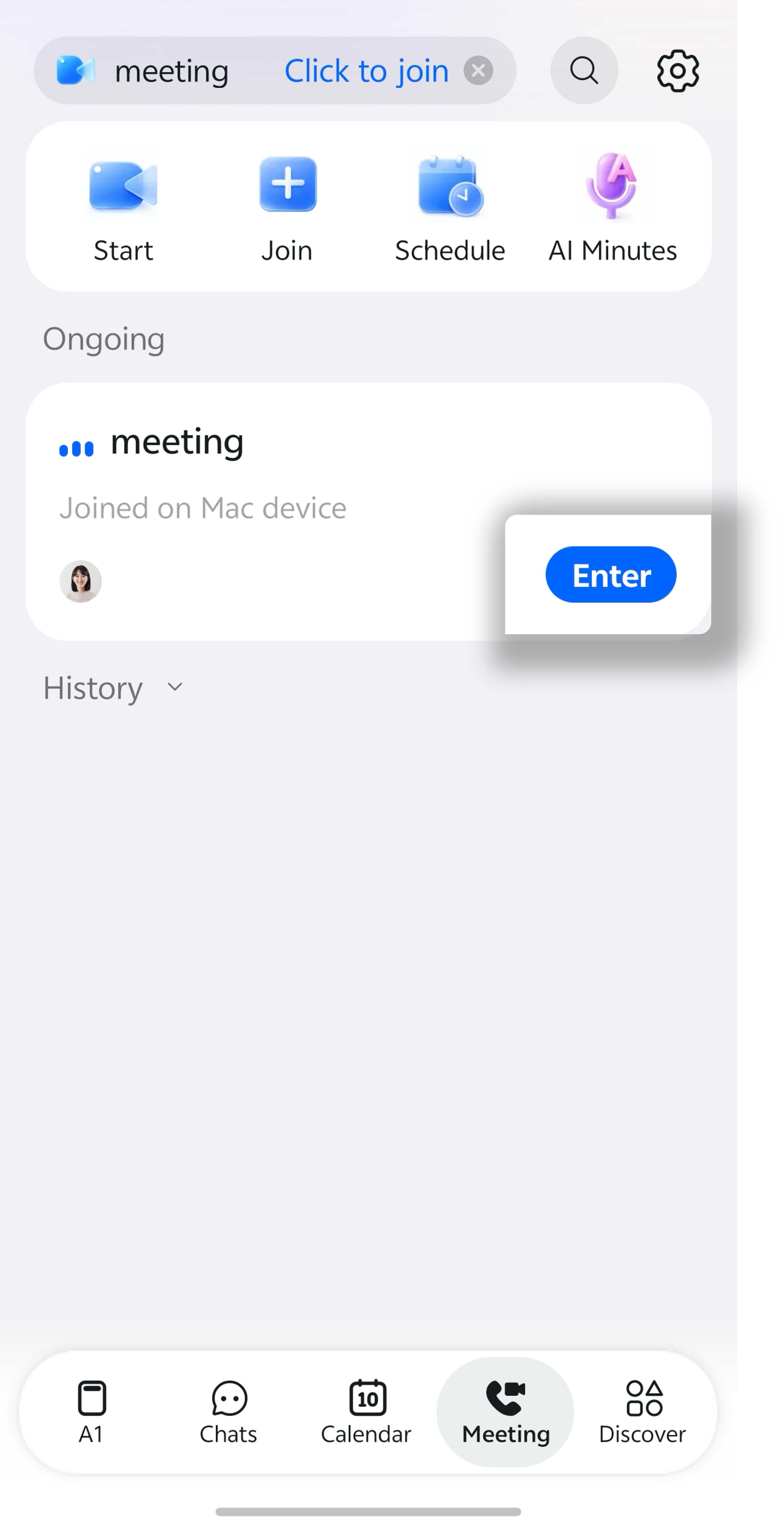
Join from the Meeting List
Open the DingTalk mobile app >> tap the Calls icon in the upper-right corner >> find the meeting you want in the meeting list >> tap Join.Scheduled meetings, ongoing meetings, and meetings you joined and then left are all shown in the meeting list.
Join from Calendar
Open the DingTalk mobile app >> tap Calendar at the bottom >> tap the meeting you want in Calendar >> select Join Meeting.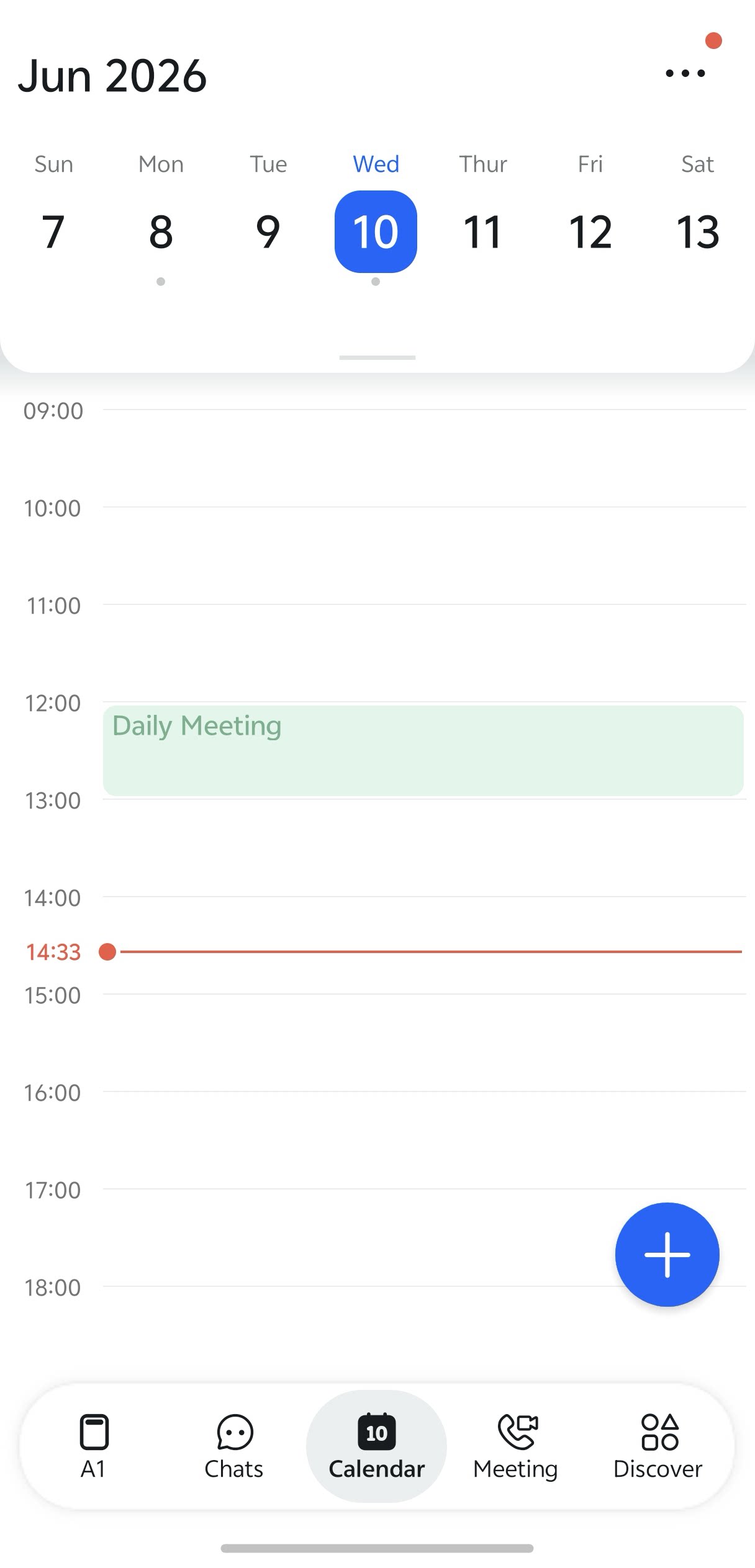
Join from the Reminder Bar
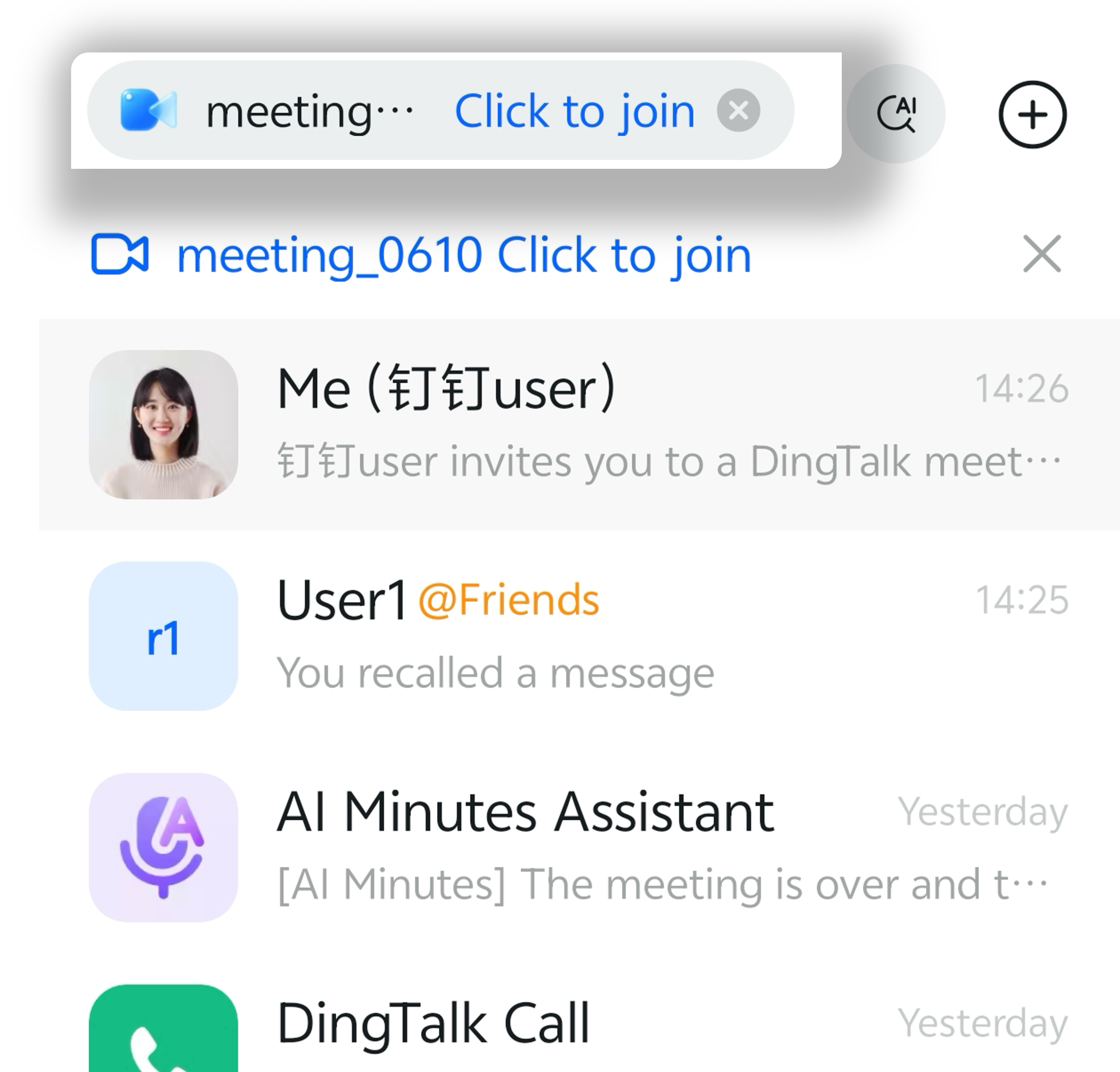
For meetings that have already started, you can quickly join from the reminder bar at the top of the mobile chat list.