Chats
Chats Calendar
 Meetings
 Contacts
 Mail
Mail Docs
Docs Drive
Drive AI Table
 AI Minutes
 Attendance
 Approval
 YiDA
YiDA Admin Console
The “Share Computer Audio” Option Was Not Selected
When you share your screen in a video meeting, if Share Computer Audio is not selected in the sharing window, DingTalk does not transmit the sound from videos or audio clips on your computer. Remote participants may see the screen but hear no sound.Solution
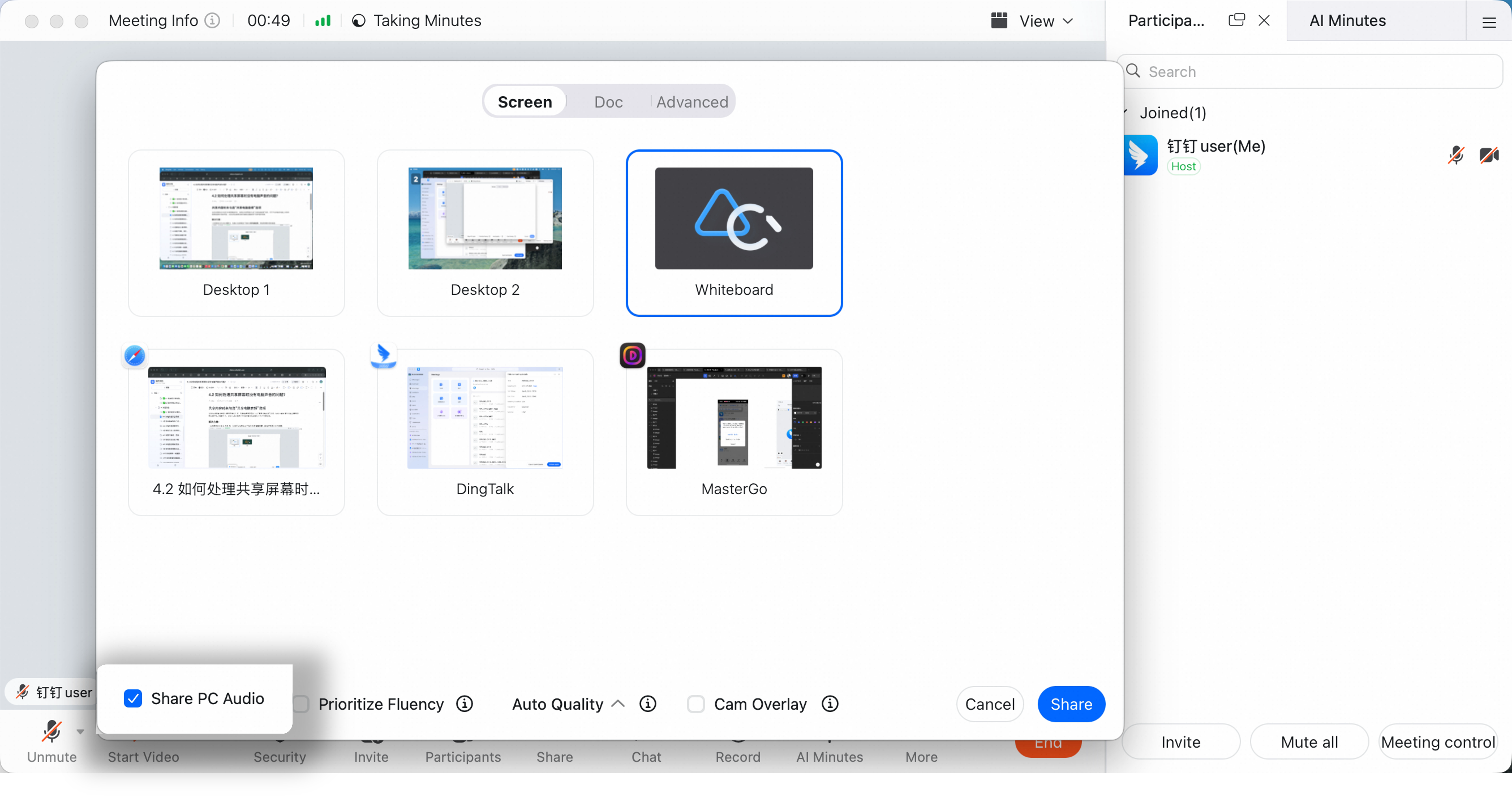
- In the video meeting, after clicking Share, first confirm that Share Computer Audio is selected in the lower-left corner of the pop-up, then choose the screen or window you want to share.
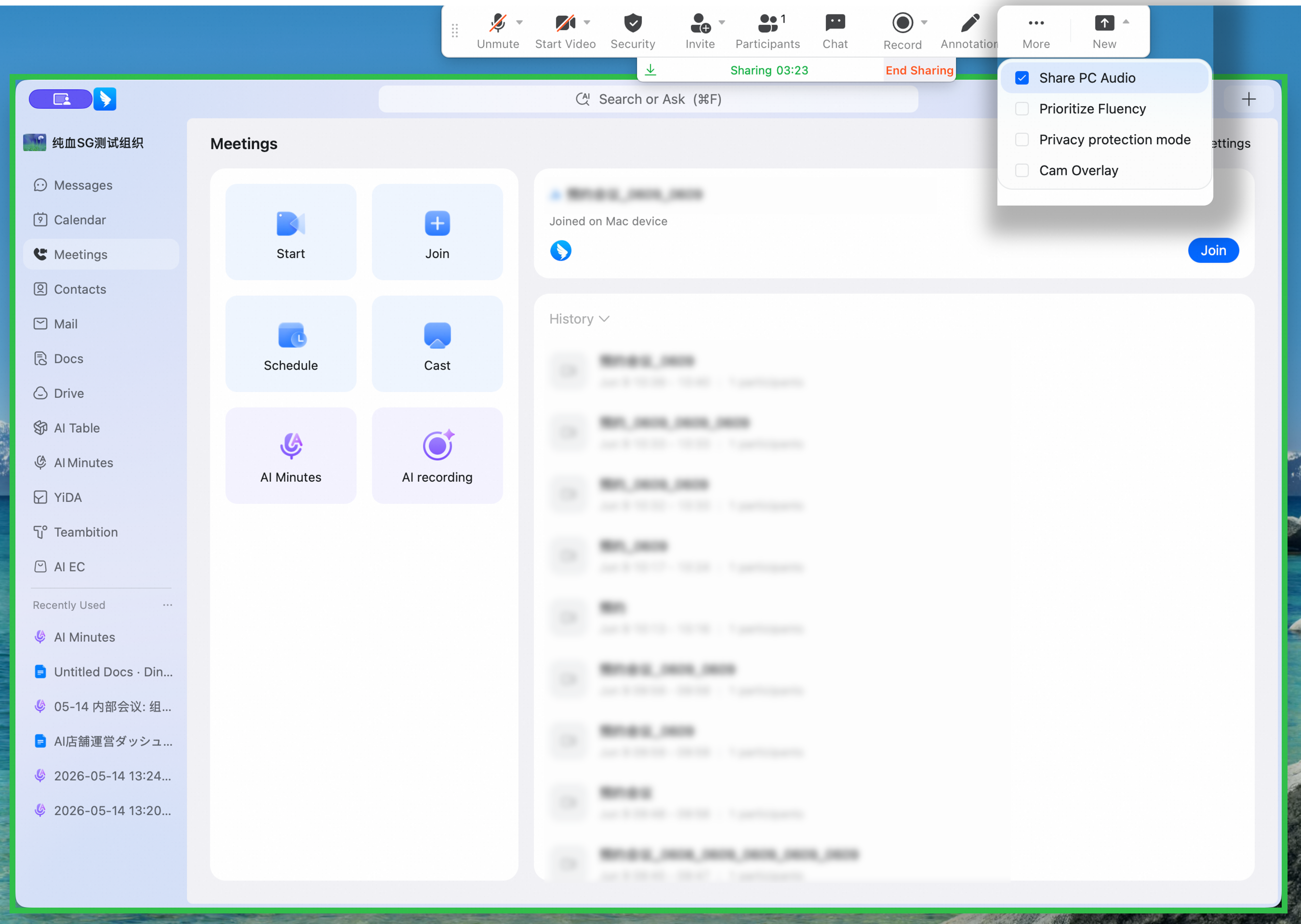
- If you are already sharing your screen, click the arrow icon next to New Share in the top control bar, then select Share Computer Audio in the sharing options.