Chats
Chats Calendar
 Meetings
 Contacts
 Mail
Mail Docs
Docs Drive
Drive AI Table
 AI Minutes
 Attendance
 Approval
 YiDA
YiDA Admin Console
How Participants Turn Mute On or Off on Desktop
Before the Meeting Starts
On the pre-meeting screen, click the Mute button in the lower-left menu to turn mute on or off.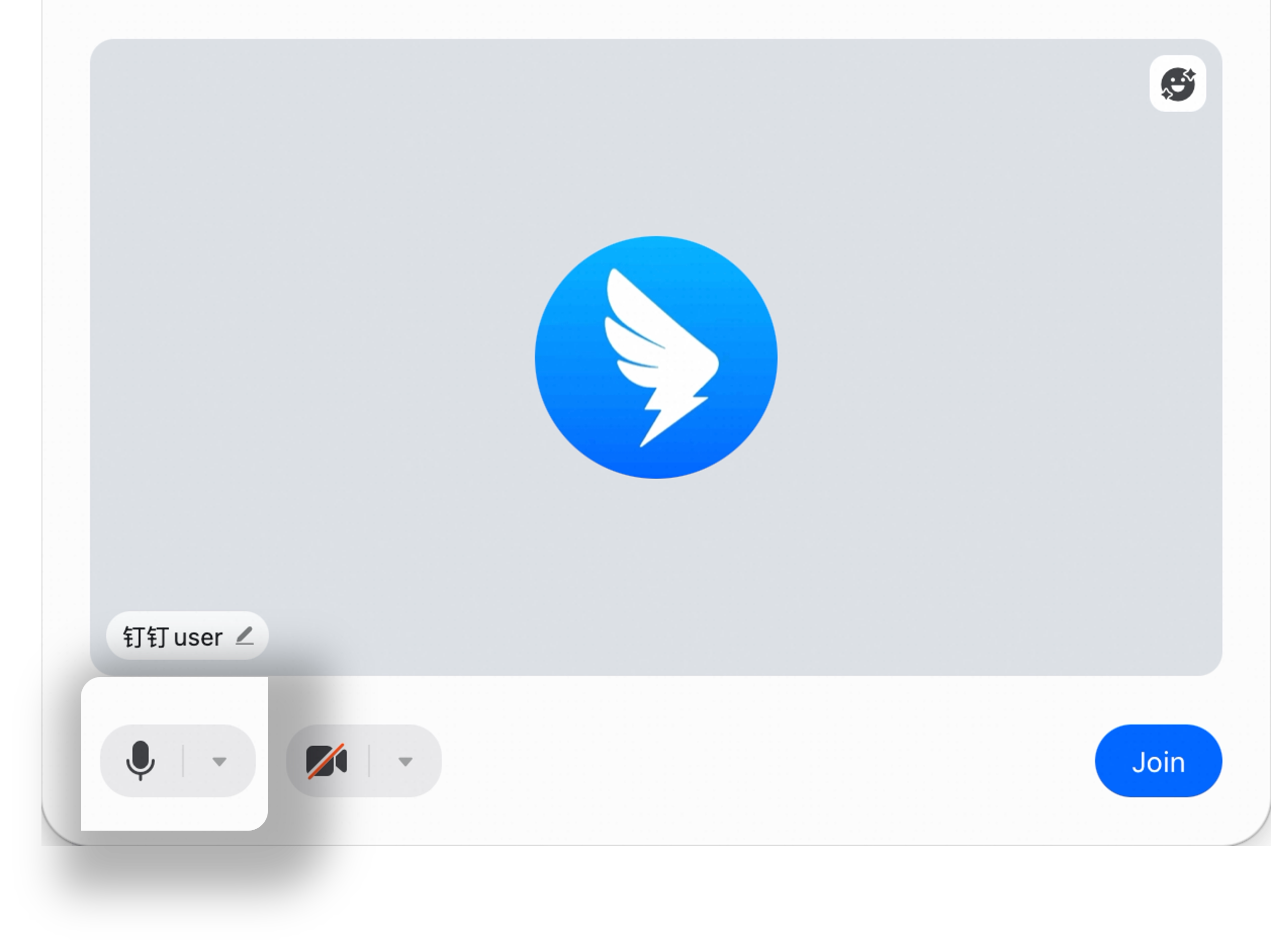
During the Meeting
On the meeting screen, click the Mute button in the lower-left menu to turn mute on or off.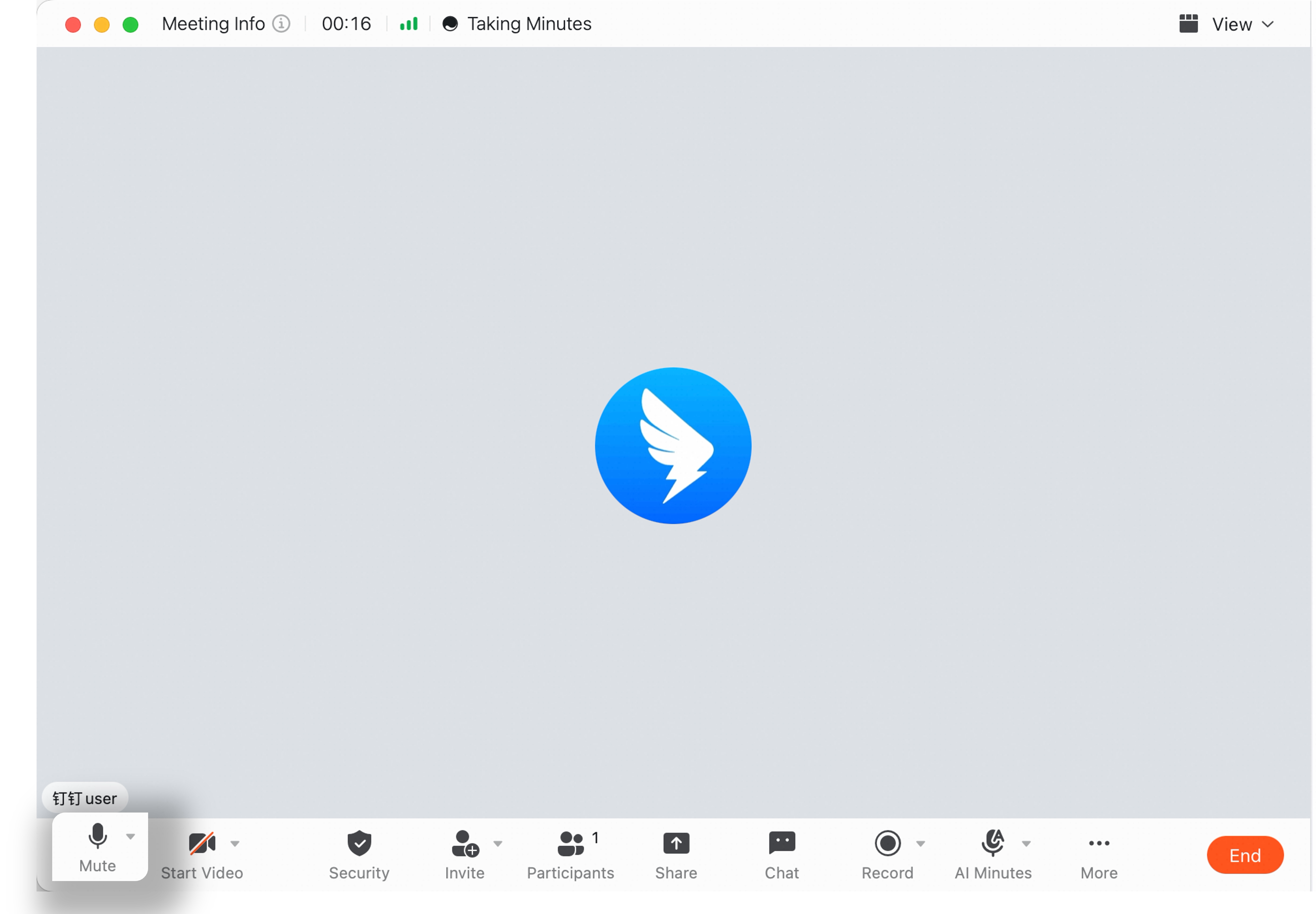
How Participants Turn Mute On or Off on Mobile
Before the Meeting Starts
On the pre-meeting screen, tap Mute in the lower-left corner to turn mute on or off.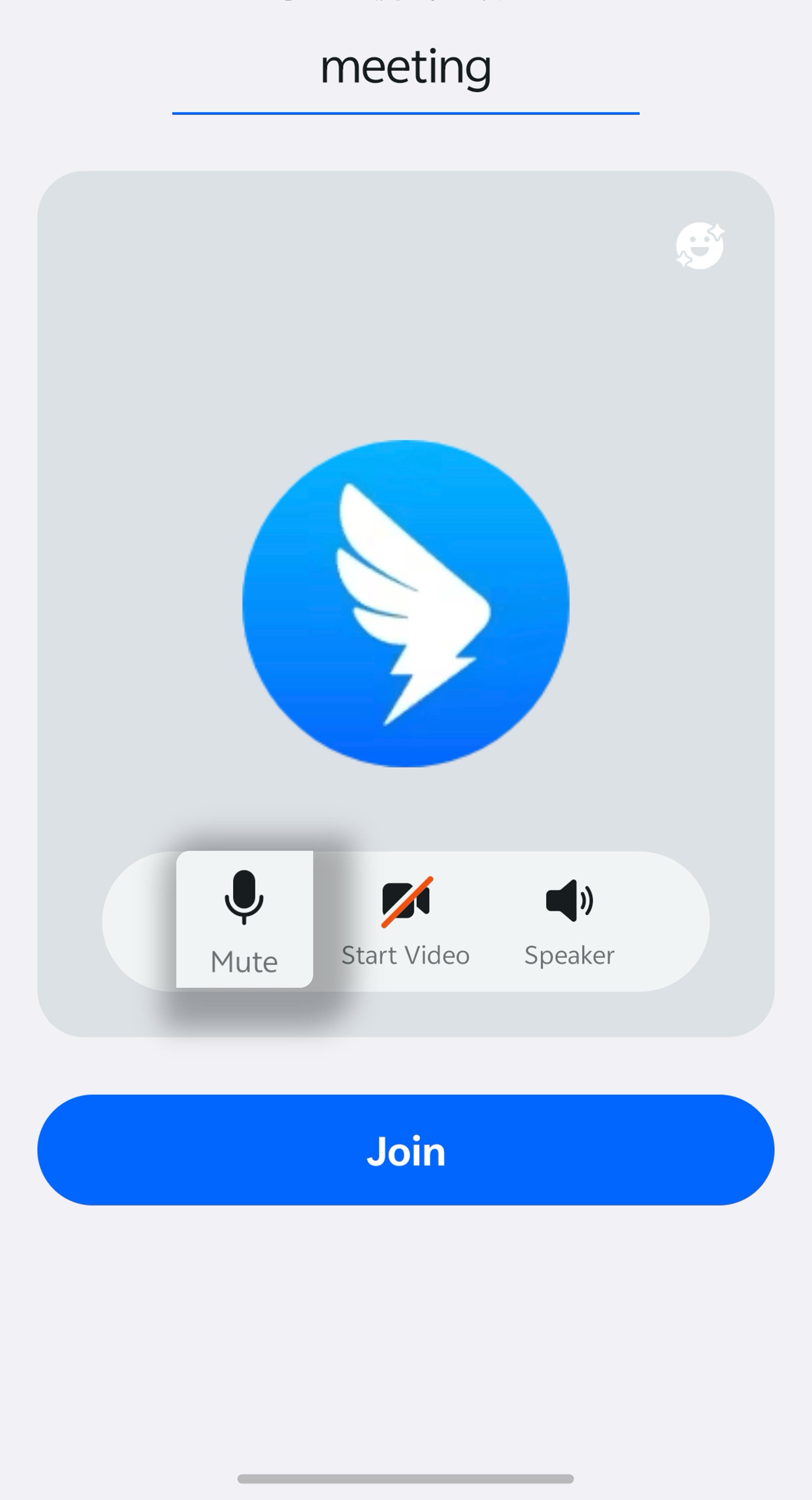
During the Meeting
On the meeting screen, tap Mute in the lower-left corner to turn mute on or off.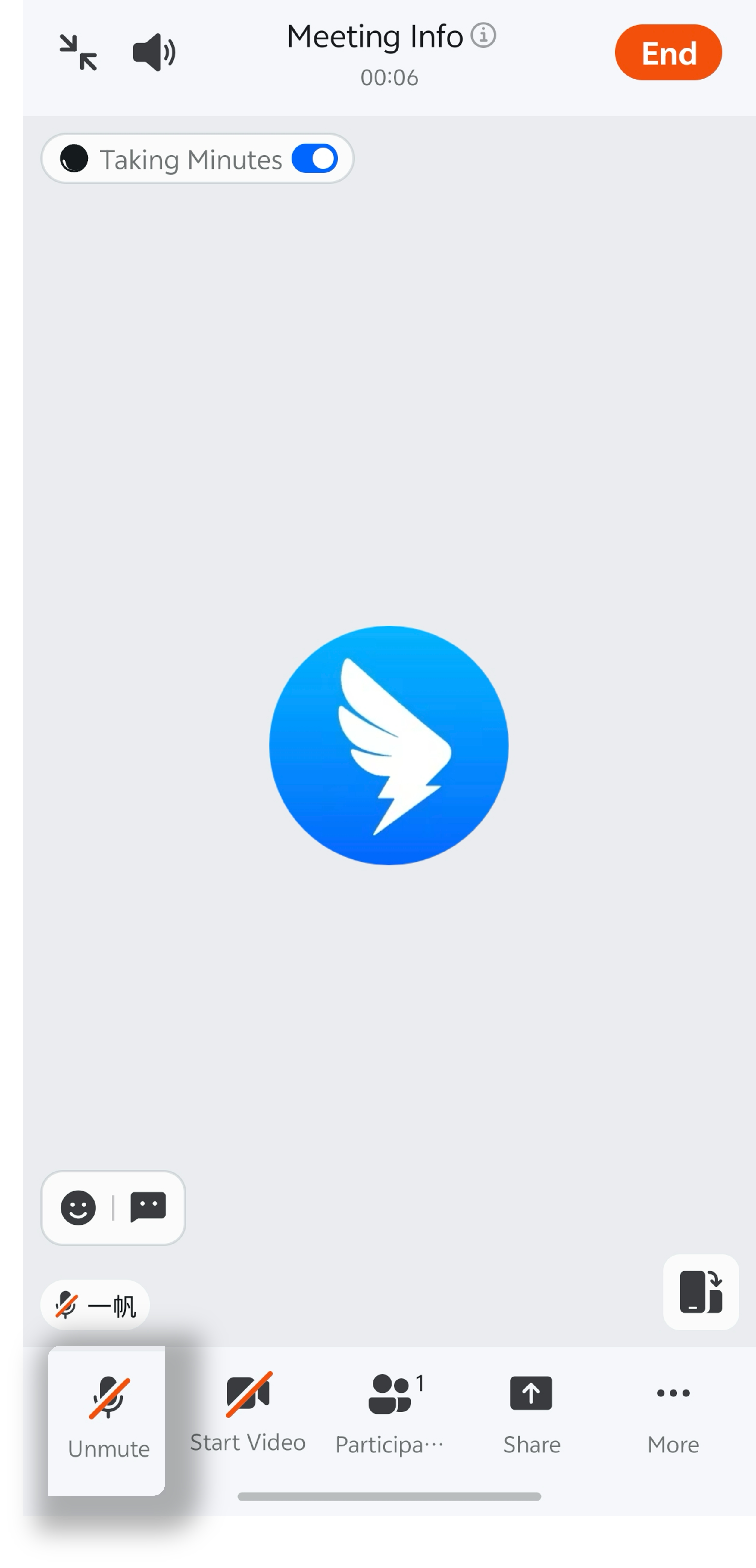
How Hosts Manage Mute on Desktop
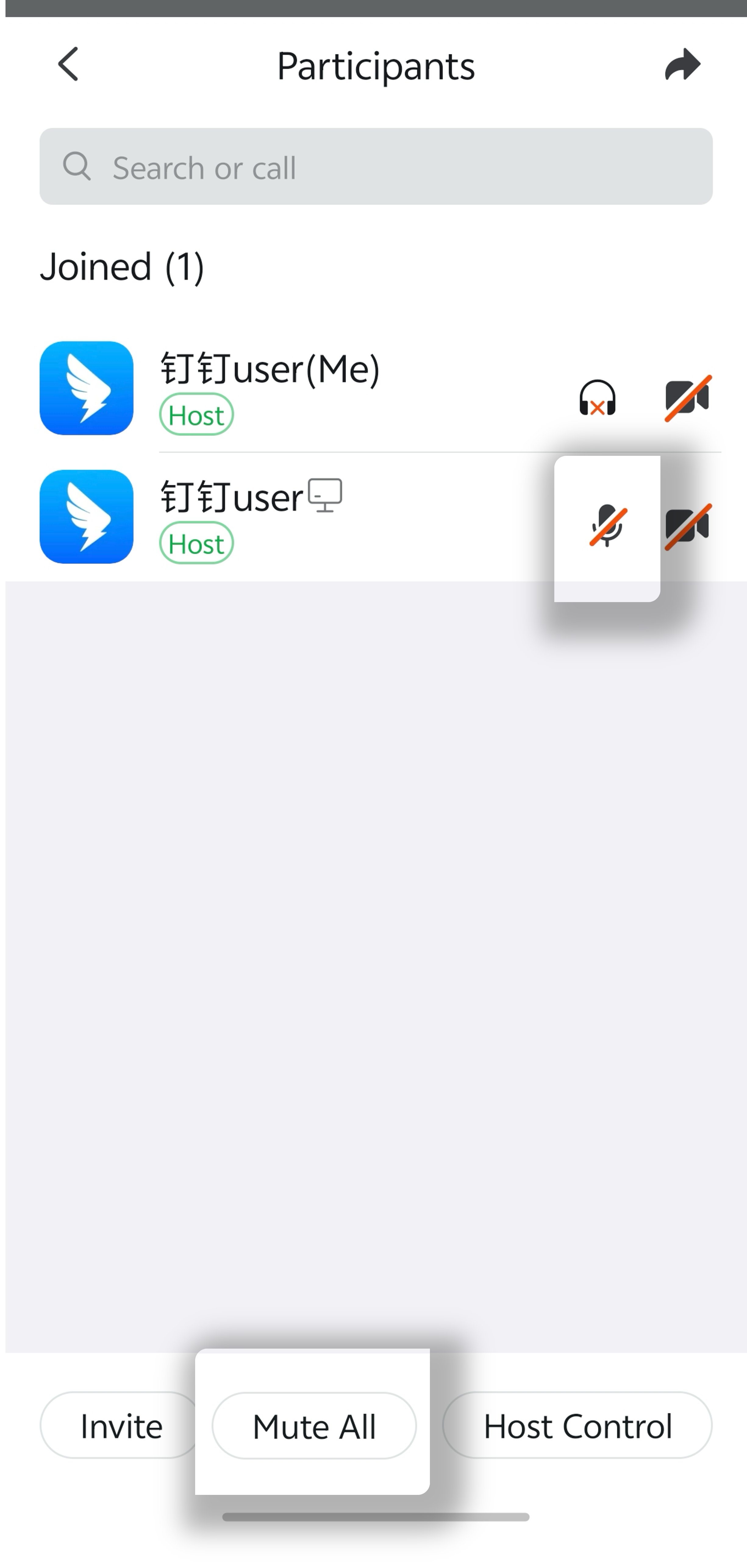
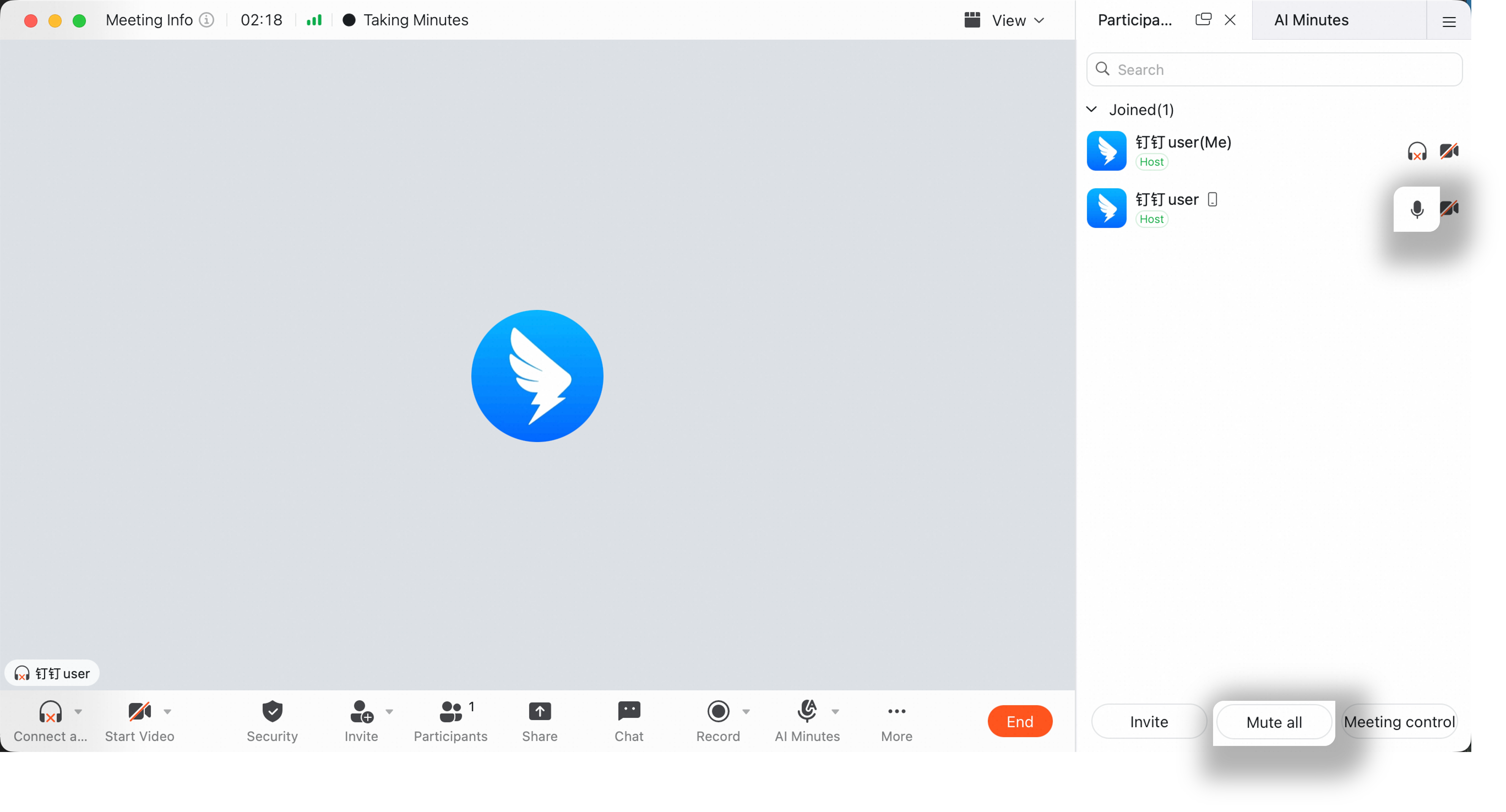
Hosts can manage audio in two ways: mute selected members or mute everyone.- Mute selected members: During the meeting, click Members at the bottom >> view the member management sidebar on the right >> select a member and click the Mute icon to mute or unmute them.
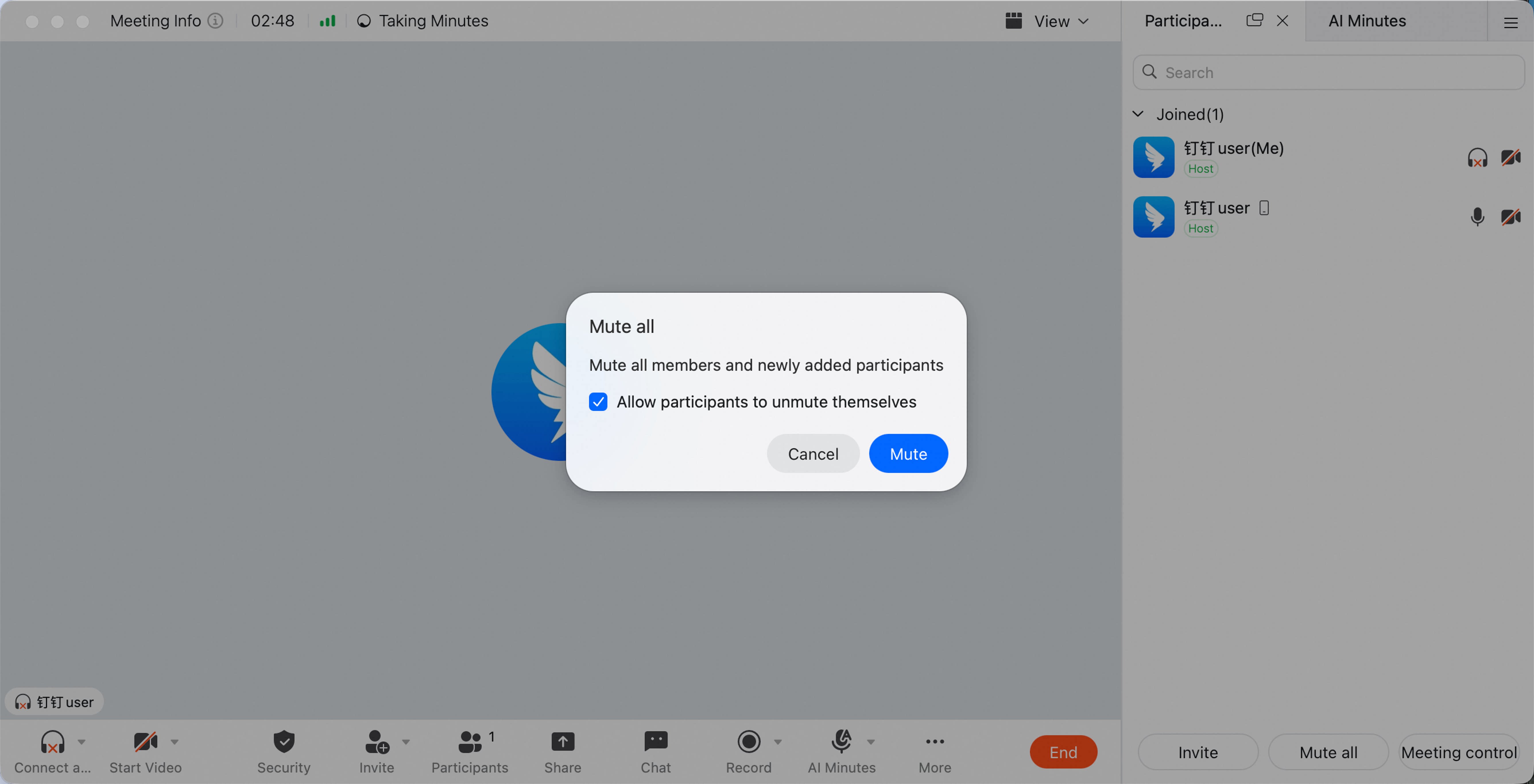
- Mute everyone: During the meeting, click Members at the bottom >> click Mute All in the lower-right area >> choose whether to allow participants to unmute themselves.
If participants are not allowed to unmute themselves, only the host can unmute them. Members can request to be unmuted by the host.
How Hosts Manage Mute on Mobile
During the meeting, tap Members in the lower-right corner >> select a participant to mute or unmute, or tap Mute All at the bottom.